> ## Documentation Index
> Fetch the complete documentation index at: https://docs.upmind.com/llms.txt
> Use this file to discover all available pages before exploring further.

# How to Add GoCardless as a Payment Method

> Configure GoCardless payment gateway

Setting up **GoCardless payment gateway** in Upmind requires both an **access token** and a **webhook endpoint**. These allow Upmind to securely communicate with GoCardless, receive mandate and payment events, and automatically update invoice statuses when payments clear.

## **Creating a GoCardless access token**

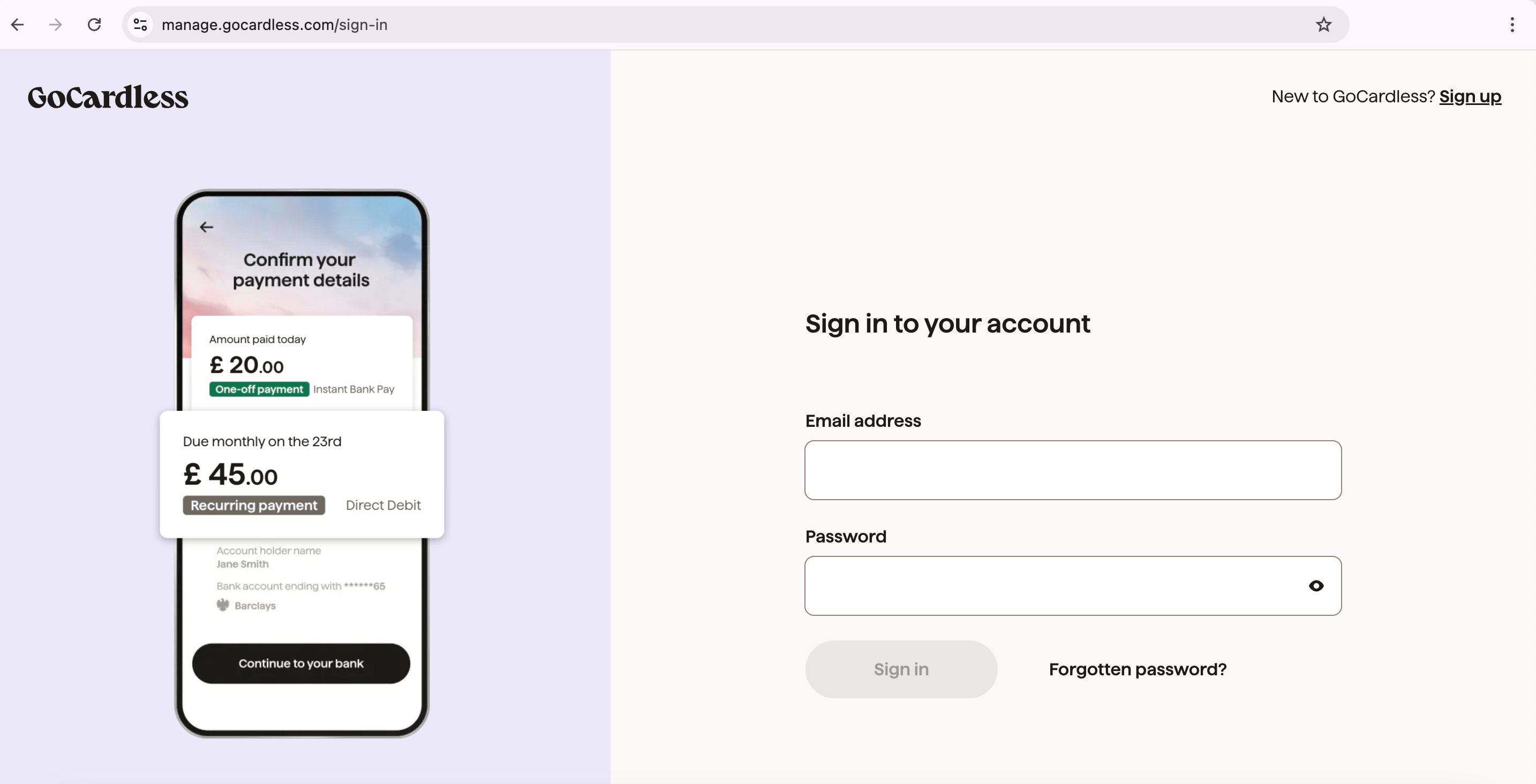
1. Log in to your GoCardless account at [<u>manage.gocardless.com</u>](http://manage.gocardless.com).

<Frame caption="Log into your GoCardless account">
  <img src="https://mintcdn.com/upmind/uxzVUXAKtJ2bRWCI/images/fb/686f0a0eeb26b887.png?fit=max&auto=format&n=uxzVUXAKtJ2bRWCI&q=85&s=2f227956fc4f250c0611c178d694ecaa" alt="Log into your GoCardless account" width="2868" height="1464" data-path="images/fb/686f0a0eeb26b887.png" />
</Frame>

2. Go to the `Developers` section.

3. Click **Create** and select **Access Token**.
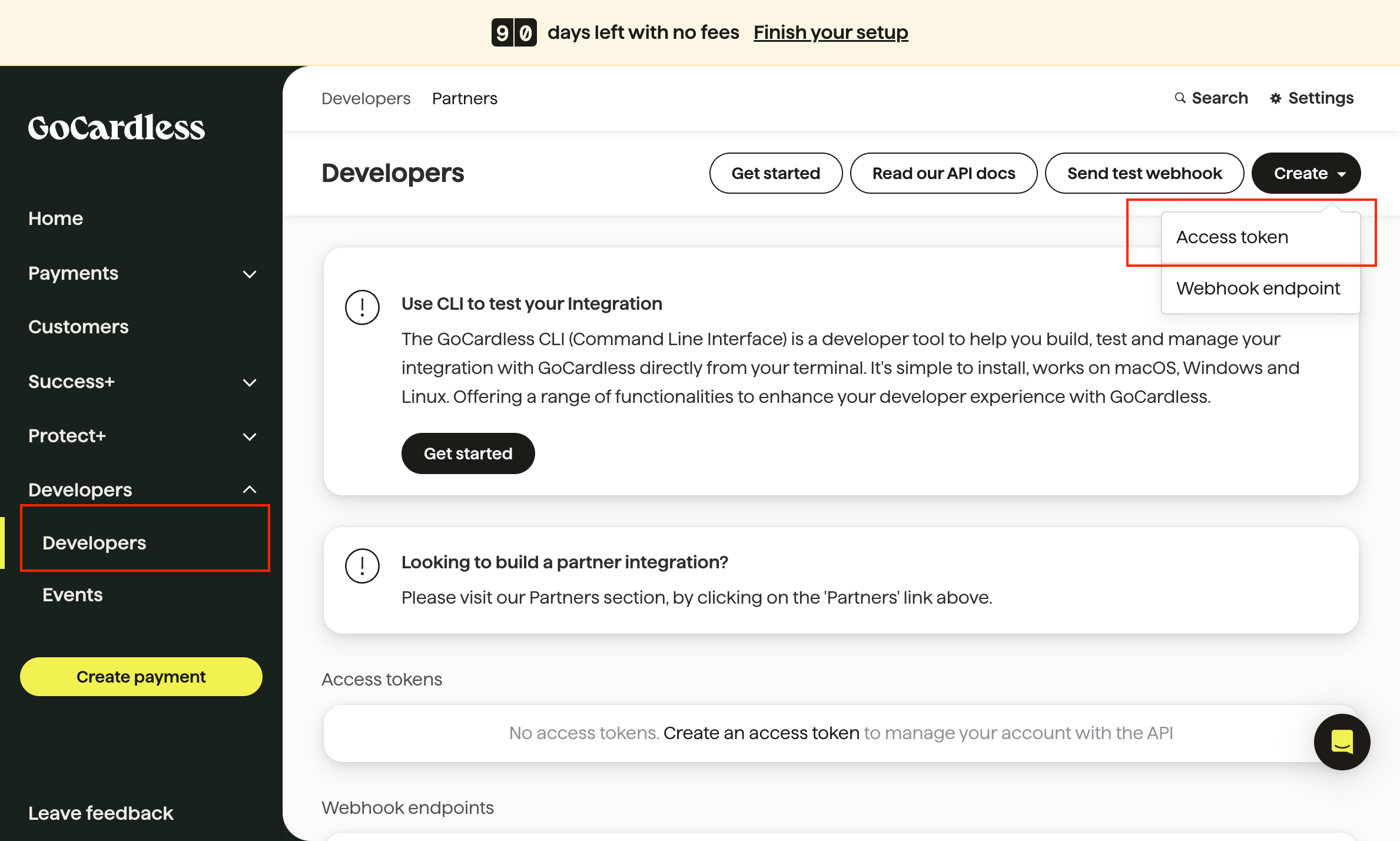
<Frame caption="Developers > Create > Access token">
  <img src="https://mintcdn.com/upmind/z5ofg3t7by4uN44v/images/fb/f44fffa1c28caa88.png?fit=max&auto=format&n=z5ofg3t7by4uN44v&q=85&s=d5415417c4be23c4e097d7f5c037561c" alt="Go to Developers > Create > Access Token" data-og-width="2378" width="2378" data-og-height="1428" height="1428" data-path="images/fb/f44fffa1c28caa88.png" data-optimize="true" data-opv="3" srcset="https://mintcdn.com/upmind/z5ofg3t7by4uN44v/images/fb/f44fffa1c28caa88.png?w=280&fit=max&auto=format&n=z5ofg3t7by4uN44v&q=85&s=c4ed4907311bea8ed549d9816f85ee93 280w, https://mintcdn.com/upmind/z5ofg3t7by4uN44v/images/fb/f44fffa1c28caa88.png?w=560&fit=max&auto=format&n=z5ofg3t7by4uN44v&q=85&s=71473758d504a32ba2d8bbbfa46069d1 560w, https://mintcdn.com/upmind/z5ofg3t7by4uN44v/images/fb/f44fffa1c28caa88.png?w=840&fit=max&auto=format&n=z5ofg3t7by4uN44v&q=85&s=ddc27ebc485ab2d54a4f02864edc625a 840w, https://mintcdn.com/upmind/z5ofg3t7by4uN44v/images/fb/f44fffa1c28caa88.png?w=1100&fit=max&auto=format&n=z5ofg3t7by4uN44v&q=85&s=d920e77ae9cd3a31028579b41adef0fa 1100w, https://mintcdn.com/upmind/z5ofg3t7by4uN44v/images/fb/f44fffa1c28caa88.png?w=1650&fit=max&auto=format&n=z5ofg3t7by4uN44v&q=85&s=11329077f79c882880824404e730a71f 1650w, https://mintcdn.com/upmind/z5ofg3t7by4uN44v/images/fb/f44fffa1c28caa88.png?w=2500&fit=max&auto=format&n=z5ofg3t7by4uN44v&q=85&s=fd1496779a193bcdeb82ca83ad464981 2500w" />
</Frame>

4. Enter a name for your access token and select the appropriate scope:

   1. **Read Only Access**: Allows users to view data without making any changes. Ideal for accessing information without the risk of modification.

   2. **Read-Write Access**: Grants permission to both view and modify data. Required for actions such as creating payments, updating records, or managing customers.
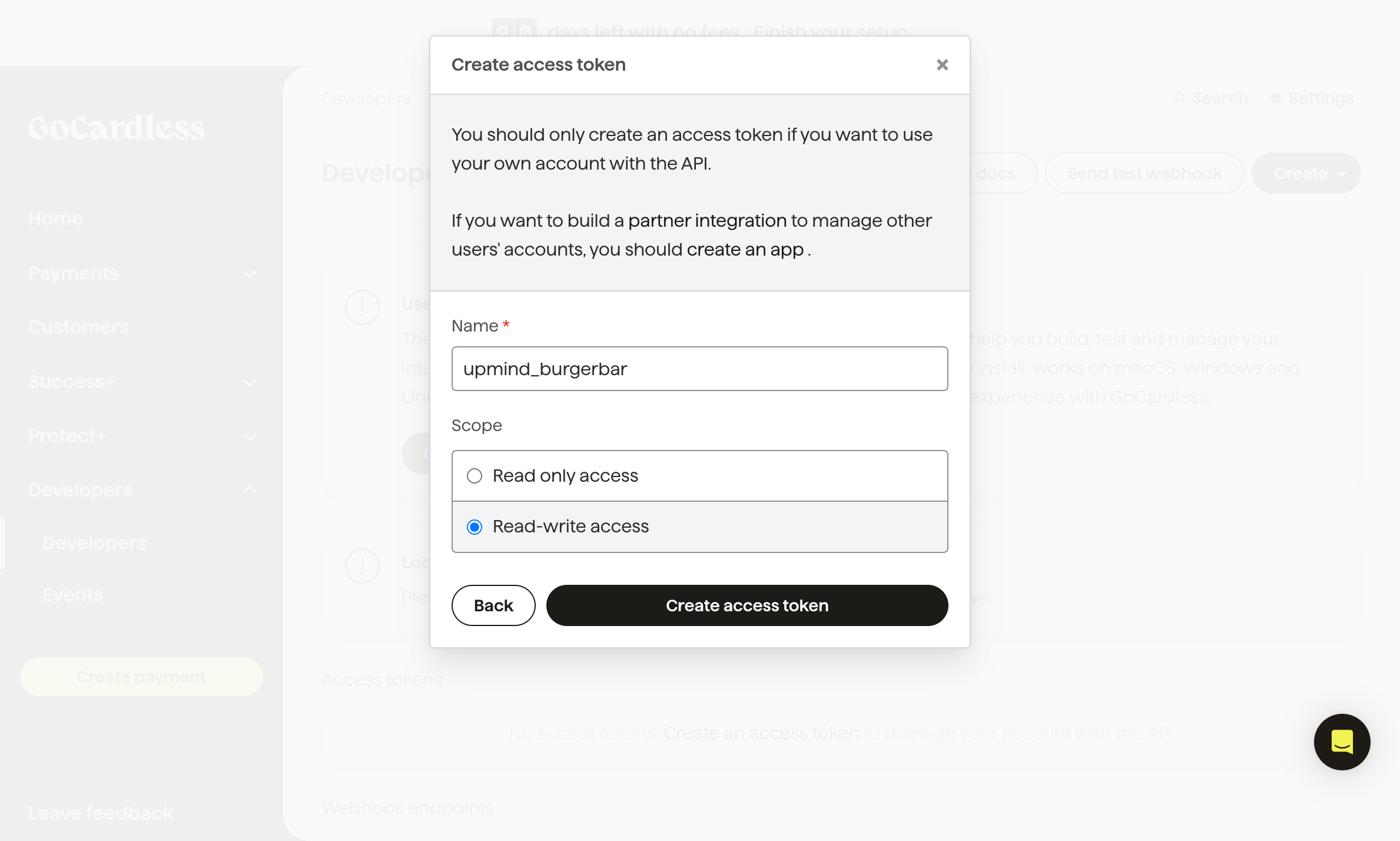
<Frame caption="Name your access token and select the appropriate scope">
  <img src="https://mintcdn.com/upmind/ZsIo0APxdVb_gFS-/images/fb/2c1c9efb2a0f0740.png?fit=max&auto=format&n=ZsIo0APxdVb_gFS-&q=85&s=8606b3c5cca2ef469974726b4cd8822f" alt="Name your access token and select the appropriate scope based on your needs" width="2378" height="1428" data-path="images/fb/2c1c9efb2a0f0740.png" />
</Frame>

5. Click **Create Access Token**.

6. Copy the access token displayed (you will not be able to view this token again, so save it securely).
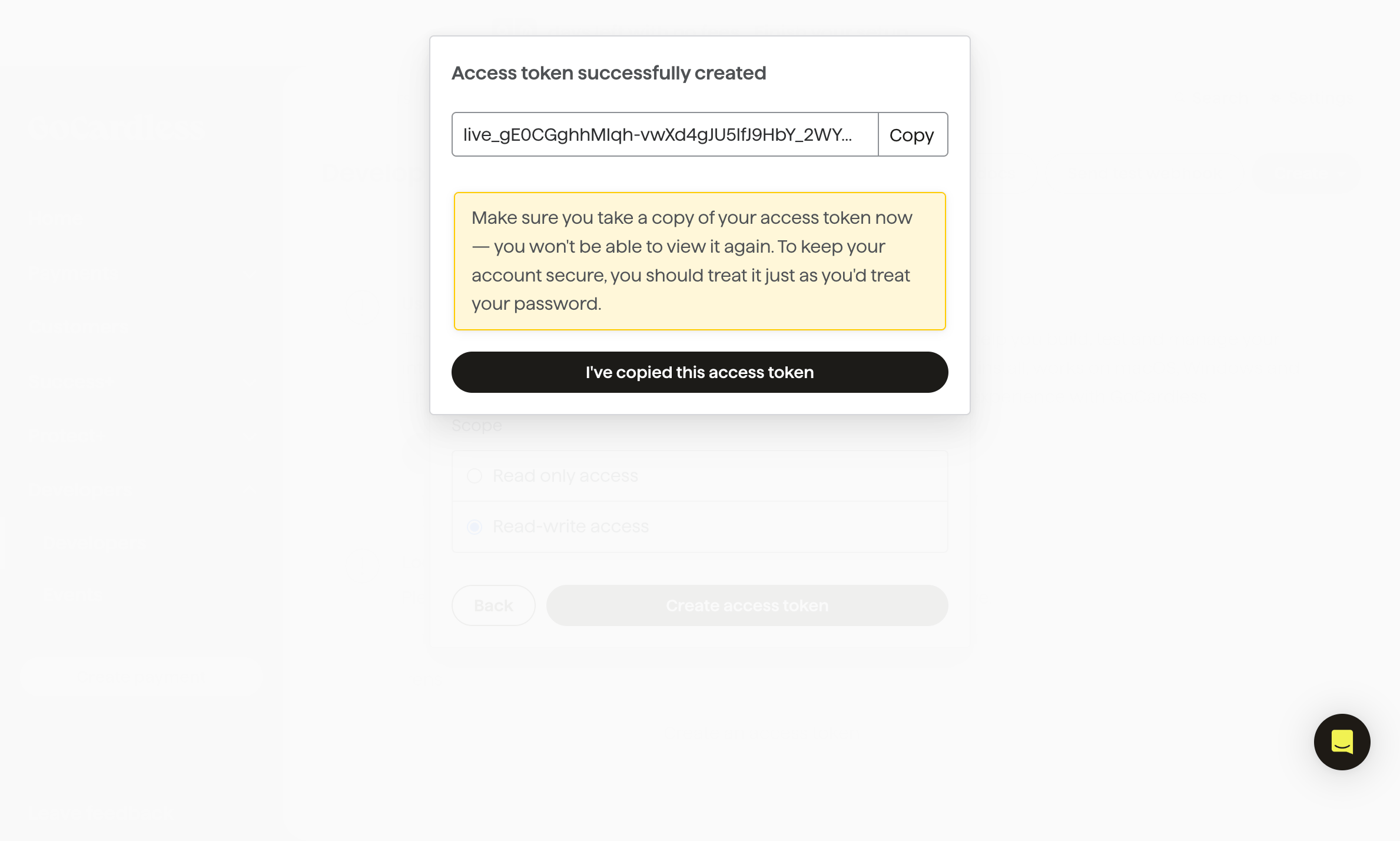
<Frame caption="Copy your new access token">
  <img src="https://mintcdn.com/upmind/h8h5zREaX7k8Y-3x/images/fb/165d31370254571e.png?fit=max&auto=format&n=h8h5zREaX7k8Y-3x&q=85&s=3207e7246938ceefa337eb47f8352255" alt="Click “Create Access Token” and copy your new access token" width="2378" height="1428" data-path="images/fb/165d31370254571e.png" />
</Frame>

7. In Upmind, go to your GoCardless `Payment Provider` settings.

8. Paste the access token into the designated field and click **Save**.
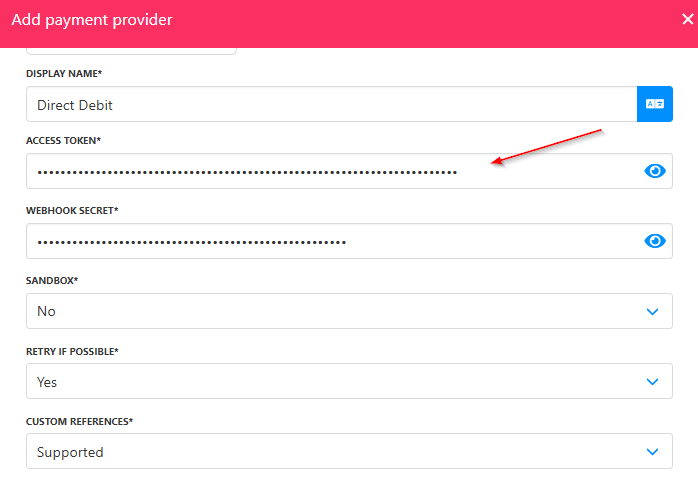
<Frame caption="Paste the access token">
  <img src="https://mintcdn.com/upmind/z5ofg3t7by4uN44v/images/fb/f116971cef43927a.png?fit=max&auto=format&n=z5ofg3t7by4uN44v&q=85&s=f5c426c01eb33b41eb02615b18ceeee9" alt="Paste the access token" width="698" height="477" data-path="images/fb/f116971cef43927a.png" />
</Frame>

## **Setting up the webhook endpoint**

1. Log in to your [<u>GoCardless account</u>](https://manage.gocardless.com/) and go to the `Developers` section.

2. Click **Create** and select `Webhook endpoint`.
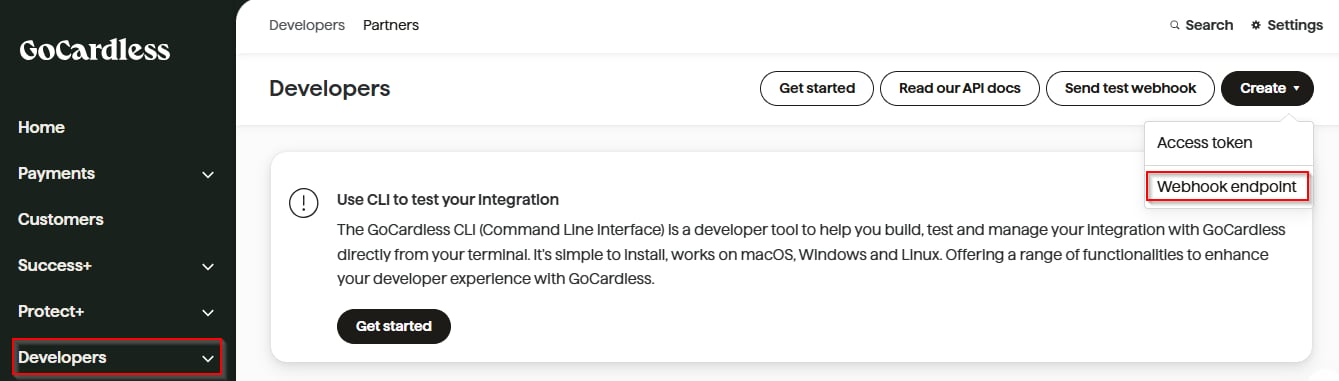
<Frame caption="Developers > Create > Webhook endpoint">
  <img src="https://mintcdn.com/upmind/ObllJJl59DabnmMn/images/fb/c9951098b3187e65.png?fit=max&auto=format&n=ObllJJl59DabnmMn&q=85&s=1517c273966245fa249f1b9dd9cdff5f" alt="Developers > Create > Webhook endpoint" data-og-width="1339" width="1339" data-og-height="381" height="381" data-path="images/fb/c9951098b3187e65.png" data-optimize="true" data-opv="3" srcset="https://mintcdn.com/upmind/ObllJJl59DabnmMn/images/fb/c9951098b3187e65.png?w=280&fit=max&auto=format&n=ObllJJl59DabnmMn&q=85&s=e4659d56fca698024fdeecc6dc0adf99 280w, https://mintcdn.com/upmind/ObllJJl59DabnmMn/images/fb/c9951098b3187e65.png?w=560&fit=max&auto=format&n=ObllJJl59DabnmMn&q=85&s=faf8a86cd3d32c4d22ac6362e0d0f6d8 560w, https://mintcdn.com/upmind/ObllJJl59DabnmMn/images/fb/c9951098b3187e65.png?w=840&fit=max&auto=format&n=ObllJJl59DabnmMn&q=85&s=2de1b6ef17455c4fe46d8854b6da9be6 840w, https://mintcdn.com/upmind/ObllJJl59DabnmMn/images/fb/c9951098b3187e65.png?w=1100&fit=max&auto=format&n=ObllJJl59DabnmMn&q=85&s=f9aefe0e1b376a6513e11db3bea909f6 1100w, https://mintcdn.com/upmind/ObllJJl59DabnmMn/images/fb/c9951098b3187e65.png?w=1650&fit=max&auto=format&n=ObllJJl59DabnmMn&q=85&s=b2aeefd4ef3930fa9633c560c8c61e11 1650w, https://mintcdn.com/upmind/ObllJJl59DabnmMn/images/fb/c9951098b3187e65.png?w=2500&fit=max&auto=format&n=ObllJJl59DabnmMn&q=85&s=5fedaa2b95d4ae52eec2103dff0ac5e1 2500w" />
</Frame>

3. Enter a name for the webhook.

4. Set the URL to: [<u>https://api.upmind.io/payments/gocardless/callback</u>](https://api.upmind.io/payments/gocardless/callback).

5. Leave the **Secret** field blank (GoCardless will generate a secure secret for you).

6. Click **Create Webhook Endpoint**.
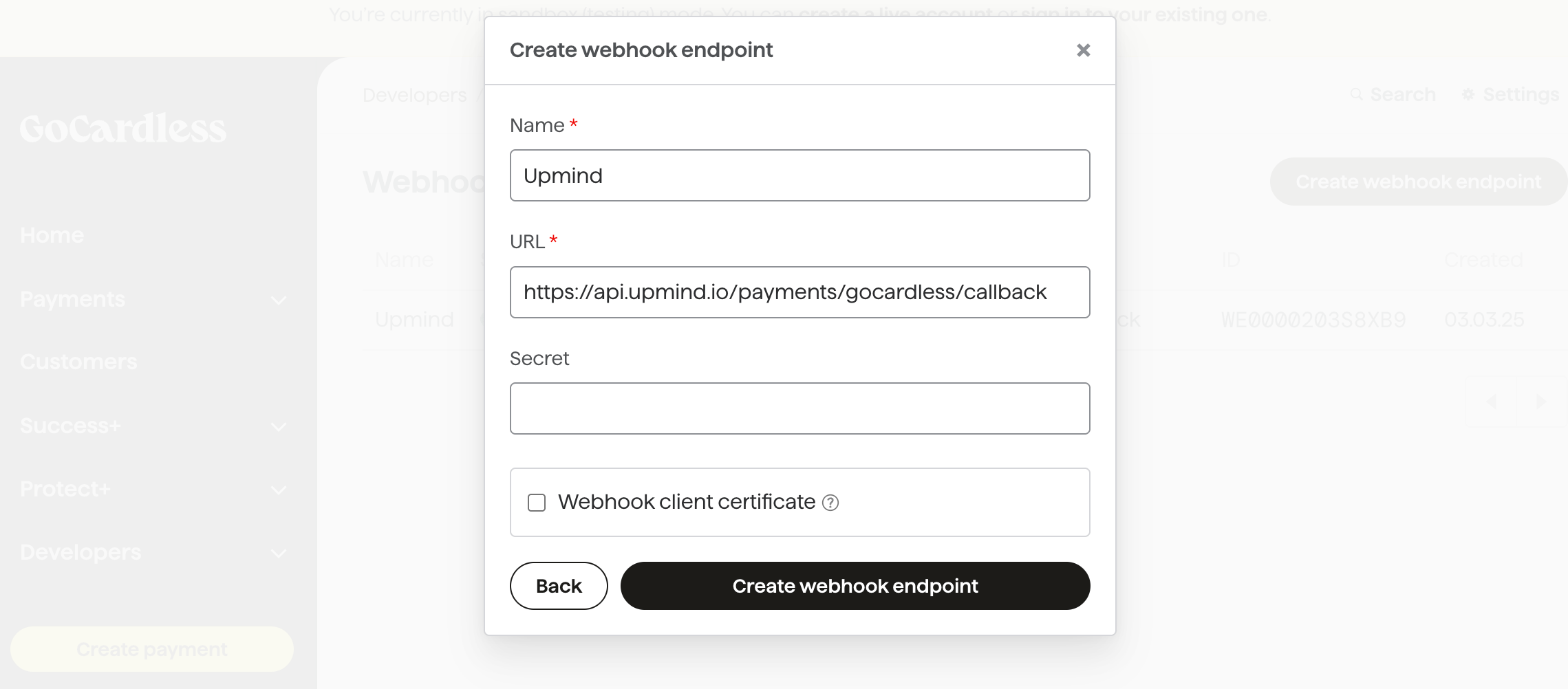
<Frame caption="Fill the input fields">
  <img src="https://mintcdn.com/upmind/1xguIfYUrfespmVI/images/fb/86acc27d2a779c54.png?fit=max&auto=format&n=1xguIfYUrfespmVI&q=85&s=73dc6917bd831a7973db9410d85bb852" alt="980" width="2279" height="1002" data-path="images/fb/86acc27d2a779c54.png" />
</Frame>

7. After creation, click on the new webhook endpoint to view its details.

<Frame caption="New webhook endpoint">
  <img src="https://mintcdn.com/upmind/c5sDUwEs8YpzGbjA/images/fb/94fe41f842e3659f.png?fit=max&auto=format&n=c5sDUwEs8YpzGbjA&q=85&s=12ac5d5d43416fac5a03ed881f70e365" alt="New webhook endpoint" width="1085" height="215" data-path="images/fb/94fe41f842e3659f.png" />
</Frame>

8. Copy the **Secret** generated by GoCardless.
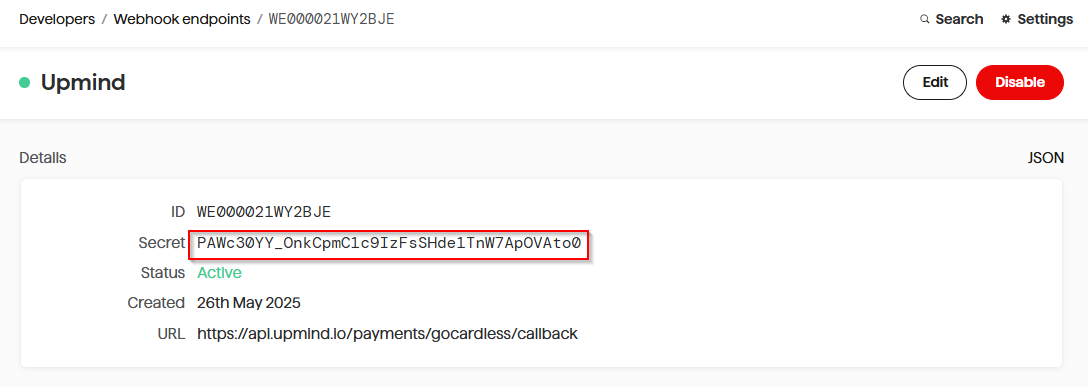
<Frame caption="Copy webhook secret">
  <img src="https://mintcdn.com/upmind/FQ1NhxALxjSHvvWW/images/fb/af93221ac023f25e.png?fit=max&auto=format&n=FQ1NhxALxjSHvvWW&q=85&s=a7054b4fc13c858594873a694a038726" alt="Copy webhook secret" width="1088" height="387" data-path="images/fb/af93221ac023f25e.png" />
</Frame>

9. In Upmind, paste the webhook secret into your GoCardless `Payment Provider` settings and click **Save**.
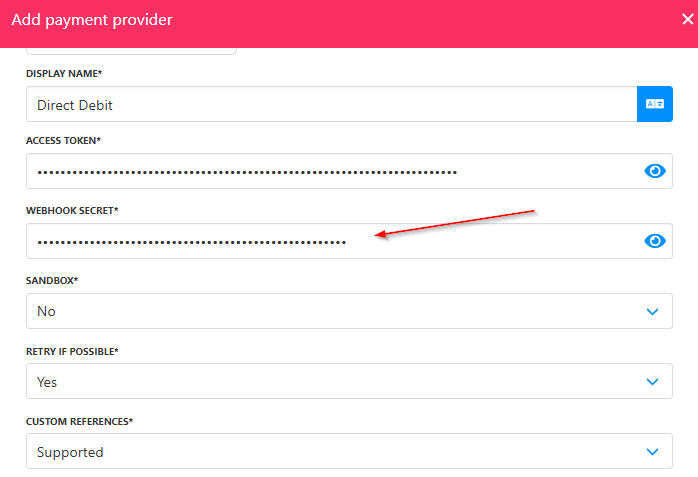
<Frame caption="Paste the webhook secret">
  <img src="https://mintcdn.com/upmind/FQ1NhxALxjSHvvWW/images/fb/b4c16f360517cf9d.png?fit=max&auto=format&n=FQ1NhxALxjSHvvWW&q=85&s=8e85fb2f0a01c3d168b752cbb0fe8e58" alt="Paste the webhook secret" width="698" height="477" data-path="images/fb/b4c16f360517cf9d.png" />
</Frame>