> ## Documentation Index
> Fetch the complete documentation index at: https://docs.upmind.com/llms.txt
> Use this file to discover all available pages before exploring further.
# How to Create a Basic Promotion Code
> Discount code for all items
Create a basic promotion code that your customers can use for all products, services, and price lists. You also create an optional mandatory product which is a required purchase before Upmind applies the promo code discount.
Upmind offers two types of discounts.
* For a [group discount](/using-upmind/marketing-tools/how-to-create-a-promo-code-for-a-group-of), create a single code that applies to multiple items.
* For an [advanced discount](/using-upmind/marketing-tools/how-to-create-an-advanced-promo-code), create a single code that applies a different discount to different products.
## Opening the Promotions page
1. Log in to your Upmind account.
2. Click Settings.
3. Click the Promotions tile.
4. On the next page, click the Add promotion button.
## Setting promotion details
Fill fields and customise options on the Add promotion page.
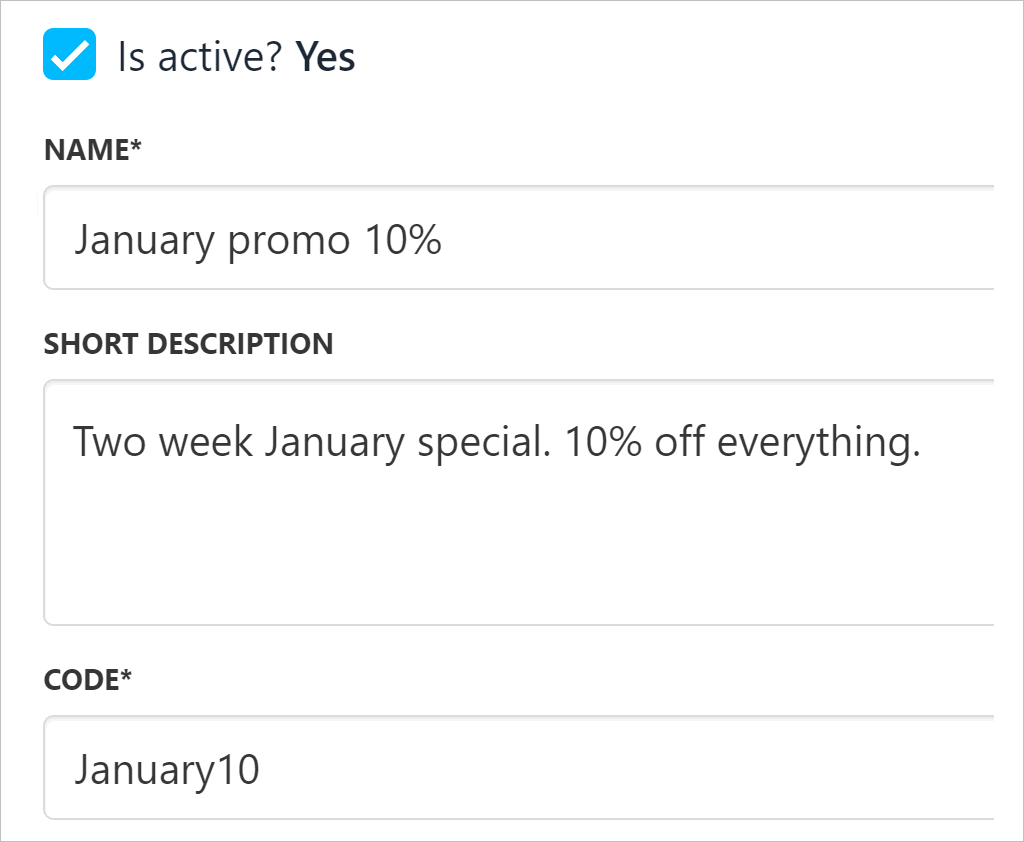
1. Check the box to activate the promotion code.
2. Enter a name for the promotion.
3. Enter a brief description.
4. Enter a code.
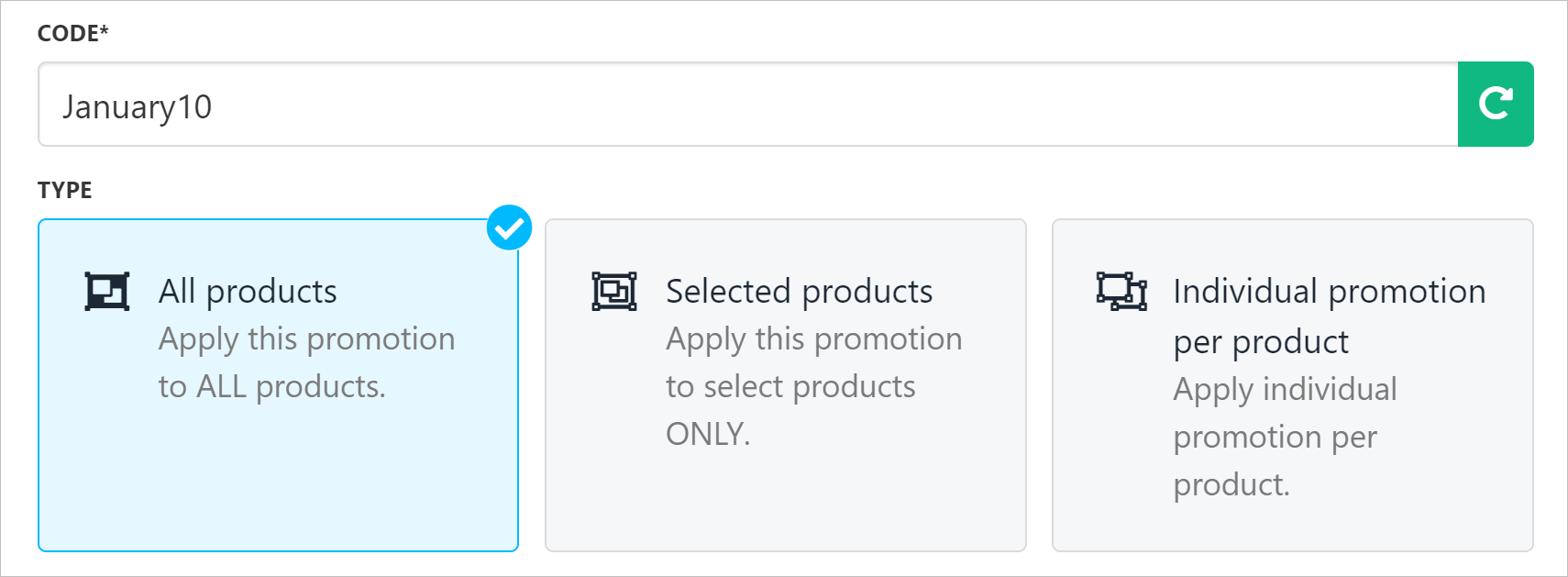
 5. Click the All products tile.
 ## Setting the discount and conditions
Customise the settings.
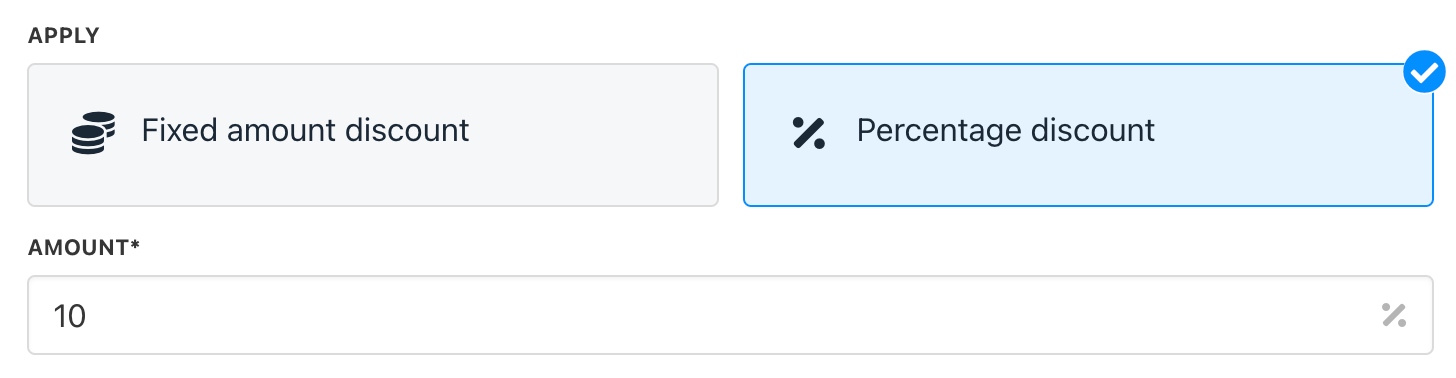
1. Select a discount type: fixed amount or percentage.
2. Enter a discount value.
## Setting the discount and conditions
Customise the settings.
1. Select a discount type: fixed amount or percentage.
2. Enter a discount value.
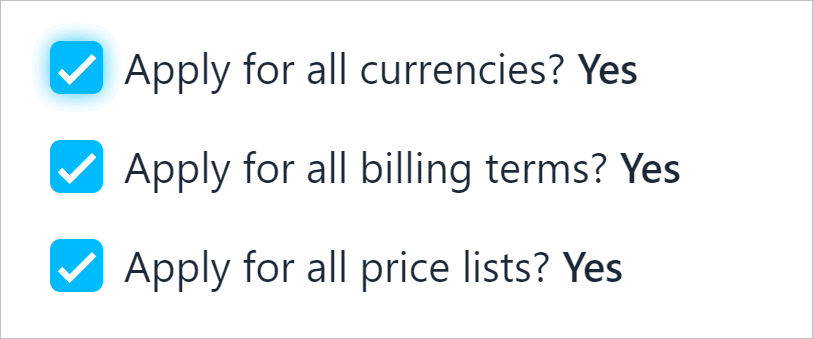
 3. Check or uncheck boxes as required. If you uncheck a box, select an option in the drop-down menu.
 ## Adding a mandatory product
You can make promotion codes conditional upon the purchase of one or more mandatory products.
For example, a 10% discount on any product is not valid unless the customer adds a bag of coffee beans (the mandatory product) to the basket.
1. Under the Mandatory products heading, click the Manage products button.
2. Click Attach new products.
3. Complete the workflow to add a product or service.
## Setting availability and eligibility
Scroll down the page and set the conditions for all items attached to this promotion code.
1. Set the start and end dates.
2. Check the maximum number of uses (all clients). The default is Unlimited.
3. Select Single or Multiple if you want to limit the number of times this code can be used by all clients. (optional)
4. Check the maximum number of times an individual client can use the promo code. The default is Unlimited.
5. Select Single or Multiple if you want to limit the number of times this code can be used by any client. (optional)
6. Review the Recurring count option.
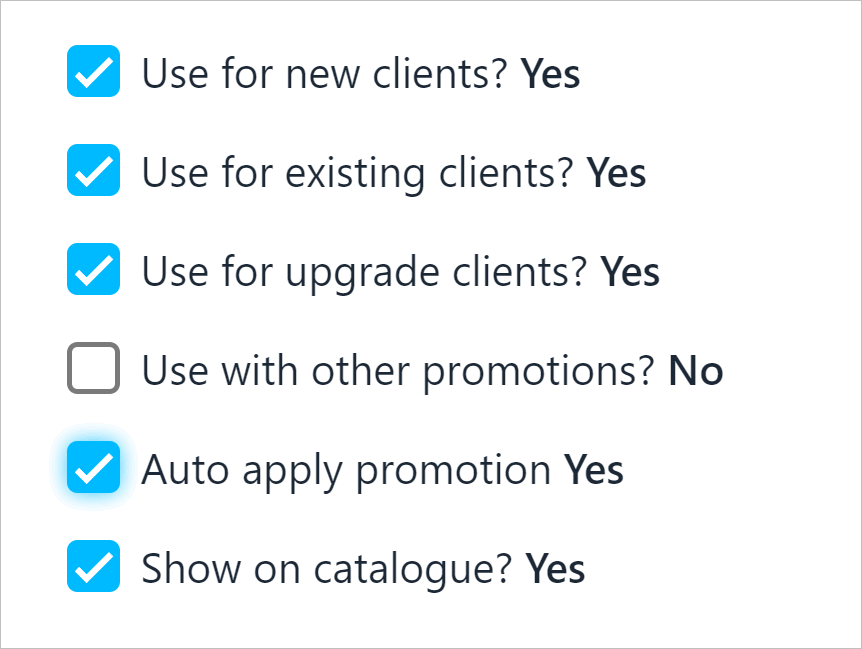
7. Review the checkboxes and customise as required.
8. Click Save.
## Adding a mandatory product
You can make promotion codes conditional upon the purchase of one or more mandatory products.
For example, a 10% discount on any product is not valid unless the customer adds a bag of coffee beans (the mandatory product) to the basket.
1. Under the Mandatory products heading, click the Manage products button.
2. Click Attach new products.
3. Complete the workflow to add a product or service.
## Setting availability and eligibility
Scroll down the page and set the conditions for all items attached to this promotion code.
1. Set the start and end dates.
2. Check the maximum number of uses (all clients). The default is Unlimited.
3. Select Single or Multiple if you want to limit the number of times this code can be used by all clients. (optional)
4. Check the maximum number of times an individual client can use the promo code. The default is Unlimited.
5. Select Single or Multiple if you want to limit the number of times this code can be used by any client. (optional)
6. Review the Recurring count option.
7. Review the checkboxes and customise as required.
8. Click Save.
 ## Editing a promotion
To modify a promotion:
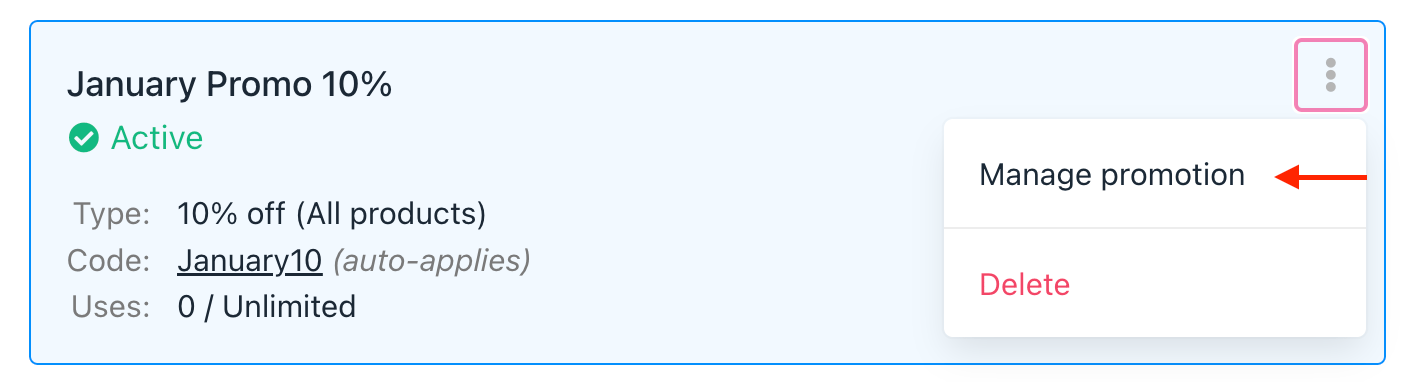
1. Open the Promotions page.
2. Click the three dots.
3. Click Manage promotion.
4. Make changes.
5. Click Save.
## Editing a promotion
To modify a promotion:
1. Open the Promotions page.
2. Click the three dots.
3. Click Manage promotion.
4. Make changes.
5. Click Save.
 ## Removing a promotion
To delete a promotion:
1. Open the Promotions page.
2. Click the three dots.
3. Click Delete.
4. Enter the number in the confirmation pop-up window.
5. Click Delete.
## Tracking promo code use
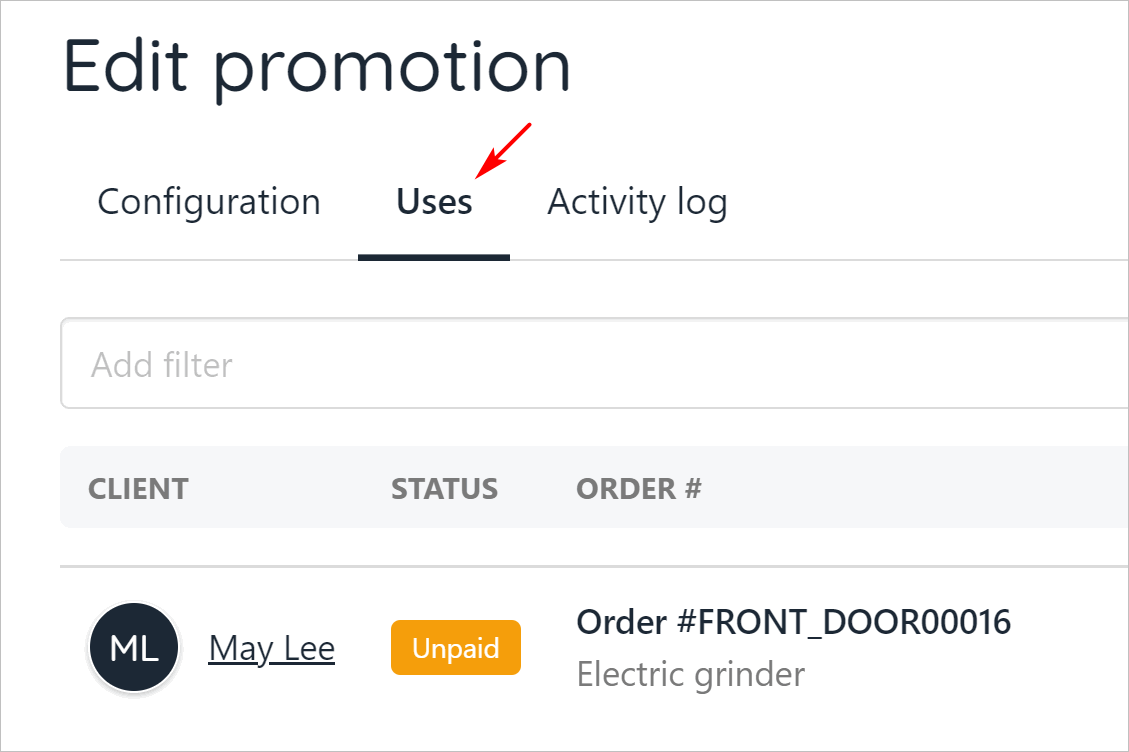
1. Go to the Edit promotion page.
2. Click the Uses menu tab.
3. Upmind shows the clients who have used the code.
## Removing a promotion
To delete a promotion:
1. Open the Promotions page.
2. Click the three dots.
3. Click Delete.
4. Enter the number in the confirmation pop-up window.
5. Click Delete.
## Tracking promo code use
1. Go to the Edit promotion page.
2. Click the Uses menu tab.
3. Upmind shows the clients who have used the code.
 ## Customer view
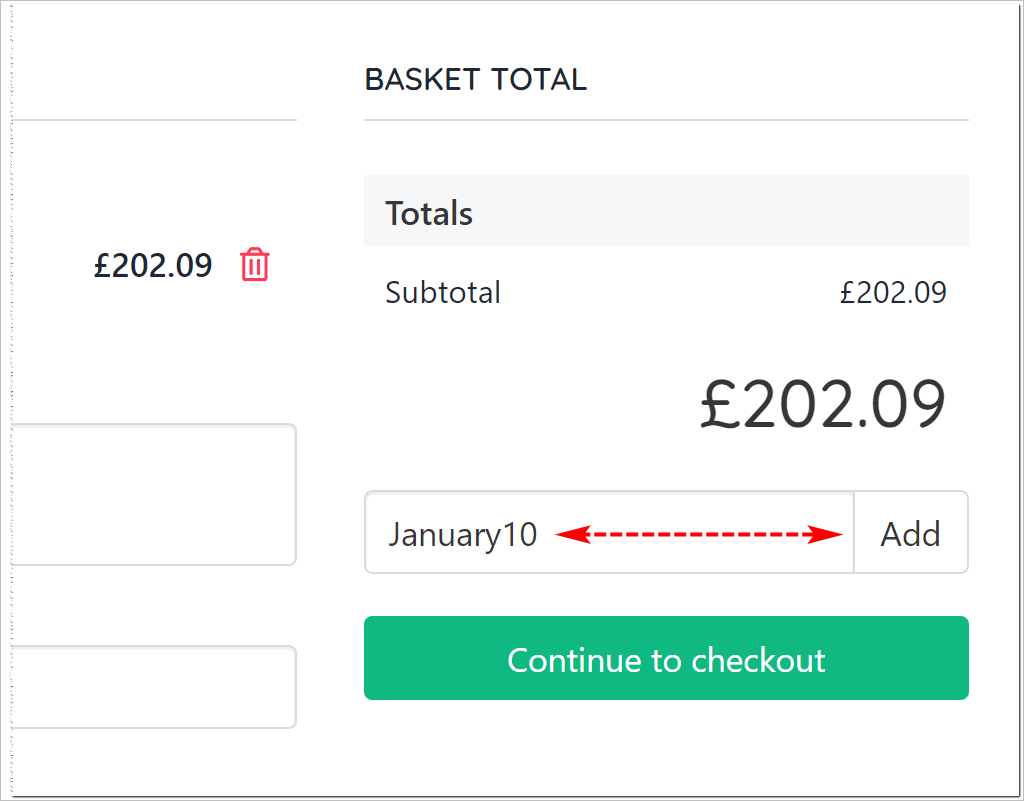
Upmind applies the discount at the checkout.
* If you enable the auto-apply option, the discount is applied automatically.
## Customer view
Upmind applies the discount at the checkout.
* If you enable the auto-apply option, the discount is applied automatically.
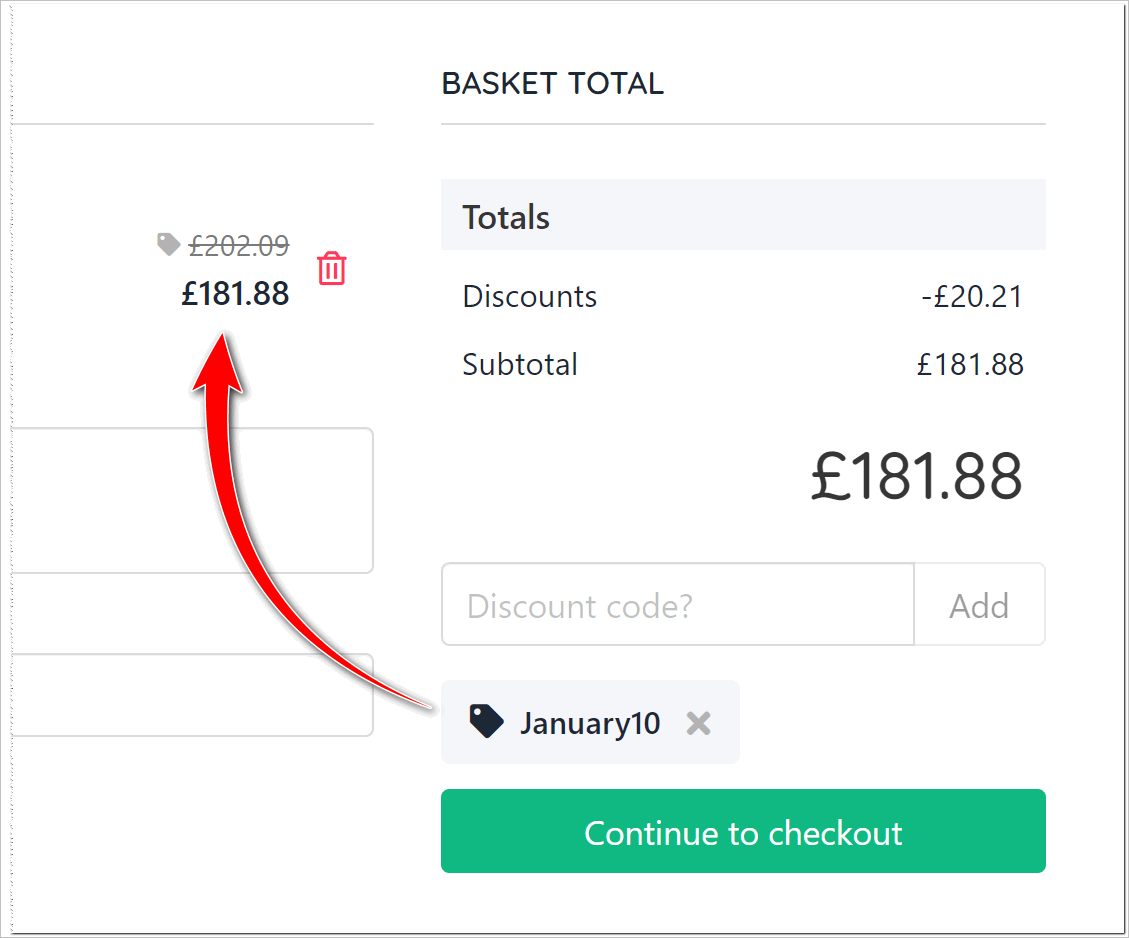 * If you disable the auto-apply option, the customer must enter the discount code and click the Add button.