> ## Documentation Index
> Fetch the complete documentation index at: https://docs.upmind.com/llms.txt
> Use this file to discover all available pages before exploring further.
# How to Use Order Templates
Choose this template option if you want to automatically generate an order for a specific product when a website visitor creates a new store account.
To illustrate the potential value of an order template, here are two possible use cases:
* A VPN reseller provides two months of service for free when a website visitor creates an account.
* A newsletter publisher gives each new account holder a two-month free trial subscription.
## Creating an order template
The first step is to select an order (or basket line item) for the target product. This order serves as the baseline for the template.
* If you don't have an order in your system for the target product, create a test order with a dummy client account. It's not necessary to process a payment - simply create an order in the basket.
1. Go to the admin dashboard.
2. Click the **Products & services** tab on the side menu.
3. Locate your target product and click the tile.
4. Click the **Invoices** menu tab.
5. On the next page, click an invoice.
6. On the next page, click **Create order template**. A new side panel displays.
### Adding template details
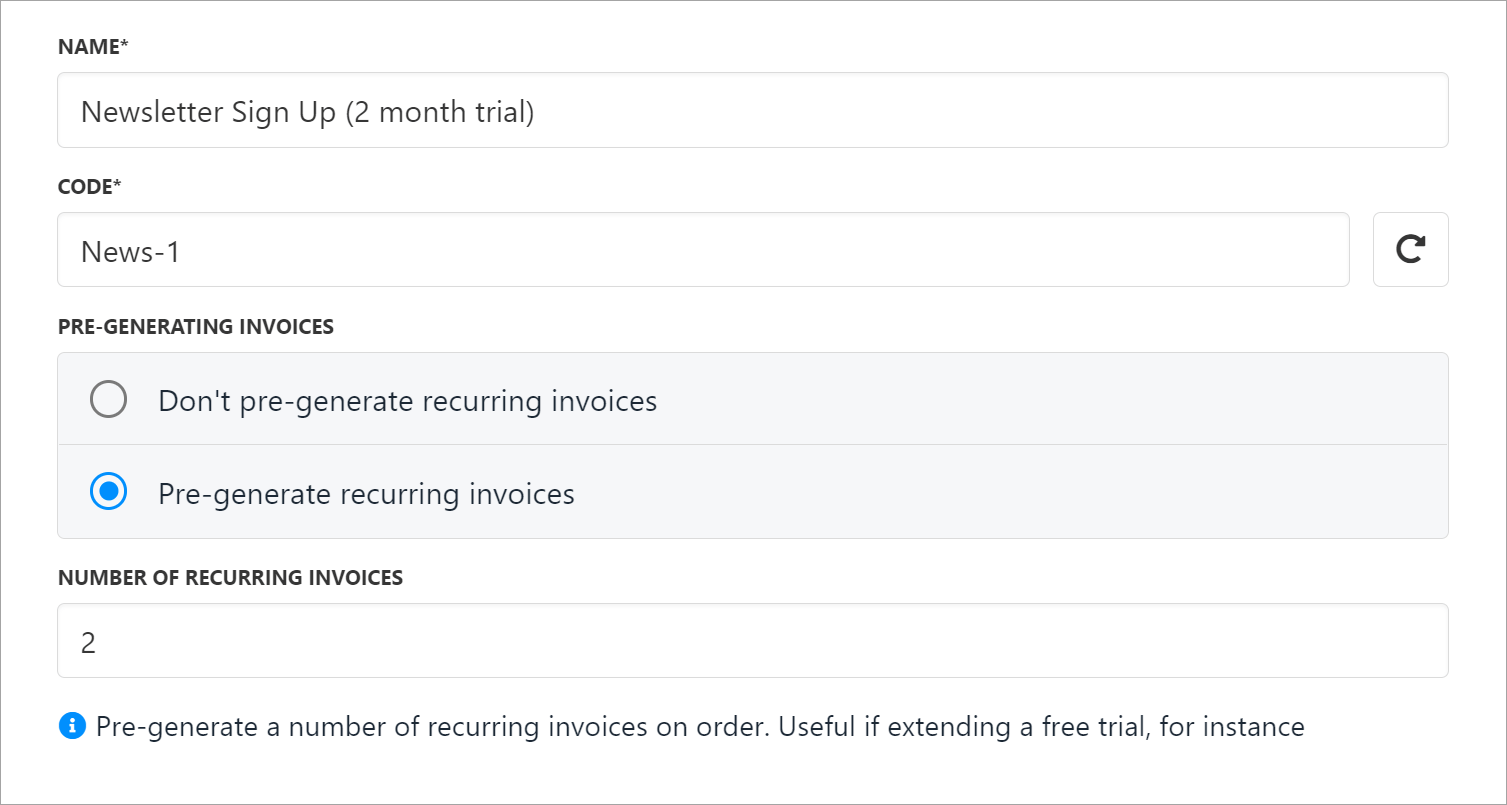
On the side panel page, enter a unique template name. In the **Code** field, enter a unique identifier (useful if you integrate an API with the order template).
Click the radio button that matches your target product and then click **Save**.
**Options**
Select the first radio button if you're creating a template for a one-off item.
Select the second radio button (Pre-generate recurring invoices) if this is a recurring product. Enter the number of invoices that Upmind should generate for the new account. This feature is useful if you are creating an order with a discount code that applies for a number of months.
* For example, if you offer a 60-day free trial, you would add a 100% discount for two months, then auto-generate two recurring invoices (as the screenshot below shows).
 ### Editing an order template
After you click Save, the **Order templates** page displays. Here you can update or delete an order template.
* To make changes, locate the template you want to edit and click **Manage template**.
* To remove a template, click the ellipsis and select **Delete**. You can also click **Update** to open the template editor.
### Editing an order template
After you click Save, the **Order templates** page displays. Here you can update or delete an order template.
* To make changes, locate the template you want to edit and click **Manage template**.
* To remove a template, click the ellipsis and select **Delete**. You can also click **Update** to open the template editor.
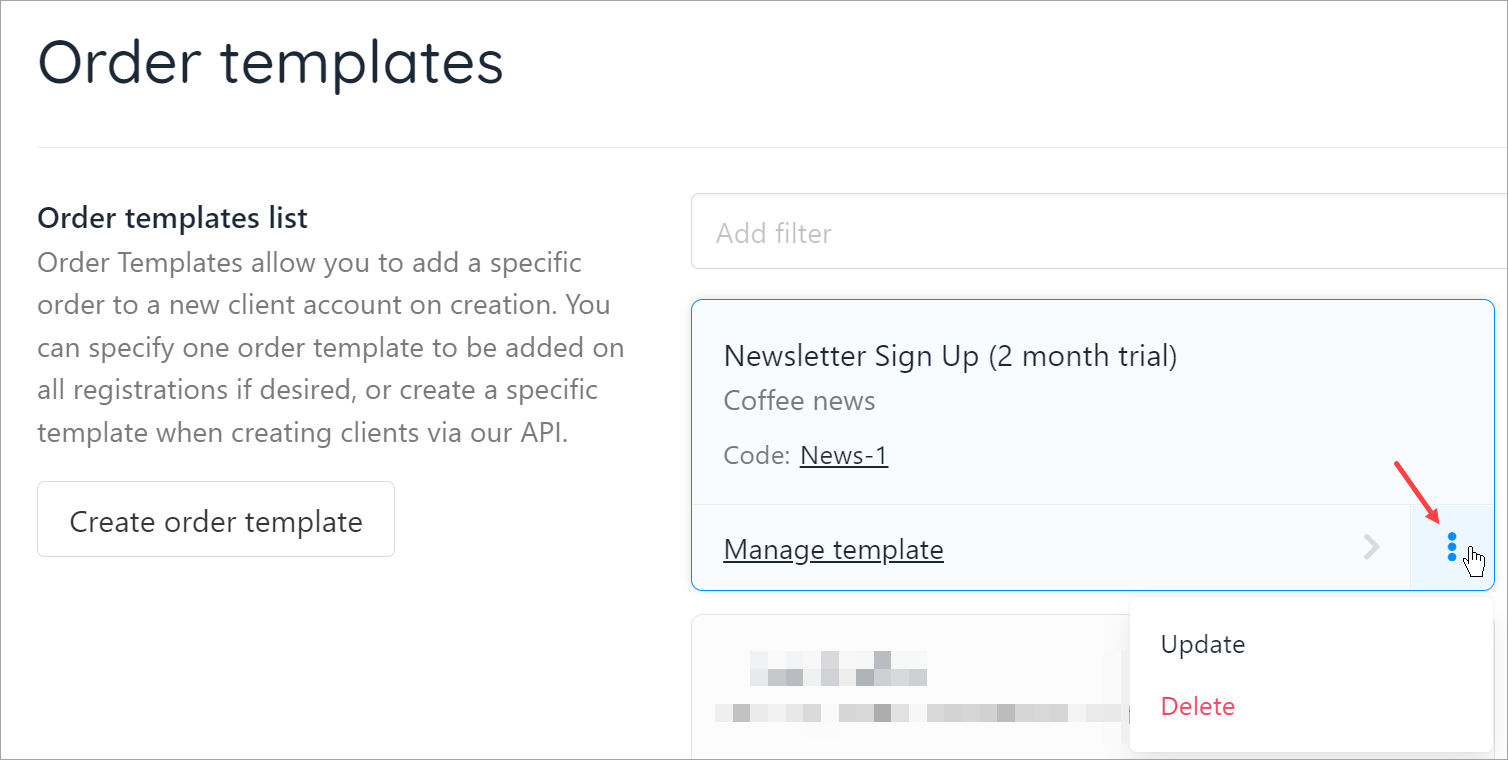 You can always return to the **Order templates** page at a later date to make changes.
1. Log in to the admin dashboard.
2. Click Settings.
3. Click the **Order templates** tile under the Ecommerce Settings heading.
## Enabling an order template
The next step is to activate the order template so that when a website visitor creates an account, Upmind automatically creates a new order. In this example, Upmind creates an order for a newsletter subscription that comes with a two-month free trial.
1. Log in to the admin dashboard.
2. Click Settings.
3. Click the **Order options** tile under the Ecommerce Settings heading.
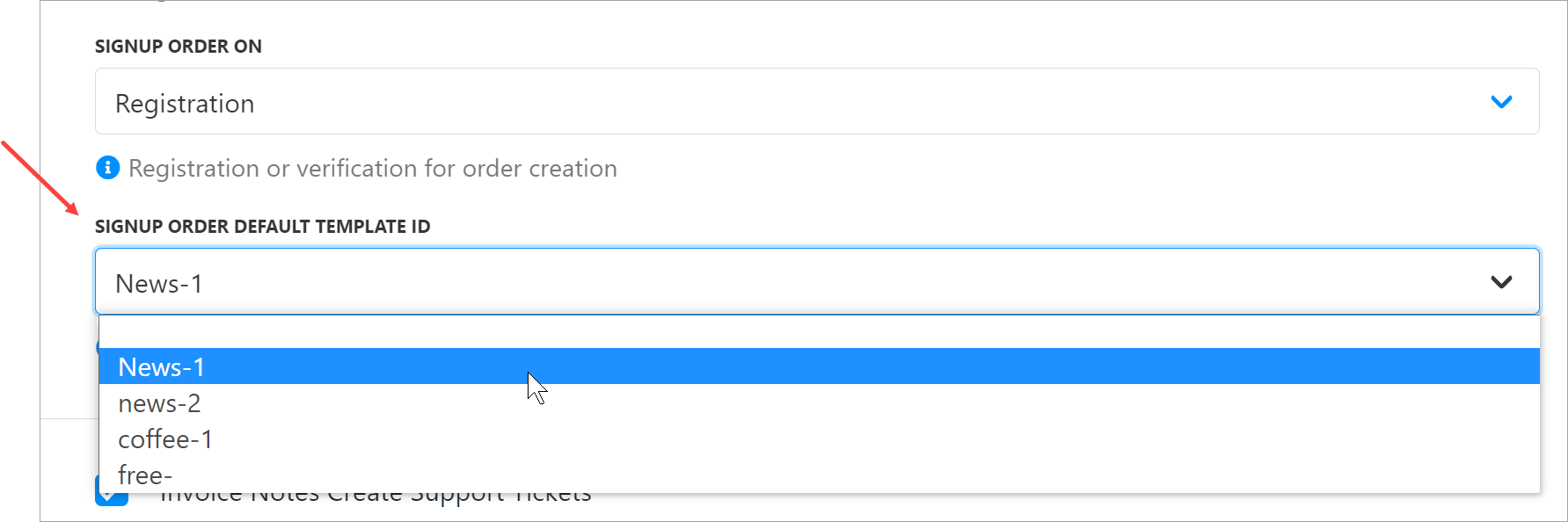
4. On the next page, scroll down to the SIGN UP ORDER DEFAULT TEMPLATE ID heading.
5. Click the field to open the drop-down menu. The menu shows the code name for each available order template.
6. Select the correct order template code name.
7. Click Save.
You can always return to the **Order templates** page at a later date to make changes.
1. Log in to the admin dashboard.
2. Click Settings.
3. Click the **Order templates** tile under the Ecommerce Settings heading.
## Enabling an order template
The next step is to activate the order template so that when a website visitor creates an account, Upmind automatically creates a new order. In this example, Upmind creates an order for a newsletter subscription that comes with a two-month free trial.
1. Log in to the admin dashboard.
2. Click Settings.
3. Click the **Order options** tile under the Ecommerce Settings heading.
4. On the next page, scroll down to the SIGN UP ORDER DEFAULT TEMPLATE ID heading.
5. Click the field to open the drop-down menu. The menu shows the code name for each available order template.
6. Select the correct order template code name.
7. Click Save.
 ## What the customer sees
## Calling the order template by default
There are two ways to trigger this order template.
First you can call it on the client registration API command. Simply pass `order_template_code` as a parameter when registering a new client.
PHP
```
$res = $client->request('post', 'https://api.upmind.io/api/clients/register', [
'form_params' => [
'firstname' => $post['name'],
'lastname' => $post['lastname'],
'email' => $post['email'],
'order_template_code' => 'myexampleorder',
]
]);
```
JavaScript
```
var xhr = new XMLHttpRequest();
xhr.open("POST", "https://api.upmind.io/api/clients/register", true);
//Send the proper header information along with the request
xhr.setRequestHeader("Content-Type", "application/x-www-form-urlencoded");
xhr.onreadystatechange = function() { // Call a function when the state changes.
if (this.readyState === XMLHttpRequest.DONE && this.status === 200) {
// Request finished. Do processing here.
}
}
xhr.send("firstname=First&lastname=Last&email=me@email.com&order_template_code=myexampleorder");
```
Second, you can have this order placed with every single new client by going to `settings` > `order options`.
| **Field name** | **Description** |
| -------------------------------- | ---------------------------------------------------------------------------------------------------------------------------------------------------------------------------------- |
| Signup order on | This defines when the order is placed in the client account. Registration - when the client fills out the registration form. Verification - once they have verified their email. |
| Signup order default template ID | If you want to auto-create an order for every new client, the code of that order (e.g. myexampleorder) |
## What the customer sees
## Calling the order template by default
There are two ways to trigger this order template.
First you can call it on the client registration API command. Simply pass `order_template_code` as a parameter when registering a new client.
PHP
```
$res = $client->request('post', 'https://api.upmind.io/api/clients/register', [
'form_params' => [
'firstname' => $post['name'],
'lastname' => $post['lastname'],
'email' => $post['email'],
'order_template_code' => 'myexampleorder',
]
]);
```
JavaScript
```
var xhr = new XMLHttpRequest();
xhr.open("POST", "https://api.upmind.io/api/clients/register", true);
//Send the proper header information along with the request
xhr.setRequestHeader("Content-Type", "application/x-www-form-urlencoded");
xhr.onreadystatechange = function() { // Call a function when the state changes.
if (this.readyState === XMLHttpRequest.DONE && this.status === 200) {
// Request finished. Do processing here.
}
}
xhr.send("firstname=First&lastname=Last&email=me@email.com&order_template_code=myexampleorder");
```
Second, you can have this order placed with every single new client by going to `settings` > `order options`.
| **Field name** | **Description** |
| -------------------------------- | ---------------------------------------------------------------------------------------------------------------------------------------------------------------------------------- |
| Signup order on | This defines when the order is placed in the client account. Registration - when the client fills out the registration form. Verification - once they have verified their email. |
| Signup order default template ID | If you want to auto-create an order for every new client, the code of that order (e.g. myexampleorder) |