> ## Documentation Index
> Fetch the complete documentation index at: https://docs.upmind.com/llms.txt
> Use this file to discover all available pages before exploring further.
# How to Change Subscription Invoice Settings
> Edit due dates, payment methods, and more
This article shows Admins and store staff how to manage invoice settings for a client subscription. You can:
* pay invoices
* issue credit notes or refunds
* change due dates
## Opening a client subscription page
1. Log in to Upmind.
2. Click Products & Services on the left menu.
3. Make sure the Subscriptions menu tab is selected.
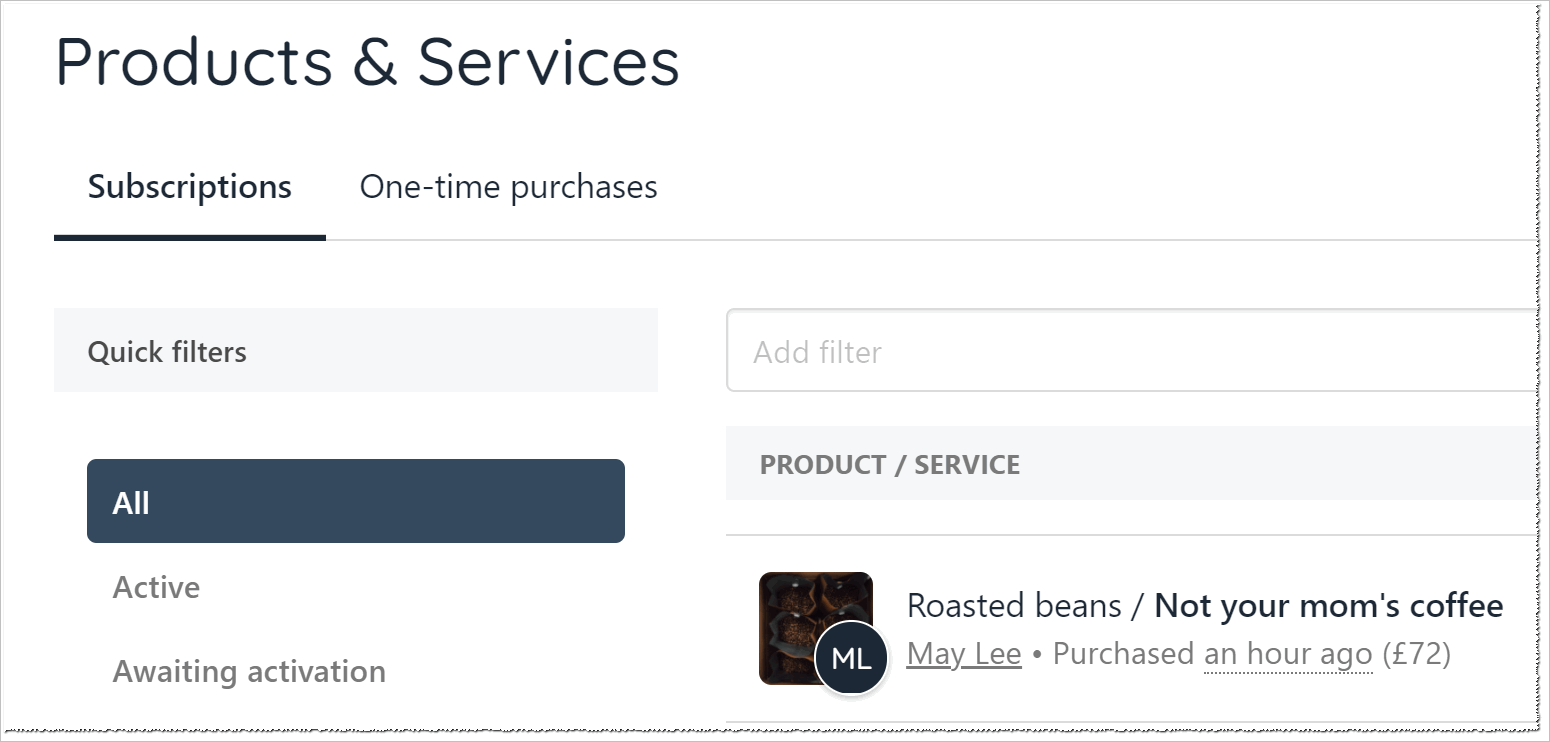 4. Scroll through the list and click the client subscription you want to review or modify. The Overview page displays.
## Managing invoices
1. Click the Invoices menu tab.
2. Click the invoice you want to review or modify.
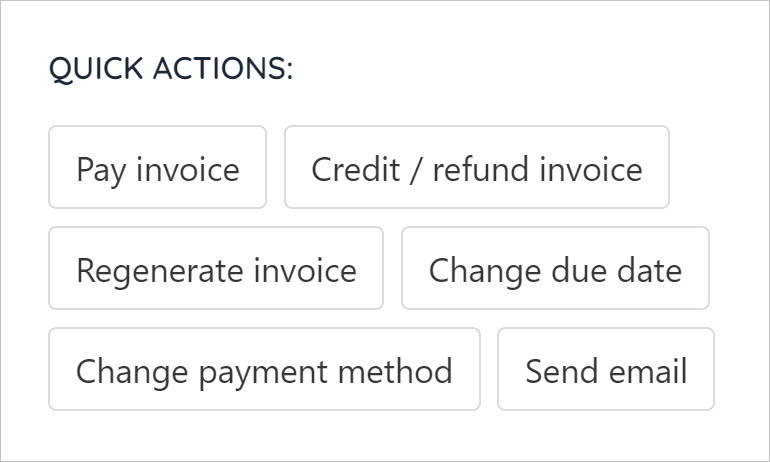
3. Scroll down the page and locate the QUICK ACTIONS heading.
4. Scroll through the list and click the client subscription you want to review or modify. The Overview page displays.
## Managing invoices
1. Click the Invoices menu tab.
2. Click the invoice you want to review or modify.
3. Scroll down the page and locate the QUICK ACTIONS heading.
 ### Paying invoices
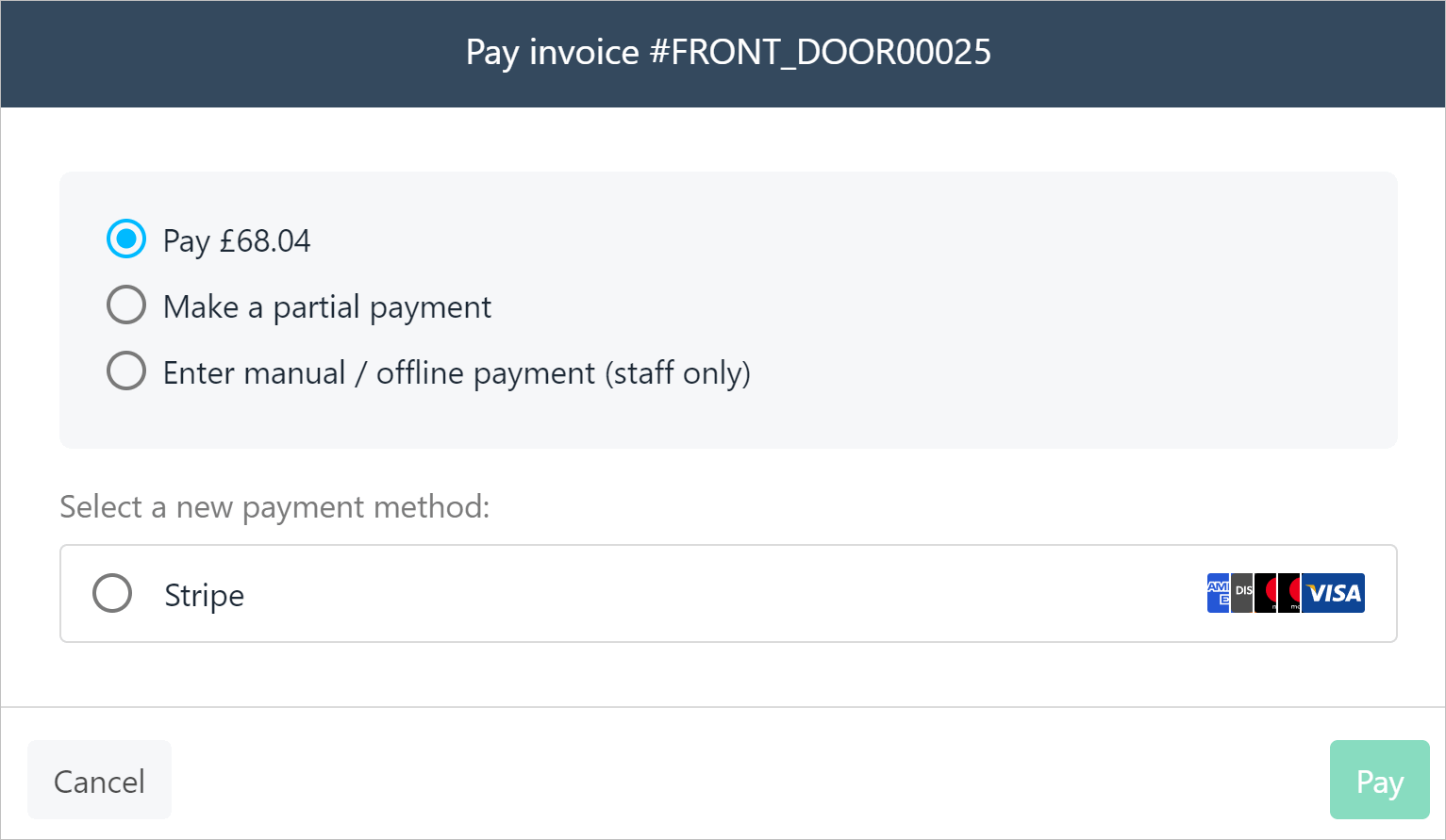
1. Click the Pay invoice button.
2. Fill the fields on the pop-up window.
3. Select Pay.
### Paying invoices
1. Click the Pay invoice button.
2. Fill the fields on the pop-up window.
3. Select Pay.
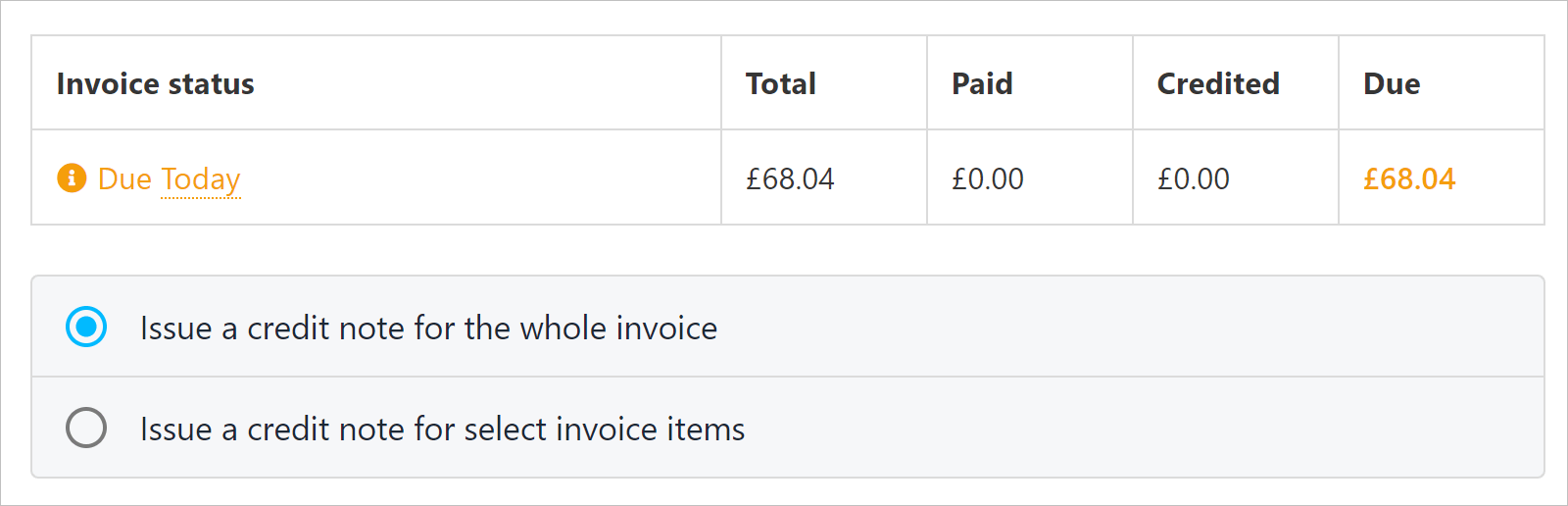
 ### Issuing a credit or refund
1. Click the Credit/refund invoice button.
2. Fill the fields in the window.
3. Click Submit.
You can issue a full or partial credit/refund.
### Issuing a credit or refund
1. Click the Credit/refund invoice button.
2. Fill the fields in the window.
3. Click Submit.
You can issue a full or partial credit/refund.
 ### Resending an invoice
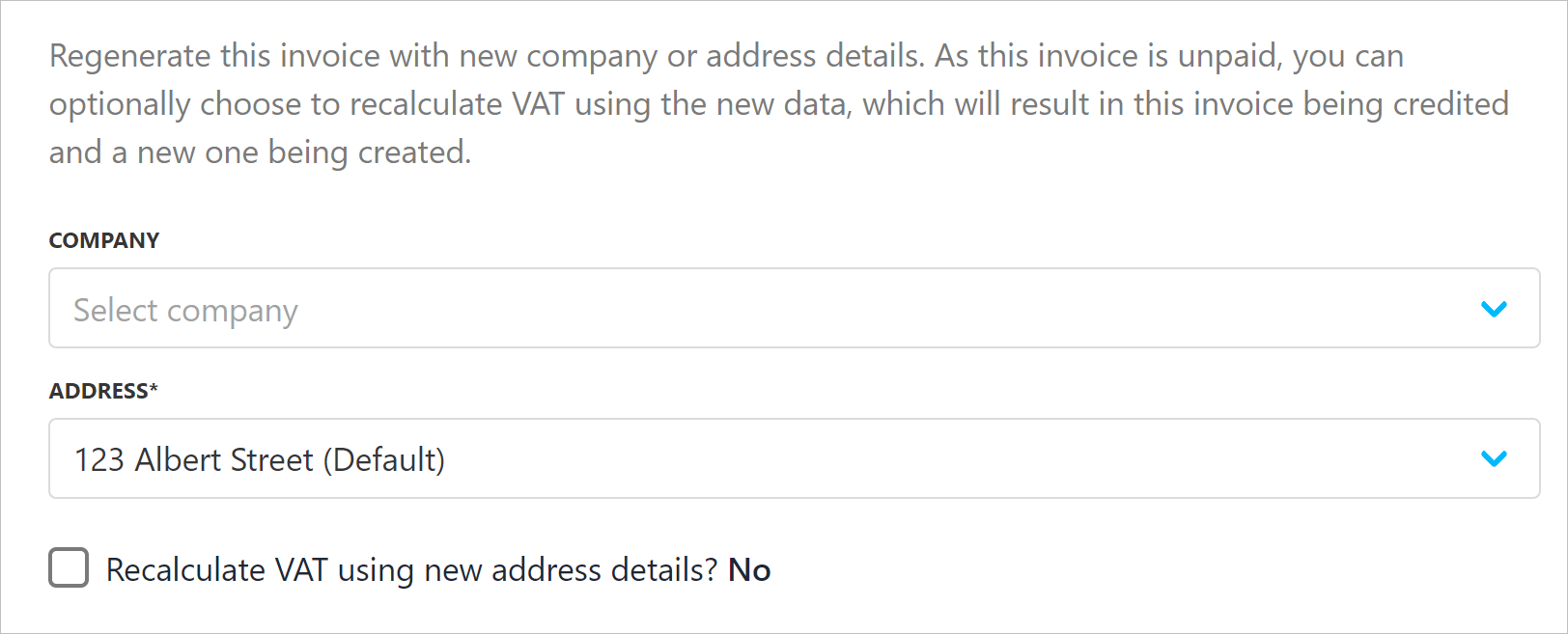
Use this feature to resend invoices. You can also update details like company name and address.
1. Click the Regenerate invoice button.
2. Fill the fields in the window.
3. Click Regenerate.
### Resending an invoice
Use this feature to resend invoices. You can also update details like company name and address.
1. Click the Regenerate invoice button.
2. Fill the fields in the window.
3. Click Regenerate.
 ### Changing the due date
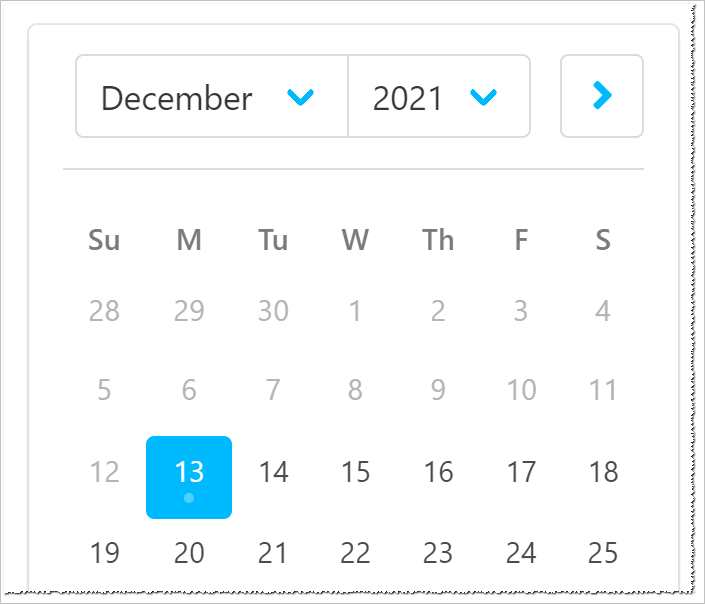
1. Click the Change due date button.
2. Select a new date on the calendar.
3. Click Save.
### Changing the due date
1. Click the Change due date button.
2. Select a new date on the calendar.
3. Click Save.
 ### Changing the payment method
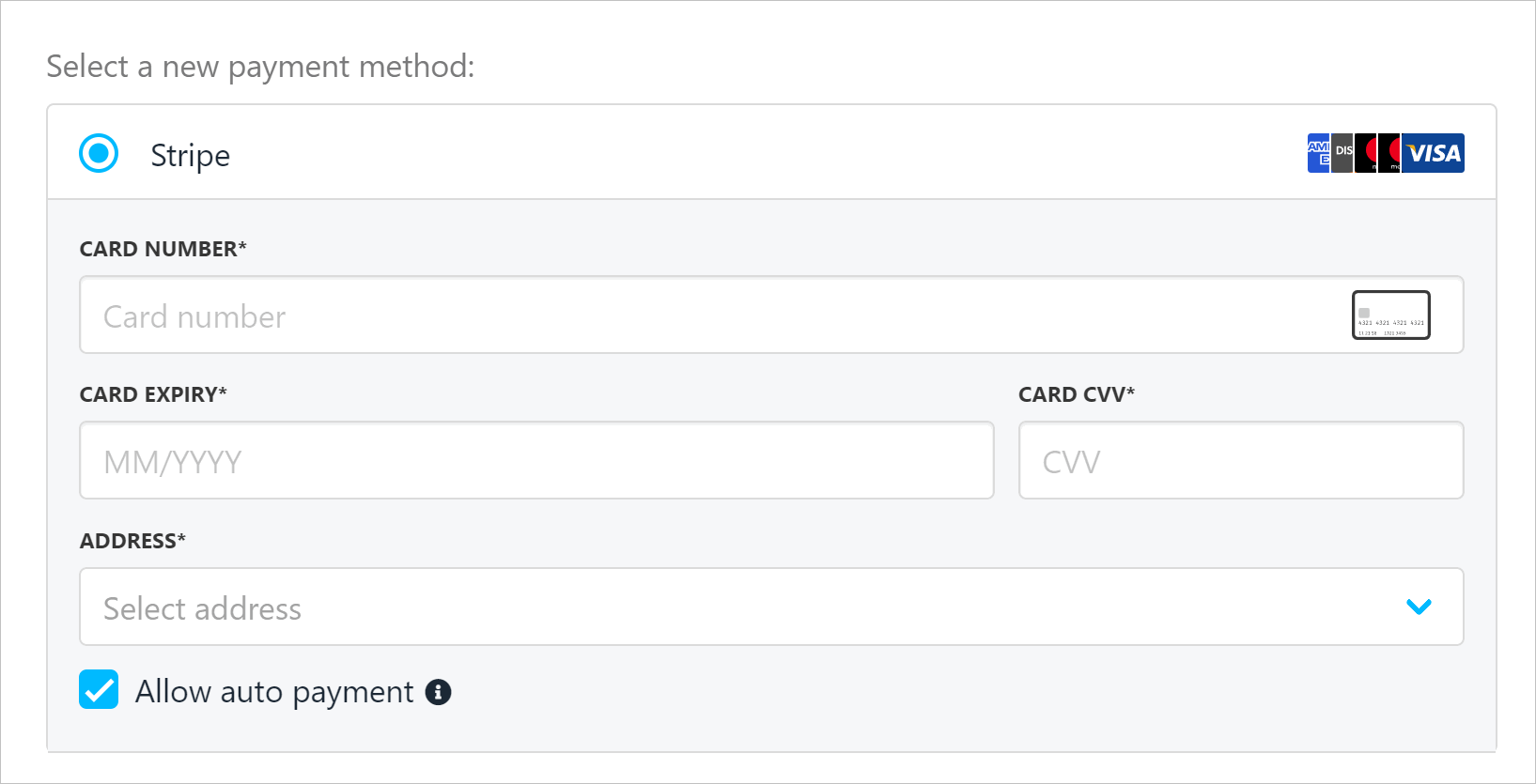
1. Click the Change payment method button.
2. Choose a new method and fill the fields.
3. Click Save.
### Changing the payment method
1. Click the Change payment method button.
2. Choose a new method and fill the fields.
3. Click Save.
 ## Customising invoice settings
Admins and store staff can change invoice settings for a specific subscription client.
1. Click the Settings menu tab.
2. Scroll down the page and adjust the settings.
### Changing payment method
* As discussed above.
### Recurring invoice generation
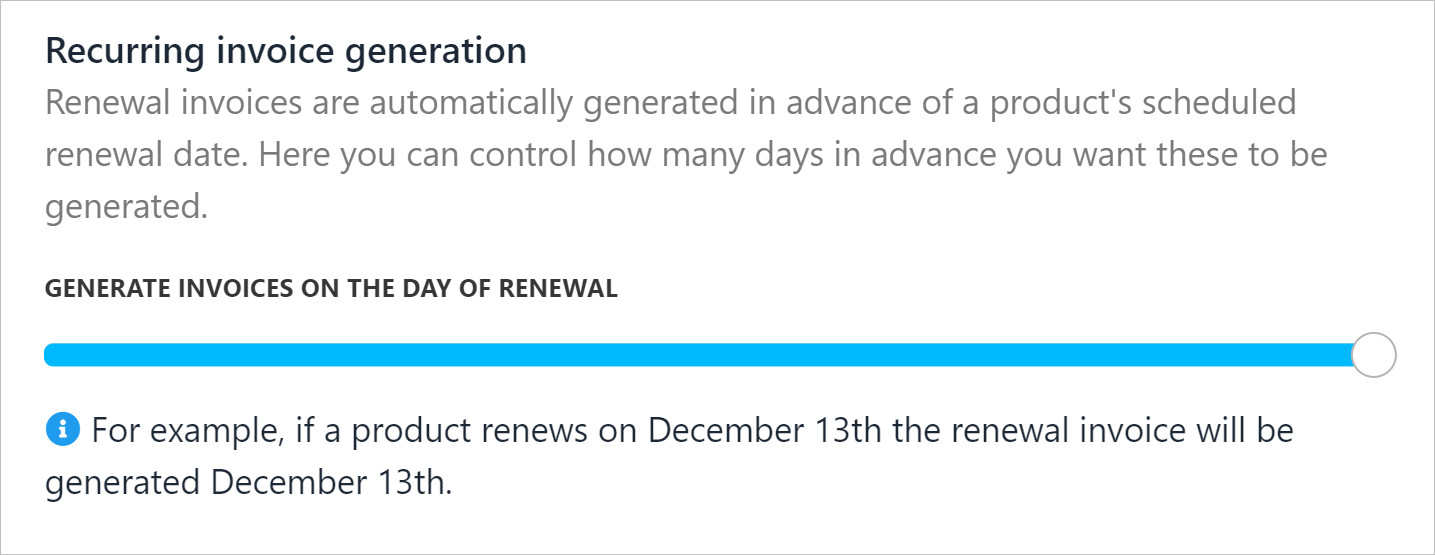
Use the sliding scale to set the date when a new invoice should be generated relative to the end of the current subscription contract.
## Customising invoice settings
Admins and store staff can change invoice settings for a specific subscription client.
1. Click the Settings menu tab.
2. Scroll down the page and adjust the settings.
### Changing payment method
* As discussed above.
### Recurring invoice generation
Use the sliding scale to set the date when a new invoice should be generated relative to the end of the current subscription contract.
 ### Recurring invoice due dates
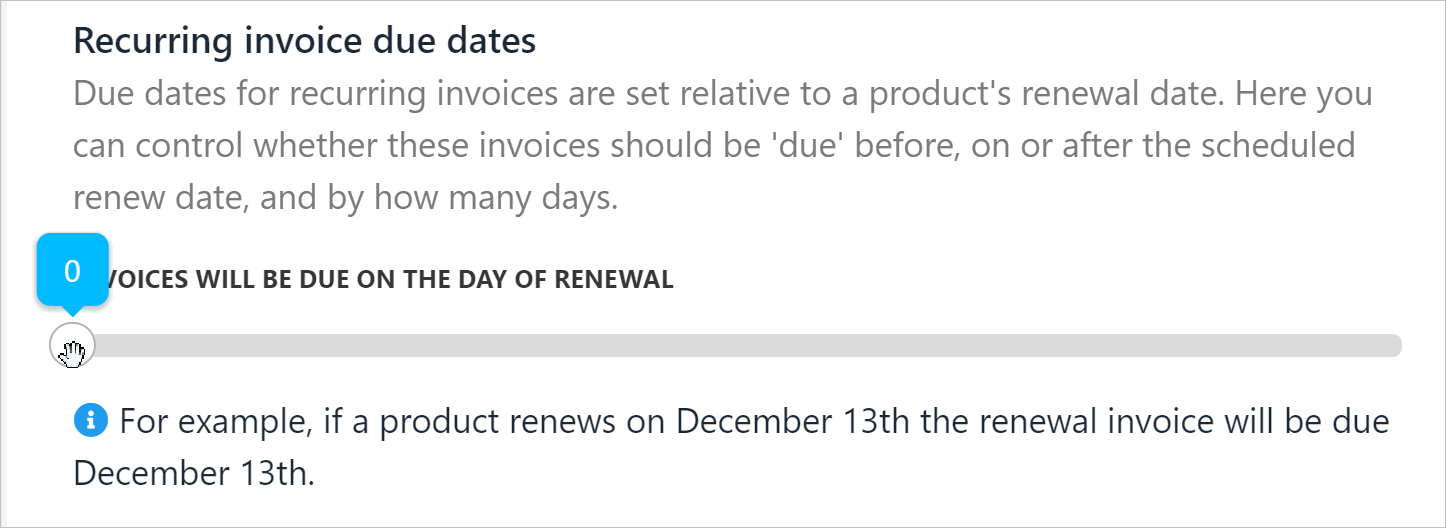
Use the sliding scale to set the due date of a new invoice relative to the end of the current subscription contract.
### Recurring invoice due dates
Use the sliding scale to set the due date of a new invoice relative to the end of the current subscription contract.
 ### Changing intervals
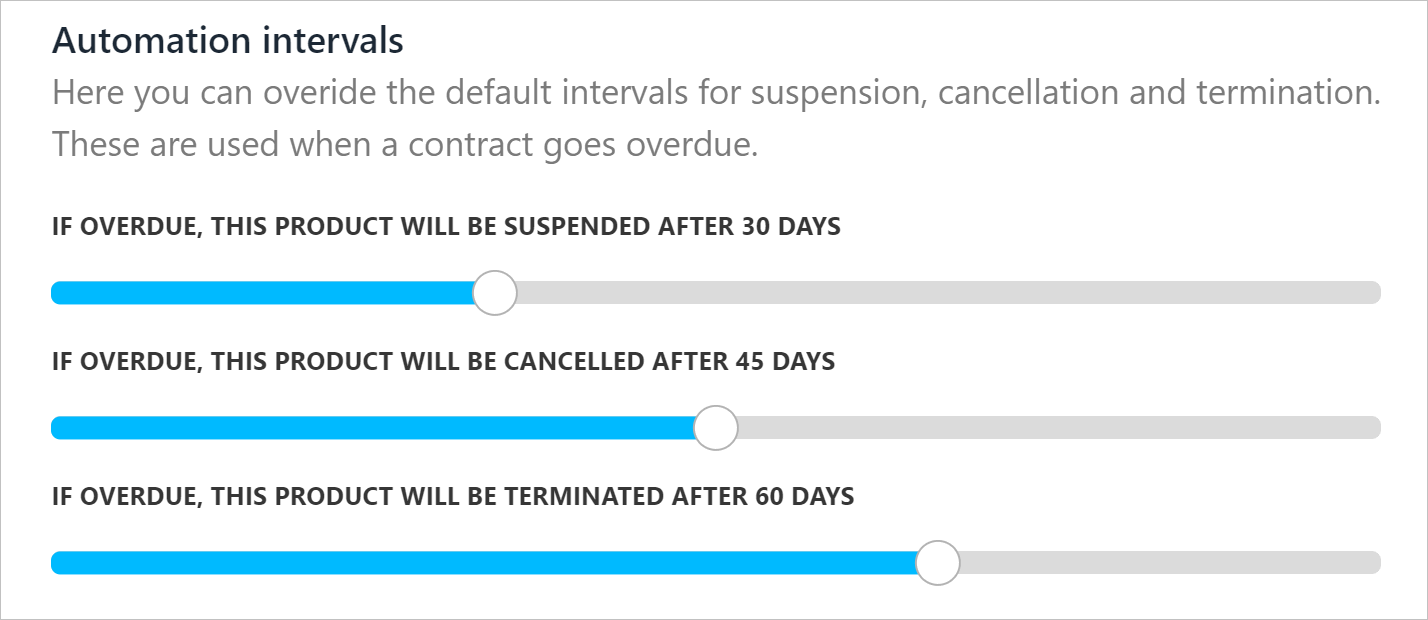
Use the sliding scales to override default intervals for contract suspension, cancellation and termination.
### Changing intervals
Use the sliding scales to override default intervals for contract suspension, cancellation and termination.