> ## Documentation Index
> Fetch the complete documentation index at: https://docs.upmind.com/llms.txt
> Use this file to discover all available pages before exploring further.
# Add an existing product or service
> If the customer already has an existing product or service that isn't yet billed in Upmind, this guide will explain how to add it to their account
You can use the **Place new quick order** feature to quickly add a pre-existing order product to a client's account.
This feature allows you to:
1. Place New Order – Creates a new order with a normal invoice that includes the full price.
2. **Add Existing Service** – Adds an existing service to Upmind for continued billing. The initial invoice will be set to 0 since the system recognises that the client has already paid for it in your previous system.
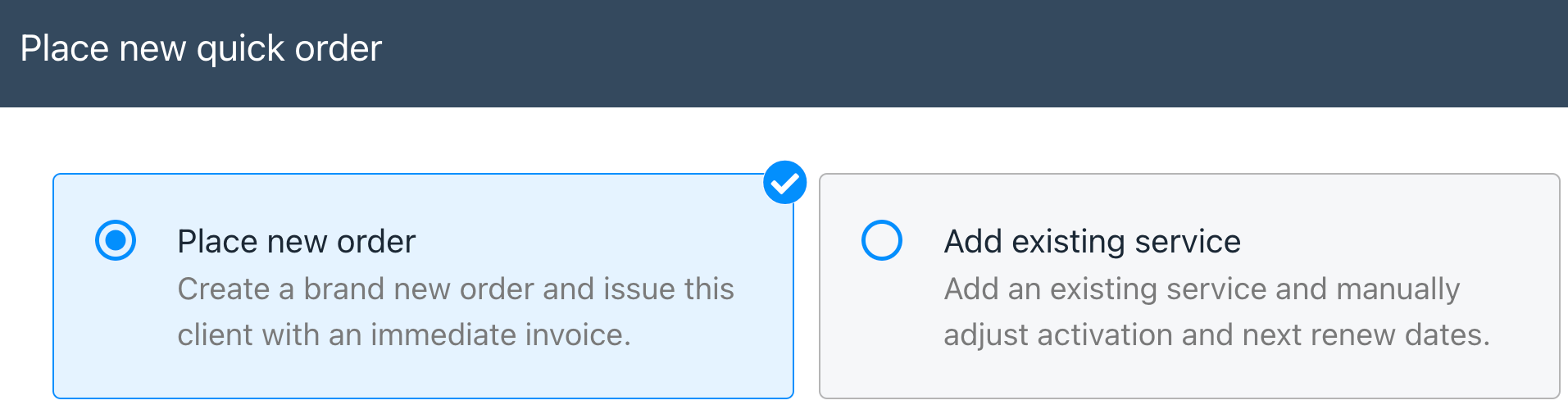 Here are the steps you can follow to add an existing product or service to a client's account.
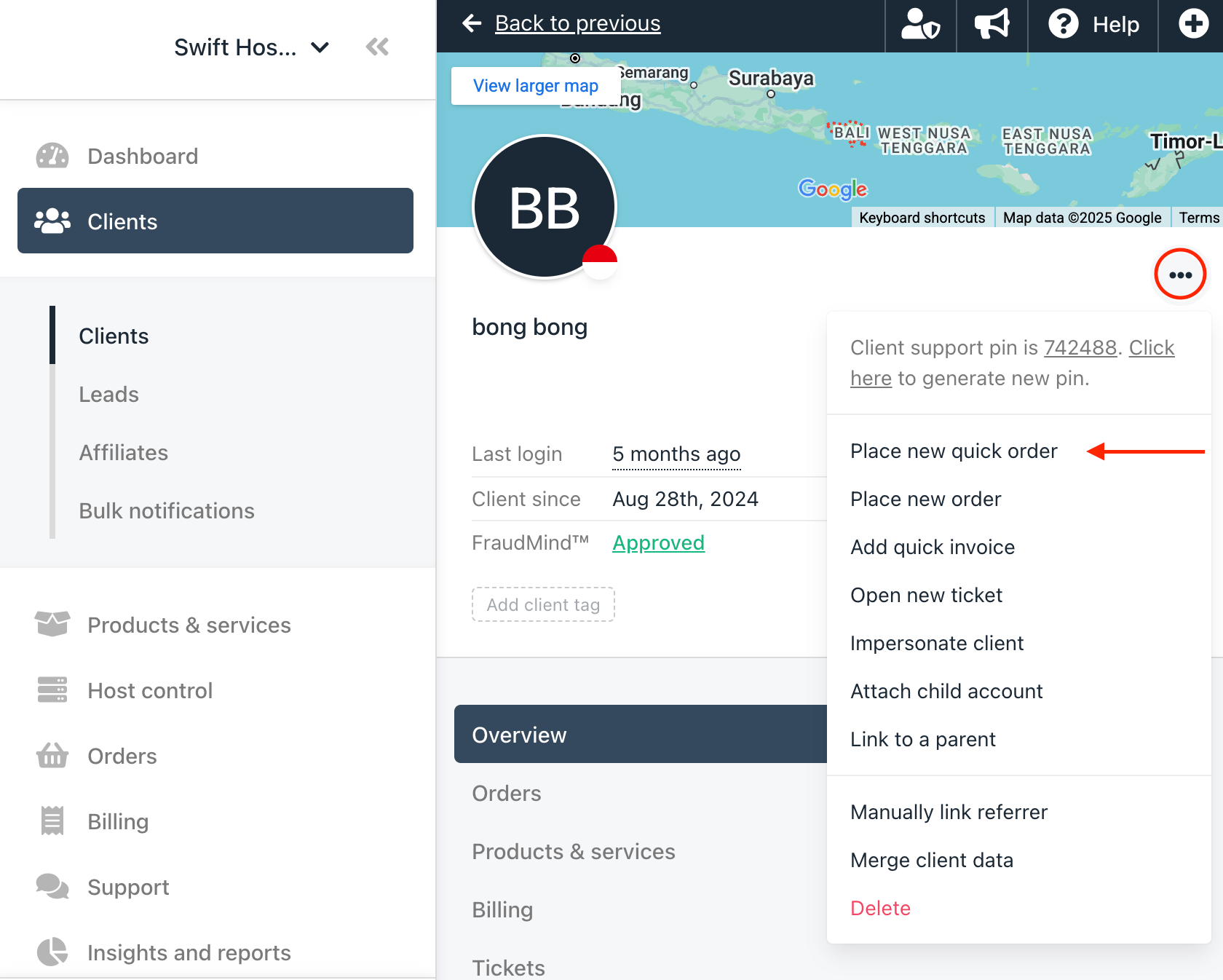
1. Navigate to the Client's profile in your admin area
2. Click the three dots on client profile card and select **Place new quick order**
Here are the steps you can follow to add an existing product or service to a client's account.
1. Navigate to the Client's profile in your admin area
2. Click the three dots on client profile card and select **Place new quick order**
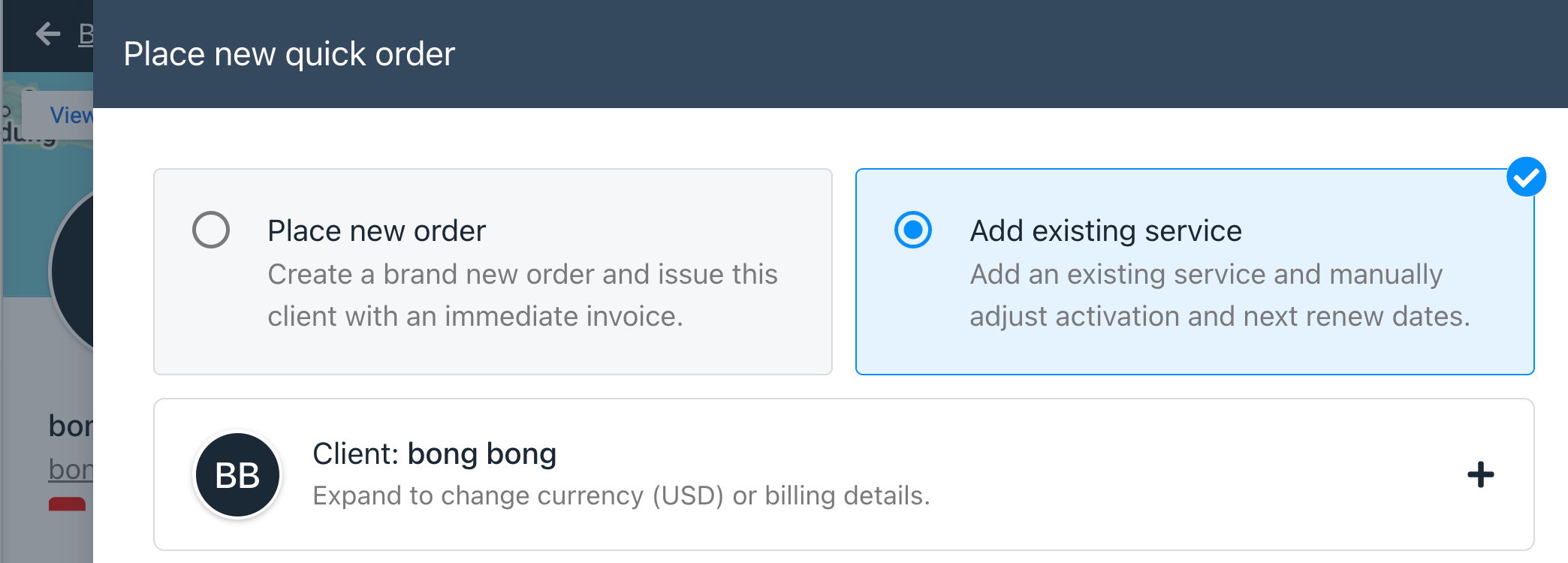
 3. In the quick order window select **Add existing service**
 4. Add an Order Item and select the product you wish to add
5. Configure the product as necessary then click **Add to basket**
6. If necessary, configure the **Activation and Next Renewal** date accordingly
4. Add an Order Item and select the product you wish to add
5. Configure the product as necessary then click **Add to basket**
6. If necessary, configure the **Activation and Next Renewal** date accordingly
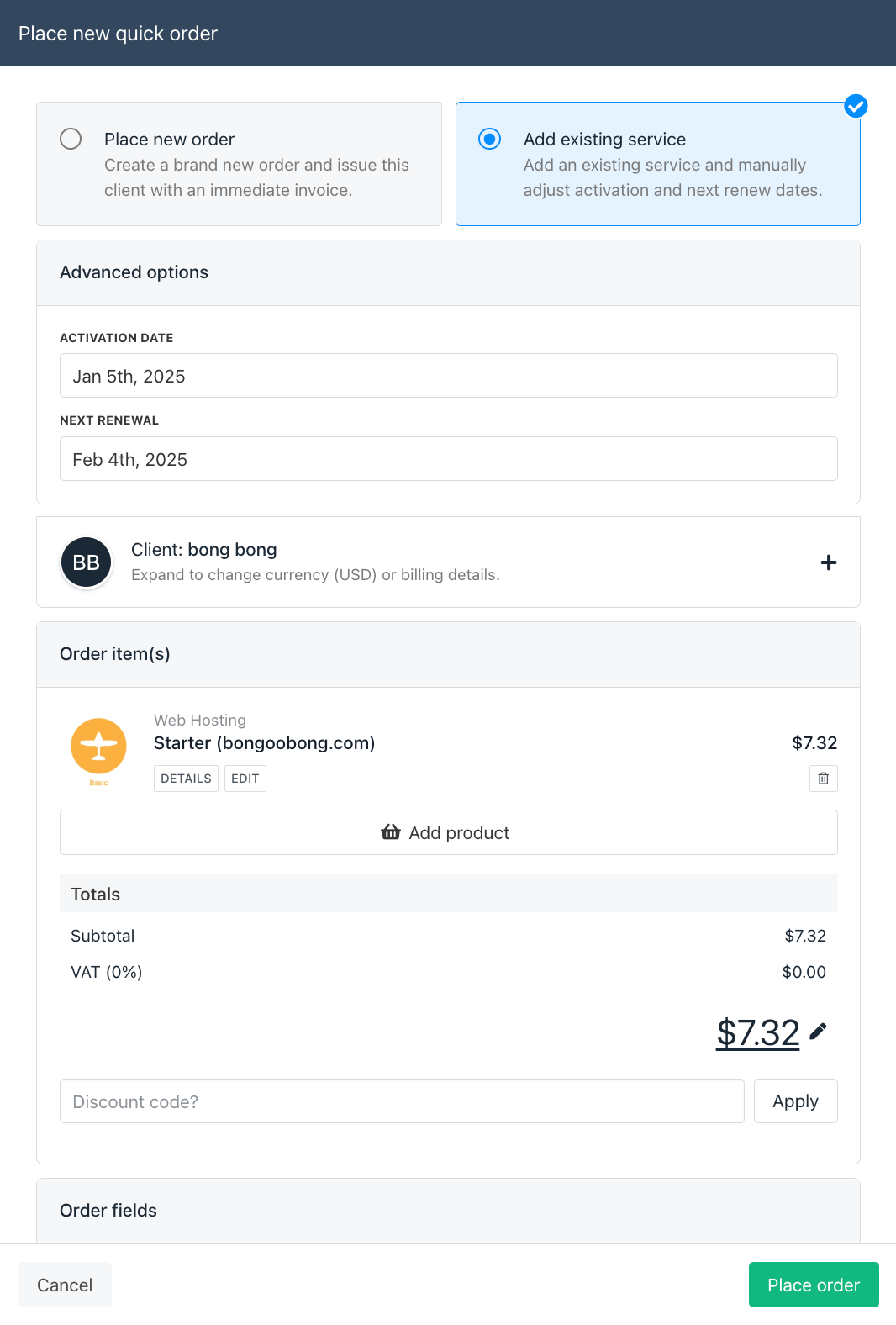 7. Click **Place order**
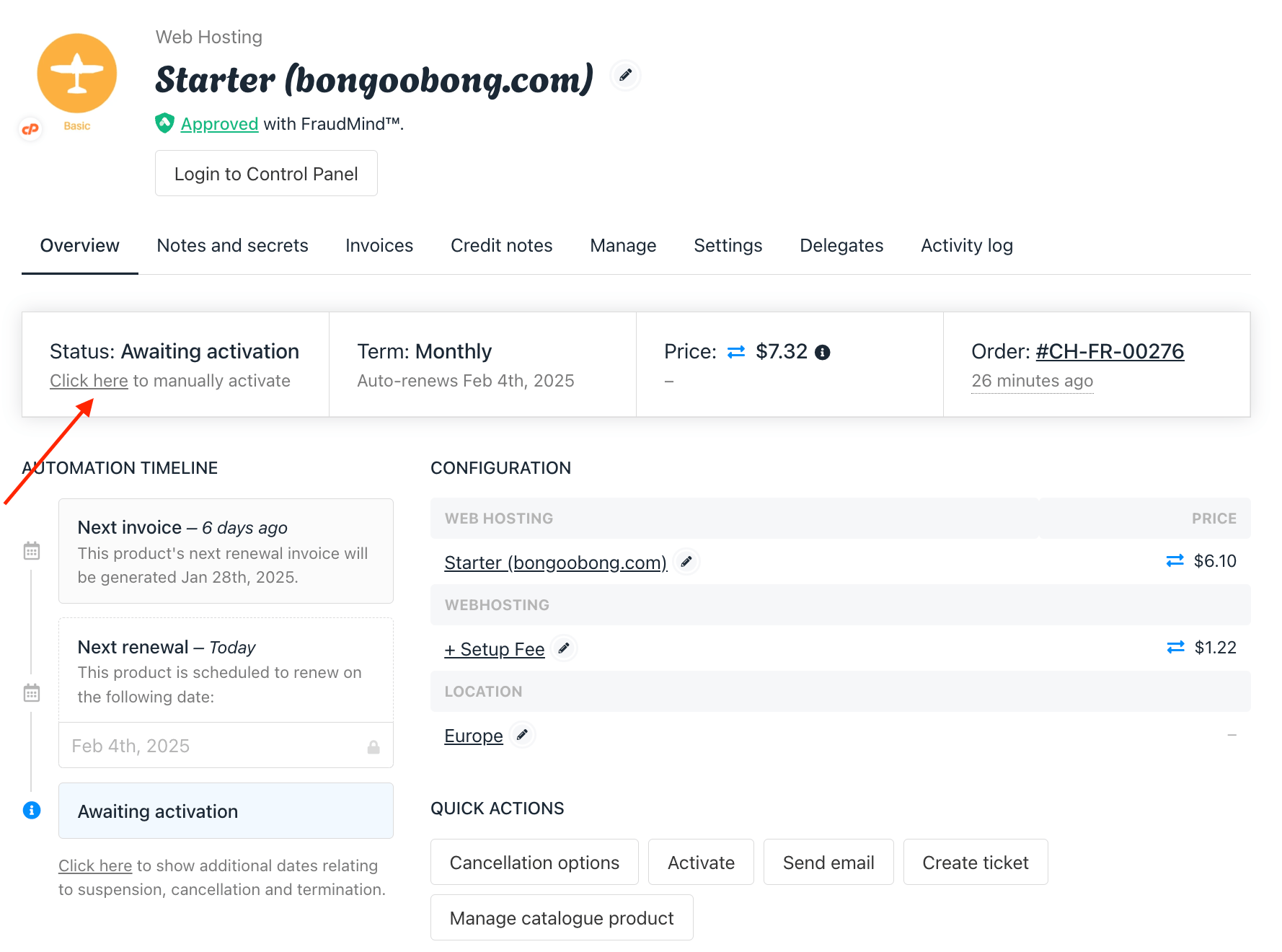
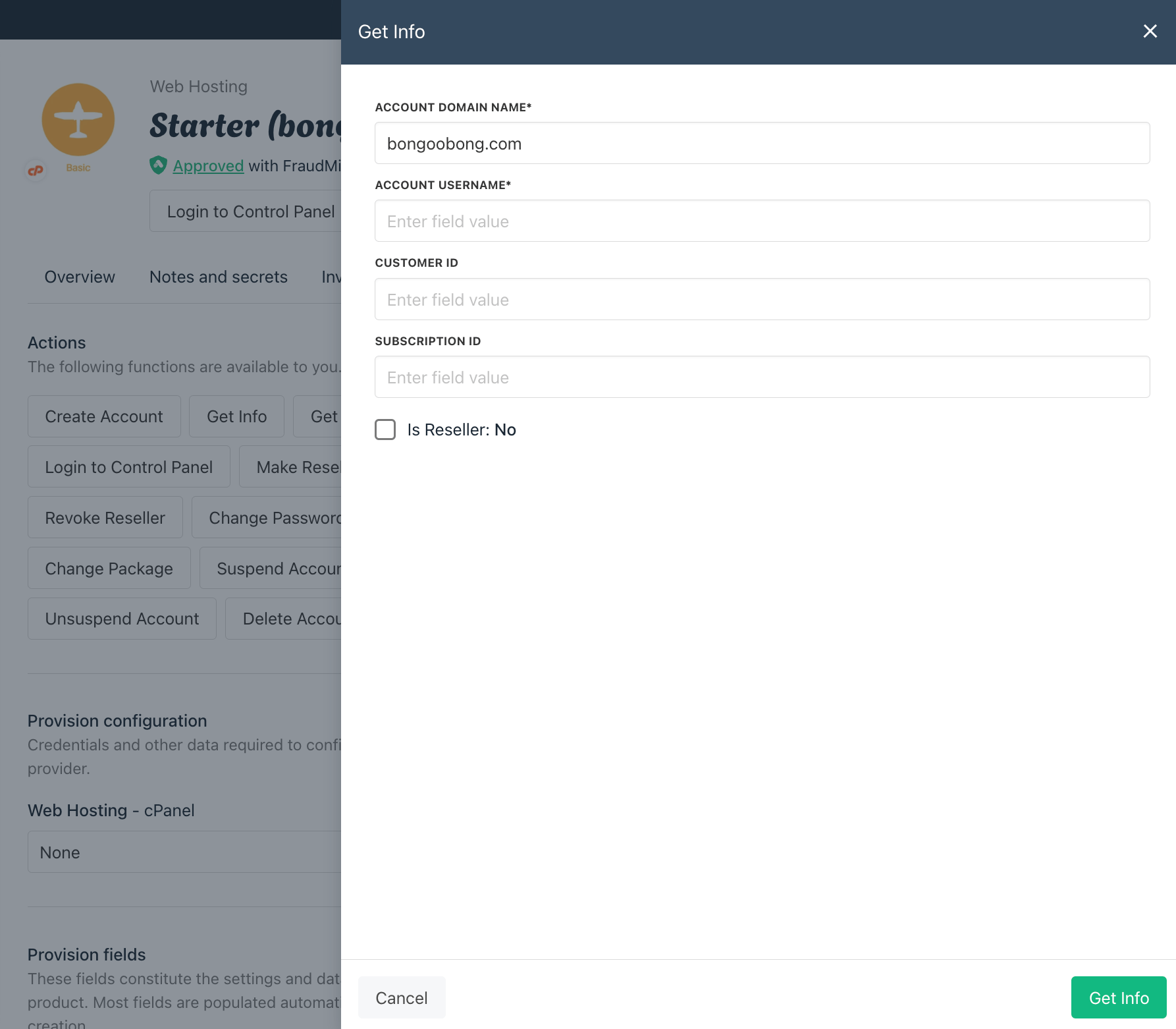
If the product has provisioning then the order status may have gone to "Awaiting activation" in which case you should activate it manually, and then go to the **Manage** tab and run **Get Info** to verify it works.
7. Click **Place order**
If the product has provisioning then the order status may have gone to "Awaiting activation" in which case you should activate it manually, and then go to the **Manage** tab and run **Get Info** to verify it works.
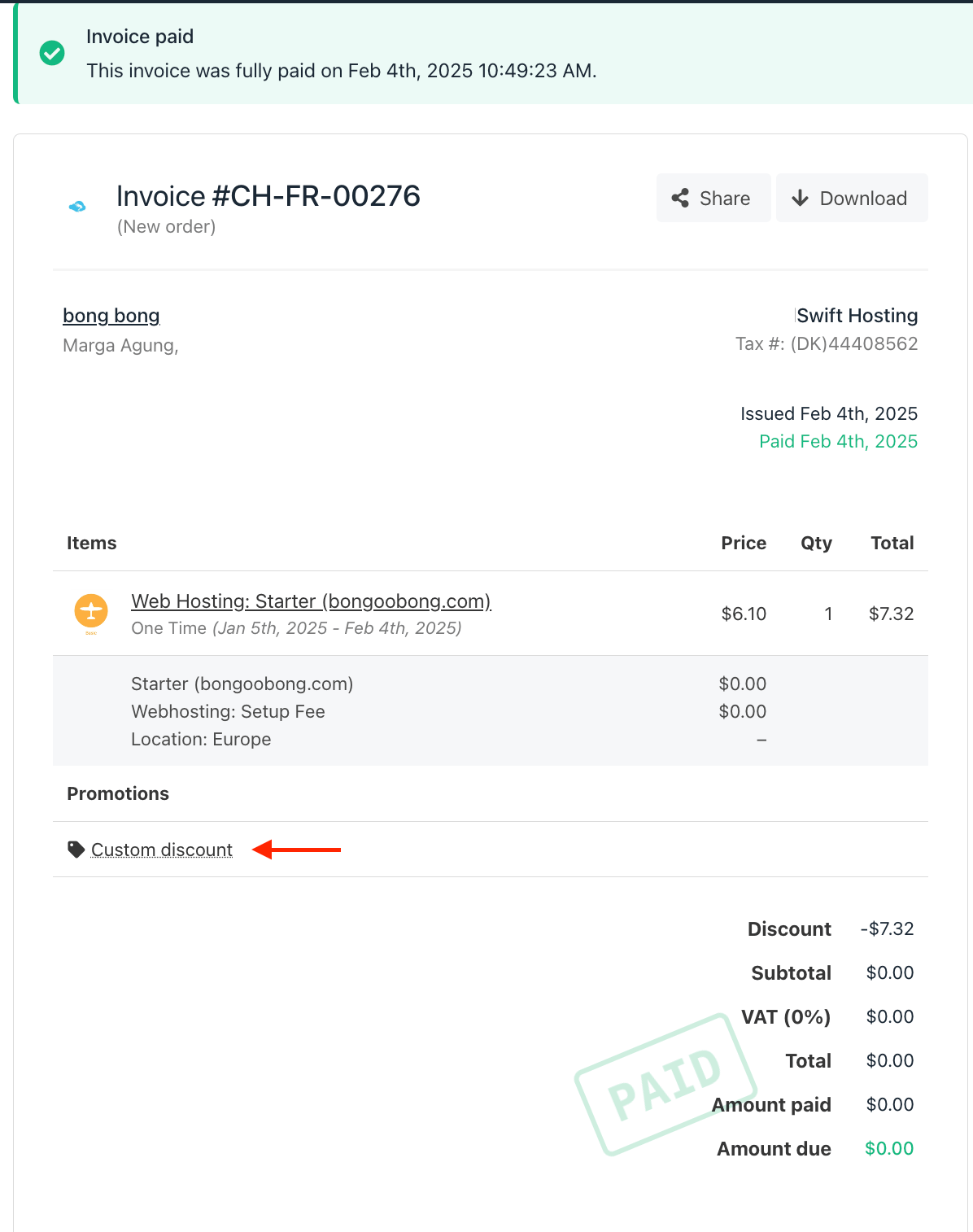
 Next, the invoice will display a **custom discount** which will make the invoice amount 0 as the system recognises that the client has already paid for it in the previous system. The next renewal invoice will show the normal price.
 You can also watch the details in the Upmind YouTube video [here](https://www.youtube.com/watch?v=is9d5KGlSM8)