> ## Documentation Index
> Fetch the complete documentation index at: https://docs.upmind.com/llms.txt
> Use this file to discover all available pages before exploring further.
# Quick Invoice Guide
> Introduction to creating and sending invoices.
Upmind’s **Quick Invoice** feature simplifies the billing process for both one-time and recurring products or services. You can select existing products or add new ones.
Newly added products are automatically created in your catalogue with a selected billing term, but remain hidden from your storefront unless you choose to make them visible.
## Creating a quick invoice
### From the client profile
1. Go to the `Clients` section.
2. Select the client you wish to invoice.
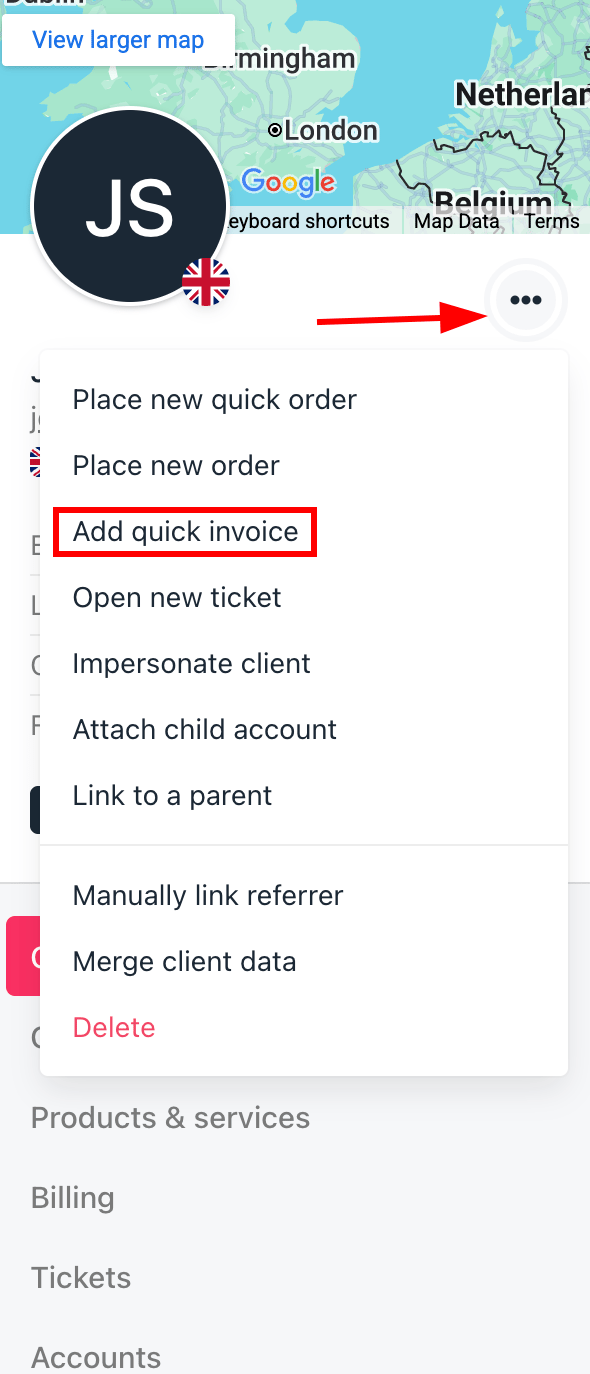
3. On the client overview page, click the **three dots** next to the client’s name and select **Add Quick Invoice**.
 ### From quick add
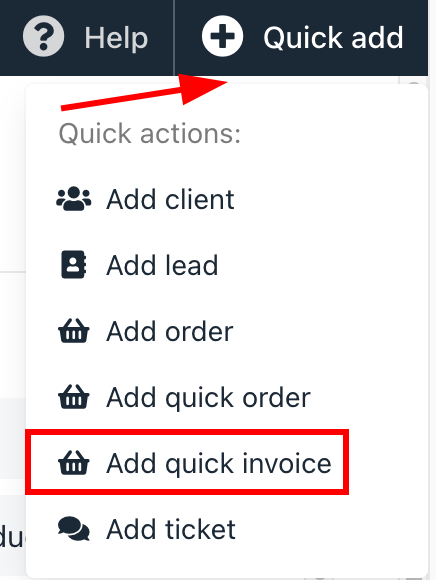
1. Click the **Quick add** button in the top right corner.
2. Select **Add quick invoice**.
3. Choose the client and proceed with the prompts.
### From quick add
1. Click the **Quick add** button in the top right corner.
2. Select **Add quick invoice**.
3. Choose the client and proceed with the prompts.
 ## Add invoice details
You can configure the following details:
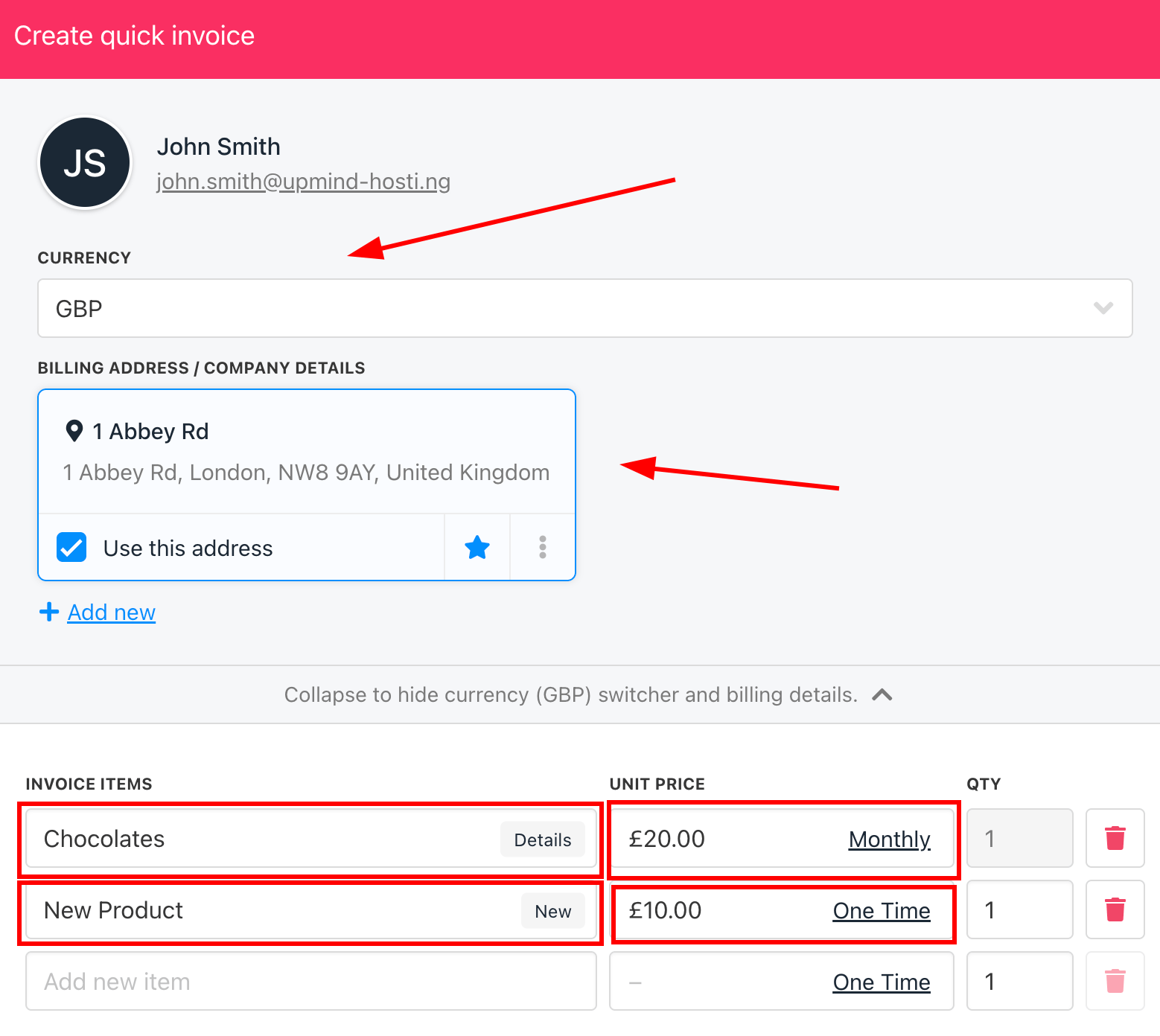
1. **Currency**: Choose the billing currency for the invoice from the dropdown.
2. **Address**: Confirm or enter the client’s billing address.
3. **Products**:
1. **Select Existing**: Search and select products from your catalogue.
2. **Add New**: Enter details for a new product or service
4. **Billing Terms**: Set one-time or recurring billing as needed.
## Add invoice details
You can configure the following details:
1. **Currency**: Choose the billing currency for the invoice from the dropdown.
2. **Address**: Confirm or enter the client’s billing address.
3. **Products**:
1. **Select Existing**: Search and select products from your catalogue.
2. **Add New**: Enter details for a new product or service
4. **Billing Terms**: Set one-time or recurring billing as needed.
 5. Review the invoice details, save, and send it directly to the client.
The invoice will appear in the client’s billing history and can be tracked, paid, or credited as needed.
Automated Product Creation
If a product isn’t found in your search, entering a new product name will automatically create that product in your catalogue once the invoice is generated. These products remain hidden from your storefront unless you choose to publish them.
5. Review the invoice details, save, and send it directly to the client.
The invoice will appear in the client’s billing history and can be tracked, paid, or credited as needed.
Automated Product Creation
If a product isn’t found in your search, entering a new product name will automatically create that product in your catalogue once the invoice is generated. These products remain hidden from your storefront unless you choose to publish them.