> ## Documentation Index
> Fetch the complete documentation index at: https://docs.upmind.com/llms.txt
> Use this file to discover all available pages before exploring further.

# Invoice Shared

> Share invoices with clients or teams.

As an administrator, you can enable the invoice share link, allowing customers to pay invoices without logging into their client area. This can simplify the payment process and encourage faster payments.

## Options to enable the share link

* **Per Invoice**: Manually enable the share link for individual invoices.

* **Auto-Share on Invoice Creation**: Automatically share invoices when they are generated using a brand setting.

## Sharing individual invoice links

1. Go to **Billing** > **Invoices** under **Clients** and select an unpaid invoice.

2. Click **Share** in the modal, copy the link, and send it to your client (you must enable sharing first).
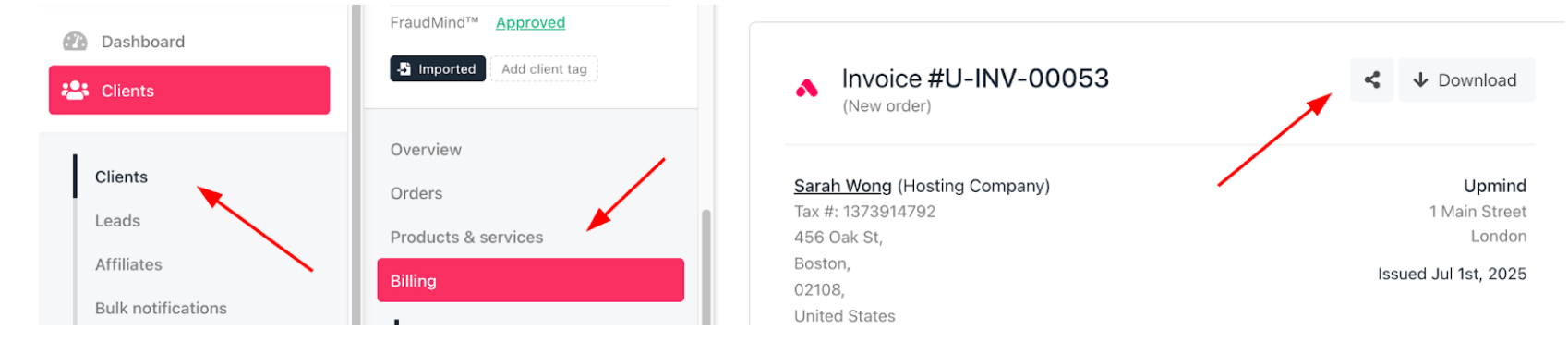
<Frame caption="Billing > Invoice">
  <img src="https://mintcdn.com/upmind/wRuKrNY12tQZY8Rr/images/fb/323aa05927e20e9e.png?fit=max&auto=format&n=wRuKrNY12tQZY8Rr&q=85&s=ec3d5465da6512e40ad2ad8beead3f3a" alt="Billing > Invoice" data-og-width="1698" width="1698" data-og-height="370" height="370" data-path="images/fb/323aa05927e20e9e.png" data-optimize="true" data-opv="3" srcset="https://mintcdn.com/upmind/wRuKrNY12tQZY8Rr/images/fb/323aa05927e20e9e.png?w=280&fit=max&auto=format&n=wRuKrNY12tQZY8Rr&q=85&s=f760fa7a6c124d5543af1b801895591a 280w, https://mintcdn.com/upmind/wRuKrNY12tQZY8Rr/images/fb/323aa05927e20e9e.png?w=560&fit=max&auto=format&n=wRuKrNY12tQZY8Rr&q=85&s=370b008e714cbfee6109efc178c05f0f 560w, https://mintcdn.com/upmind/wRuKrNY12tQZY8Rr/images/fb/323aa05927e20e9e.png?w=840&fit=max&auto=format&n=wRuKrNY12tQZY8Rr&q=85&s=bbfbe756f42a47736aa38d68ad236cd4 840w, https://mintcdn.com/upmind/wRuKrNY12tQZY8Rr/images/fb/323aa05927e20e9e.png?w=1100&fit=max&auto=format&n=wRuKrNY12tQZY8Rr&q=85&s=82271ee812b74f9565880fc905e07b05 1100w, https://mintcdn.com/upmind/wRuKrNY12tQZY8Rr/images/fb/323aa05927e20e9e.png?w=1650&fit=max&auto=format&n=wRuKrNY12tQZY8Rr&q=85&s=c0ca04e80c908a9f9ec3a4d628ee6ae6 1650w, https://mintcdn.com/upmind/wRuKrNY12tQZY8Rr/images/fb/323aa05927e20e9e.png?w=2500&fit=max&auto=format&n=wRuKrNY12tQZY8Rr&q=85&s=9a840561621b6f8eb9b75f6f4370ac34 2500w" />
</Frame>

## Auto sharing on invoice creation

1. Go to **Settings** > **Order Options** under Ecommerce Settings.

2. Enable **Shared Invoice** under the Misc section to auto-generate shareable links for all new invoices.

<Frame caption="Shared invoice">
  <img src="https://mintcdn.com/upmind/uxzVUXAKtJ2bRWCI/images/fb/6a7cea714fcbf637.png?fit=max&auto=format&n=uxzVUXAKtJ2bRWCI&q=85&s=66bd2bd12d4550bdc46b2278f3d04d66" alt="Shared invoice" width="1636" height="266" data-path="images/fb/6a7cea714fcbf637.png" />
</Frame>

## Adding shared invoice links to email notifications

1. Go to **Settings** > **Actions** under Automation.

2. Edit the **New Invoice PDF Customer Email** template or create a new one.

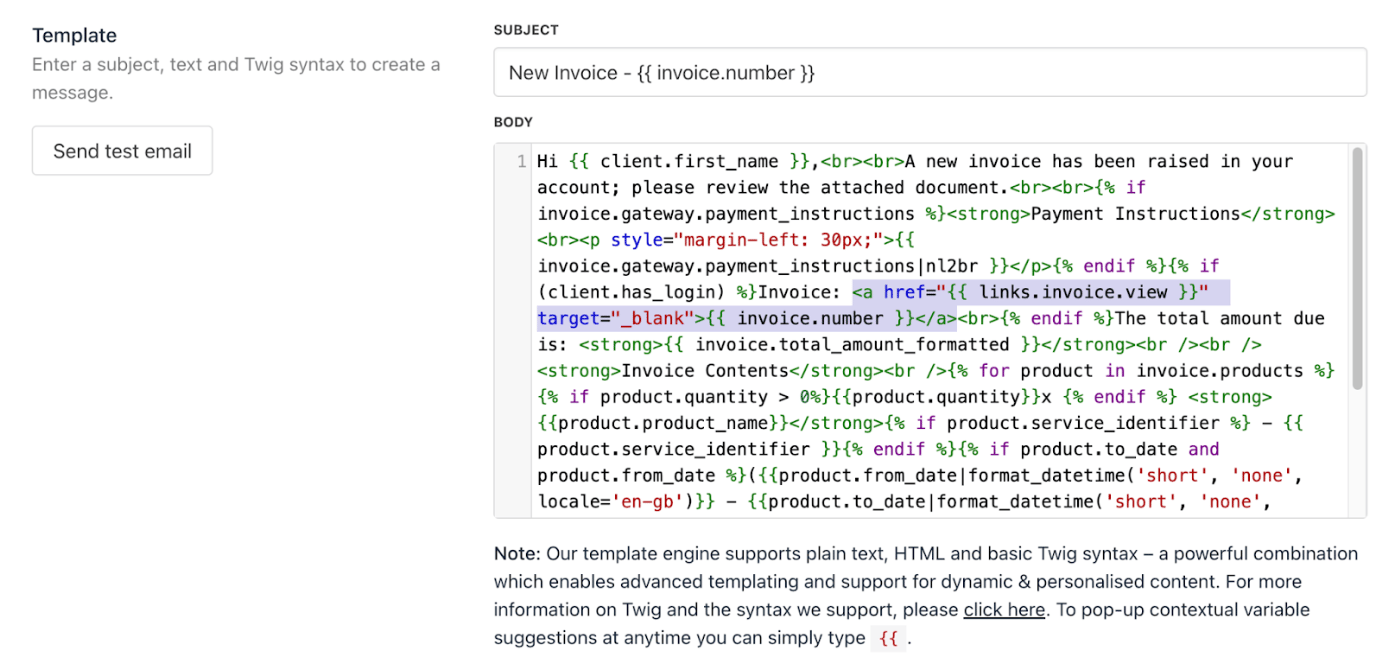
3. Insert this `HTML` code to include the share link and replace the highlighted one:

<CodeGroup>
  ```javascript HTML theme={null}
  <a href="//{{ brand.customer_portal_domain }}/invoice/{{ invoice.shared.token }}" target="_blank">{{ invoice.number }}</a>
  ```
</CodeGroup>

<Frame caption="Settings > Action">
  <img src="https://mintcdn.com/upmind/kAlrCUxI2nwYz4_i/images/fb/201df28ebc59d36d.png?fit=max&auto=format&n=kAlrCUxI2nwYz4_i&q=85&s=b4ec50814a2d1275dcfe6aff3c8aa664" alt="Settings > Action" data-og-width="1392" width="1392" data-og-height="660" height="660" data-path="images/fb/201df28ebc59d36d.png" data-optimize="true" data-opv="3" srcset="https://mintcdn.com/upmind/kAlrCUxI2nwYz4_i/images/fb/201df28ebc59d36d.png?w=280&fit=max&auto=format&n=kAlrCUxI2nwYz4_i&q=85&s=43005db24834ecbeabe2464d44dc33a6 280w, https://mintcdn.com/upmind/kAlrCUxI2nwYz4_i/images/fb/201df28ebc59d36d.png?w=560&fit=max&auto=format&n=kAlrCUxI2nwYz4_i&q=85&s=013d9961a4b7aa14a8caac6945466916 560w, https://mintcdn.com/upmind/kAlrCUxI2nwYz4_i/images/fb/201df28ebc59d36d.png?w=840&fit=max&auto=format&n=kAlrCUxI2nwYz4_i&q=85&s=8c329949b0129ef1a861190b6dc23cc5 840w, https://mintcdn.com/upmind/kAlrCUxI2nwYz4_i/images/fb/201df28ebc59d36d.png?w=1100&fit=max&auto=format&n=kAlrCUxI2nwYz4_i&q=85&s=44701a5e255c7da3de21d760f4657927 1100w, https://mintcdn.com/upmind/kAlrCUxI2nwYz4_i/images/fb/201df28ebc59d36d.png?w=1650&fit=max&auto=format&n=kAlrCUxI2nwYz4_i&q=85&s=8432cd9dff64e03a41bfa9ebb1a3fac2 1650w, https://mintcdn.com/upmind/kAlrCUxI2nwYz4_i/images/fb/201df28ebc59d36d.png?w=2500&fit=max&auto=format&n=kAlrCUxI2nwYz4_i&q=85&s=9fd8f806c825f2f1c3ca797fc5c85451 2500w" />
</Frame>

4. Save the template to allow clients to access invoices directly from their email

## Link expiration days

Admins and staff can generate protected sharing links to share invoices with clients securely.

By default, these links expire after 7 days, ensuring controlled and time-limited access to sensitive billing information. This provides a convenient way to deliver invoices while maintaining security and control over access.

You can access this from **Settings** > **Branding & Customisation** > **Security** > **Sharing Links**.
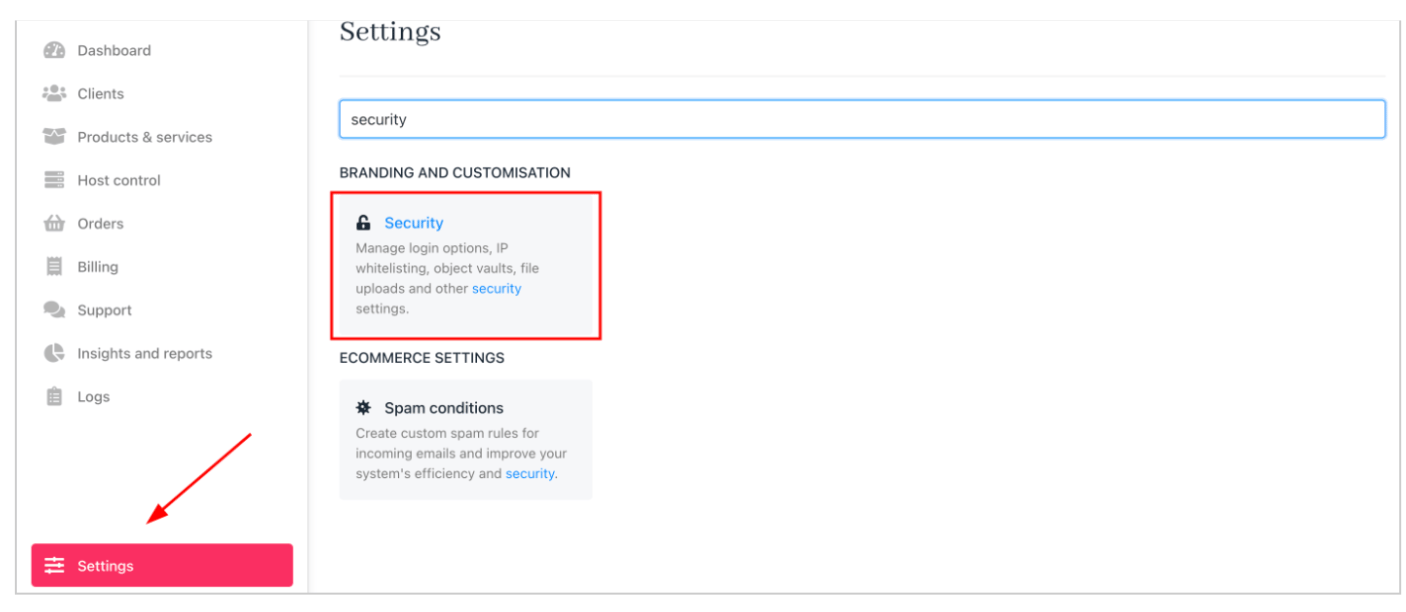

<Frame caption="Settings > Security">
  <img src="https://mintcdn.com/upmind/bPO2bBzOxYQR4tYr/images/fb/f54a4ddbeb00048a.png?fit=max&auto=format&n=bPO2bBzOxYQR4tYr&q=85&s=ae396df8721ab64b1ec2ad235cc252ff" alt="Settings > Security" data-og-width="1406" width="1406" data-og-height="612" height="612" data-path="images/fb/f54a4ddbeb00048a.png" data-optimize="true" data-opv="3" srcset="https://mintcdn.com/upmind/bPO2bBzOxYQR4tYr/images/fb/f54a4ddbeb00048a.png?w=280&fit=max&auto=format&n=bPO2bBzOxYQR4tYr&q=85&s=d7197383289b7a3dfbb93eda8864c0ec 280w, https://mintcdn.com/upmind/bPO2bBzOxYQR4tYr/images/fb/f54a4ddbeb00048a.png?w=560&fit=max&auto=format&n=bPO2bBzOxYQR4tYr&q=85&s=453fc0c4efe00dce95e75c08a9102e66 560w, https://mintcdn.com/upmind/bPO2bBzOxYQR4tYr/images/fb/f54a4ddbeb00048a.png?w=840&fit=max&auto=format&n=bPO2bBzOxYQR4tYr&q=85&s=49776d72a81f46e0e4e3da9ed09f24d5 840w, https://mintcdn.com/upmind/bPO2bBzOxYQR4tYr/images/fb/f54a4ddbeb00048a.png?w=1100&fit=max&auto=format&n=bPO2bBzOxYQR4tYr&q=85&s=9497216ebe8667ed7454bfe7f36eef15 1100w, https://mintcdn.com/upmind/bPO2bBzOxYQR4tYr/images/fb/f54a4ddbeb00048a.png?w=1650&fit=max&auto=format&n=bPO2bBzOxYQR4tYr&q=85&s=e6bd0416086f3a6506feb07097b15da8 1650w, https://mintcdn.com/upmind/bPO2bBzOxYQR4tYr/images/fb/f54a4ddbeb00048a.png?w=2500&fit=max&auto=format&n=bPO2bBzOxYQR4tYr&q=85&s=a42d7c9836f8489aae5622842ddd4f74 2500w" />
</Frame>

<Frame caption="Link expiration days">
  <img src="https://mintcdn.com/upmind/wRuKrNY12tQZY8Rr/images/fb/300da9a2bf382da0.png?fit=max&auto=format&n=wRuKrNY12tQZY8Rr&q=85&s=e9494296a39f681c3cf3b14c569e4d97" alt="Link expiration days" width="1506" height="206" data-path="images/fb/300da9a2bf382da0.png" />
</Frame>

## Enable auto-storing payment methods

Automatically storing payment methods helps to renew subscriptions on their due dates. This reduces missed payments and maximises renewals.

### For clients

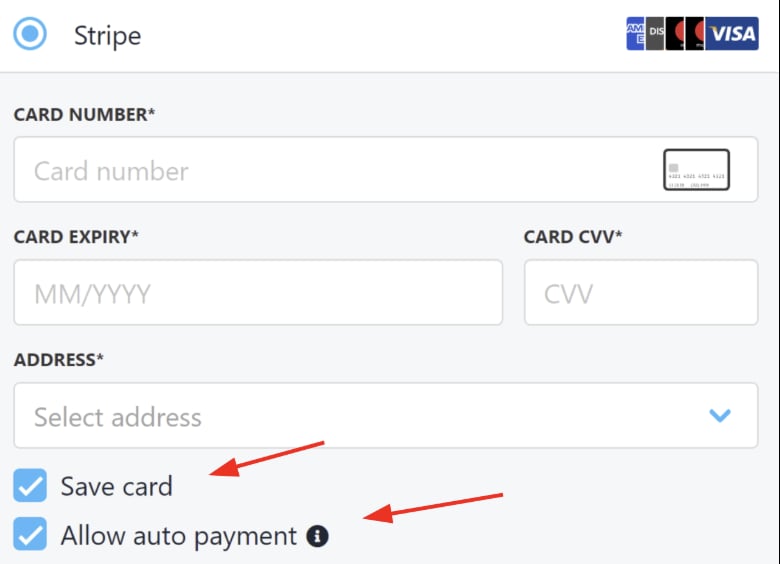
Clients can enable automatic payments by saving a payment method in their portal and selecting the option to **Allow Automatic Payments**.
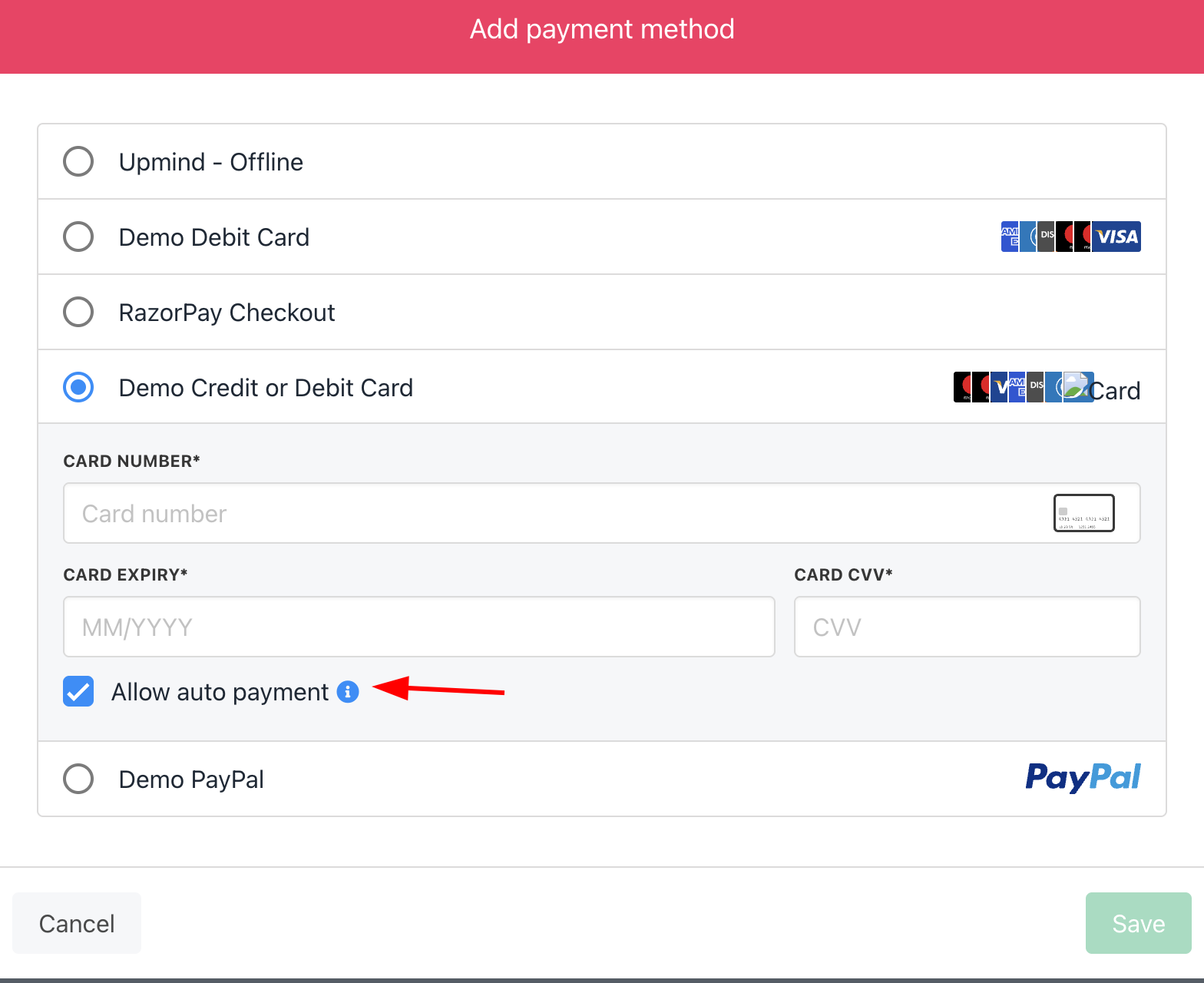
<Frame caption="Allow auto payment">
  <img src="https://mintcdn.com/upmind/h8h5zREaX7k8Y-3x/images/fb/16ca3fde9f81524d.png?fit=max&auto=format&n=h8h5zREaX7k8Y-3x&q=85&s=cd93b61f83a802a5888c5e5b5ec1bf67" alt="Allow auto payment" width="1568" height="1280" data-path="images/fb/16ca3fde9f81524d.png" />
</Frame>

They can also save their card details during checkout to use for future payments and enable automatic billing.
<Frame caption="Save card">
  <img src="https://mintcdn.com/upmind/1xguIfYUrfespmVI/images/fb/8669ad3621c800e5.png?fit=max&auto=format&n=1xguIfYUrfespmVI&q=85&s=8cb43a019778ef1ce3d943c64ed50f92" alt="Save card" width="780" height="564" data-path="images/fb/8669ad3621c800e5.png" />
</Frame>

### For admin

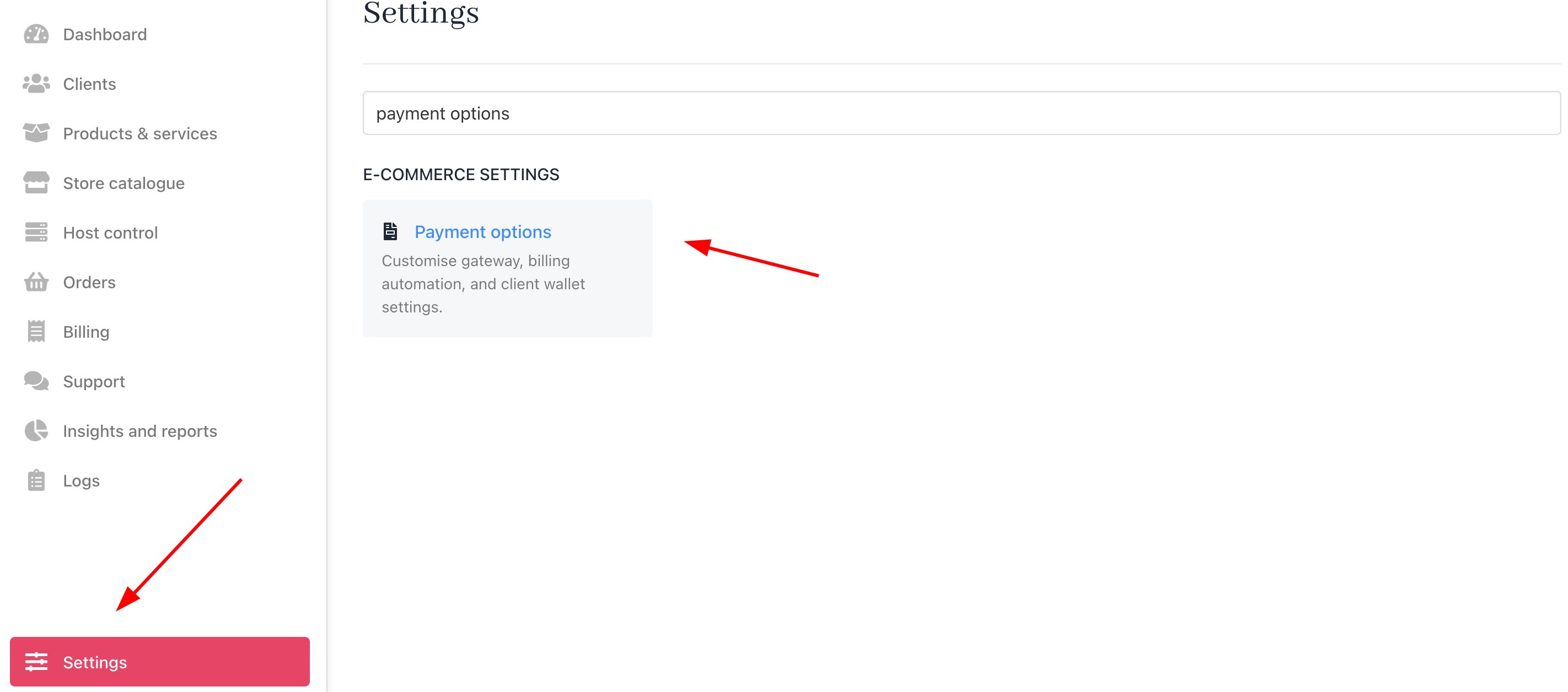
Admins have options within the gateway settings to **Force card storage** and **Force auto payment for stored details**, so that details are saved whenever possible for billing automation.

1. Navigate to **Settings** > **Payment Options** in your Upmind admin dashboard.
<Frame caption="Settings > E-commerce Settings > Payment Options">
  <img src="https://mintcdn.com/upmind/VnCXiz5rboywDnvn/images/fb/d2df2a7efb52ae28.png?fit=max&auto=format&n=VnCXiz5rboywDnvn&q=85&s=c6b9f0d199732054da55d2115432be9c" alt="Settings > E-commerce Settings > Payment Options" data-og-width="2844" width="2844" data-og-height="1256" height="1256" data-path="images/fb/d2df2a7efb52ae28.png" data-optimize="true" data-opv="3" srcset="https://mintcdn.com/upmind/VnCXiz5rboywDnvn/images/fb/d2df2a7efb52ae28.png?w=280&fit=max&auto=format&n=VnCXiz5rboywDnvn&q=85&s=543c0e118830f5ef35f6714d054038d8 280w, https://mintcdn.com/upmind/VnCXiz5rboywDnvn/images/fb/d2df2a7efb52ae28.png?w=560&fit=max&auto=format&n=VnCXiz5rboywDnvn&q=85&s=007dbd2ddc99fd5da408df03c6bb7f87 560w, https://mintcdn.com/upmind/VnCXiz5rboywDnvn/images/fb/d2df2a7efb52ae28.png?w=840&fit=max&auto=format&n=VnCXiz5rboywDnvn&q=85&s=c759ed05d1fd3ca397a92def9d38b73a 840w, https://mintcdn.com/upmind/VnCXiz5rboywDnvn/images/fb/d2df2a7efb52ae28.png?w=1100&fit=max&auto=format&n=VnCXiz5rboywDnvn&q=85&s=d705877e26f51786da9dc0bb3789f260 1100w, https://mintcdn.com/upmind/VnCXiz5rboywDnvn/images/fb/d2df2a7efb52ae28.png?w=1650&fit=max&auto=format&n=VnCXiz5rboywDnvn&q=85&s=a26dc6ea330118eac779821f2c8dad68 1650w, https://mintcdn.com/upmind/VnCXiz5rboywDnvn/images/fb/d2df2a7efb52ae28.png?w=2500&fit=max&auto=format&n=VnCXiz5rboywDnvn&q=85&s=8fc31ceacc1a70ff849938d550366331 2500w" />
</Frame>

2. Under the `Gateway settings` section, you can enable:

* **Force card storage**: This mandates that clients save their card details securely for future use.

<Frame caption="Force card storage">
  <img src="https://mintcdn.com/upmind/ZsIo0APxdVb_gFS-/images/fb/24c0aa5fa681c91f.png?fit=max&auto=format&n=ZsIo0APxdVb_gFS-&q=85&s=cc5c1ae915897b3834f0004716be73ac" alt="Force card storage" width="1322" height="140" data-path="images/fb/24c0aa5fa681c91f.png" />
</Frame>

* **Force auto payment for stored details**: This automatically charges invoices using the stored payment details.

<Frame caption="Force auto payment for stored details">
  <img src="https://mintcdn.com/upmind/A-RwNPXmK_xnEEqe/images/fb/73e26ef184ba5bc3.png?fit=max&auto=format&n=A-RwNPXmK_xnEEqe&q=85&s=fbe3a7858ed18c418182f4ba7a2b5971" alt="Force auto payment for stored details" width="1316" height="142" data-path="images/fb/73e26ef184ba5bc3.png" />
</Frame>