> ## Documentation Index
> Fetch the complete documentation index at: https://docs.upmind.com/llms.txt
> Use this file to discover all available pages before exploring further.
# How to Use Swap Payment in an Invoice
> Share invoices with clients or teams.
The Swap Payment feature lets you replace the payment recorded against a paid invoice without needing to issue manual credits or make invoice adjustments. This is useful for correcting payment methods, handling refunds, or updating transaction records.
This action is available only within the admin panel.
## Steps to use swap payment on an invoice
1. Log into the Upmind admin area.
2. Locate the specific invoice you wish to modify.
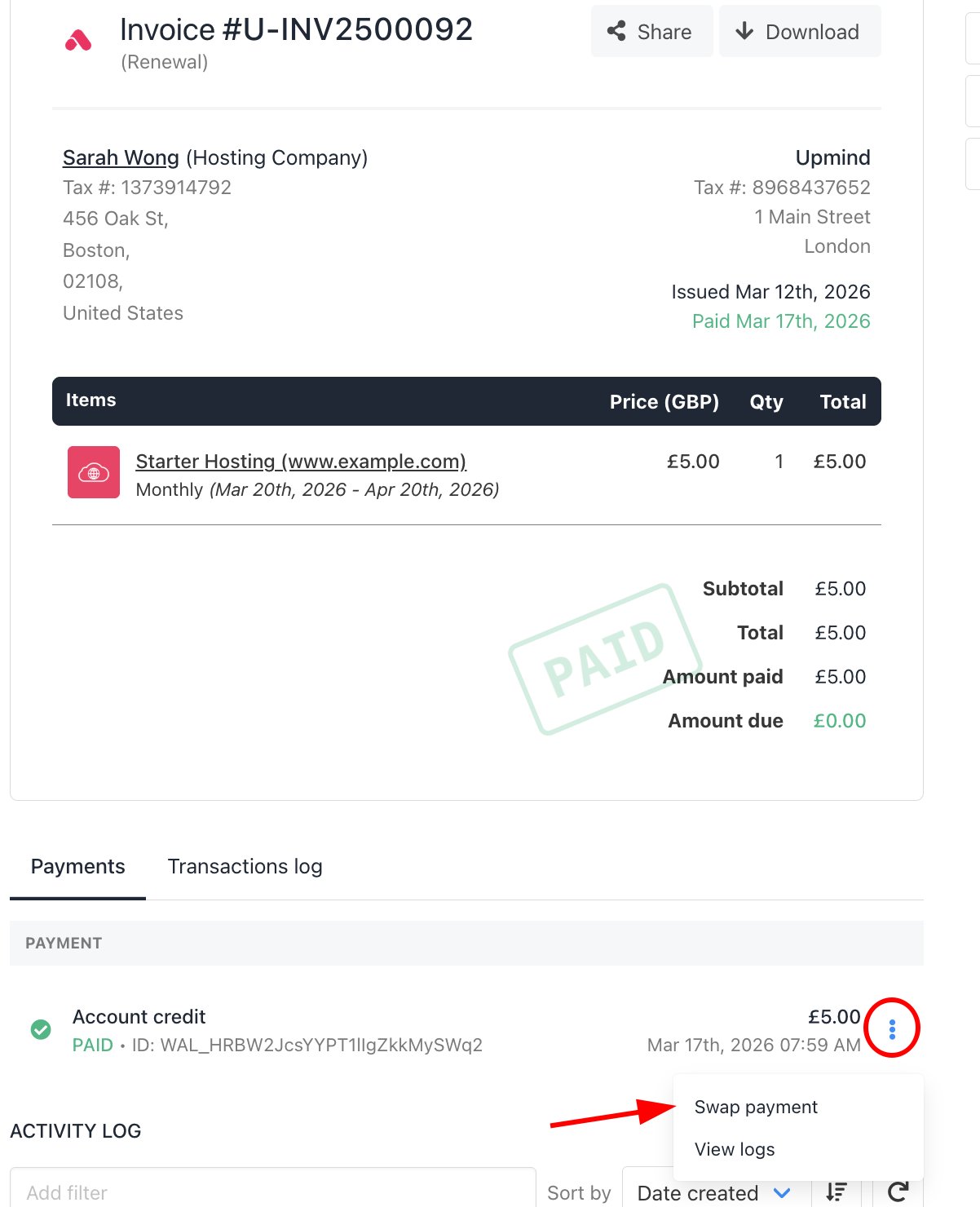
3. Click the three-dot menu (⋯) on the invoice detail page.
4. Select **Swap Payments**.
 5. Configure the **Swap Options**:
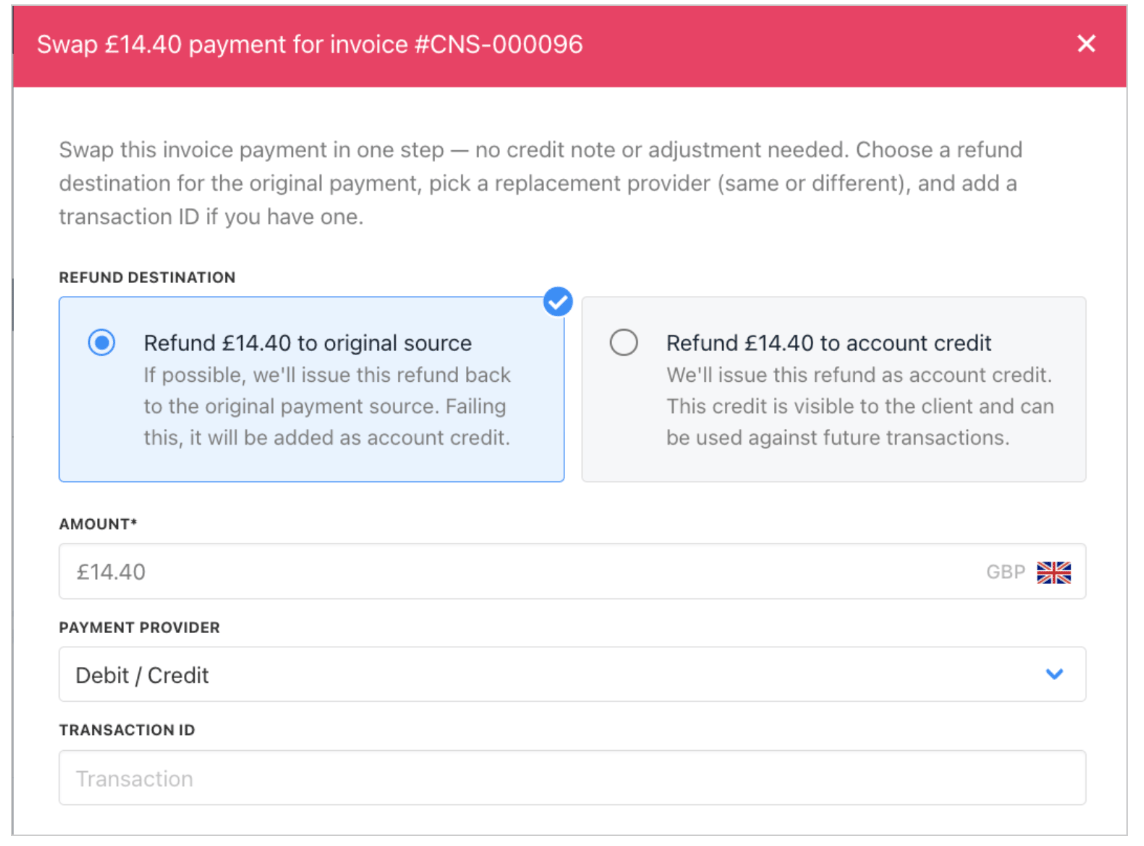
* **Refund Destination**: Choose whether to refund the original payment back to the payment source or as account credit.
* **New Payment Provider**: Select a different payment method (such as card, PayPal, or offline payment).
* **Transaction ID (Optional)**: Enter a reference or transaction ID if you are linking an external or manual payment.
5. Configure the **Swap Options**:
* **Refund Destination**: Choose whether to refund the original payment back to the payment source or as account credit.
* **New Payment Provider**: Select a different payment method (such as card, PayPal, or offline payment).
* **Transaction ID (Optional)**: Enter a reference or transaction ID if you are linking an external or manual payment.
 6. After making your selections, click **Save** to complete the swap.
The invoice will now reflect the new payment, and a refund or credit (as selected) will be applied to the original transaction.
6. After making your selections, click **Save** to complete the swap.
The invoice will now reflect the new payment, and a refund or credit (as selected) will be applied to the original transaction.