> ## Documentation Index
> Fetch the complete documentation index at: https://docs.upmind.com/llms.txt
> Use this file to discover all available pages before exploring further.
# How to Manage Renewal Automation Settings
> Customise invoice dates and renewals.
Admins and store staff can manage subscription renewals and recurring payment invoices globally.
Recurring payments and renewals can also be managed at the client level.
## Manage global renewal automation settings
You can set global defaults for all recurring invoices and renewals.
1. Log in to your Upmind admin area.
2. Go to `Settings` and select `Order Options` under **Ecommerce Settings**.
3. Scroll to **Recurring invoice generation**.
4. Use the sliding scale to set how many days before the renewal date invoices are generated (e.g., generate invoices 7 days before renewal).
 5. Find **Recurring invoice due dates**.
6. Set the due date for renewal invoices to be a certain number of days on, before, or after the renewal date using the sliding scale.
5. Find **Recurring invoice due dates**.
6. Set the due date for renewal invoices to be a certain number of days on, before, or after the renewal date using the sliding scale.
 7. Click **Save** to apply your settings.
## Common scenarios
### Why renewal timing differs from expectations
When consolidation is active:
* Renewal invoices align with consolidation rules.
* Automation settings do not control timing for those services.
### Manual status and its effect on renewal automation
A contract product's status directly affects whether renewal automation applies. If a contract product is manually set to **Active**, for example, when it has an unpaid invoice or is approaching suspension, the system's automation intervals will not act on it. The contract remains in its manually assigned status regardless of any configured suspend, cancel, or close intervals.
7. Click **Save** to apply your settings.
## Common scenarios
### Why renewal timing differs from expectations
When consolidation is active:
* Renewal invoices align with consolidation rules.
* Automation settings do not control timing for those services.
### Manual status and its effect on renewal automation
A contract product's status directly affects whether renewal automation applies. If a contract product is manually set to **Active**, for example, when it has an unpaid invoice or is approaching suspension, the system's automation intervals will not act on it. The contract remains in its manually assigned status regardless of any configured suspend, cancel, or close intervals.
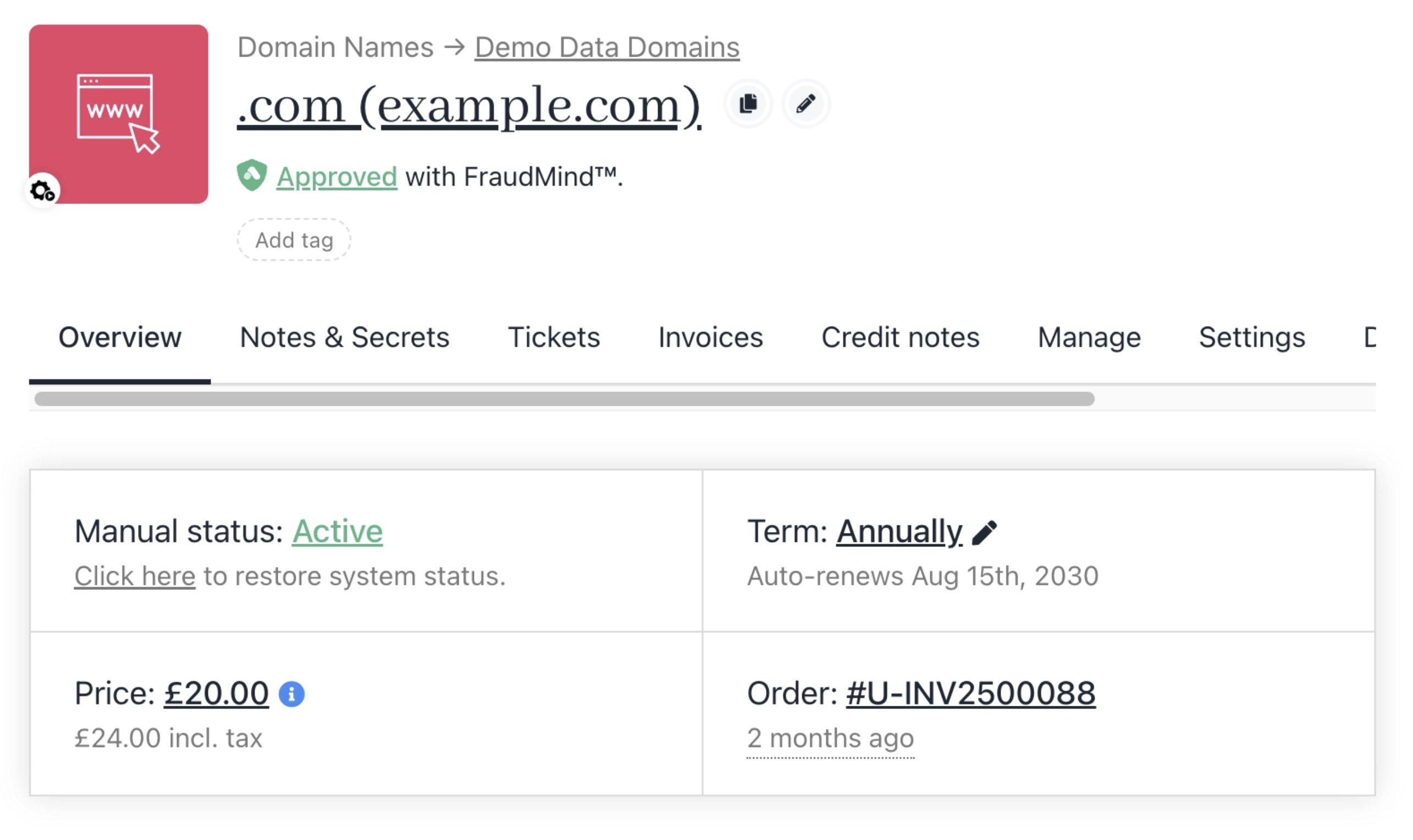 Because of this, manually setting a contract to **Active** bypasses the protections that renewal automation provides. It is generally not recommended unless you are actively monitoring and managing that contract on a daily basis, as overdue invoices and lapsed services will not be handled automatically.