> ## Documentation Index
> Fetch the complete documentation index at: https://docs.upmind.com/llms.txt
> Use this file to discover all available pages before exploring further.
# How to Issue Refunds & Credit Notes
> For paid and unpaid invoices.
Admins and store staff can issue full or partial refunds and credit notes for paid invoices, as well as credit unpaid invoices.
## Refunds vs. credit notes
* **Refund** - Returns money to the client via their original payment method.
* **Credit Note** - Cancels the purchase and adds credit to the client’s account for future use.
Upmind automatically sends clients an email notification with a link to view refunds and credits.
## Opening an invoice
1. Log in to your account.
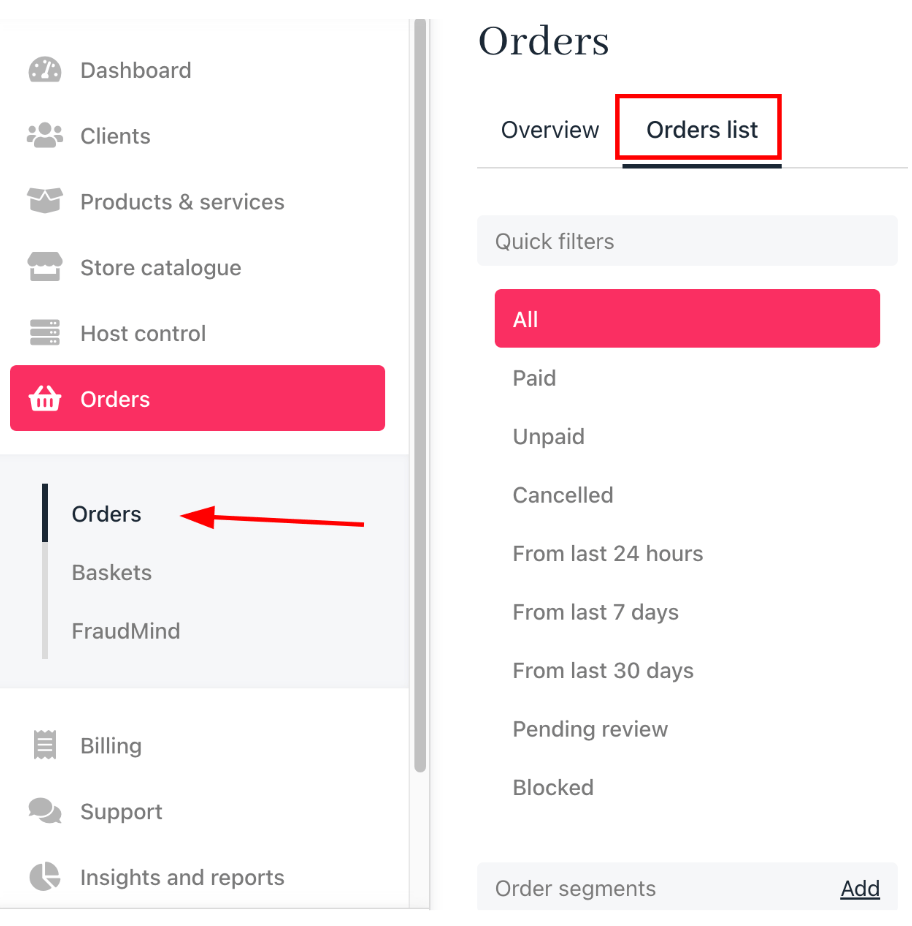
2. Click **Orders** in the left menu.
3. Select the **Orders list** tab.
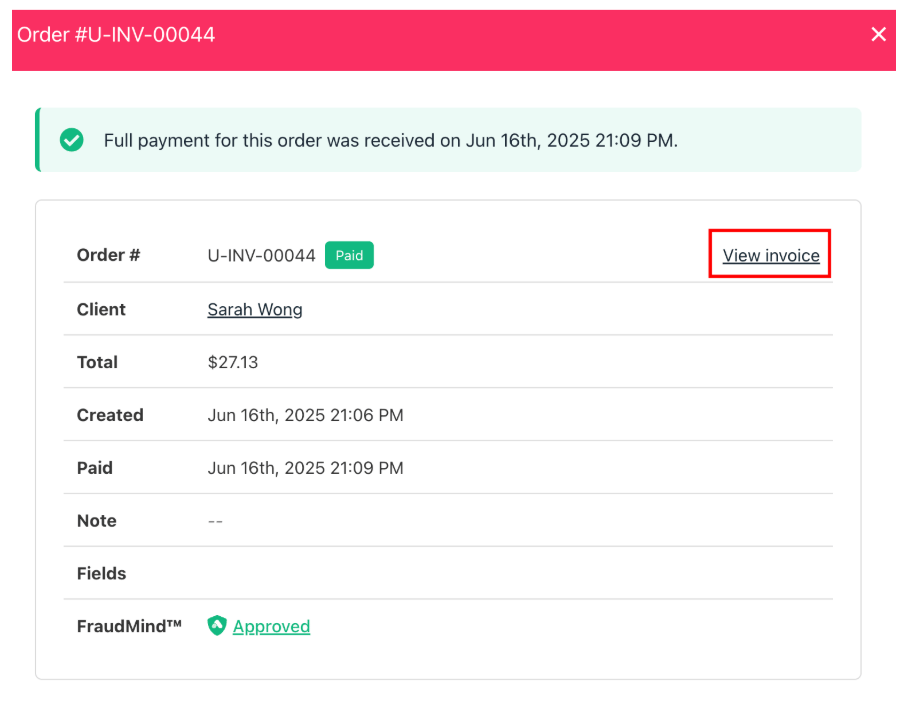
 4. Click the invoice you want to open.
5. In the new window, click **View invoice**.
4. Click the invoice you want to open.
5. In the new window, click **View invoice**.
 6. On the next screen, click **Go to invoice**.
## Working with paid invoices
1. Open the invoice.
2. Scroll to the bottom of the page.
3. Click the **Credit/refund invoice** button.
6. On the next screen, click **Go to invoice**.
## Working with paid invoices
1. Open the invoice.
2. Scroll to the bottom of the page.
3. Click the **Credit/refund invoice** button.
 4. In the new window, select either **Refund** or **Credit note**.
5. Modify the amount if needed. (Optional)
6. Click **Submit**.
### Paid invoice: refunds
1. Select the **Refund** option.
2. To issue a partial refund for an overcharge, adjust the amount in the **Amount** field.
4. In the new window, select either **Refund** or **Credit note**.
5. Modify the amount if needed. (Optional)
6. Click **Submit**.
### Paid invoice: refunds
1. Select the **Refund** option.
2. To issue a partial refund for an overcharge, adjust the amount in the **Amount** field.
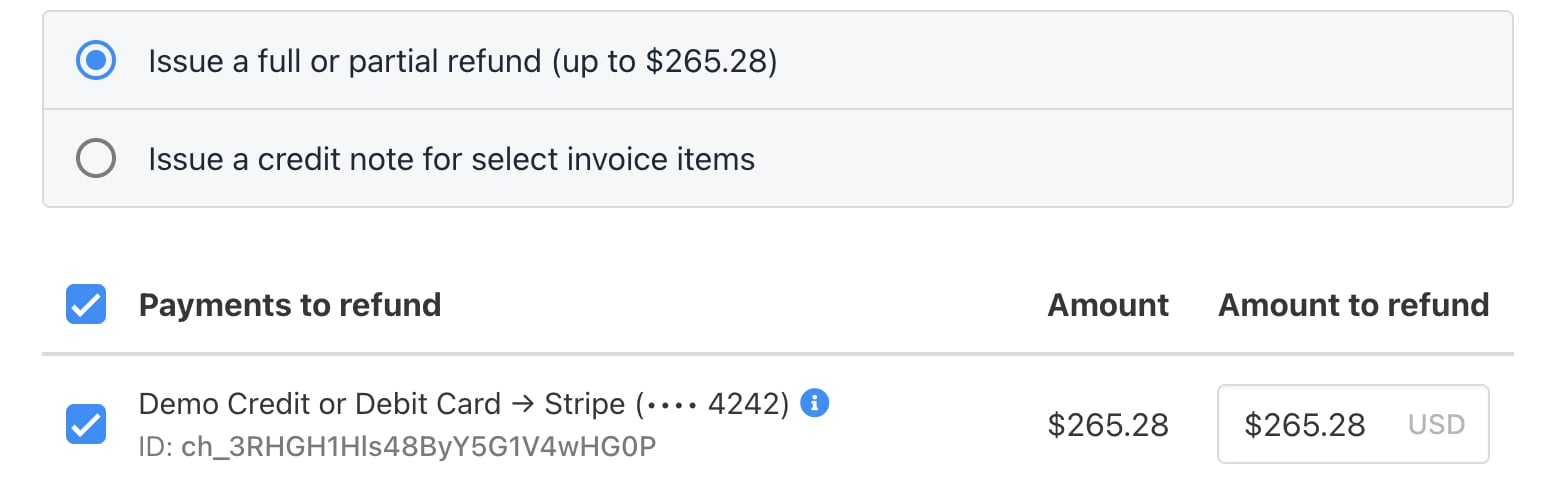 3. Choose one of the following:
* **Issue credit note only** - Issue a credit note without changing the invoice status.
* **Adjust invoice balance only** - Adjust the invoice balance without issuing a credit note.
* **Adjust invoice balance and issue credit note** - Adjust the balance and issue a matching credit note.
3. Choose one of the following:
* **Issue credit note only** - Issue a credit note without changing the invoice status.
* **Adjust invoice balance only** - Adjust the invoice balance without issuing a credit note.
* **Adjust invoice balance and issue credit note** - Adjust the balance and issue a matching credit note.
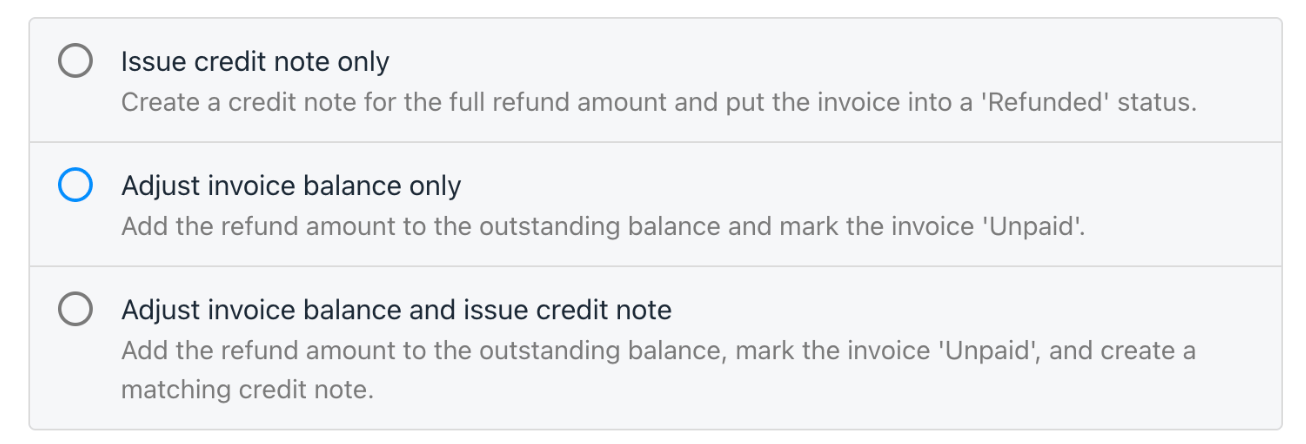 The refund option shows the invoice total but does not display individual purchases (if multiple items were bought).
### Paid invoice: credit notes
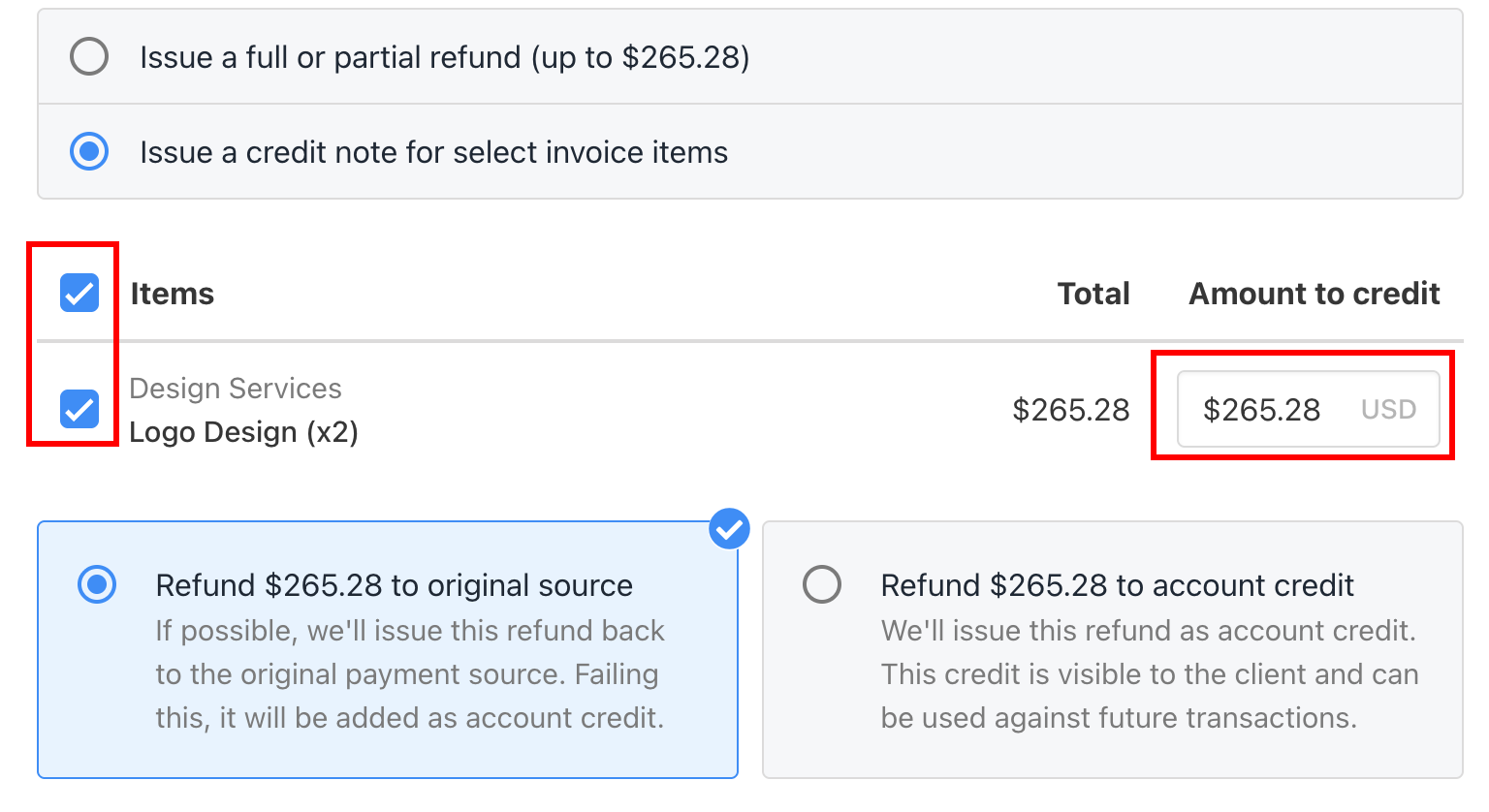
You can issue a credit note for the full amount or selected items on paid invoices, or provide a partial credit by adjusting the amount in the Amount field.
1. Select the **Credit note** option.
2. Use the checkboxes to add or remove invoice items. (Optional)
3. Adjust the credit amount in the **Amount** field to issue a partial credit. (Optional)
The refund option shows the invoice total but does not display individual purchases (if multiple items were bought).
### Paid invoice: credit notes
You can issue a credit note for the full amount or selected items on paid invoices, or provide a partial credit by adjusting the amount in the Amount field.
1. Select the **Credit note** option.
2. Use the checkboxes to add or remove invoice items. (Optional)
3. Adjust the credit amount in the **Amount** field to issue a partial credit. (Optional)
 ## Working with unpaid invoices
You cannot cancel an invoice, but you can reduce the amount owed to zero or issue a partial credit. To do this:
1. Open the invoice.
2. Click the **Credit/refund invoice** button to open a new window.
## Working with unpaid invoices
You cannot cancel an invoice, but you can reduce the amount owed to zero or issue a partial credit. To do this:
1. Open the invoice.
2. Click the **Credit/refund invoice** button to open a new window.
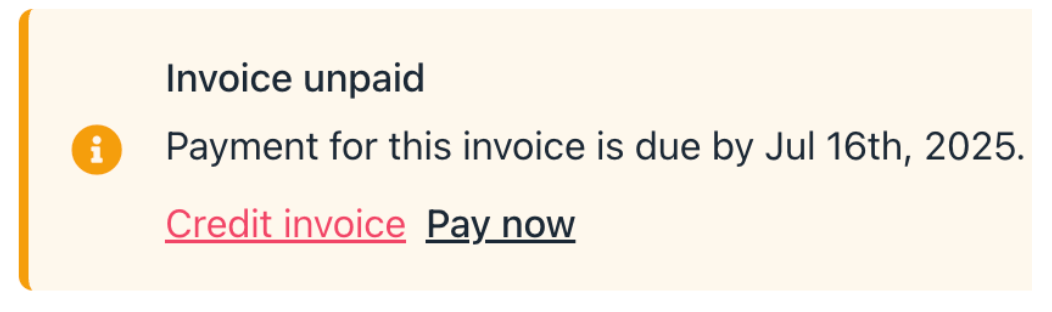 You can also click the Credit invoice link at the top of the invoice page.
### Full credit
1. Verify the numbers at the top of the window.
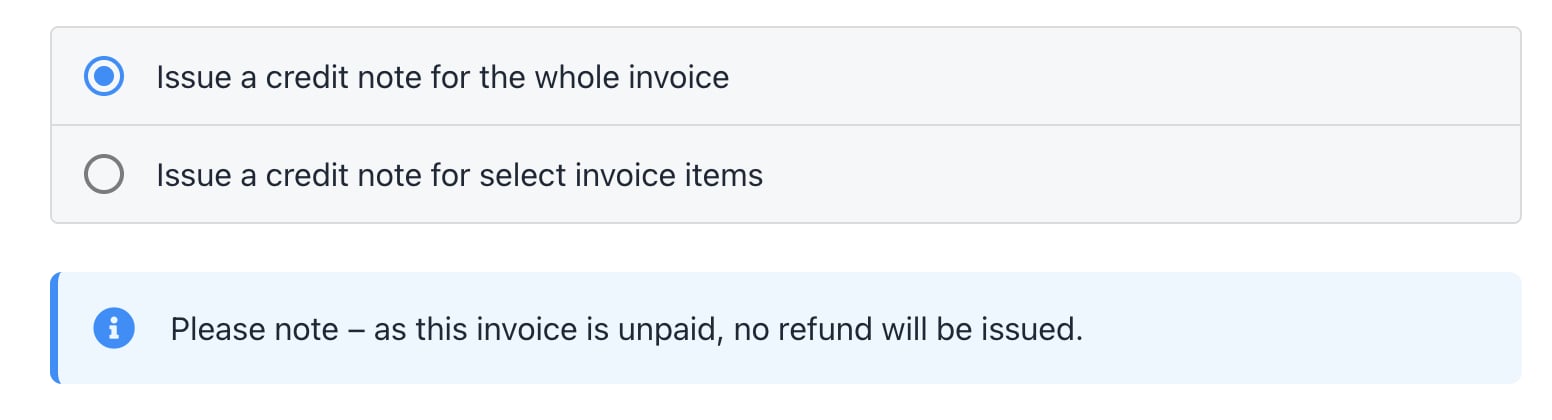
2. Keep the default setting (issue a credit note for the whole invoice).
3. Click **Submit**.
You can also click the Credit invoice link at the top of the invoice page.
### Full credit
1. Verify the numbers at the top of the window.
2. Keep the default setting (issue a credit note for the whole invoice).
3. Click **Submit**.
 Upmind will automatically set the invoice amount owed to zero.
### Partial credit
To issue a partial credit:
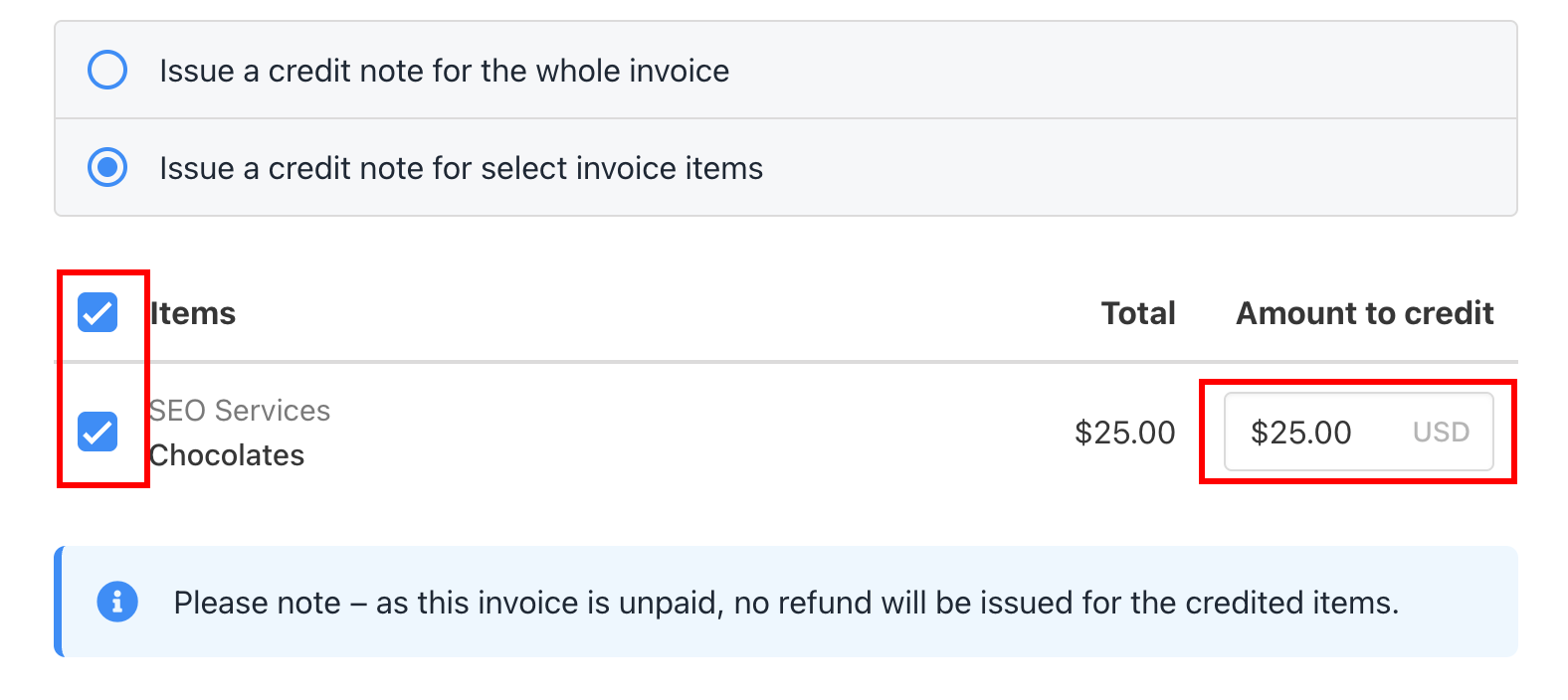
1. Select Issue a credit note for select invoice items.
2. Use checkboxes to add or remove items. (Optional)
3. Adjust the credit total in the Amount field. (Optional)
4. Click **Submit**.
Upmind will automatically set the invoice amount owed to zero.
### Partial credit
To issue a partial credit:
1. Select Issue a credit note for select invoice items.
2. Use checkboxes to add or remove items. (Optional)
3. Adjust the credit total in the Amount field. (Optional)
4. Click **Submit**.
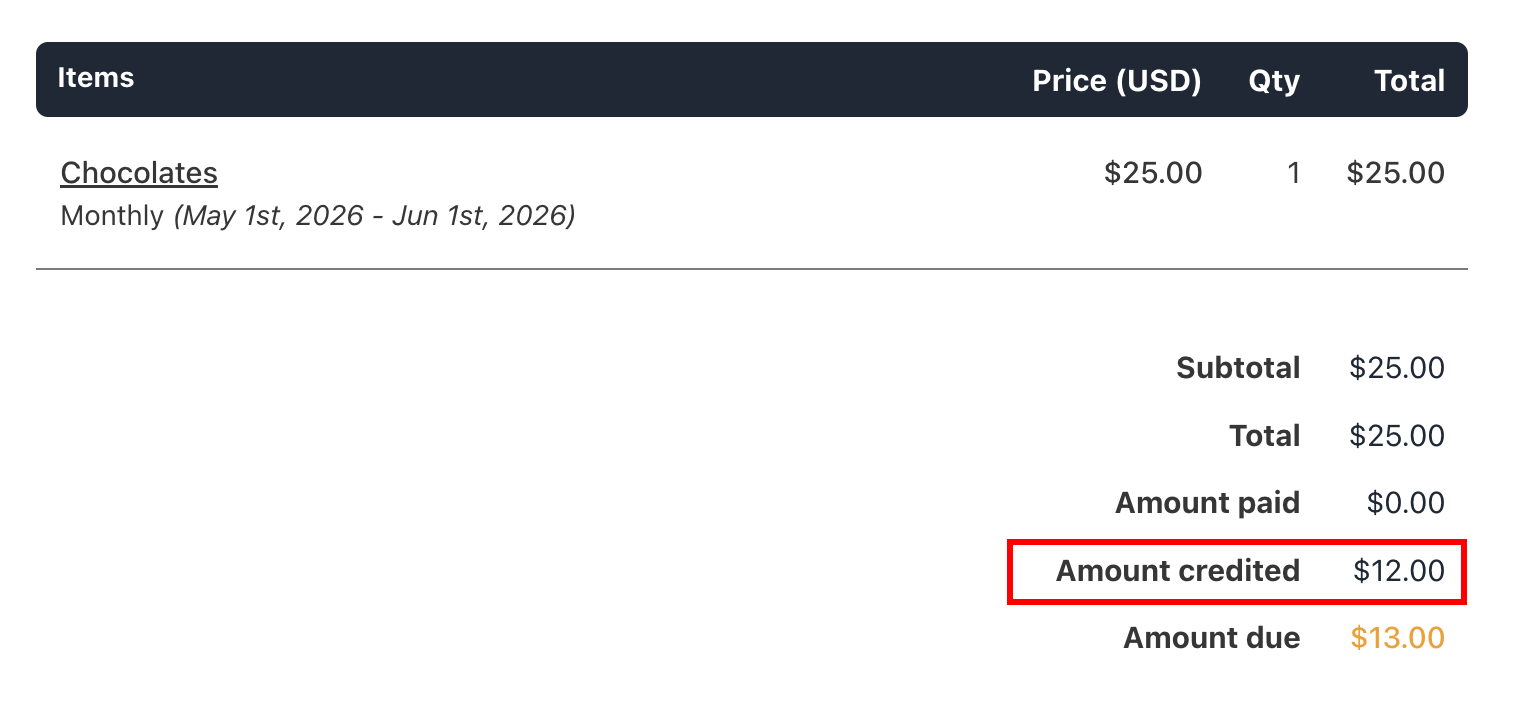
 Upmind will generate an updated invoice reflecting the new amount owed.
 ## Common scenarios
### **Incorrect pricing or product on a new order with an unpaid invoice**
If an order has already been placed and the invoice is still unpaid, the pricing or product on that invoice cannot be changed directly. Invoices in Upmind are fixed once created, so editing the line items or swapping the product is not possible at the invoice level.
**The recommended approach in this situation is:**
1. Cancel the unpaid invoice by issuing a full credit note, which reduces the amount owed to zero.
2. Place a new order with the correct pricing or correct product.
This keeps your billing records clean and makes sure the client receives an accurate invoice before payment is collected.
### Removing VAT from an already generated invoice
Once an invoice is created, tax cannot be directly removed.
**Correct approach:**
* Credit the original invoice.
* Regenerate a new invoice with updated tax settings.
This maintains a clean audit trail and accurate reporting.
## Common scenarios
### **Incorrect pricing or product on a new order with an unpaid invoice**
If an order has already been placed and the invoice is still unpaid, the pricing or product on that invoice cannot be changed directly. Invoices in Upmind are fixed once created, so editing the line items or swapping the product is not possible at the invoice level.
**The recommended approach in this situation is:**
1. Cancel the unpaid invoice by issuing a full credit note, which reduces the amount owed to zero.
2. Place a new order with the correct pricing or correct product.
This keeps your billing records clean and makes sure the client receives an accurate invoice before payment is collected.
### Removing VAT from an already generated invoice
Once an invoice is created, tax cannot be directly removed.
**Correct approach:**
* Credit the original invoice.
* Regenerate a new invoice with updated tax settings.
This maintains a clean audit trail and accurate reporting.