> ## Documentation Index
> Fetch the complete documentation index at: https://docs.upmind.com/llms.txt
> Use this file to discover all available pages before exploring further.
# How to Handle Grace Periods in Upmind
> Control when services suspend, cancel, and close after a missed payment.
A grace period is the window of time between an invoice's due date and the moment a service is suspended, cancelled, or terminated/closed. It gives clients extra time to pay without immediately losing access to their services.
There are two ways to manage grace periods in Upmind:
1. **Automation intervals** - Let the system handle suspension, cancellation, and termination automatically based on your configured timers.
2. **Manual status changes** - Override the status on a specific contract product yourself and manage the lifecycle by hand until the invoice is paid.
## Using automation intervals
Upmind lets you configure automation intervals at three levels. Each level overrides the one above it, giving you fine-grained control over individual products or even specific client subscriptions.
**The level hierarchy**
| **Level** | **Overrides** |
| ---------------- | -------------------------------- |
| Brand | Default for everything |
| Product | Overrides brand |
| Contract Product | Overrides both brand and product |
### Setting the brand-level automation interval
This is your global default. Every product and client falls under these settings unless a lower level overrides them.
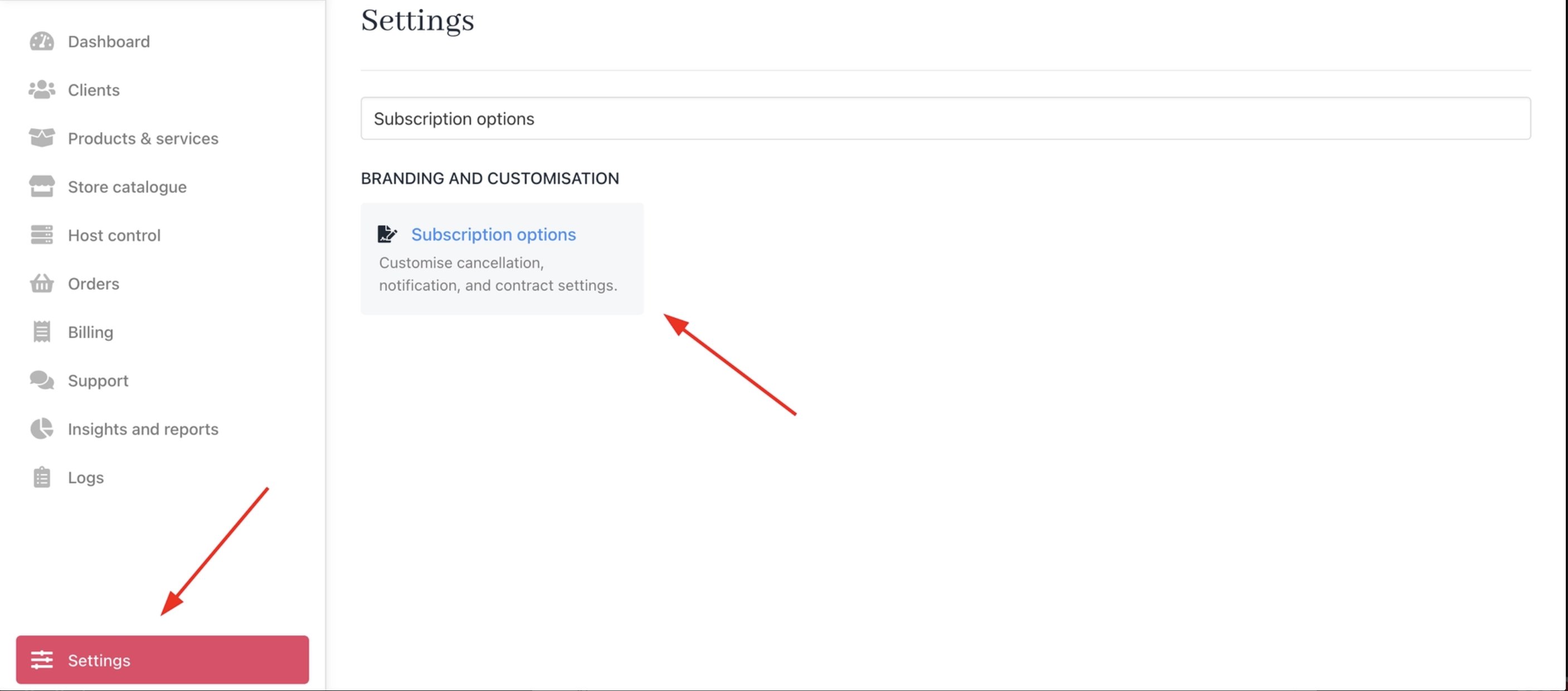
1. Go to **Settings** > **Subscription Options** under **Branding & Customisation**.
 2. Locate the automation interval fields under Contract Settings (**Suspension**, **Cancellation**, and **Termination**).
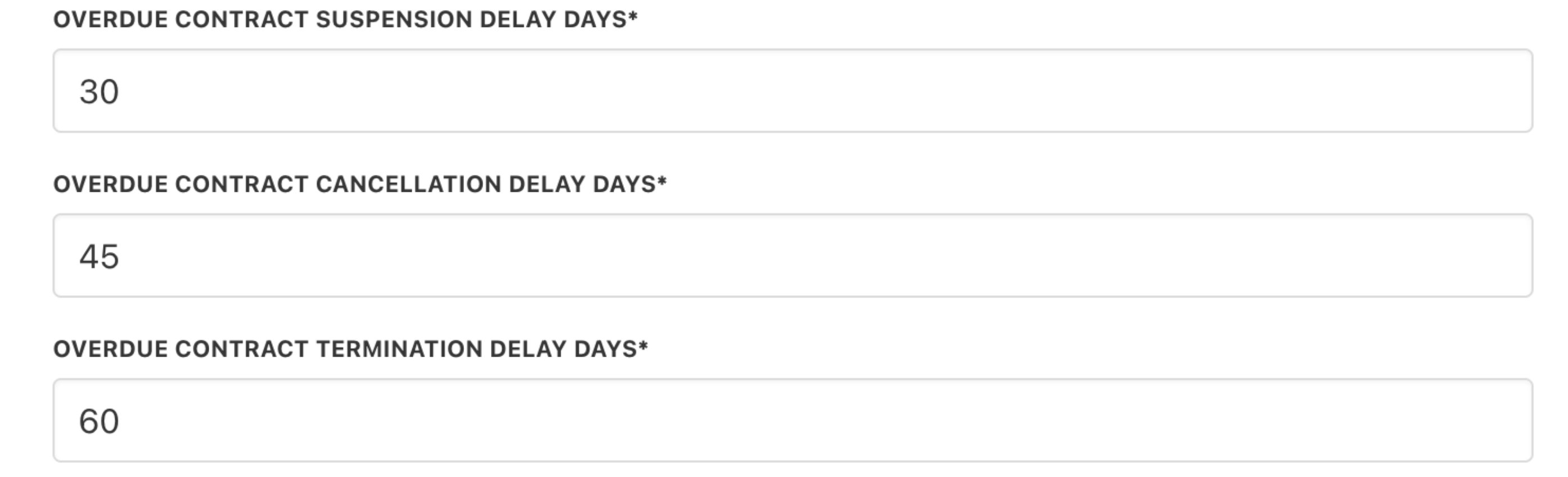 3. Set the number of days after the invoice due date for each action to trigger.
4. Click **Save**.
**Example**
If you set Suspension to 14 days, every unpaid invoice will trigger a suspension 14 days after its due date, across all products and clients, unless a product or contract product level setting says otherwise.
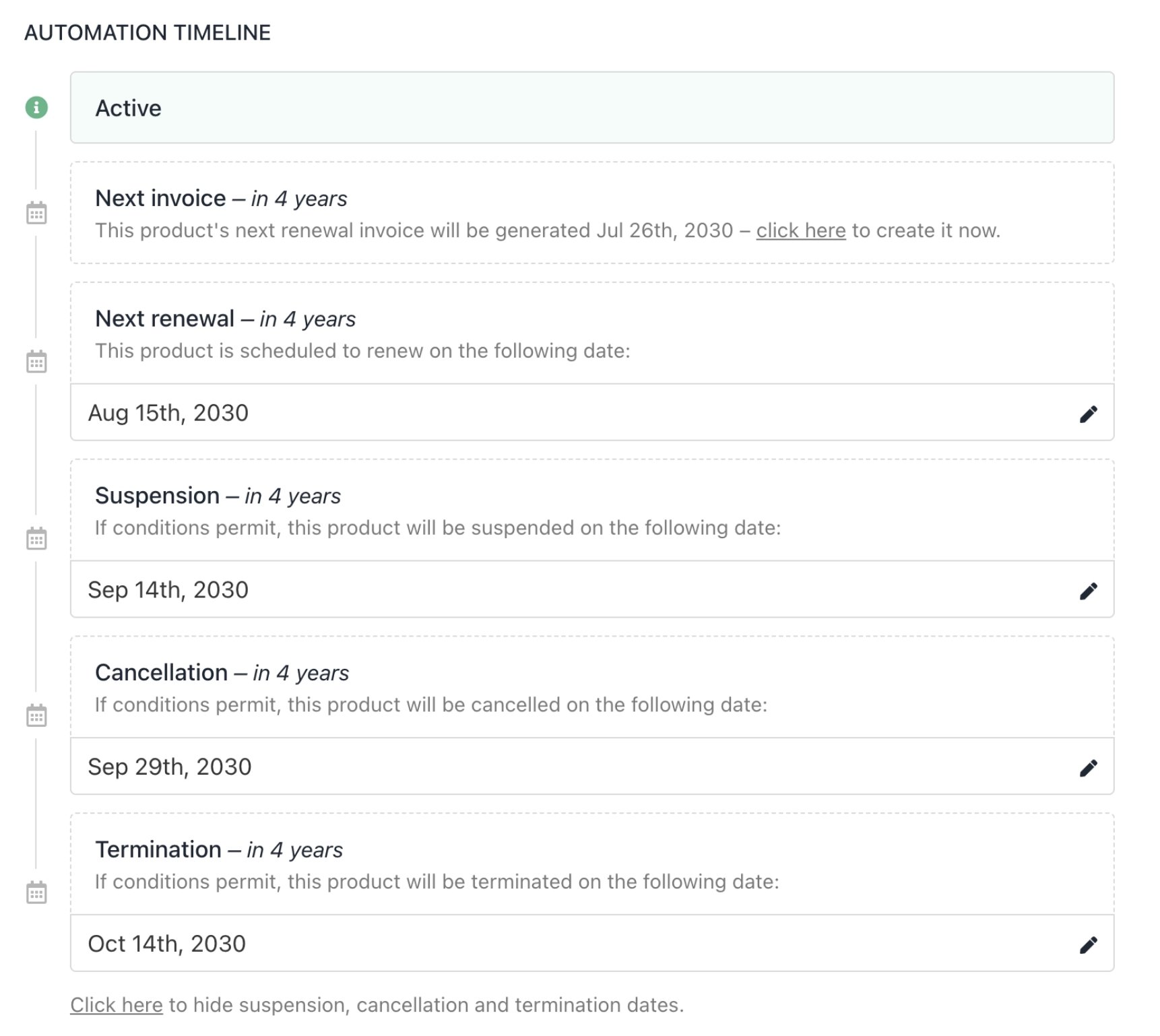
The image below shows how the intervals will appear for a product.
3. Set the number of days after the invoice due date for each action to trigger.
4. Click **Save**.
**Example**
If you set Suspension to 14 days, every unpaid invoice will trigger a suspension 14 days after its due date, across all products and clients, unless a product or contract product level setting says otherwise.
The image below shows how the intervals will appear for a product.
 ### Setting the product-level automation interval
Use this when you want a specific product to behave differently from your brand default. A common use case is domain names, which often require longer grace periods than hosting products.
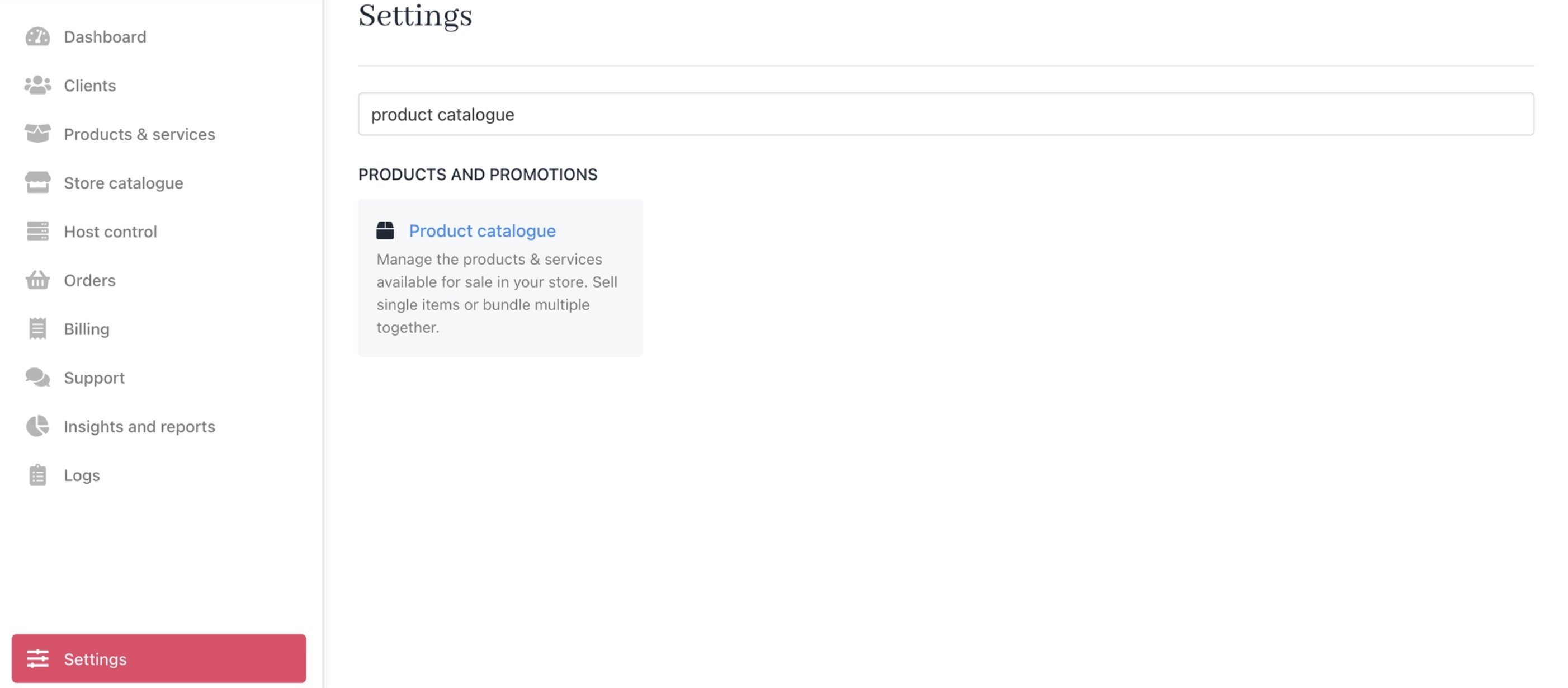
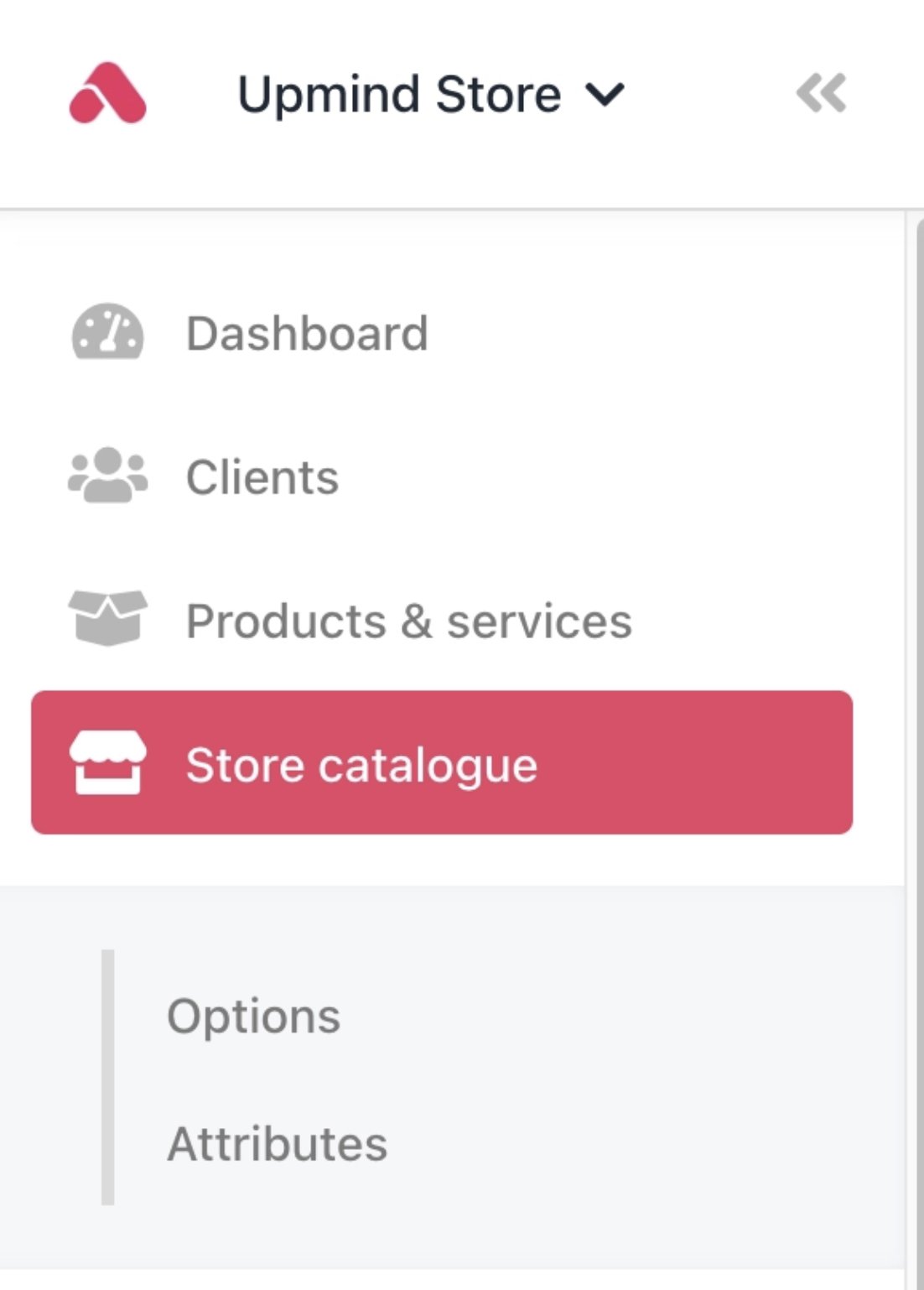
1. Go to **Settings** > **Product Catalogue** under **Products and Promotions**, or open the product directly from the **Store Catalogue**.
### Setting the product-level automation interval
Use this when you want a specific product to behave differently from your brand default. A common use case is domain names, which often require longer grace periods than hosting products.
1. Go to **Settings** > **Product Catalogue** under **Products and Promotions**, or open the product directly from the **Store Catalogue**.
 2. Select the product you want to configure.
3. Open the **Product Automation** tab.
4. Adjust the **Suspend**, **Cancel**, and **Close** intervals to override the brand defaults.
2. Select the product you want to configure.
3. Open the **Product Automation** tab.
4. Adjust the **Suspend**, **Cancel**, and **Close** intervals to override the brand defaults.
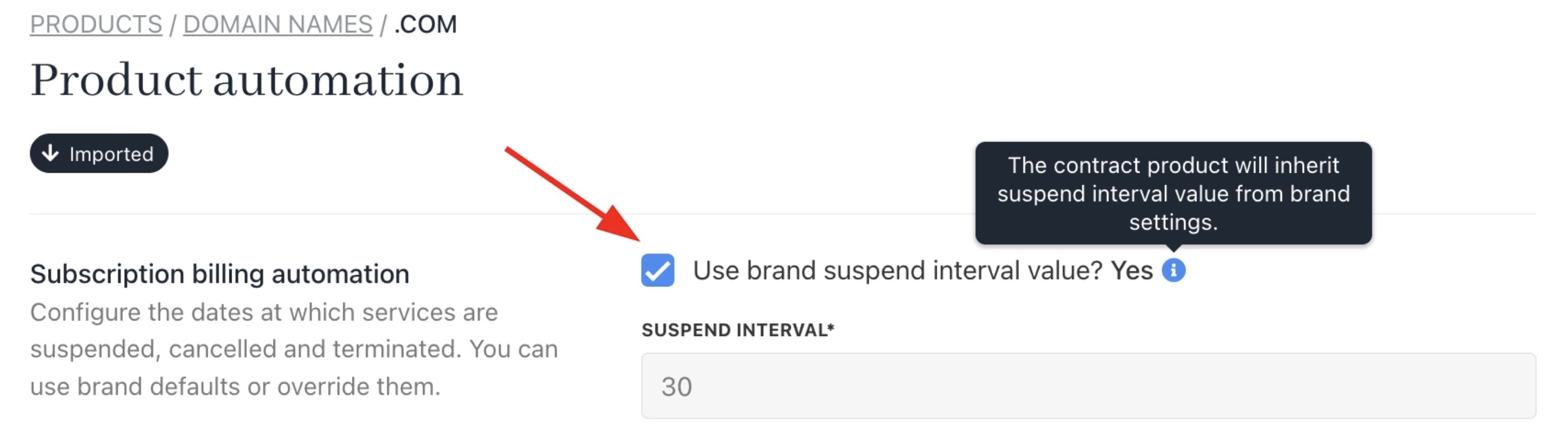
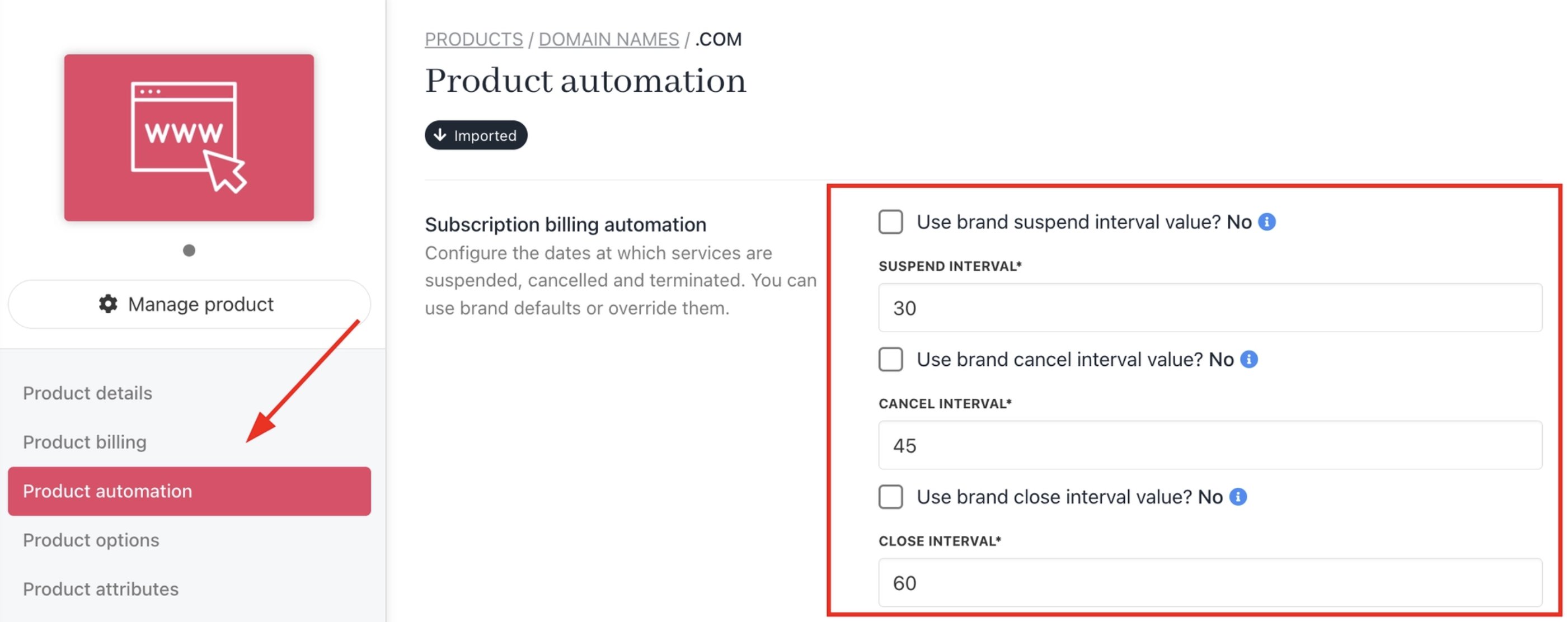 5. You can also set it to follow the interval values of the brand settings.
 6. Click **Save**.
**Example**
Your brand-level setting suspends services after 30 days. You want all **.com** domains to have a 60-day grace period before suspension. Set the Suspend interval to 60 days at the **.com** product level. So, the brand setting no longer applies to those domains.
### Setting the contract product-level automation interval
This gives you the most granular control. Use it when you need a custom grace period for a single client's specific service, without changing the product settings for everyone else.
1. Go to **Clients** and open the relevant client account.
6. Click **Save**.
**Example**
Your brand-level setting suspends services after 30 days. You want all **.com** domains to have a 60-day grace period before suspension. Set the Suspend interval to 60 days at the **.com** product level. So, the brand setting no longer applies to those domains.
### Setting the contract product-level automation interval
This gives you the most granular control. Use it when you need a custom grace period for a single client's specific service, without changing the product settings for everyone else.
1. Go to **Clients** and open the relevant client account.
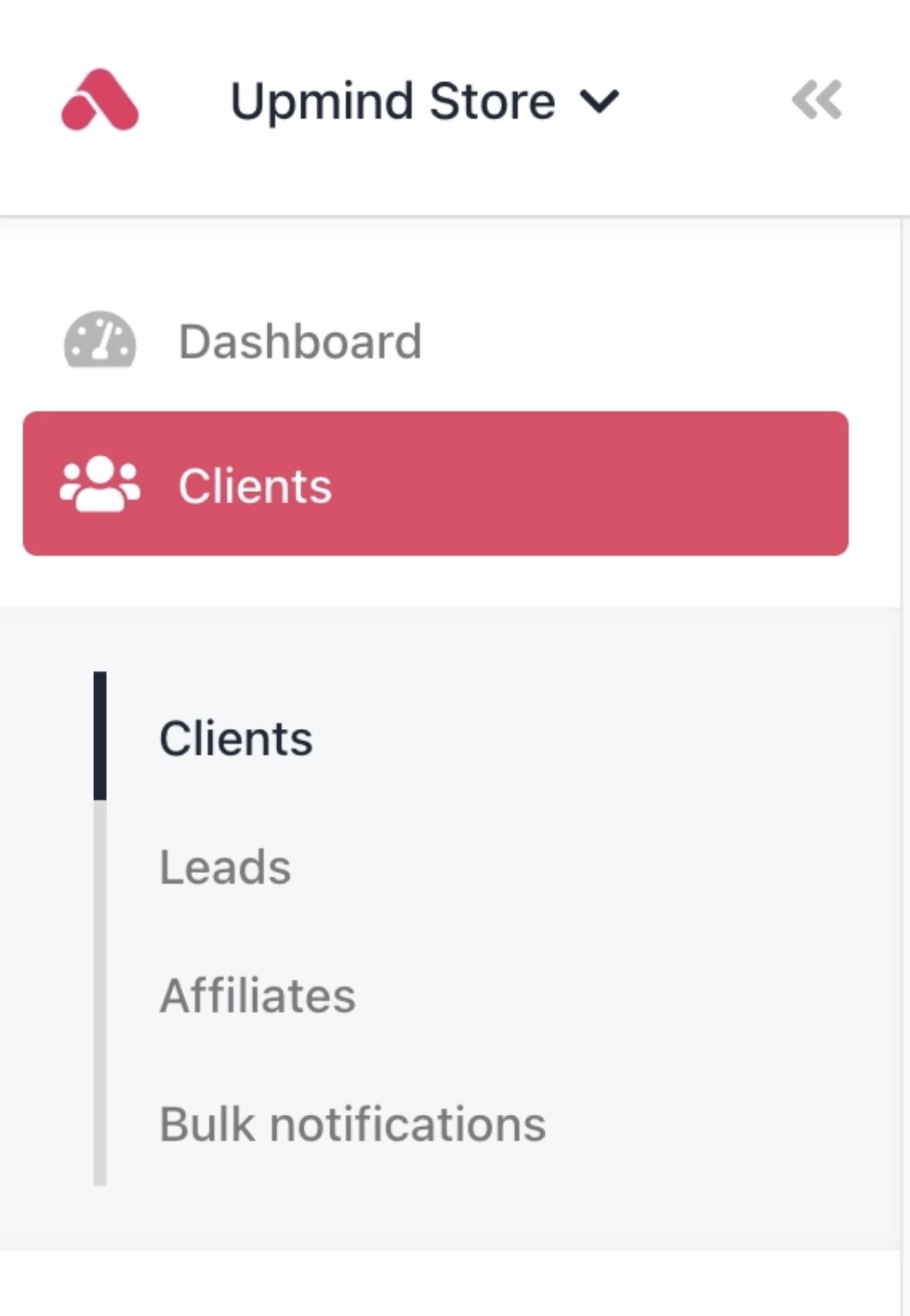 2. Under **Products & Services**, find the contract product you want to adjust.
3. Open the **Settings** tab of that contract product.
2. Under **Products & Services**, find the contract product you want to adjust.
3. Open the **Settings** tab of that contract product.
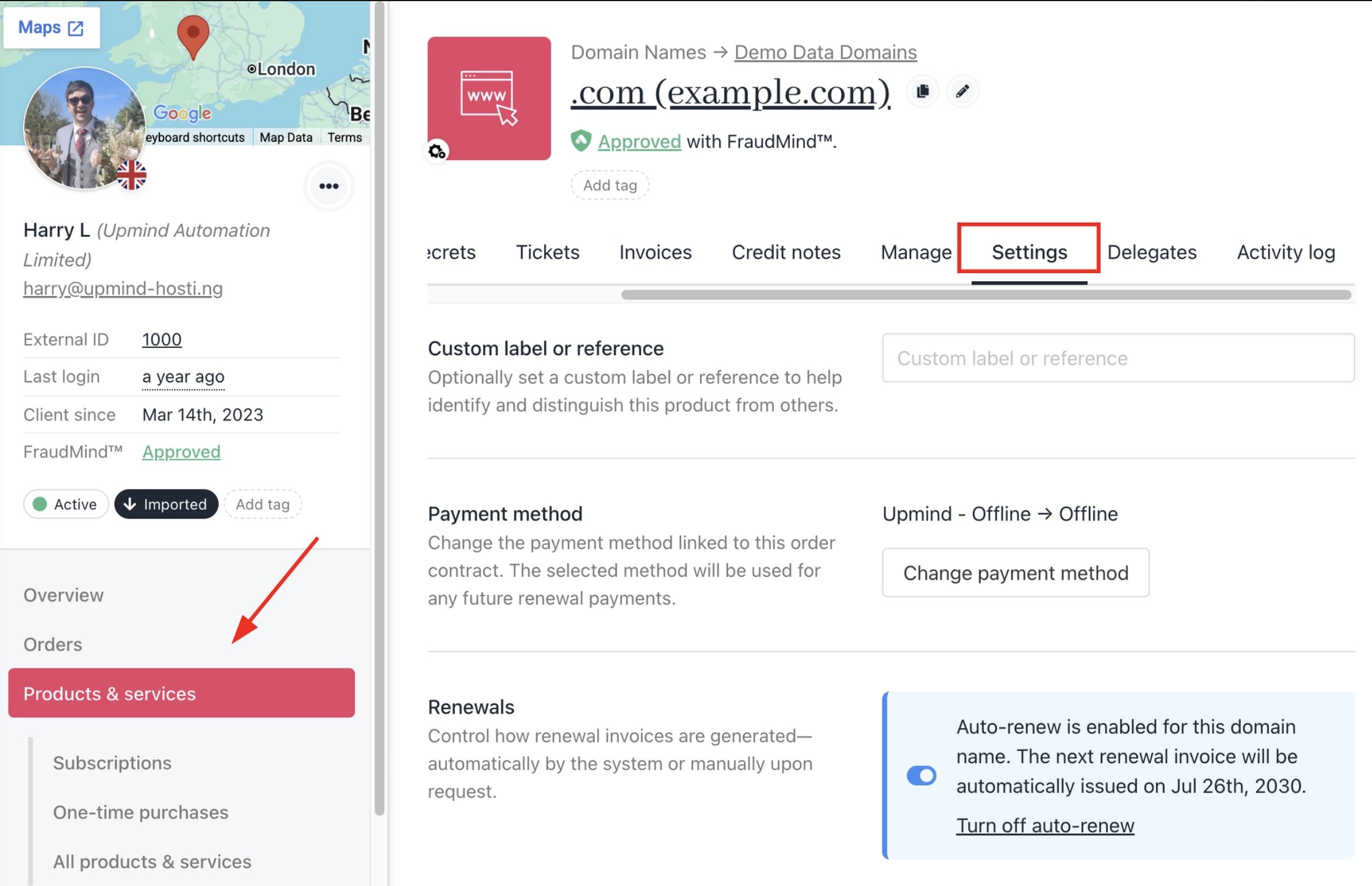 4. Override the **Suspend**, **Cancel**, and **Close** intervals as needed.
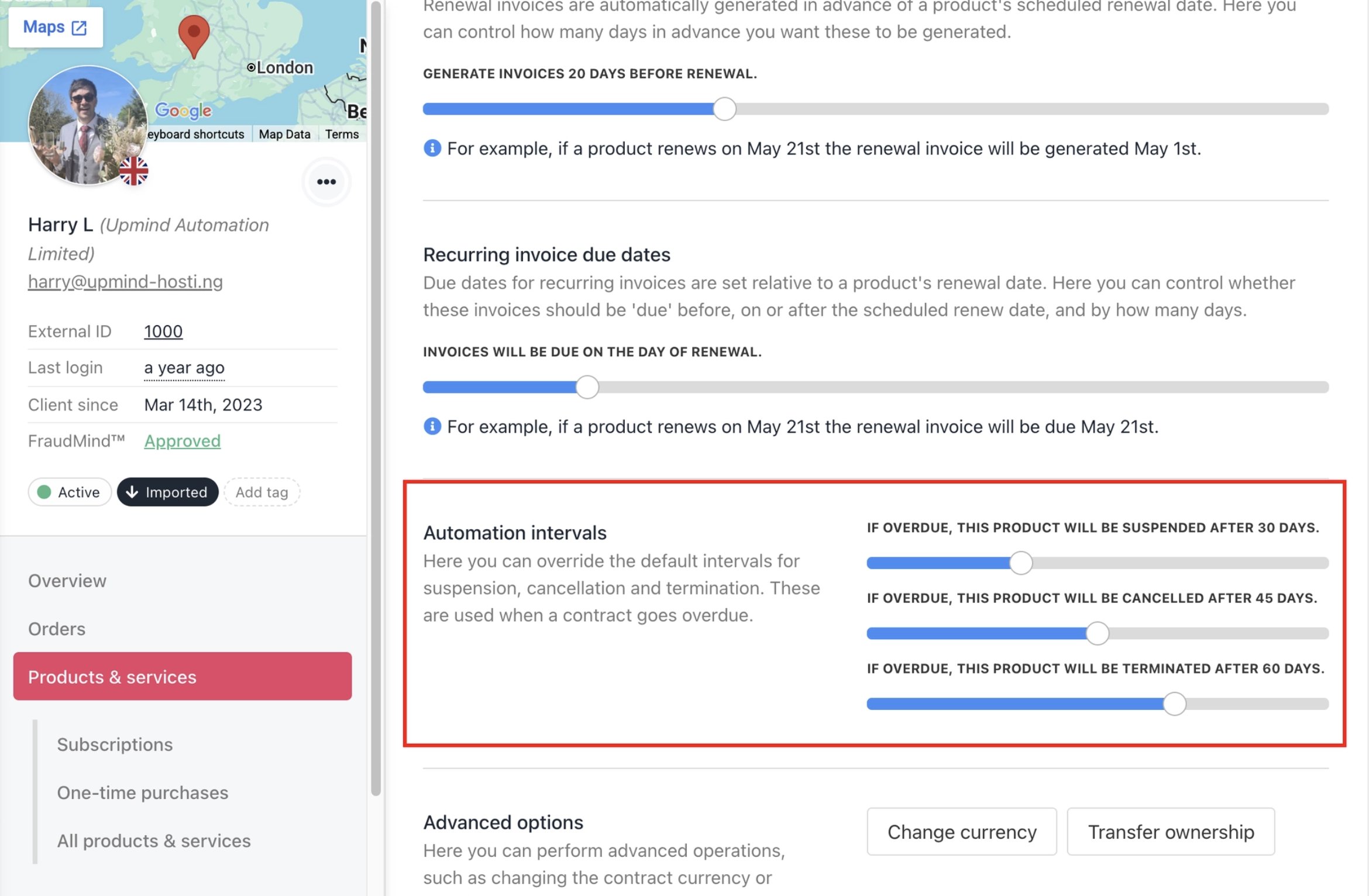 5. Click **Save**.
**Example**
A client has [**mydomain.net**](http://mydomain.net) registered through you. Due to an agreed payment arrangement, you want to give them 90 days before suspension, but you don't want to change the grace period for any other domain. Go to that specific contract product and set the Suspend interval to 90 days at the contract product level.
## Manually changing contract product status
If you want to hold off on suspension or cancellation for a specific client while waiting for payment, you can manually set the contract product status.
This immediately overrides automation. The system will not run any automated suspend, cancel, or close actions while a manual status is in place.
### How to manually change a contract product status
1. Go to **Clients** and open the client's account.
2. Under **Products & Services**, select the contract product.
3. On the **Overview** tab, locate the current status field.
5. Click **Save**.
**Example**
A client has [**mydomain.net**](http://mydomain.net) registered through you. Due to an agreed payment arrangement, you want to give them 90 days before suspension, but you don't want to change the grace period for any other domain. Go to that specific contract product and set the Suspend interval to 90 days at the contract product level.
## Manually changing contract product status
If you want to hold off on suspension or cancellation for a specific client while waiting for payment, you can manually set the contract product status.
This immediately overrides automation. The system will not run any automated suspend, cancel, or close actions while a manual status is in place.
### How to manually change a contract product status
1. Go to **Clients** and open the client's account.
2. Under **Products & Services**, select the contract product.
3. On the **Overview** tab, locate the current status field.
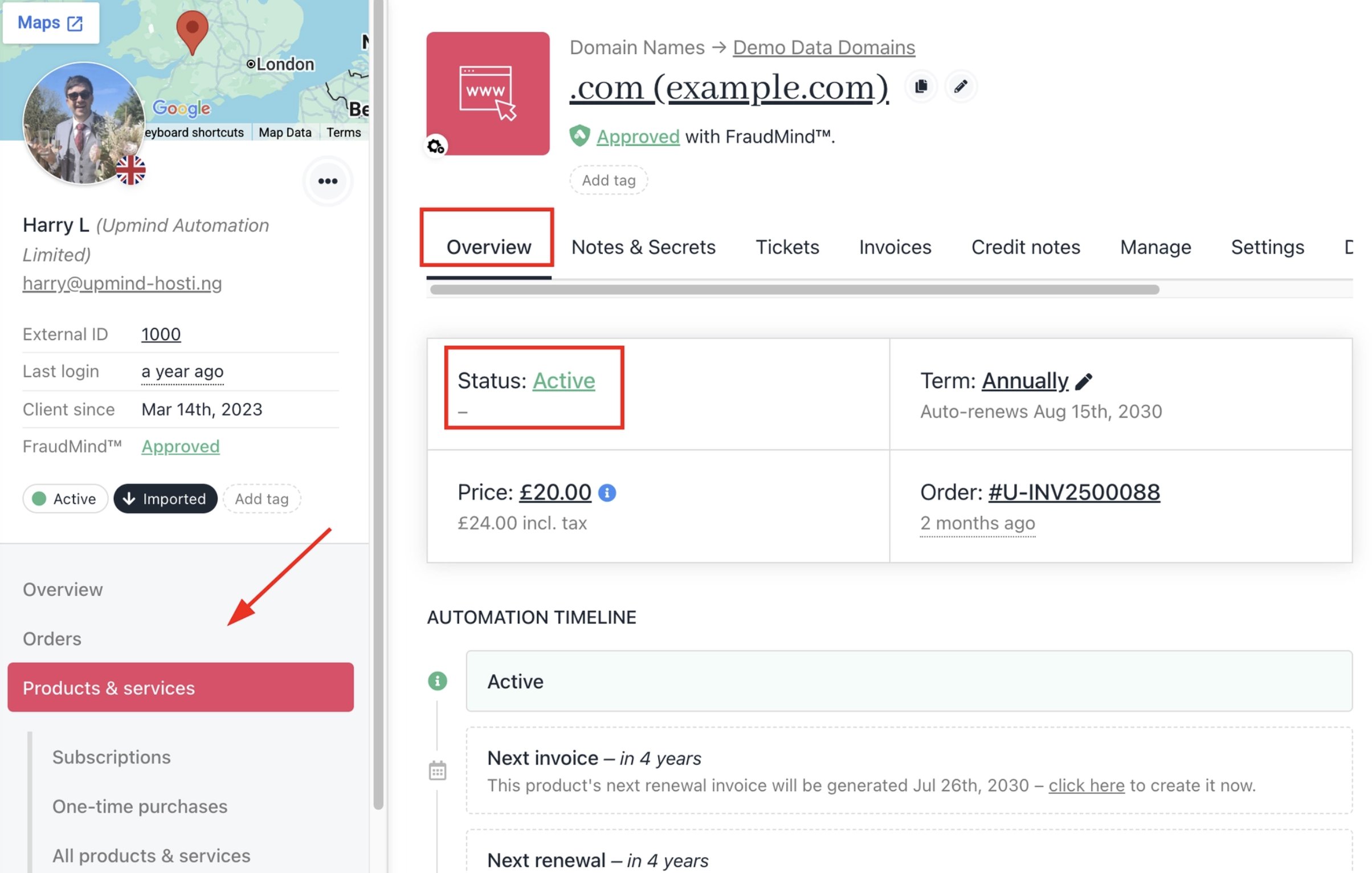 4. Click the status and select the new status from the dropdown.
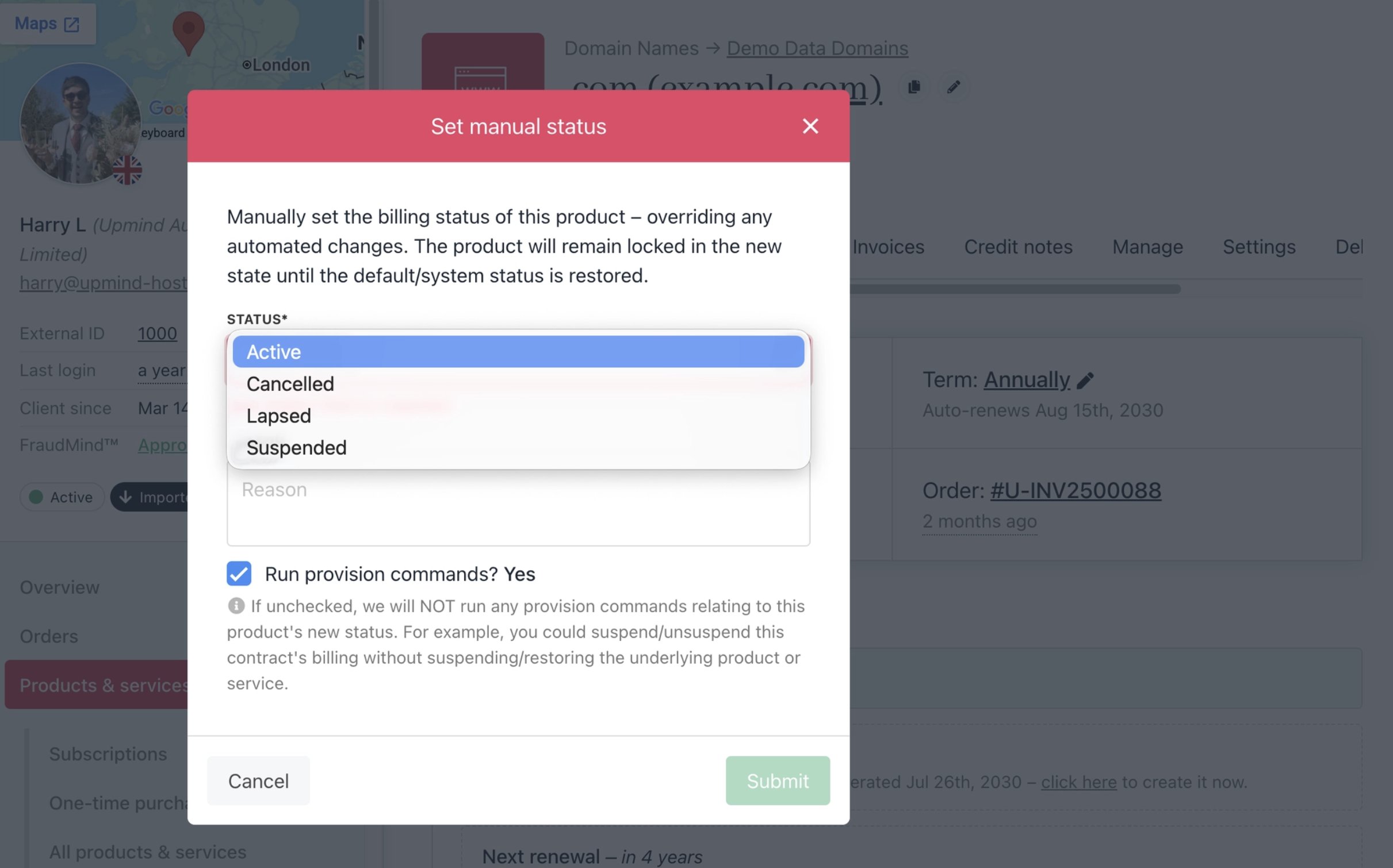 Carefully change the manual status and the **Run provision commands** option, as it may trigger actions on the domain product at the registrar.
**Available manual statuses:**
* **Active** - Service is live and accessible.
* **Suspended** - Service is restricted but recoverable.
* **Lapsed** - Service has expired. This is often used for domains past their renewal date.
* **Cancelled** - Service is marked as cancelled.
5. Confirm the change.
The status updates immediately, and automation is paused for that contract product.
Carefully change the manual status and the **Run provision commands** option, as it may trigger actions on the domain product at the registrar.
**Available manual statuses:**
* **Active** - Service is live and accessible.
* **Suspended** - Service is restricted but recoverable.
* **Lapsed** - Service has expired. This is often used for domains past their renewal date.
* **Cancelled** - Service is marked as cancelled.
5. Confirm the change.
The status updates immediately, and automation is paused for that contract product.
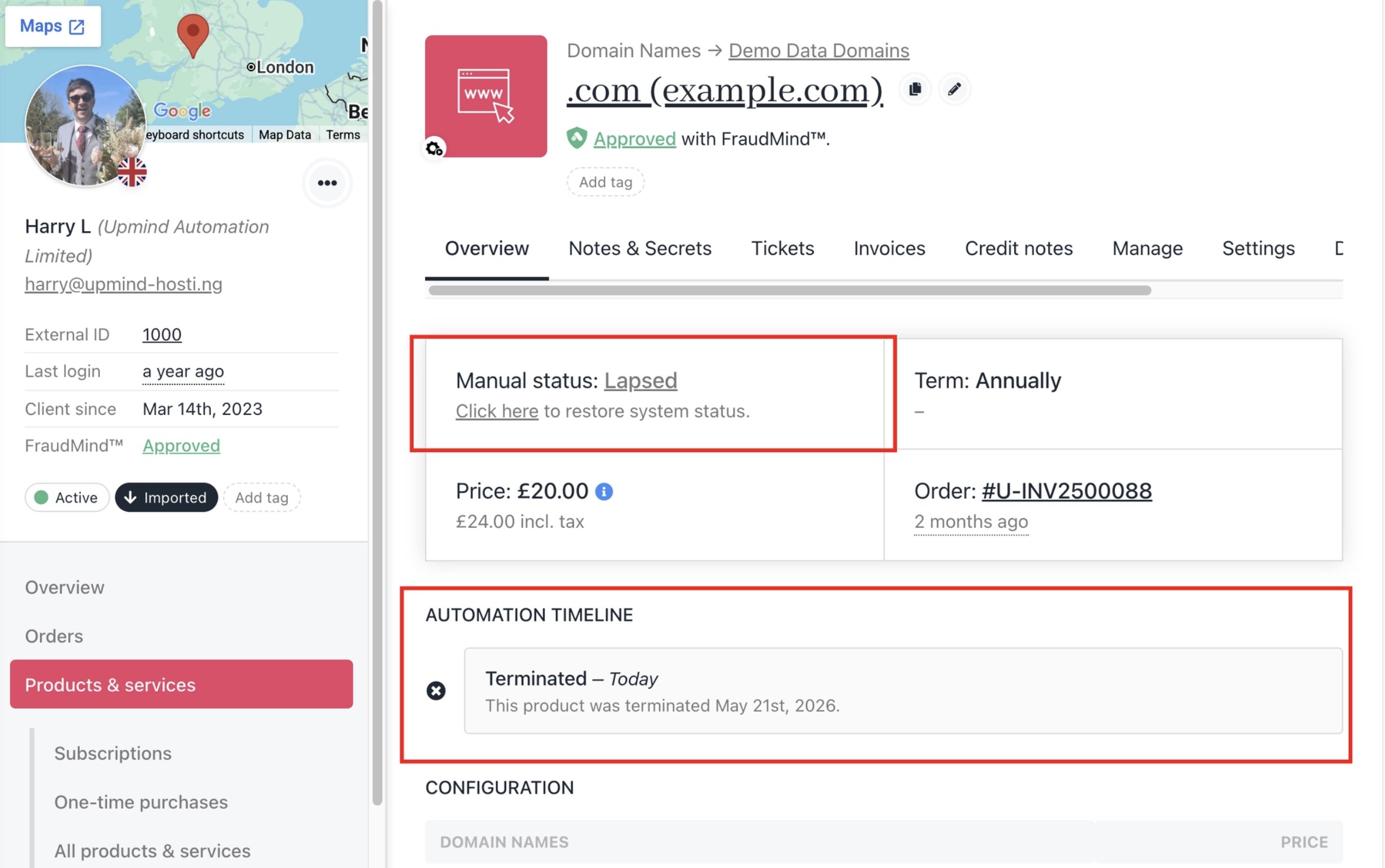 ### Switching back to system status after payment
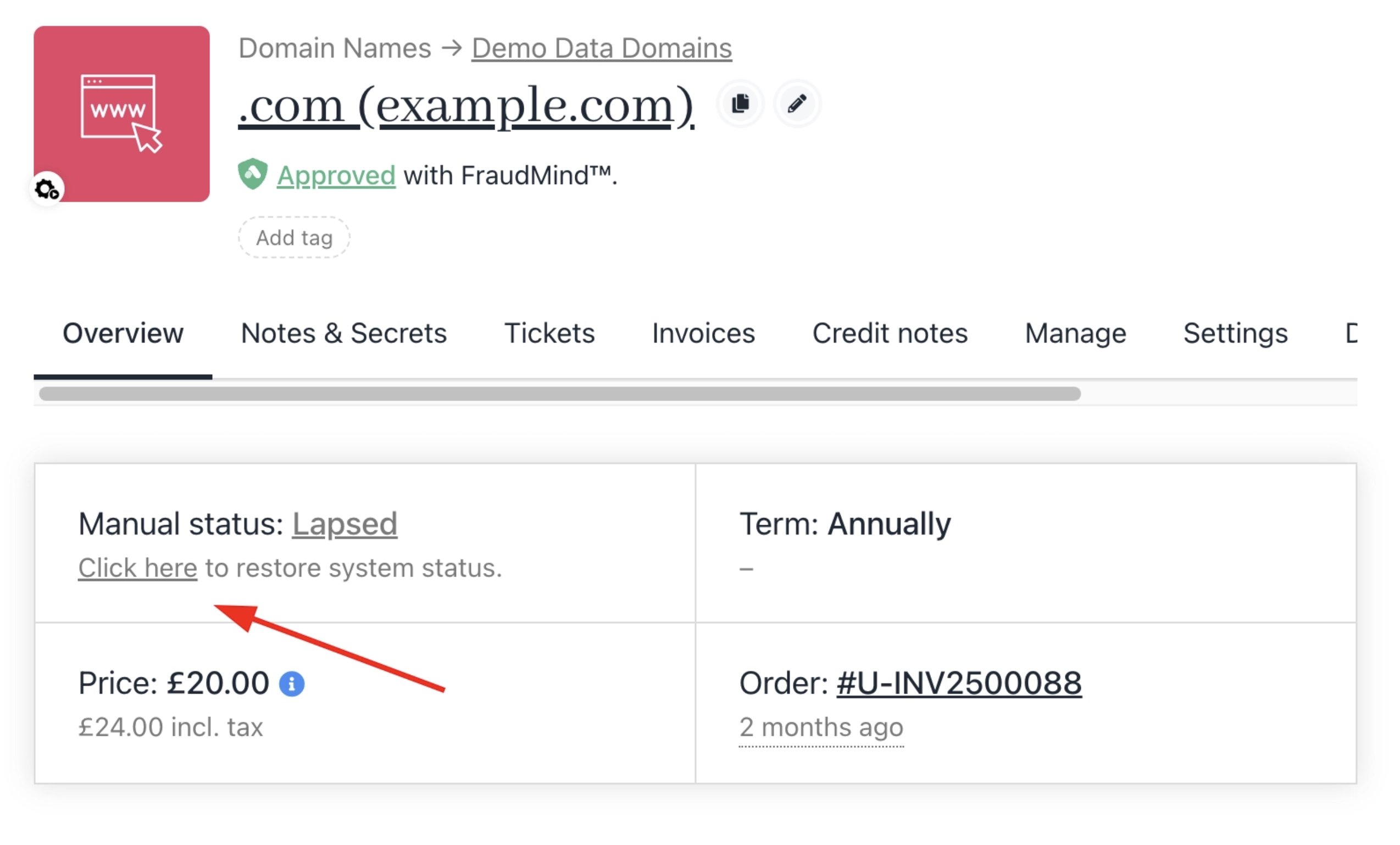
This step is easy to miss. Once a manual status is applied, **Upmind will not resume automated actions on its own**. After the client pays their invoice, a staff member must manually return the contract product to system-controlled status.
**After payment is confirmed:**
1. Open the client's account and navigate to the contract product.
2. On the **Overview** tab, restore the system status to **Active** (or the appropriate status).
### Switching back to system status after payment
This step is easy to miss. Once a manual status is applied, **Upmind will not resume automated actions on its own**. After the client pays their invoice, a staff member must manually return the contract product to system-controlled status.
**After payment is confirmed:**
1. Open the client's account and navigate to the contract product.
2. On the **Overview** tab, restore the system status to **Active** (or the appropriate status).
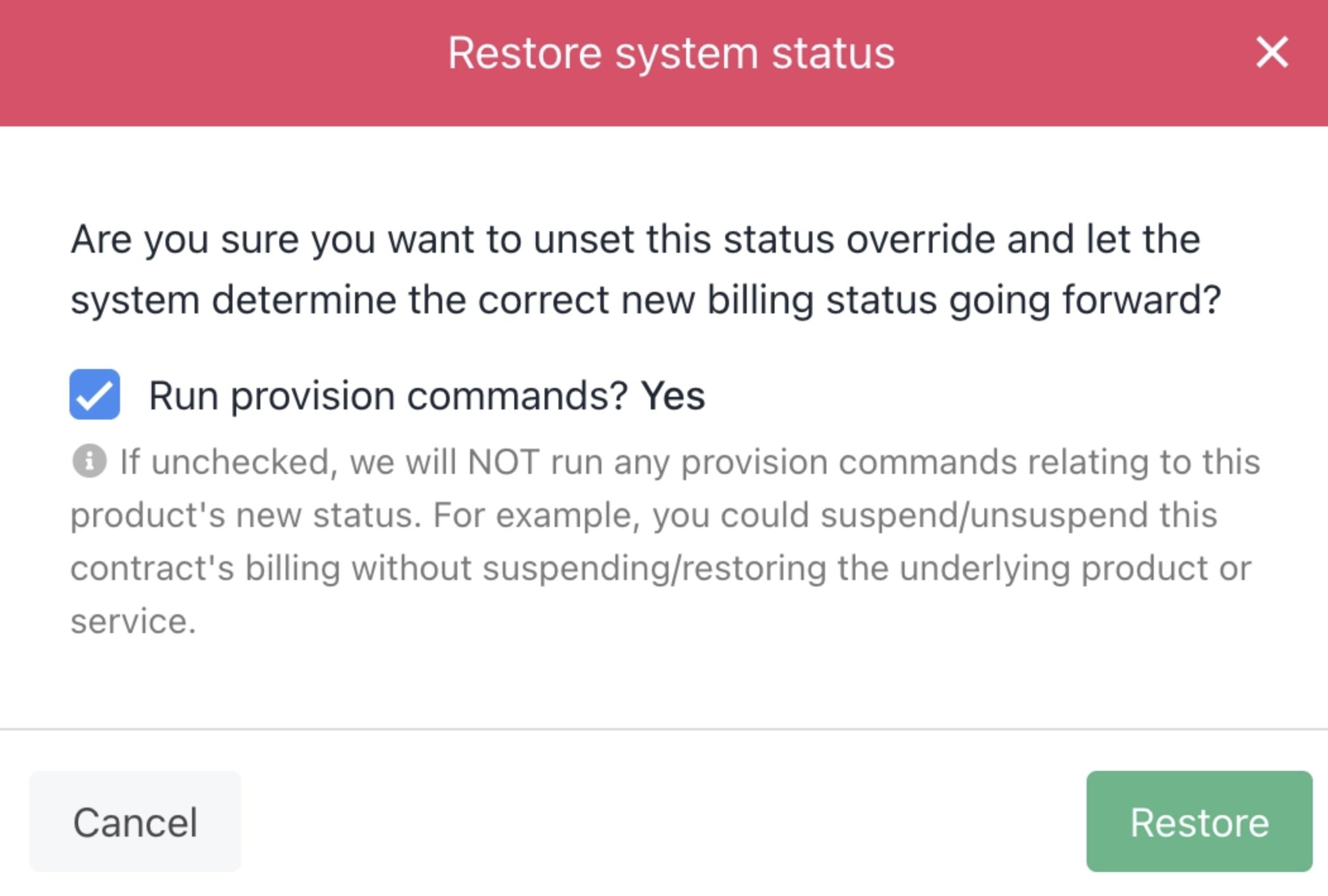 3. If you want automation to resume normally, make sure the status reflects the system state, not a manual override.
Set a reminder or internal note when applying a manual status. Without a follow-up step, the service could remain frozen even after payment is received.
### Example cases
**Waiting on a bank transfer**
A client is paying through bank transfer, and the funds haven't cleared yet. Their invoice is already overdue. You don't want the system to suspend their hosting account while you wait.
Set the contract product status to **Active** manually. This holds automation. Once the transfer is confirmed and the invoice is marked paid, switch the status back, and automation resumes from that point.
**Negotiated payment arrangement**
A long-term client has asked for two extra weeks to pay their renewal invoice. Your brand-level automation would suspend them for 7 days.
Rather than adjusting your brand or product automation settings (which affect other clients), manually set this client's contract product status to **Active**. Add an internal note with the agreed payment date. When payment comes in, revert the status.
**Client disputes an invoice**
A client raises a billing dispute, and you agree to pause their account status while it's being reviewed. Set the contract product to **Active** manually so no automated actions run during the dispute window. Once resolved, whether they pay or you cancel, update the status accordingly.
## Choosing between automation intervals and manual status
| **Scenario** | **Recommended Approach** |
| ------------------------------------------------------ | ------------------------------------------ |
| All clients on a product need the same grace period. | Product-level automation interval |
| One specific subscription needs a custom grace period. | Contract product-level automation interval |
| Temporary hold while waiting for a specific payment. | Manual status change |
| Long-running payment arrangement with one client. | Manual status change + internal note |
| Scaling grace periods across many clients at once. | Brand or product-level automation interval |
3. If you want automation to resume normally, make sure the status reflects the system state, not a manual override.
Set a reminder or internal note when applying a manual status. Without a follow-up step, the service could remain frozen even after payment is received.
### Example cases
**Waiting on a bank transfer**
A client is paying through bank transfer, and the funds haven't cleared yet. Their invoice is already overdue. You don't want the system to suspend their hosting account while you wait.
Set the contract product status to **Active** manually. This holds automation. Once the transfer is confirmed and the invoice is marked paid, switch the status back, and automation resumes from that point.
**Negotiated payment arrangement**
A long-term client has asked for two extra weeks to pay their renewal invoice. Your brand-level automation would suspend them for 7 days.
Rather than adjusting your brand or product automation settings (which affect other clients), manually set this client's contract product status to **Active**. Add an internal note with the agreed payment date. When payment comes in, revert the status.
**Client disputes an invoice**
A client raises a billing dispute, and you agree to pause their account status while it's being reviewed. Set the contract product to **Active** manually so no automated actions run during the dispute window. Once resolved, whether they pay or you cancel, update the status accordingly.
## Choosing between automation intervals and manual status
| **Scenario** | **Recommended Approach** |
| ------------------------------------------------------ | ------------------------------------------ |
| All clients on a product need the same grace period. | Product-level automation interval |
| One specific subscription needs a custom grace period. | Contract product-level automation interval |
| Temporary hold while waiting for a specific payment. | Manual status change |
| Long-running payment arrangement with one client. | Manual status change + internal note |
| Scaling grace periods across many clients at once. | Brand or product-level automation interval |