> ## Documentation Index
> Fetch the complete documentation index at: https://docs.upmind.com/llms.txt
> Use this file to discover all available pages before exploring further.
# How to Configure Invoice Settings
> Default invoice options, templates, and preferences.
Upmind automatically creates invoices for purchases and subscription payments. Admins and staff can customise invoice branding and terms for generation and cancellation.
## Accessing invoice settings
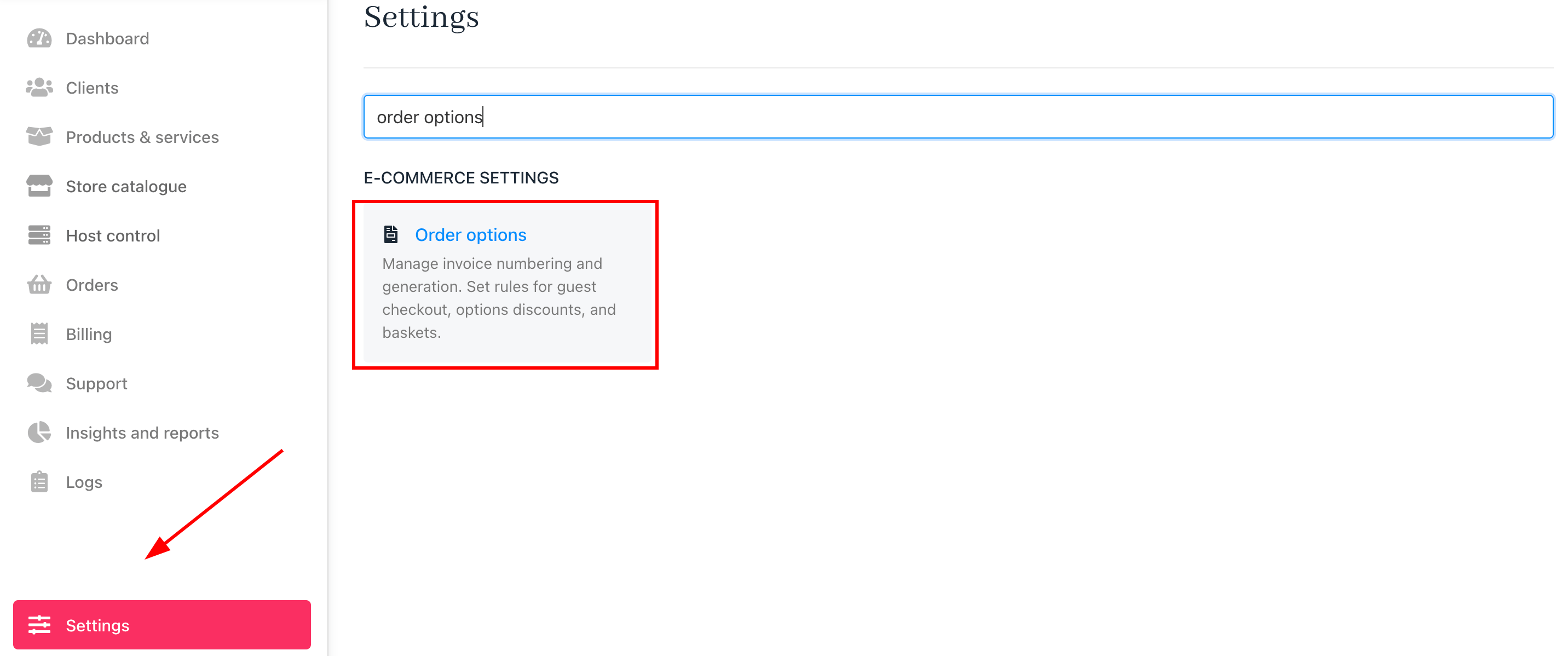
1. Go to your Upmind dashboard.
2. Click **Settings**.
3. Select the **Order Options** tile.
 ## Selecting a brand
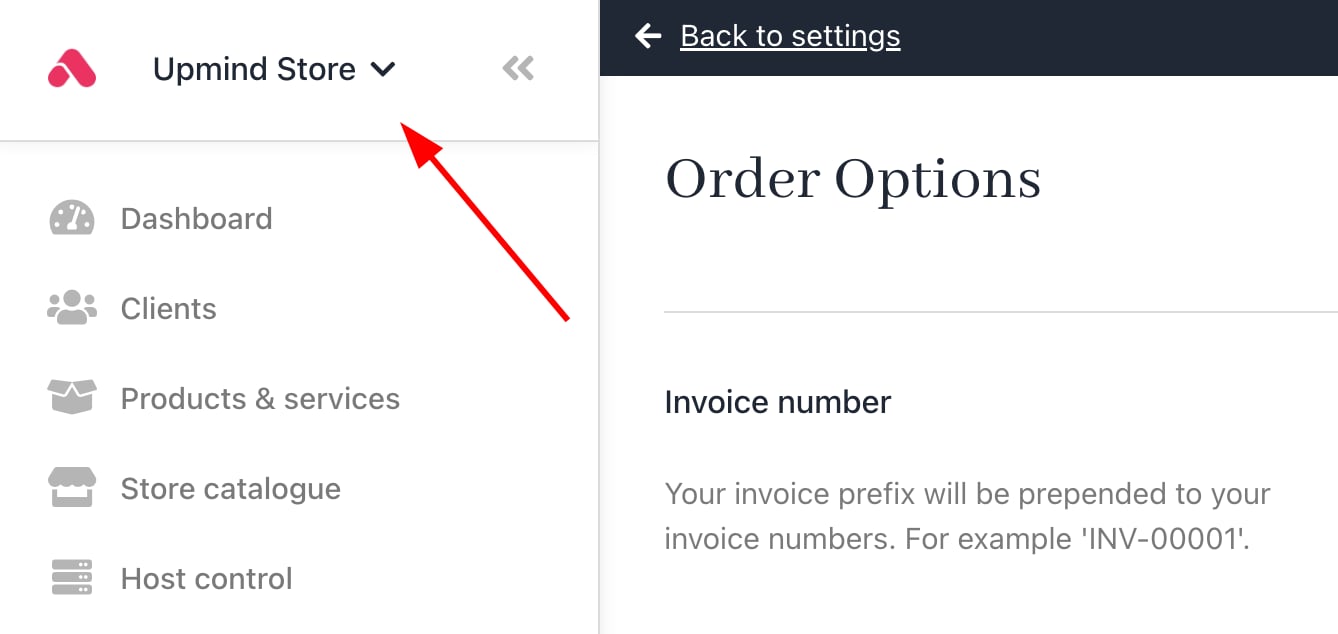
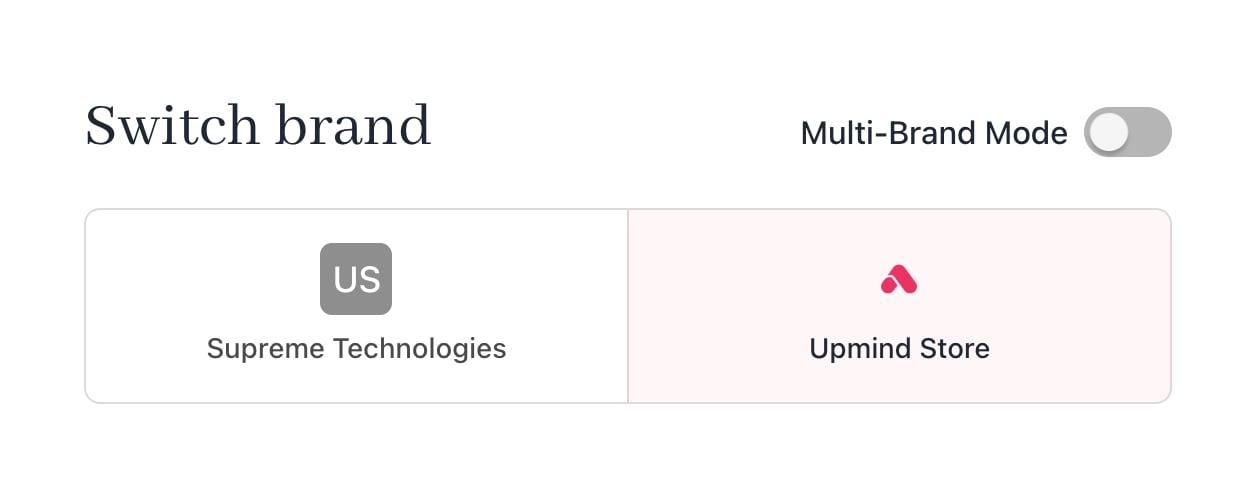
If you manage multiple brands, use the dropdown in the top left of the `Order Options` page to select the brand you want to configure.
## Selecting a brand
If you manage multiple brands, use the dropdown in the top left of the `Order Options` page to select the brand you want to configure.
 ## Customising invoice fields
### Invoice number & prefix
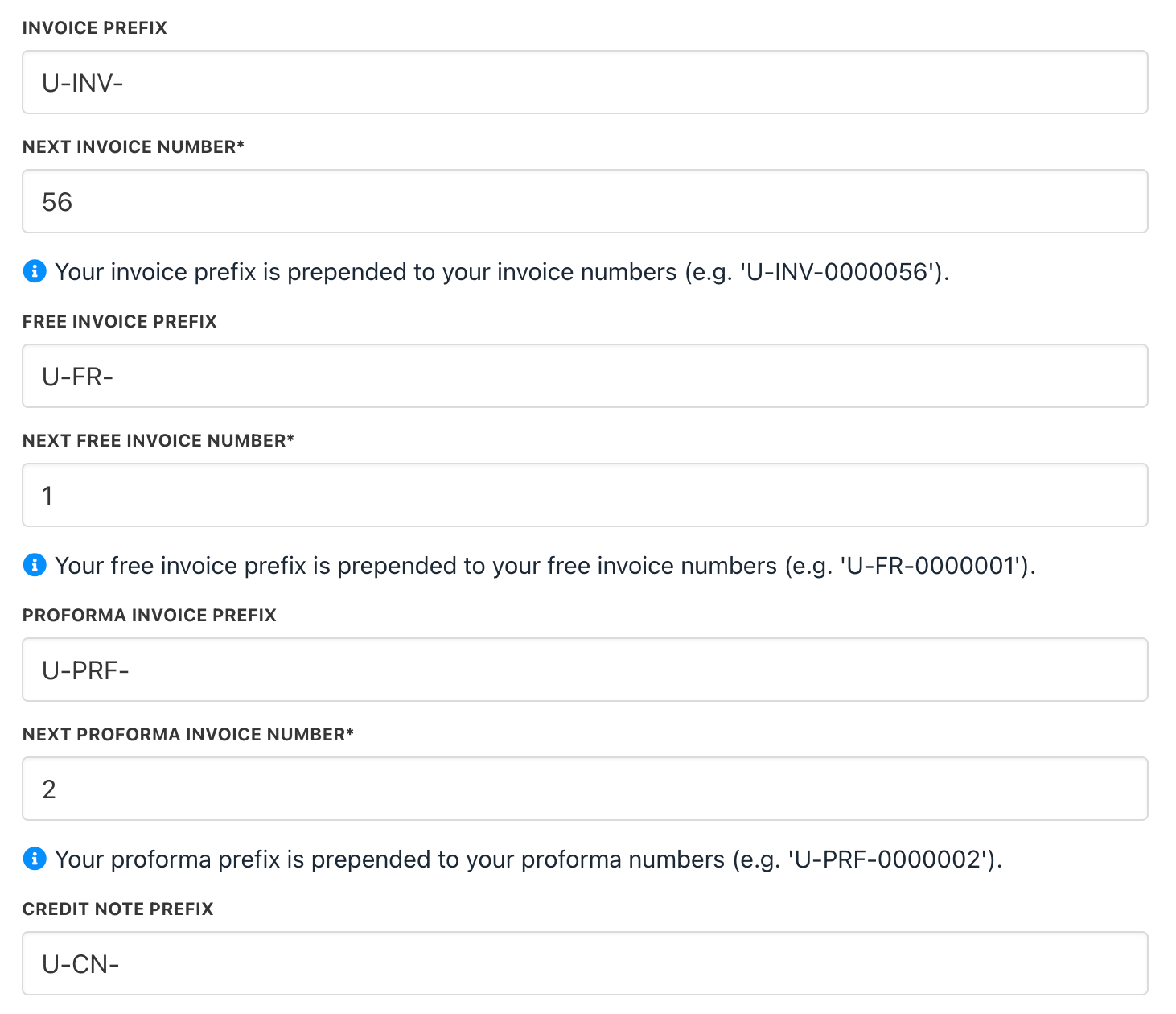
This can be found under `Invoice Number`. Upmind auto-fills these fields. You can [set the starting number and prefix for your invoices](/using-upmind/invoicing-and-taxes/invoice-numbering-and-prefixes). (optional)
## Customising invoice fields
### Invoice number & prefix
This can be found under `Invoice Number`. Upmind auto-fills these fields. You can [set the starting number and prefix for your invoices](/using-upmind/invoicing-and-taxes/invoice-numbering-and-prefixes). (optional)
 ### Non-recurring invoice due dates
Set how many days after creation a non-recurring invoice is due. The due date is calculated as the invoice generation day plus the specified number of days. This applies to initial orders and migration invoices for product upgrades.
### Non-recurring invoice due dates
Set how many days after creation a non-recurring invoice is due. The due date is calculated as the invoice generation day plus the specified number of days. This applies to initial orders and migration invoices for product upgrades.
 ### Recurring invoice generation
Set how many days before renewal a recurring payment invoice is generated. The invoice is created X days prior to the renewal date.
### Recurring invoice generation
Set how many days before renewal a recurring payment invoice is generated. The invoice is created X days prior to the renewal date.
 ### Recurring invoice due dates
Configure due dates for recurring invoices to be on, before, or after the renewal date. This setting applies to renewal invoices, with the due date set X days relative to renewal.
### Recurring invoice due dates
Configure due dates for recurring invoices to be on, before, or after the renewal date. This setting applies to renewal invoices, with the due date set X days relative to renewal.
 ## Manual invoice generation controls
You can configure manual invoice generation at the brand and product levels to control when clients can create recurring invoices.
### At the brand level
1. Go to **Settings** > **Subscription Options** > **Contract Settings**.
## Manual invoice generation controls
You can configure manual invoice generation at the brand and product levels to control when clients can create recurring invoices.
### At the brand level
1. Go to **Settings** > **Subscription Options** > **Contract Settings**.
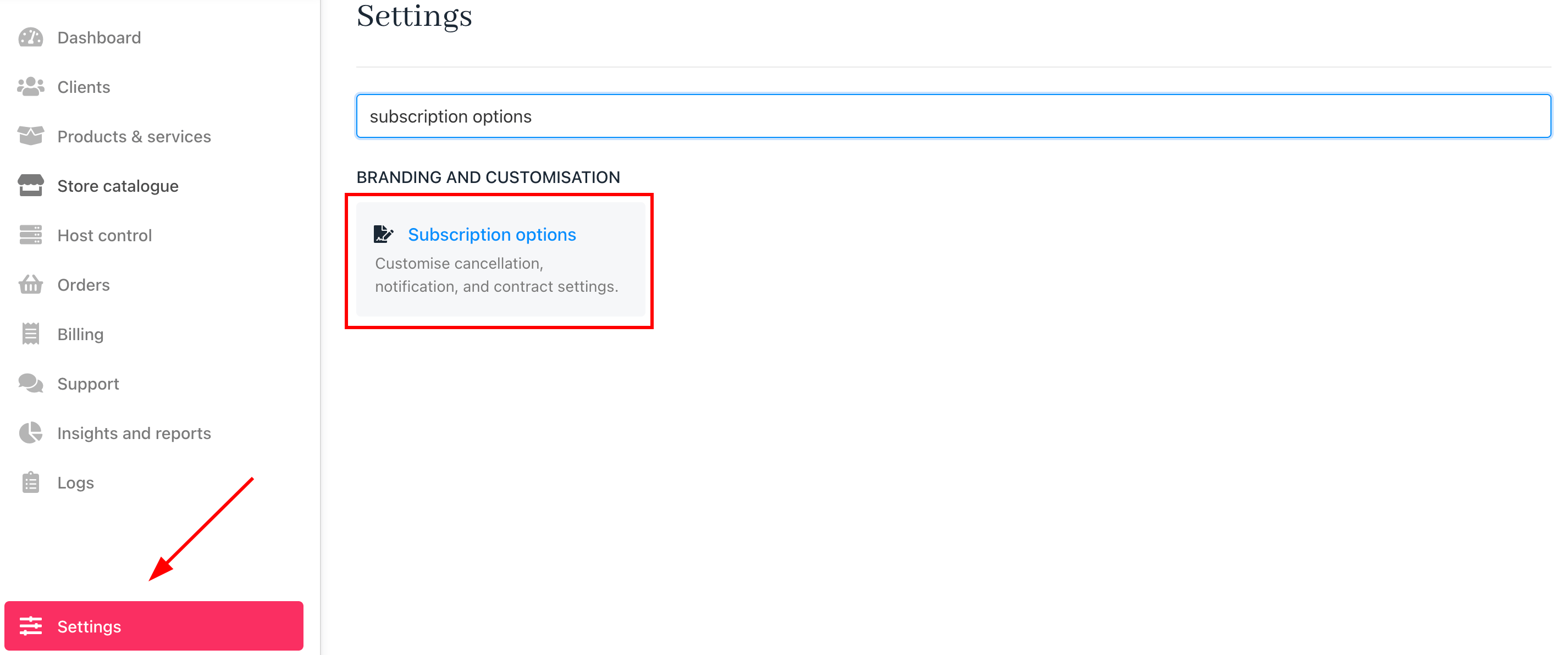
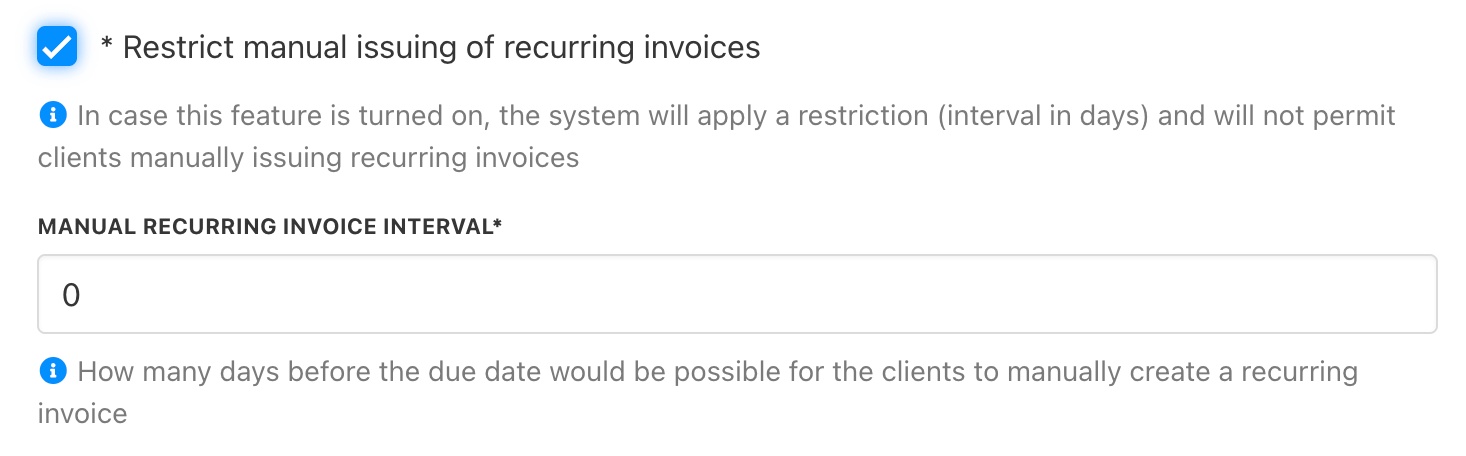 You can configure these options:
* **Enable/Disable Manual Issuing of Recurring Invoices**: When enabled, clients can only generate recurring invoices within the specified timeframe.
* **Manual Recurring Invoice Interval**: Set how many days before the due date clients can manually create a recurring invoice.
### At the product level
Go to **Product Catalogue** > **\[Select Product]** > **Product Automation**.
You can configure these options:
* **Enable/Disable Manual Issuing of Recurring Invoices**: When enabled, clients can only generate recurring invoices within the specified timeframe.
* **Manual Recurring Invoice Interval**: Set how many days before the due date clients can manually create a recurring invoice.
### At the product level
Go to **Product Catalogue** > **\[Select Product]** > **Product Automation**.
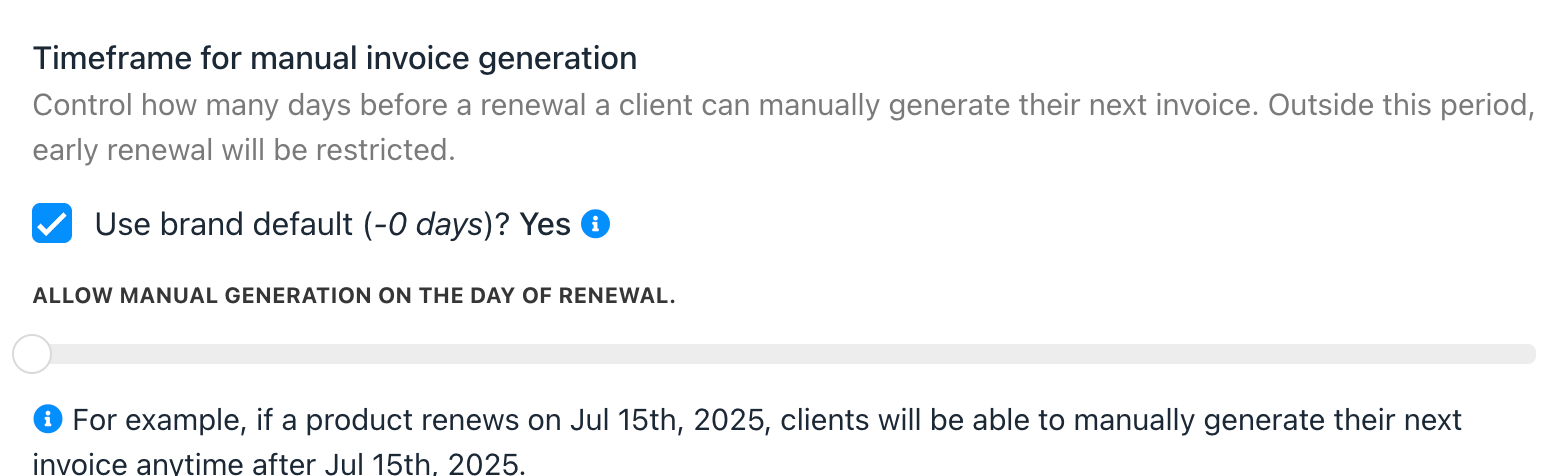
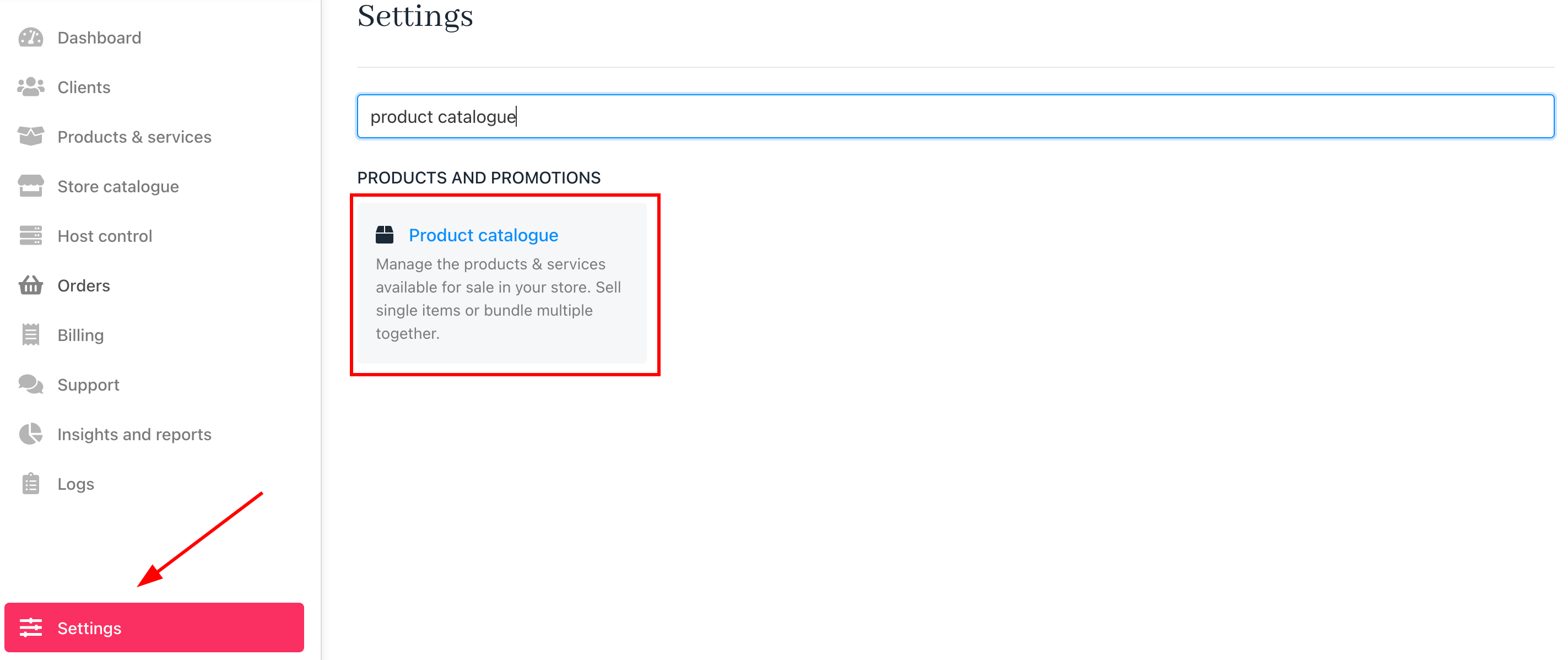 If manual issuing of recurring invoices is enabled at the brand level, you can refine the timeframe for each product:
* You can apply the brand default settings or set a custom timeframe per product.
* Define how many days before renewal a client can manually generate an invoice.
* Early renewal is restricted outside the allowed period.
If manual issuing of recurring invoices is enabled at the brand level, you can refine the timeframe for each product:
* You can apply the brand default settings or set a custom timeframe per product.
* Define how many days before renewal a client can manually generate an invoice.
* Early renewal is restricted outside the allowed period.
 ## Common scenarios
### Why are services not following the configured automation intervals?
This is one of the most common questions when invoice timing appears inconsistent.
Invoice generation settings work across three levels:
* Brand
* Product
* Contract product
If the timing looks off, check all three before drawing conclusions.
At the brand level, the settings in **Settings** > **Order Options** act as the global default for all products and clients. At the product level, settings in **Product Catalogue** > **\[Product]** > **Product Automation** override the brand default for that specific product. At the **contract product level**, settings on an individual client's contract product override both the brand and product level, and this is the most granular level and takes the highest priority.
One common cause of inconsistency is that product-level changes do not automatically apply to existing contract products. If you update invoice generation settings on a product, clients who already have that product active will not be affected unless you update their contract products individually, or [apply the changes in bulk](/using-upmind/invoicing-and-taxes/bulk-operations-for-subscription-pricing-billing-intervals-and-status) using the **Segment** feature in **Subscriptions Overview.** For more information, see this [guide](/using-upmind/invoicing-and-taxes/configuring-recurring-invoice-generation-due-dates-and-automation-interval).
If all three levels look correctly configured but invoices are still not generating on the expected schedule, contact Upmind support, especially if the contract products were imported, as imported data may carry configuration differences that affect billing behaviour.
Invoice generation settings defined here apply only when consolidation is not active. Once consolidation is enabled:
* Consolidation rules override invoice generation timing.
* Product-level automation intervals are ignored for consolidated services.
**Example:**
* A product is set to generate invoices 7 days before renewal.
* Consolidation groups service monthly.
The result is that the invoice is generated based on the consolidation timing, not the 7-day rule.
## Common scenarios
### Why are services not following the configured automation intervals?
This is one of the most common questions when invoice timing appears inconsistent.
Invoice generation settings work across three levels:
* Brand
* Product
* Contract product
If the timing looks off, check all three before drawing conclusions.
At the brand level, the settings in **Settings** > **Order Options** act as the global default for all products and clients. At the product level, settings in **Product Catalogue** > **\[Product]** > **Product Automation** override the brand default for that specific product. At the **contract product level**, settings on an individual client's contract product override both the brand and product level, and this is the most granular level and takes the highest priority.
One common cause of inconsistency is that product-level changes do not automatically apply to existing contract products. If you update invoice generation settings on a product, clients who already have that product active will not be affected unless you update their contract products individually, or [apply the changes in bulk](/using-upmind/invoicing-and-taxes/bulk-operations-for-subscription-pricing-billing-intervals-and-status) using the **Segment** feature in **Subscriptions Overview.** For more information, see this [guide](/using-upmind/invoicing-and-taxes/configuring-recurring-invoice-generation-due-dates-and-automation-interval).
If all three levels look correctly configured but invoices are still not generating on the expected schedule, contact Upmind support, especially if the contract products were imported, as imported data may carry configuration differences that affect billing behaviour.
Invoice generation settings defined here apply only when consolidation is not active. Once consolidation is enabled:
* Consolidation rules override invoice generation timing.
* Product-level automation intervals are ignored for consolidated services.
**Example:**
* A product is set to generate invoices 7 days before renewal.
* Consolidation groups service monthly.
The result is that the invoice is generated based on the consolidation timing, not the 7-day rule.