> ## Documentation Index
> Fetch the complete documentation index at: https://docs.upmind.com/llms.txt
> Use this file to discover all available pages before exploring further.
# Configuring Recurring Invoice Generation, Due Dates, and Automation Interval
> Automating billing cycles and due dates at brand, product, and contract product levels.
Upmind allows you to customise **recurring invoice generation**, **due dates**, and **automation intervals** at multiple levels for maximum flexibility.
For mass changes based on client criteria, follow these steps to use **Bulk Update** in the **Subscriptions Overview**. Here, you can create a segment and apply updates to invoice settings across multiple contracts.
## Brand level settings
These settings apply to all products and clients by default, unless they are specifically overridden at the product or contract product level.
1. Go to **Settings** > **Order Options** from the **E-commerce Settings**.
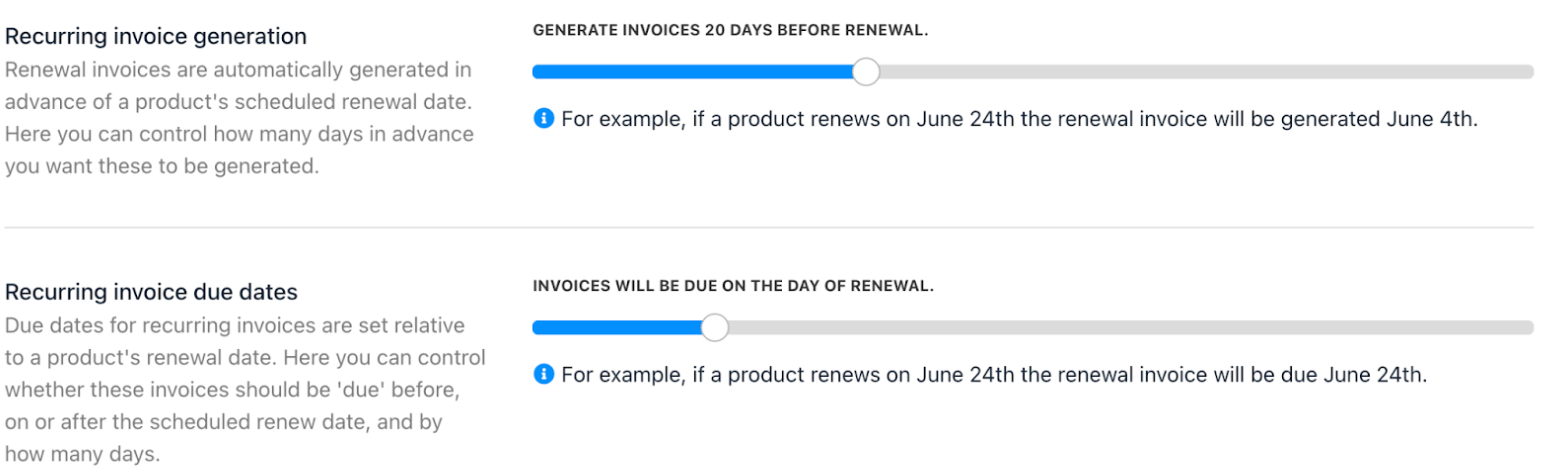
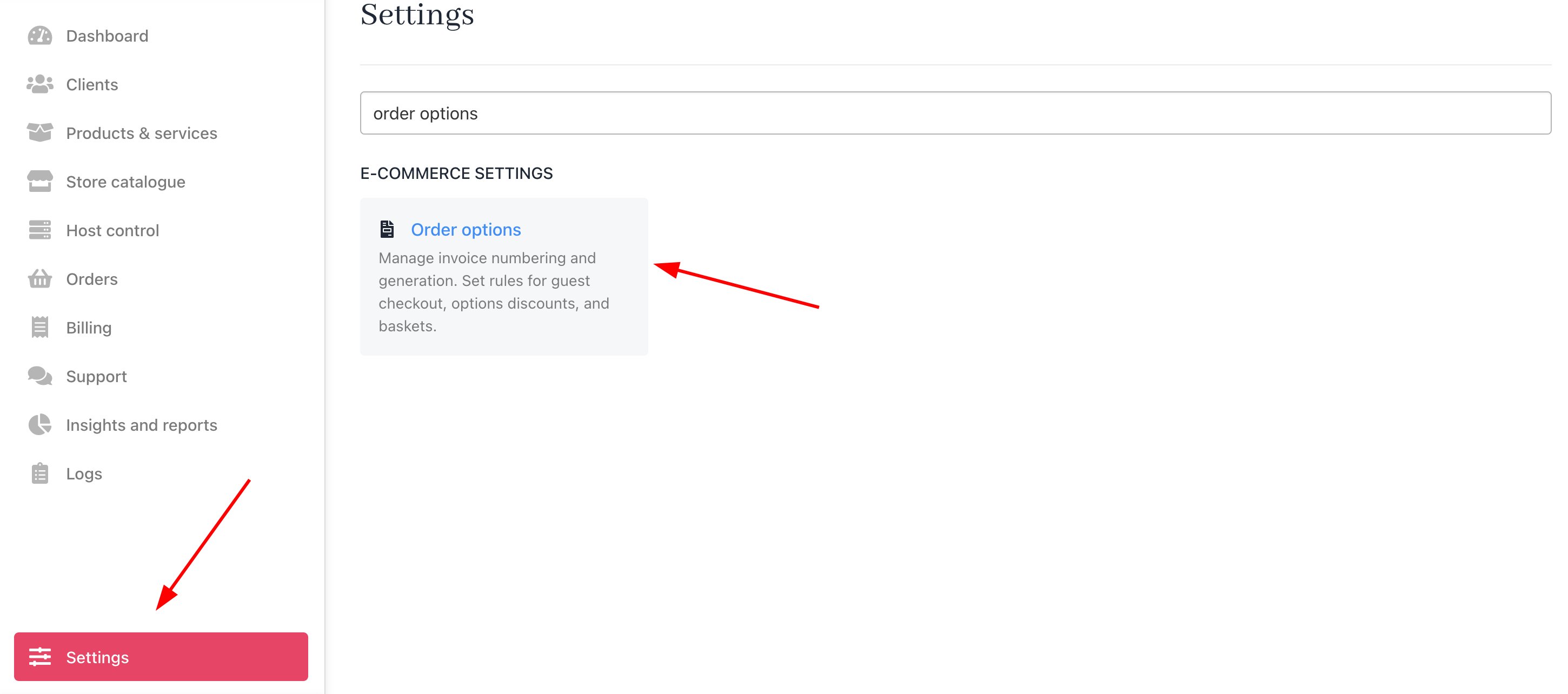 2. Set when invoices are generated (e.g., on renewal date, or X days before).
3. Define invoice due dates (immediate, or X days after generation).
4. Save changes to apply globally.
2. Set when invoices are generated (e.g., on renewal date, or X days before).
3. Define invoice due dates (immediate, or X days after generation).
4. Save changes to apply globally.
 ## For the automation interval
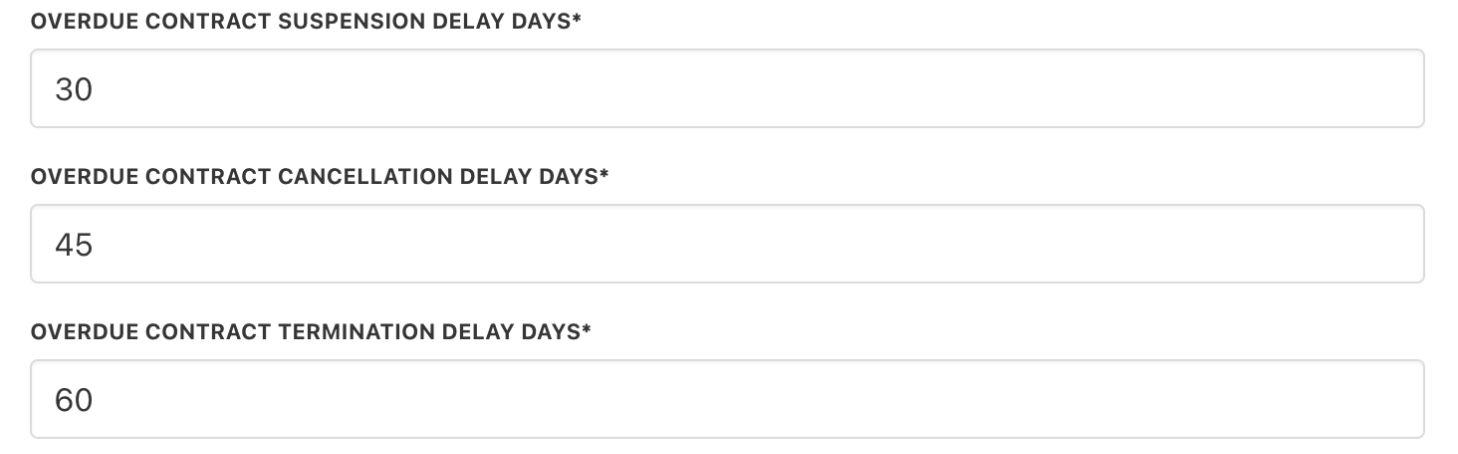
1. Go to **Settings** > **Subscription Options** under Branding & Customisation.
2. Adjust contract product suspend, cancel, and close intervals.
3. Save changes.
## For the automation interval
1. Go to **Settings** > **Subscription Options** under Branding & Customisation.
2. Adjust contract product suspend, cancel, and close intervals.
3. Save changes.
 ## Product level settings
These settings override the brand level settings for specific products.
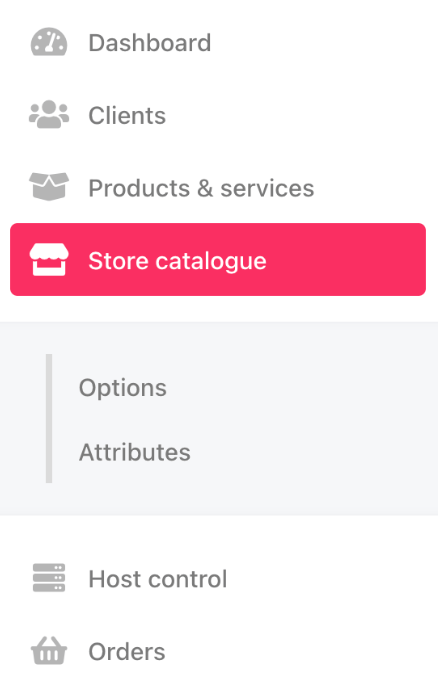
1. Go to **Settings** > **Product Catalogue** or directly from the `Store Catalogue`.
2. Select a product, then open the **Product Automation** tab.
## Product level settings
These settings override the brand level settings for specific products.
1. Go to **Settings** > **Product Catalogue** or directly from the `Store Catalogue`.
2. Select a product, then open the **Product Automation** tab.
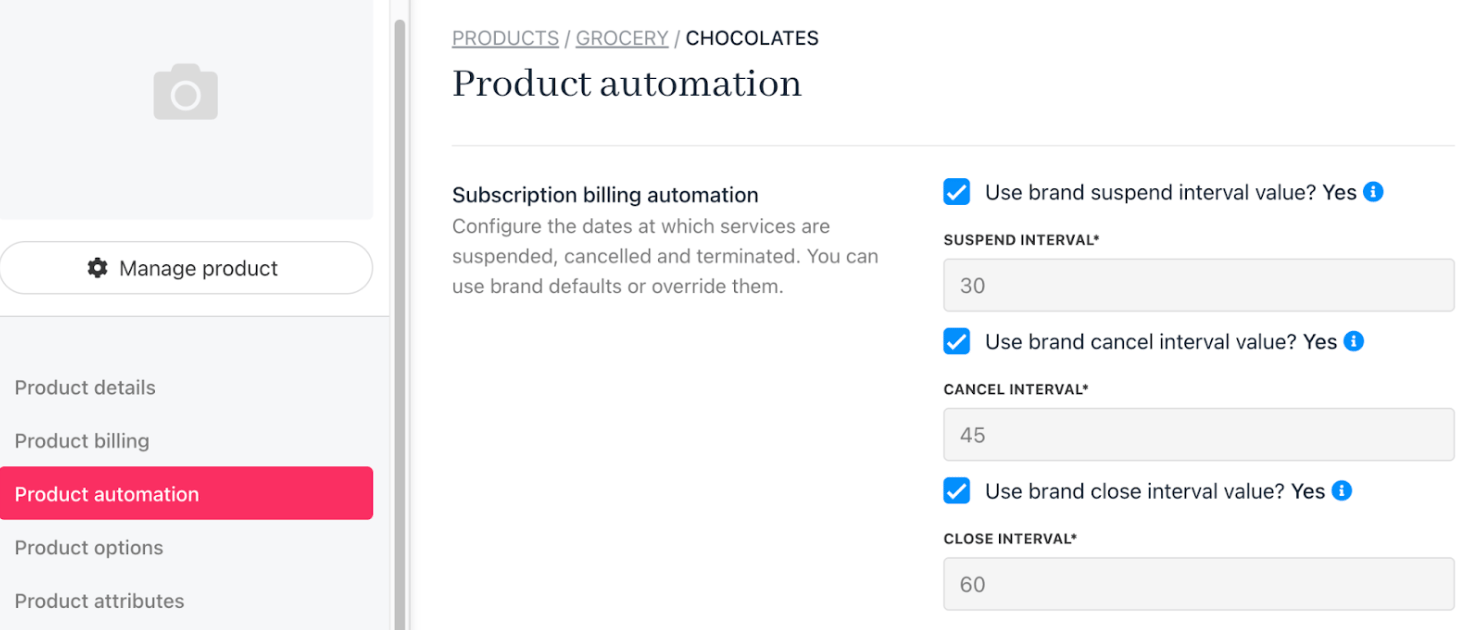
 3. Override global settings for invoice generation and due dates as needed.
4. Save changes for product-specific behaviour.
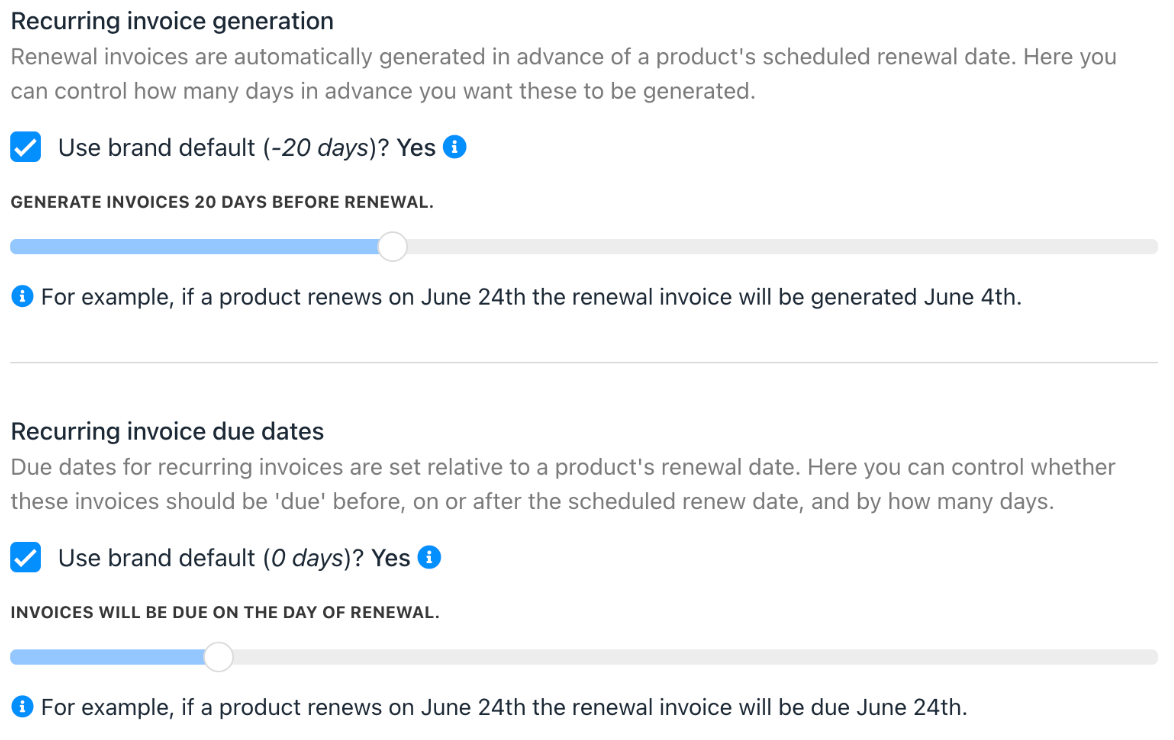
3. Override global settings for invoice generation and due dates as needed.
4. Save changes for product-specific behaviour.
 ## Contract product level
These settings override both brand and product level configurations for specific clients' contract products.
1. Go to `Clients` and select the client.
2. Under `Products and Services`, select the contract product.
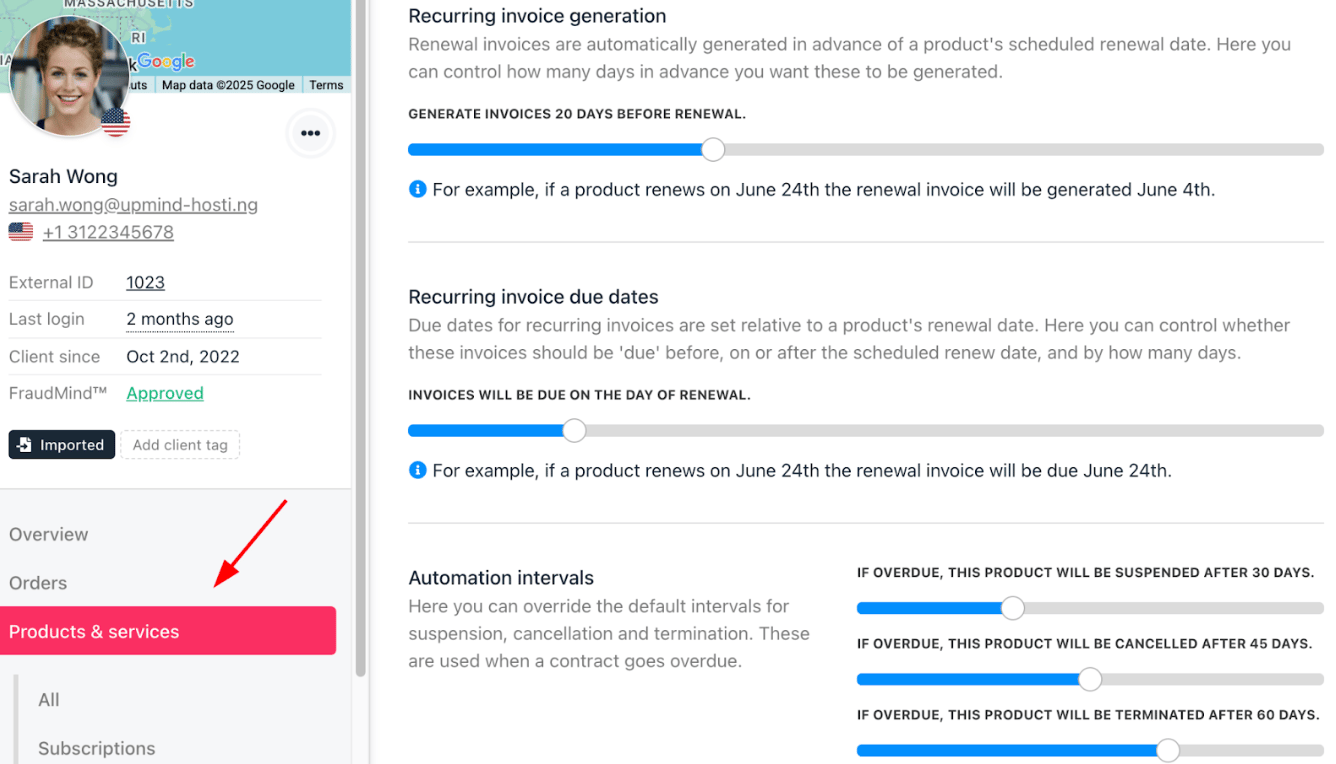
3. In the `Settings` tab, override invoice generation, due dates, and automation intervals for this client’s contract.
4. **Save** to apply.
## Contract product level
These settings override both brand and product level configurations for specific clients' contract products.
1. Go to `Clients` and select the client.
2. Under `Products and Services`, select the contract product.
3. In the `Settings` tab, override invoice generation, due dates, and automation intervals for this client’s contract.
4. **Save** to apply.
 ## Common scenarios
### Consolidation overrides automation intervals
When services are part of consolidation:
* Automation interval settings are ignored.
* Invoice timing follows consolidation logic instead.
This applies across:
* Brand-level settings.
* Product-level settings.
* Contract product-level settings.
### Manual status and its effect on automation
A contract product's status directly affects whether automation intervals apply. If a contract product is manually set to **Active**, for example, when it has an unpaid invoice or is approaching suspension, the system's automation intervals will not act on it. The contract stays in its manually assigned status regardless of configured suspend, cancel, or close intervals.
Because of this, manually setting a contract to **Active** bypasses the protections that automation provides. It is generally not recommended unless you are able to actively monitor and manage that contract on a daily basis, as overdue invoices and lapsed services will not be handled automatically.
## Common scenarios
### Consolidation overrides automation intervals
When services are part of consolidation:
* Automation interval settings are ignored.
* Invoice timing follows consolidation logic instead.
This applies across:
* Brand-level settings.
* Product-level settings.
* Contract product-level settings.
### Manual status and its effect on automation
A contract product's status directly affects whether automation intervals apply. If a contract product is manually set to **Active**, for example, when it has an unpaid invoice or is approaching suspension, the system's automation intervals will not act on it. The contract stays in its manually assigned status regardless of configured suspend, cancel, or close intervals.
Because of this, manually setting a contract to **Active** bypasses the protections that automation provides. It is generally not recommended unless you are able to actively monitor and manage that contract on a daily basis, as overdue invoices and lapsed services will not be handled automatically.