> ## Documentation Index
> Fetch the complete documentation index at: https://docs.upmind.com/llms.txt
> Use this file to discover all available pages before exploring further.
# Bulk Operations for Subscription Pricing, Billing Intervals, and Status
> Changes to subscriptions and invoices.
**The Bulk Operations feature is currently in Beta**, and its setup and customisation may change over time. Use caution when making changes, as future operations may affect its functionality.
To update specific billing terms, configure segment parameters correctly to filter the billing cycle. **Currently, selecting a billing term in the bulk update window applies changes to all products unless properly filtered**.
All changes made through Bulk Update are recorded in the activity log for each contract product.
Bulk operations let you quickly modify prices, billing intervals, subscription statuses, and more across contract product categories, filters, and segments.
To set up a bulk update:
1. Go to **Products & Services** > **Subscriptions Overview**.
2. Apply filters.
3. Choose **Bulk Update** from the menu.
This guide will show you how to create a segment and apply bulk operations to contract products.
**Watch the** [**YouTube tutorial**](https://www.youtube.com/watch?v=ng0HS8iCksI) **on Bulk Operations for subscription pricing, billing, and status.**
## Creating a segment
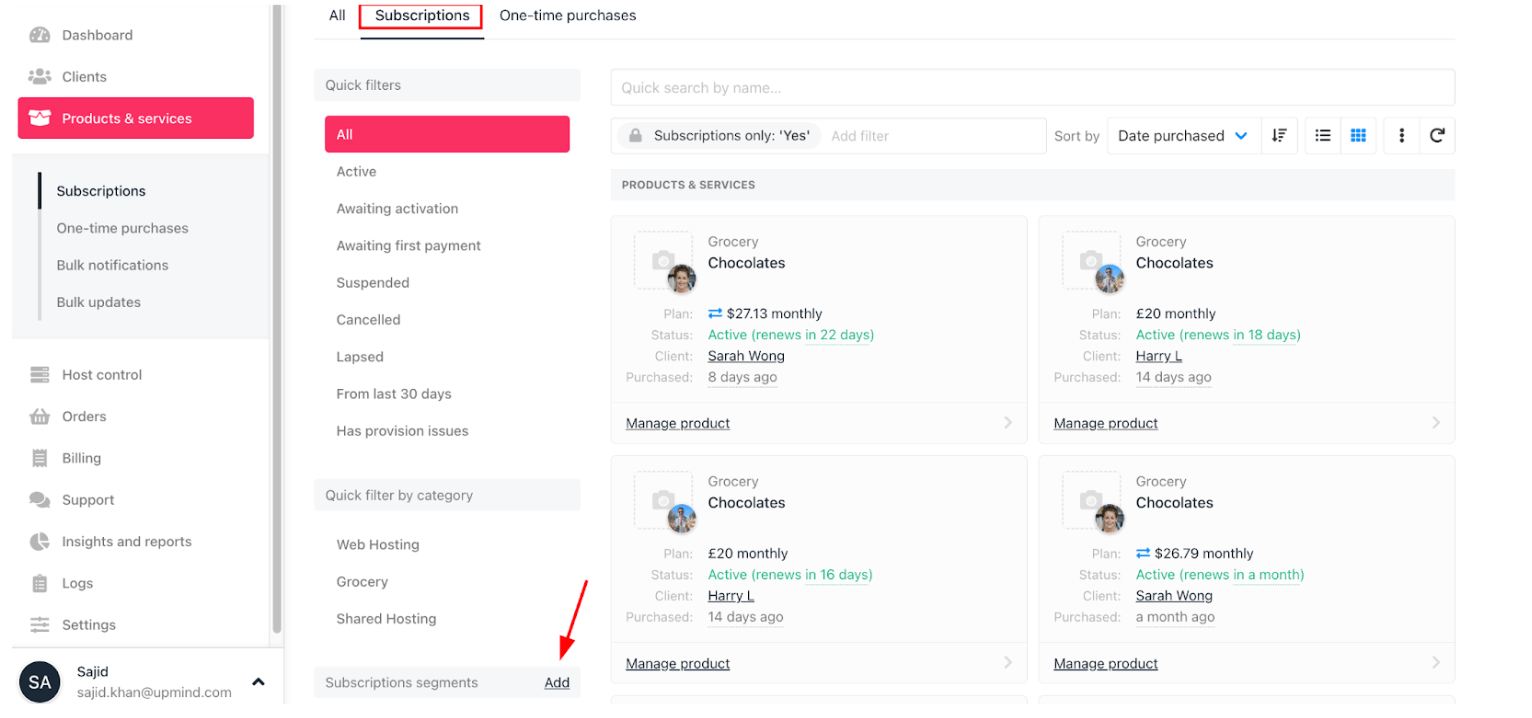
1. Go to **Product & Services** > **Subscriptions**.
2. Find `Subscription Segments` and click **Add**.
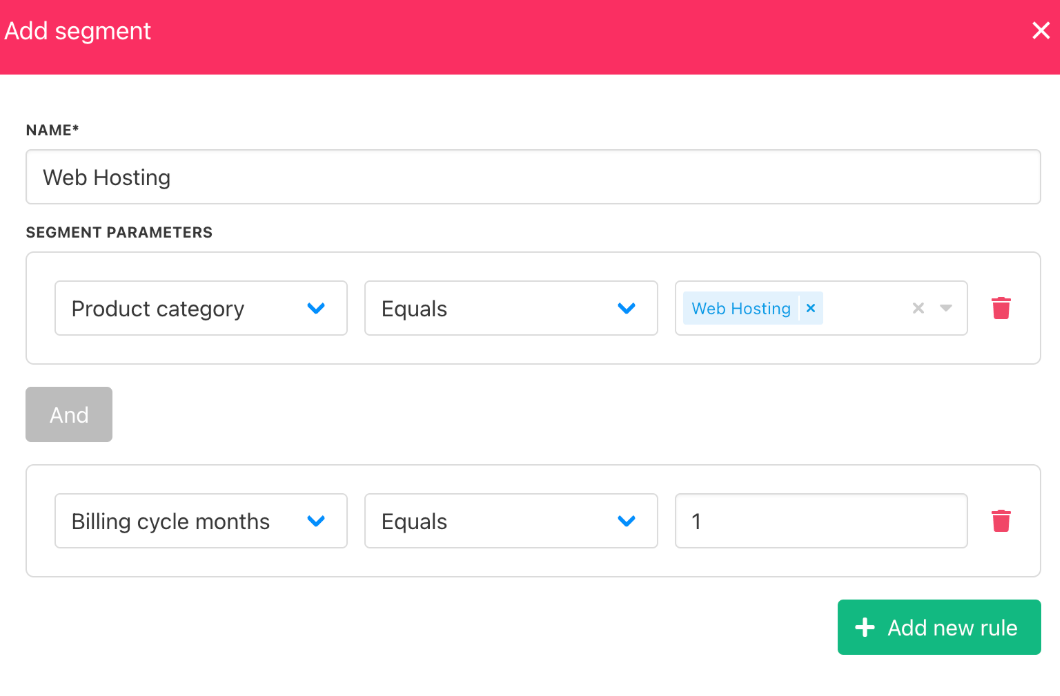
 3. Enter a segment name and set filters (e.g., product, billing term, status).
4. Click **Create**.
3. Enter a segment name and set filters (e.g., product, billing term, status).
4. Click **Create**.
 ## Applying bulk operations
### For price changes
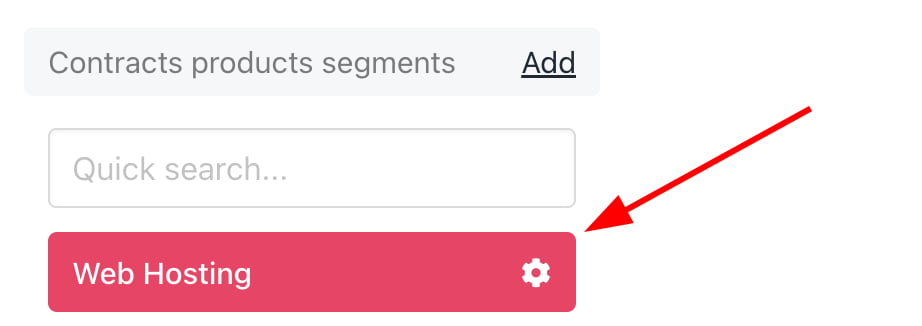
1. Open the segment.
## Applying bulk operations
### For price changes
1. Open the segment.
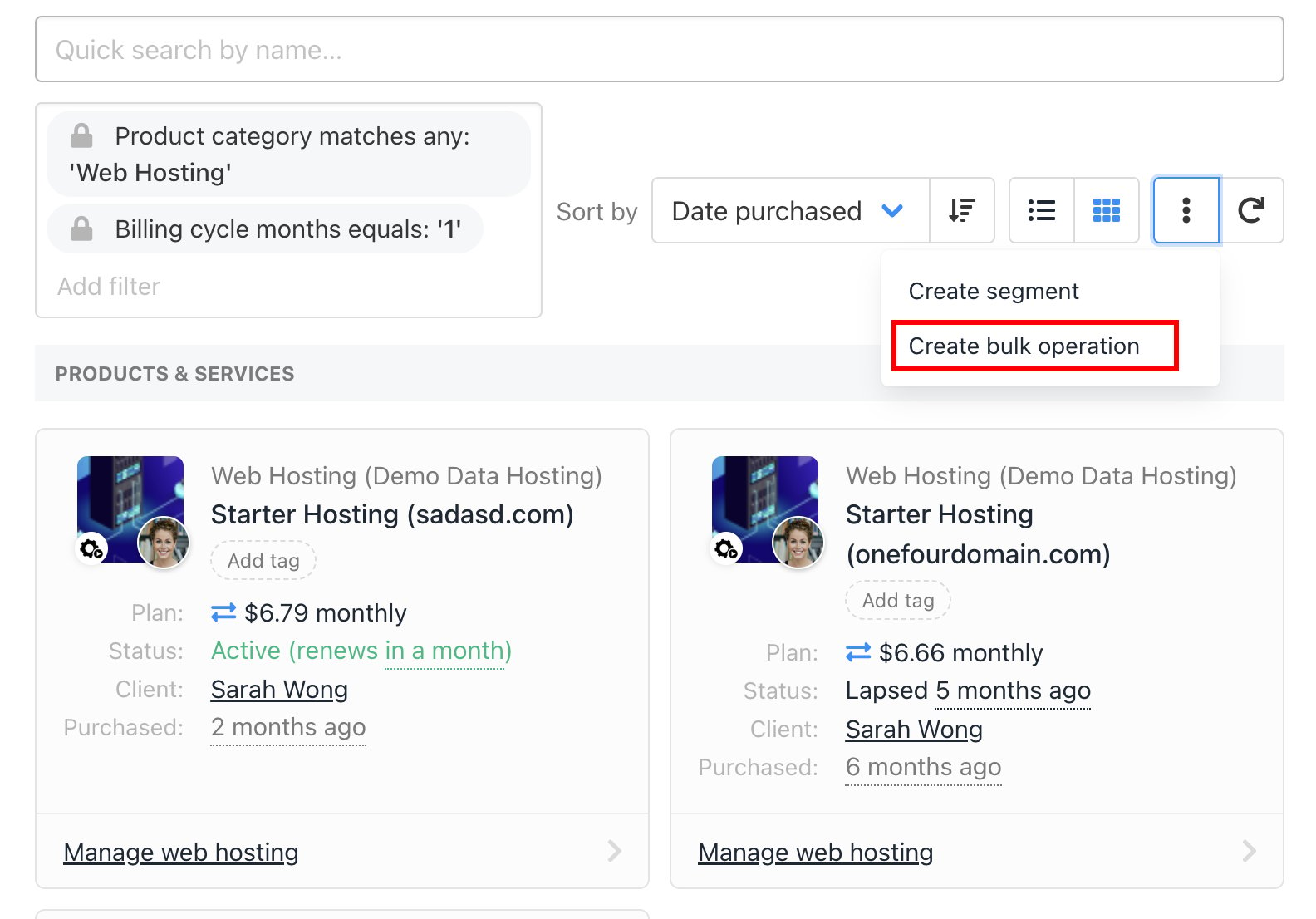
 2. Click the three dots and select **Create bulk operation**.
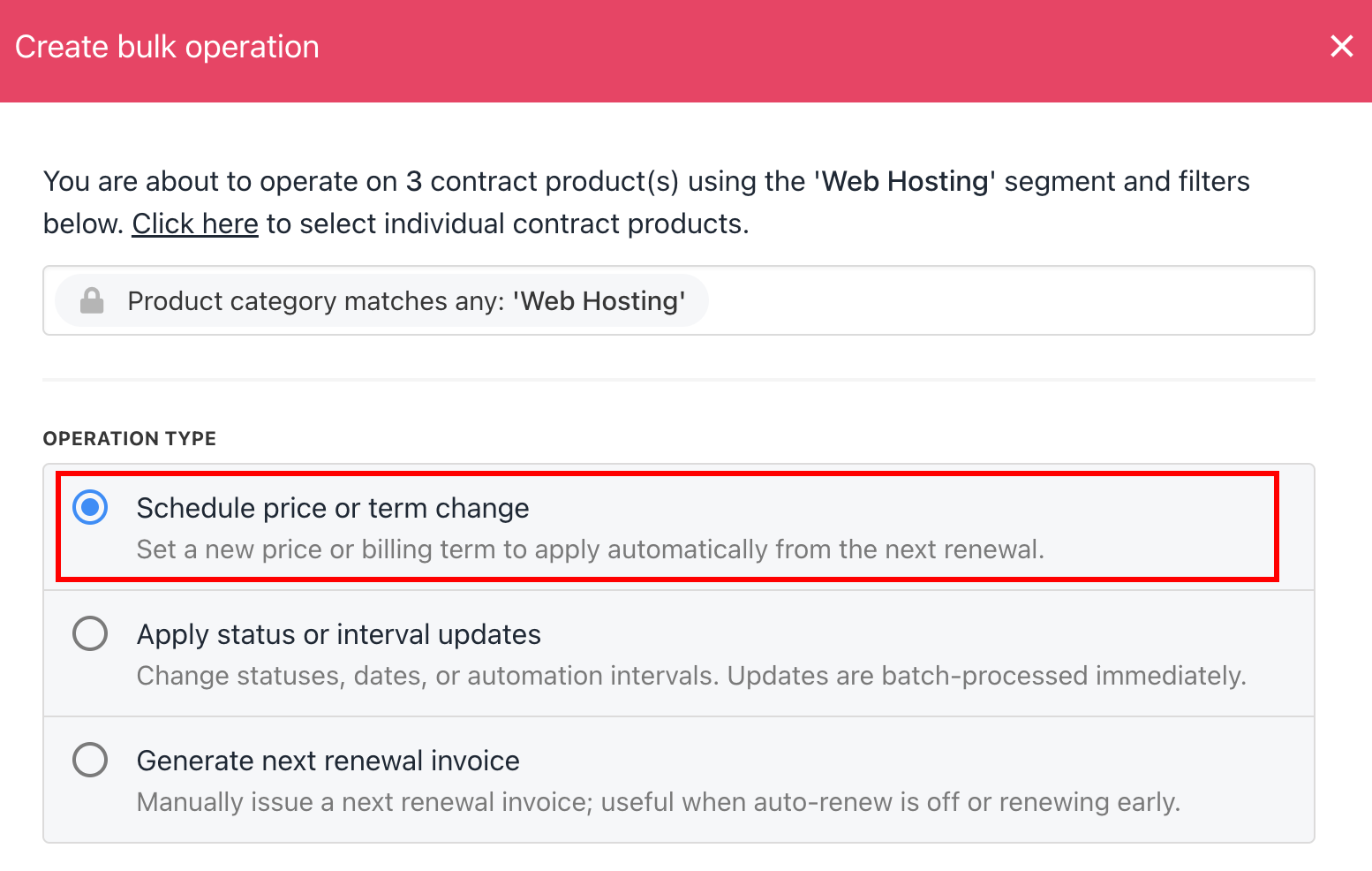
 3. Select **Schedule price or term change**.
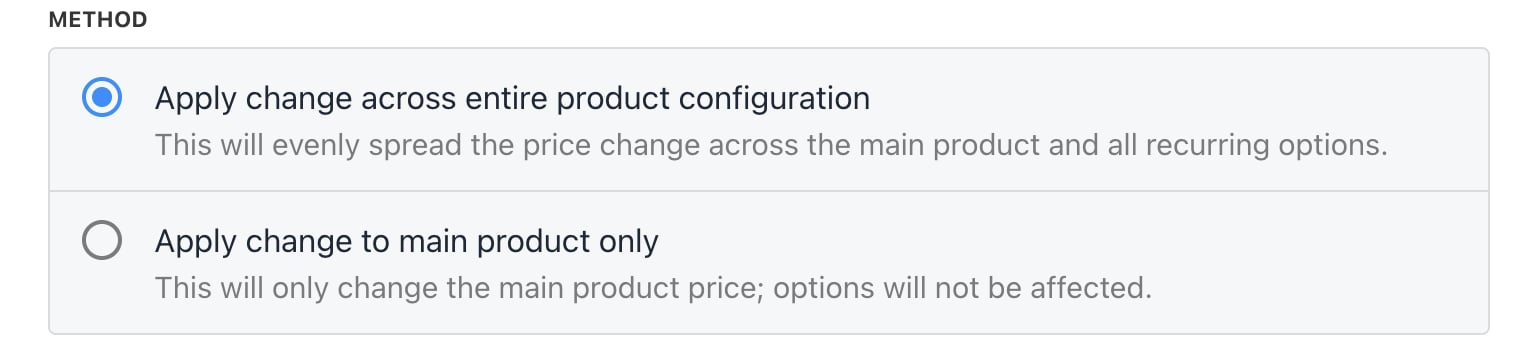
 4. Select the method to either **Apply change across entire product configuration** or **Apply change to main product only**.
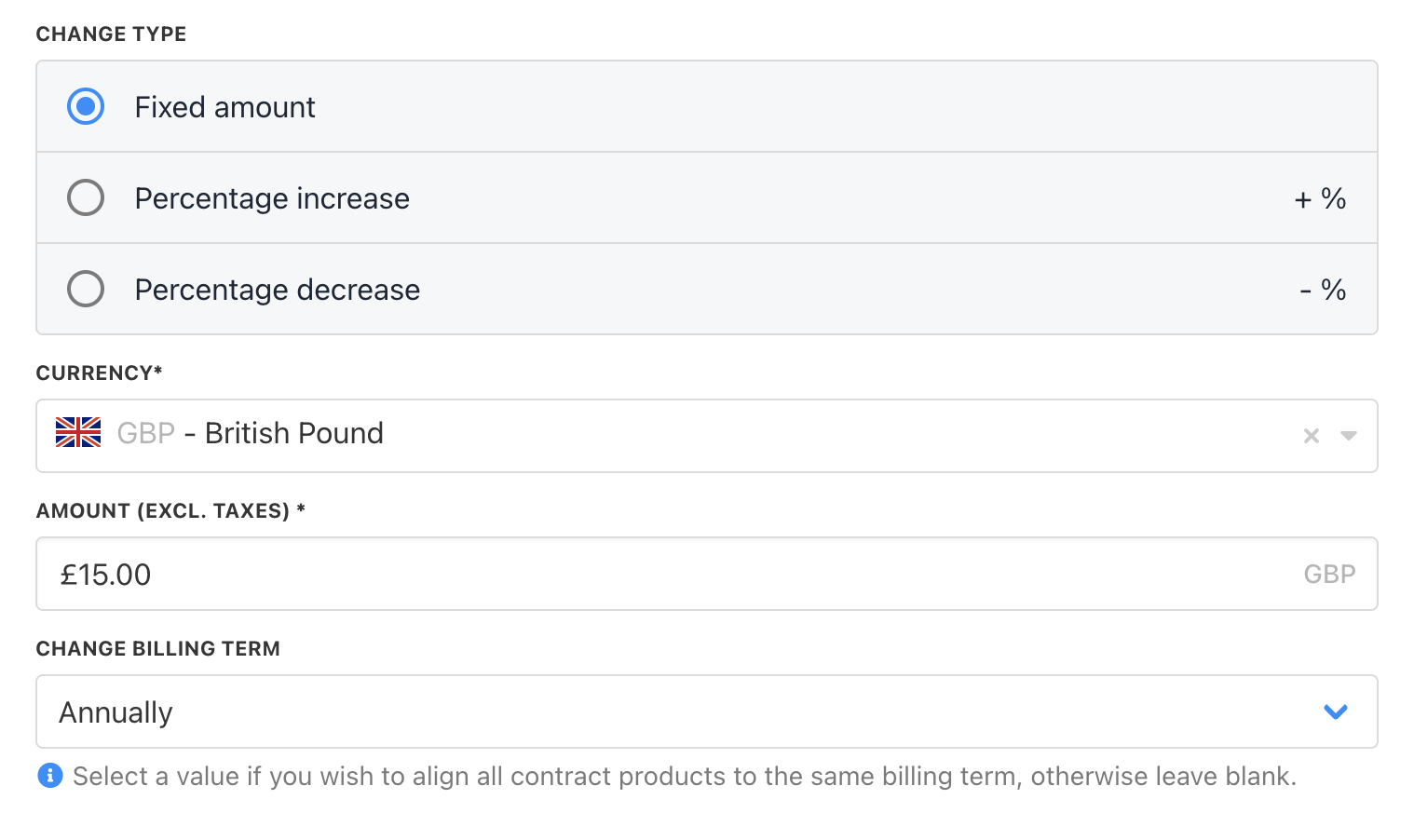
 5. Enter new pricing (fixed or percentage), adjust billing intervals, or update status.
6. Click **Create** to apply.
5. Enter new pricing (fixed or percentage), adjust billing intervals, or update status.
6. Click **Create** to apply.
 ### For interval or status changes
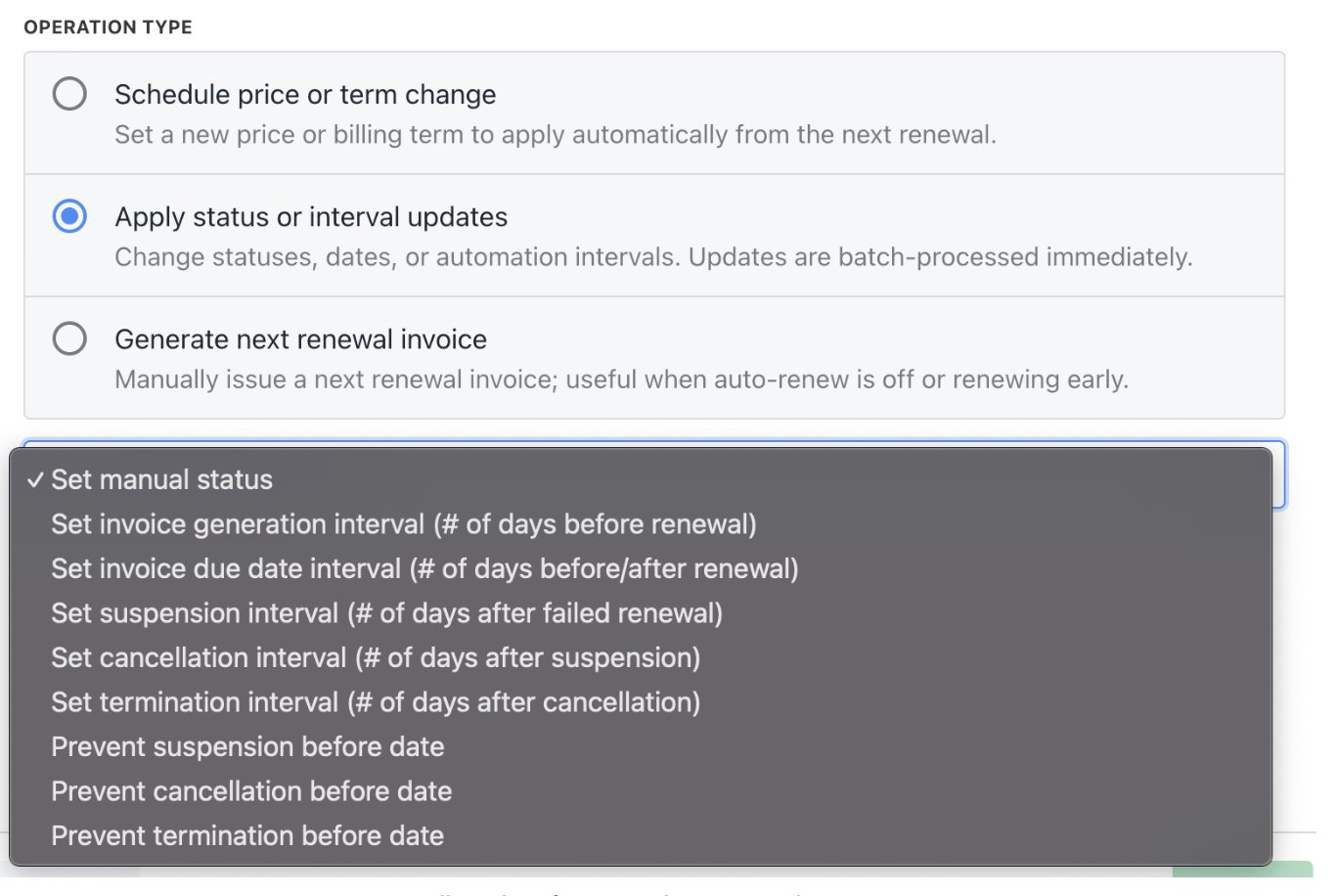
1. Select **Apply status or interval updates**.
### For interval or status changes
1. Select **Apply status or interval updates**.
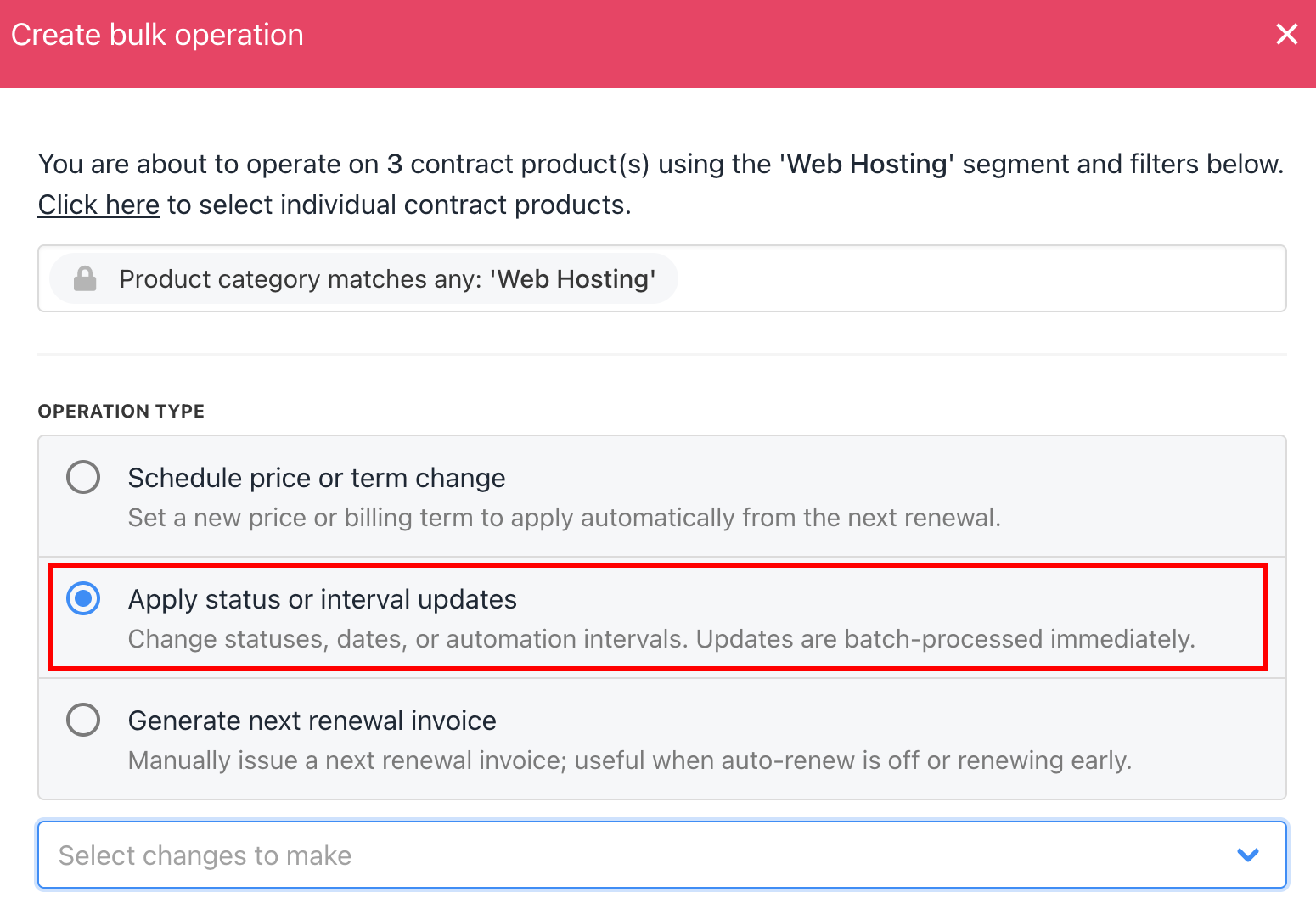 2. Choose the interval or status.
3. Click **Create**.
2. Choose the interval or status.
3. Click **Create**.
 ## For renewal invoices
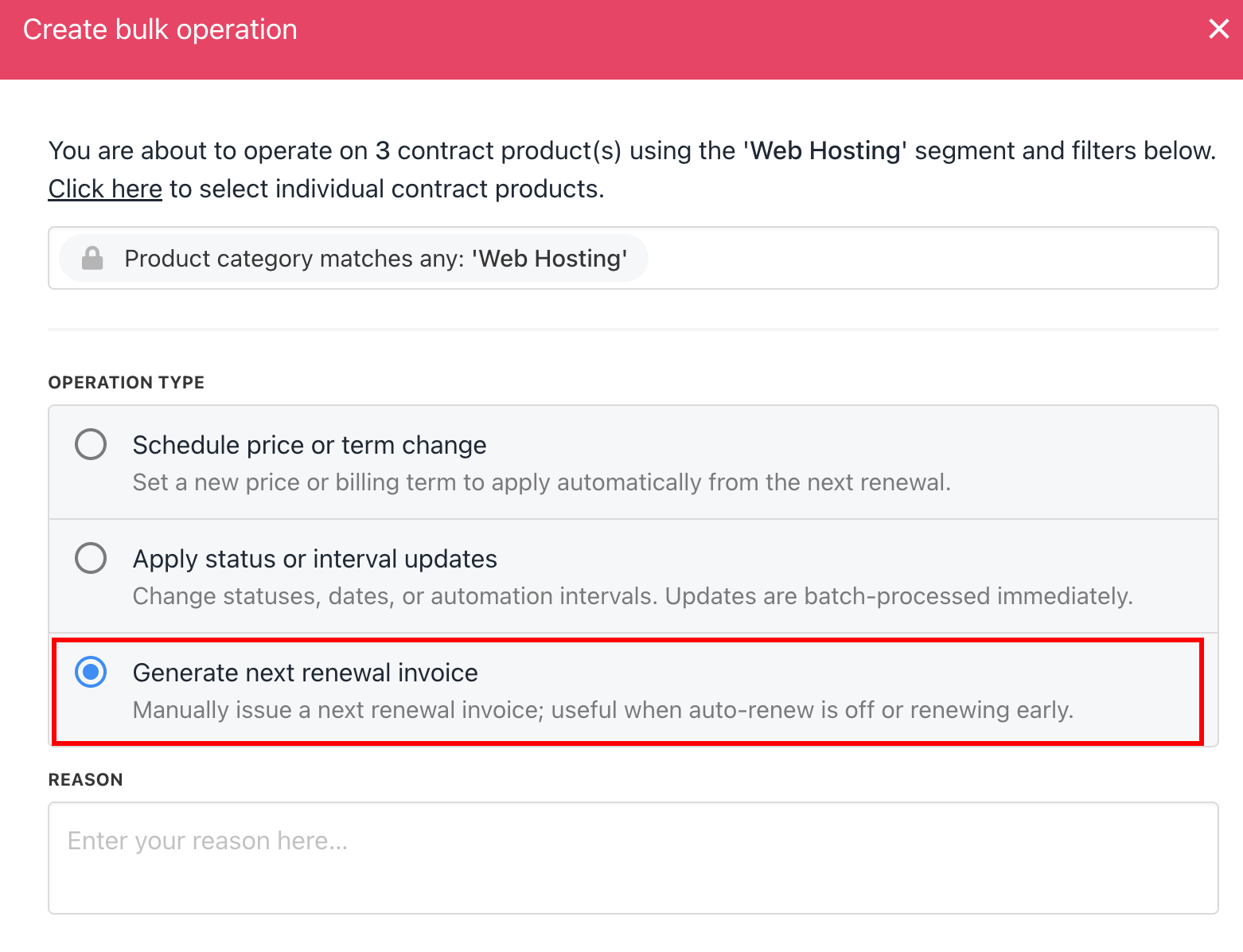
1. Select **Generate next renewal invoice**, write a **reason**, and click **Create**.
## For renewal invoices
1. Select **Generate next renewal invoice**, write a **reason**, and click **Create**.
 ## Viewing bulk operations history
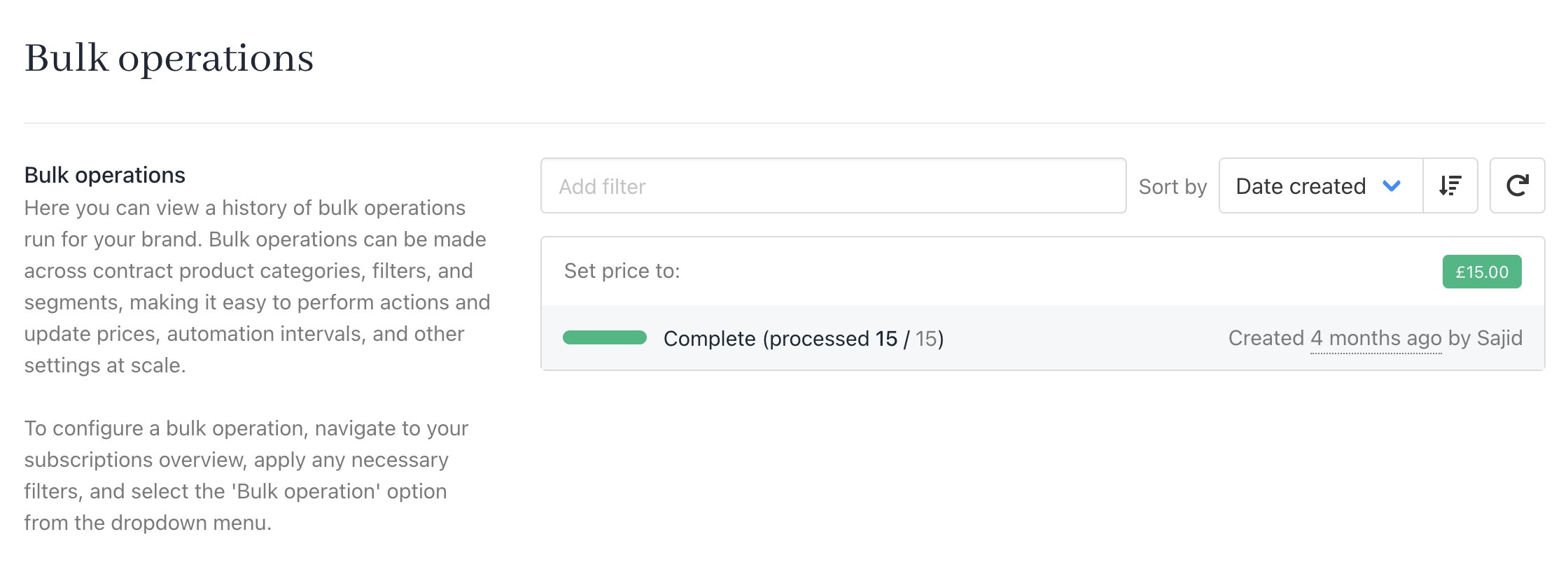
1. Go to **Product & Services** > **Bulk operations**.
2. Review all past and current bulk operations, including those in progress.
## Viewing bulk operations history
1. Go to **Product & Services** > **Bulk operations**.
2. Review all past and current bulk operations, including those in progress.
 ## Common scenarios
### **Adjusting billing dates or pricing (Single contract vs. Bulk)**
The right tool depends on the scope of the change you need to make.
For a single contract product, use the **Modify Product** option on the contract product's **Overview** tab. This updates the billing date or price for that specific subscription. Note that modifying a contract product this way will generate a migration invoice or a prorated invoice, depending on the nature of the change.
## Common scenarios
### **Adjusting billing dates or pricing (Single contract vs. Bulk)**
The right tool depends on the scope of the change you need to make.
For a single contract product, use the **Modify Product** option on the contract product's **Overview** tab. This updates the billing date or price for that specific subscription. Note that modifying a contract product this way will generate a migration invoice or a prorated invoice, depending on the nature of the change.
 See the [Modify Product guide](/using-upmind/manage-client-services/how-to-modify-a-subscription-contract) for full details on how this works.
For multiple contract products at once, use the **Bulk Operations** feature covered in this guide. Create a segment that targets the relevant subscriptions, then apply the appropriate bulk operation. When doing this, take care to select the correct operation type:
* Schedule price or term change - For pricing and billing interval updates
* Apply status or interval updates - For automation interval changes.
Choosing the wrong operation type can apply changes more broadly than intended, so review your segment filters carefully before confirming.
**Key points:**
* Invoice regeneration cannot be used to change billing dates. Regenerating an invoice only updates client details on the invoice, such as the company name or billing address, and does not affect the billing cycle, renewal date, or service period in any way.
* Billing date changes affect future invoice cycles only.
\*\*Example: (\*\*To move billing from the 2nd of the month to the 10th)
* Update the contract product renewal date.
* Allow the system to generate new invoices based on the updated cycle.
See the [Modify Product guide](/using-upmind/manage-client-services/how-to-modify-a-subscription-contract) for full details on how this works.
For multiple contract products at once, use the **Bulk Operations** feature covered in this guide. Create a segment that targets the relevant subscriptions, then apply the appropriate bulk operation. When doing this, take care to select the correct operation type:
* Schedule price or term change - For pricing and billing interval updates
* Apply status or interval updates - For automation interval changes.
Choosing the wrong operation type can apply changes more broadly than intended, so review your segment filters carefully before confirming.
**Key points:**
* Invoice regeneration cannot be used to change billing dates. Regenerating an invoice only updates client details on the invoice, such as the company name or billing address, and does not affect the billing cycle, renewal date, or service period in any way.
* Billing date changes affect future invoice cycles only.
\*\*Example: (\*\*To move billing from the 2nd of the month to the 10th)
* Update the contract product renewal date.
* Allow the system to generate new invoices based on the updated cycle.