> ## Documentation Index
> Fetch the complete documentation index at: https://docs.upmind.com/llms.txt
> Use this file to discover all available pages before exploring further.
# About Multi-Currency
> Automate currency conversions.
This guide explains how Upmind supports selling and invoicing in multiple currencies with automatic conversions throughout the sales process.
## Home currency
Your store’s home currency, called the `store currency` in Upmind, sets the price for all products and services. You must set your store currency during initial setup, as it becomes locked and unchangeable after the first sale.
Using this currency and current exchange rates, Upmind automatically converts prices to display them to a global audience.
Set your store currency on the page under Ecommerce Settings when creating your Upmind store.
## Managing currencies
You can add or remove currencies by associating them with payment gateways in **Settings** > **Payment Providers**. Currencies linked to a payment gateway appear as options for clients at checkout.
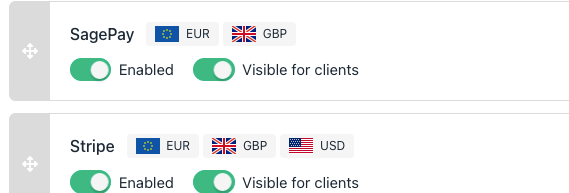 **Example**: EUR, GBP, and USD are available currencies in the store.
## Store currency
By default, clients see prices in your brand currency. You can override this by adding the currency parameter to your URL, for example: `https://shop.brand.com/order/shop?currency=USD`
## Product pricing
Upmind offers multiple currency options for pricing.
1. You can manually set prices for each currency.
**Example**: EUR, GBP, and USD are available currencies in the store.
## Store currency
By default, clients see prices in your brand currency. You can override this by adding the currency parameter to your URL, for example: `https://shop.brand.com/order/shop?currency=USD`
## Product pricing
Upmind offers multiple currency options for pricing.
1. You can manually set prices for each currency.
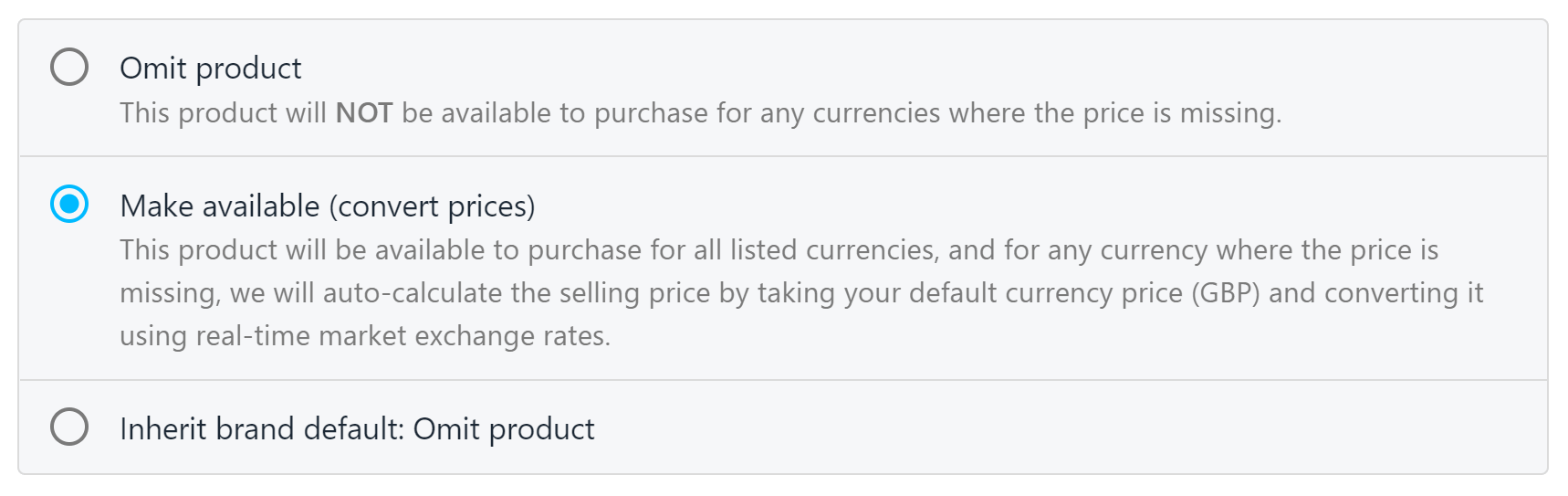
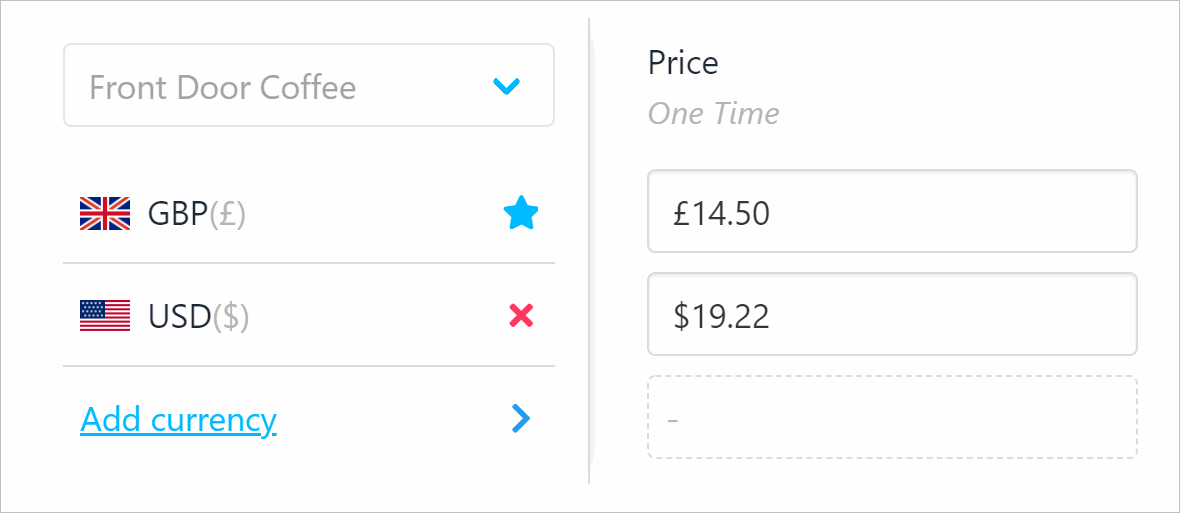 2. You can also enable auto-conversion, where prices are automatically converted from your home currency based on exchange rates.
 ## Exchange rates
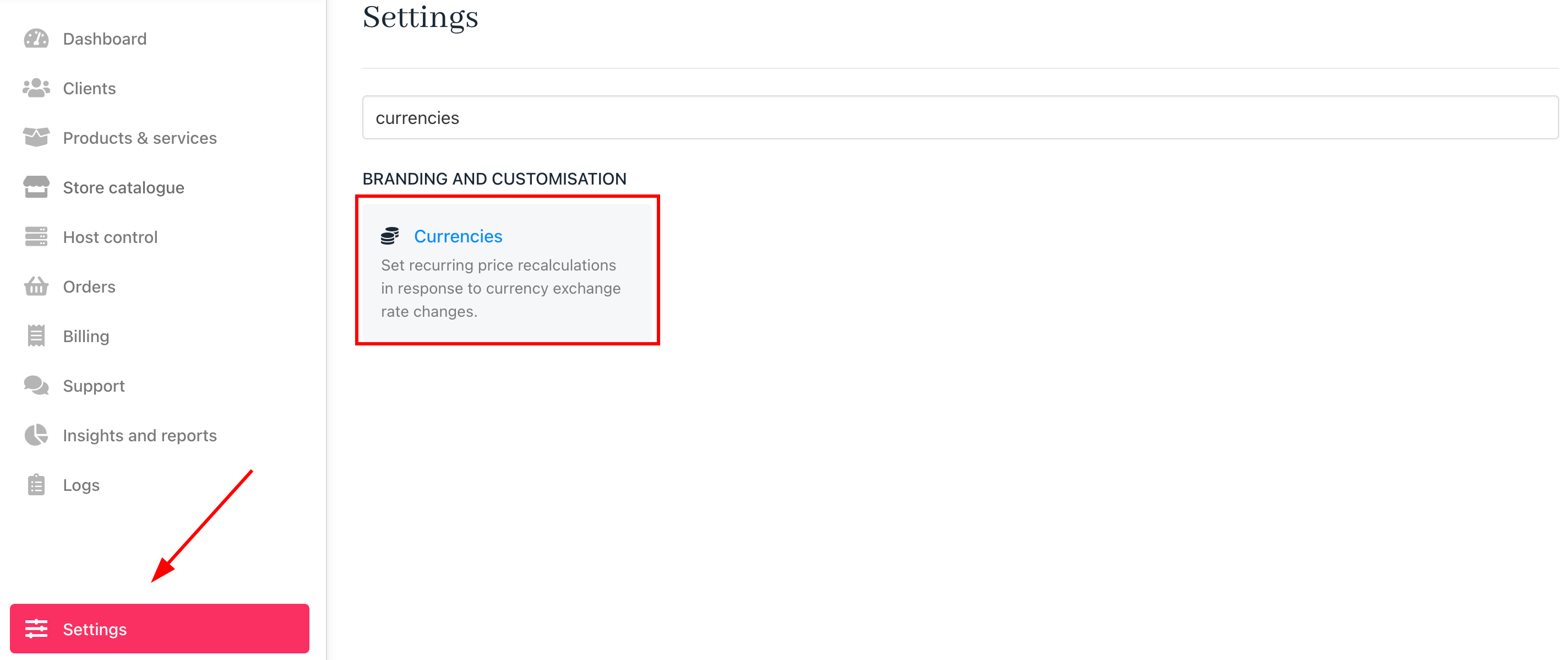
Upmind automatically updates daily exchange rates but allows manual overrides for fluctuations. You can manage rates in **Settings** > **Currencies**.
## Exchange rates
Upmind automatically updates daily exchange rates but allows manual overrides for fluctuations. You can manage rates in **Settings** > **Currencies**.
 ### Recurring price calculation
You can choose how recurring prices adjust to currency changes by selecting one of the following options:
* Keep the original rate.
* Recalculate the price with the current exchange rate.
* Use current rates but keep the same price for current clients.
### Recurring price calculation
You can choose how recurring prices adjust to currency changes by selecting one of the following options:
* Keep the original rate.
* Recalculate the price with the current exchange rate.
* Use current rates but keep the same price for current clients.
 ## Auto-conversion
Check the box to automatically calculate missing currency prices.
## Auto-conversion
Check the box to automatically calculate missing currency prices.
 ## Client currency preferences (default)
Each client has a default currency that appears when they visit your store, which they can change at any time. Clients can also override the currency for individual orders.
Changing a client's default currency does not affect existing subscriptions, which must be updated individually.
## Changing service currency
Staff can change the currency of an active service by going to the `settings` tab and clicking **Change Currency**.
This action closes the existing contract and creates a new one in the new currency, preserving due dates and provisioning details.
## Client currency preferences (default)
Each client has a default currency that appears when they visit your store, which they can change at any time. Clients can also override the currency for individual orders.
Changing a client's default currency does not affect existing subscriptions, which must be updated individually.
## Changing service currency
Staff can change the currency of an active service by going to the `settings` tab and clicking **Change Currency**.
This action closes the existing contract and creates a new one in the new currency, preserving due dates and provisioning details.
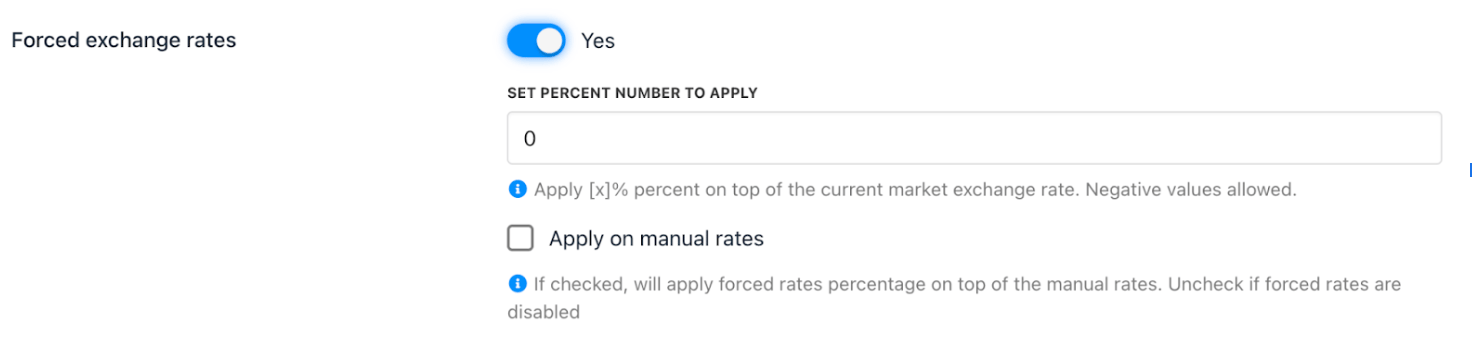
 ## Forced exchange rates
This feature lets you apply a percentage adjustment to current market or manual exchange rates.
When toggled **ON**, you can set a positive or negative percentage to increase or decrease the exchange rate for currency conversions. The forced rate applies on top of manual rates, giving precise control beyond automatic values.
Turning **OFF** the toggle disables forced rates, reverting to standard automatic or manual rates.
## Forced exchange rates
This feature lets you apply a percentage adjustment to current market or manual exchange rates.
When toggled **ON**, you can set a positive or negative percentage to increase or decrease the exchange rate for currency conversions. The forced rate applies on top of manual rates, giving precise control beyond automatic values.
Turning **OFF** the toggle disables forced rates, reverting to standard automatic or manual rates.
 ## Wallet balances
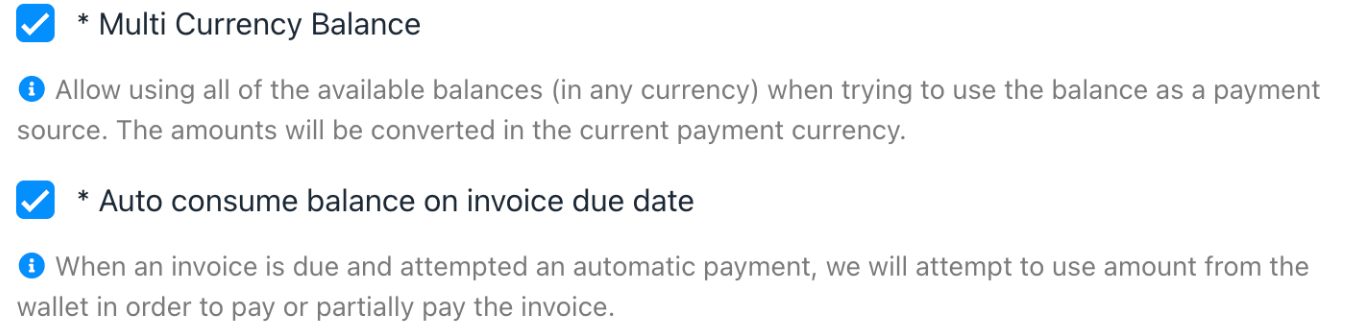
Client wallets can hold multiple currencies, and you can customise how these funds are applied to settle invoice balances.
1. Go to **Settings** > **Payment Options**.
2. Check the box to convert wallet funds to the payment currency. (Optional)
3. Check the box to automatically draw funds from the wallet to settle due automatic payments. (Optional)
## Wallet balances
Client wallets can hold multiple currencies, and you can customise how these funds are applied to settle invoice balances.
1. Go to **Settings** > **Payment Options**.
2. Check the box to convert wallet funds to the payment currency. (Optional)
3. Check the box to automatically draw funds from the wallet to settle due automatic payments. (Optional)