> ## Documentation Index
> Fetch the complete documentation index at: https://docs.upmind.com/llms.txt
> Use this file to discover all available pages before exploring further.
# A Guide to Invoice Consolidation
> Combine multiple charges into a single invoice.
This guide covers everything you need to know about invoice consolidation in Upmind, from enabling the feature to managing payment methods. **Here’s what you should know about our consolidation system:**
* Invoice consolidation only applies to renewal invoices.
* If consolidation is enabled after there are existing unpaid renewal invoices, those invoices will not be automatically consolidated.
* Once invoice consolidation is enabled, invoice generation and due dates no longer follow the automation interval. They follow the invoice consolidation rules instead.
## **Enabling invoice consolidation**
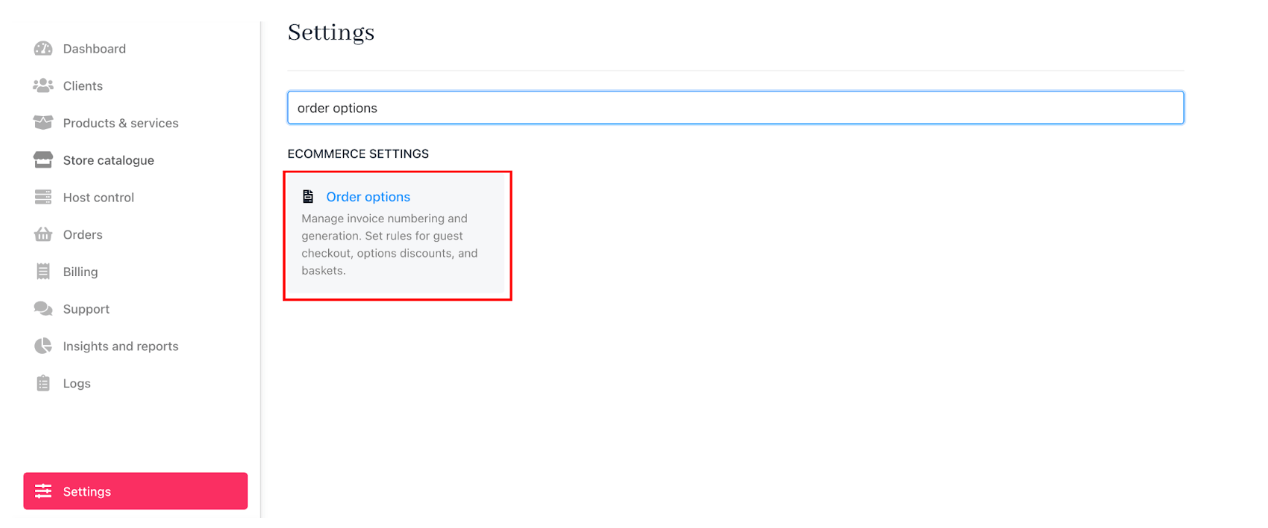
1. Go to **Settings** > **Order Options** under Ecommerce Settings.
 2. Scroll to the `Consolidation` section and check the box to enable.
3. Restrict consolidation management to staff only. (Optional)
2. Scroll to the `Consolidation` section and check the box to enable.
3. Restrict consolidation management to staff only. (Optional)
 To restrict consolidation access to staff only, check the Allow only staff using that feature box, preventing clients from using it directly.
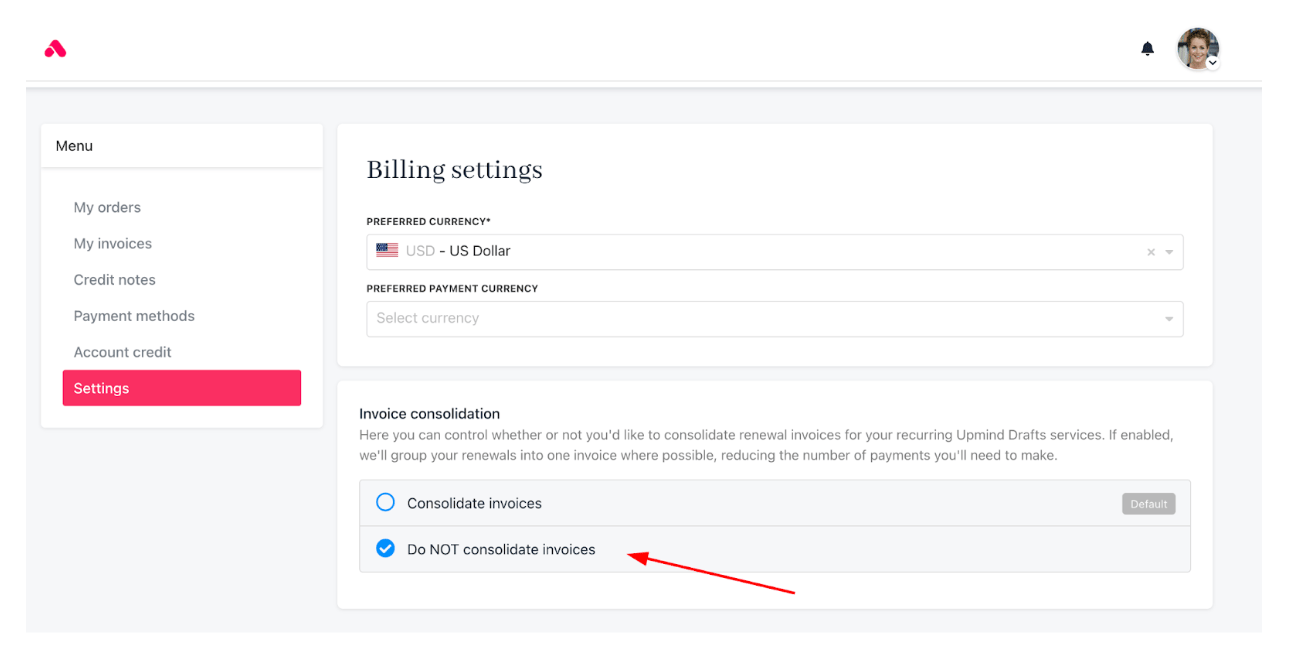 When the **allow only staff users** option is enabled for invoice consolidation, clients must [submit a ticket](/using-upmind/service-desk/about-upminds-service-desk-features) to request consolidation through their account.
## **Invoice consolidation timing options**
Invoice consolidation groups multiple invoices into one based on specific rules. Importantly, consolidation is based on the *next invoice date*, not the due date.
1. **Consolidation Rules**: You can define how invoices are consolidated using these options:
* **Consolidate on a selected date each month**: Choose a date (e.g., the 15th), and the system consolidates invoices from that date up to the day before the same date next month.
* **Consolidate on the first day of the month**: On the 1st of each month, the system consolidates invoices for the entire upcoming month.
* **Consolidate on the last day of the month**: On the last day of each month, the system consolidates all invoices with next\_invoice\_dates in the following month, excluding the last day itself.
* **Consolidate on a selected day of the week**: On a specified weekday (e.g., Monday), the system consolidates invoices for the entire current week, from that day through the week’s end.
* **Consolidate invoices issued on the same day**: The system consolidates all invoices scheduled to be issued on the same day.
When the **allow only staff users** option is enabled for invoice consolidation, clients must [submit a ticket](/using-upmind/service-desk/about-upminds-service-desk-features) to request consolidation through their account.
## **Invoice consolidation timing options**
Invoice consolidation groups multiple invoices into one based on specific rules. Importantly, consolidation is based on the *next invoice date*, not the due date.
1. **Consolidation Rules**: You can define how invoices are consolidated using these options:
* **Consolidate on a selected date each month**: Choose a date (e.g., the 15th), and the system consolidates invoices from that date up to the day before the same date next month.
* **Consolidate on the first day of the month**: On the 1st of each month, the system consolidates invoices for the entire upcoming month.
* **Consolidate on the last day of the month**: On the last day of each month, the system consolidates all invoices with next\_invoice\_dates in the following month, excluding the last day itself.
* **Consolidate on a selected day of the week**: On a specified weekday (e.g., Monday), the system consolidates invoices for the entire current week, from that day through the week’s end.
* **Consolidate invoices issued on the same day**: The system consolidates all invoices scheduled to be issued on the same day.
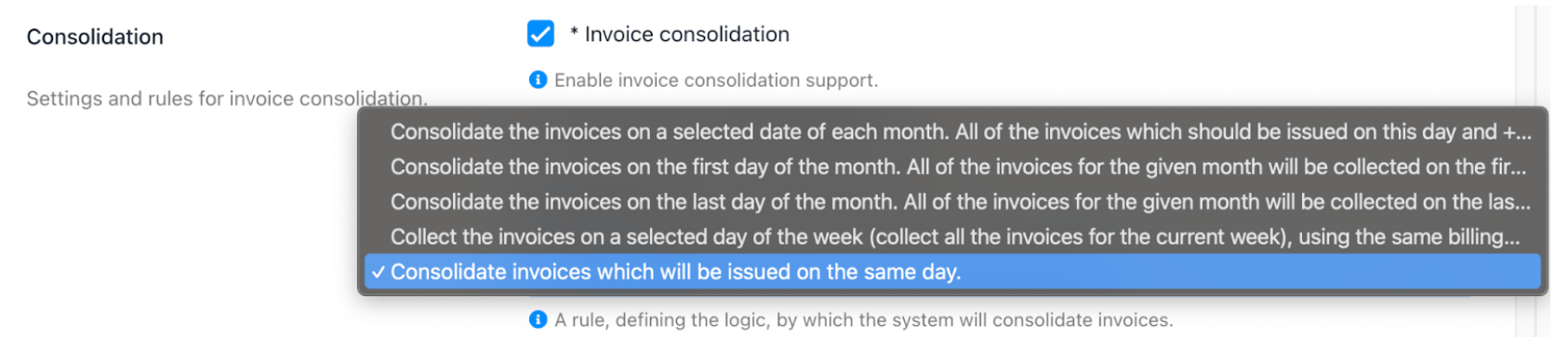 2. **Consolidation Rule – Date of Month**: This option lets you specify the day of the month when invoices are consolidated, such as the 1st, 15th, or last day, depending on your billing cycles and business needs.
 3. **Consolidation Rule – Day of Week**: This option sets the specific day of the week (e.g., Monday, Tuesday) on which invoices should be consolidated.
 4. **Due Date Interval for Consolidated Invoices**: The due date of the consolidated invoice is set a specified number of days (e.g., 7 days) before the next\_invoice\_date of the earliest product or service date among the consolidated invoices.
 Upmind's billing terms are fixed to monthly, quarterly, semi-annual, or annual cycles, so partial-month charges require manual handling by adjusting the contract or product renewal date. You can [change the renewal date of a subscription](/using-upmind/manage-client-services/how-to-change-the-renewal-date-of-a-subscription) or [modify a subscription contract](/using-upmind/manage-client-services/how-to-modify-a-subscription-contract).
## **Client overrides and product exclusions**
Clients can manage their own consolidation rules unless restricted (if you do not check the option **Allow only staff using that feature**).
Upmind's billing terms are fixed to monthly, quarterly, semi-annual, or annual cycles, so partial-month charges require manual handling by adjusting the contract or product renewal date. You can [change the renewal date of a subscription](/using-upmind/manage-client-services/how-to-change-the-renewal-date-of-a-subscription) or [modify a subscription contract](/using-upmind/manage-client-services/how-to-modify-a-subscription-contract).
## **Client overrides and product exclusions**
Clients can manage their own consolidation rules unless restricted (if you do not check the option **Allow only staff using that feature**).
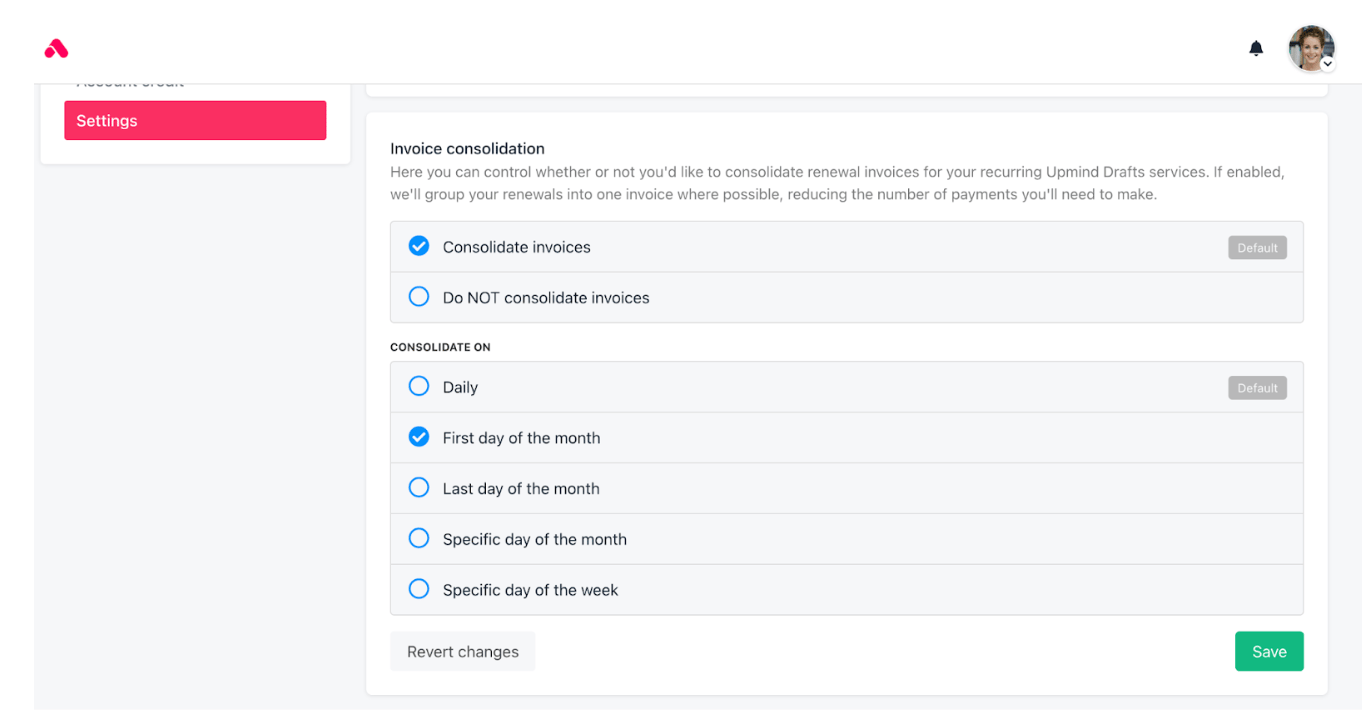 ### **Client-managed consolidation**
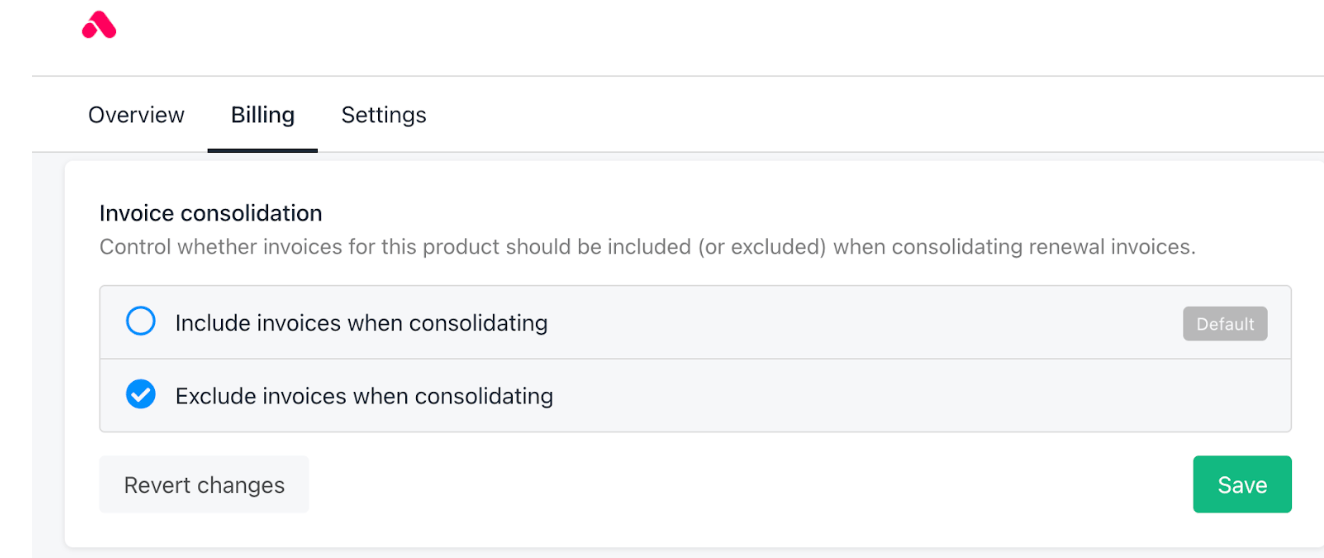
Clients can exclude specific products from invoice consolidation:
1. Navigate to `Products and Services`.
2. Select the product to exclude.
3. Go to the `Billing` tab.
4. Find Invoice Consolidation and change it to **Exclude invoice when consolidating**.
5. Click **Save**.
### **Client-managed consolidation**
Clients can exclude specific products from invoice consolidation:
1. Navigate to `Products and Services`.
2. Select the product to exclude.
3. Go to the `Billing` tab.
4. Find Invoice Consolidation and change it to **Exclude invoice when consolidating**.
5. Click **Save**.
 ### **Admin-managed consolidation**
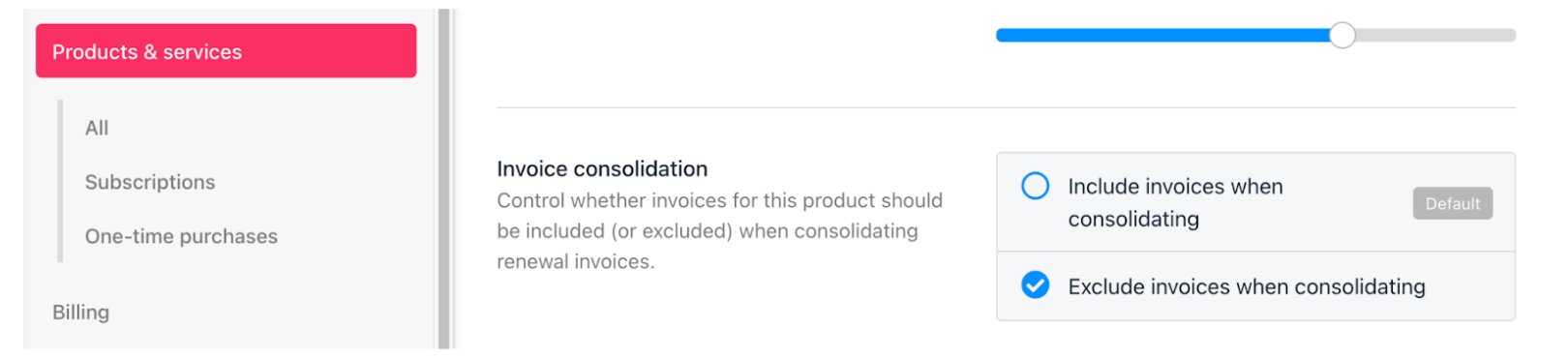
If only admins manage consolidation, you can handle client requests individually.
1. **To exclude a product from consolidation for a client**:
* Go to `Products & Services` in the client profile.
* Select the product.
* Click **Settings**.
* Choose **Exclude invoices when consolidating**.
### **Admin-managed consolidation**
If only admins manage consolidation, you can handle client requests individually.
1. **To exclude a product from consolidation for a client**:
* Go to `Products & Services` in the client profile.
* Select the product.
* Click **Settings**.
* Choose **Exclude invoices when consolidating**.
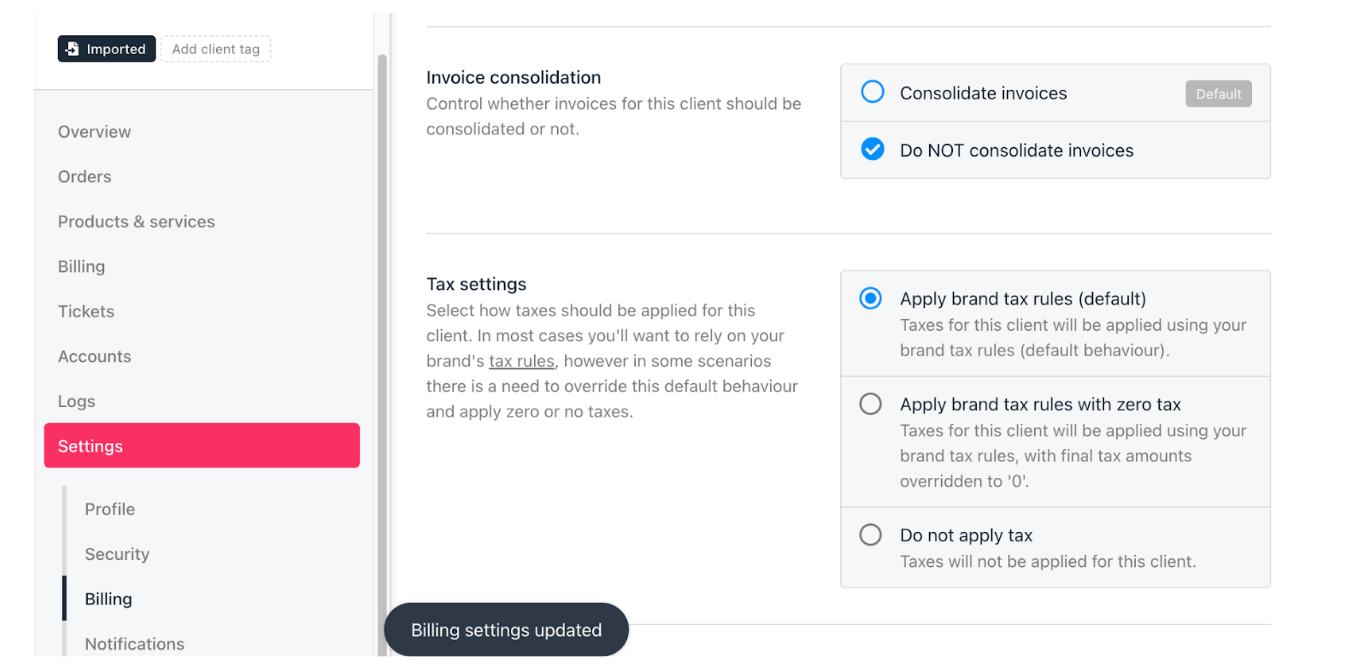
 2. **To exclude a client entirely from invoice consolidation**:
* Go to `Settings` in the client profile.
* Click **Billing**.
* Select **Do not consolidate invoices**.
2. **To exclude a client entirely from invoice consolidation**:
* Go to `Settings` in the client profile.
* Click **Billing**.
* Select **Do not consolidate invoices**.
 3. To exclude a specific product from all consolidated invoices:
* Go to `Products & Services`.
* Click **Product Automation**.
* Select **Exclude from invoice consolidation**.
3. To exclude a specific product from all consolidated invoices:
* Go to `Products & Services`.
* Click **Product Automation**.
* Select **Exclude from invoice consolidation**.
 ## **When invoices are consolidated automatically**
Invoices consolidate automatically when multiple subscriptions for the same customer renew within a specific time frame, allowing all charges to be combined into a single invoice for easier payment and clearer billing.
Invoices are consolidated based on the following criteria:
* Client
* Client address or company details
* Currency
**Examples**:
1. **Same Client with Different Currencies**: If a client has services billed in different currencies (e.g., one in USD and another in EUR), they will receive separate invoices for each currency.
2. **Same Client with Different Addresses**: If a client has services at different addresses with varying currencies (e.g., a UK address billed in GBP, another UK address billed in EUR, and a DE address billed in EUR), invoices are issued as follows:
* One invoice in GBP for the UK address.
* Two separate invoices in EUR, one for each address (UK and DE).
## **Payment methods for consolidation**
When a client has a default payment method saved in their client area, Upmind uses this method during consolidation, ignoring any payment methods set for individual services.
## **Custom consolidation invoice due date**
By default, consolidated invoices are due based on the earliest invoice due date in that consolidation batch. This setting lets you pin the due date to a specific day of the month instead, useful for clients whose contracts are set to never suspend on payment failure.
Before you begin, confirm all three of the following are active:
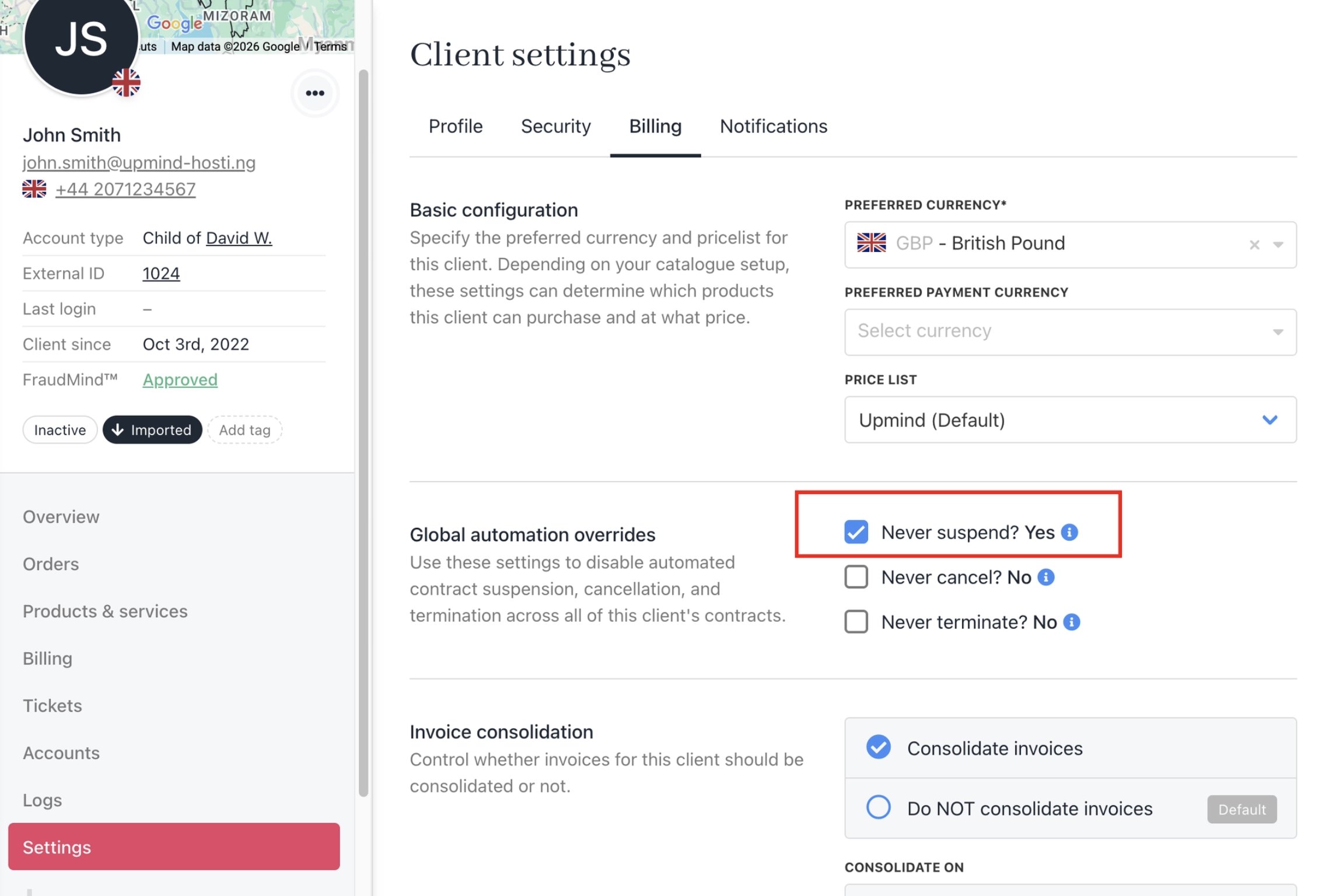
1. **Never Suspend** is enabled from **Clients** > **Global automation overrides**.
## **When invoices are consolidated automatically**
Invoices consolidate automatically when multiple subscriptions for the same customer renew within a specific time frame, allowing all charges to be combined into a single invoice for easier payment and clearer billing.
Invoices are consolidated based on the following criteria:
* Client
* Client address or company details
* Currency
**Examples**:
1. **Same Client with Different Currencies**: If a client has services billed in different currencies (e.g., one in USD and another in EUR), they will receive separate invoices for each currency.
2. **Same Client with Different Addresses**: If a client has services at different addresses with varying currencies (e.g., a UK address billed in GBP, another UK address billed in EUR, and a DE address billed in EUR), invoices are issued as follows:
* One invoice in GBP for the UK address.
* Two separate invoices in EUR, one for each address (UK and DE).
## **Payment methods for consolidation**
When a client has a default payment method saved in their client area, Upmind uses this method during consolidation, ignoring any payment methods set for individual services.
## **Custom consolidation invoice due date**
By default, consolidated invoices are due based on the earliest invoice due date in that consolidation batch. This setting lets you pin the due date to a specific day of the month instead, useful for clients whose contracts are set to never suspend on payment failure.
Before you begin, confirm all three of the following are active:
1. **Never Suspend** is enabled from **Clients** > **Global automation overrides**.
 2. **Auto cancel unpaid invoices which have partial payment** is turned **OFF**.
Go to **Settings** > **Order Options**. Then, under the Misc section, enable Auto cancel unpaid invoice, which have partial payment.
2. **Auto cancel unpaid invoices which have partial payment** is turned **OFF**.
Go to **Settings** > **Order Options**. Then, under the Misc section, enable Auto cancel unpaid invoice, which have partial payment.
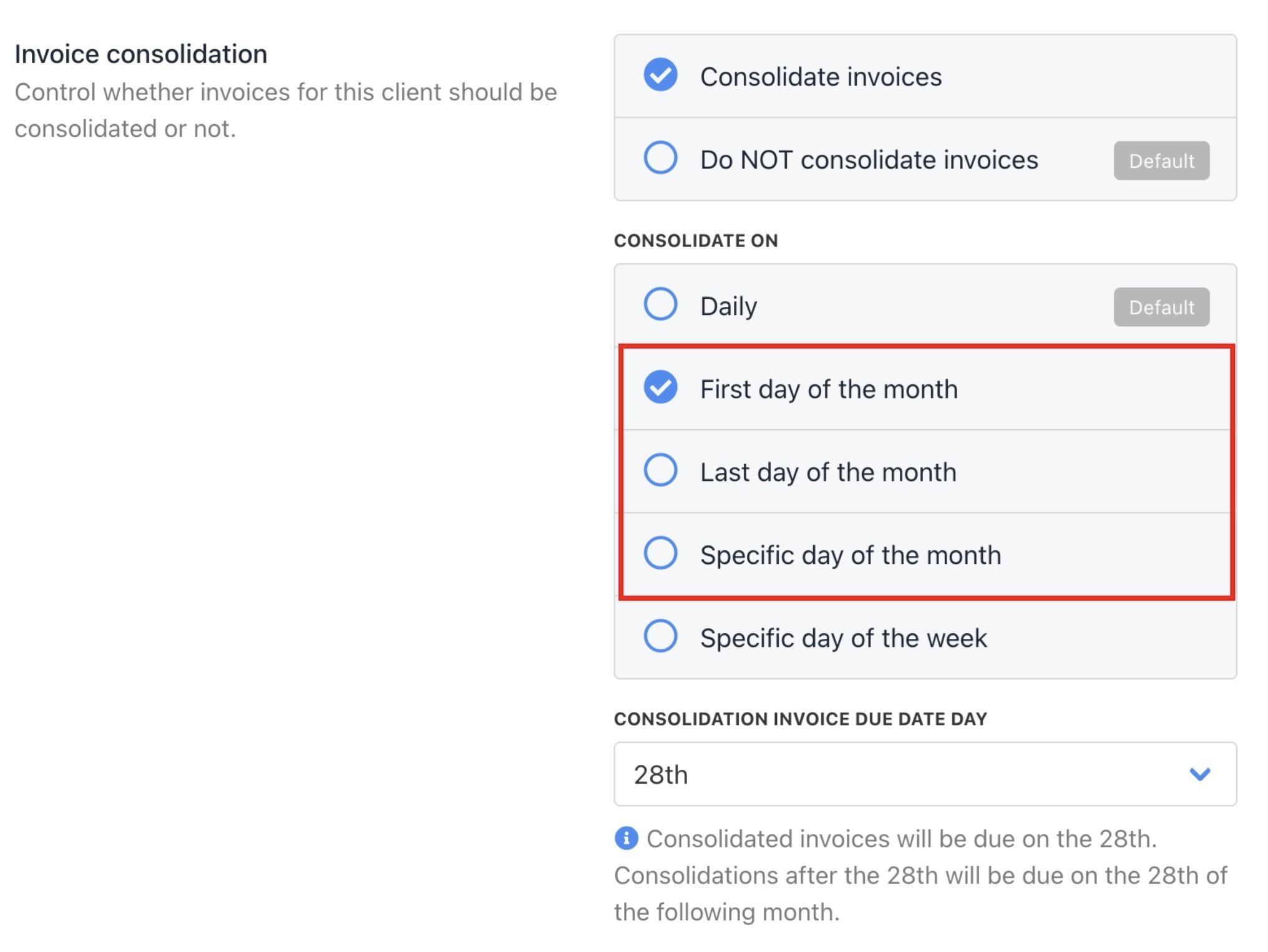
 3. A **monthly** consolidation rule is set (first day of month, last day of month, or specific day of month).
Go to **Clients** > **Consolidate Invoices** (Admin/Staff).
3. A **monthly** consolidation rule is set (first day of month, last day of month, or specific day of month).
Go to **Clients** > **Consolidate Invoices** (Admin/Staff).
 Go to **Billing** > **Settings** > **Consolidate Invoices** (Client).
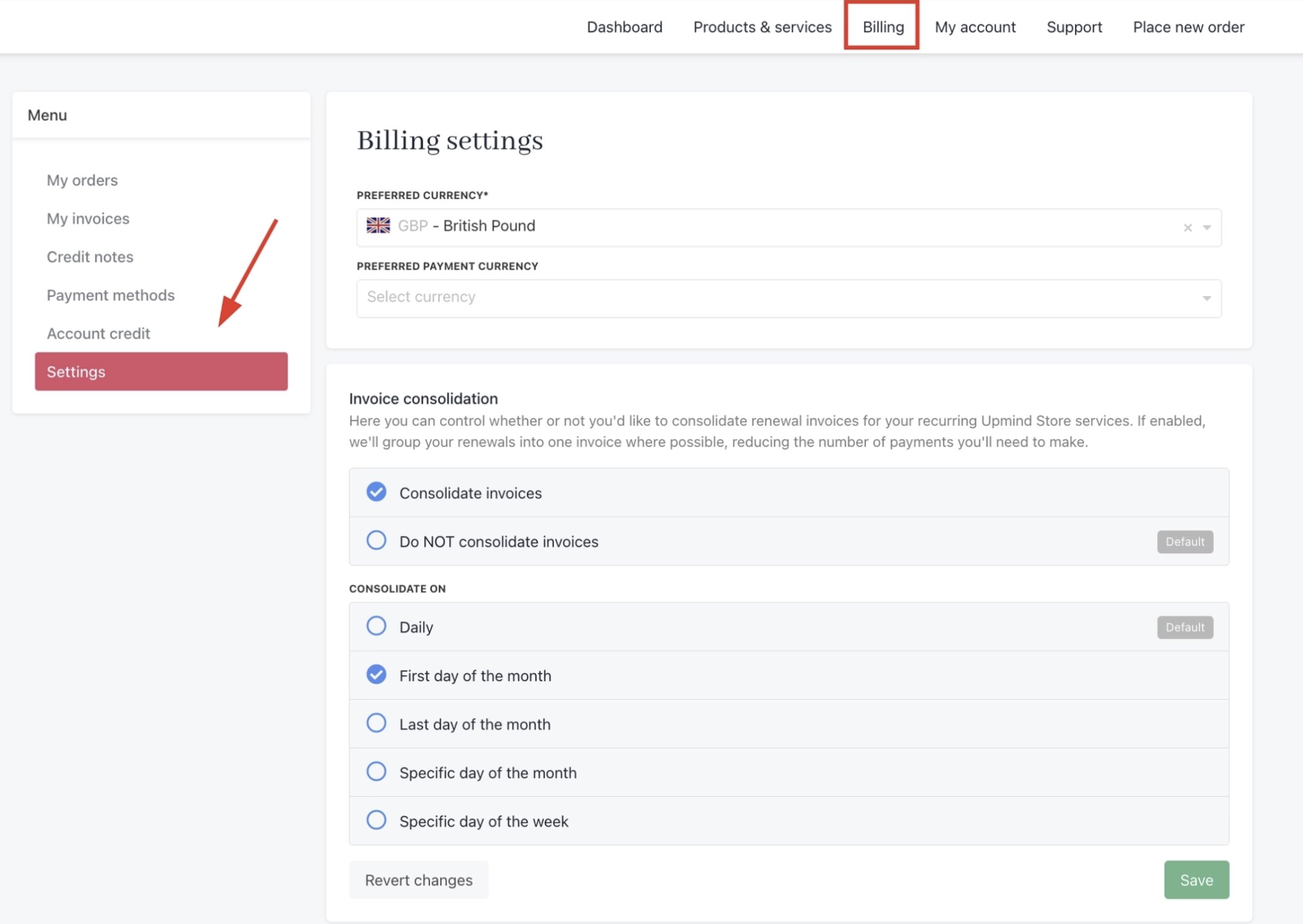 This setting is not available for weekly or same-day consolidation rules, and it will not appear in the interface if those conditions above are not met.
### Setting a custom due date for a client
1. Open the client profile and go to **Settings > Billing**.
2. Find the **Consolidation due date** field.
3. Enter the day of the month you want consolidated invoices to be due (e.g., `28`).
4. Click **Save**.
This setting is not available for weekly or same-day consolidation rules, and it will not appear in the interface if those conditions above are not met.
### Setting a custom due date for a client
1. Open the client profile and go to **Settings > Billing**.
2. Find the **Consolidation due date** field.
3. Enter the day of the month you want consolidated invoices to be due (e.g., `28`).
4. Click **Save**.
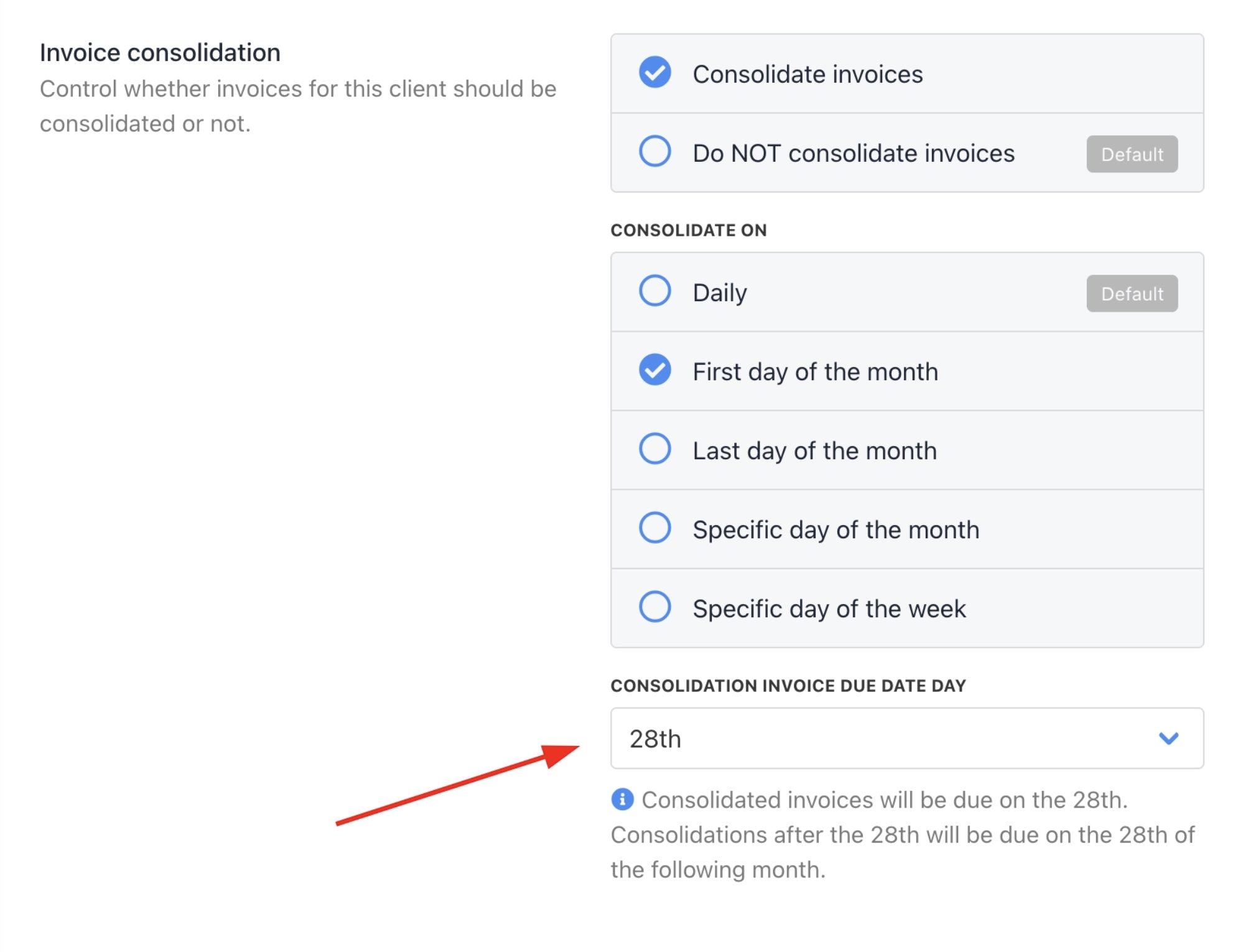 This can be set or edited by both staff and clients (unless client access to consolidation settings has been restricted to staff only).
### **How the due date is applied**
* The day you set here overrides the default earliest-date logic for that client's consolidated invoices going forward.
* Any previously unpaid invoices are not affected, and they keep their original due dates.
* Add-ons and changes apply to future invoices only, from the point at which this setting is saved.
* If the configured day does not exist in a given month (e.g., day 30 in February), the due date falls on the last available day of that month (e.g., the 28th or 29th in a leap year).
This setting only controls the **due date** of the consolidated invoice, not when it is created or when consolidation runs.
## Common scenarios
### Consolidation does not include all expected products
In some cases, not all services appear in a consolidated invoice even when they seem aligned.
This behaviour usually comes from how consolidation works internally. Consolidation is based on the **next invoice date**, not the due date.
**Common reasons include:**
* The services do not share the same **next\_invoice\_date**, even if their due dates look similar.
* A product has been explicitly excluded from consolidation at the product or client level.
* The services use different currencies or billing entities, which always results in separate invoices.
* Consolidation was enabled after invoices were already generated, and existing invoices remain separate.
**Example:**
The behaviour in the example below depends on which consolidation rule is active. If the weekly consolidation rule is enabled and both dates fall within the same billing week, both services can be grouped into a single consolidated invoice.
A client has:
* Service A renewing on March 1.
* Service B renewing on March 2.
**With a monthly or date-based rule**, these two services may not consolidate since their `next_invoice_date` values differ. **With a weekly rule**, both services fall within the same billing week and will be included in the same consolidated invoice.
### Consolidation enabled, but existing invoices are not merged
When consolidation is enabled after invoices already exist, those invoices are not merged automatically.
**What to expect:**
* Only future renewal invoices follow consolidation rules.
* Existing unpaid invoices remain unchanged.
**Recommended approach:**
* If unpaid invoices were generated before invoice consolidation was enabled, they can still be manually consolidated without cancelling them. As long as the invoices share the same billing address and currency, you can group them immediately instead of waiting for the next billing cycle.
* Wait for the next billing cycle for automatic consolidation to take effect going forward.
### How consolidation timing affects the invoice
Consolidation timing directly controls which services are grouped together.
**Monthly date rule example:**
If consolidation is set to the 15th:
* All services with next invoice dates between the 15th and the 14th of the next month are grouped.
* Services outside that range are excluded.
**First day of the month rule:**
* All services renewing within the upcoming month are grouped into one invoice generated on the 1st.
**Last day of the month rule:**
* Services renewing in the following month are grouped on the last day of the current month (excluding that last day itself).
**Weekly rule:**
* Services within the same billing week are grouped together.
### Due date calculation for consolidated invoices
The due date is based on the earliest service billing start date among all included services.
**How it works:**
Each service has a `from_date` representing the start of its next billing period.
* The system identifies the earliest `from_date`.
* The due date is calculated using the configured offset.
**Example:**
* Offset set to 0 > Due date equals the earliest `from_date` (e.g. 1st of the month).
* Offset set to -5 > Due date is 5 days after the earliest `from_date`.
### Client selects different consolidation rules
Different rule selections produce different grouping behaviour.
**Selected date (e.g. 10th):**
* Consolidates services from the 10th of the current month to the 9th of the next month.
**First day of the month:**
* Groups all services renewing within that month.
**Last day of the month:**
* Groups services for the following month, excluding the last day itself.
**Selected weekday:**
* Groups services within that weekly cycle.
This can be set or edited by both staff and clients (unless client access to consolidation settings has been restricted to staff only).
### **How the due date is applied**
* The day you set here overrides the default earliest-date logic for that client's consolidated invoices going forward.
* Any previously unpaid invoices are not affected, and they keep their original due dates.
* Add-ons and changes apply to future invoices only, from the point at which this setting is saved.
* If the configured day does not exist in a given month (e.g., day 30 in February), the due date falls on the last available day of that month (e.g., the 28th or 29th in a leap year).
This setting only controls the **due date** of the consolidated invoice, not when it is created or when consolidation runs.
## Common scenarios
### Consolidation does not include all expected products
In some cases, not all services appear in a consolidated invoice even when they seem aligned.
This behaviour usually comes from how consolidation works internally. Consolidation is based on the **next invoice date**, not the due date.
**Common reasons include:**
* The services do not share the same **next\_invoice\_date**, even if their due dates look similar.
* A product has been explicitly excluded from consolidation at the product or client level.
* The services use different currencies or billing entities, which always results in separate invoices.
* Consolidation was enabled after invoices were already generated, and existing invoices remain separate.
**Example:**
The behaviour in the example below depends on which consolidation rule is active. If the weekly consolidation rule is enabled and both dates fall within the same billing week, both services can be grouped into a single consolidated invoice.
A client has:
* Service A renewing on March 1.
* Service B renewing on March 2.
**With a monthly or date-based rule**, these two services may not consolidate since their `next_invoice_date` values differ. **With a weekly rule**, both services fall within the same billing week and will be included in the same consolidated invoice.
### Consolidation enabled, but existing invoices are not merged
When consolidation is enabled after invoices already exist, those invoices are not merged automatically.
**What to expect:**
* Only future renewal invoices follow consolidation rules.
* Existing unpaid invoices remain unchanged.
**Recommended approach:**
* If unpaid invoices were generated before invoice consolidation was enabled, they can still be manually consolidated without cancelling them. As long as the invoices share the same billing address and currency, you can group them immediately instead of waiting for the next billing cycle.
* Wait for the next billing cycle for automatic consolidation to take effect going forward.
### How consolidation timing affects the invoice
Consolidation timing directly controls which services are grouped together.
**Monthly date rule example:**
If consolidation is set to the 15th:
* All services with next invoice dates between the 15th and the 14th of the next month are grouped.
* Services outside that range are excluded.
**First day of the month rule:**
* All services renewing within the upcoming month are grouped into one invoice generated on the 1st.
**Last day of the month rule:**
* Services renewing in the following month are grouped on the last day of the current month (excluding that last day itself).
**Weekly rule:**
* Services within the same billing week are grouped together.
### Due date calculation for consolidated invoices
The due date is based on the earliest service billing start date among all included services.
**How it works:**
Each service has a `from_date` representing the start of its next billing period.
* The system identifies the earliest `from_date`.
* The due date is calculated using the configured offset.
**Example:**
* Offset set to 0 > Due date equals the earliest `from_date` (e.g. 1st of the month).
* Offset set to -5 > Due date is 5 days after the earliest `from_date`.
### Client selects different consolidation rules
Different rule selections produce different grouping behaviour.
**Selected date (e.g. 10th):**
* Consolidates services from the 10th of the current month to the 9th of the next month.
**First day of the month:**
* Groups all services renewing within that month.
**Last day of the month:**
* Groups services for the following month, excluding the last day itself.
**Selected weekday:**
* Groups services within that weekly cycle.