> ## Documentation Index
> Fetch the complete documentation index at: https://docs.upmind.com/llms.txt
> Use this file to discover all available pages before exploring further.

# Cancellation Fields

> Manage custom fields for subscription cancellation.

You can add custom fields to cancellation forms to collect detailed client feedback. Fields appear when clients cancel products or services with immediate effect.

These can also be used as custom fields for the basket.

<Warning>
  Use these responses to identify issues and improve retention for your business.
</Warning>

## **Adding a custom cancellation field**

1. Go to **Settings** > **Custom Cancellation Fields** under **E-commerce Settings**.
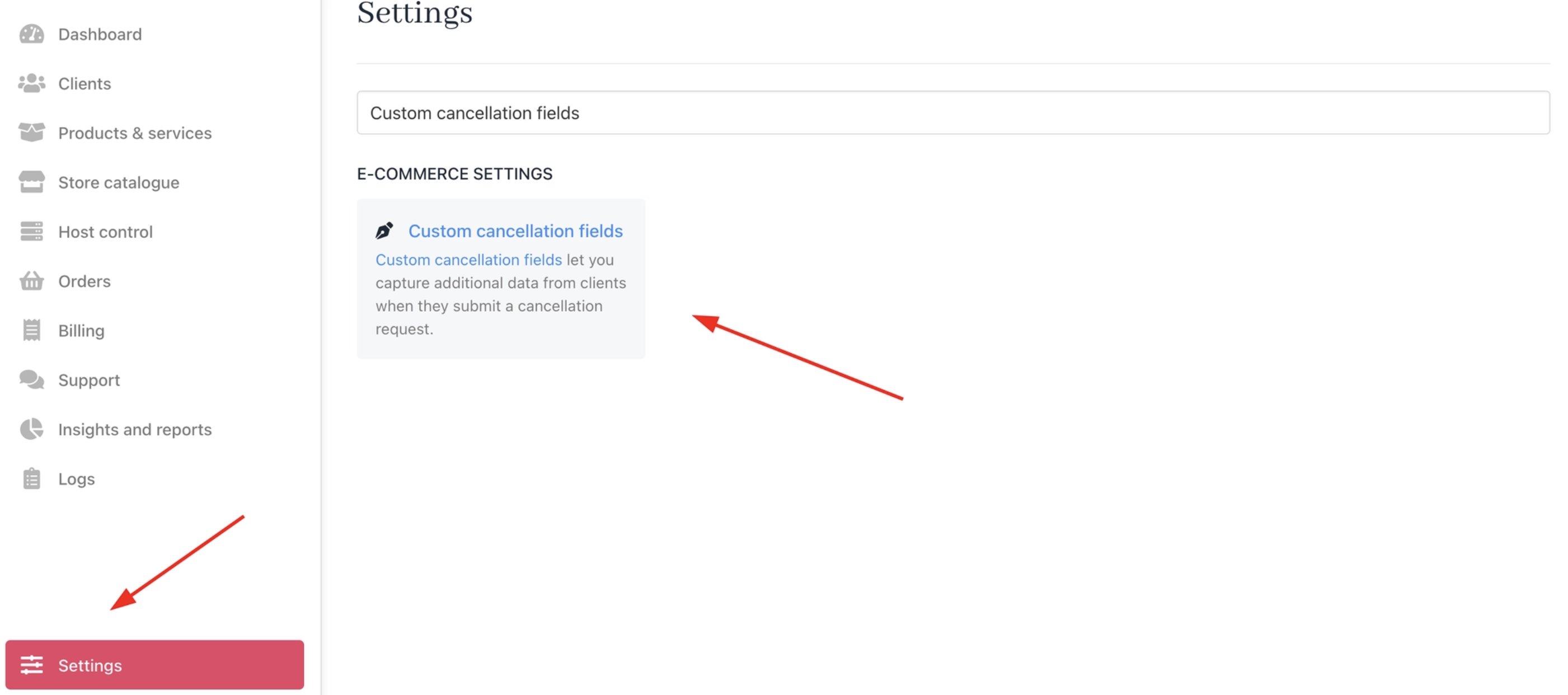
<Frame caption="Settings > E-Commerce Settings > Custom Cancellation Fields">
  <img src="https://mintcdn.com/upmind/bPO2bBzOxYQR4tYr/images/fb/f80f676bb1df92fd.png?fit=max&auto=format&n=bPO2bBzOxYQR4tYr&q=85&s=8750e71f9401f6a3722c012b0fc5c723" alt="Settings > E-Commerce Settings > Custom Cancellation Fields" data-og-width="2802" width="2802" data-og-height="1242" height="1242" data-path="images/fb/f80f676bb1df92fd.png" data-optimize="true" data-opv="3" srcset="https://mintcdn.com/upmind/bPO2bBzOxYQR4tYr/images/fb/f80f676bb1df92fd.png?w=280&fit=max&auto=format&n=bPO2bBzOxYQR4tYr&q=85&s=188d91949b8177f18c402ccce912959f 280w, https://mintcdn.com/upmind/bPO2bBzOxYQR4tYr/images/fb/f80f676bb1df92fd.png?w=560&fit=max&auto=format&n=bPO2bBzOxYQR4tYr&q=85&s=22259df925034c4533e9e00588cec65c 560w, https://mintcdn.com/upmind/bPO2bBzOxYQR4tYr/images/fb/f80f676bb1df92fd.png?w=840&fit=max&auto=format&n=bPO2bBzOxYQR4tYr&q=85&s=4967a84e6fdadf08fa99ef76317077bd 840w, https://mintcdn.com/upmind/bPO2bBzOxYQR4tYr/images/fb/f80f676bb1df92fd.png?w=1100&fit=max&auto=format&n=bPO2bBzOxYQR4tYr&q=85&s=c74f56ee8c80819ddde2a18f96605ecc 1100w, https://mintcdn.com/upmind/bPO2bBzOxYQR4tYr/images/fb/f80f676bb1df92fd.png?w=1650&fit=max&auto=format&n=bPO2bBzOxYQR4tYr&q=85&s=a999a078d752e4d99e46d83e5c734e71 1650w, https://mintcdn.com/upmind/bPO2bBzOxYQR4tYr/images/fb/f80f676bb1df92fd.png?w=2500&fit=max&auto=format&n=bPO2bBzOxYQR4tYr&q=85&s=62937f99a5bb553347796941aedff5ec 2500w" />
</Frame>

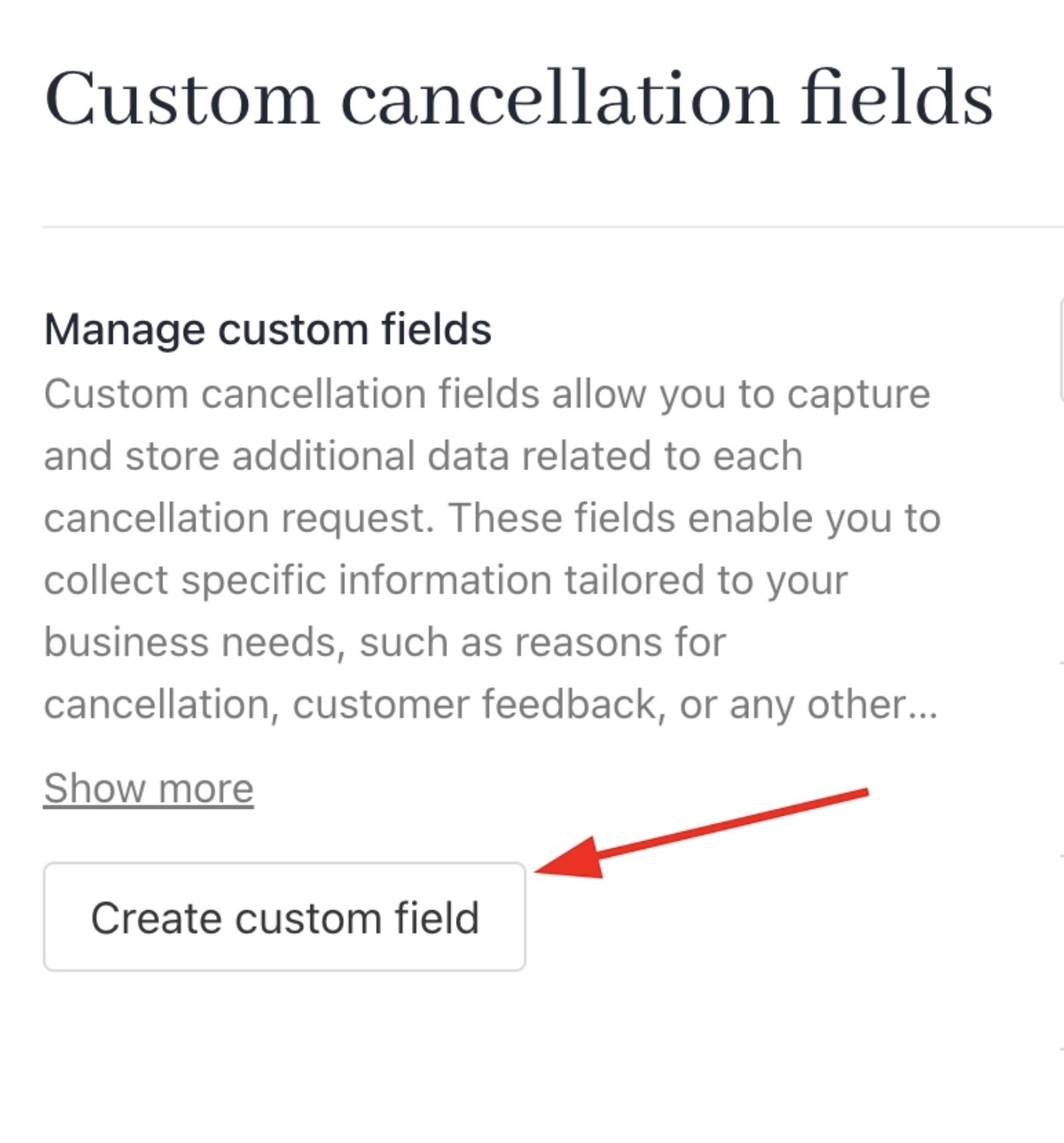
2. Click **Create Custom Field**.

<Frame caption="Create custom field">
  <img src="https://mintcdn.com/upmind/kXD0Ya8PpcxxNm6Q/images/fb/41c5b8f8c52d663a.png?fit=max&auto=format&n=kXD0Ya8PpcxxNm6Q&q=85&s=da504c95a31ca13b166c99f042948917" alt="Create custom field" width="1408" height="1512" data-path="images/fb/41c5b8f8c52d663a.png" />
</Frame>

3. Set the custom field type and custom field name.
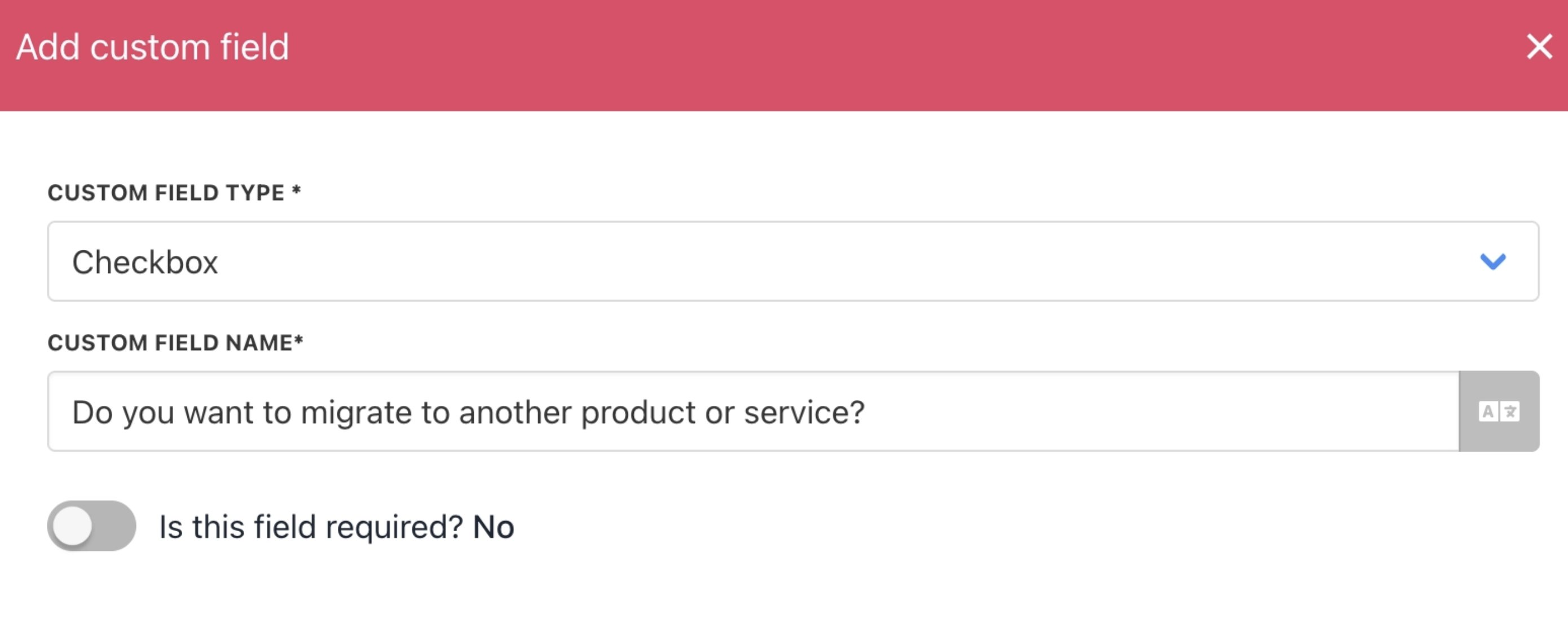
<Frame caption="Set custom field type and name">
  <img src="https://mintcdn.com/upmind/kAlrCUxI2nwYz4_i/images/fb/1cbe5e5184c7b0e8.png?fit=max&auto=format&n=kAlrCUxI2nwYz4_i&q=85&s=987792f659f02f9db8bca0ad856c5896" alt="Set custom field type and name" width="2780" height="1128" data-path="images/fb/1cbe5e5184c7b0e8.png" />
</Frame>

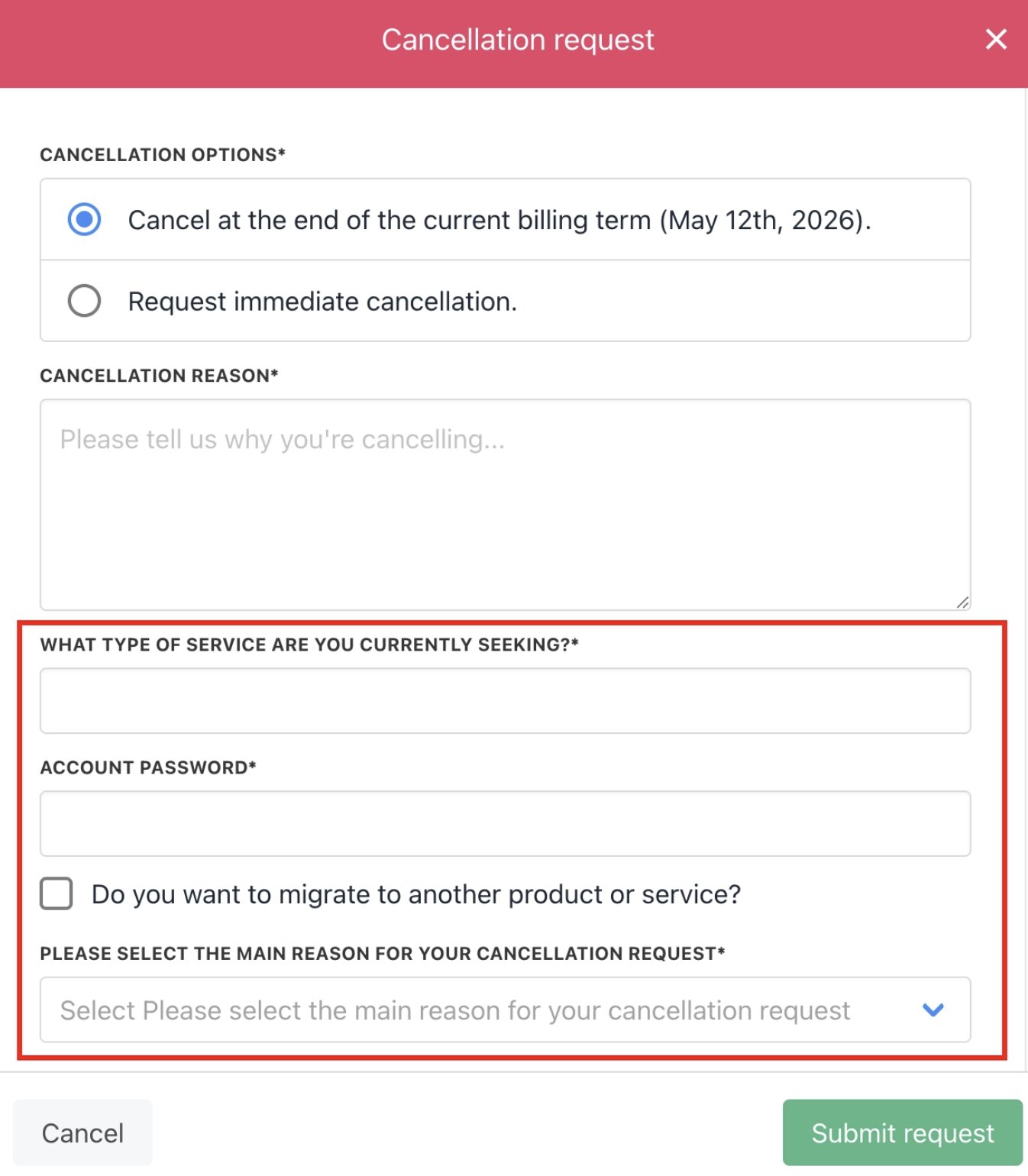
4. Click save.

<Frame caption="Custom cancellation field examples">
  <img src="https://mintcdn.com/upmind/1-uICsJi9zYpvJVH/images/fb/87ddb61b165f2b70.png?fit=max&auto=format&n=1-uICsJi9zYpvJVH&q=85&s=dd7395c27e80e89ef8e68f3a9c67adcd" alt="Custom cancellation field examples" width="1346" height="1540" data-path="images/fb/87ddb61b165f2b70.png" />
</Frame>

## Custom cancellation field types

You can choose from the following cancellation field types:

* Text input

* Password

* Select

* Checkbox

* Text area

* Date

* Number

* Image

### **Text input**

A free-form text field (ideal for short answers).

<Frame caption="Text input">
  <img src="https://mintcdn.com/upmind/z5ofg3t7by4uN44v/images/fb/e870da3bc1f27ec7.png?fit=max&auto=format&n=z5ofg3t7by4uN44v&q=85&s=4c061bc8bd5994a66e8c299cce91916a" alt="Text input" width="2536" height="306" data-path="images/fb/e870da3bc1f27ec7.png" />
</Frame>

### **Password**

A password text field that obscures the data.

<Frame caption="Enter password">
  <img src="https://mintcdn.com/upmind/FQ1NhxALxjSHvvWW/images/fb/ab8b9a75e126067e.png?fit=max&auto=format&n=FQ1NhxALxjSHvvWW&q=85&s=e5fa8c3d89b1ff5e084dcb48c4dbf448" alt="Enter password" width="2540" height="286" data-path="images/fb/ab8b9a75e126067e.png" />
</Frame>

### **Select**

Creates a drop-down menu. Users can click the Add option button to add items to the drop-down menu.
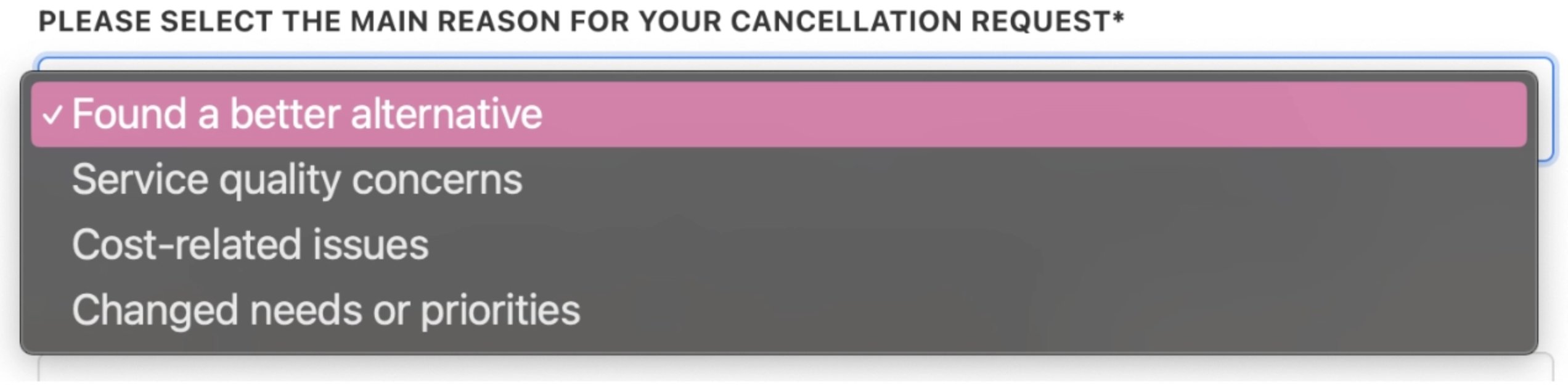
<Frame caption="Create drop-down">
  <img src="https://mintcdn.com/upmind/A-RwNPXmK_xnEEqe/images/fb/702a7351d9b7b98d.png?fit=max&auto=format&n=A-RwNPXmK_xnEEqe&q=85&s=83a551697822bbf9f929bfad33e2081f" alt="Create drop-down" width="2544" height="632" data-path="images/fb/702a7351d9b7b98d.png" />
</Frame>

### **Checkbox**

A Yes/No tick box. A checked box means Yes (The default setting is unchecked - No).

<Frame caption="Yes - No tick box">
  <img src="https://mintcdn.com/upmind/92wYnpdR_k6AjH3x/images/fb/57967acdc212085b.png?fit=max&auto=format&n=92wYnpdR_k6AjH3x&q=85&s=cc1778b2f360cda6b755c750a03b8f01" alt="Yes - No tick box" width="2532" height="160" data-path="images/fb/57967acdc212085b.png" />
</Frame>

### **Text area**

Clients enter a long-form response.
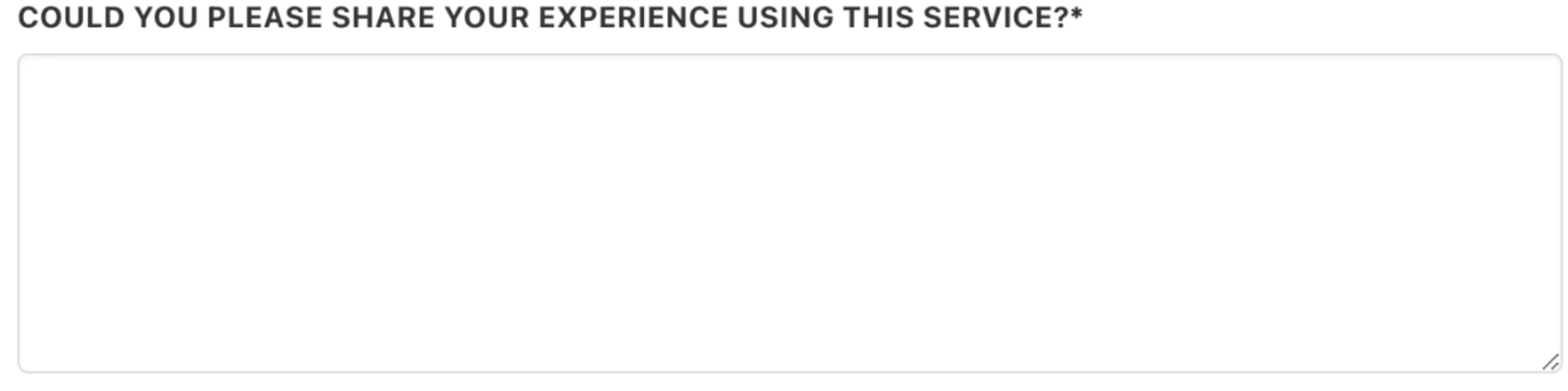
<Frame caption="Text field">
  <img src="https://mintcdn.com/upmind/ZsIo0APxdVb_gFS-/images/fb/26b3d188783899a8.png?fit=max&auto=format&n=ZsIo0APxdVb_gFS-&q=85&s=54560e69a92679144076507ae320fd5a" alt="Text field" width="2532" height="632" data-path="images/fb/26b3d188783899a8.png" />
</Frame>

### **Date**

Clients click the field and enter a date with the calendar.
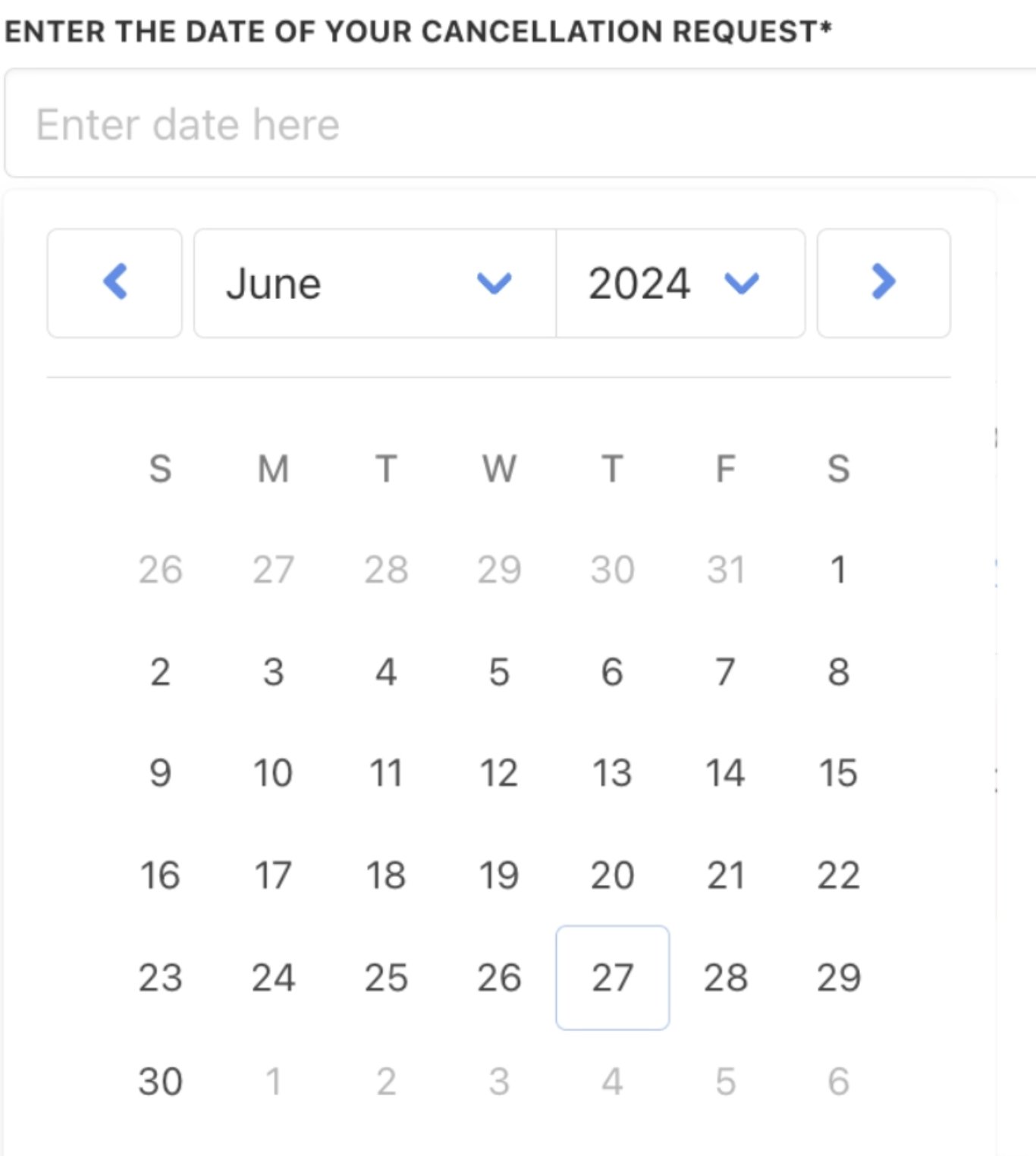
<Frame caption="Select a date">
  <img src="https://mintcdn.com/upmind/A-RwNPXmK_xnEEqe/images/fb/77285b6ece3f0074.png?fit=max&auto=format&n=A-RwNPXmK_xnEEqe&q=85&s=7401a23a2693e146373c161c45f5fbc1" alt="Select a date" width="1366" height="1524" data-path="images/fb/77285b6ece3f0074.png" />
</Frame>

### **Number**

Clients click the field and enter a number.

<Frame caption="Enter a number">
  <img src="https://mintcdn.com/upmind/uxzVUXAKtJ2bRWCI/images/fb/6ef46ba839677457.png?fit=max&auto=format&n=uxzVUXAKtJ2bRWCI&q=85&s=e2b20211469fcce2af68c2563d8c02b9" alt="Enter a number" width="2528" height="292" data-path="images/fb/6ef46ba839677457.png" />
</Frame>

### **Image**

Clients click the field and upload an image file.

<Frame caption="Upload image">
  <img src="https://mintcdn.com/upmind/JUoAg6onJmXk_-rR/images/fb/e6806a3bc6a1e42f.png?fit=max&auto=format&n=JUoAg6onJmXk_-rR&q=85&s=d1e8071a9a6923616790914576d3b6c1" alt="Upload image" width="2512" height="406" data-path="images/fb/e6806a3bc6a1e42f.png" />
</Frame>

## **Custom field options**

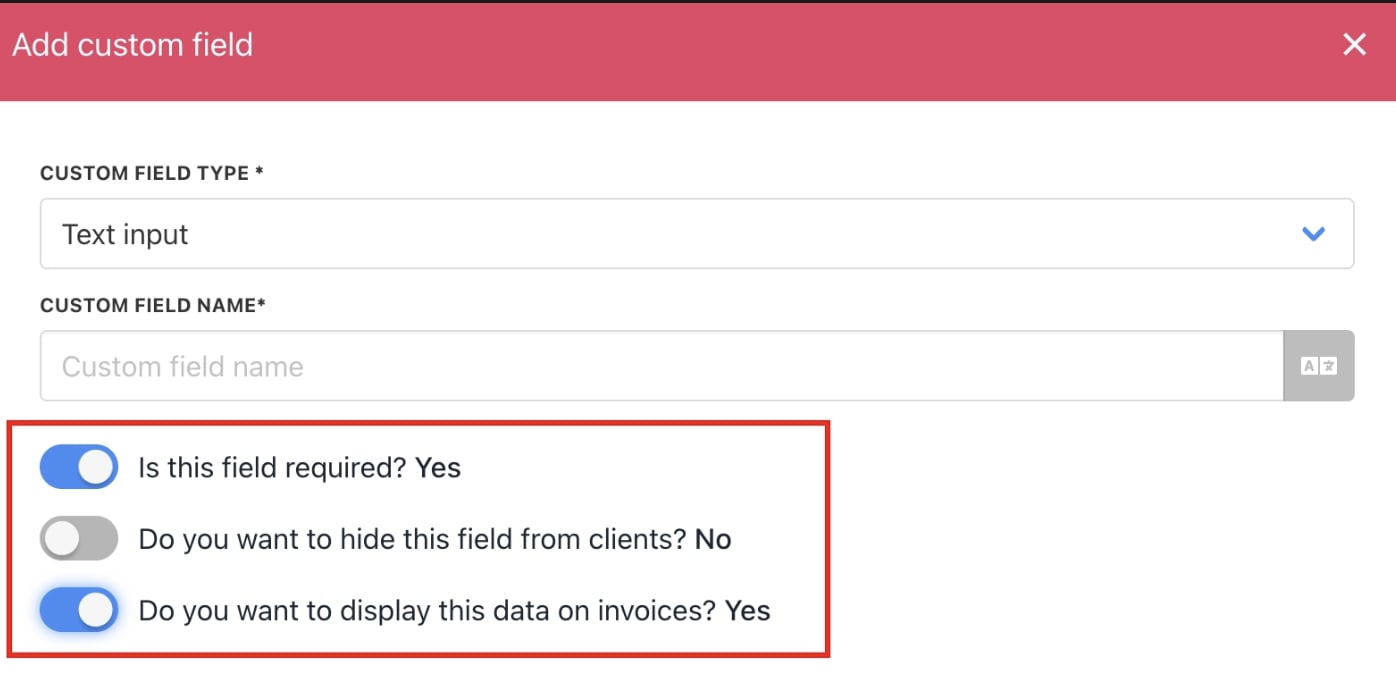
When creating a custom field, you can set a number of customisation options.
<Frame caption="Custom field options">
  <img src="https://mintcdn.com/upmind/Dgjmf3QWYVBR40cE/images/fb/616162cde444f208.png?fit=max&auto=format&n=Dgjmf3QWYVBR40cE&q=85&s=2106fe3eeb444888dfb91ce32b4c2b6a" alt="Custom field options" width="1396" height="698" data-path="images/fb/616162cde444f208.png" />
</Frame>

**Field Required?**

Make a custom field mandatory for all new clients. If the field is a checkbox, the client must tick it before proceeding.

**Hide from Client?**

Create a custom field that is invisible to clients. This is useful for sorting clients based on internal data. Example: Tagging new clients who signed up using a discount code.

**Display on Invoice?**

Add the custom field to invoice documents. A typical use case is displaying the client's VAT number or account number on their invoices.

**Filtering by Custom Fields**

Once custom fields are added to client profiles, you can search and filter clients by those fields using the Client Filter options. Filters can be saved for quick access later.

## Show reason and custom cancellation fields at the end of the billing term

### **Access subscription options**

1. Log in to Upmind admin.

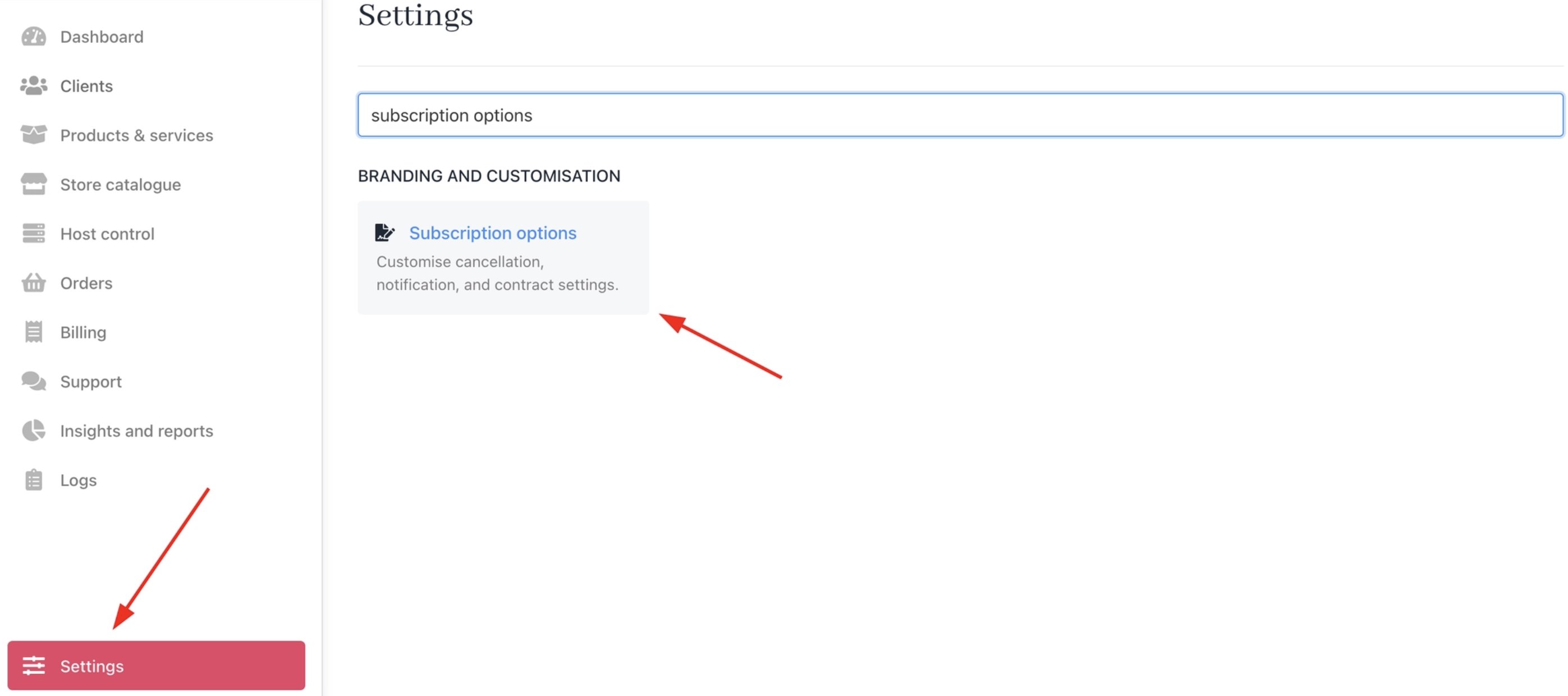
2. Go to **Settings** > **Subscription Options** under **Branding and Customisation**.
<Frame caption="Settings > Branding and Customisation > Subscription Options">
  <img src="https://mintcdn.com/upmind/VnCXiz5rboywDnvn/images/fb/dc218556893dae10.png?fit=max&auto=format&n=VnCXiz5rboywDnvn&q=85&s=bec2243b85f6285f0ef3da97d9abcbd8" alt="Settings > Branding and Customisation > Subscription Options" data-og-width="2794" width="2794" data-og-height="1240" height="1240" data-path="images/fb/dc218556893dae10.png" data-optimize="true" data-opv="3" srcset="https://mintcdn.com/upmind/VnCXiz5rboywDnvn/images/fb/dc218556893dae10.png?w=280&fit=max&auto=format&n=VnCXiz5rboywDnvn&q=85&s=9aaea73d18f4e9e5eb145dc66a674043 280w, https://mintcdn.com/upmind/VnCXiz5rboywDnvn/images/fb/dc218556893dae10.png?w=560&fit=max&auto=format&n=VnCXiz5rboywDnvn&q=85&s=0f37c1dc1e319a6742bb74a7c9b21982 560w, https://mintcdn.com/upmind/VnCXiz5rboywDnvn/images/fb/dc218556893dae10.png?w=840&fit=max&auto=format&n=VnCXiz5rboywDnvn&q=85&s=526999a25a0bb60ed68406a14b99d069 840w, https://mintcdn.com/upmind/VnCXiz5rboywDnvn/images/fb/dc218556893dae10.png?w=1100&fit=max&auto=format&n=VnCXiz5rboywDnvn&q=85&s=cb28b9fc04967640652b066d6c472d89 1100w, https://mintcdn.com/upmind/VnCXiz5rboywDnvn/images/fb/dc218556893dae10.png?w=1650&fit=max&auto=format&n=VnCXiz5rboywDnvn&q=85&s=93ba36f8d05909334d6cb2f3b7d03301 1650w, https://mintcdn.com/upmind/VnCXiz5rboywDnvn/images/fb/dc218556893dae10.png?w=2500&fit=max&auto=format&n=VnCXiz5rboywDnvn&q=85&s=5d215cac6929e26ad12ea3ed8f69c357 2500w" />
</Frame>

On Cancellation, you can find these options:

### For clients

* **Show Custom Cancellation Fields and Reason for End-of-Term Cancellation:** When on, clients fill in the custom fields or enter a reason when requesting cancellation at the end of the billing cycle.

<Frame caption="Client custom fields for cancellation">
  <img src="https://mintcdn.com/upmind/ObllJJl59DabnmMn/images/fb/c9c035aa30b0624f.png?fit=max&auto=format&n=ObllJJl59DabnmMn&q=85&s=7403ec12f80a472b5e34fe2b14a54efd" alt="Client custom fields for cancellation" width="2780" height="352" data-path="images/fb/c9c035aa30b0624f.png" />
</Frame>

Once enabled, the client can select the Cancellation Option and fill in the custom fields.

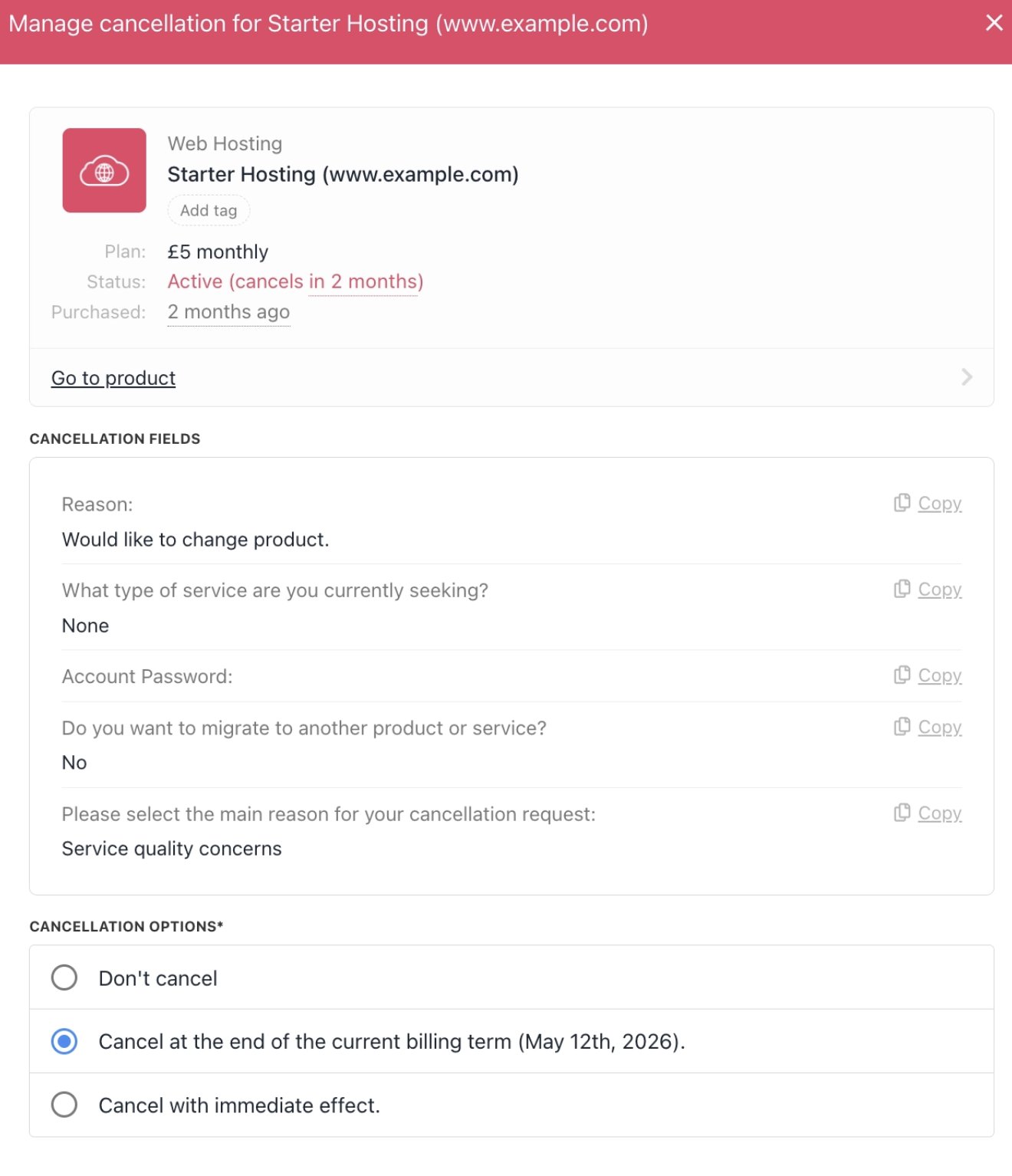
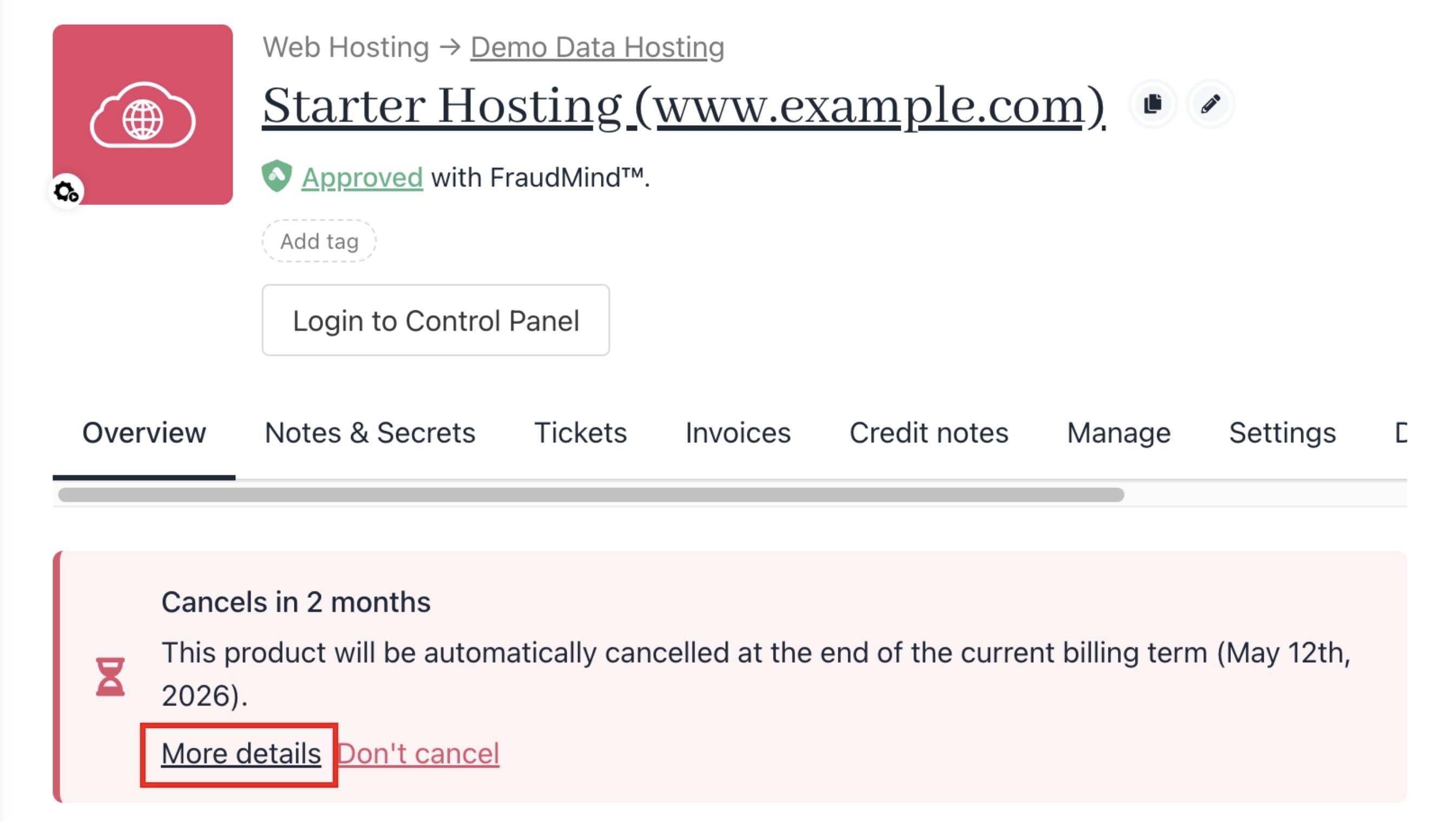
Admins can see more details once the cancellation request is submitted.
<Frame caption="More cancellation details">
  <img src="https://mintcdn.com/upmind/1xguIfYUrfespmVI/images/fb/800ba3f575e21c2a.png?fit=max&auto=format&n=1xguIfYUrfespmVI&q=85&s=534ead6a4d7aba3709a92b5d70483d59" alt="More cancellation details" width="2690" height="1516" data-path="images/fb/800ba3f575e21c2a.png" />
</Frame>

<Frame caption="Manage cancellation">
  <img src="https://mintcdn.com/upmind/1-uICsJi9zYpvJVH/images/fb/90fbae16a38bdfb4.png?fit=max&auto=format&n=1-uICsJi9zYpvJVH&q=85&s=8a14739754a55e32982dda02b7bb560b" alt="Manage cancellation" width="1320" height="1534" data-path="images/fb/90fbae16a38bdfb4.png" />
</Frame>

### For users

* **Require Users to Fill Custom Fields or Provide Cancellation Reason:** Prompts clients to enter a reason or complete custom fields when cancelling or setting end-of-term expiry. Also creates a contract request record.

<Frame caption="User custom fields for cancellation">
  <img src="https://mintcdn.com/upmind/ZsIo0APxdVb_gFS-/images/fb/28603dd47f34f0e2.png?fit=max&auto=format&n=ZsIo0APxdVb_gFS-&q=85&s=b8f05857d12c0292a4a96981b7fac89f" alt="User custom fields for cancellation" width="2802" height="466" data-path="images/fb/28603dd47f34f0e2.png" />
</Frame>

Staff users will also be asked to fill out custom fields and cancellation reasons. They can access this from the **Quick Actions** on **Client** > **Products & Services**.

<Frame caption="Client > Products & Services > Client">
  <img src="https://mintcdn.com/upmind/wRuKrNY12tQZY8Rr/images/fb/314ebe7f119f297a.png?fit=max&auto=format&n=wRuKrNY12tQZY8Rr&q=85&s=14d6d53084b289ecfed1228a38823f70" alt="Client > Products & Services > Client" data-og-width="2800" width="2800" data-og-height="316" height="316" data-path="images/fb/314ebe7f119f297a.png" data-optimize="true" data-opv="3" srcset="https://mintcdn.com/upmind/wRuKrNY12tQZY8Rr/images/fb/314ebe7f119f297a.png?w=280&fit=max&auto=format&n=wRuKrNY12tQZY8Rr&q=85&s=b53d49d680e4a6afff998ed99ef4df49 280w, https://mintcdn.com/upmind/wRuKrNY12tQZY8Rr/images/fb/314ebe7f119f297a.png?w=560&fit=max&auto=format&n=wRuKrNY12tQZY8Rr&q=85&s=697051410a46f1b9753b341e8d1974b2 560w, https://mintcdn.com/upmind/wRuKrNY12tQZY8Rr/images/fb/314ebe7f119f297a.png?w=840&fit=max&auto=format&n=wRuKrNY12tQZY8Rr&q=85&s=73b0f0aad86bfc77fe25e28d07acef66 840w, https://mintcdn.com/upmind/wRuKrNY12tQZY8Rr/images/fb/314ebe7f119f297a.png?w=1100&fit=max&auto=format&n=wRuKrNY12tQZY8Rr&q=85&s=8a16924128e6b383aaaa3081b314b359 1100w, https://mintcdn.com/upmind/wRuKrNY12tQZY8Rr/images/fb/314ebe7f119f297a.png?w=1650&fit=max&auto=format&n=wRuKrNY12tQZY8Rr&q=85&s=ff1119b9f813fa40418a919b44b62595 1650w, https://mintcdn.com/upmind/wRuKrNY12tQZY8Rr/images/fb/314ebe7f119f297a.png?w=2500&fit=max&auto=format&n=wRuKrNY12tQZY8Rr&q=85&s=100b7171e8c7a951bde9244851774139 2500w" />
</Frame>

## **Manage cancellation requests**

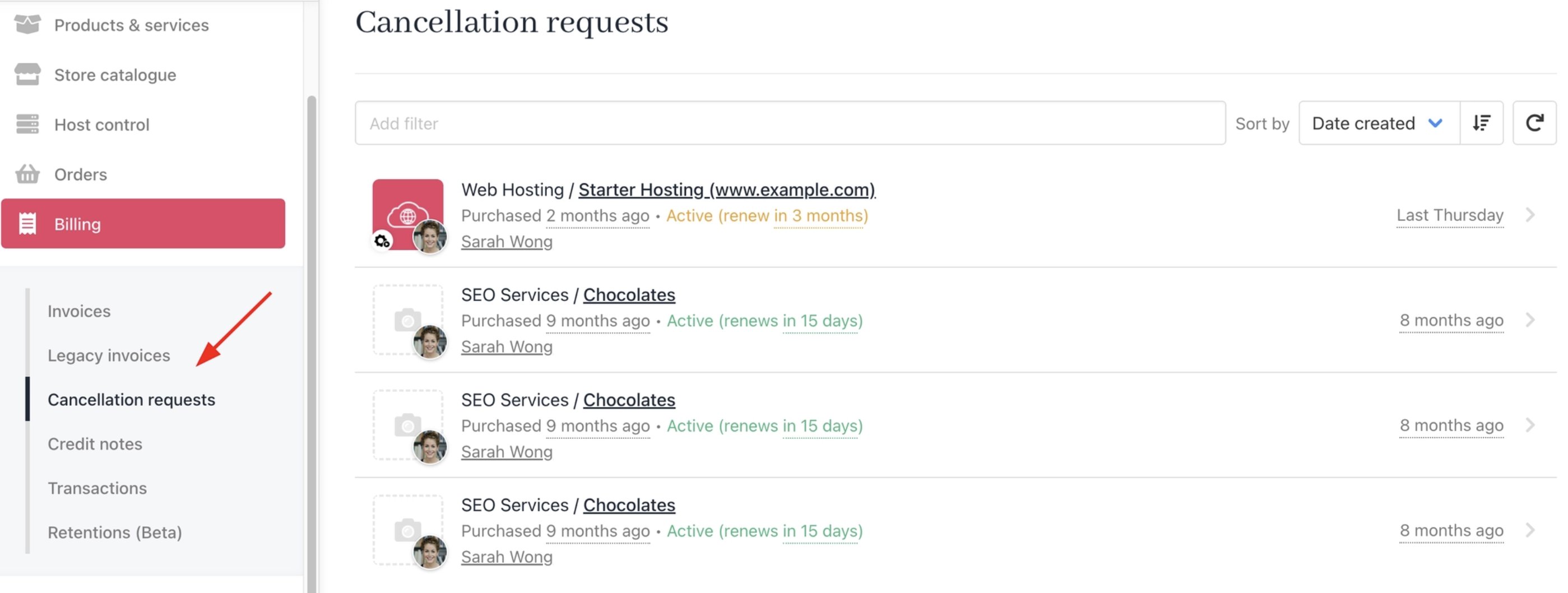
You can view and handle client cancellation requests under **Billing > Cancellation Requests**.

When **Show Custom Cancellation Fields and Reason for End-of-Term Cancellation** is enabled, submitted requests appear here with client-provided reasons and custom field responses.
<Frame caption="Billing > Cancellation requests">
  <img src="https://mintcdn.com/upmind/wRuKrNY12tQZY8Rr/images/fb/342cf69e7fd1799e.png?fit=max&auto=format&n=wRuKrNY12tQZY8Rr&q=85&s=d1cf7a1a85dcfd48828b588817b96920" alt="Billing > Cancellation requests" data-og-width="2798" width="2798" data-og-height="1058" height="1058" data-path="images/fb/342cf69e7fd1799e.png" data-optimize="true" data-opv="3" srcset="https://mintcdn.com/upmind/wRuKrNY12tQZY8Rr/images/fb/342cf69e7fd1799e.png?w=280&fit=max&auto=format&n=wRuKrNY12tQZY8Rr&q=85&s=27347ec2b55f1b71279ce784e56272db 280w, https://mintcdn.com/upmind/wRuKrNY12tQZY8Rr/images/fb/342cf69e7fd1799e.png?w=560&fit=max&auto=format&n=wRuKrNY12tQZY8Rr&q=85&s=9ffa32d732f4ac5dd093115cc483d933 560w, https://mintcdn.com/upmind/wRuKrNY12tQZY8Rr/images/fb/342cf69e7fd1799e.png?w=840&fit=max&auto=format&n=wRuKrNY12tQZY8Rr&q=85&s=9c689497ccdfebebc9dbe53c0e1d57f0 840w, https://mintcdn.com/upmind/wRuKrNY12tQZY8Rr/images/fb/342cf69e7fd1799e.png?w=1100&fit=max&auto=format&n=wRuKrNY12tQZY8Rr&q=85&s=515e81e79c15316257819c5a23ac834d 1100w, https://mintcdn.com/upmind/wRuKrNY12tQZY8Rr/images/fb/342cf69e7fd1799e.png?w=1650&fit=max&auto=format&n=wRuKrNY12tQZY8Rr&q=85&s=c2fd8948a2529db97bb2ce371415ee4d 1650w, https://mintcdn.com/upmind/wRuKrNY12tQZY8Rr/images/fb/342cf69e7fd1799e.png?w=2500&fit=max&auto=format&n=wRuKrNY12tQZY8Rr&q=85&s=870c933e91fa7081cb2a53ff741794dc 2500w" />
</Frame>

Staff and admins can review details and take action directly from this section.