> ## Documentation Index
> Fetch the complete documentation index at: https://docs.upmind.com/llms.txt
> Use this file to discover all available pages before exploring further.
# How to Transfer Ownership and Merge Client's Accounts
> Consolidate and simplify client data and management
In this guide, we will walk you through:
1. How to transfer ownership of a service.
2. How to merge two client accounts.
## Transfer Ownership
Transfer Ownership allows you to move a contract product from one client account to another. This process is performed individually for each contract product. Behind the scenes, Upmind cancels the existing contract and creates a new one under the new client account.
Before proceeding, make sure the contract has no unpaid invoices. Note that all existing invoices and billing history will remain with the original client account.
Follow these steps to transfer ownership:
1. Go to `Products and Services`.
2. Select the contract product you want to transfer.
3. Navigate to the `Settings tab`.
 4. Scroll down to `Advanced Options` and click **Transfer Ownership**.
 ## Merge Accounts
Merging Client Accounts combines two client profiles into a single account. All data from the old account is transferred to the target account, after which the old account can be deleted if no longer needed.
Here’s how to do it:
1. Go to the `Clients` section.
2. Select the client profile you'd like to keep.
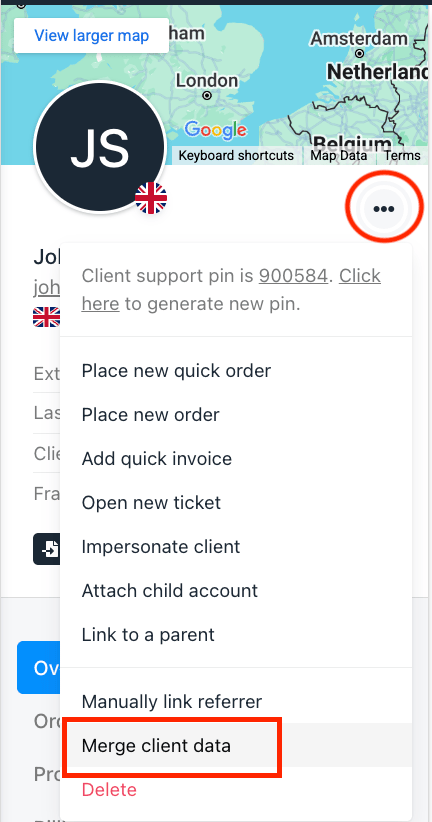
3. Click the **three dots** (•••) in the top-right of the client profile.
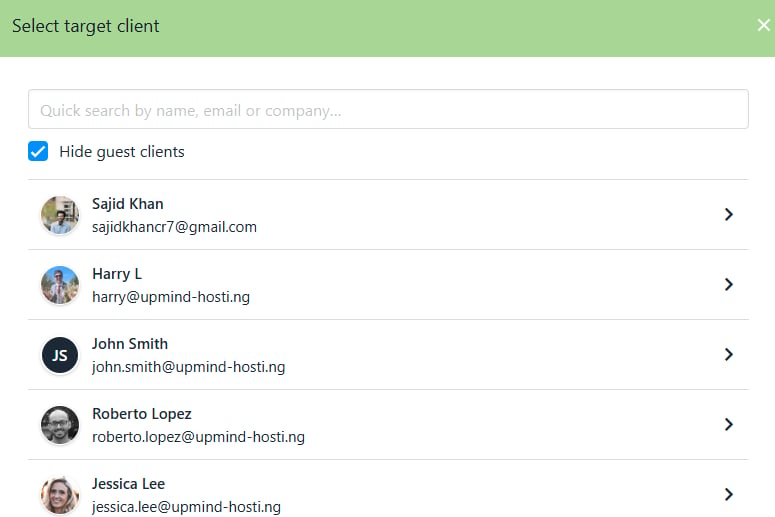
4. Choose `Merge Client Data` and select the target client to merge.
## Merge Accounts
Merging Client Accounts combines two client profiles into a single account. All data from the old account is transferred to the target account, after which the old account can be deleted if no longer needed.
Here’s how to do it:
1. Go to the `Clients` section.
2. Select the client profile you'd like to keep.
3. Click the **three dots** (•••) in the top-right of the client profile.
4. Choose `Merge Client Data` and select the target client to merge.
 5. Enter the confirmation code provided.
6. Click Merge Client Data to complete the process.
5. Enter the confirmation code provided.
6. Click Merge Client Data to complete the process.