> ## Documentation Index
> Fetch the complete documentation index at: https://docs.upmind.com/llms.txt
> Use this file to discover all available pages before exploring further.
# How to Manage Client Settings
> Update profiles and security information.
Edit client contact and security information on the Profile settings page. You can:
* Resend an email verification request
* Add or update contact information
* Enable or disable account login
* Ask the client to reset their password
## Opening a client dashboard
1. Log in to Upmind.
2. Click Clients on the left menu.
3. Click the Clients list menu tab.
4. Scroll through the list and click a client name. The Client overview page displays.
5. Scroll down to the Overview menu.
6. Click the Settings subheading.
## Reviewing profile settings
The Profile settings page displays client contact information (e.g. name, language, address, email address) which admins can change or update.
### Verify email
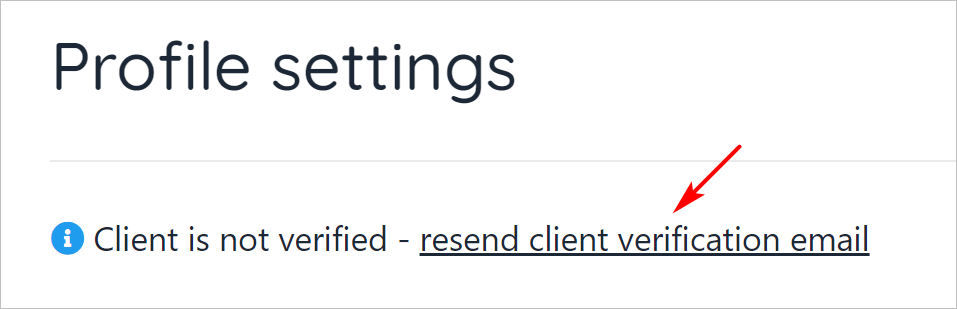
If the client has not yet verified their email address, click the resend verification link.
This link is not visible on the page if the client has a verified email address.
 ## Changing security settings
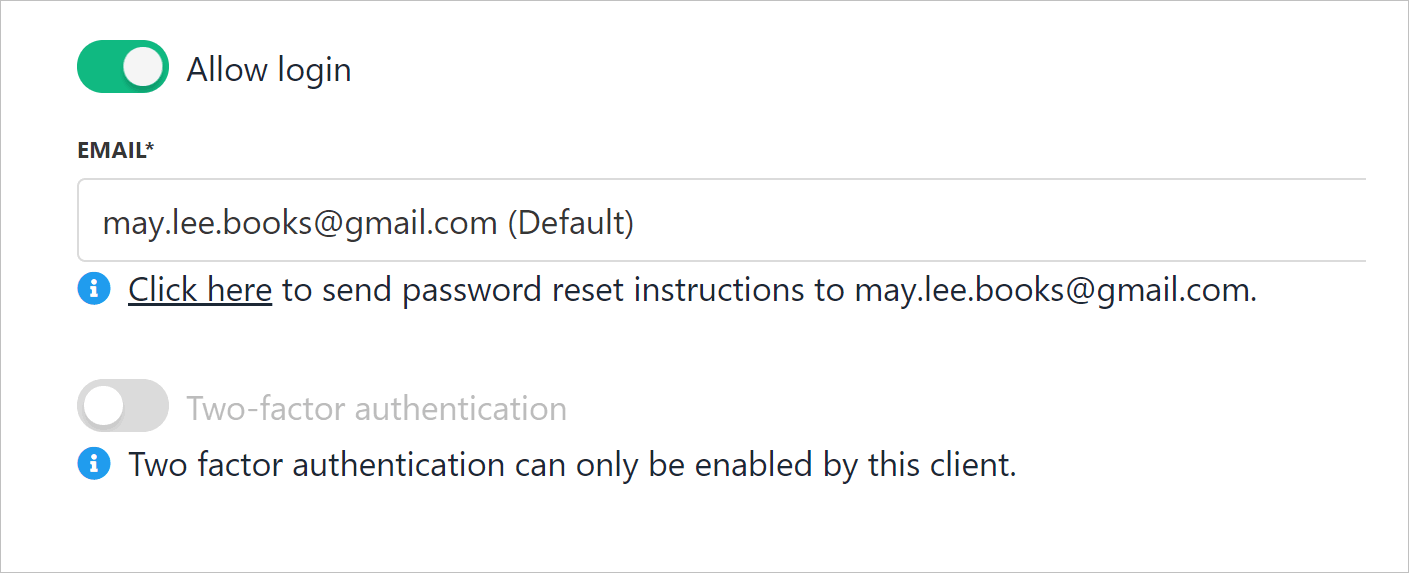
Click the Security tab to change login settings.
1. To disable client login, click the toggle switch to the OFF position.
2. Click the link to ask the client to reset their store account password. (optional)
The security page also shows the two-factor authentication status set by the client.
Admins and store staff cannot change this two-factor authentication setting.
## Changing security settings
Click the Security tab to change login settings.
1. To disable client login, click the toggle switch to the OFF position.
2. Click the link to ask the client to reset their store account password. (optional)
The security page also shows the two-factor authentication status set by the client.
Admins and store staff cannot change this two-factor authentication setting.
 ## **General client settings**
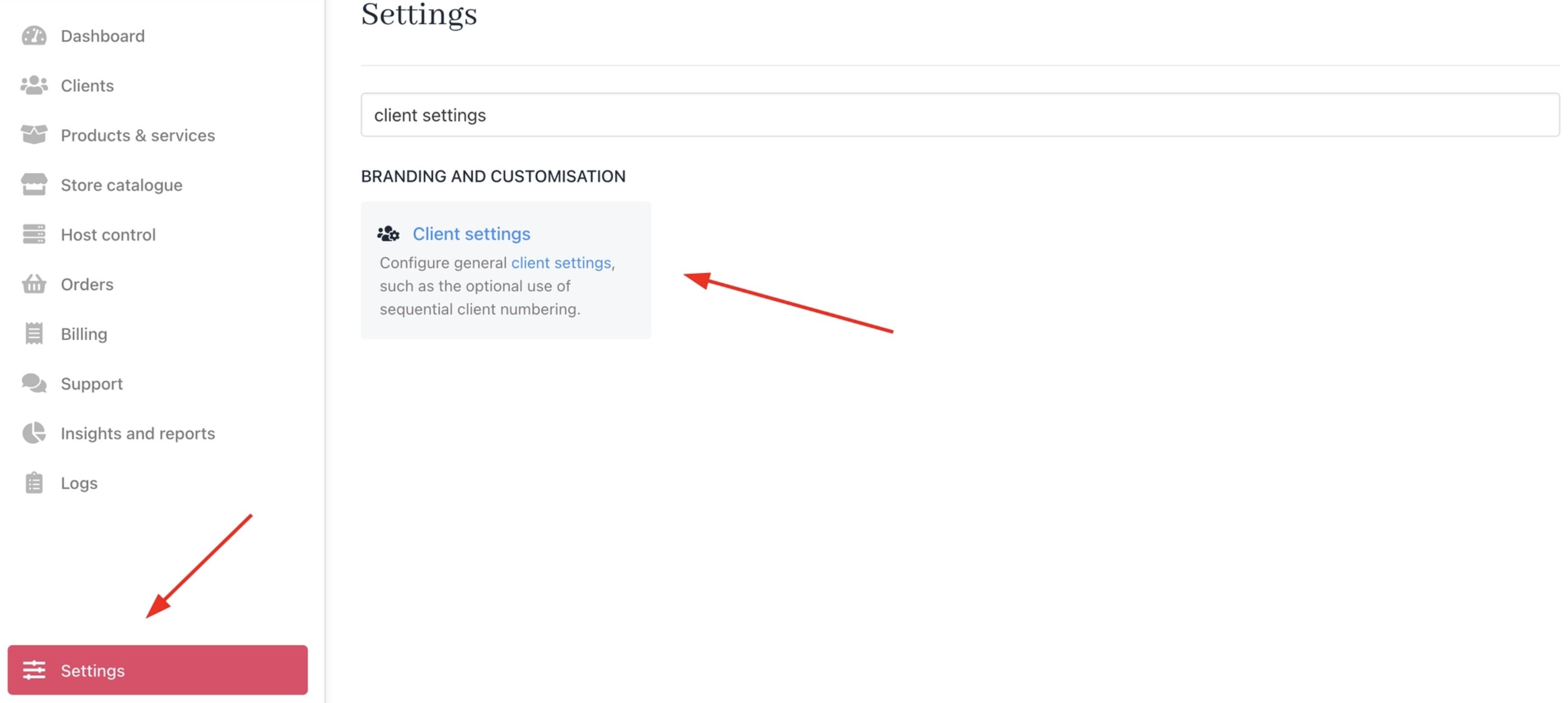
The general client settings can be accessed from **Settings** > **Client Settings** under **Branding and Customisation**.
## **General client settings**
The general client settings can be accessed from **Settings** > **Client Settings** under **Branding and Customisation**.
 These settings control how clients can manage their account details.
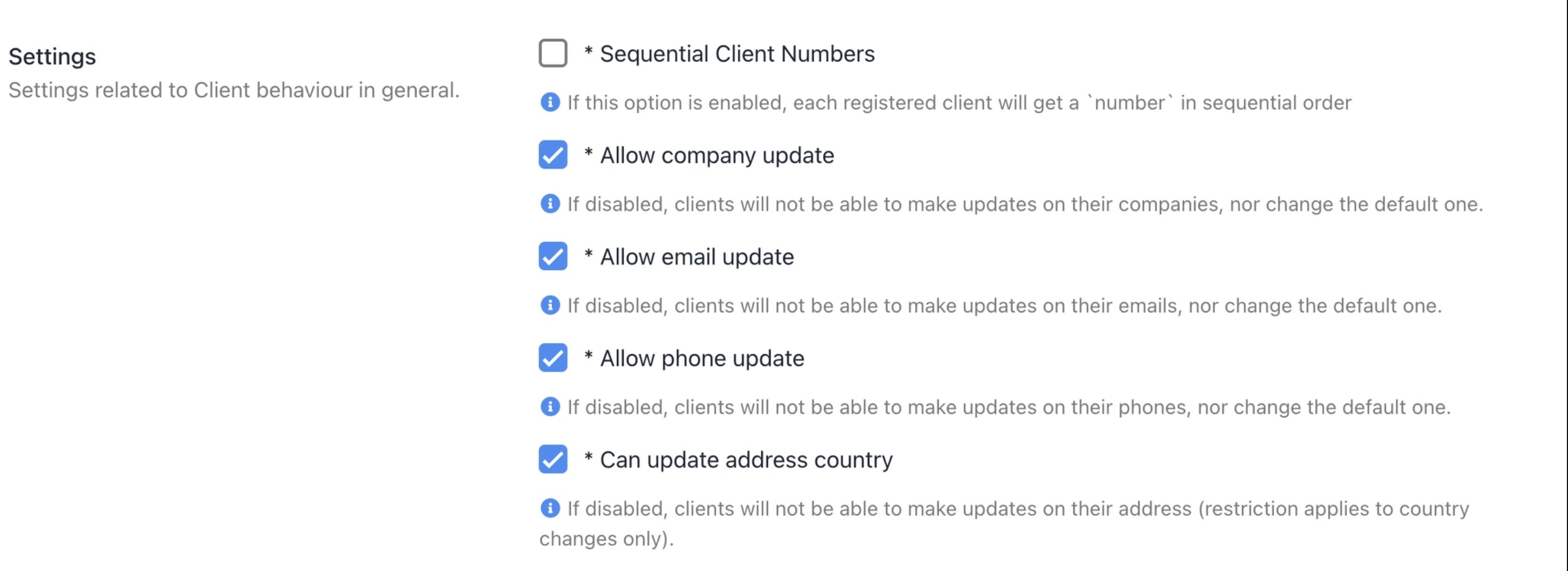 * **Sequential Client Numbers** — When enabled, each registered client is automatically assigned a `number` in sequential order.
* **Allow Company Update** — When disabled, clients cannot update their company details or change their default company.
* **Allow Email Update** — When disabled, clients cannot update their email address or change their default email.
* **Allow Phone Update** — When disabled, clients cannot update their phone number or change their default phone.
* **Can Update Address Country** — When disabled, clients cannot change the country on their address.
* **Sequential Client Numbers** — When enabled, each registered client is automatically assigned a `number` in sequential order.
* **Allow Company Update** — When disabled, clients cannot update their company details or change their default company.
* **Allow Email Update** — When disabled, clients cannot update their email address or change their default email.
* **Allow Phone Update** — When disabled, clients cannot update their phone number or change their default phone.
* **Can Update Address Country** — When disabled, clients cannot change the country on their address.