> ## Documentation Index
> Fetch the complete documentation index at: https://docs.upmind.com/llms.txt
> Use this file to discover all available pages before exploring further.

# How to Add Delegates in Your Admin and Client Area

Before diving into this guide, we previously provided comprehensive information about [how delegates work](/using-upmind/client-management/how-do-delegates-work) and [how your clients can create contract delegates](/client-self-service/client-area/how-do-my-clients-create-contract-delegates). In this guide, we will explain how to add delegates to your admin and client areas for a specific contract product.

Delegation allows you to grant other brand clients read-only access to this product. This is beneficial if you need to share access with a colleague or third party without disclosing your own credentials. Please note that delegates must have their own brand account to be added. You can revoke access at any time, ensuring you maintain full control.

## How to Add Delegates from Your Admin Area

If your client needs assistance adding their delegates, you can do this through your admin area. Follow these steps:

1. Go to the client's profile > Navigate to Product & Service > Click the Product.

2. Go to the Delegates section > Add Delegates
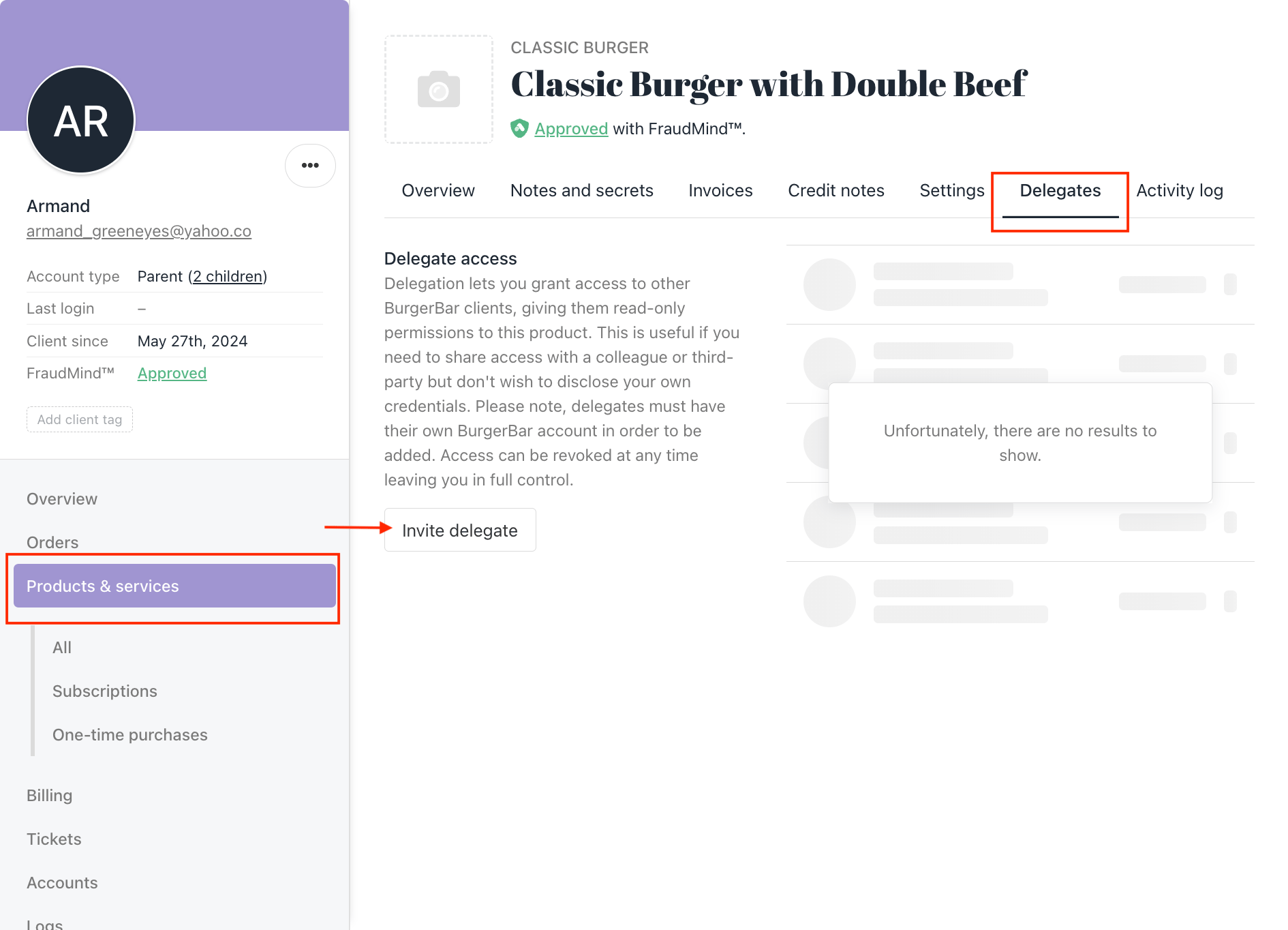
<Frame caption="Client's profile > select product > invite delegates">
  <img src="https://mintcdn.com/upmind/wRuKrNY12tQZY8Rr/images/fb/3135410a0a96c217.png?fit=max&auto=format&n=wRuKrNY12tQZY8Rr&q=85&s=591245bf13c121b768dba61d0ef7db08" alt="Client's profile > select product > invite delegates" data-og-width="1890" width="1890" data-og-height="1364" height="1364" data-path="images/fb/3135410a0a96c217.png" data-optimize="true" data-opv="3" srcset="https://mintcdn.com/upmind/wRuKrNY12tQZY8Rr/images/fb/3135410a0a96c217.png?w=280&fit=max&auto=format&n=wRuKrNY12tQZY8Rr&q=85&s=8ba61850a2aa3fda72f80bfcd6cd2bab 280w, https://mintcdn.com/upmind/wRuKrNY12tQZY8Rr/images/fb/3135410a0a96c217.png?w=560&fit=max&auto=format&n=wRuKrNY12tQZY8Rr&q=85&s=329f7b3ae5f697bef20e72f083a33342 560w, https://mintcdn.com/upmind/wRuKrNY12tQZY8Rr/images/fb/3135410a0a96c217.png?w=840&fit=max&auto=format&n=wRuKrNY12tQZY8Rr&q=85&s=32bfc9447f10e16cd696e8c359805e86 840w, https://mintcdn.com/upmind/wRuKrNY12tQZY8Rr/images/fb/3135410a0a96c217.png?w=1100&fit=max&auto=format&n=wRuKrNY12tQZY8Rr&q=85&s=c2fecf1f1d42dad1ccbe9b3ccafec261 1100w, https://mintcdn.com/upmind/wRuKrNY12tQZY8Rr/images/fb/3135410a0a96c217.png?w=1650&fit=max&auto=format&n=wRuKrNY12tQZY8Rr&q=85&s=5ada7b3e93d90ea8bd23200805dece64 1650w, https://mintcdn.com/upmind/wRuKrNY12tQZY8Rr/images/fb/3135410a0a96c217.png?w=2500&fit=max&auto=format&n=wRuKrNY12tQZY8Rr&q=85&s=d8bd4d9ed09a20f58429faec4c26dae1 2500w" />
</Frame>

## How to Add Delegates from Your Client Area

If your client wants to add their delegates themselves, they can do it through their client area. Follow these steps:

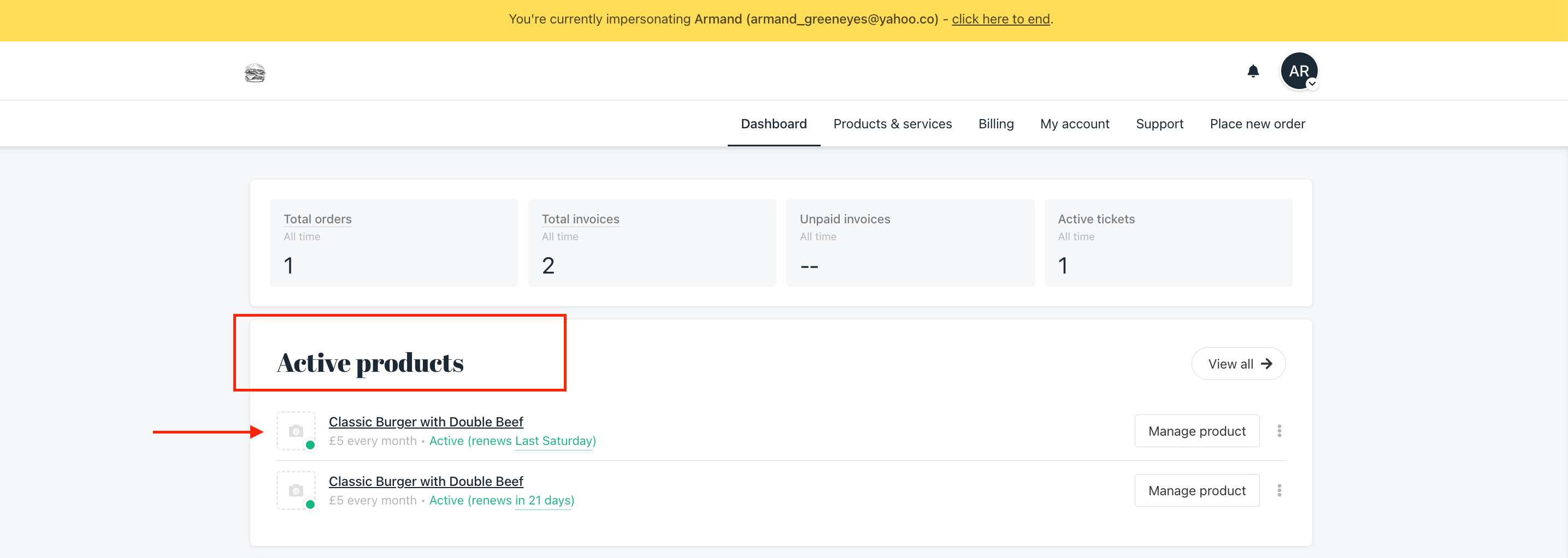
1. From your client area, go to the Active Product > choose the Product
<img src="https://mintcdn.com/upmind/5gi4DQpw4X76kT6T/images/fb/b78a9bc12453f2bb.png?fit=max&auto=format&n=5gi4DQpw4X76kT6T&q=85&s=bcc88ff1cb9d3347c024c157342e12f3" alt="" width="2870" height="1022" data-path="images/fb/b78a9bc12453f2bb.png" />

2. Click the Setting section > Navigate to the Delegates section > Click Add Delegates.
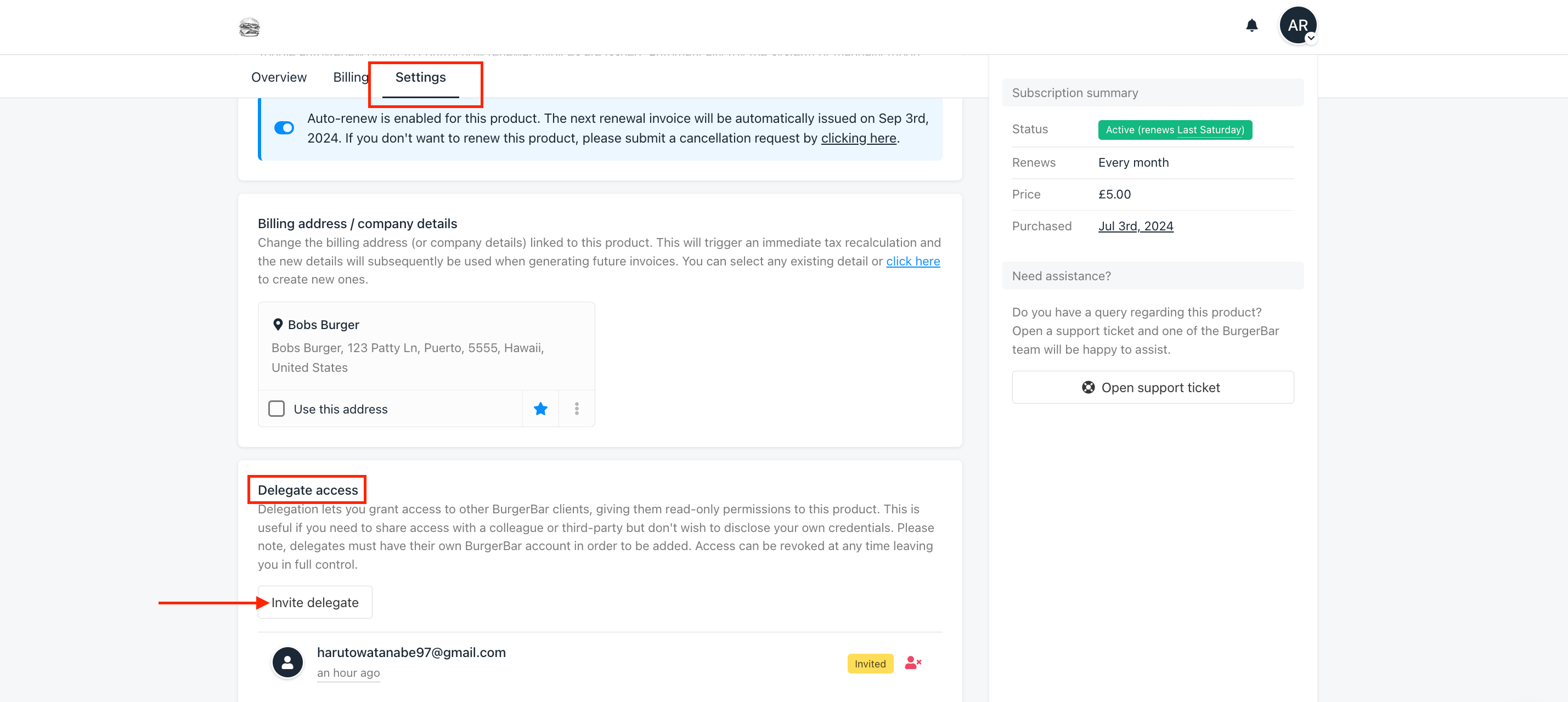
<Frame caption="Setting section > Delegates section > Invite delegates">
  <img src="https://mintcdn.com/upmind/bPO2bBzOxYQR4tYr/images/fb/faeb4c58906d32b6.png?fit=max&auto=format&n=bPO2bBzOxYQR4tYr&q=85&s=cece0da7df18d0f09b96affddad44a26" alt="Setting section > Delegates section > Invite delegates" data-og-width="2858" width="2858" data-og-height="1280" height="1280" data-path="images/fb/faeb4c58906d32b6.png" data-optimize="true" data-opv="3" srcset="https://mintcdn.com/upmind/bPO2bBzOxYQR4tYr/images/fb/faeb4c58906d32b6.png?w=280&fit=max&auto=format&n=bPO2bBzOxYQR4tYr&q=85&s=c5ba0a67a7402c12b976e9718cb8f5b7 280w, https://mintcdn.com/upmind/bPO2bBzOxYQR4tYr/images/fb/faeb4c58906d32b6.png?w=560&fit=max&auto=format&n=bPO2bBzOxYQR4tYr&q=85&s=9233a4d4646fda989d1dfd7ccadf125a 560w, https://mintcdn.com/upmind/bPO2bBzOxYQR4tYr/images/fb/faeb4c58906d32b6.png?w=840&fit=max&auto=format&n=bPO2bBzOxYQR4tYr&q=85&s=436a890b73599c8f438b7132ff474a33 840w, https://mintcdn.com/upmind/bPO2bBzOxYQR4tYr/images/fb/faeb4c58906d32b6.png?w=1100&fit=max&auto=format&n=bPO2bBzOxYQR4tYr&q=85&s=62b672b5cf1d8702730972173bb74228 1100w, https://mintcdn.com/upmind/bPO2bBzOxYQR4tYr/images/fb/faeb4c58906d32b6.png?w=1650&fit=max&auto=format&n=bPO2bBzOxYQR4tYr&q=85&s=293675e258a252f8cb7b116d40ed3a45 1650w, https://mintcdn.com/upmind/bPO2bBzOxYQR4tYr/images/fb/faeb4c58906d32b6.png?w=2500&fit=max&auto=format&n=bPO2bBzOxYQR4tYr&q=85&s=69c48a9000e94760c8a1161866f0f861 2500w" />
</Frame>

The email invitation that the delegates will get looks like this:
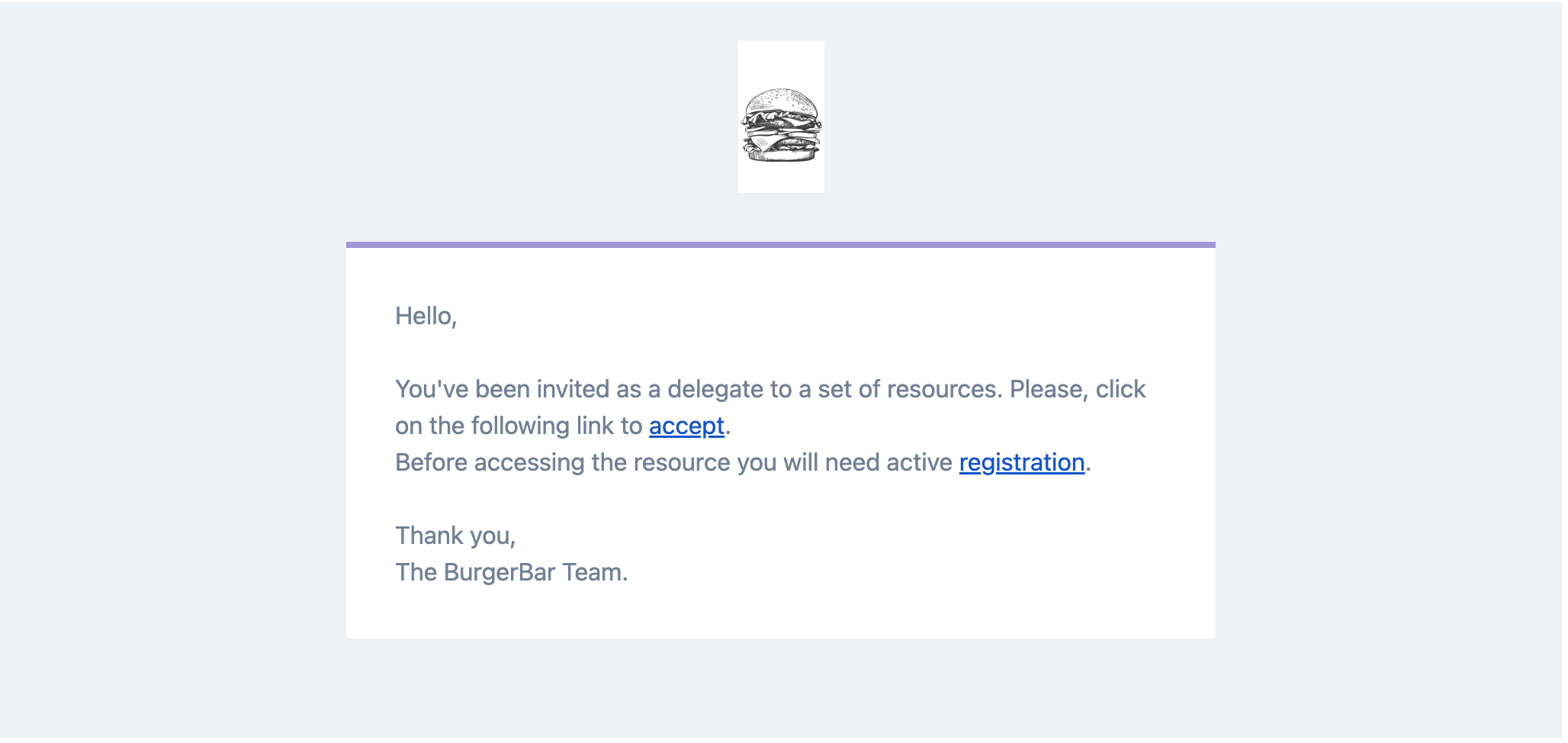
<Frame caption="Delegate Access Invitation">
  <img src="https://mintcdn.com/upmind/VnCXiz5rboywDnvn/images/fb/dcace3925ecfd402.png?fit=max&auto=format&n=VnCXiz5rboywDnvn&q=85&s=5b6574d65742927e09c22eaa81a42e2e" alt="Delegate Access Invitation" width="2056" height="974" data-path="images/fb/dcace3925ecfd402.png" />
</Frame>

## How to Remove Delegates

If you need to remove delegates, you can do so from either your admin area or client area. Follow these steps:

**From your admin area:**

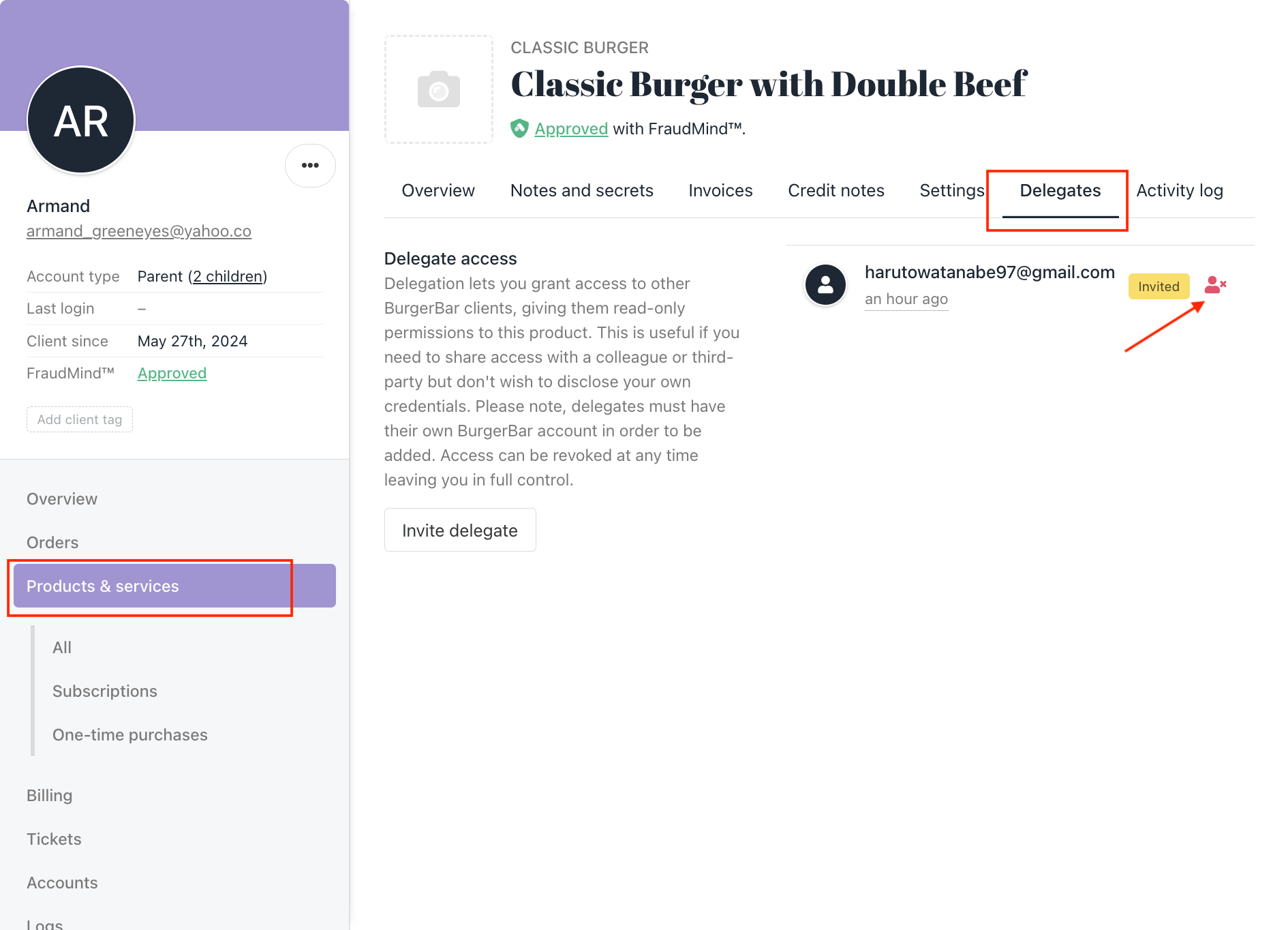
1. Go to the client's profile > Navigate to Product & Service > Click the Product.

2. Go to the Delegates section > Click the delegates > Click revoke
<img src="https://mintcdn.com/upmind/h8h5zREaX7k8Y-3x/images/fb/16dbb936cb999c49.png?fit=max&auto=format&n=h8h5zREaX7k8Y-3x&q=85&s=5f6d09760a820c5881ed76cb57fd496b" alt="" width="1890" height="1364" data-path="images/fb/16dbb936cb999c49.png" />

**From your client area:**

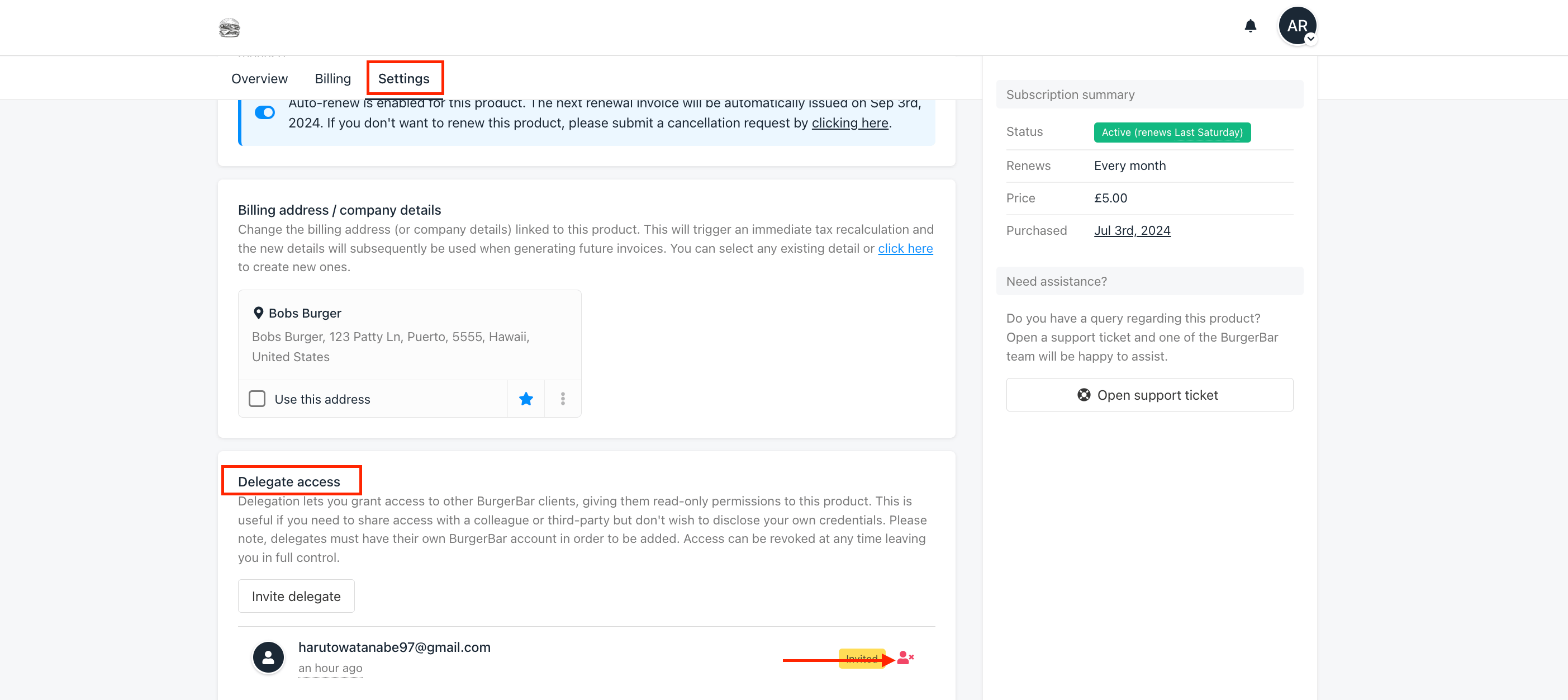
1. Go to the product and click the Settings section.

2. Navigate to the Delegates section > Find the delegate you want to remove > Click Remove.
<img src="https://mintcdn.com/upmind/92wYnpdR_k6AjH3x/images/fb/58a21819b5d592a1.png?fit=max&auto=format&n=92wYnpdR_k6AjH3x&q=85&s=4d2c99982dfb4b7c07f2d2b3db0f4cb5" alt="" width="2806" height="1252" data-path="images/fb/58a21819b5d592a1.png" />
