> ## Documentation Index
> Fetch the complete documentation index at: https://docs.upmind.com/llms.txt
> Use this file to discover all available pages before exploring further.
# Client Number Setting
Client number settings in Upmind are optional and offer a simple, sequential reference that can be displayed on invoices and communications. In this guide, we’ll walk you through how to set the client number prefix and configure other relevant settings.
## How to Set Up Client Numbers:
1. Go to Settings → Client Settings.
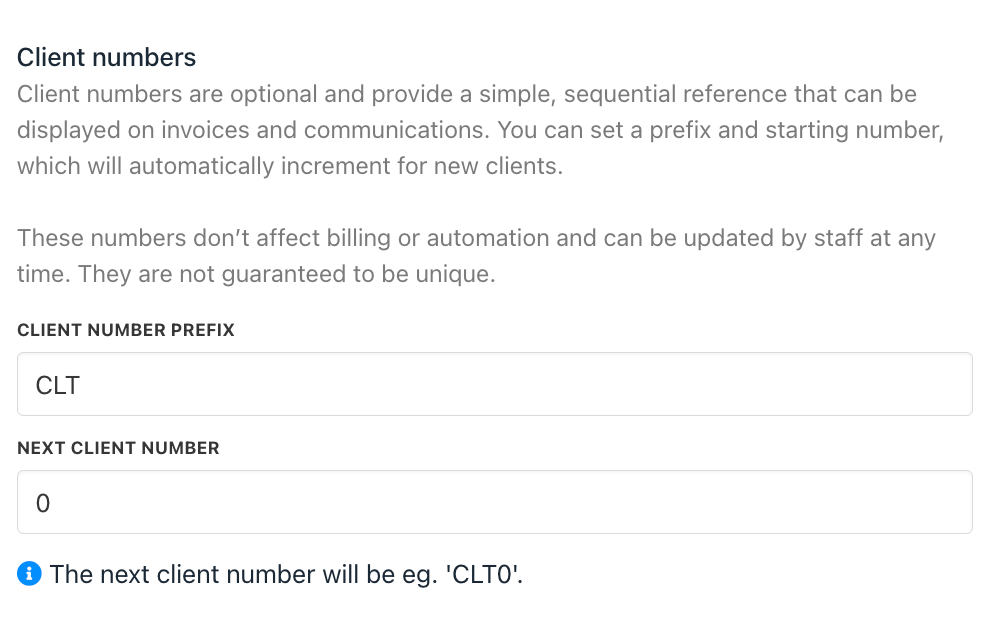
2. In the Client Numbers section, you can:
* Set a client number prefix according to your needs (e.g., "CLT-" for client-related numbers).
* Configure the next client number to continue the sequence.
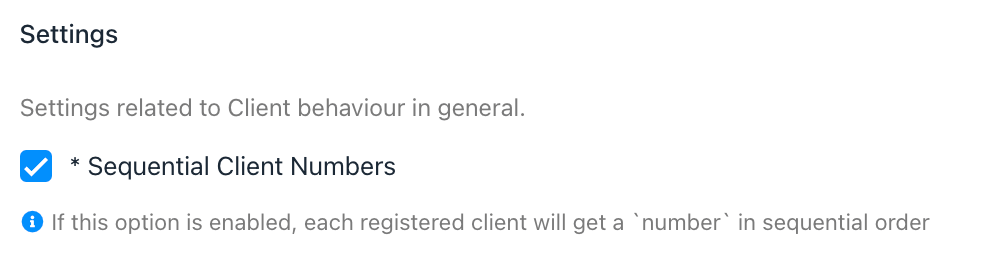
 3. In the Settings section, you can choose whether to enable/disable sequential client numbers. If enabled, client numbers will be automatically assigned in order.
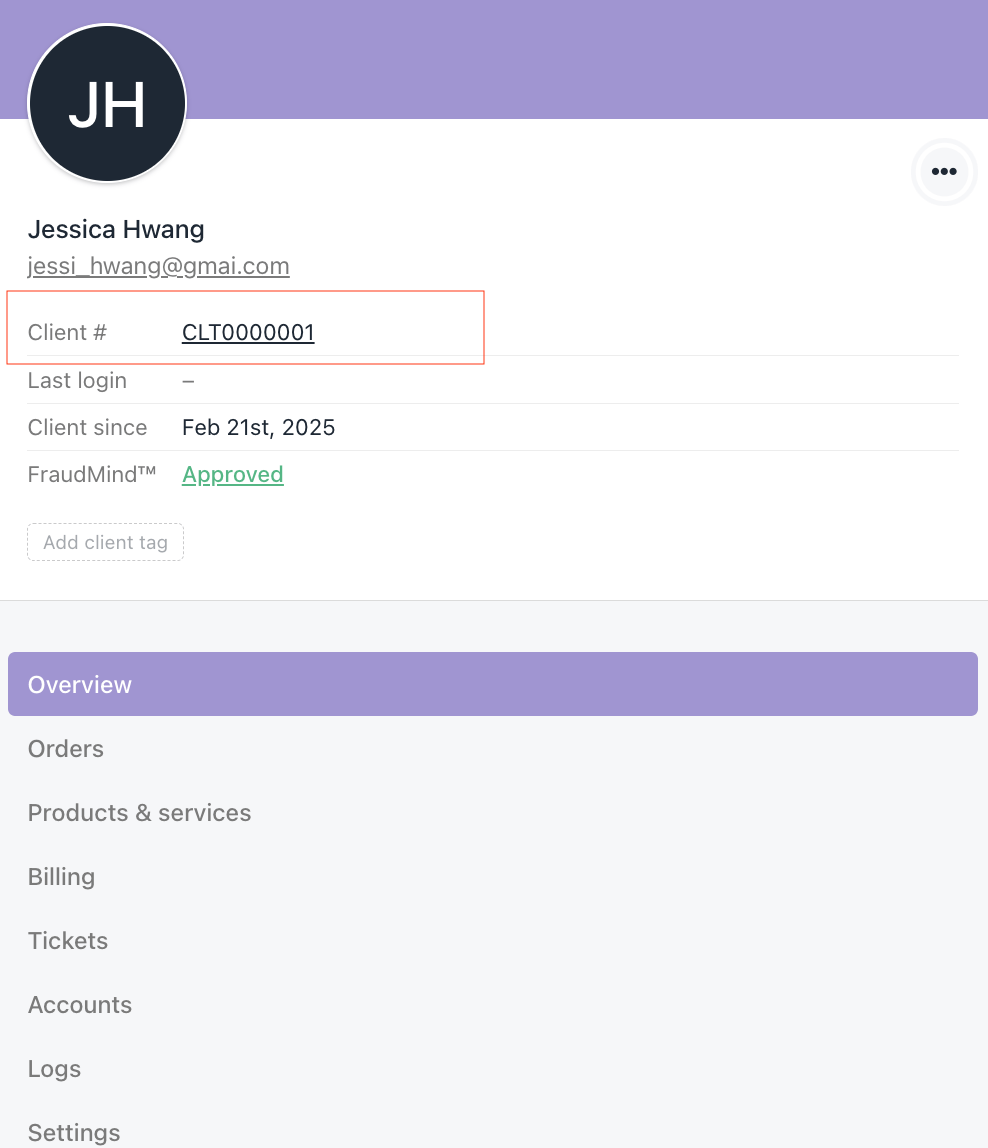
 * These numbers will appear only in the admin area under the client's profile
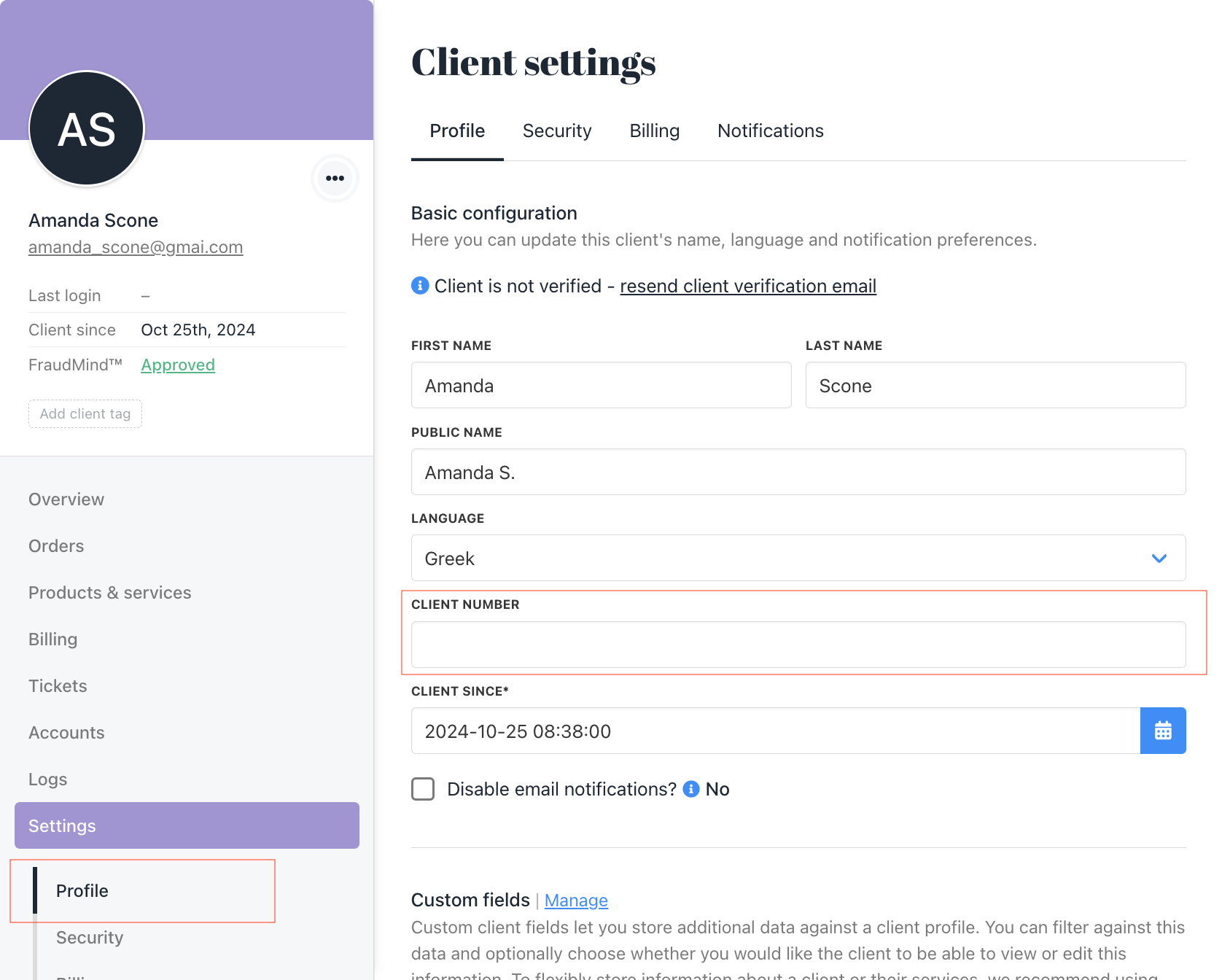
 4. For existing clients, you’ll need to manually add the client number by selecting the client you want to update: Go to Settings → Profile → Basic Configuration.
 Client numbers don’t affect billing or automation and can be updated anytime.
If client numbers were turned off and then back on, new clients registered during that period won’t have a number. When re-enabled, numbering continues from the last assigned number + new clients +1
Client numbers don’t affect billing or automation and can be updated anytime.
If client numbers were turned off and then back on, new clients registered during that period won’t have a number. When re-enabled, numbering continues from the last assigned number + new clients +1