> ## Documentation Index
> Fetch the complete documentation index at: https://docs.upmind.com/llms.txt
> Use this file to discover all available pages before exploring further.
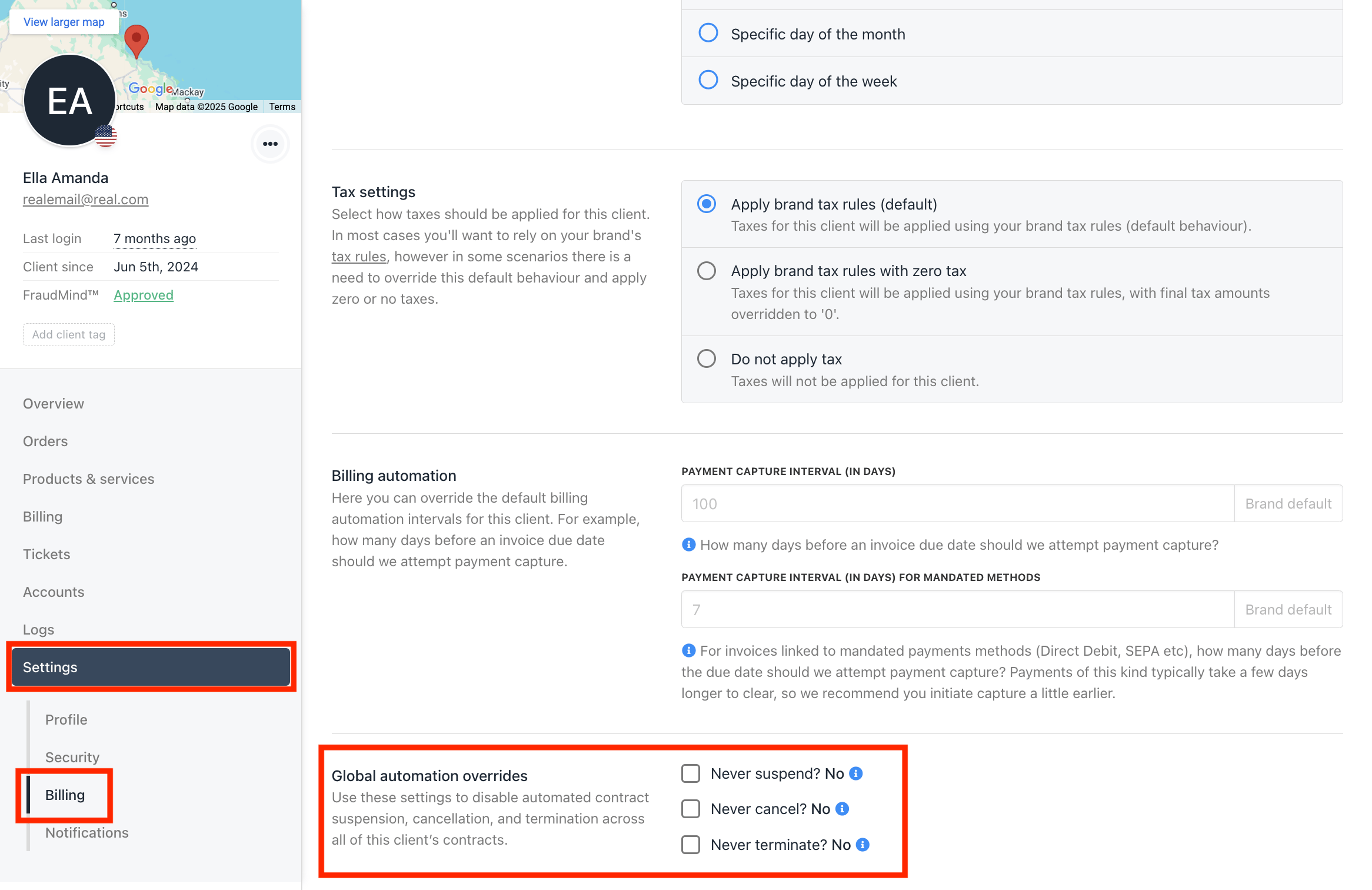
# Automation Overrides on Client Level
In this guide, we’ll show you how to prevent a client’s products from being automatically suspended, cancelled, or closed. With Automation Overrides, Administrators can set client-specific rules that ensure certain products remain active, regardless of billing or system automation.
## How to Enable Automation Overrides on Client Level
1. Log in to your Upmind admin area.
2. Navigate to Clients → Select a client.
3. Go to Settings → Billing tab, then scroll down to find Global Automation Overrides.