> ## Documentation Index
> Fetch the complete documentation index at: https://docs.upmind.com/llms.txt
> Use this file to discover all available pages before exploring further.
# A Guide to Account Level Delegates
You can assign delegates to help manage specific products and tickets. This is especially useful for clients who work with team members or colleagues and need to share access without handing over full control. You can change or remove these permissions anytime.
You can refer to our full guide to learn more about how delegates work [here](/using-upmind/client-management/how-do-delegates-work).
## Delegating Access to Specific or All Contract Products & Tickets
1. Go to the client’s profile → Account
2. Click on Account Delegates
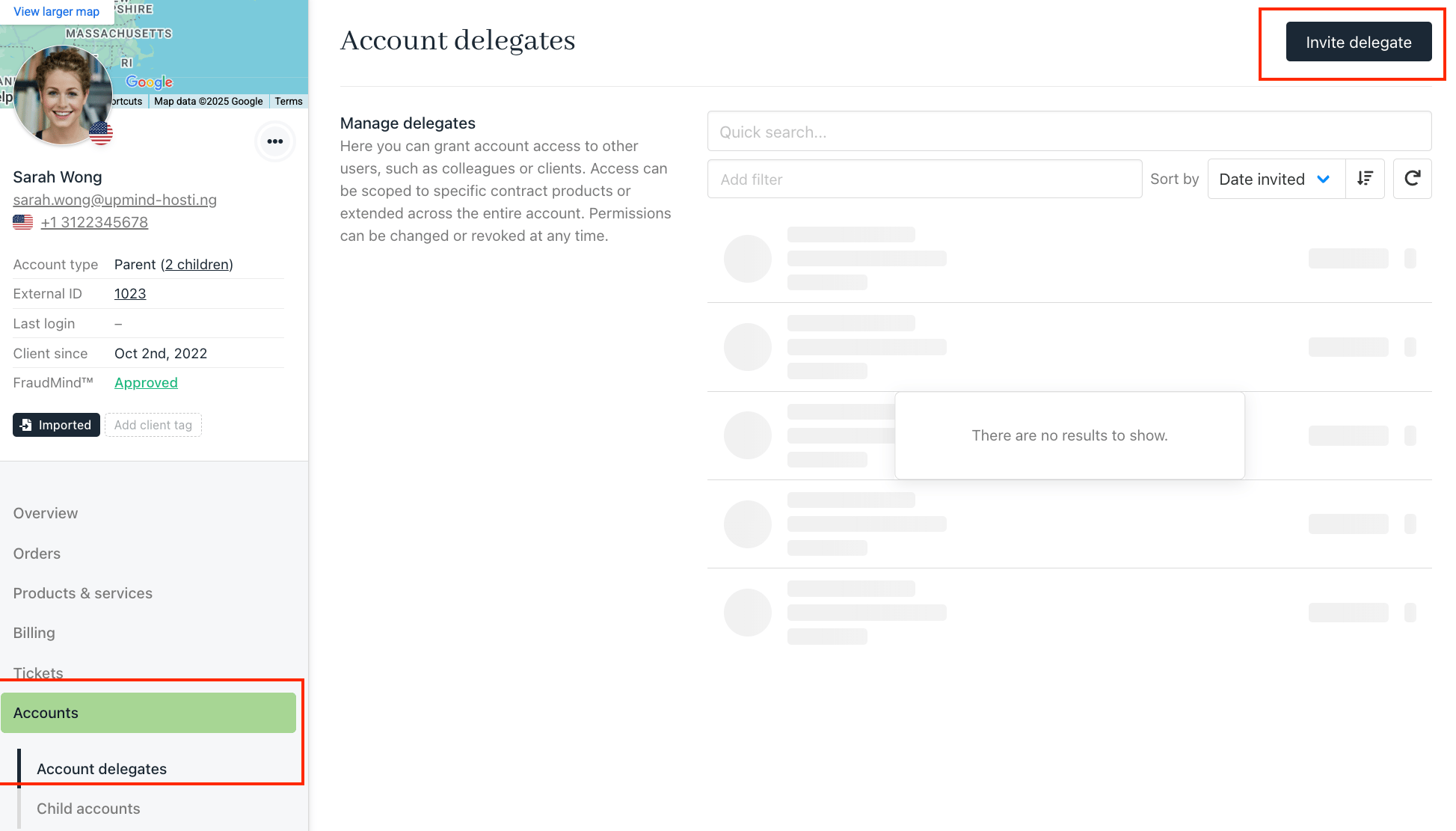 3. Select Invite Delegates
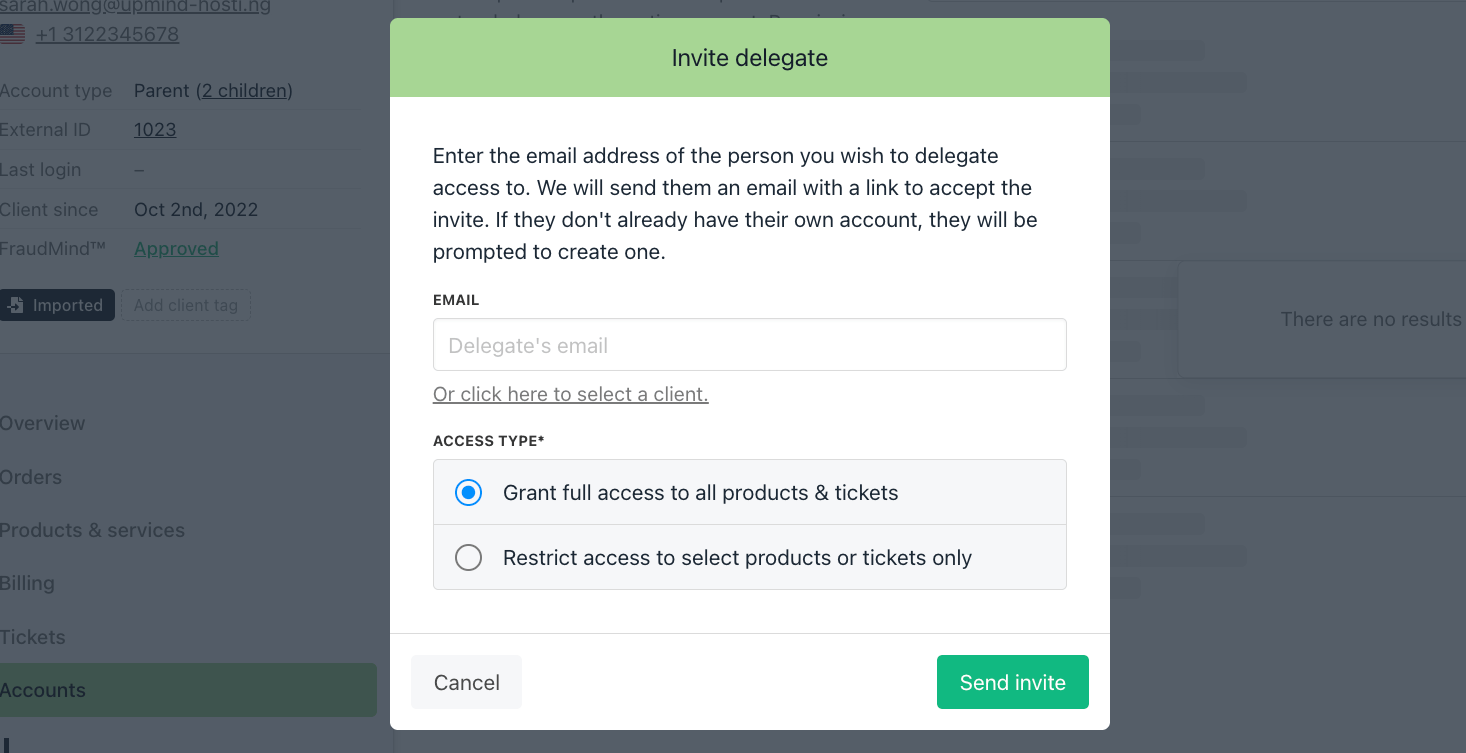 * In the invite box, you’ll find two ways to invite:
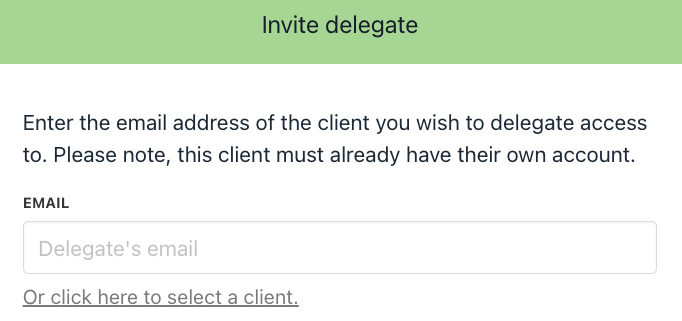 * By email: The invitee must have an Upmind account.
* From existing clients: Choose a client already in the system.
* Choose access type:
* By email: The invitee must have an Upmind account.
* From existing clients: Choose a client already in the system.
* Choose access type:
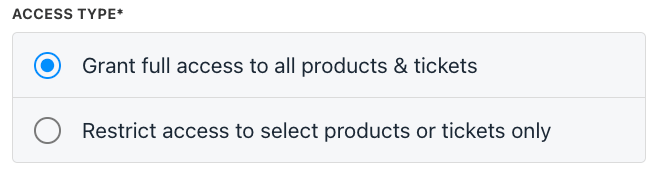 * Full access to all products & tickets
* Restricted access to specific products & tickets
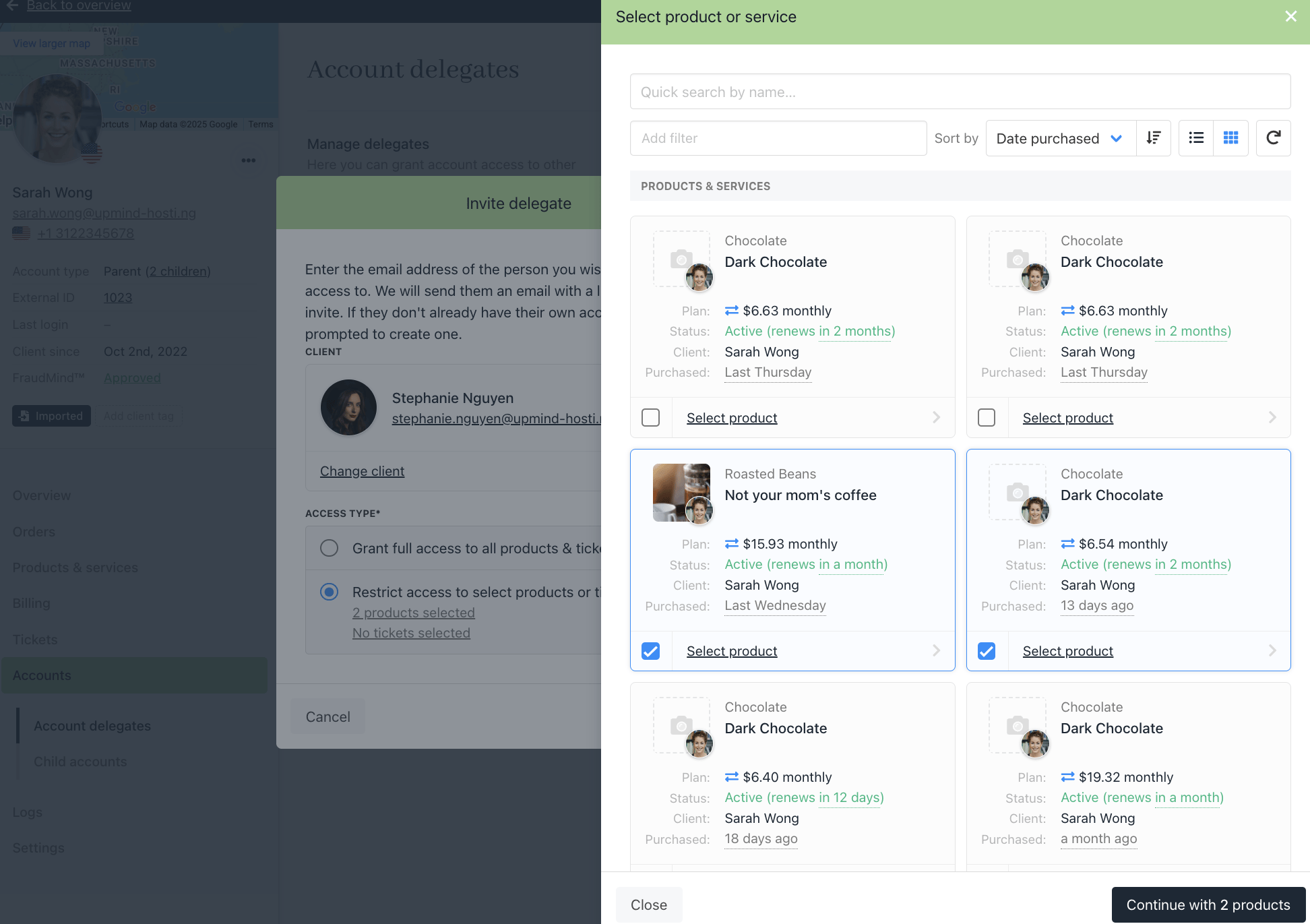
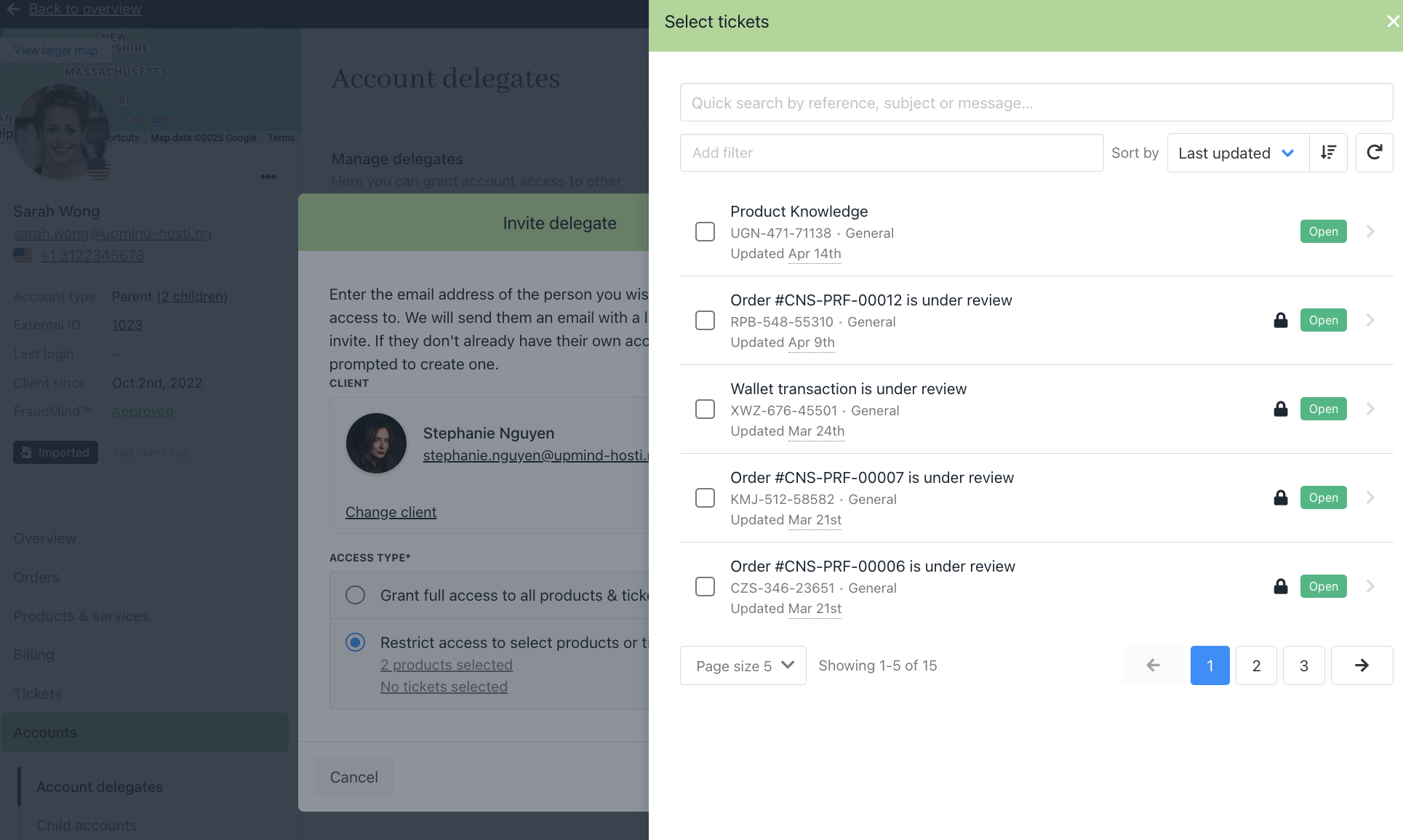
→ If restricted, you can select which products & tickets the delegate can view.
* Full access to all products & tickets
* Restricted access to specific products & tickets
→ If restricted, you can select which products & tickets the delegate can view.
 4. Click Add Delegates.
* Once added, click on the delegate’s name to manage their access or profile.
4. Click Add Delegates.
* Once added, click on the delegate’s name to manage their access or profile.
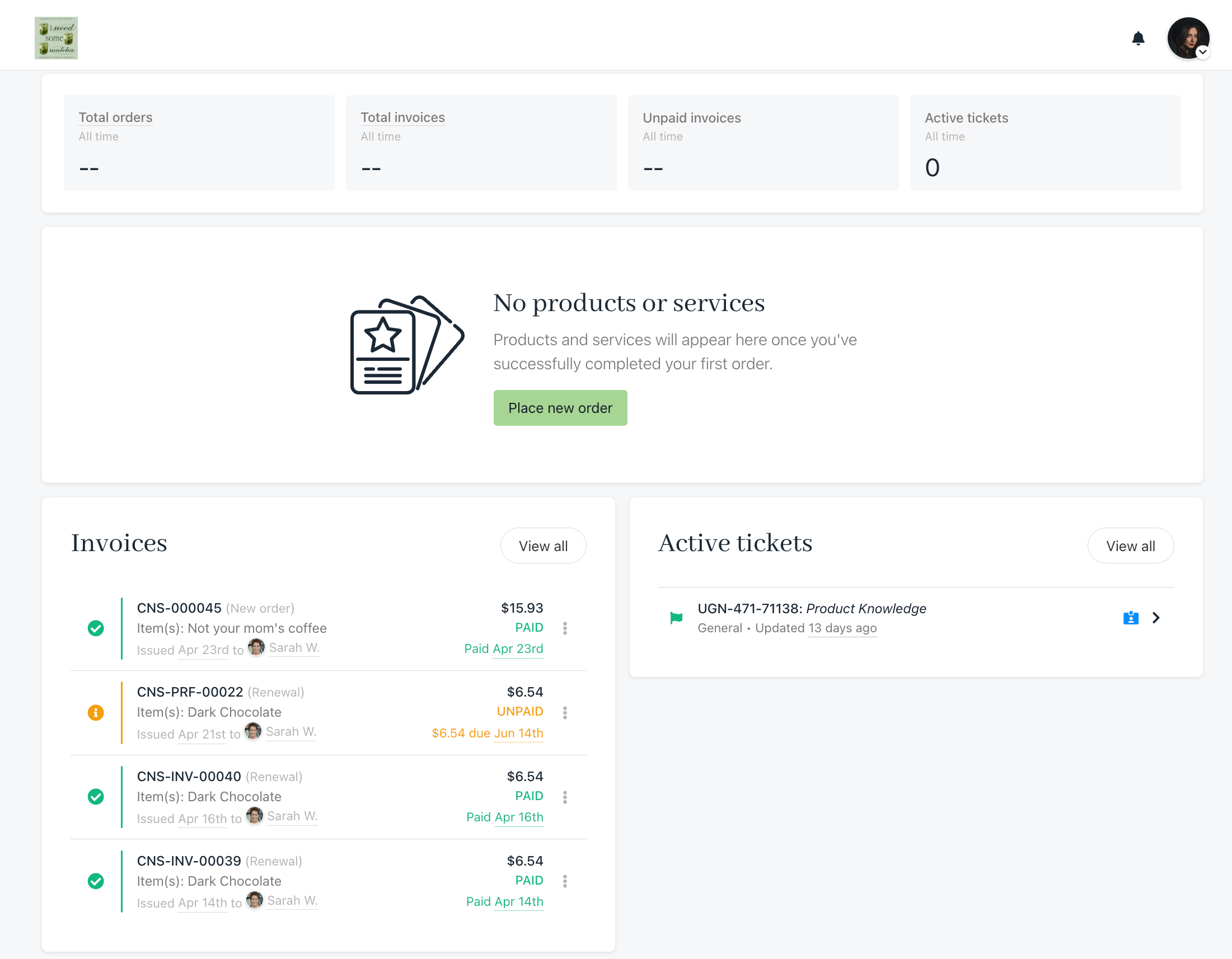
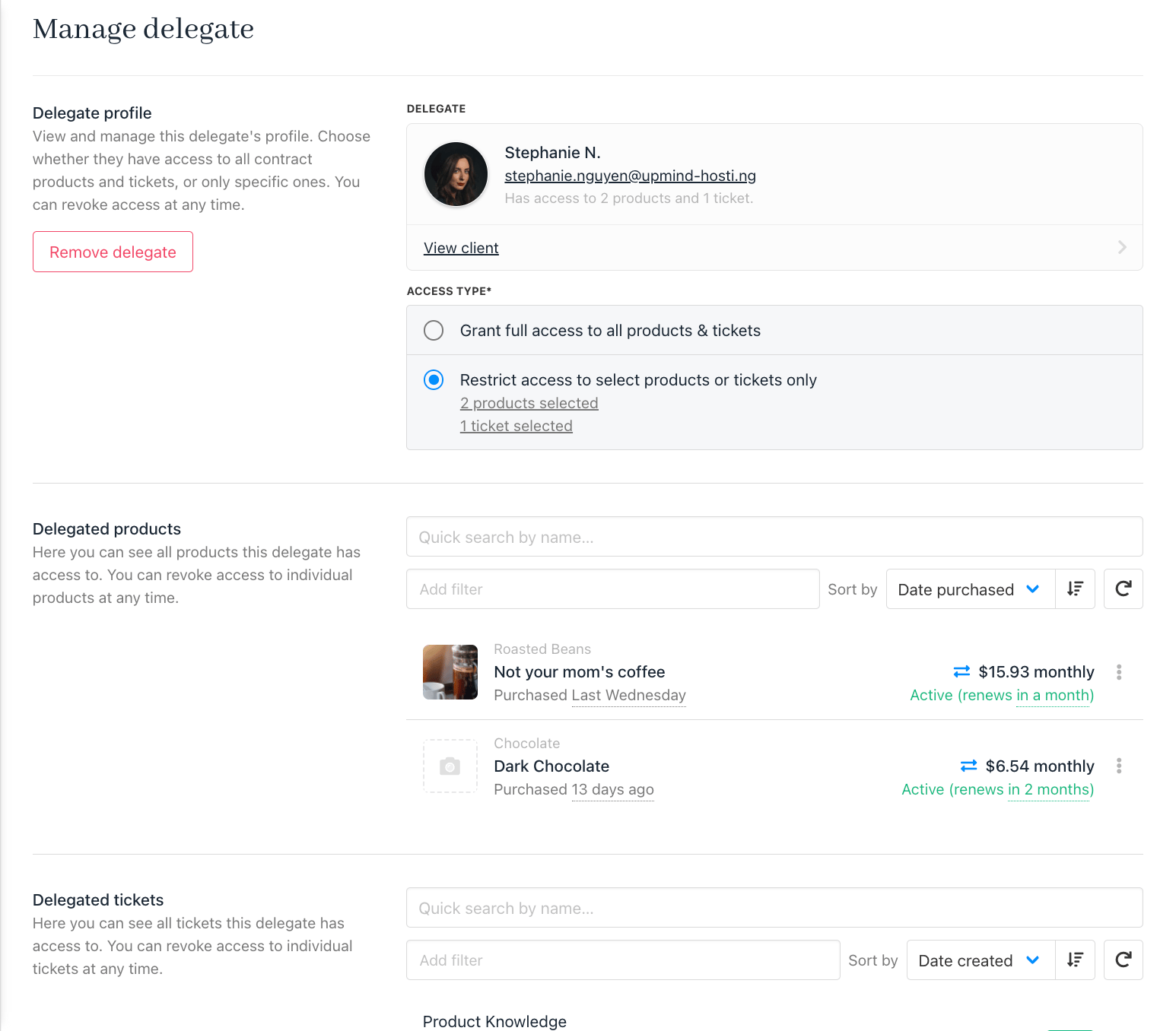 Here’s a preview of what the delegate sees in their client area dashboard.