> ## Documentation Index
> Fetch the complete documentation index at: https://docs.upmind.com/llms.txt
> Use this file to discover all available pages before exploring further.
# How do My Clients Create and Manage Affiliate Sales
> Help your clients generate revenue
This article shows your clients how to create affiliate links and track commissions on their Account page.
## Before you start
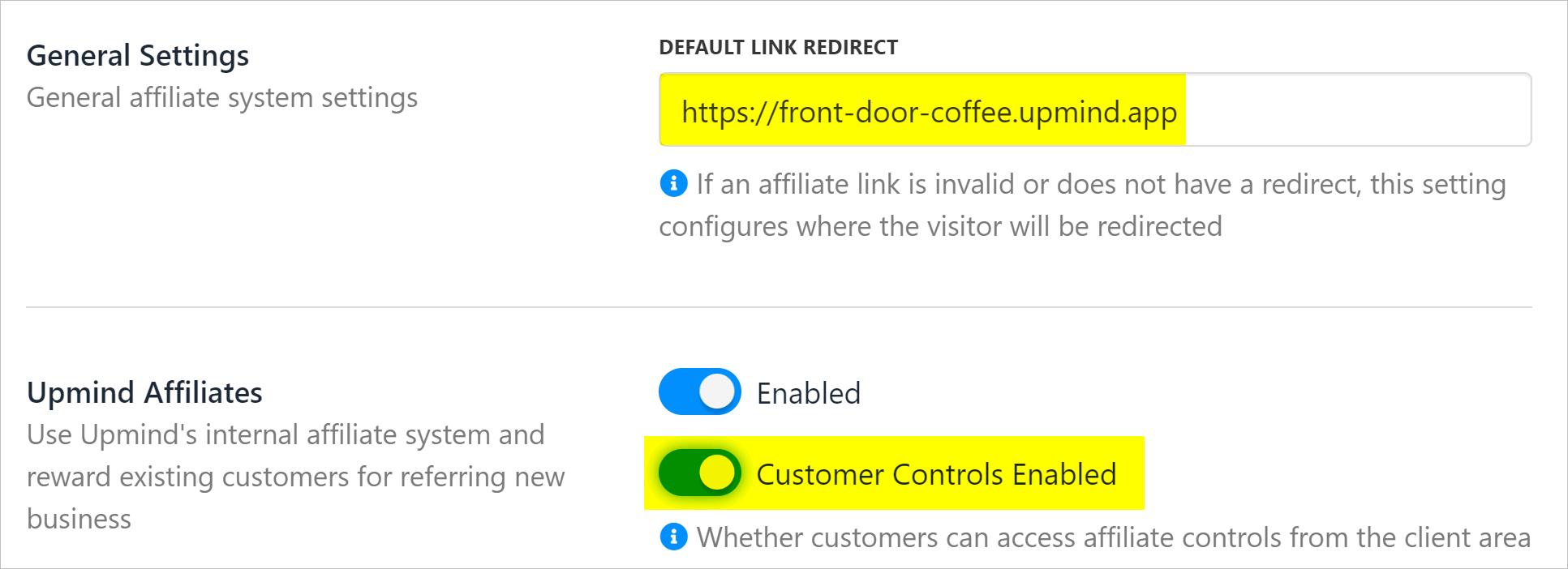
If you want to give clients the ability to create their own affiliate links, go to your Affiliates page and confirm two settings.
1. Log in to your account.
2. Click Settings on the main dashboard.
3. Click the Affiliates tile under the e-commerce heading.
4. Scroll down to the General Settings heading.
Make sure you enter a Redirect link. This URL can link to any page on your e-commerce site. One URL can track all purchases that are eligible for affiliate commissions.
You can create product-specific URLs. Say, for example, you write a review about coffee grinders. You could include a specific link to a coffee bean grinder page on your site. That product-specific link can also track all affiliate-available purchases on your site beyond the grinder.
Upmind attaches a unique code to this link and uses the URL to track purchases and assign commissions to your affiliate. You need to share this link with clients (e.g. via a ticket) who contact you and want to become an affiliate.
Go to the next heading and make sure Customer Controls is enabled. If this toggle is disabled, your clients cannot create affiliate links by themselves.
 ## Opening the affiliate page
To create an affiliate link, your client should:
1. Log in to their store account.
2. Click the My account menu tab.
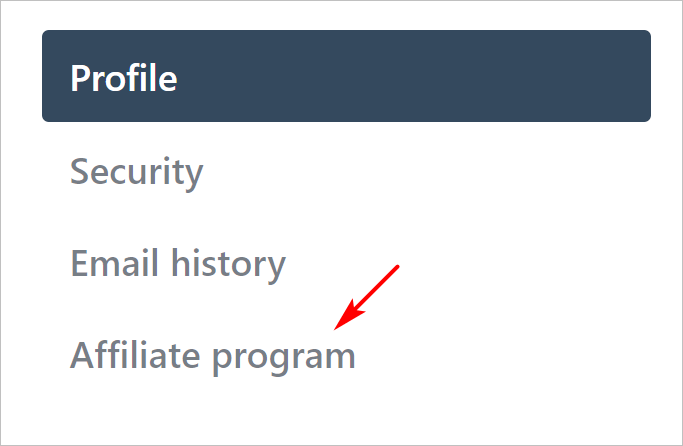
3. Click Affiliate program on the left menu under the Profile heading.
## Opening the affiliate page
To create an affiliate link, your client should:
1. Log in to their store account.
2. Click the My account menu tab.
3. Click Affiliate program on the left menu under the Profile heading.
 ## Creating a link
To create an affiliate link, your client should:
1. Go to the Links section on the page.
2. Click the Create new link button.
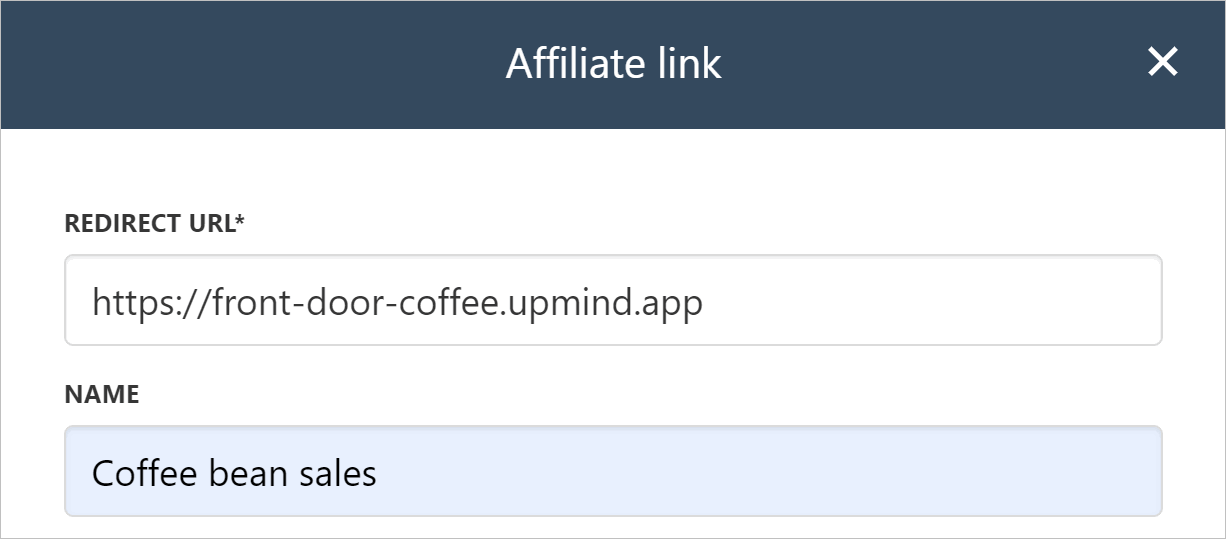
3. Paste your Redirect URL.
4. Enter a unique name.
5. Click Save.
## Creating a link
To create an affiliate link, your client should:
1. Go to the Links section on the page.
2. Click the Create new link button.
3. Paste your Redirect URL.
4. Enter a unique name.
5. Click Save.
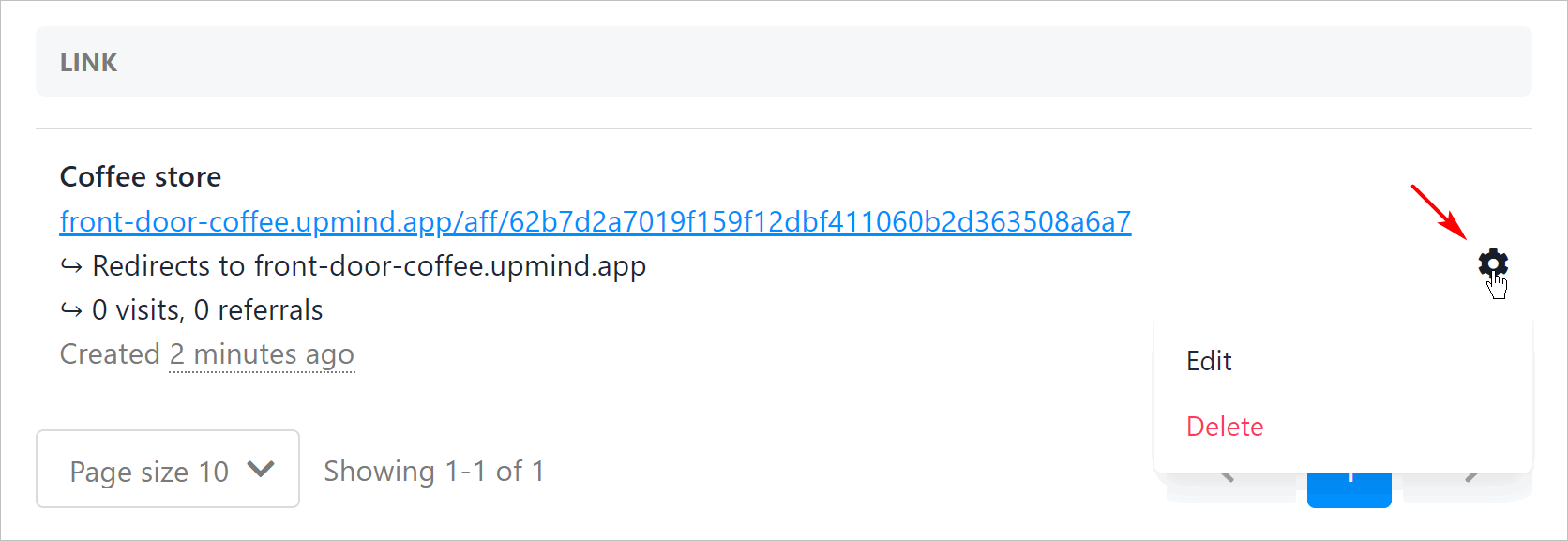
 Upmind shows the affiliate link on the page. Click the gear icon to edit or delete the link.
 ## Tracking program results
Your clients can track their affiliate data.
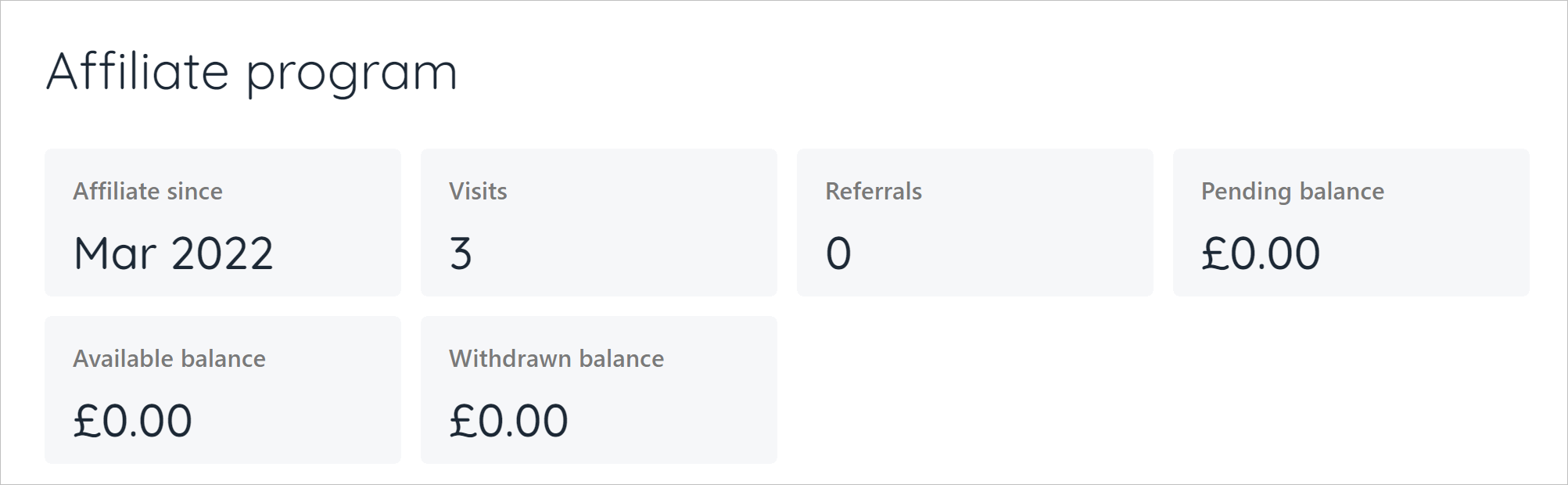
On the Affiliate program page, click the Overview link on the left menu. The page shows an overview of key indicators, like visits and available balance. Scroll down the page to see a list of referrals.
## Tracking program results
Your clients can track their affiliate data.
On the Affiliate program page, click the Overview link on the left menu. The page shows an overview of key indicators, like visits and available balance. Scroll down the page to see a list of referrals.
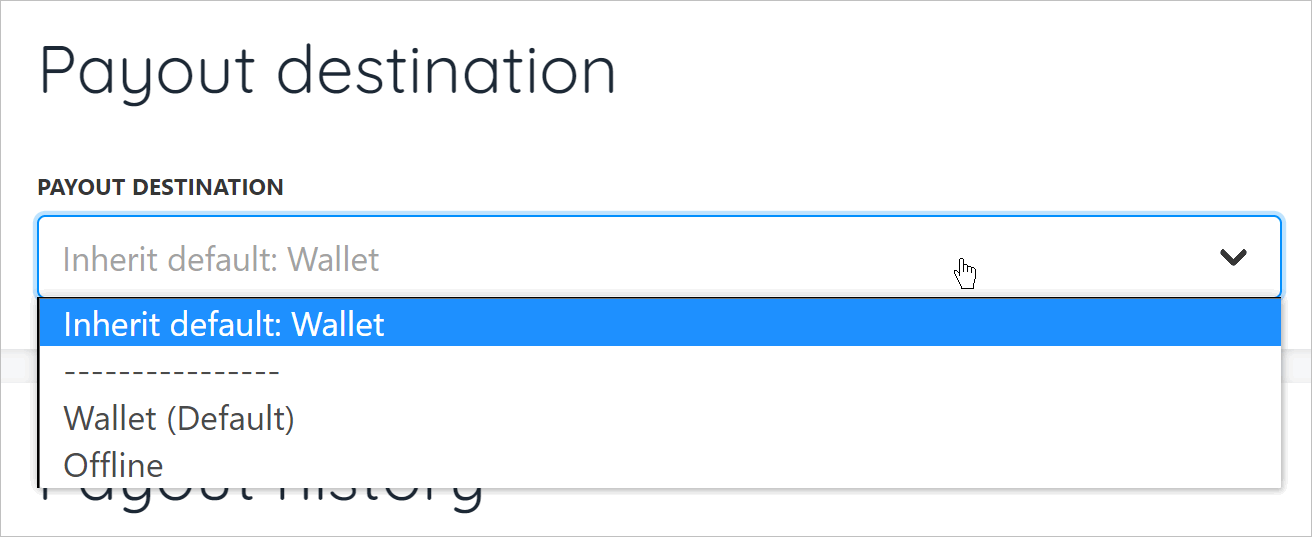
 Click the Commission link on the left menu to see the Commission history. Click the Payouts link to select a payout destination and see Payout history.
 ## Reword Affiliate Program
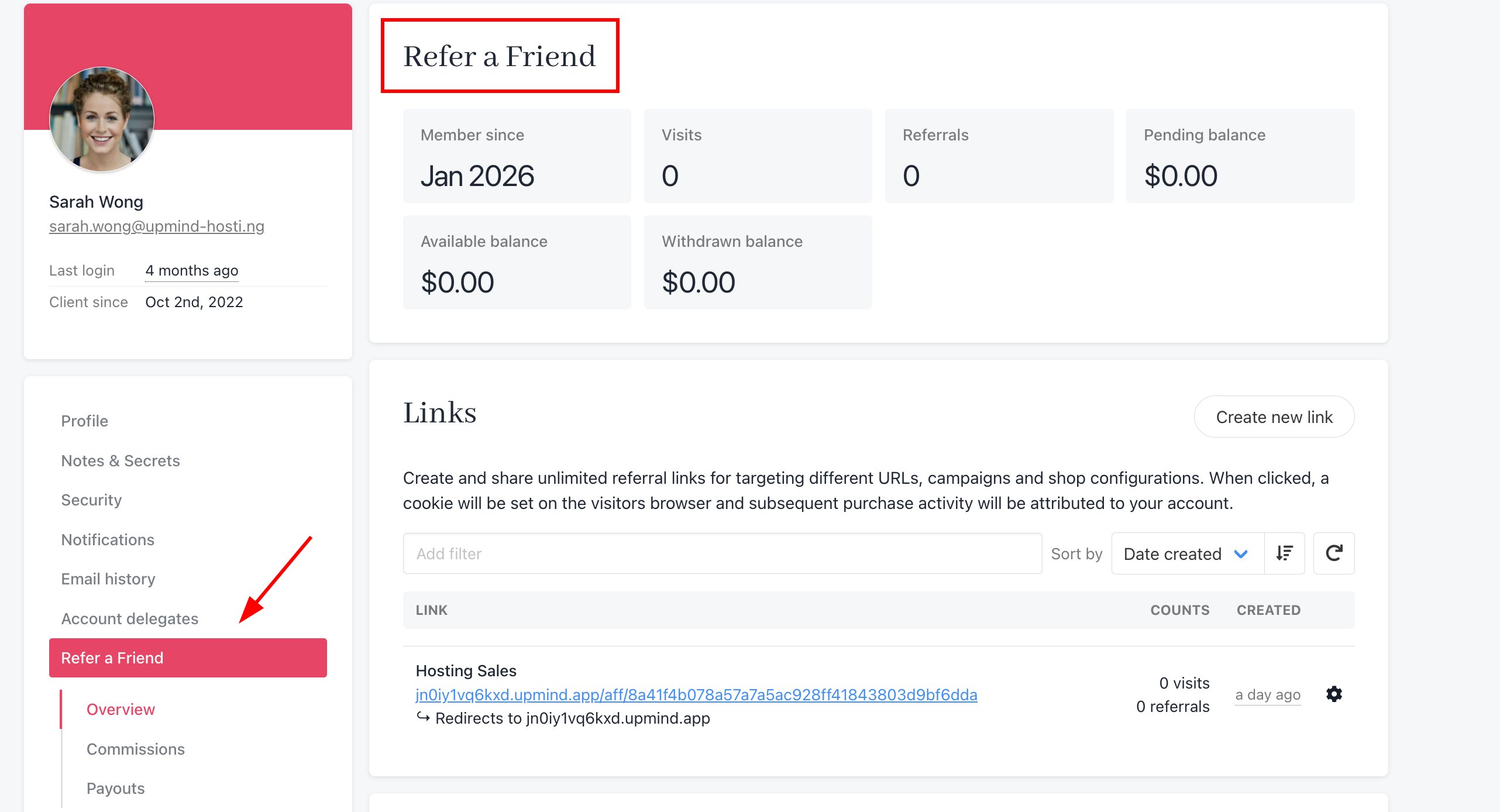
You can now change the wording of the affiliate program in the client area. This will apply to the menu item link, page title, and any descriptions on the page.
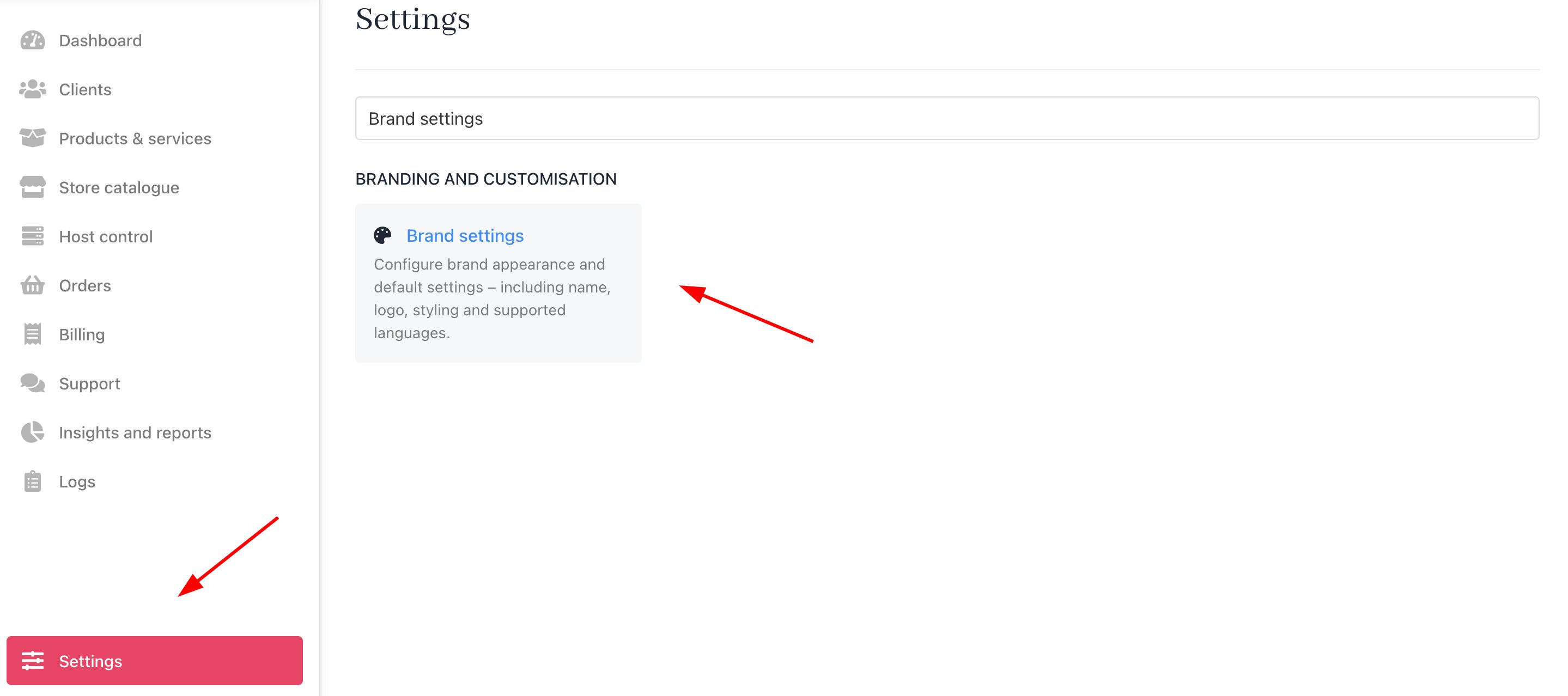
1. Go to **Settings** > **Brand Settings** under **Branding and Customisation**.
## Reword Affiliate Program
You can now change the wording of the affiliate program in the client area. This will apply to the menu item link, page title, and any descriptions on the page.
1. Go to **Settings** > **Brand Settings** under **Branding and Customisation**.
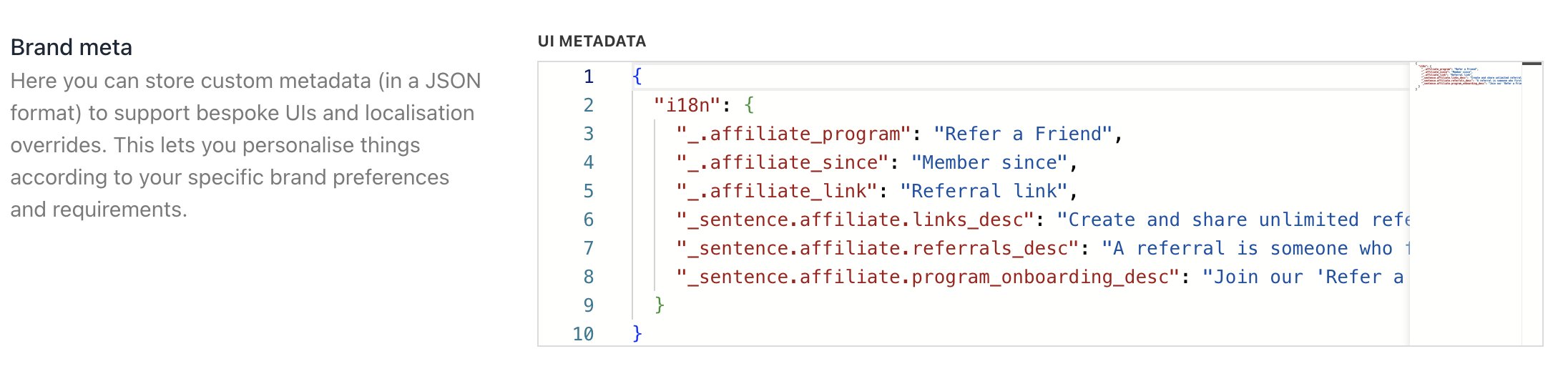
 2. Paste the following overrides into the **Brand meta**. This can be edited.
JSON
```
{
"i18n": {
"_.affiliate_program": "Refer a Friend",
"_.affiliate_since": "Member since",
"_.affiliate_link": "Referral link",
"_sentence.affiliate.links_desc": "Create and share unlimited referral links for targeting different URLs, campaigns and shop configurations. When clicked, a cookie will be set on the visitors browser and subsequent purchase activity will be attributed to your account.",
"_sentence.affiliate.referrals_desc": "A referral is someone who first visits via one of your custom referral links and goes on to make a purchase. Each referral will show in this referrals table.",
"_sentence.affiliate.program_onboarding_desc": "Join our 'Refer a Friend' program and earn a commission for each referral you make. The program is free to join and there's no limit on how much you can earn. Our intuitive interface allows you to create unlimited custom links and track referral activity on a link-by-link basis. With a simple one-click opt-in, you can be up and running in just minutes."
}
}
```
2. Paste the following overrides into the **Brand meta**. This can be edited.
JSON
```
{
"i18n": {
"_.affiliate_program": "Refer a Friend",
"_.affiliate_since": "Member since",
"_.affiliate_link": "Referral link",
"_sentence.affiliate.links_desc": "Create and share unlimited referral links for targeting different URLs, campaigns and shop configurations. When clicked, a cookie will be set on the visitors browser and subsequent purchase activity will be attributed to your account.",
"_sentence.affiliate.referrals_desc": "A referral is someone who first visits via one of your custom referral links and goes on to make a purchase. Each referral will show in this referrals table.",
"_sentence.affiliate.program_onboarding_desc": "Join our 'Refer a Friend' program and earn a commission for each referral you make. The program is free to join and there's no limit on how much you can earn. Our intuitive interface allows you to create unlimited custom links and track referral activity on a link-by-link basis. With a simple one-click opt-in, you can be up and running in just minutes."
}
}
```
 Your affiliate program has now been reworded.