> ## Documentation Index
> Fetch the complete documentation index at: https://docs.upmind.com/llms.txt
> Use this file to discover all available pages before exploring further.
# How to Filter Products & Services by Manual Status
Quickly identify and review products by manual status across your entire inventory.
You can filter products and services by status, making it easy to find and manage specific groups of products without searching manually. This is especially useful for handling large product inventories where efficiency and accuracy matter.
## Filtering products by status
1. Go to **Products & Services**.
2. Select the product type you want to view:
* **Subscriptions**
* **One-Time Purchases**
* **All**
 3. Click **Sort by Status**.
4. Select **Product/Service Manual Status.**
3. Click **Sort by Status**.
4. Select **Product/Service Manual Status.**
 5. Choose the relevant filter condition.
 6. Your results will update to show only the products with a manual status.
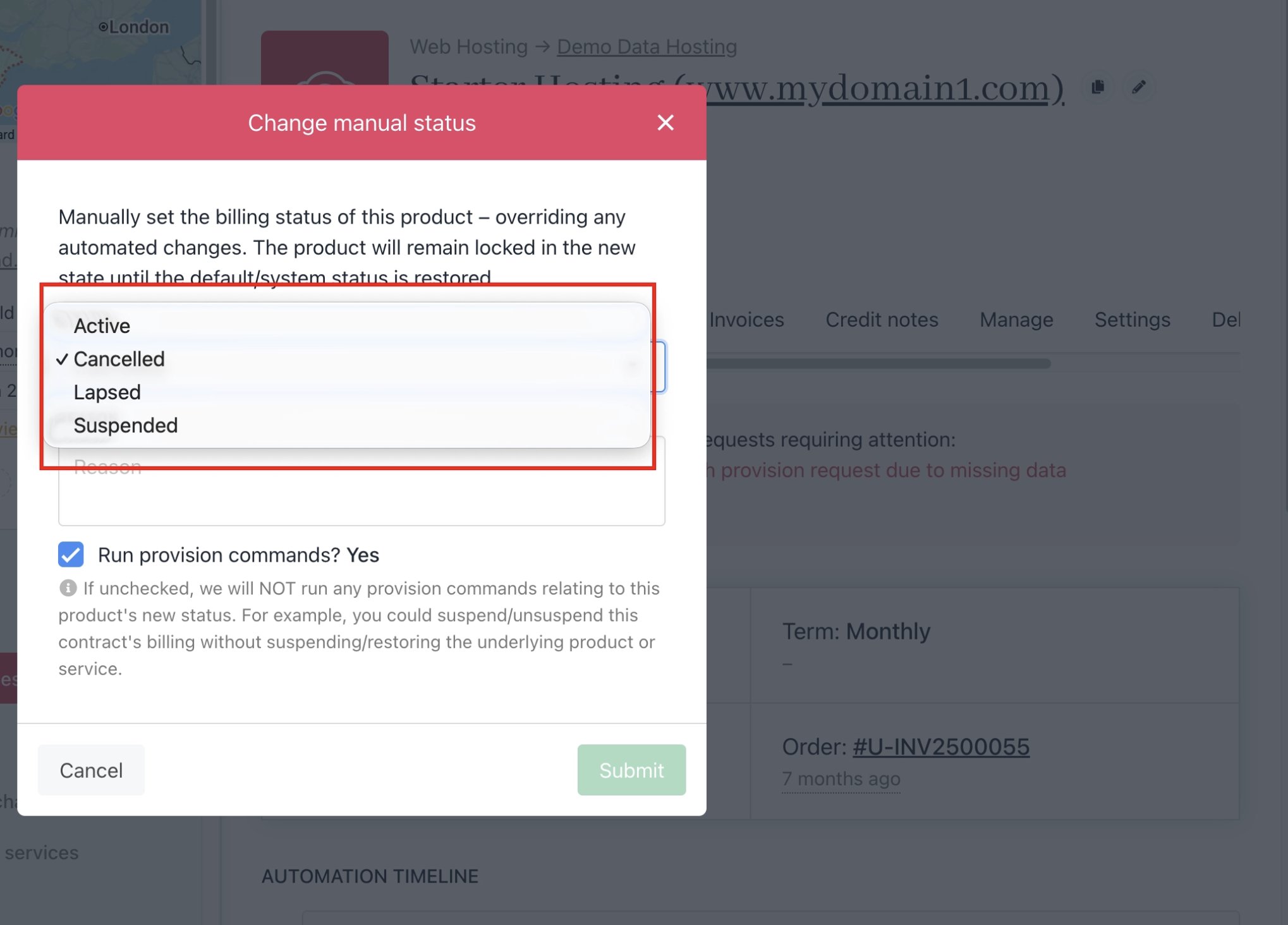
The manual status can be configured by the following statuses.
| **Status** | **Description** |
| ------------- | --------------------------------------------- |
| **Active** | Products currently active and in service. |
| **Cancelled** | Products that have been cancelled. |
| **Lapsed** | Products that have lapsed due to non-renewal. |
| **Suspended** | Products that have been suspended. |
6. Your results will update to show only the products with a manual status.
The manual status can be configured by the following statuses.
| **Status** | **Description** |
| ------------- | --------------------------------------------- |
| **Active** | Products currently active and in service. |
| **Cancelled** | Products that have been cancelled. |
| **Lapsed** | Products that have lapsed due to non-renewal. |
| **Suspended** | Products that have been suspended. |
 ## Filter conditions
The **Product/Service Status** filter can be configured using the following conditions:
| **Condition** | **Description** |
| ---------------------------------- | -------------------------------------------------------------------------------------------------------------------------------------------------------------------------------------------------------------- |
| **Is – Set** | Returns products whose status exactly matches the selected value. Use this to find all products currently assigned a specific status, such as all Active or all Cancelled products. |
| **Is – Not Set** | Returns products that do not have a status assigned. Use this to identify products where no status has been configured. |
| **Is Not – Set** | Returns products whose status does not match the selected value. Use this to exclude a specific status from your results, such as showing everything except Suspended products. |
| **Is Not – Not Set** | Returns products that have any status assigned, effectively excluding products with no status set. Use this to ensure your results only include products with a configured status. |
| **After Relative Date – Set** | Returns products whose status was set after a specified period relative to today, such as products that became Cancelled within the last 7 days. Useful for identifying recent status changes. |
| **After Relative Date – Not Set** | Returns products where no status change has been recorded after the specified relative date, meaning the status has not been updated within that period. |
| **Before Relative Date – Set** | Returns products whose status was set before a specified period relative to today, such as products that have been Lapsed for more than 30 days. Useful for identifying older or long-standing status changes. |
| **Before Relative Date – Not Set** | Returns products where no status change has been recorded before the specified relative date, meaning the status has not been set prior to that period. |
## Filter conditions
The **Product/Service Status** filter can be configured using the following conditions:
| **Condition** | **Description** |
| ---------------------------------- | -------------------------------------------------------------------------------------------------------------------------------------------------------------------------------------------------------------- |
| **Is – Set** | Returns products whose status exactly matches the selected value. Use this to find all products currently assigned a specific status, such as all Active or all Cancelled products. |
| **Is – Not Set** | Returns products that do not have a status assigned. Use this to identify products where no status has been configured. |
| **Is Not – Set** | Returns products whose status does not match the selected value. Use this to exclude a specific status from your results, such as showing everything except Suspended products. |
| **Is Not – Not Set** | Returns products that have any status assigned, effectively excluding products with no status set. Use this to ensure your results only include products with a configured status. |
| **After Relative Date – Set** | Returns products whose status was set after a specified period relative to today, such as products that became Cancelled within the last 7 days. Useful for identifying recent status changes. |
| **After Relative Date – Not Set** | Returns products where no status change has been recorded after the specified relative date, meaning the status has not been updated within that period. |
| **Before Relative Date – Set** | Returns products whose status was set before a specified period relative to today, such as products that have been Lapsed for more than 30 days. Useful for identifying older or long-standing status changes. |
| **Before Relative Date – Not Set** | Returns products where no status change has been recorded before the specified relative date, meaning the status has not been set prior to that period. |