> ## Documentation Index
> Fetch the complete documentation index at: https://docs.upmind.com/llms.txt
> Use this file to discover all available pages before exploring further.

# How to Restrict Staff Access to Client Profiles

> Protect sensitive client information.

It helps to protect sensitive client information by only allowing staff access if they have a valid support PIN or are assigned to a ticket.

Here’s how to enable it:

1. Go to the **Admin** dashboard.
2. Click **Settings** > **Staff users** under **Users and Permissions**.
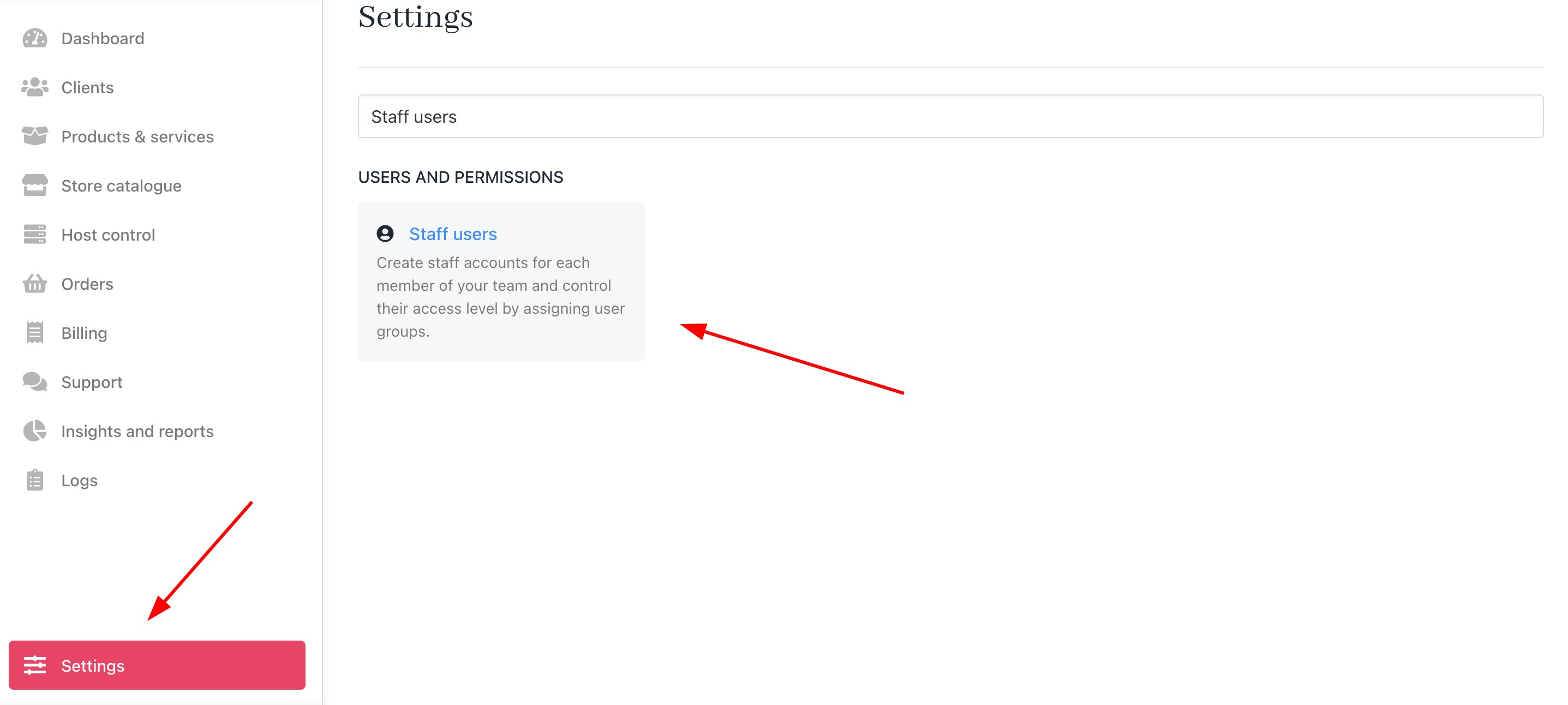
<Frame caption="Settings > Users and Permissions > Staff users">
  <img src="https://mintcdn.com/upmind/z5ofg3t7by4uN44v/images/fb/ecb79b6530a3cd38.png?fit=max&auto=format&n=z5ofg3t7by4uN44v&q=85&s=d386f948d8e0e31392315577c623f7ab" alt="Settings > Users and Permissions > Staff users" className="mx-auto" style={{ width:"97%" }} data-og-width="2874" width="2874" data-og-height="1292" height="1292" data-path="images/fb/ecb79b6530a3cd38.png" data-optimize="true" data-opv="3" srcset="https://mintcdn.com/upmind/z5ofg3t7by4uN44v/images/fb/ecb79b6530a3cd38.png?w=280&fit=max&auto=format&n=z5ofg3t7by4uN44v&q=85&s=0ae19fc5f997cad74f9ccc45218ef297 280w, https://mintcdn.com/upmind/z5ofg3t7by4uN44v/images/fb/ecb79b6530a3cd38.png?w=560&fit=max&auto=format&n=z5ofg3t7by4uN44v&q=85&s=f4207a3c3a0a1137959fc7361f7d9e82 560w, https://mintcdn.com/upmind/z5ofg3t7by4uN44v/images/fb/ecb79b6530a3cd38.png?w=840&fit=max&auto=format&n=z5ofg3t7by4uN44v&q=85&s=f10296572e2c33d5553cc2b673f3f1dd 840w, https://mintcdn.com/upmind/z5ofg3t7by4uN44v/images/fb/ecb79b6530a3cd38.png?w=1100&fit=max&auto=format&n=z5ofg3t7by4uN44v&q=85&s=7864382c0feaf89058e1dce19e53b871 1100w, https://mintcdn.com/upmind/z5ofg3t7by4uN44v/images/fb/ecb79b6530a3cd38.png?w=1650&fit=max&auto=format&n=z5ofg3t7by4uN44v&q=85&s=ae892b43cdc3d43ede0cc16231a15a9c 1650w, https://mintcdn.com/upmind/z5ofg3t7by4uN44v/images/fb/ecb79b6530a3cd38.png?w=2500&fit=max&auto=format&n=z5ofg3t7by4uN44v&q=85&s=eff473868f083c100552c61c8e467b23 2500w" />
</Frame>

3. Scroll down to **General Security Settings**.
4. Enable the option to **restrict staff access to client profiles without a support PIN or assigned ticket**.
5. Set the time (in hours) for how long access should remain valid after a support PIN is entered or a ticket is assigned.
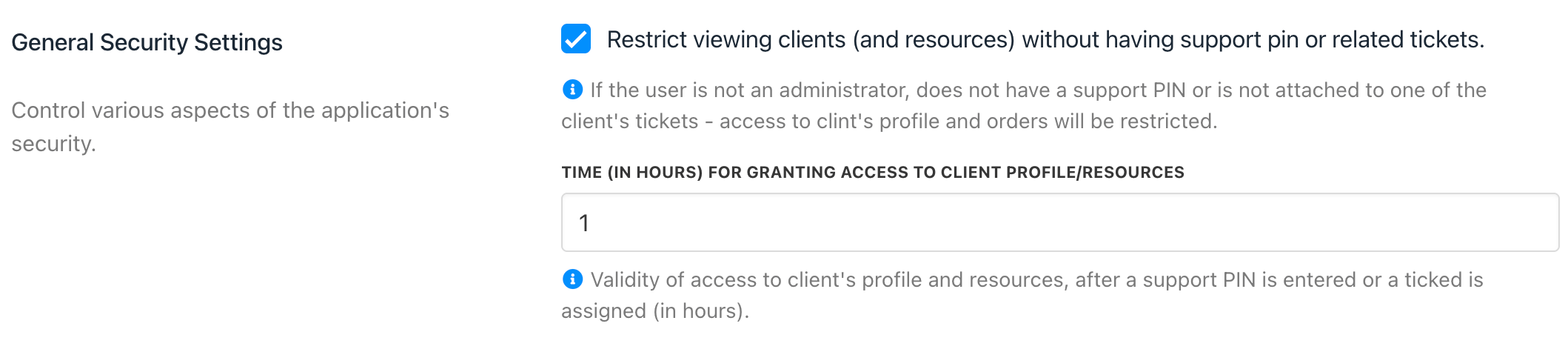
<Frame caption="General Security Settings">
  <img src="https://mintcdn.com/upmind/wRuKrNY12tQZY8Rr/images/fb/329c8e1d2dc76c80.png?fit=max&auto=format&n=wRuKrNY12tQZY8Rr&q=85&s=88ee01b0ce5385b5c3e87fa5574308be" alt="Settings → Security" className="mx-auto" style={{ width:"98%" }} width="2118" height="475" data-path="images/fb/329c8e1d2dc76c80.png" />
</Frame>

If staff try to access a client profile without the required PIN or ticket, they’ll see a message **Unable to access Client or Client resource, due to lack of access granted!**
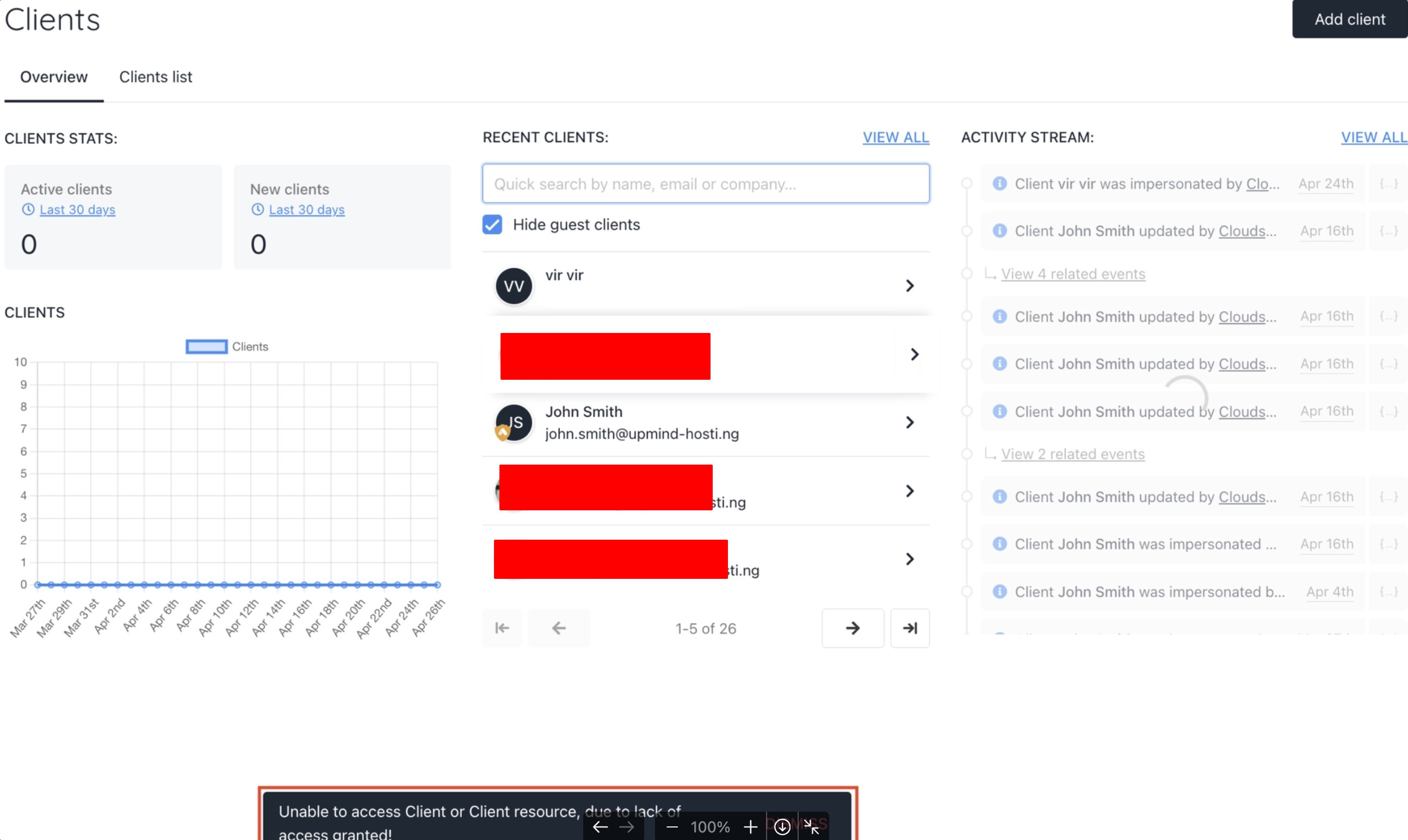
<Frame caption="Client section in the admin area">
  <img src="https://mintcdn.com/upmind/5gi4DQpw4X76kT6T/images/fb/b89e91e813058bba.png?fit=max&auto=format&n=5gi4DQpw4X76kT6T&q=85&s=a68e18b6c8cf8dbecbcf43624d6dd12c" alt="Client section in the admin area" className="mx-auto" style={{ width:"96%" }} width="2588" height="1544" data-path="images/fb/b89e91e813058bba.png" />
</Frame>
