> ## Documentation Index
> Fetch the complete documentation index at: https://docs.upmind.com/llms.txt
> Use this file to discover all available pages before exploring further.
# What are Parent & Child Accounts and how do they work in Upmind
> In Upmind, you can now set up parent and child accounts. This system is particularly useful for businesses, especially if you need to control and manage multiple accounts under a single umbrella.
## **Introduction to Parent and Child Account**
**Parent accounts** have administrative privileges and can manage multiple child accounts. They can manage settings and permissions, such as impersonation or inheriting payment details.
**Child accounts** are essentially sub-accounts of a parent profile. When one client is designated as a child of another, it gains certain functionalities and permissions under the supervision of the parent account. One notable feature is the option for child accounts to inherit and utilise the parent's saved payment details.
Parents can impersonate their children, but this can be disabled by the child.
**Only staff can establish parent-child relations.**
## **Managing Parent & Child Accounts in Upmind**
### **Adding a Child Account**
As a parent, you have the authority to oversee and manage multiple child accounts. Follow these steps to add and manage your child's accounts effectively:
#### **Access and choosing the Child Account**
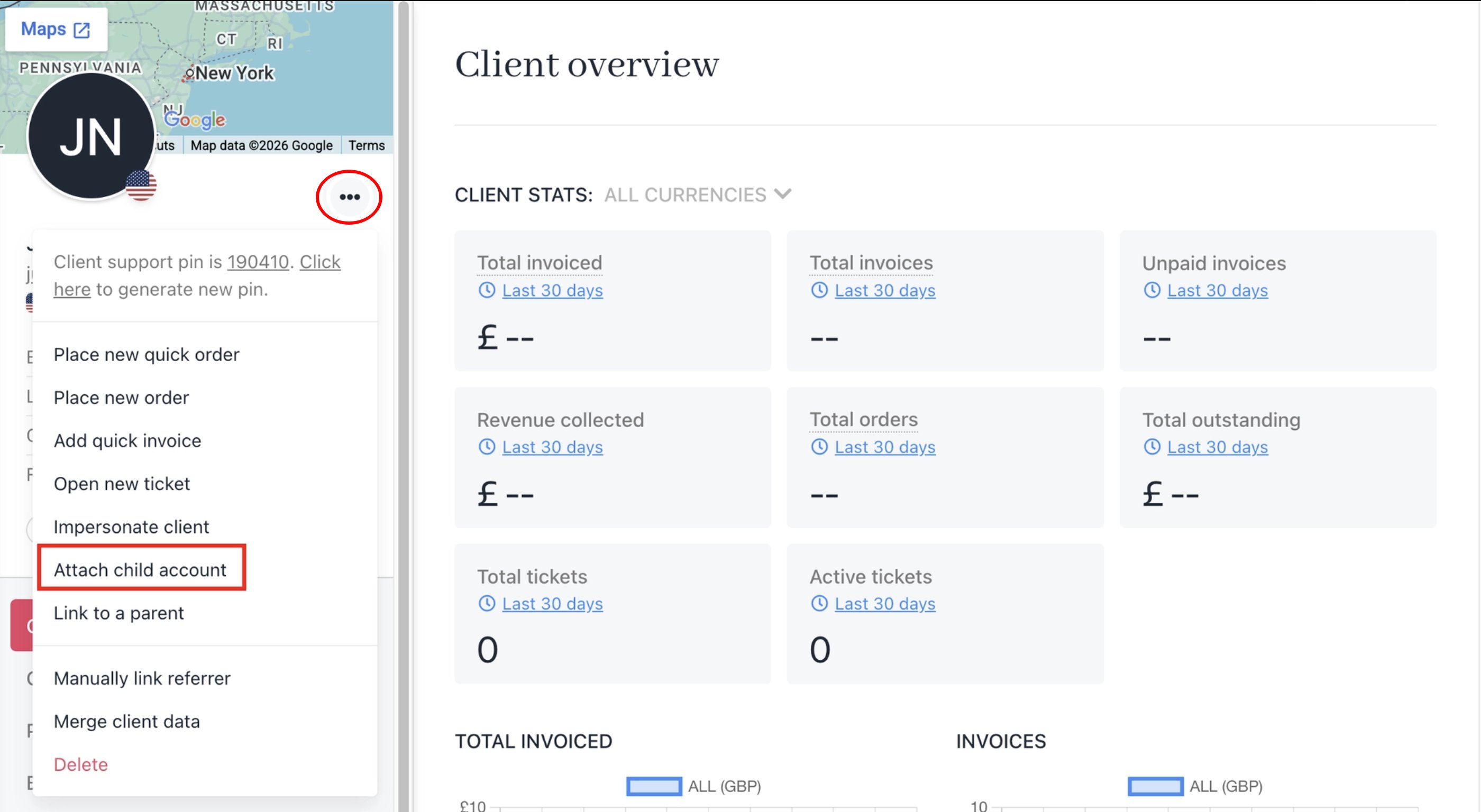
1. Go to a Client’s profile.
2. Click on the three-dot menu.
3. Select **Attach Child Account** from the options.
 4. Select the specific account you want to designate as a child account.
#### **Managing the Relationship**
1. Decide on the relationship settings:
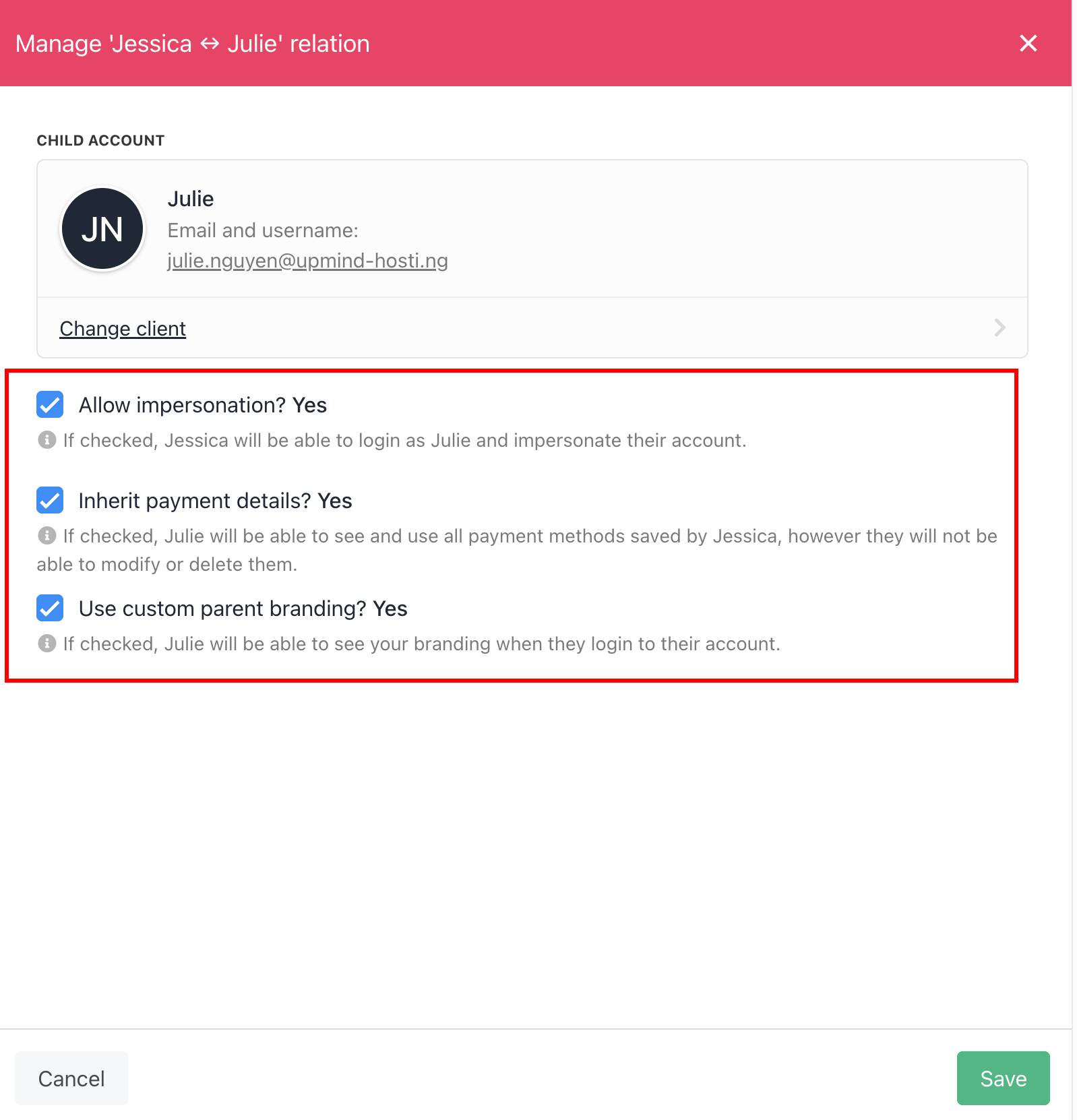
* Allow Impersonation: Grant the parent account the ability to impersonate the child's account.
* Inherit Payment Details: Enable the child's account to use payment methods saved by the parent, with restrictions on modification (they can't modify or delete).
2. Click **Save** to confirm your settings.
4. Select the specific account you want to designate as a child account.
#### **Managing the Relationship**
1. Decide on the relationship settings:
* Allow Impersonation: Grant the parent account the ability to impersonate the child's account.
* Inherit Payment Details: Enable the child's account to use payment methods saved by the parent, with restrictions on modification (they can't modify or delete).
2. Click **Save** to confirm your settings.
 #### **Viewing Your Child Accounts**
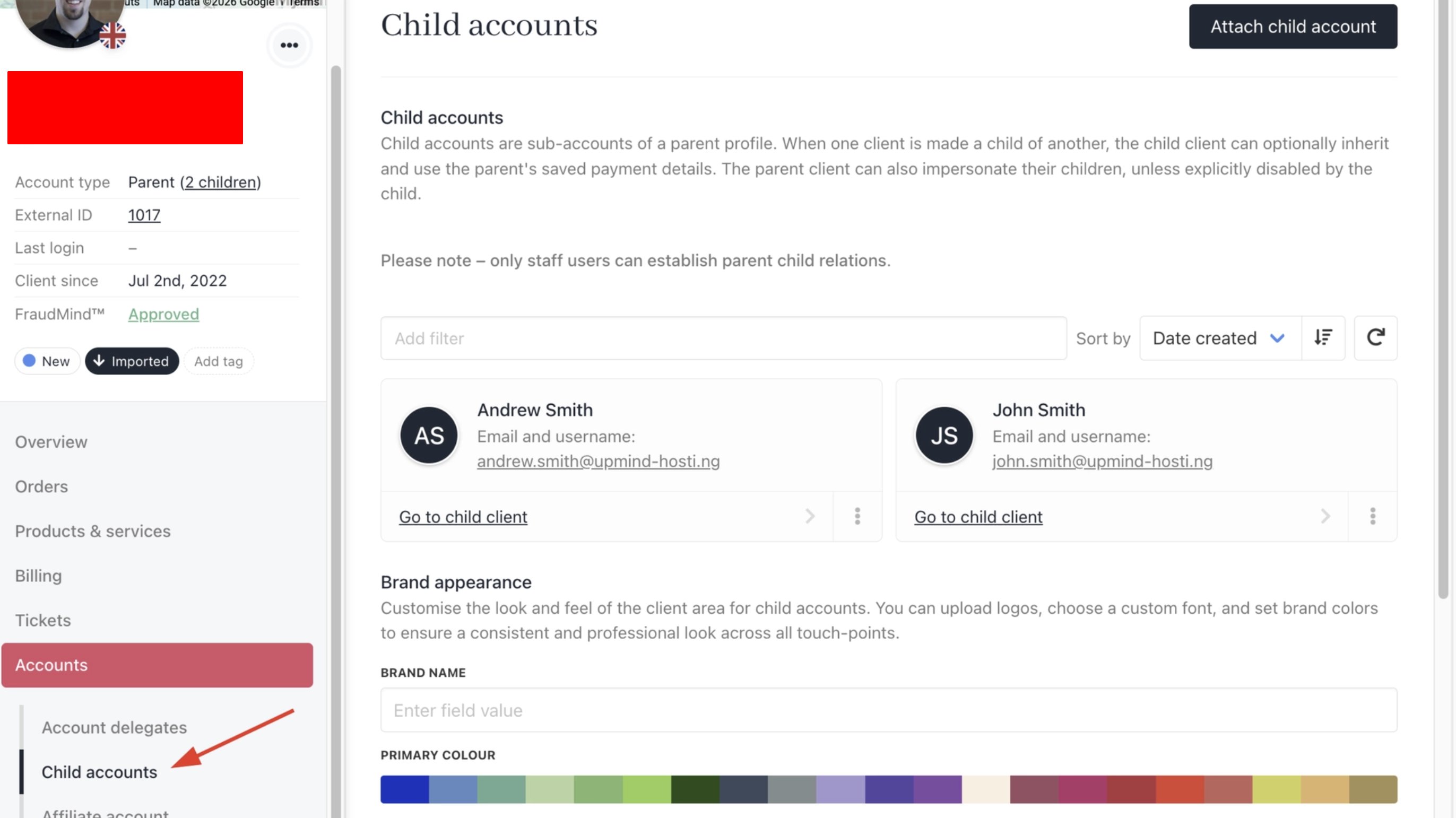
Check all linked child accounts by navigating to your profile from **Accounts** > **Child Accounts**.
#### **Viewing Your Child Accounts**
Check all linked child accounts by navigating to your profile from **Accounts** > **Child Accounts**.
 #### **Removing a Child Account**
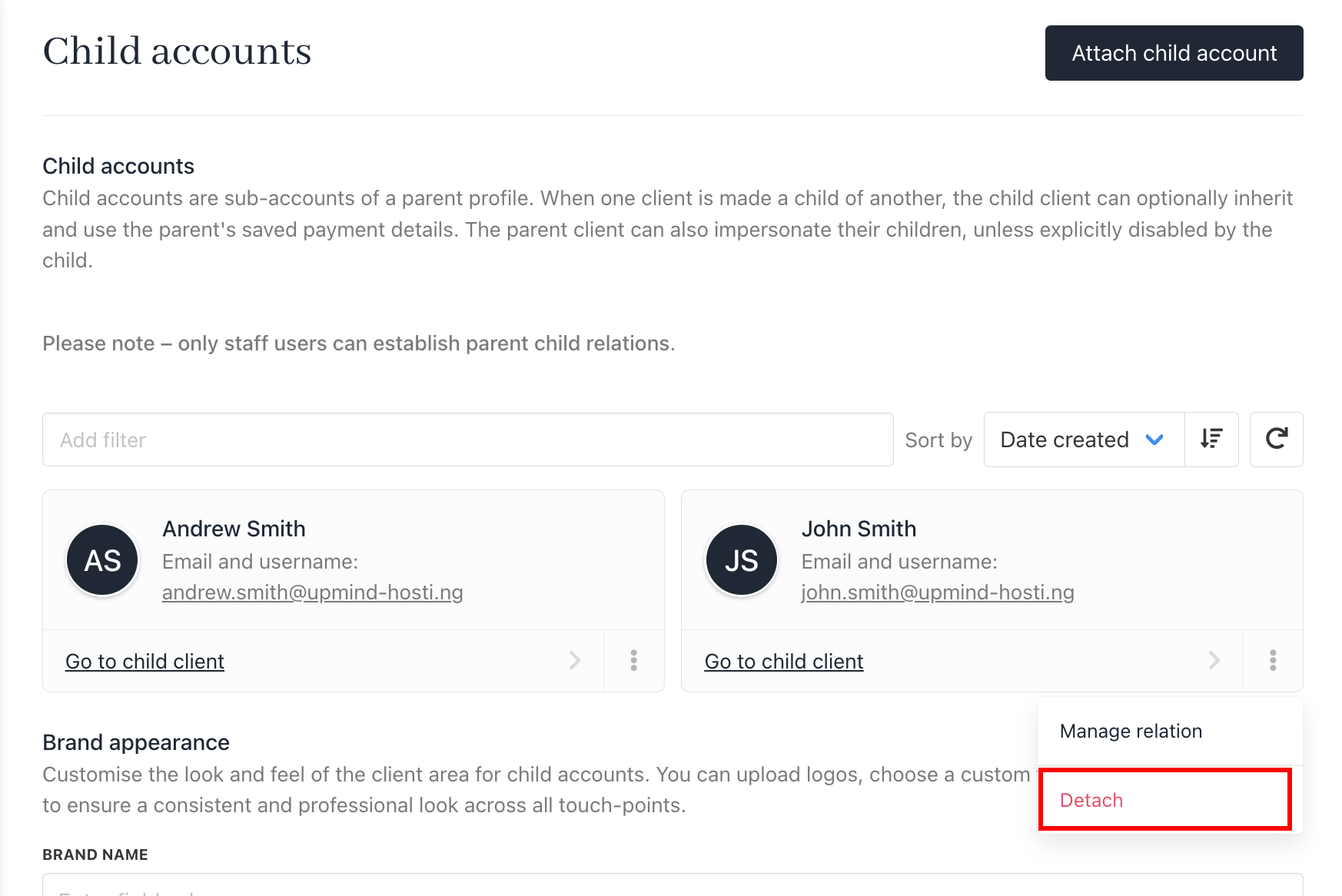
To detach a child account, locate it under your profile's **Child Accounts** section and click on **Detach**.
#### **Removing a Child Account**
To detach a child account, locate it under your profile's **Child Accounts** section and click on **Detach**.
 ### **Linking to a Parent Account**
**If you want a child account to link to a parent account,** follow a process similar to adding a child account:
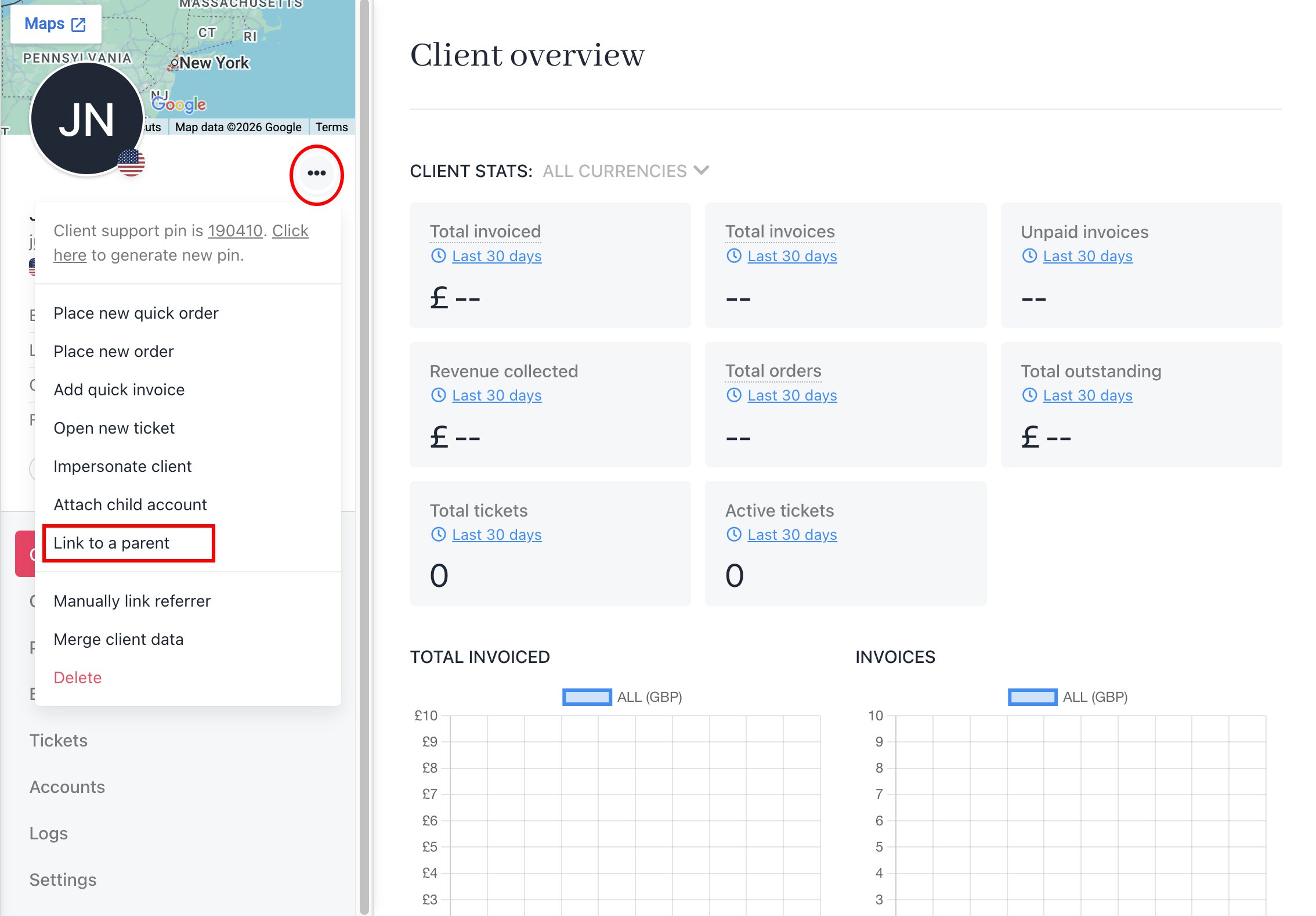
1. Access the three-dot menu next to the account you wish to link, then select **Link to a Parent**. Choose the parent account from the options provided.
### **Linking to a Parent Account**
**If you want a child account to link to a parent account,** follow a process similar to adding a child account:
1. Access the three-dot menu next to the account you wish to link, then select **Link to a Parent**. Choose the parent account from the options provided.
 2. Manage the relationship settings and save your changes.
 ## **Client panel on Parent & Child Accounts in Upmind**
This section explains how parent and child accounts appear and function from the client's perspective.
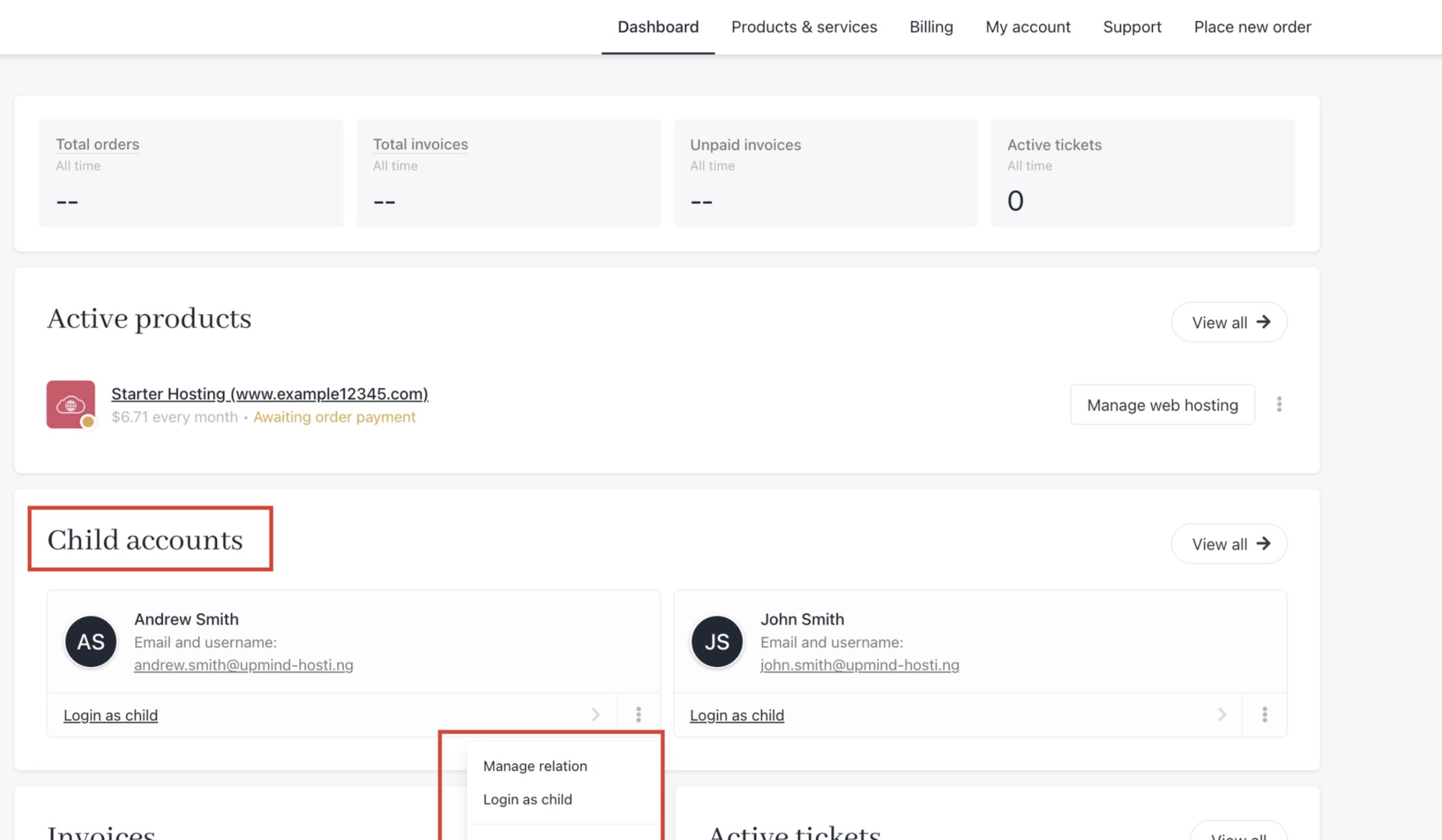
As a parent account in the client panel, you can:
* Manage Relationships
* Log in as a Child Account
* Detach Child Accounts
## **Client panel on Parent & Child Accounts in Upmind**
This section explains how parent and child accounts appear and function from the client's perspective.
As a parent account in the client panel, you can:
* Manage Relationships
* Log in as a Child Account
* Detach Child Accounts
 For child accounts, the client panel experience remains similar to a standard Upmind account.