> ## Documentation Index
> Fetch the complete documentation index at: https://docs.upmind.com/llms.txt
> Use this file to discover all available pages before exploring further.
# How to Create Terms and Conditions
> Create the terms and conditions page for your Upmind e-commerce. It should describe the terms and conditions to help buyers and protect sellers.
If your online business processes payments, we encourage you to create a document that outlines your company’s terms and conditions (T\&C). By agreeing to your T\&C, customers enter into a contractual agreement before browsing your site or making a purchase.
This contract helps both buyers and sellers. Buyers know the terms before transacting a purchase. Sellers create a layer of legal protection that can help avoid disputes and prevent misuse of the website and its content. Another benefit is the potential to build trust with potential customers, especially in matters like data privacy.
Most of us understand that few people take the time to read the nitty-gritty details in a T\&C document. That understanding, however, is not a good reason to avoid creating this important document.
## Document categories
If you are new to e-commerce, there are a number of websites that can generate generic text for your T\&C document. Be sure to read the text carefully and make changes that apply to your business.
Generally, a T\&C document should include categories of information like these:
* Privacy policy
* Terms of sale
* Terms of use
* Pricing and payment terms
* Shipping and delivery
* Intellectual property
* Disclaimer of liability
* Third-party links
* Refunds and returns process
* Limitation of liability
* Information accuracy
* Dispute resolution
* Intellectual property/trademarks
## Publishing a T\&C document
There are two ways to publish a T\&C document for your site:
* Create a document on your Upmind site with Markdown.
* Add a link to an online document hosted on a different site.
### Creating a T\&C document
This step shows you how to create and update a T\&C document hosted on your Upmind site.
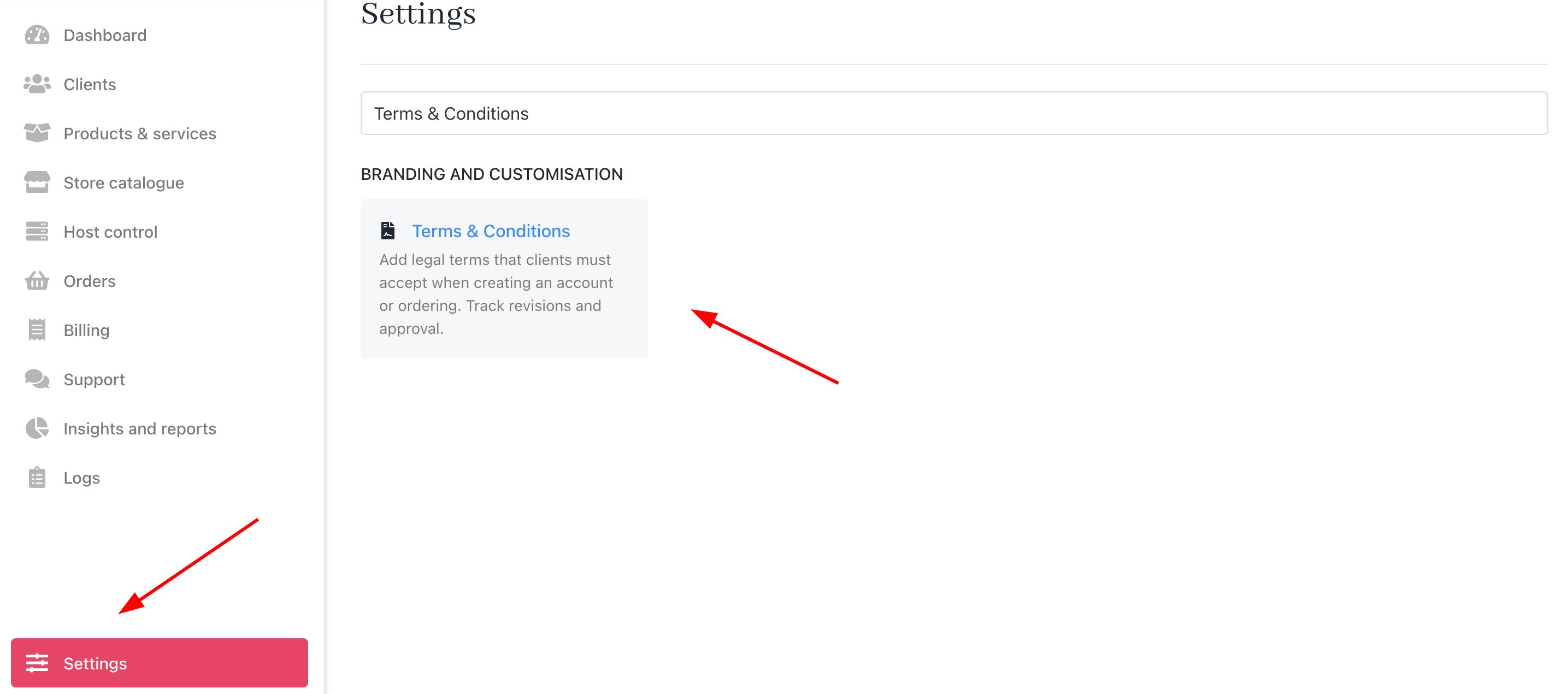
1. Open the Upmind Admin dashboard.
2. Go to **Settings** > **Terms & Conditions** under **Branding and Customisation**.
 ### Using markdown
1. Enter the markdown text into the field.
### Using markdown
1. Enter the markdown text into the field.
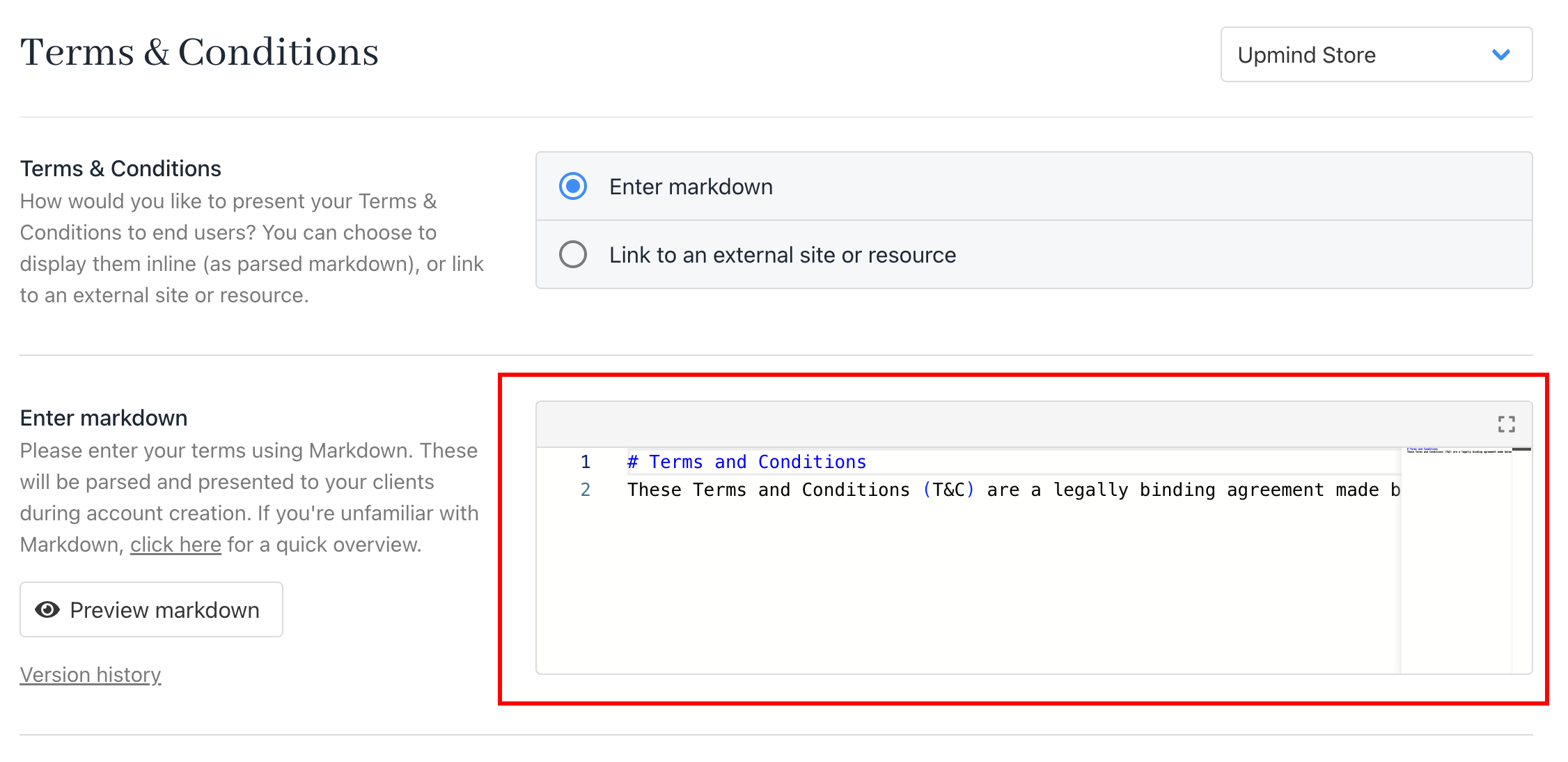 2. Check the document text and layout in the Preview panel.
3. Click **Save**.
2. Check the document text and layout in the Preview panel.
3. Click **Save**.
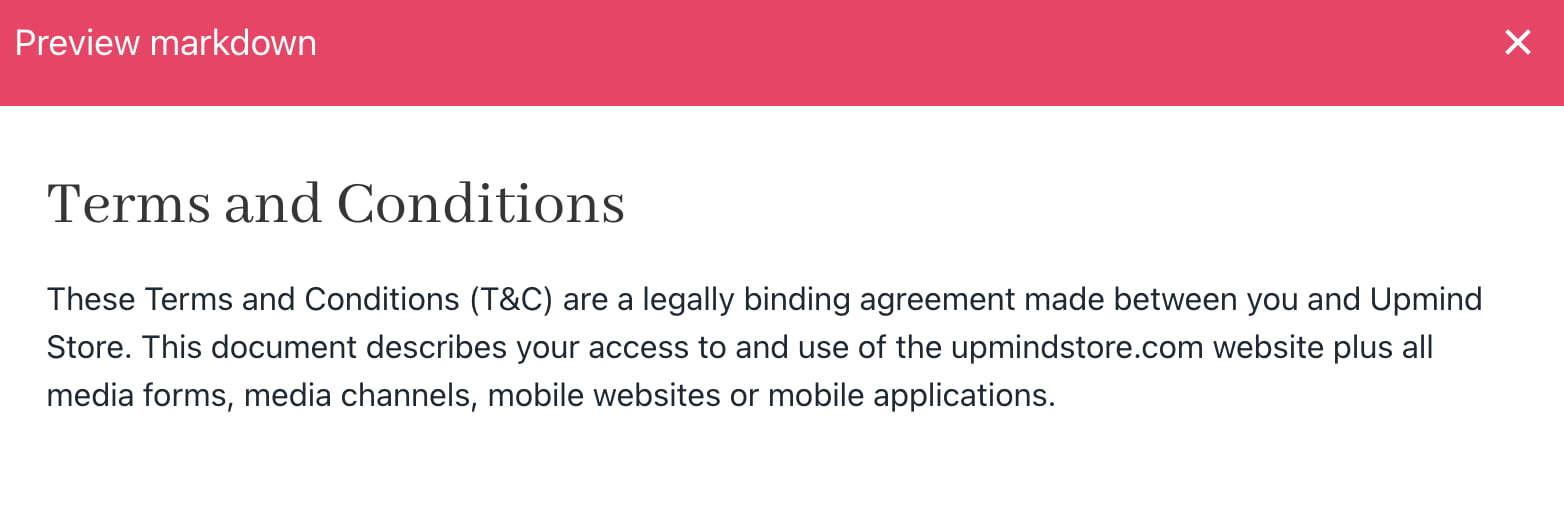 If you are unsure what Markdown is, click the link to find more information and examples.
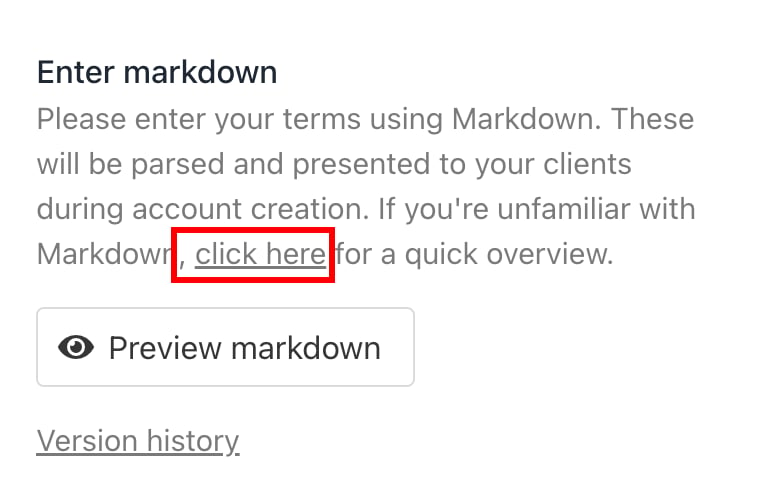 ## Viewing history
You can read previous versions of the T\&C document.
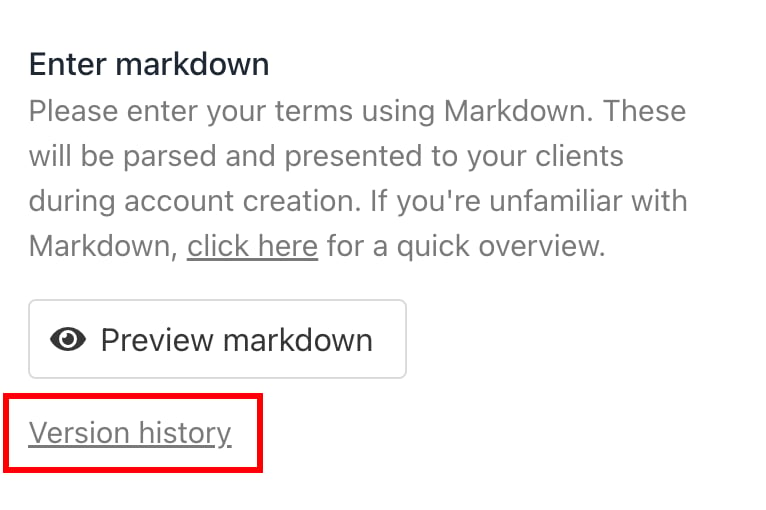
1. Click **Version History**.
## Viewing history
You can read previous versions of the T\&C document.
1. Click **Version History**.
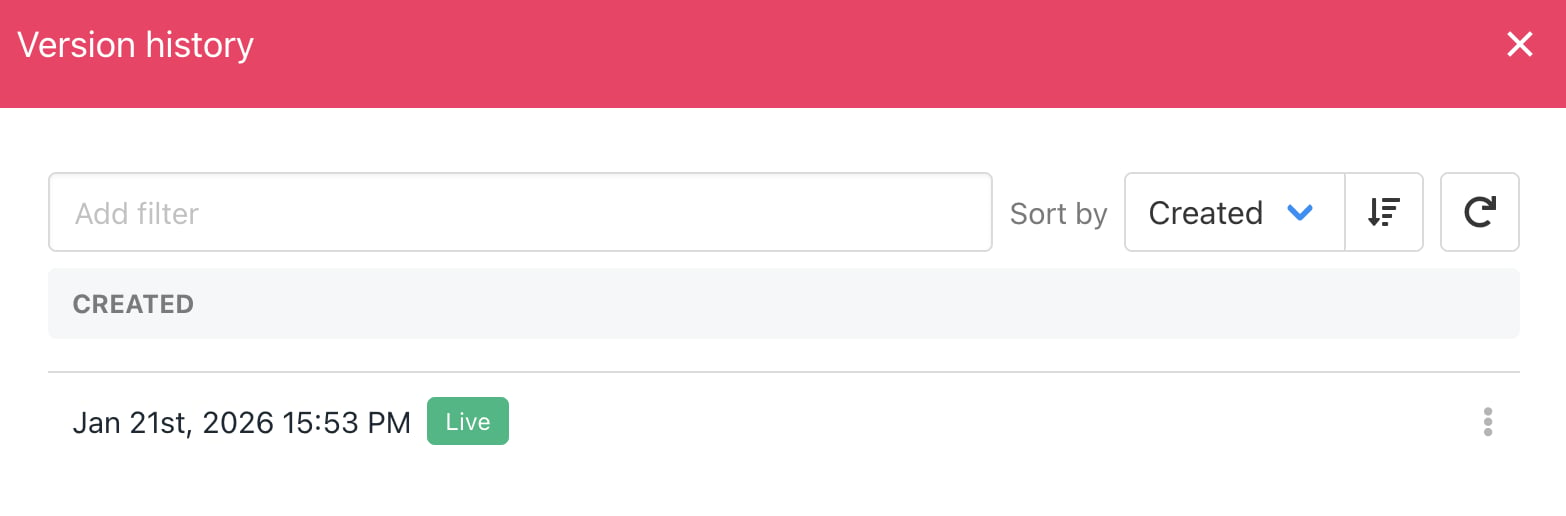
 2. You can check the complete list of versions, including the latest one.
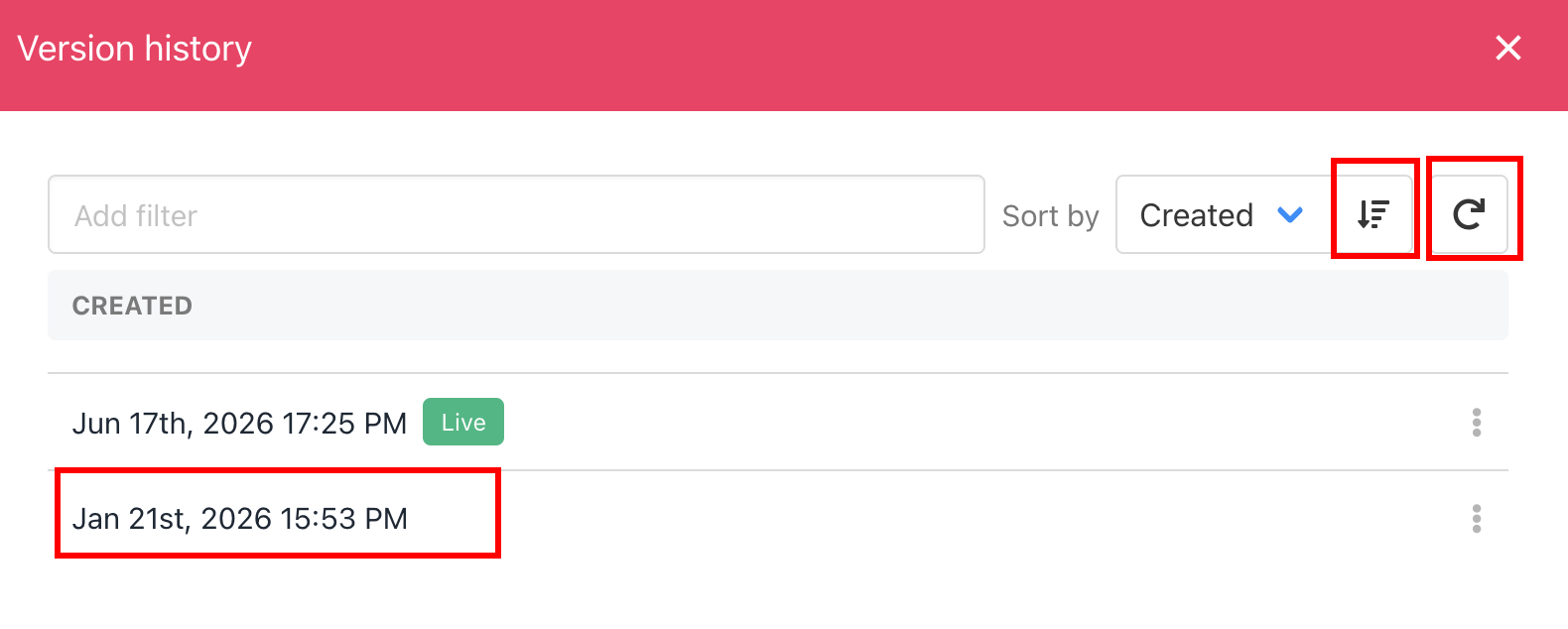
 3. Click the **Sort** button to change the display order based on the date created. (optional). You can also refresh the list and read the previous versions by clicking on them.
 4. Read the text in the side panel.
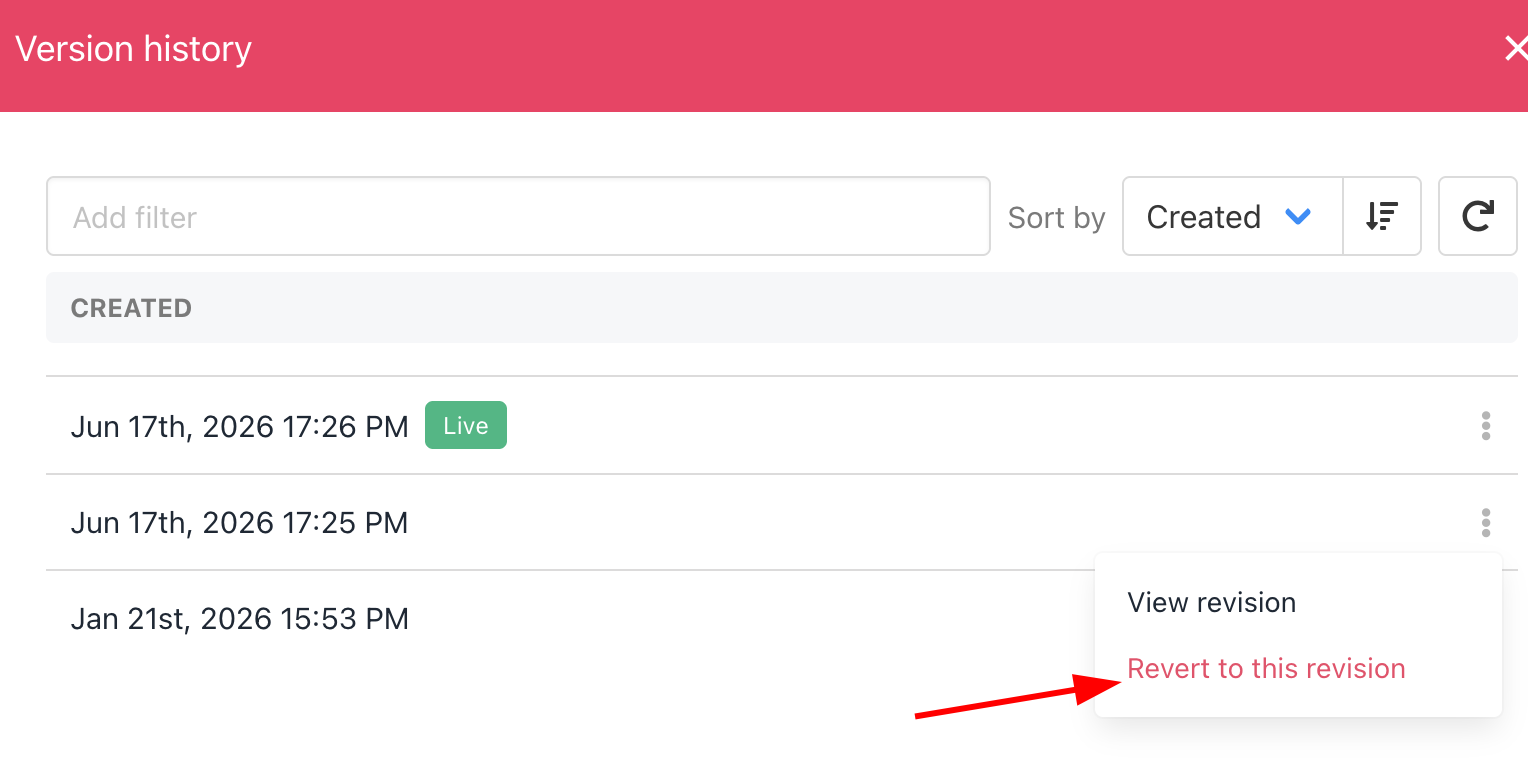
## Reverting to a previous version
To replace the current T\&C document with a previous version:
1. Open an older version.
2. Click **Revert** to this version.
4. Read the text in the side panel.
## Reverting to a previous version
To replace the current T\&C document with a previous version:
1. Open an older version.
2. Click **Revert** to this version.
 ## Updating sections
To update a passage in the current document without replacing all the text:
1. Copy a section from a previous version.
2. Paste it into the current document.
3. Click **Save**.
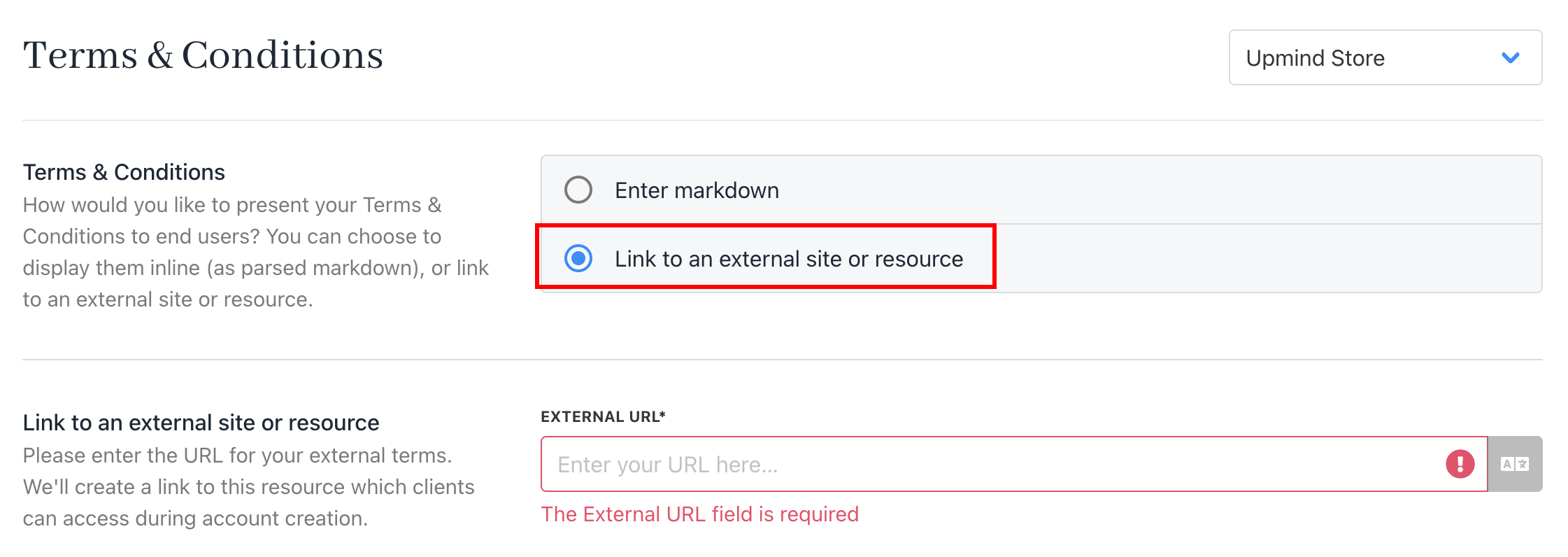
## Linking to a published document
Instead of creating a T\&C document in Markdown, you can link to a published online document on a different site.
1. Select **Link to an external site or resource**.
2. Enter the URL for the published document.
## Updating sections
To update a passage in the current document without replacing all the text:
1. Copy a section from a previous version.
2. Paste it into the current document.
3. Click **Save**.
## Linking to a published document
Instead of creating a T\&C document in Markdown, you can link to a published online document on a different site.
1. Select **Link to an external site or resource**.
2. Enter the URL for the published document.
 3. Click Save.
## Customer view
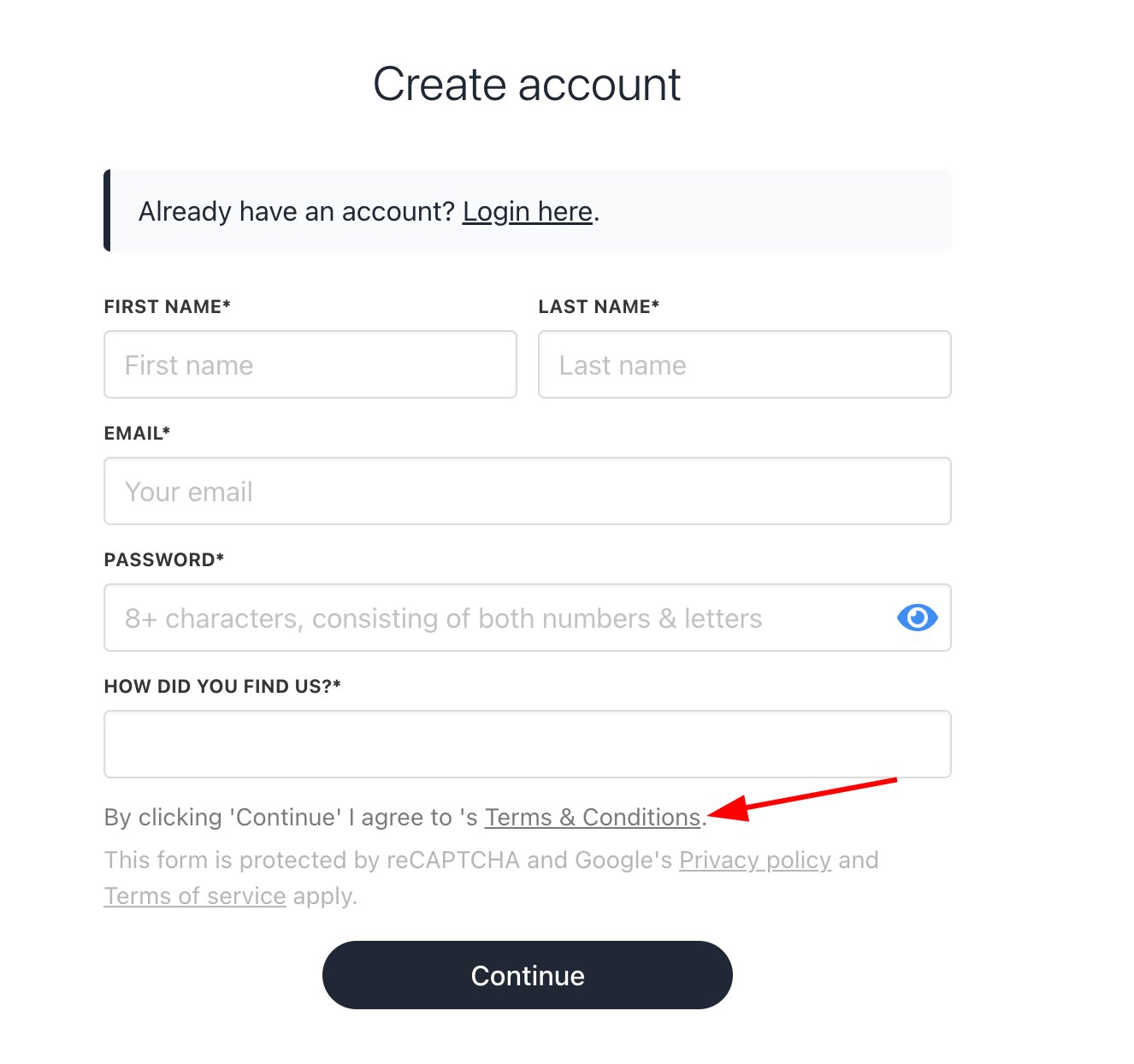
Upmind automatically places a link to your T\&C document at the bottom of the Create account page.
Depending on your T\&C document choice, the link opens the Upmind document or your published page on a different site.
3. Click Save.
## Customer view
Upmind automatically places a link to your T\&C document at the bottom of the Create account page.
Depending on your T\&C document choice, the link opens the Upmind document or your published page on a different site.