> ## Documentation Index
> Fetch the complete documentation index at: https://docs.upmind.com/llms.txt
> Use this file to discover all available pages before exploring further.
# How to Review Orders
> Review orders and quickly survey e-commerce transaction activity. Check unpaid invoices, review open baskets, and more.
Quickly survey business performance by reviewing three sets of metrics. Upmind breaks down orders by:
* Category type (e.g., Cancelled and Unpaid).
* Number of open baskets.
* Fraud totals.
## Opening the Orders page
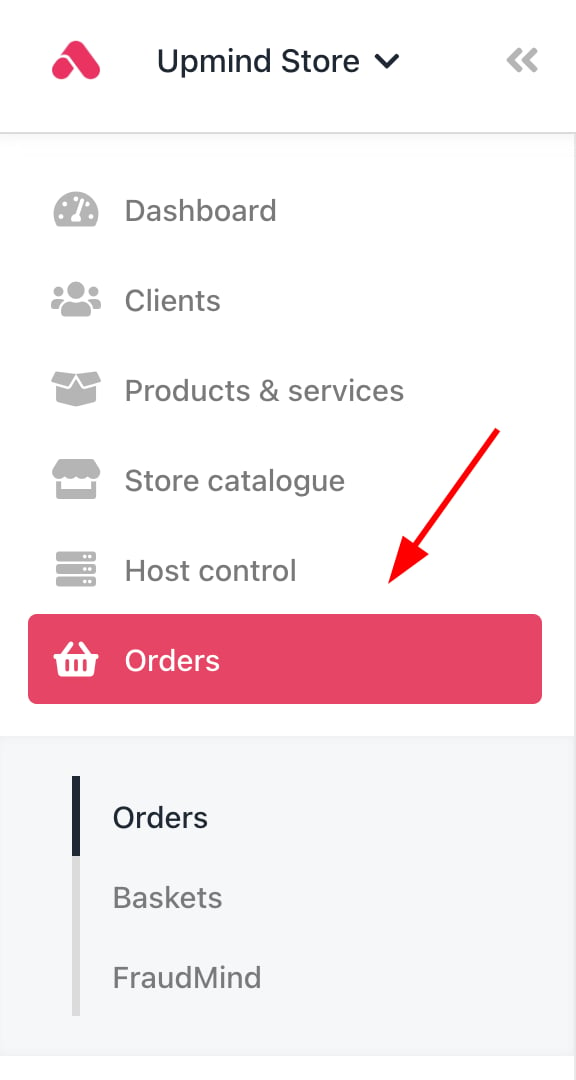
1. Go to the Upmind dashboard.
2. Click Orders on the left menu.
Upmind displays an overview of order activity over the past 30 days.
 ## Viewing orders by category
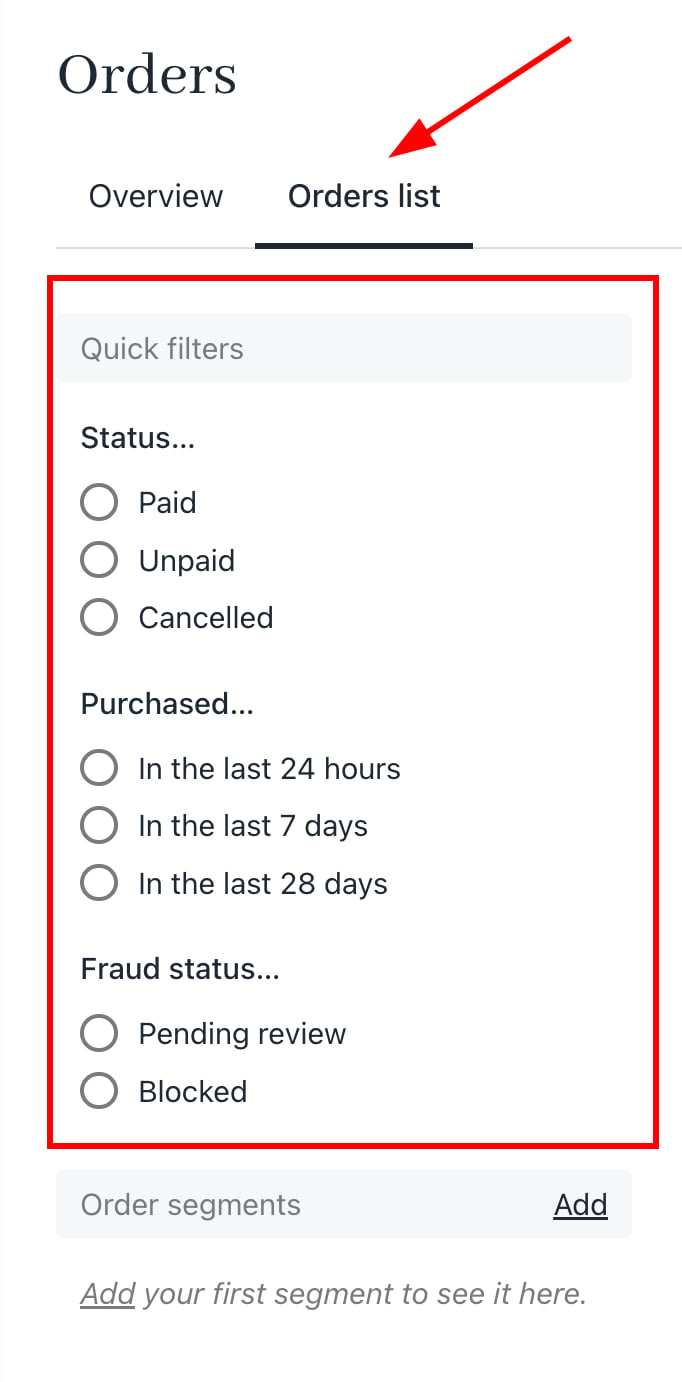
Sort orders with a filter.
1. Click the Orders list menu tab.
2. Scroll down the list.
3. Click a **Quick Filters** subheading.
## Viewing orders by category
Sort orders with a filter.
1. Click the Orders list menu tab.
2. Scroll down the list.
3. Click a **Quick Filters** subheading.
 ## Adding segments
Create a rule to sort and display data based on one or more variables.
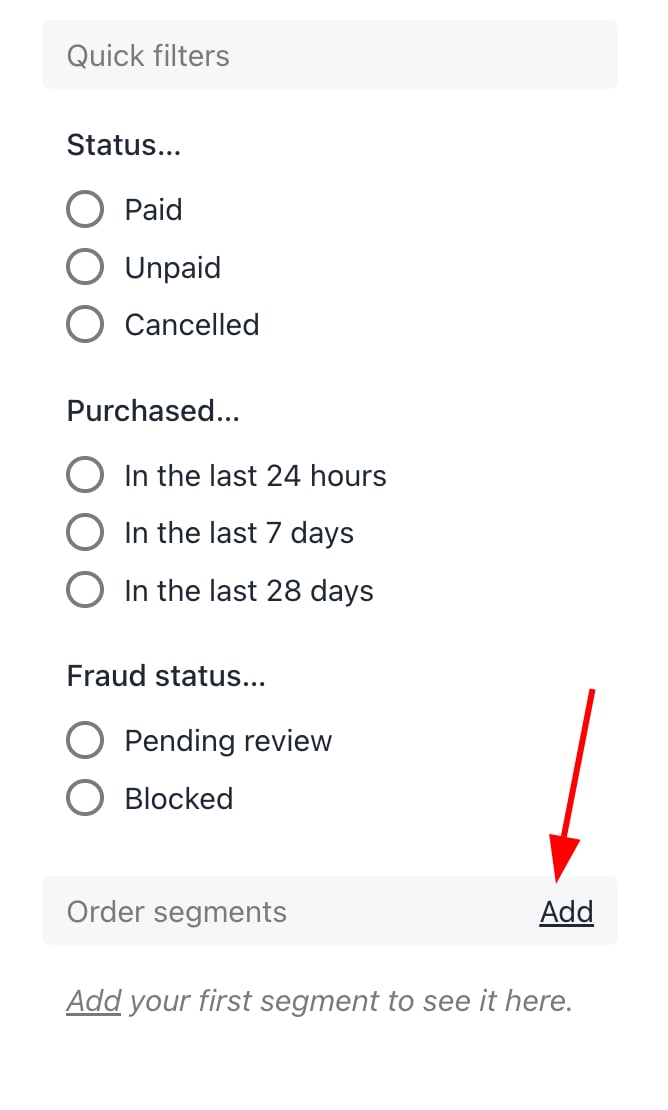
1. Scroll down to the Order segments heading.
2. Click the **Add** button.
## Adding segments
Create a rule to sort and display data based on one or more variables.
1. Scroll down to the Order segments heading.
2. Click the **Add** button.
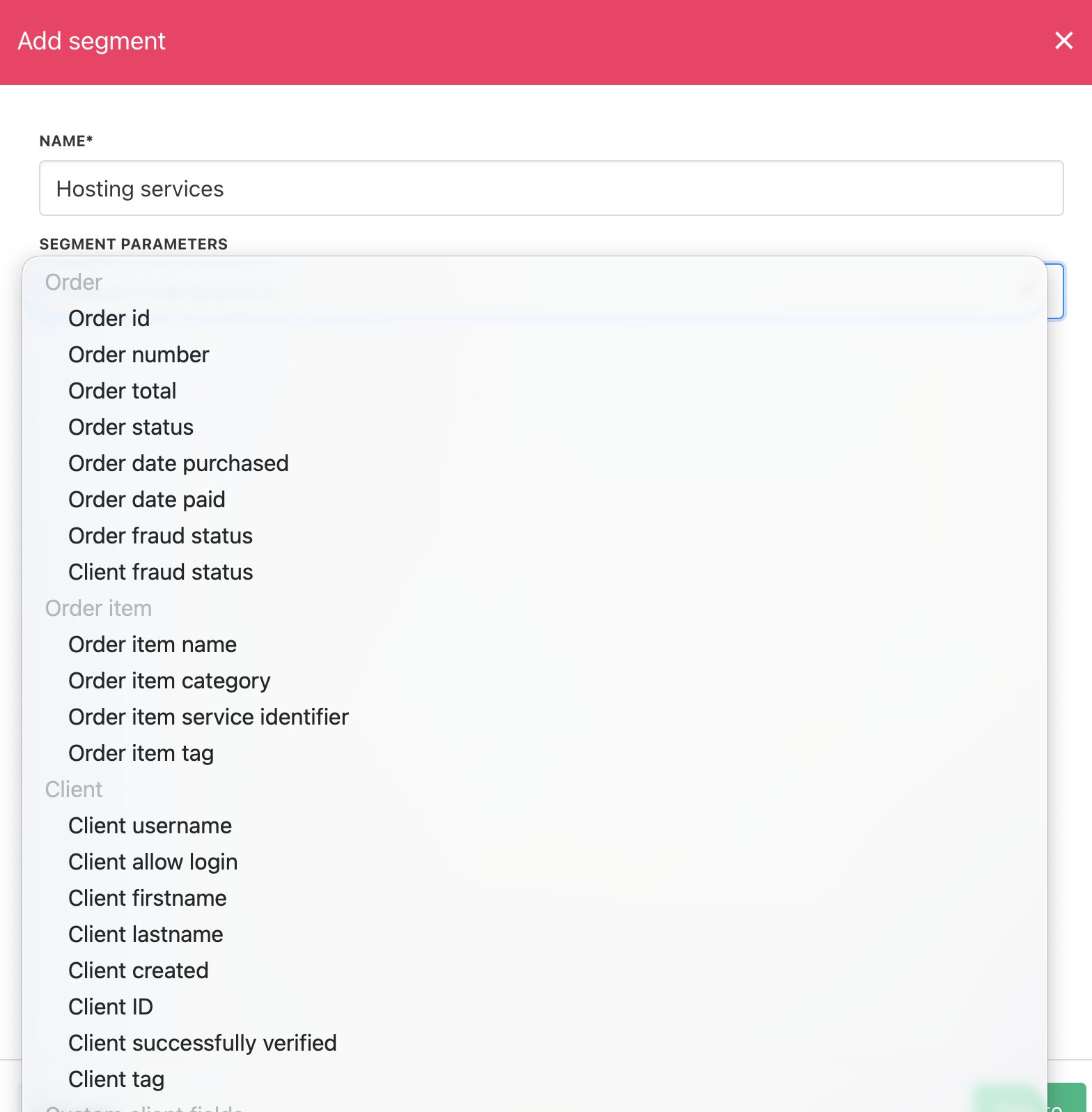
 3. In the new window, add a filter title.
4. Select a segment on the drop-down menu.
5. Click **Save**.
Custom fields you create for the [create account page](/using-upmind/client-management/how-to-add-client-custom-fields) or [basket](https://docs.upmind.com/setup-and-configuration/orders-services/how-to-manage-the-basket) appear on this drop-down menu.
3. In the new window, add a filter title.
4. Select a segment on the drop-down menu.
5. Click **Save**.
Custom fields you create for the [create account page](/using-upmind/client-management/how-to-add-client-custom-fields) or [basket](https://docs.upmind.com/setup-and-configuration/orders-services/how-to-manage-the-basket) appear on this drop-down menu.
 ## Reviewing open baskets
Click the **Baskets** link on the left menu. Upmind displays all the open baskets.
## Reviewing open baskets
Click the **Baskets** link on the left menu. Upmind displays all the open baskets.
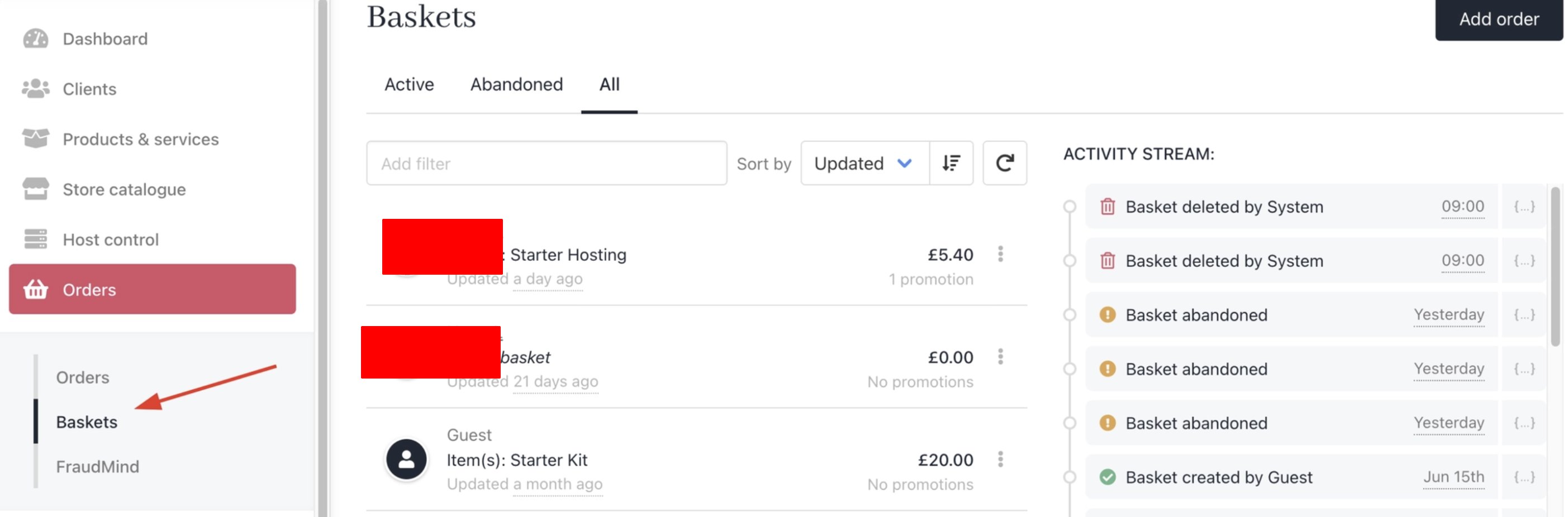 You can configure settings to decide when Upmind [abandons a basket](/setup-and-configuration/orders-services/how-to-manage-the-basket).
## Reviewing fraud orders
1. Click the FraudMind link on the left menu. Upmind displays all flagged orders, clients, and invoices by FraudMind.
2. Click an order to review the information and take action, if required (e.g., change the fraud status).
You can configure settings to decide when Upmind [abandons a basket](/setup-and-configuration/orders-services/how-to-manage-the-basket).
## Reviewing fraud orders
1. Click the FraudMind link on the left menu. Upmind displays all flagged orders, clients, and invoices by FraudMind.
2. Click an order to review the information and take action, if required (e.g., change the fraud status).
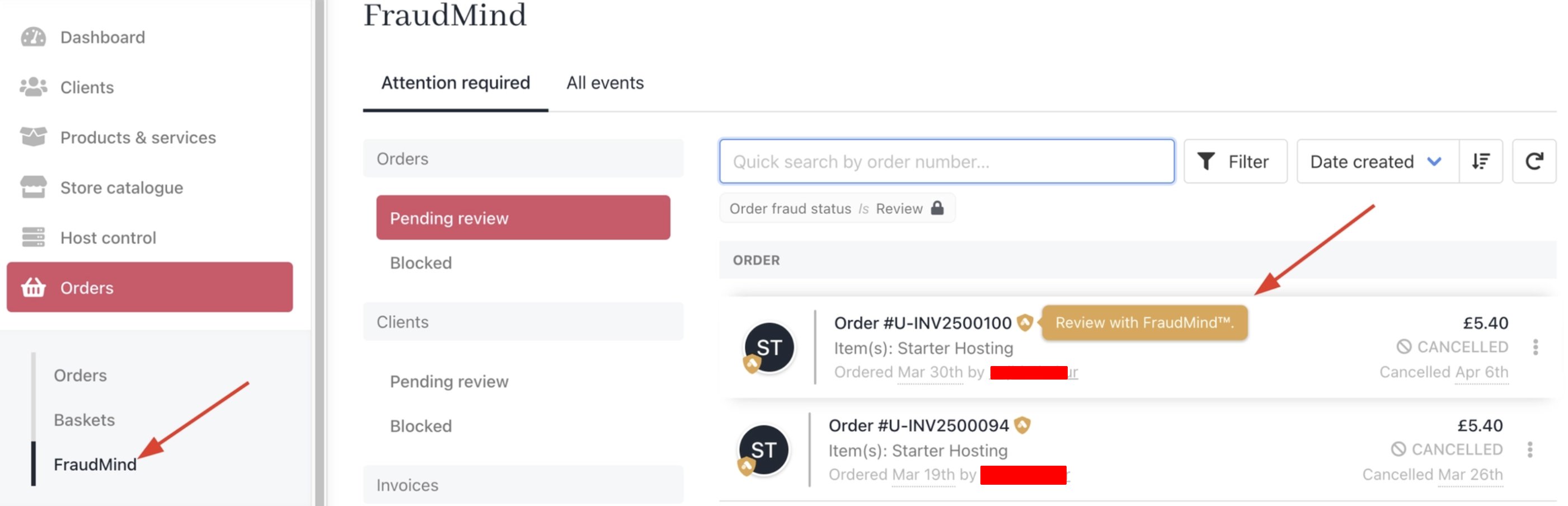 You can adjust [FraudMind thresholds](/setup-and-configuration/orders-services/fraudmindtm-fraud-prevention-and-security).