> ## Documentation Index
> Fetch the complete documentation index at: https://docs.upmind.com/llms.txt
> Use this file to discover all available pages before exploring further.

# How to Send Admin Emails for New Orders

> Configure new order staff email trigger.

This guide shows how to create a trigger for the **Order Created** event hook. It automatically sends an email notification to staff whenever a new order is placed.

1. Navigate to **Settings > Actions** under **Automation**.
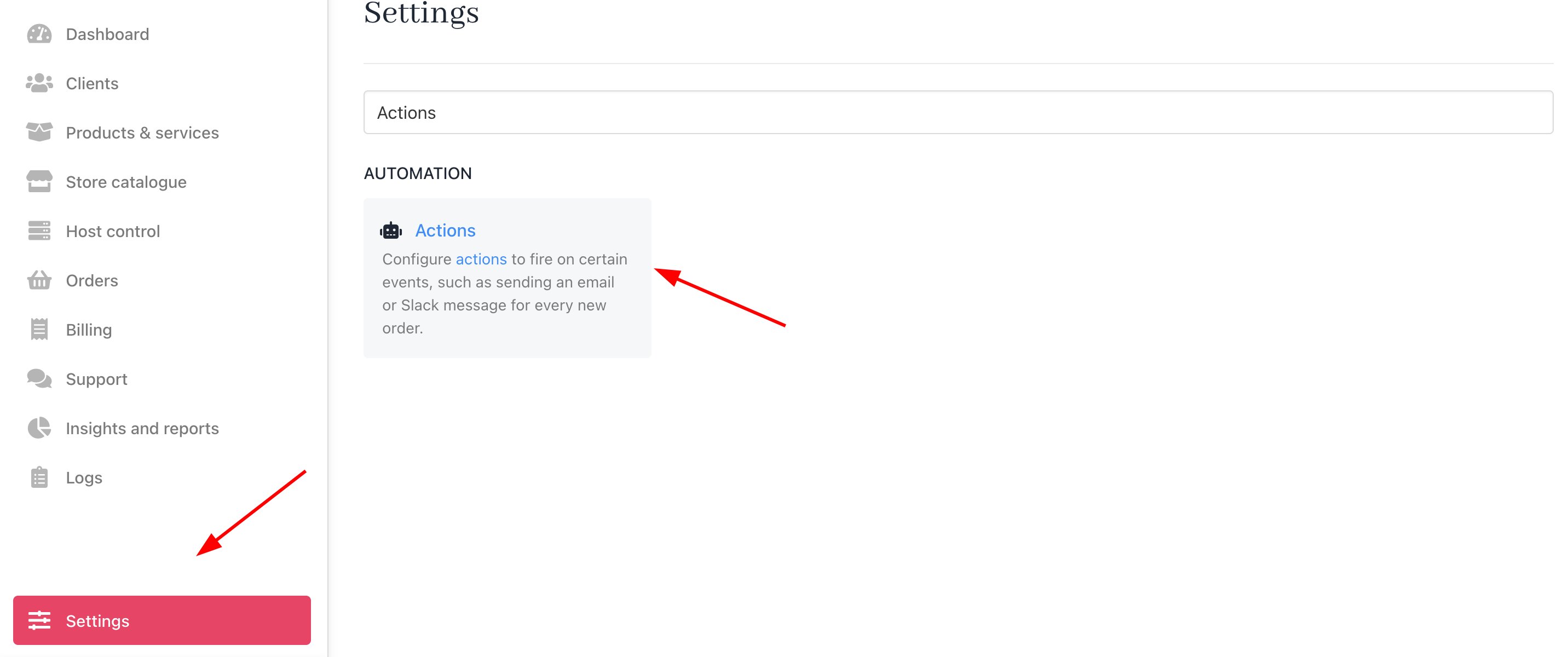
<Frame caption="Settings > Automation > Actions">
  <img src="https://mintcdn.com/upmind/bPO2bBzOxYQR4tYr/images/fb/f86f677da0d3de10.png?fit=max&auto=format&n=bPO2bBzOxYQR4tYr&q=85&s=9865d61887174b6d25356efe8c76614a" alt="Settings > Automation > Actions" className="mx-auto" style={{ width:"99%" }} data-og-width="2864" width="2864" data-og-height="1200" height="1200" data-path="images/fb/f86f677da0d3de10.png" data-optimize="true" data-opv="3" srcset="https://mintcdn.com/upmind/bPO2bBzOxYQR4tYr/images/fb/f86f677da0d3de10.png?w=280&fit=max&auto=format&n=bPO2bBzOxYQR4tYr&q=85&s=49d2d4d6e677919bcd5da65af3a1d3de 280w, https://mintcdn.com/upmind/bPO2bBzOxYQR4tYr/images/fb/f86f677da0d3de10.png?w=560&fit=max&auto=format&n=bPO2bBzOxYQR4tYr&q=85&s=47ac0576e79caf263decbcce49da41bd 560w, https://mintcdn.com/upmind/bPO2bBzOxYQR4tYr/images/fb/f86f677da0d3de10.png?w=840&fit=max&auto=format&n=bPO2bBzOxYQR4tYr&q=85&s=ac3b5e6dcc217783b500a9b8b1714f11 840w, https://mintcdn.com/upmind/bPO2bBzOxYQR4tYr/images/fb/f86f677da0d3de10.png?w=1100&fit=max&auto=format&n=bPO2bBzOxYQR4tYr&q=85&s=84455616272f3b0eaf161f085d238550 1100w, https://mintcdn.com/upmind/bPO2bBzOxYQR4tYr/images/fb/f86f677da0d3de10.png?w=1650&fit=max&auto=format&n=bPO2bBzOxYQR4tYr&q=85&s=1b4a18560c33ccbf95b7b9a4a0d0e066 1650w, https://mintcdn.com/upmind/bPO2bBzOxYQR4tYr/images/fb/f86f677da0d3de10.png?w=2500&fit=max&auto=format&n=bPO2bBzOxYQR4tYr&q=85&s=3bd47f473568da27a44a6a6609d5a90a 2500w" />
</Frame>

2. You can either apply a filter to quickly find the **New Order Staff Email** section or simply scroll through until you see the template.
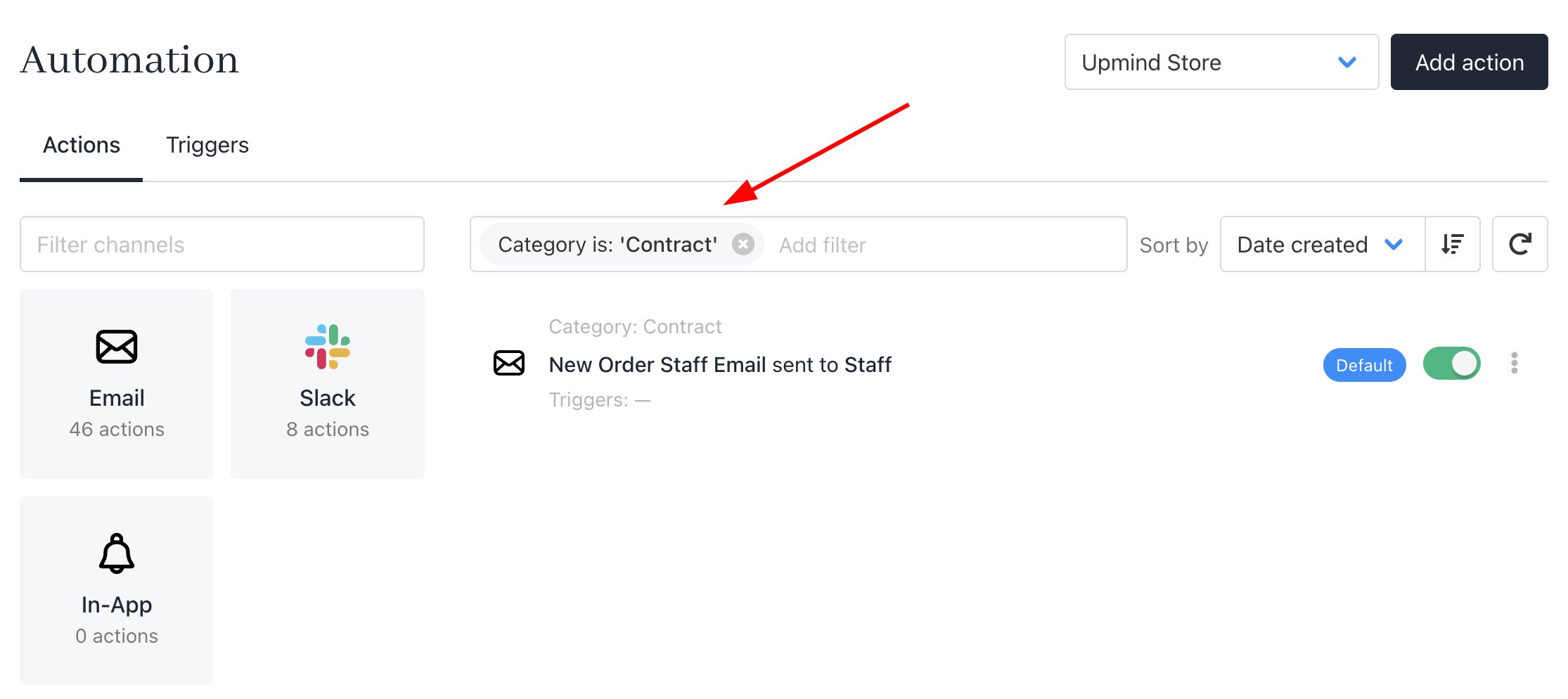

<Frame caption="Apply filter">
  <img src="https://mintcdn.com/upmind/JUoAg6onJmXk_-rR/images/fb/e0dcba291a339fa4.png?fit=max&auto=format&n=JUoAg6onJmXk_-rR&q=85&s=2fb038111d38edbd52ee9e793bb9f978" alt="Apply filter" className="mx-auto" style={{ width:"99%" }} width="2230" height="994" data-path="images/fb/e0dcba291a339fa4.png" />
</Frame>

<Frame caption="Scroll and search">
  <img src="https://mintcdn.com/upmind/VnCXiz5rboywDnvn/images/fb/dbc156d1a548b776.png?fit=max&auto=format&n=VnCXiz5rboywDnvn&q=85&s=a4baee6d18eebec6e78d43c3eefafb00" alt="Scroll and search" className="mx-auto" style={{ width:"96%" }} width="1652" height="264" data-path="images/fb/dbc156d1a548b776.png" />
</Frame>

3. Add a trigger for the **Order Created** event and click **Save**.
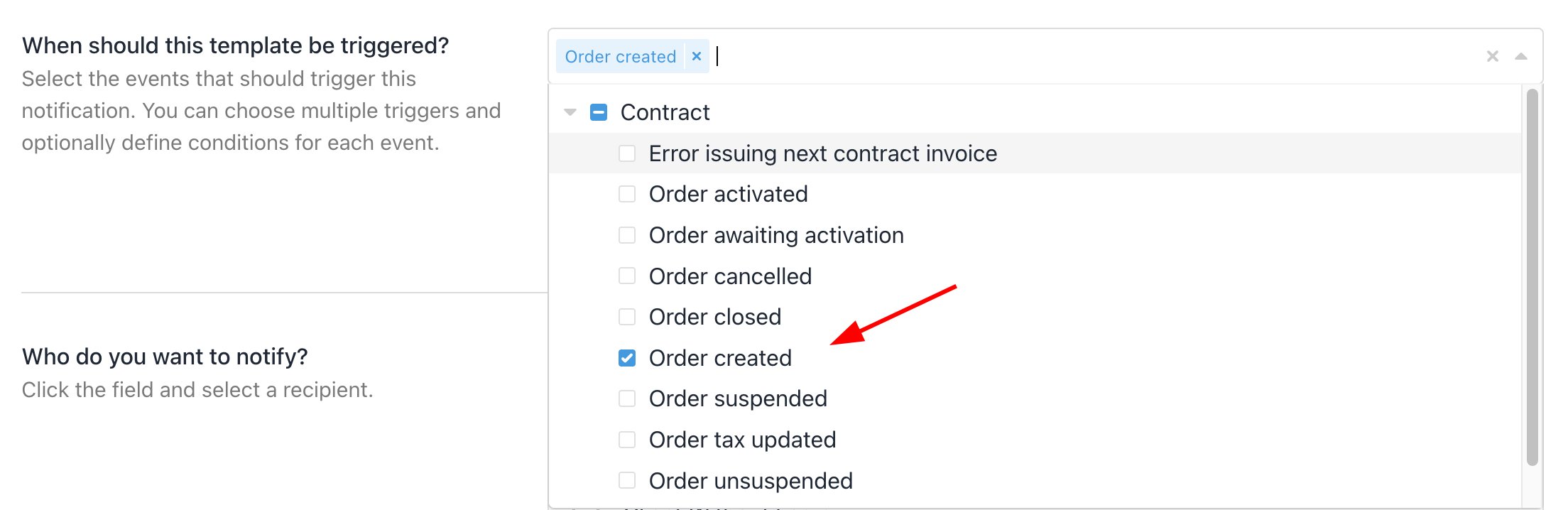
<Frame caption="Add Order Created trigger">
  <img src="https://mintcdn.com/upmind/A-RwNPXmK_xnEEqe/images/fb/790b0fdc66c2a24b.png?fit=max&auto=format&n=A-RwNPXmK_xnEEqe&q=85&s=b7e073d80ebd18e92dd1b2eb311ba21b" alt="Add Order Created trigger" className="mx-auto" style={{ width:"98%" }} width="2208" height="718" data-path="images/fb/790b0fdc66c2a24b.png" />
</Frame>

4. To review sent emails, click **Sent Email History**.
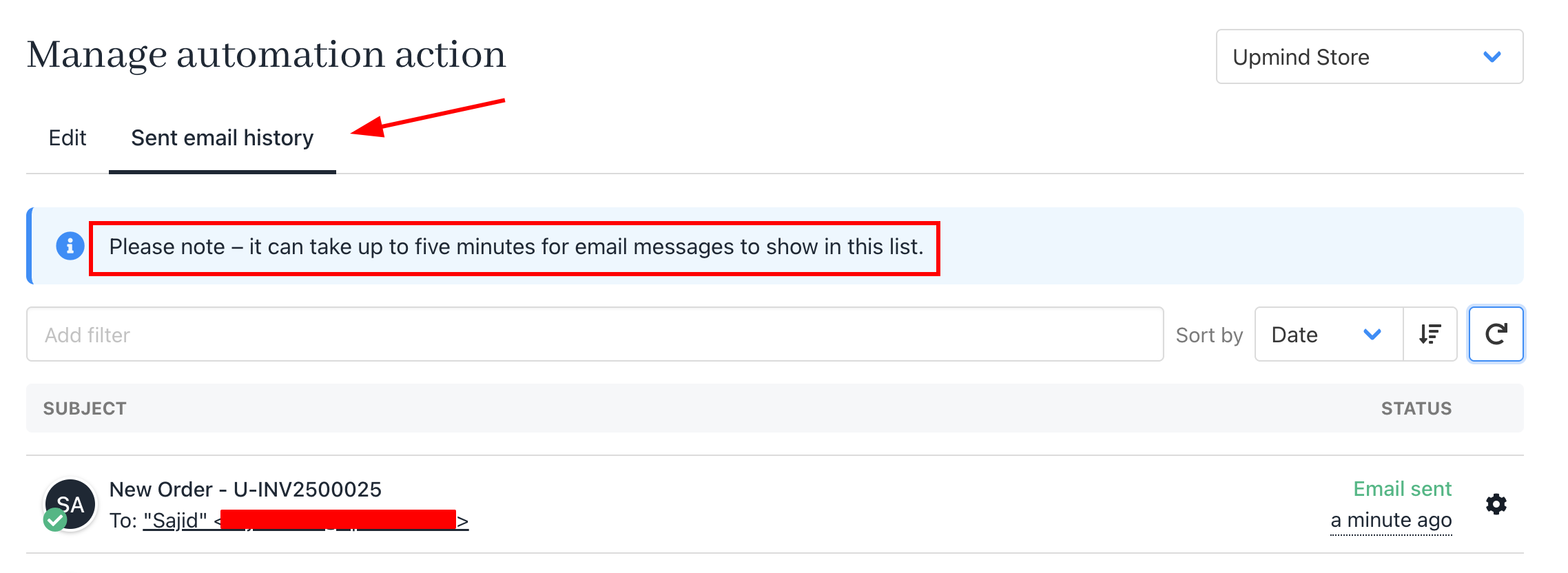
<Frame caption="Review sent email history">
  <img src="https://mintcdn.com/upmind/Lh8hC132BWHpvRbz/images/fb/4e003d2c2e8a048d.png?fit=max&auto=format&n=Lh8hC132BWHpvRbz&q=85&s=856d5cd4f92f6e948f29704b4a96bb40" alt="Review sent email history" className="mx-auto" style={{ width:"97%" }} width="2276" height="832" data-path="images/fb/4e003d2c2e8a048d.png" />
</Frame>

<Note>
  Emails may take up to five minutes to appear.
</Note>

**Example**: What the invoice looks like.
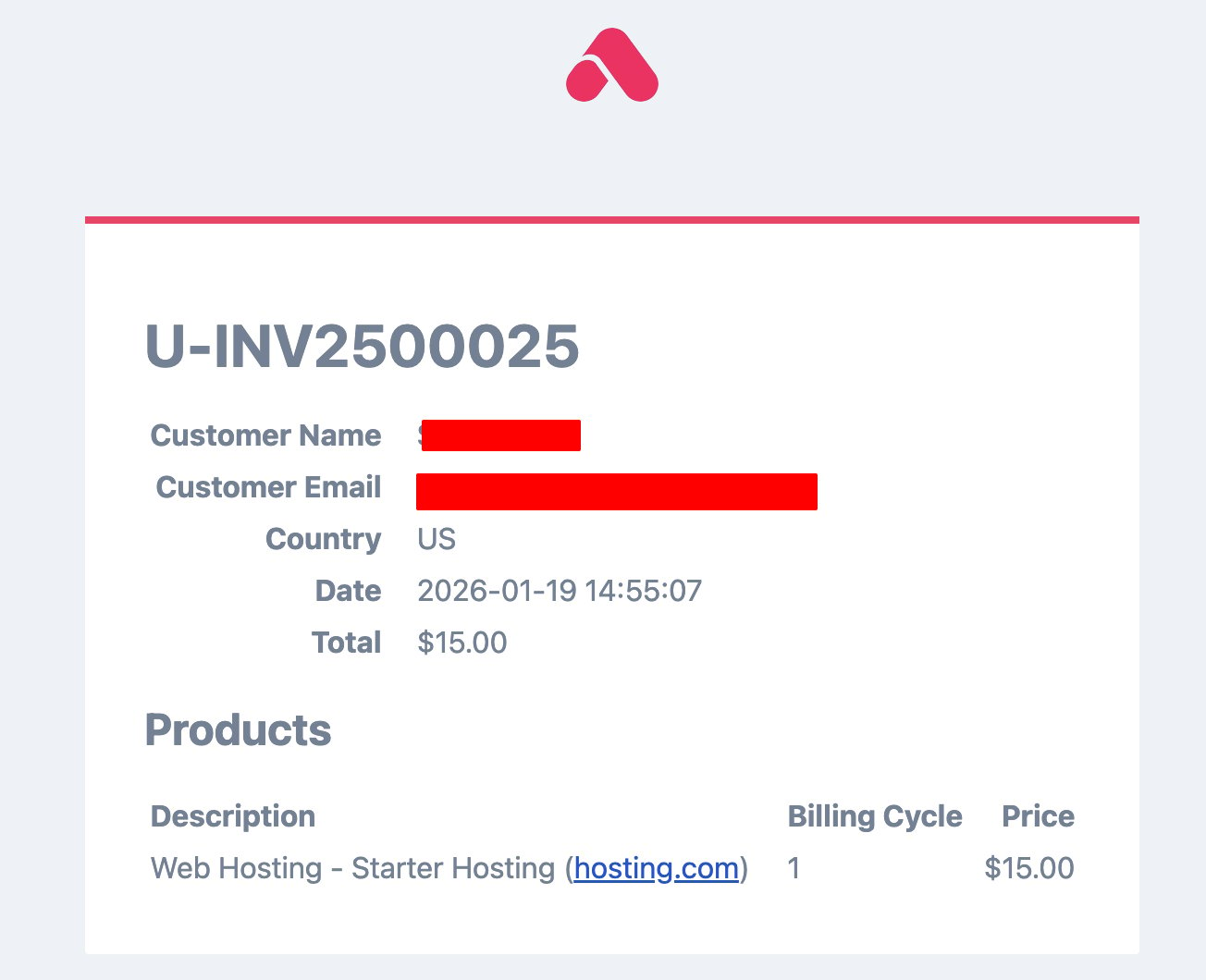
<Frame caption="Example invoice">
  <img src="https://mintcdn.com/upmind/FQ1NhxALxjSHvvWW/images/fb/ac725ca0b261c801.png?fit=max&auto=format&n=FQ1NhxALxjSHvvWW&q=85&s=b02684317eb00ff74104794ecd57b69c" alt="Example invoice" className="mx-auto" style={{ width:"74%" }} width="1304" height="1060" data-path="images/fb/ac725ca0b261c801.png" />
</Frame>
