> ## Documentation Index
> Fetch the complete documentation index at: https://docs.upmind.com/llms.txt
> Use this file to discover all available pages before exploring further.

# How to Send a Test Notification

> Preview results while creating a message.

Upmind's notification page includes a time-saving test feature. Building on our previous [guide](/setup-and-configuration/notifications/how-to-create-and-disable-notifications) on creating automated notifications with triggers, this guide will show you how to send test messages for new or existing setups.

<Note>
  The **Send test** option works for many triggers, but not all. The feature is a work in progress and will be expanded soon.
</Note>

## Test an existing automation

1. Go to **Settings** > **Actions** under **Automation**.
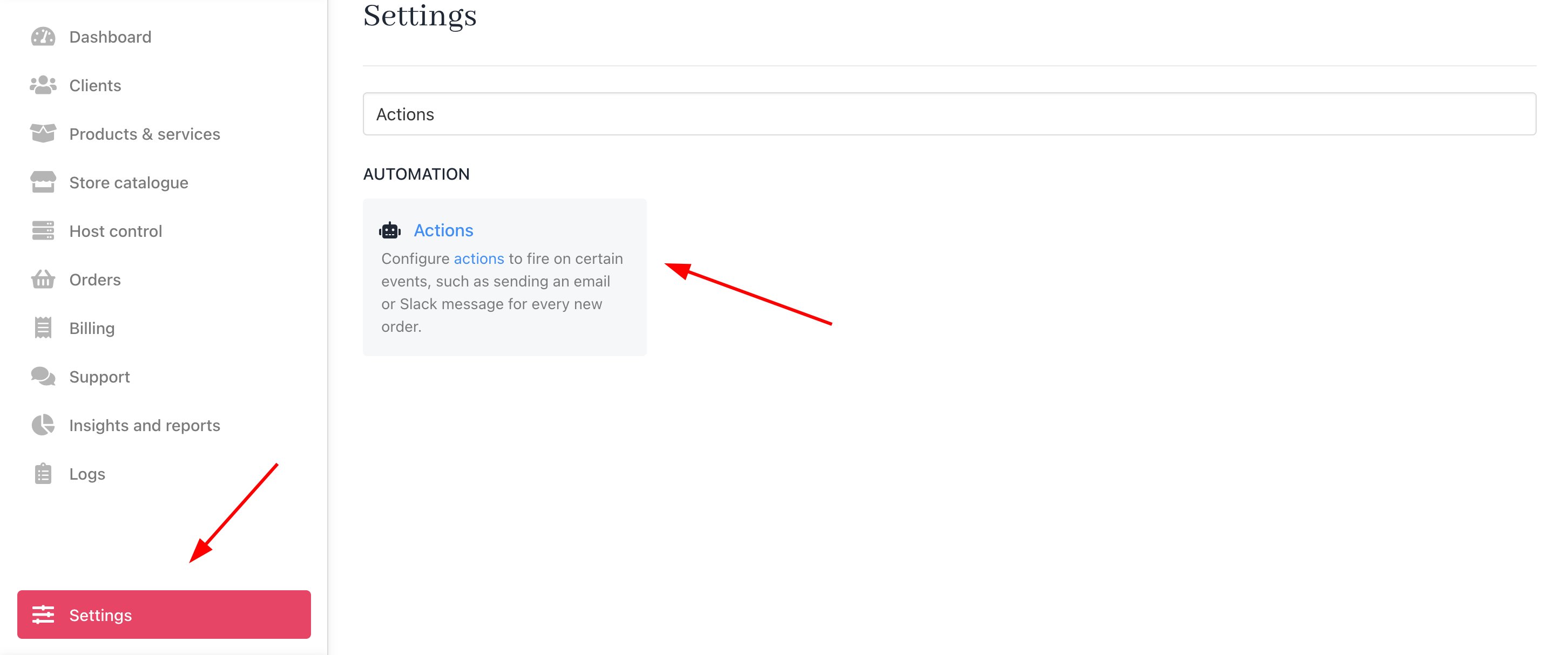
<Frame caption="Settings > Automation > Actions">
  <img src="https://mintcdn.com/upmind/VnCXiz5rboywDnvn/images/fb/d9e85022f74f376c.png?fit=max&auto=format&n=VnCXiz5rboywDnvn&q=85&s=99c52fa7512bed36777461348321c6b7" alt="Settings > Automation > Actions" className="mx-auto" style={{ width:"99%" }} data-og-width="2904" width="2904" data-og-height="1214" height="1214" data-path="images/fb/d9e85022f74f376c.png" data-optimize="true" data-opv="3" srcset="https://mintcdn.com/upmind/VnCXiz5rboywDnvn/images/fb/d9e85022f74f376c.png?w=280&fit=max&auto=format&n=VnCXiz5rboywDnvn&q=85&s=9feda6c0da0dbfaa671e7a7b89aeb478 280w, https://mintcdn.com/upmind/VnCXiz5rboywDnvn/images/fb/d9e85022f74f376c.png?w=560&fit=max&auto=format&n=VnCXiz5rboywDnvn&q=85&s=e2cdadd23142d44ef48f26385cd15a2c 560w, https://mintcdn.com/upmind/VnCXiz5rboywDnvn/images/fb/d9e85022f74f376c.png?w=840&fit=max&auto=format&n=VnCXiz5rboywDnvn&q=85&s=7db89a6370a10def4ef3fc66a70e1c40 840w, https://mintcdn.com/upmind/VnCXiz5rboywDnvn/images/fb/d9e85022f74f376c.png?w=1100&fit=max&auto=format&n=VnCXiz5rboywDnvn&q=85&s=50be2694822edb978f9b6617d492a09d 1100w, https://mintcdn.com/upmind/VnCXiz5rboywDnvn/images/fb/d9e85022f74f376c.png?w=1650&fit=max&auto=format&n=VnCXiz5rboywDnvn&q=85&s=4f9d2d15b9905783923445e445e39d97 1650w, https://mintcdn.com/upmind/VnCXiz5rboywDnvn/images/fb/d9e85022f74f376c.png?w=2500&fit=max&auto=format&n=VnCXiz5rboywDnvn&q=85&s=15e6683a69101ef563c5df5e48e46f78 2500w" />
</Frame>

2. Find your action, click the three dots icon, and select **View**.

<Frame caption="Select view">
  <img src="https://mintcdn.com/upmind/wRuKrNY12tQZY8Rr/images/fb/2ee2501911673dd9.png?fit=max&auto=format&n=wRuKrNY12tQZY8Rr&q=85&s=09a151805698412761d9565d1d8dfcd5" alt="Select view" className="mx-auto" style={{ width:"99%" }} width="1556" height="192" data-path="images/fb/2ee2501911673dd9.png" />
</Frame>

3. Scroll to `Template` in the side panel and click **Send test email** (if available).
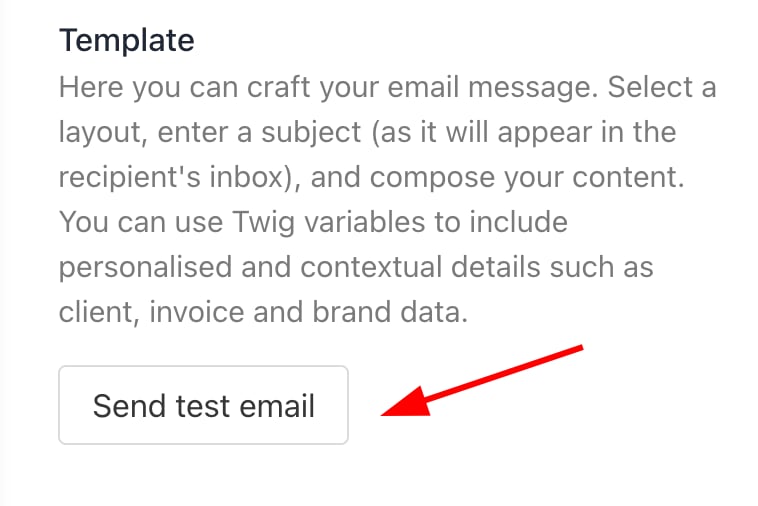
<Frame caption="Send test email">
  <img src="https://mintcdn.com/upmind/92wYnpdR_k6AjH3x/images/fb/56a805b0b756cfb9.png?fit=max&auto=format&n=92wYnpdR_k6AjH3x&q=85&s=90cc507206519cb34c38c994f76e895a" alt="Send test email" className="mx-auto" style={{ width:"71%" }} width="758" height="506" data-path="images/fb/56a805b0b756cfb9.png" />
</Frame>

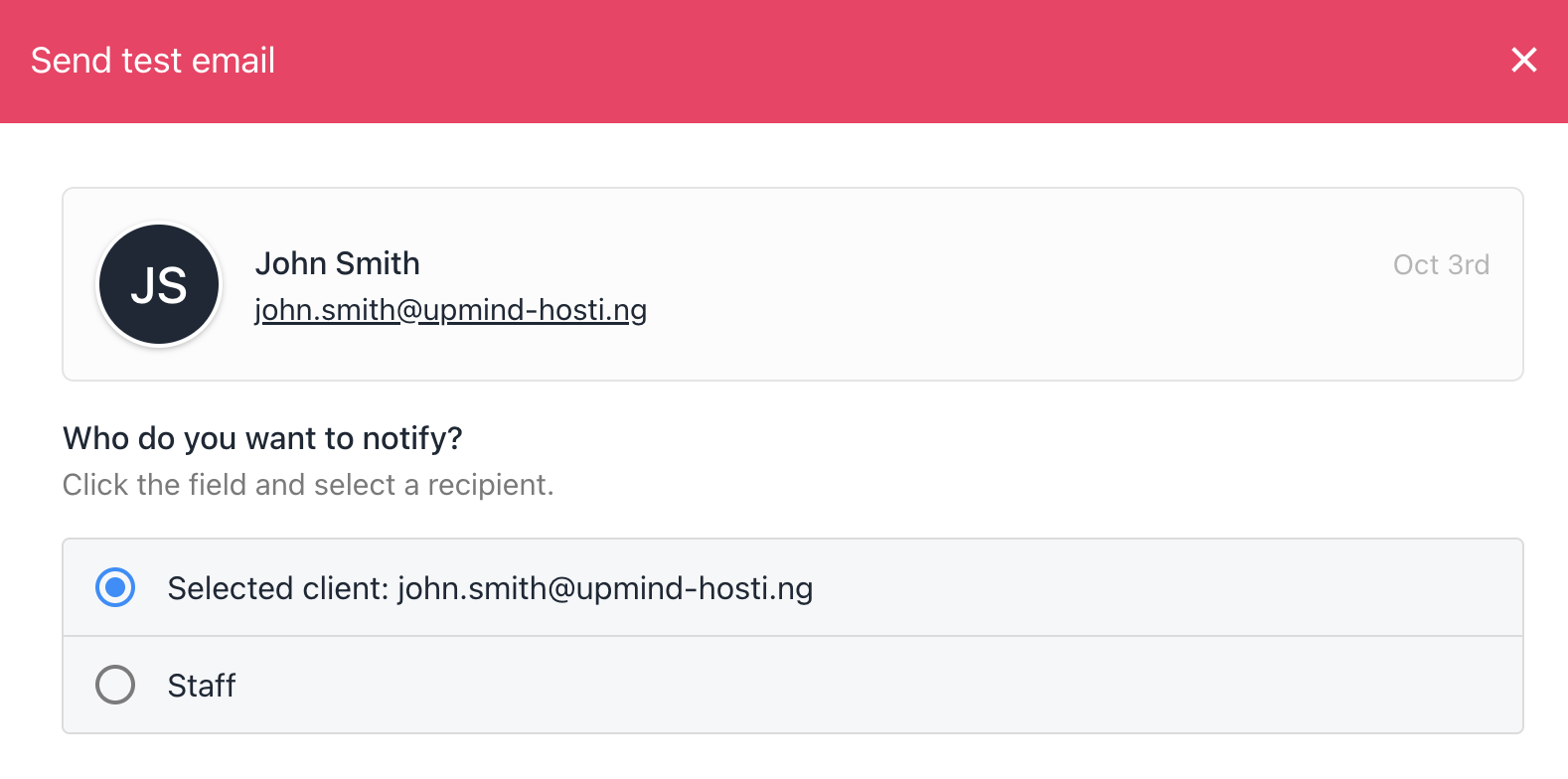
4. Select a **recipient** and choose the **category** (client or staff), confirm, and send.
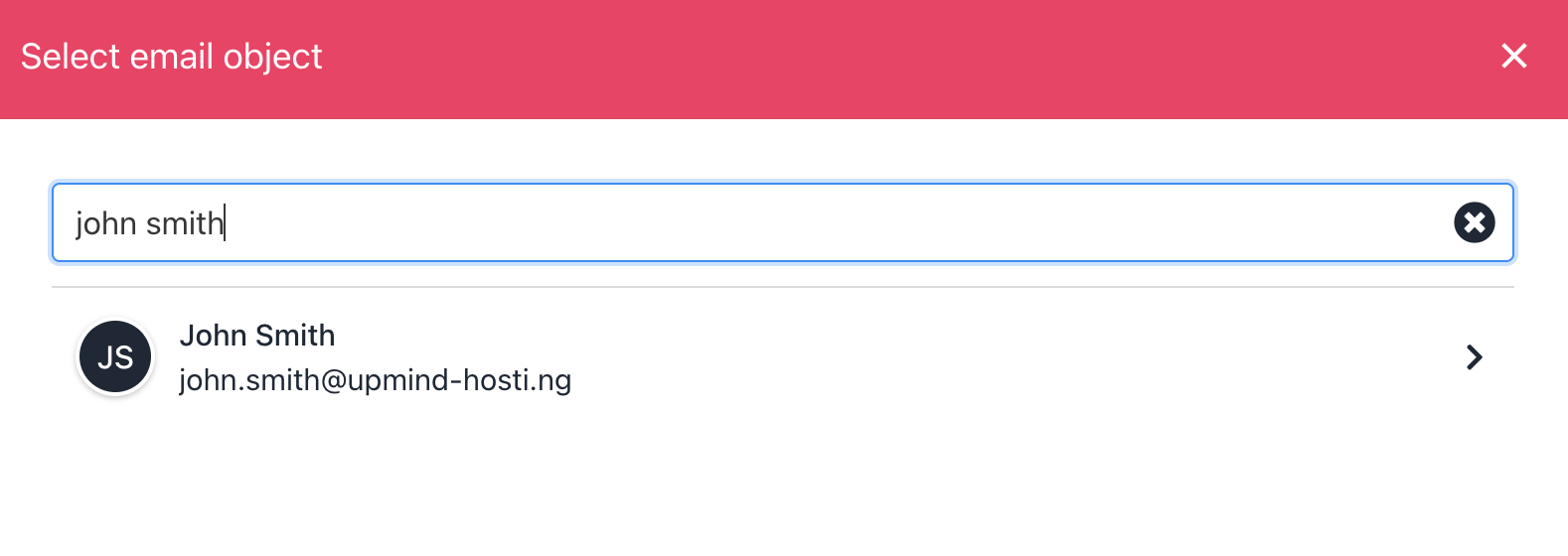
<Frame caption="Select recipient">
  <img src="https://mintcdn.com/upmind/2ooSxDpt6PiIGMr-/images/fb/013ef98408d31e3a.png?fit=max&auto=format&n=2ooSxDpt6PiIGMr-&q=85&s=94dadd458d71c63f5e776043e51c8d86" alt="Select recipient" className="mx-auto" style={{ width:"93%" }} width="1578" height="560" data-path="images/fb/013ef98408d31e3a.png" />
</Frame>

<Frame caption="Choose who to notify">
  <img src="https://mintcdn.com/upmind/kAlrCUxI2nwYz4_i/images/fb/19a5e1fdc240a2da.png?fit=max&auto=format&n=kAlrCUxI2nwYz4_i&q=85&s=0ebd21d501f7ccb855126bdc910ab21a" alt="Choose who to notify" className="mx-auto" style={{ width:"93%" }} width="1578" height="784" data-path="images/fb/19a5e1fdc240a2da.png" />
</Frame>

5. Check the test email inbox for results.

## Test a new automation

1. Create a draft notification and toggle **Enable** to `OFF`.

<Frame caption="Disable the action">
  <img src="https://mintcdn.com/upmind/h8h5zREaX7k8Y-3x/images/fb/0d48efc8cc22be43.png?fit=max&auto=format&n=h8h5zREaX7k8Y-3x&q=85&s=0b9c70f2215b5b7edd44213390d2914f" alt="Disable the action" className="mx-auto" style={{ width:"99%" }} width="2220" height="388" data-path="images/fb/0d48efc8cc22be43.png" />
</Frame>

2. Click **Save**, then go back to the previous page.
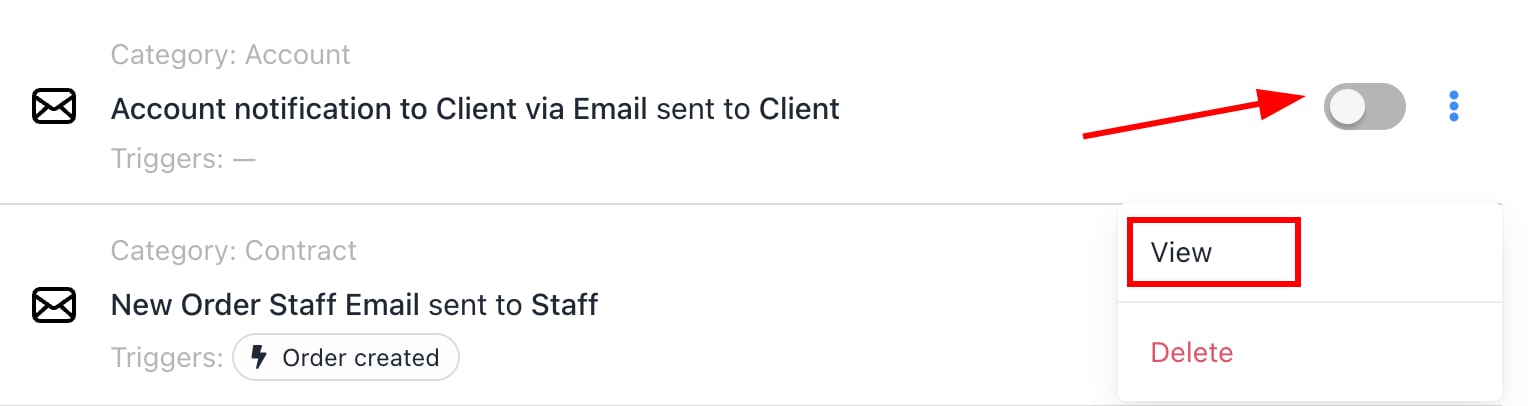
3. Find the draft, click the gear icon, and select **View**.
<Frame caption="View">
  <img src="https://mintcdn.com/upmind/pcUdSuxUJ6LgBXnd/images/fb/a797d62761254dc6.png?fit=max&auto=format&n=pcUdSuxUJ6LgBXnd&q=85&s=1e4c5f8a6525655e65abcfe9ad040824" alt="View" className="mx-auto" style={{ width:"99%" }} width="1534" height="406" data-path="images/fb/a797d62761254dc6.png" />
</Frame>

4. Follow the **Send test email** steps above.
5. Once satisfied, return, toggle **Enable** to `ON`, and **save**.