> ## Documentation Index
> Fetch the complete documentation index at: https://docs.upmind.com/llms.txt
> Use this file to discover all available pages before exploring further.

# How to Integrate with Slack

> Integrate Slack with Upmind.

Connect your Upmind e-commerce store to Slack and stay in constant contact with staff and clients. Integrating Slack with your store is a two-step process.

## Create a Webhook

1. Visit the [Slack help center.](https://slack.com/help/articles/115005265063-Incoming-webhooks-for-Slack)
2. Create a new Slack app by clicking **Sign Up** and following the instructions.
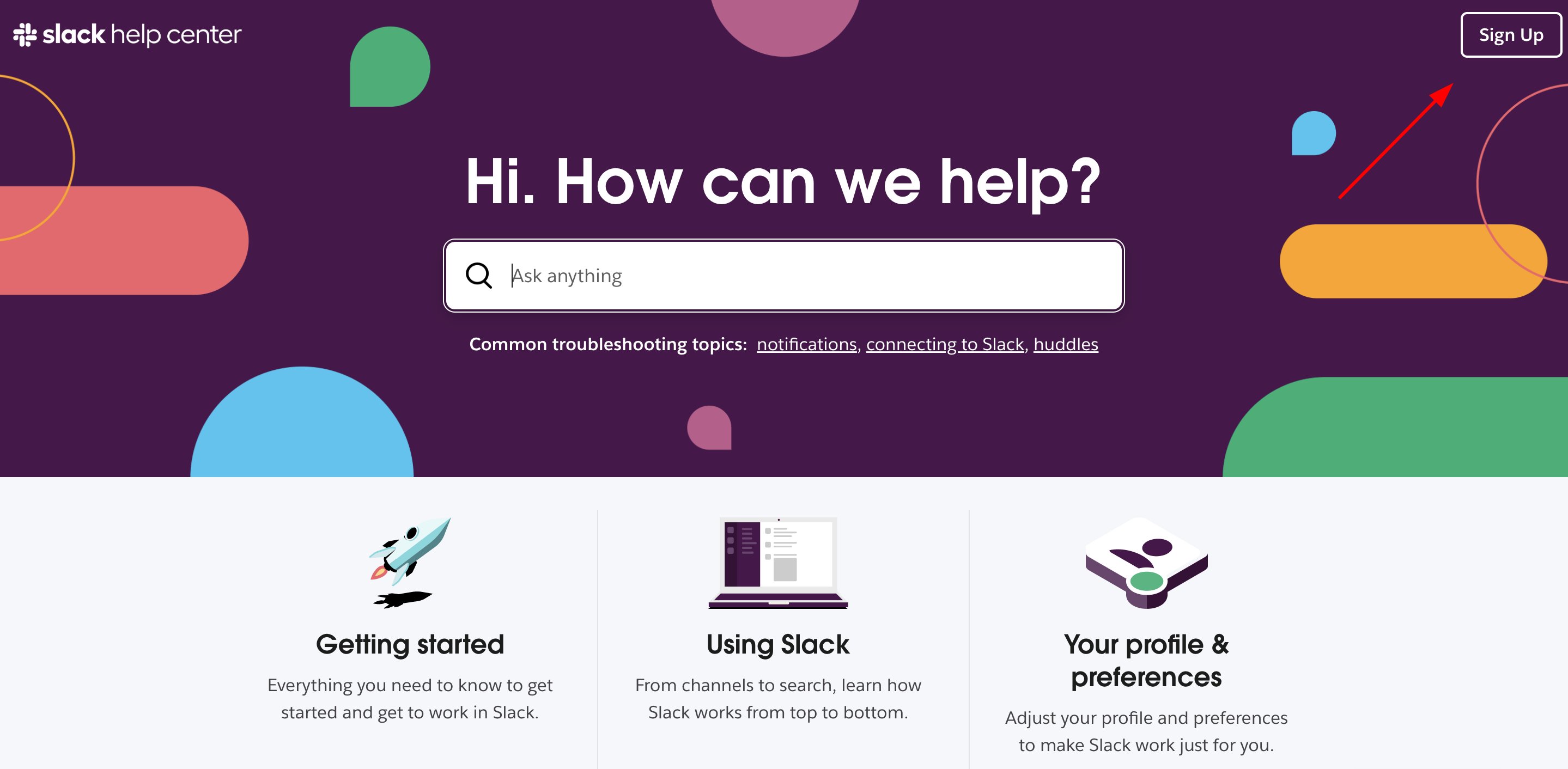
<Frame caption="Slack help center">
  <img src="https://mintcdn.com/upmind/FQ1NhxALxjSHvvWW/images/fb/af8bac0bccedac3d.png?fit=max&auto=format&n=FQ1NhxALxjSHvvWW&q=85&s=e0dacbe13f893b840ab4a9837f1f0c20" alt="Slack help center" className="mx-auto" style={{ width:"99%" }} width="2878" height="1412" data-path="images/fb/af8bac0bccedac3d.png" />
</Frame>

3. In your Slack workspace, click the three dots icon and select **Tools**.
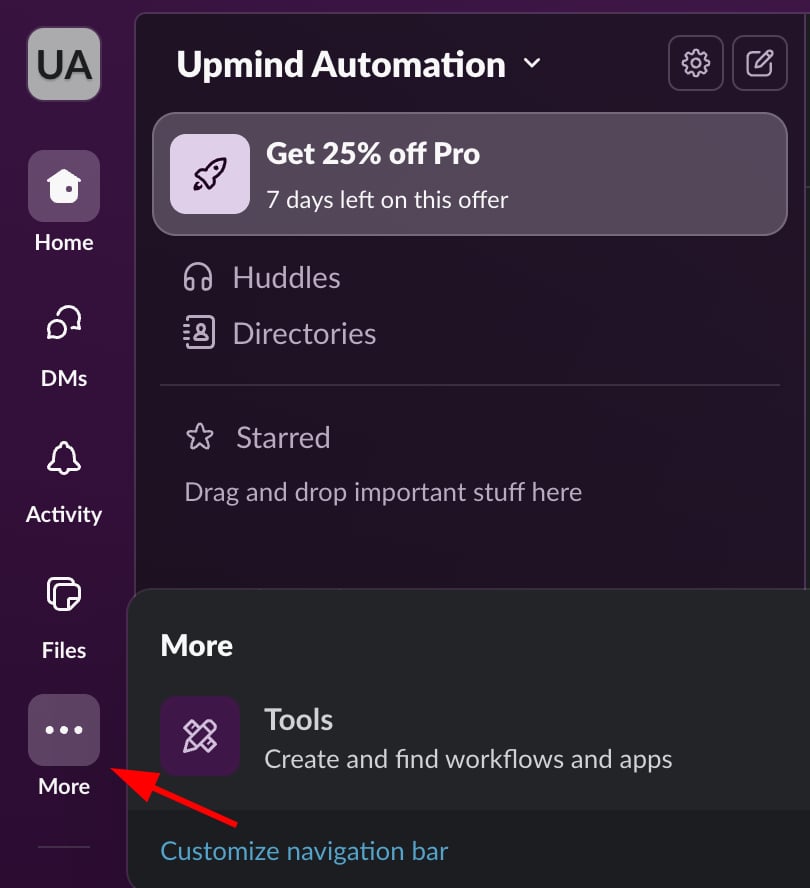
<Frame caption="Tools">
  <img src="https://mintcdn.com/upmind/92wYnpdR_k6AjH3x/images/fb/55024e2059ea43e3.png?fit=max&auto=format&n=92wYnpdR_k6AjH3x&q=85&s=0647ae12c99ae91f8c7e8dd269d4d3c0" alt="Tools" className="mx-auto" style={{ width:"75%" }} width="810" height="888" data-path="images/fb/55024e2059ea43e3.png" />
</Frame>

4. Go to `Apps`, search for **Incoming Webhooks**, click **Install**.
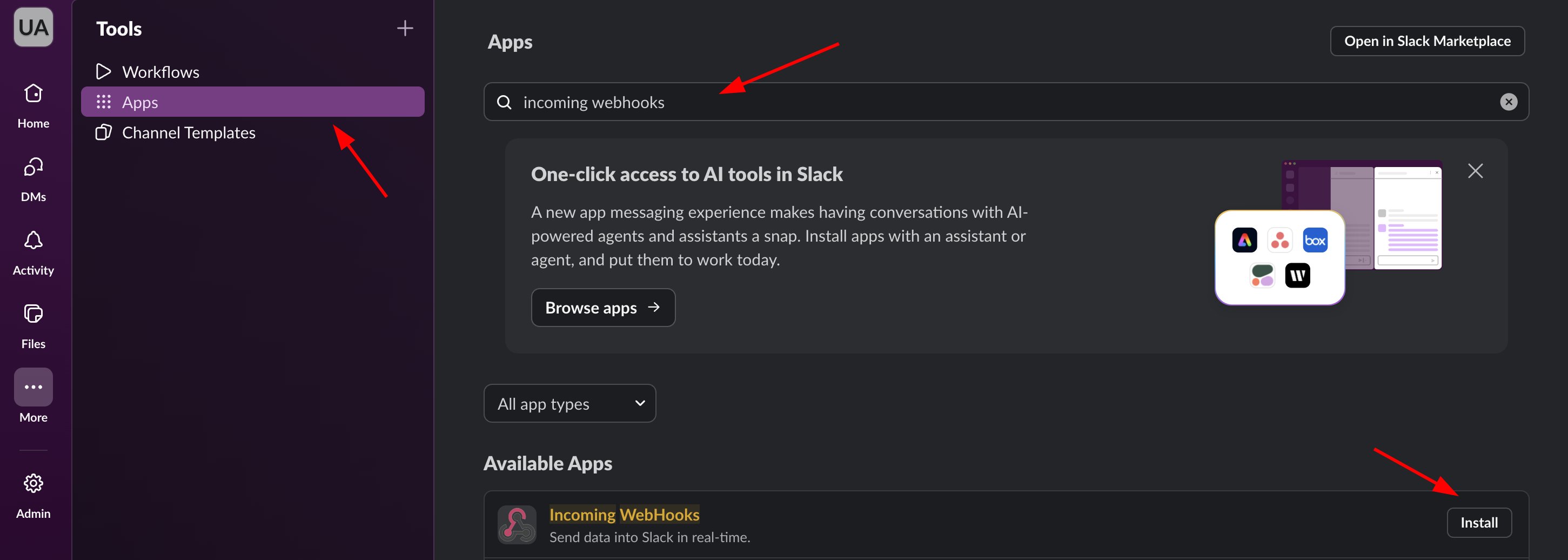
<Frame caption="Install Incoming Webhooks">
  <img src="https://mintcdn.com/upmind/h8h5zREaX7k8Y-3x/images/fb/11d0df7b523d2604.png?fit=max&auto=format&n=h8h5zREaX7k8Y-3x&q=85&s=4150795ccc587daabcb23e90e8487af3" alt="Install Incoming Webhooks" className="mx-auto" style={{ width:"99%" }} width="2902" height="1036" data-path="images/fb/11d0df7b523d2604.png" />
</Frame>

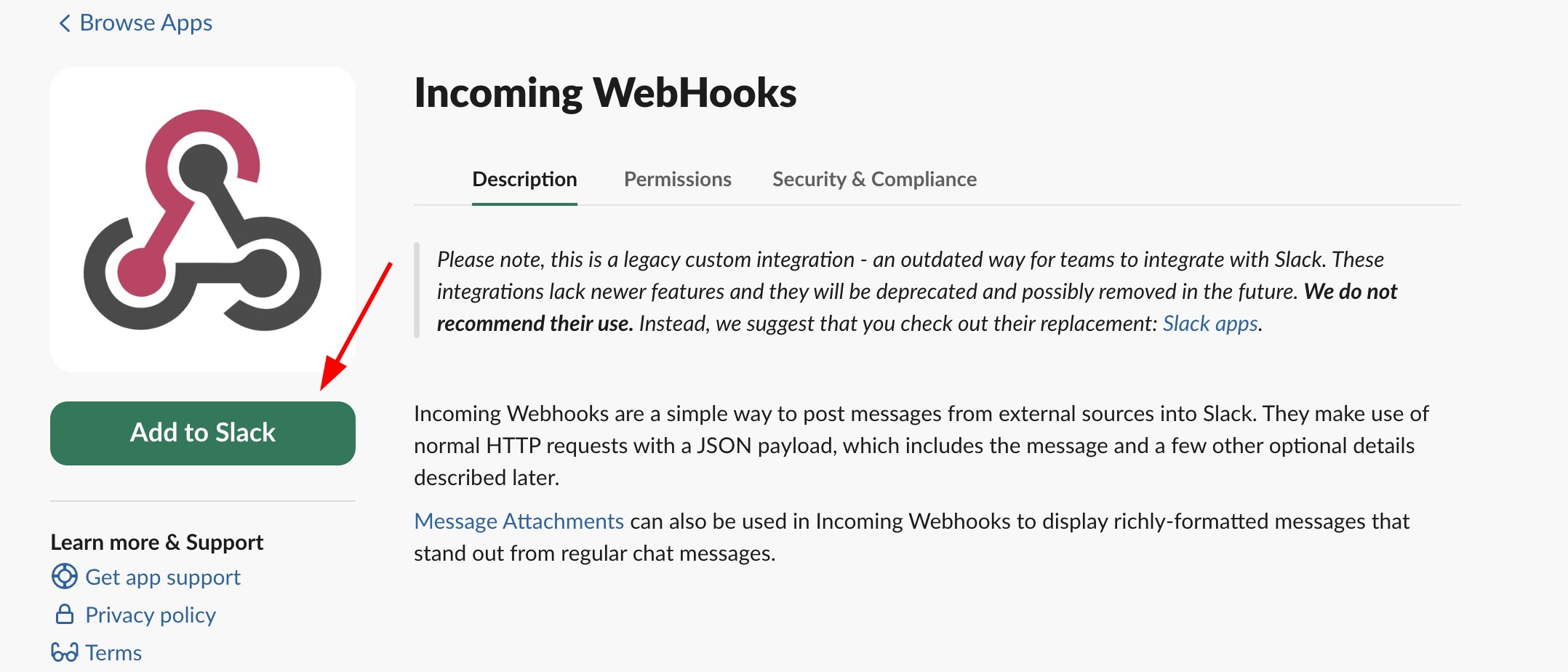
5. Click **Add to Slack**.

<Frame caption="Add to Slack">
  <img src="https://mintcdn.com/upmind/1-uICsJi9zYpvJVH/images/fb/8e7009956d891531.png?fit=max&auto=format&n=1-uICsJi9zYpvJVH&q=85&s=c374f87f93124305a48747f6caf3f389" alt="Add to Slack" className="mx-auto" style={{ width:"97%" }} width="2156" height="924" data-path="images/fb/8e7009956d891531.png" />
</Frame>

6. Choose the `channel` under Post to Channel (e.g., "ticket-notification").
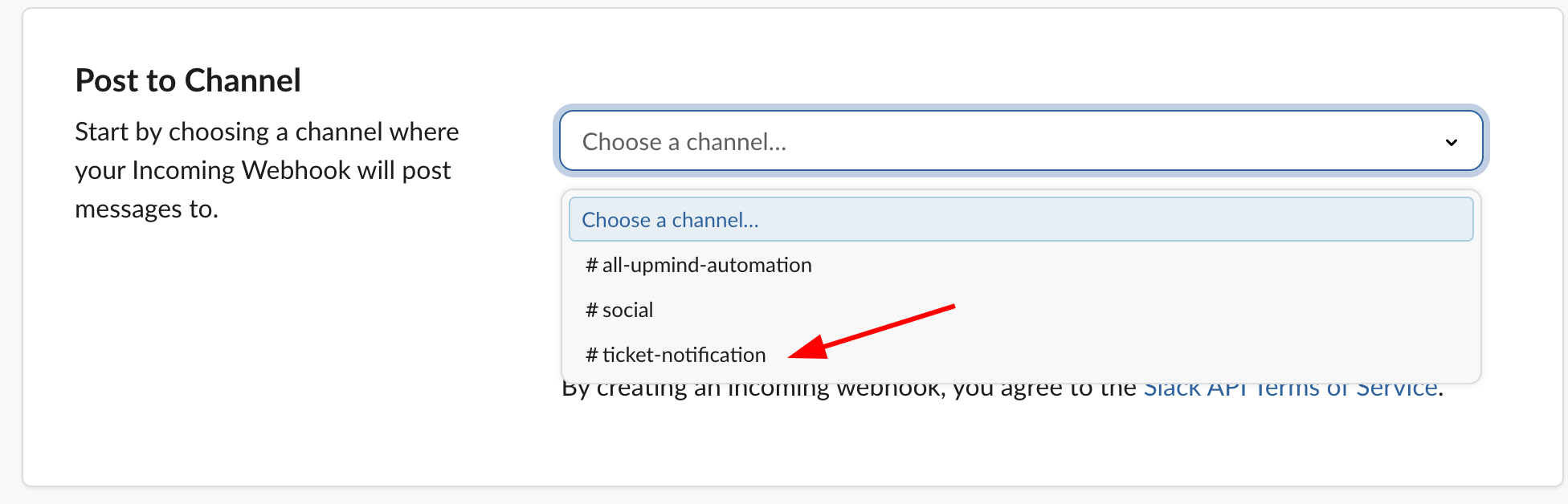
<Frame caption="Post to channel">
  <img src="https://mintcdn.com/upmind/1xguIfYUrfespmVI/images/fb/7c96bcdb5ddf688a.png?fit=max&auto=format&n=1xguIfYUrfespmVI&q=85&s=620bcc5889e3a5caa8b92438526ac6f0" alt="Post to channel" className="mx-auto" style={{ width:"98%" }} width="1952" height="628" data-path="images/fb/7c96bcdb5ddf688a.png" />
</Frame>

7. Click **Add Incoming Webhooks Integration**.
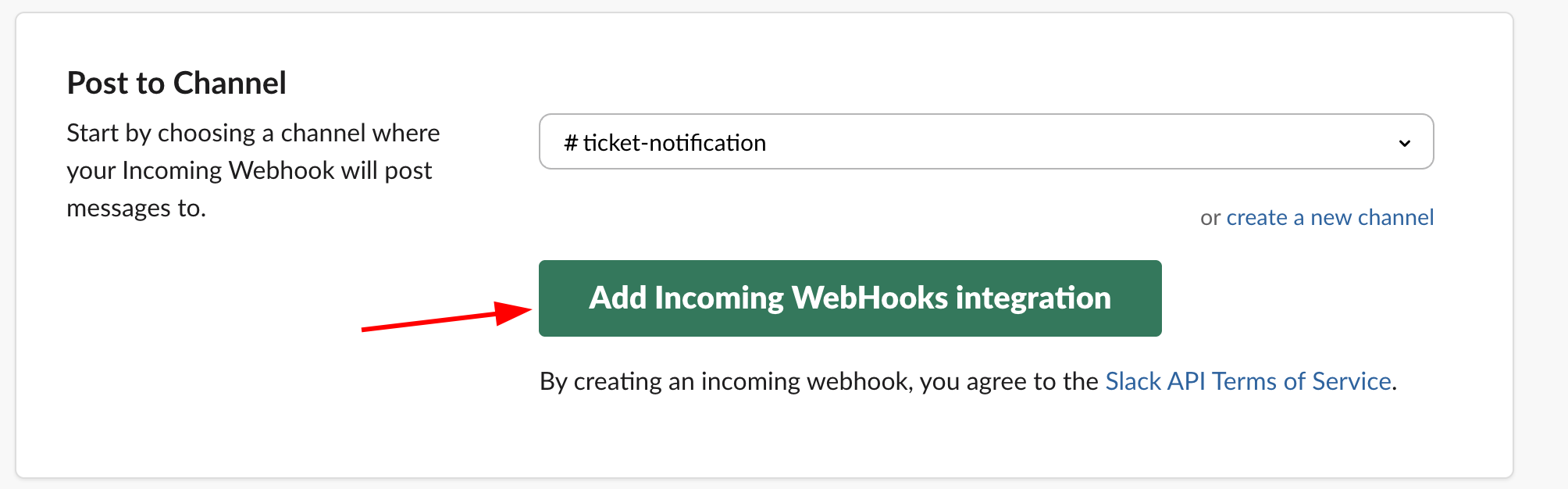
<Frame caption="Add incoming Webhooks integration">
  <img src="https://mintcdn.com/upmind/6knUVC8F1nK4E5CY/images/fb/c3534d32c45c8cfa.png?fit=max&auto=format&n=6knUVC8F1nK4E5CY&q=85&s=bd8b8bbb1ccebd00aeec9e7e12a43b87" alt="Add incoming Webhooks integration" className="mx-auto" style={{ width:"98%" }} width="2008" height="626" data-path="images/fb/c3534d32c45c8cfa.png" />
</Frame>

8. Copy the generated **Webhook URL**.

<Frame caption="Copy Webhook URL">
  <img src="https://mintcdn.com/upmind/6knUVC8F1nK4E5CY/images/fb/c1c60587062c01ca.png?fit=max&auto=format&n=6knUVC8F1nK4E5CY&q=85&s=cd9ad6d02caec2f9c945c9915a7286bf" alt="Copy Webhook URL" className="mx-auto" style={{ width:"99%" }} width="1940" height="328" data-path="images/fb/c1c60587062c01ca.png" />
</Frame>

## Insert the Webhook in Upmind

1. Log in to your Upmind dashboard.
2. Navigate to **Settings** > **Notification channels** under **Automation**.
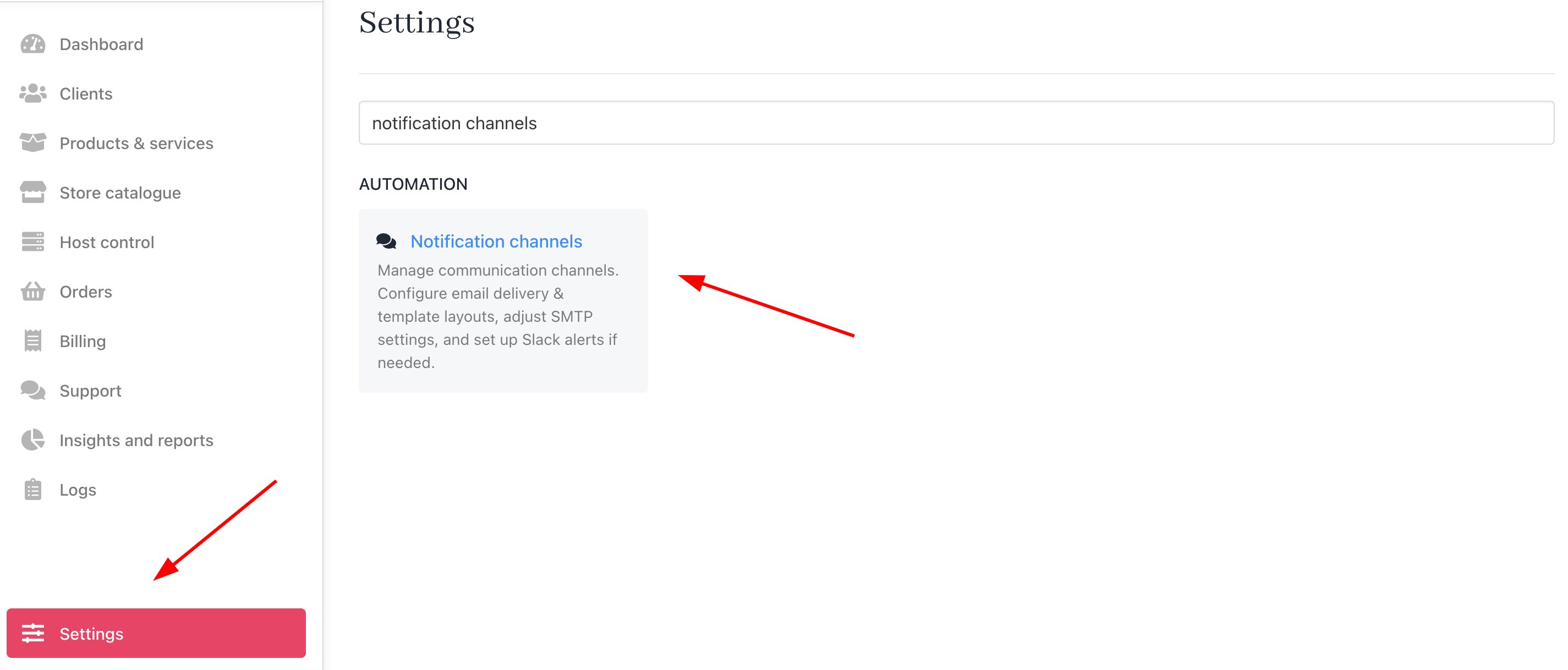
<Frame caption="Settings > Automation > Notification Channels">
  <img src="https://mintcdn.com/upmind/uxzVUXAKtJ2bRWCI/images/fb/6e2c41990123caf0.png?fit=max&auto=format&n=uxzVUXAKtJ2bRWCI&q=85&s=5d0c952d2b42e0ea6825a1f9cfcbc3f5" alt="Settings > Automation > Notification Channels" className="mx-auto" style={{ width:"99%" }} data-og-width="2850" width="2850" data-og-height="1218" height="1218" data-path="images/fb/6e2c41990123caf0.png" data-optimize="true" data-opv="3" srcset="https://mintcdn.com/upmind/uxzVUXAKtJ2bRWCI/images/fb/6e2c41990123caf0.png?w=280&fit=max&auto=format&n=uxzVUXAKtJ2bRWCI&q=85&s=f21954d3d370775c5e8f4805909d4daf 280w, https://mintcdn.com/upmind/uxzVUXAKtJ2bRWCI/images/fb/6e2c41990123caf0.png?w=560&fit=max&auto=format&n=uxzVUXAKtJ2bRWCI&q=85&s=992846cdfec90199af05c4525a2317fe 560w, https://mintcdn.com/upmind/uxzVUXAKtJ2bRWCI/images/fb/6e2c41990123caf0.png?w=840&fit=max&auto=format&n=uxzVUXAKtJ2bRWCI&q=85&s=e1f267c7e40ff9e9d57ec429d8739ec1 840w, https://mintcdn.com/upmind/uxzVUXAKtJ2bRWCI/images/fb/6e2c41990123caf0.png?w=1100&fit=max&auto=format&n=uxzVUXAKtJ2bRWCI&q=85&s=98fd38b25e8f71ad64fe3b54d134e44d 1100w, https://mintcdn.com/upmind/uxzVUXAKtJ2bRWCI/images/fb/6e2c41990123caf0.png?w=1650&fit=max&auto=format&n=uxzVUXAKtJ2bRWCI&q=85&s=b364d46ea14db53bab96ffd5c11aab41 1650w, https://mintcdn.com/upmind/uxzVUXAKtJ2bRWCI/images/fb/6e2c41990123caf0.png?w=2500&fit=max&auto=format&n=uxzVUXAKtJ2bRWCI&q=85&s=f9608dd5dfce46d03abe40d623466257 2500w" />
</Frame>

3. Go to the `Slack Channel` and toggle the switch to **ON**. Paste the webhook URL into the field and click **Save**.

<Frame caption="Toggle switch and paste Webhook URL">
  <img src="https://mintcdn.com/upmind/z5ofg3t7by4uN44v/images/fb/e8bc9f29c4beaec2.png?fit=max&auto=format&n=z5ofg3t7by4uN44v&q=85&s=61da79c38da4998dc9816b791cfe637d" alt="Toggle switch and paste Webhook URL" className="mx-auto" style={{ width:"99%" }} width="2190" height="292" data-path="images/fb/e8bc9f29c4beaec2.png" />
</Frame>