> ## Documentation Index
> Fetch the complete documentation index at: https://docs.upmind.com/llms.txt
> Use this file to discover all available pages before exploring further.

# How to Get Email Notification When a Client Opens a Support Ticket

> Set up client ticket email alerts.

Upmind offers extensive customisation through dozens of triggers for various products.

**Example**: To get notified when a client opens a support ticket, follow these steps:

1. Go to **Settings** > **Triggers** under **Automation**.
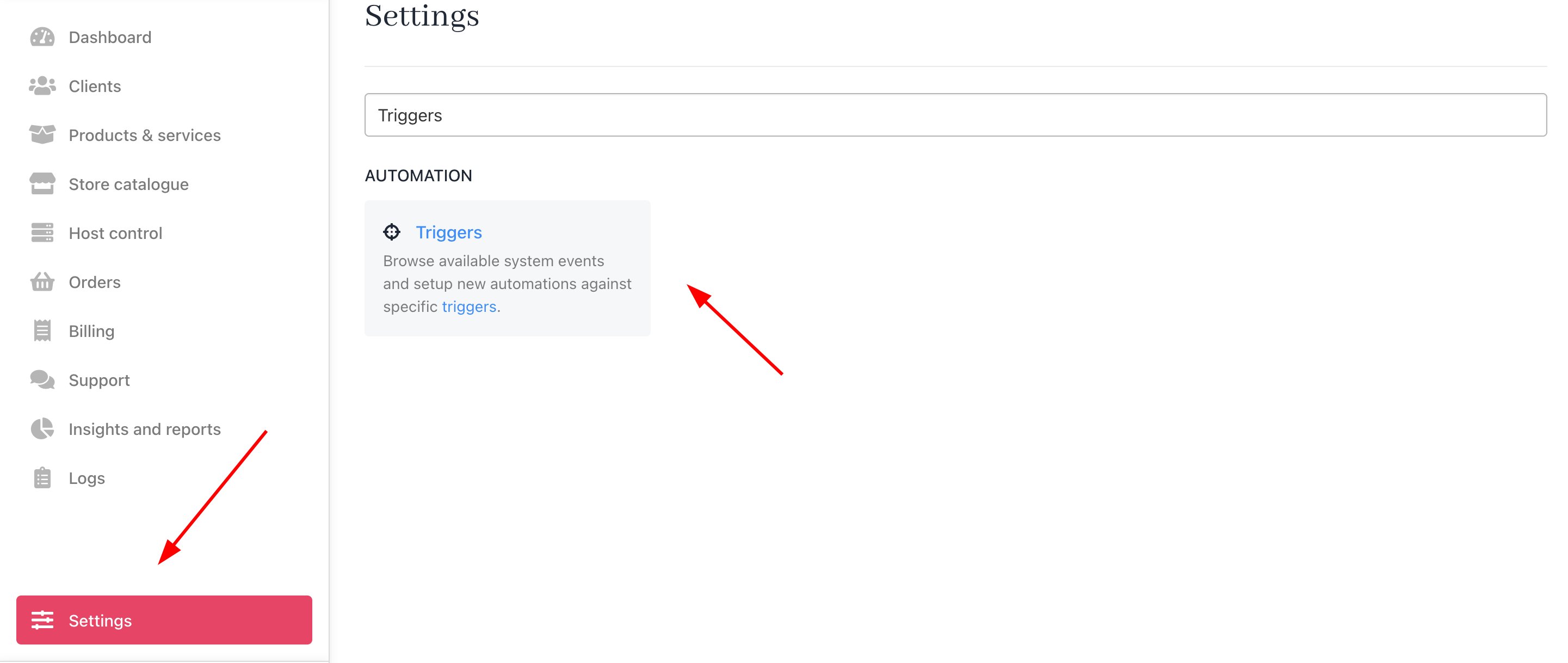
<Frame caption="Settings > Automation > Triggers">
  <img src="https://mintcdn.com/upmind/6knUVC8F1nK4E5CY/images/fb/c503547f2cf7b03f.png?fit=max&auto=format&n=6knUVC8F1nK4E5CY&q=85&s=b301bdae262b61f92a9625a2702e5ee2" alt="Settings > Automation > Triggers" className="mx-auto" style={{ width:"98%" }} data-og-width="2882" width="2882" data-og-height="1218" height="1218" data-path="images/fb/c503547f2cf7b03f.png" data-optimize="true" data-opv="3" srcset="https://mintcdn.com/upmind/6knUVC8F1nK4E5CY/images/fb/c503547f2cf7b03f.png?w=280&fit=max&auto=format&n=6knUVC8F1nK4E5CY&q=85&s=325eb1782a3bd1066b366b1b3b9caf6d 280w, https://mintcdn.com/upmind/6knUVC8F1nK4E5CY/images/fb/c503547f2cf7b03f.png?w=560&fit=max&auto=format&n=6knUVC8F1nK4E5CY&q=85&s=f8a8b4744bc3e20cab8eb4c7656bd57e 560w, https://mintcdn.com/upmind/6knUVC8F1nK4E5CY/images/fb/c503547f2cf7b03f.png?w=840&fit=max&auto=format&n=6knUVC8F1nK4E5CY&q=85&s=c289a133eaf81a7268f3f480dd6e72b2 840w, https://mintcdn.com/upmind/6knUVC8F1nK4E5CY/images/fb/c503547f2cf7b03f.png?w=1100&fit=max&auto=format&n=6knUVC8F1nK4E5CY&q=85&s=016f811ffe26b2079b037a989f3207c3 1100w, https://mintcdn.com/upmind/6knUVC8F1nK4E5CY/images/fb/c503547f2cf7b03f.png?w=1650&fit=max&auto=format&n=6knUVC8F1nK4E5CY&q=85&s=dff9c7d79bde03fc34d8465ffa7d8d80 1650w, https://mintcdn.com/upmind/6knUVC8F1nK4E5CY/images/fb/c503547f2cf7b03f.png?w=2500&fit=max&auto=format&n=6knUVC8F1nK4E5CY&q=85&s=21387ef06107eb504adfe083f058e3f7 2500w" />
</Frame>

2. Click **Add Action**.

<Frame caption="Add action">
  <img src="https://mintcdn.com/upmind/1-uICsJi9zYpvJVH/images/fb/874c945a3d9a1503.png?fit=max&auto=format&n=1-uICsJi9zYpvJVH&q=85&s=07c529ba946ac6f0f08c131333bff8c8" alt="Add action" className="mx-auto" style={{ width:"99%" }} width="2246" height="444" data-path="images/fb/874c945a3d9a1503.png" />
</Frame>

3. Enter a **trigger name** (e.g., Open Support Ticket) and select the **notification channel** (e.g., Email).
4. Choose `Ticket` as the **Category**.
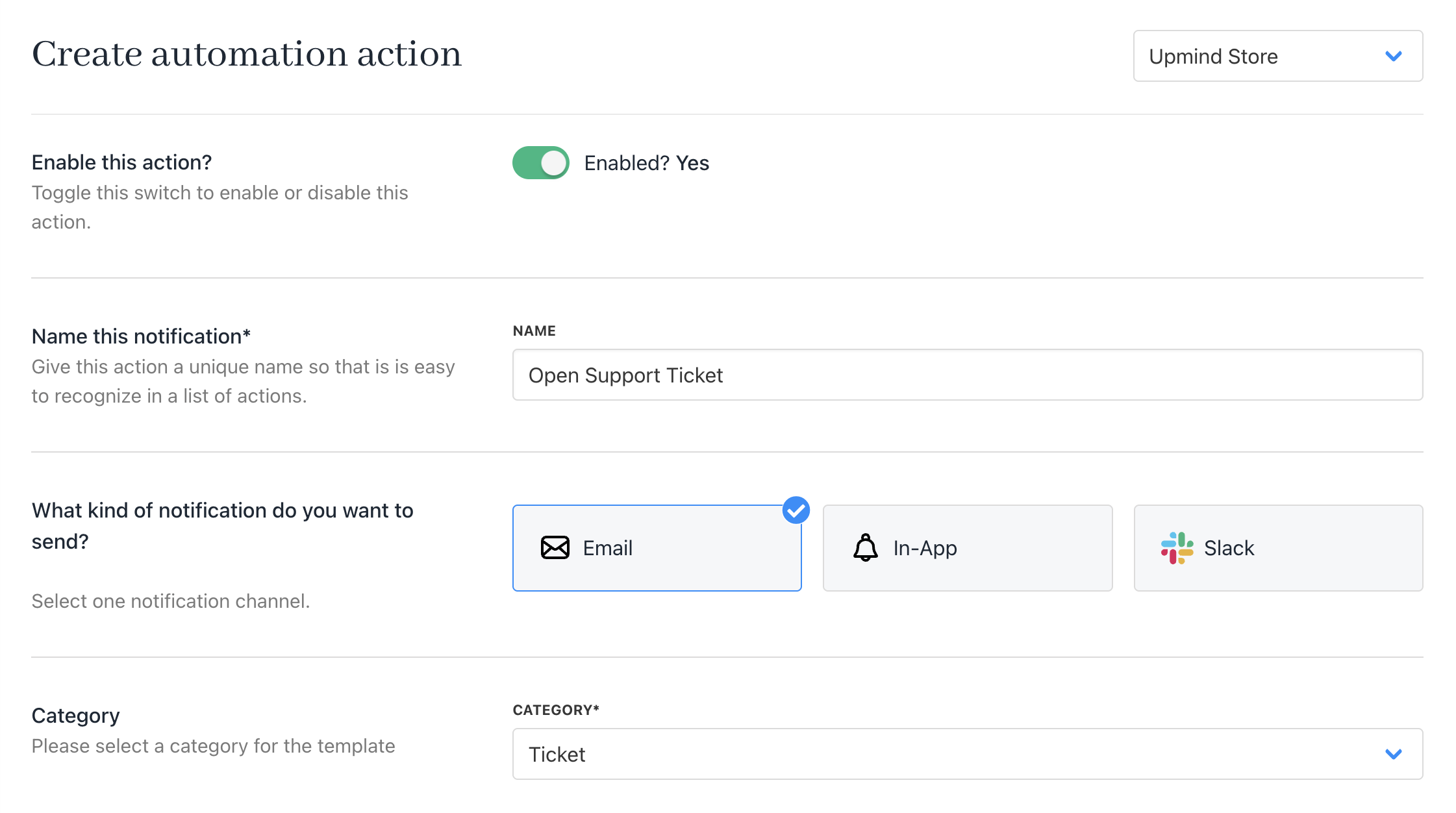
<Frame caption="Enter name, choose notification channel, and category">
  <img src="https://mintcdn.com/upmind/JUoAg6onJmXk_-rR/images/fb/df08d3f7cfaa7652.png?fit=max&auto=format&n=JUoAg6onJmXk_-rR&q=85&s=5cebad89020161e591c4753328a88754" alt="Enter name, choose notification channel, and category" className="mx-auto" style={{ width:"98%" }} width="2242" height="1252" data-path="images/fb/df08d3f7cfaa7652.png" />
</Frame>

5. Choose `Support` as the **Topic**.
6. Select `New Ticket Opened by Client` as the **Event**.
7. Under **Who do you want to notify**, pick `Staff`.
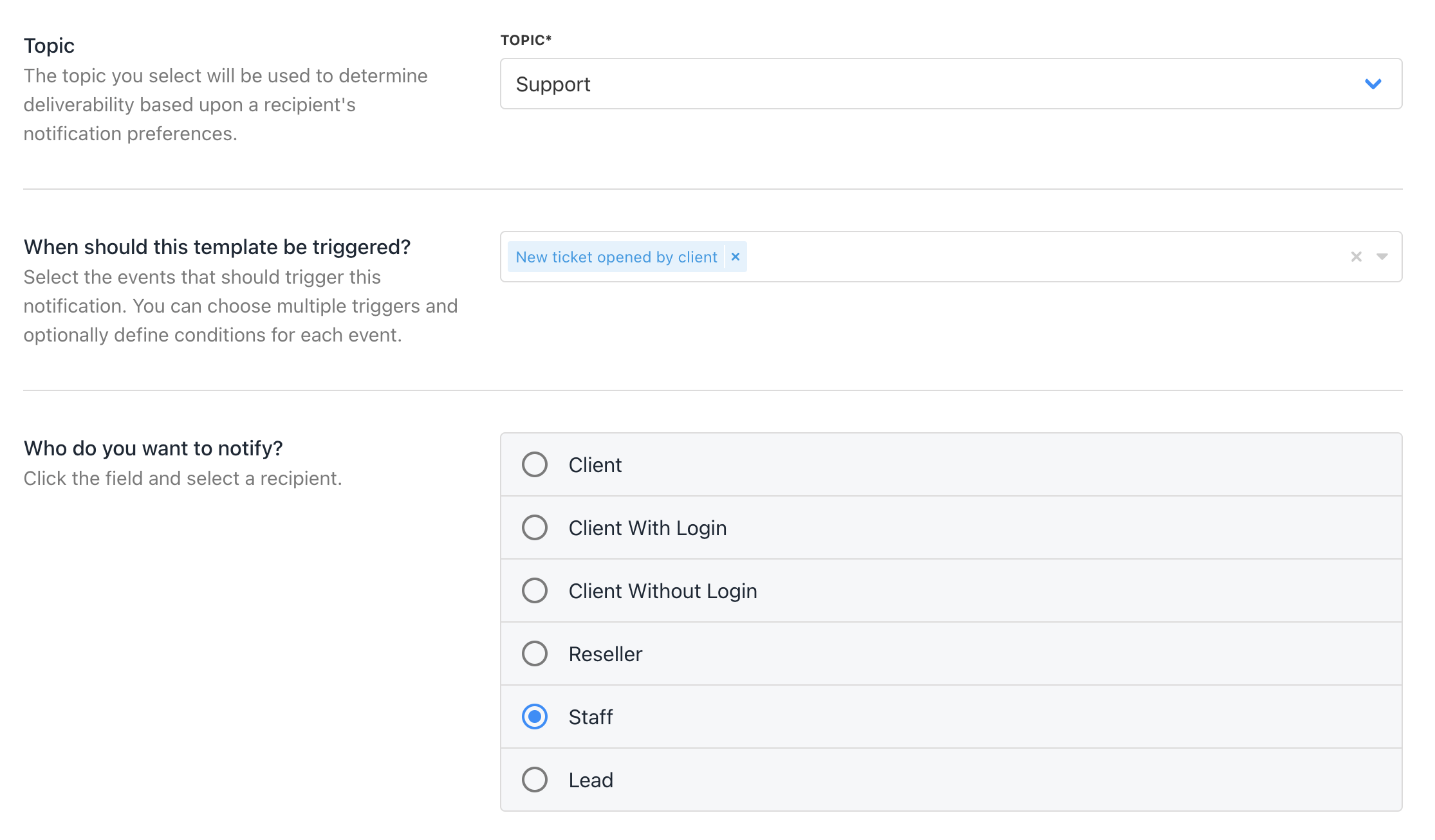
<Frame caption="Choose topic, select trigger, and choose who to notify">
  <img src="https://mintcdn.com/upmind/ZsIo0APxdVb_gFS-/images/fb/2554509bb1a6d715.png?fit=max&auto=format&n=ZsIo0APxdVb_gFS-&q=85&s=60f0783d86af3320e9e99a6ed8158a9a" alt="Choose topic, select trigger, and choose who to notify" className="mx-auto" style={{ width:"98%" }} width="2230" height="1306" data-path="images/fb/2554509bb1a6d715.png" />
</Frame>

8. Customise Email Headers and Layout (optional).
9. Add a **subject** and **body** using Twig syntax for personalisation, which is customisable.
10. Click **Save**.
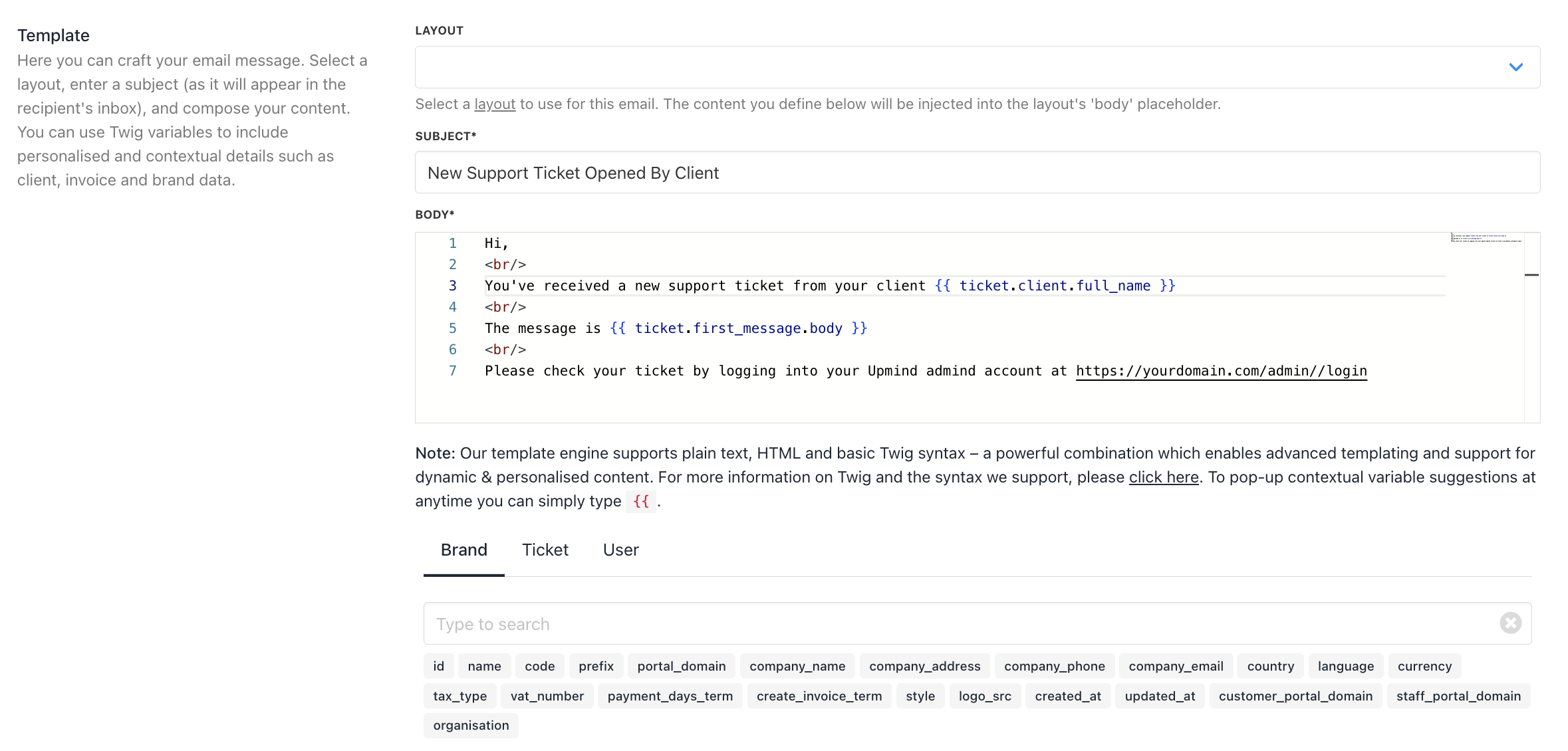
<Frame caption="Add a subject, body, and click save">
  <img src="https://mintcdn.com/upmind/z5ofg3t7by4uN44v/images/fb/ee95c3c35ca1260c.png?fit=max&auto=format&n=z5ofg3t7by4uN44v&q=85&s=ab02b64a4cf0c12273a4c58e02e805a6" alt="Add a subject, body, and click save" className="mx-auto" style={{ width:"98%" }} width="2358" height="1130" data-path="images/fb/ee95c3c35ca1260c.png" />
</Frame>

<Note>
  **Avoiding Array Data Issues**

  When Twig renders as "Array," it means data is incomplete—add the specific object. For example, use `{{ ticket.client.full_name }}` instead of `{{ ticket.client }}`.
</Note>
