> ## Documentation Index
> Fetch the complete documentation index at: https://docs.upmind.com/llms.txt
> Use this file to discover all available pages before exploring further.
# How to Create & Disable Notifications
> Automate notifications with triggers and discover several ways to disable them.
This guide covers setting up notifications (actions) based on triggers for your emails. It includes selecting events, recipients, and message formats. It also explains disabling options, which is ideal for migrations from other platforms to Upmind.
## Access the automation page
1. Log in to Upmind.
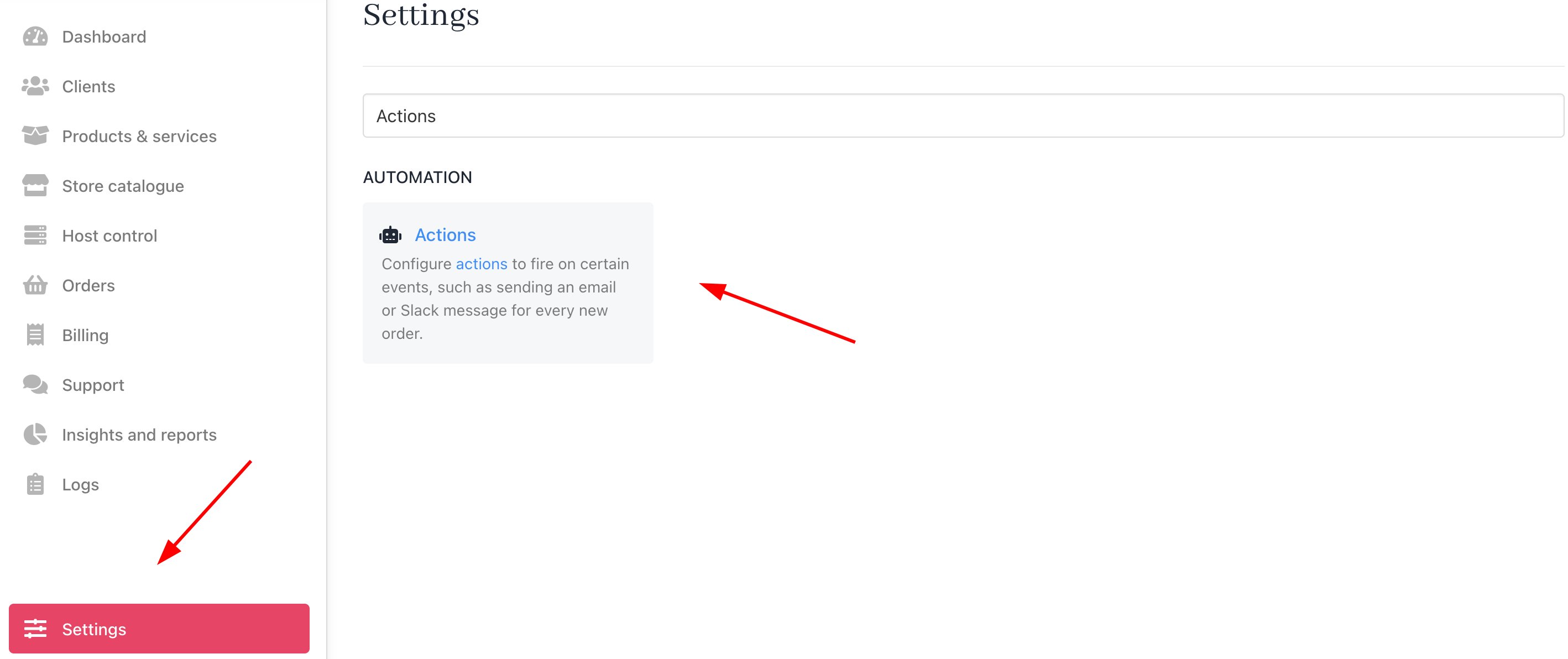
2. Go to **Settings** > **Actions** under **Automation**.
This opens the Automation page with **Actions** and **Triggers** tabs.
 ## Review existing actions and triggers
### Actions tab
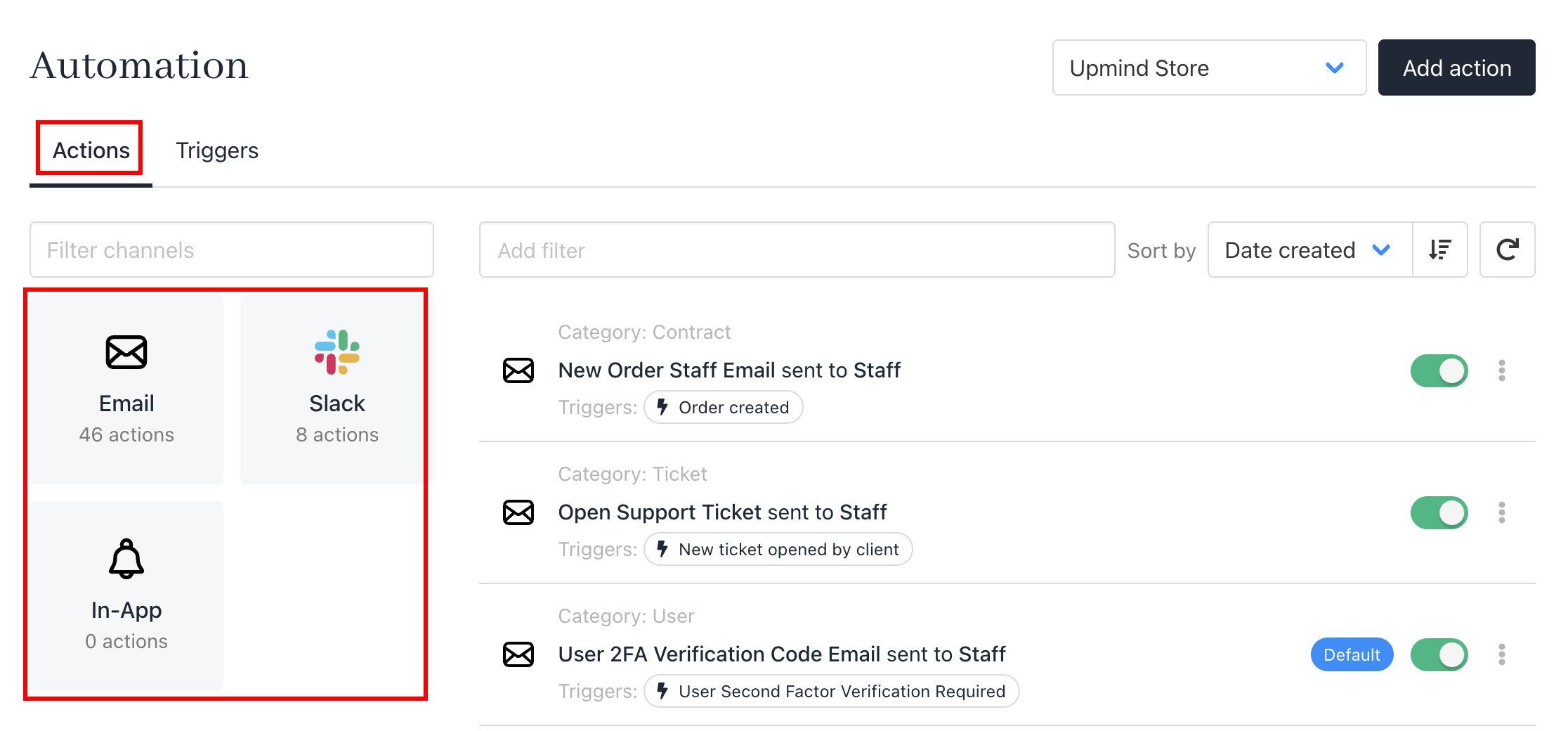
Click the **Actions** tab to view all notifications (20+ defaults and custom actions, including Slack integrations). Click channel icons to see a list of all actions associated with that notification channel.
## Review existing actions and triggers
### Actions tab
Click the **Actions** tab to view all notifications (20+ defaults and custom actions, including Slack integrations). Click channel icons to see a list of all actions associated with that notification channel.
 ### Triggers tab
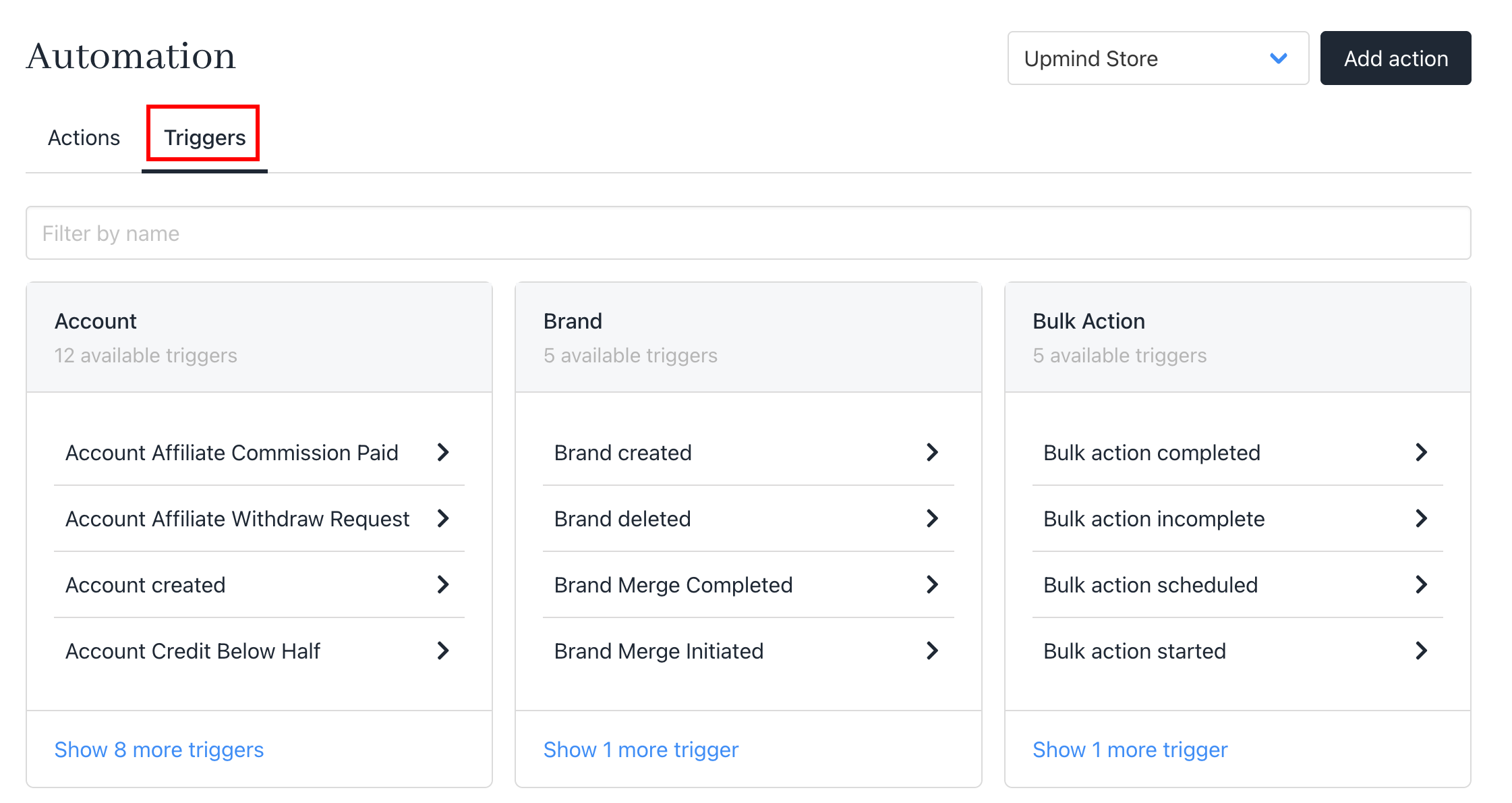
Click the **Triggers** tab to browse 30+ categories, each with multiple specific events (e.g., 2–10+ per category).
### Triggers tab
Click the **Triggers** tab to browse 30+ categories, each with multiple specific events (e.g., 2–10+ per category).
 ## Create a new action
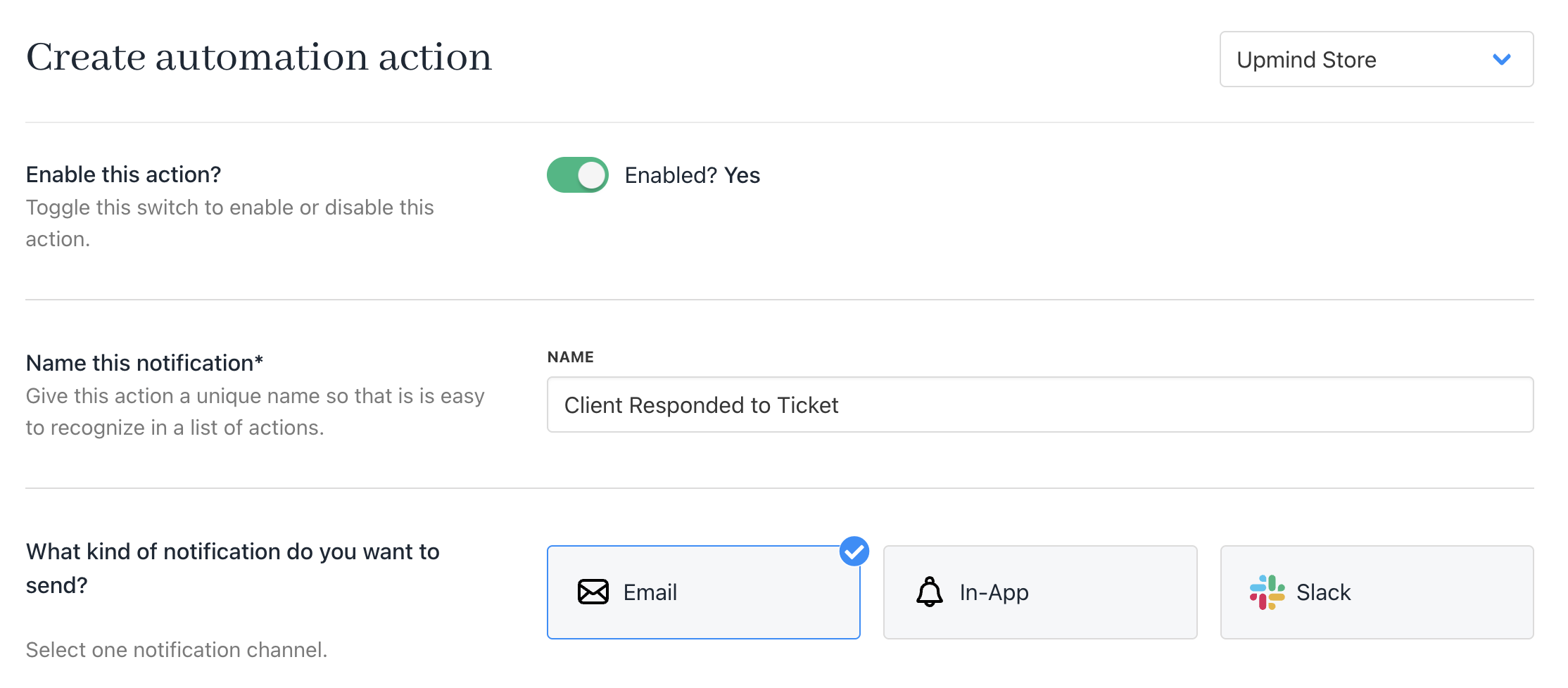
1. Select **Actions** tab > **Add action**.
2. Toggle **Enabled** to `ON`. (Default)
3. **Name** the action and choose a **channel**.
## Create a new action
1. Select **Actions** tab > **Add action**.
2. Toggle **Enabled** to `ON`. (Default)
3. **Name** the action and choose a **channel**.
 ## Add a trigger
1. Click the trigger field, search if needed, and select one.
## Add a trigger
1. Click the trigger field, search if needed, and select one.
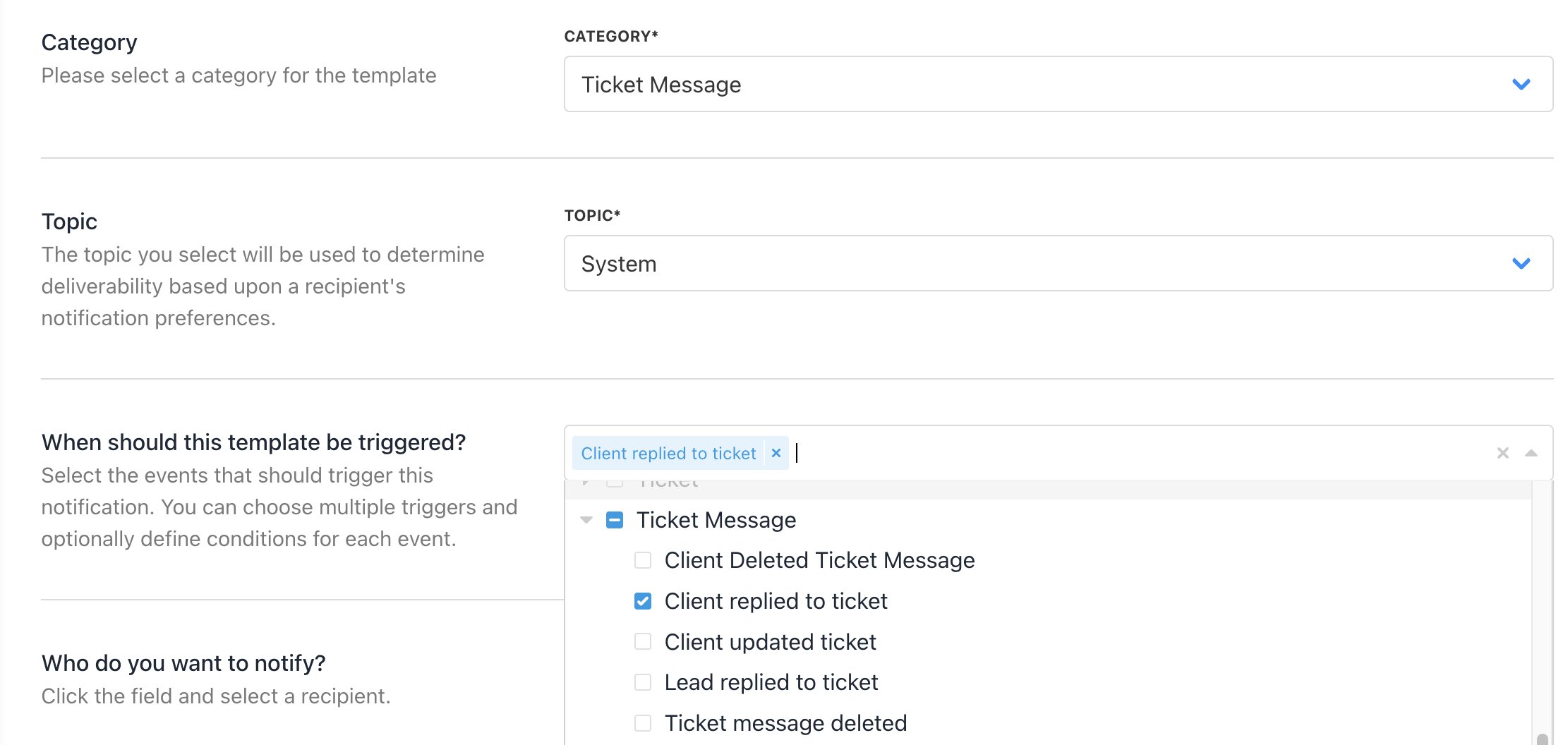 2. **Save.** You can now manage the conditions of your trigger.
 The **Manage Condition** button will only appear after you save the action template.
## Select recipients
Choose `Who do you want to notify?` from the options.
The **Manage Condition** button will only appear after you save the action template.
## Select recipients
Choose `Who do you want to notify?` from the options.
 The list of options varies with the notification channel and your current configuration.
**Example**: There is only one option (Brand) for Slack.
## Build the template
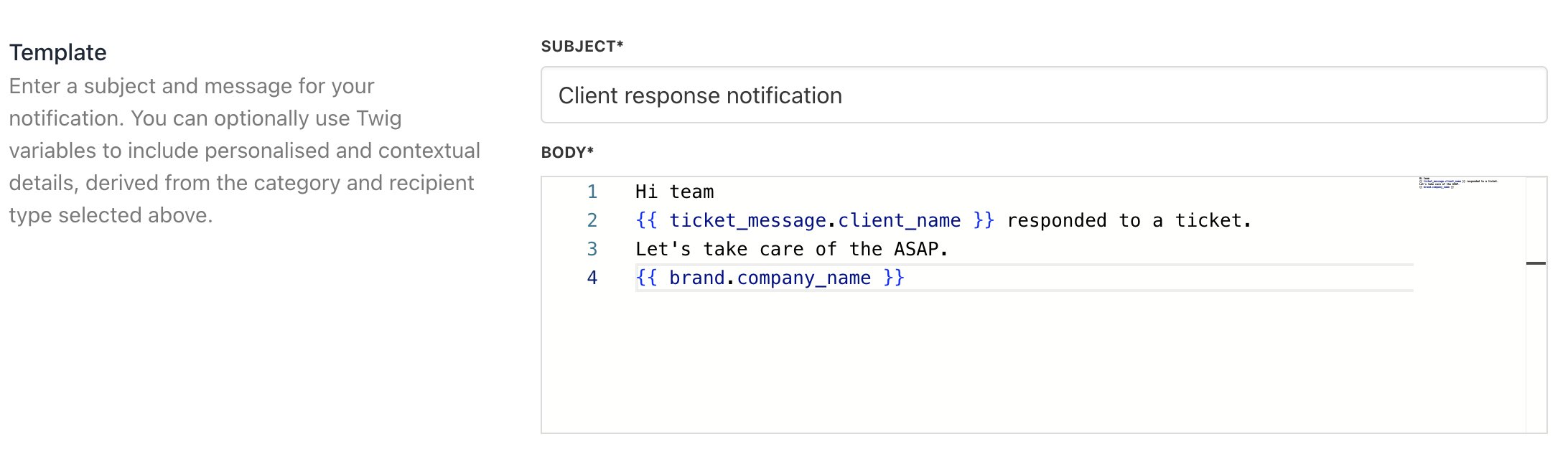
1. Scroll to **Template and** create the message with [**Twig syntax**](/setup-and-configuration/email-configuring-and-sending/how-to-format-email-templates) for variables.
2. Click **Save**.
The list of options varies with the notification channel and your current configuration.
**Example**: There is only one option (Brand) for Slack.
## Build the template
1. Scroll to **Template and** create the message with [**Twig syntax**](/setup-and-configuration/email-configuring-and-sending/how-to-format-email-templates) for variables.
2. Click **Save**.
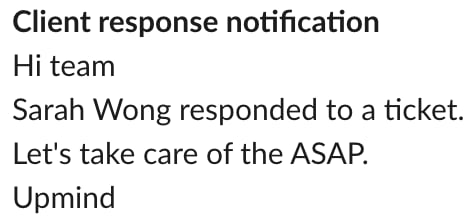
 Upmind sends the message when the trigger event occurs (e.g., Slack alert for ticket replies).
 ## Edit or delete actions
1. Go to the **Actions** tab.
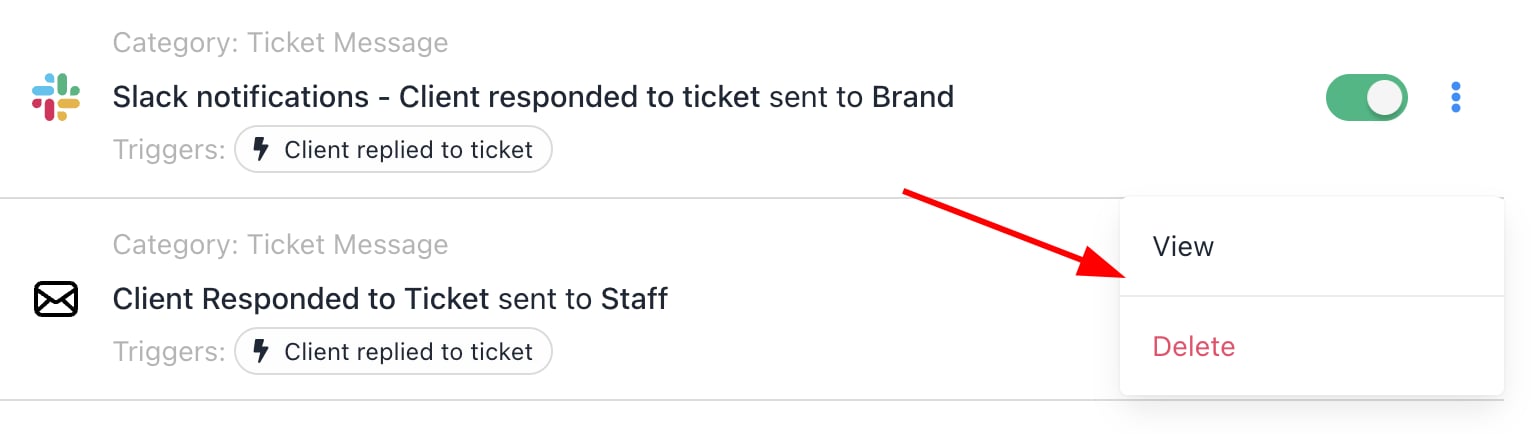
2. Click the three dot icon next to an action.
3. Here you can view to **Edit** or **Delete** it.
## Edit or delete actions
1. Go to the **Actions** tab.
2. Click the three dot icon next to an action.
3. Here you can view to **Edit** or **Delete** it.
 ## Disable notifications
If you want to stop notifications from being sent to your clients, there are three methods you can use:
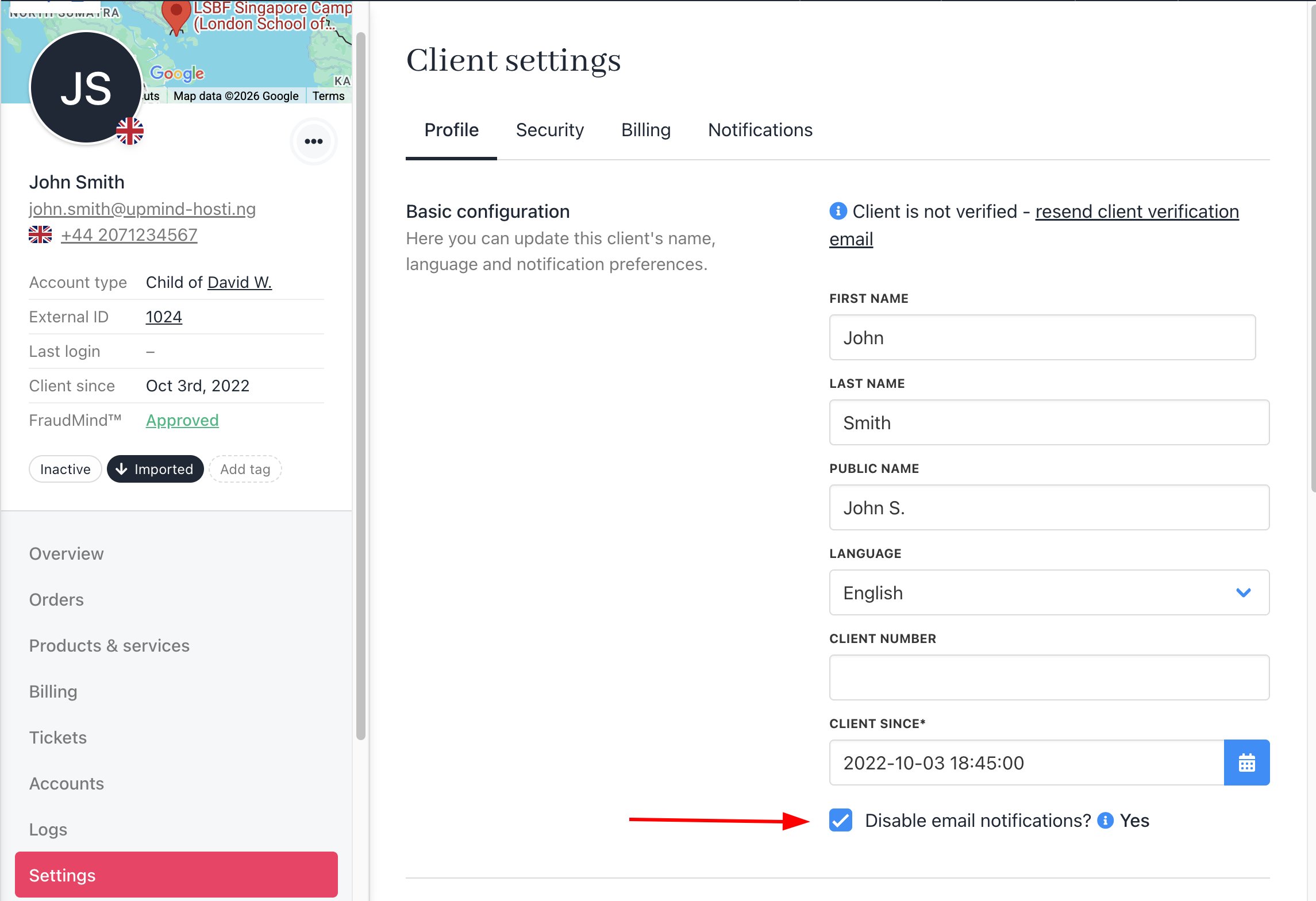
### For a specific client
1. Go to **Clients > Client Profile > Settings > Profile**.
2. Toggle **Disable Email Notifications**.
## Disable notifications
If you want to stop notifications from being sent to your clients, there are three methods you can use:
### For a specific client
1. Go to **Clients > Client Profile > Settings > Profile**.
2. Toggle **Disable Email Notifications**.
 ### Per action
1. **Go to Settings > Actions**.
2. Choose an action and toggle **Enabled** to OFF.
### Per action
1. **Go to Settings > Actions**.
2. Choose an action and toggle **Enabled** to OFF.
 ### All notifications (Custom SMTP)
You can set up fake credentials in [**Custom SMTP**](/setup-and-configuration/email-configuring-and-sending/how-does-email-work-in-upmind) to disable notifications.
### All notifications (Custom SMTP)
You can set up fake credentials in [**Custom SMTP**](/setup-and-configuration/email-configuring-and-sending/how-does-email-work-in-upmind) to disable notifications.