> ## Documentation Index
> Fetch the complete documentation index at: https://docs.upmind.com/llms.txt
> Use this file to discover all available pages before exploring further.
# How the Import System Works
> Upmind automates your information and business so you can import your important data easily.
Upmind supports importing data from a variety of external platforms to help you transition smoothly and manage your business efficiently. Our import system is designed to be effective and user-friendly, allowing you to bring in essential data accurately and securely.
## Data types supported by the import system
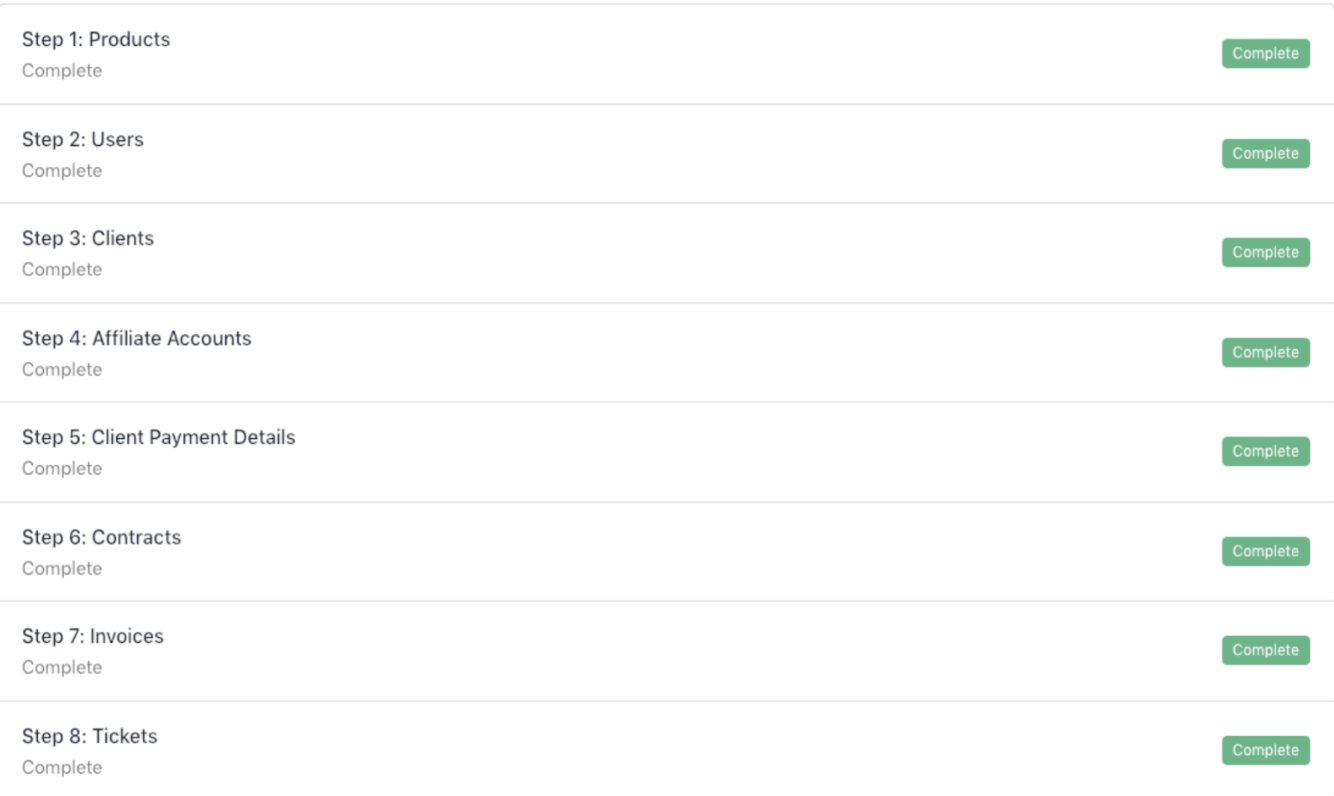
Upmind can import the following data types:
* Products
* Users (staff)
* Clients
* Affiliates
* Client Payment Information
* Contracts
* Invoices
* Support Tickets
Depending on your data source, you may import some or all of these categories.
**Example**: When importing from a ticketing system, you might only bring in clients and tickets.
 ## Import workflow
### Staging records
All imported data is first staged. This means your import is not applied immediately but held for review. Staging allows you to preview exactly what will be imported, eliminating risks associated with blind imports.
### Data mapping
During import, you will be prompted to map external data fields to Upmind records. Mapping helps to connect external product categories, ticket users, or other entities to matching records within Upmind. This step is vital to maintain data integrity and relationships.
### Linking imported records
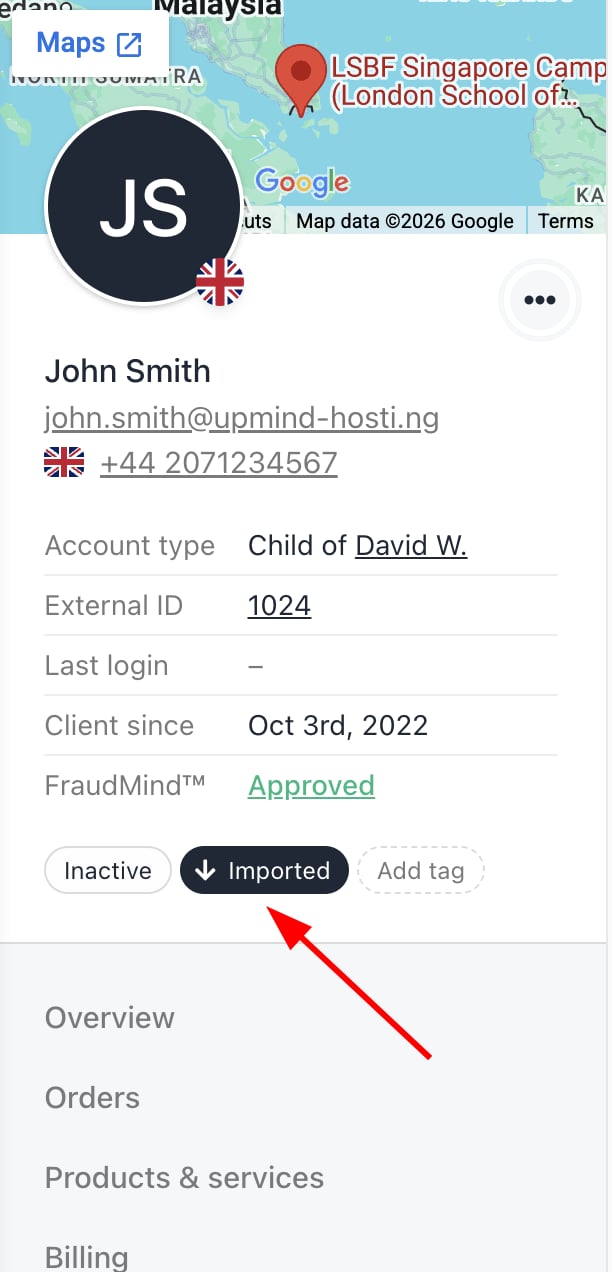
Upmind helps you see how imported data connects to existing records. It shows visual cues (imported tag) and links that let you check relationships. This makes verifying that all data is correctly connected and organised after import easier.
## Import workflow
### Staging records
All imported data is first staged. This means your import is not applied immediately but held for review. Staging allows you to preview exactly what will be imported, eliminating risks associated with blind imports.
### Data mapping
During import, you will be prompted to map external data fields to Upmind records. Mapping helps to connect external product categories, ticket users, or other entities to matching records within Upmind. This step is vital to maintain data integrity and relationships.
### Linking imported records
Upmind helps you see how imported data connects to existing records. It shows visual cues (imported tag) and links that let you check relationships. This makes verifying that all data is correctly connected and organised after import easier.
 ## Committing or cancelling imports
After reviewing the staged data, you can either commit the import to save the data and trigger automations or cancel it to discard all changes with no partial data saved.
## Committing or cancelling imports
After reviewing the staged data, you can either commit the import to save the data and trigger automations or cancel it to discard all changes with no partial data saved.