> ## Documentation Index
> Fetch the complete documentation index at: https://docs.upmind.com/llms.txt
> Use this file to discover all available pages before exploring further.
# How to View Email Logs
> Track sent, failed, and queued emails with search and filtering.
## What is an email log?
The email log records every message sent from your Upmind business, including the subject, recipient, date, and delivery status.
It allows you to view message content and the trigger or hook that generated it, such as a welcome email. This log serves as proof of communication, aids in auditing and troubleshooting, and enables quick resending of messages if needed.
## Viewing the general email history log
1. Log in to your Upmind admin account.
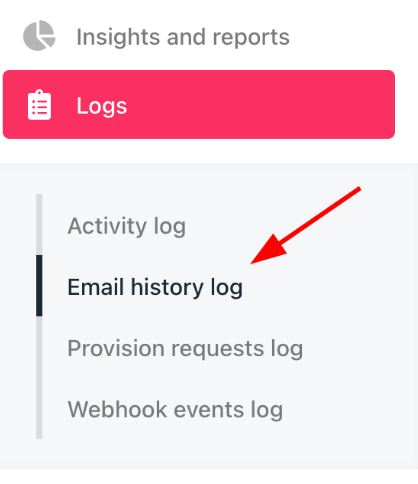
2. Click **Logs** in the left menu.
3. Select **Email History Log** to view all sent messages.
 ## Viewing a specific client’s email log
1. Click **Clients** in the left menu.
2. Select the **Clients List** tab.
## Viewing a specific client’s email log
1. Click **Clients** in the left menu.
2. Select the **Clients List** tab.
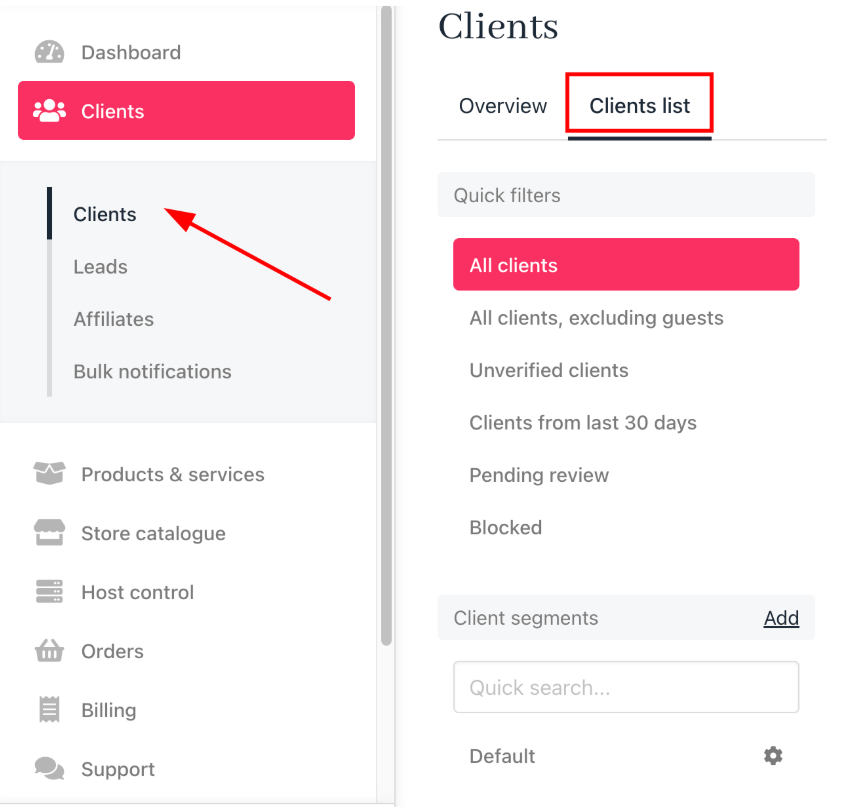 3. Find and click the client’s name.
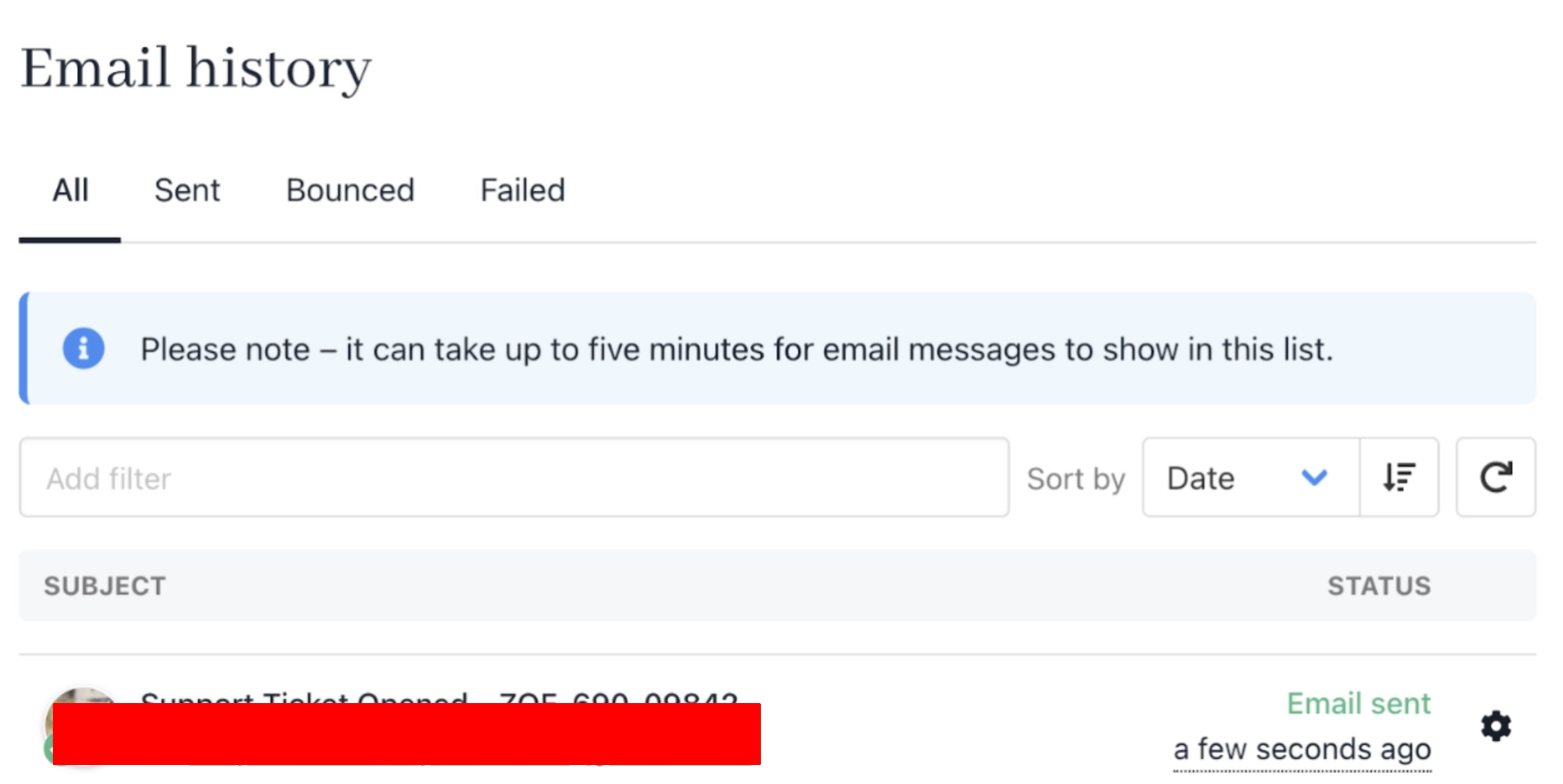
4. Under the **Logs** heading, click **Email History Log** to see the client’s email history.
3. Find and click the client’s name.
4. Under the **Logs** heading, click **Email History Log** to see the client’s email history.
 ## Filtering messages
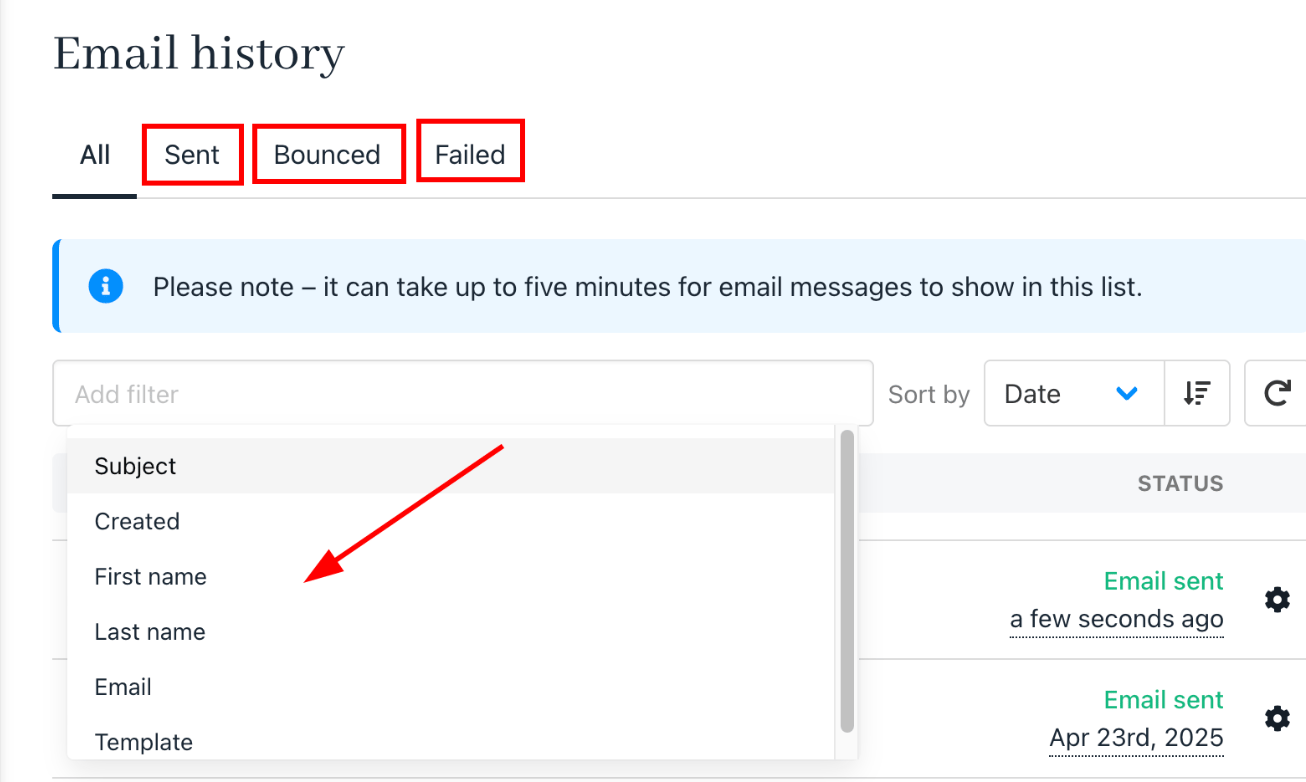
1. On the **Email History Log** page, use menu items to filter by status (**Sent, Bounced, Failed**).
2. Use the filter field to search by tag, such as first name or email address.
## Filtering messages
1. On the **Email History Log** page, use menu items to filter by status (**Sent, Bounced, Failed**).
2. Use the filter field to search by tag, such as first name or email address.
 ## Reading a message
1. Click a message to open the **View Email** panel.
## Reading a message
1. Click a message to open the **View Email** panel.
 2. You can review message details, content, and related [triggers](https://docs.upmind.com/setup-and-configuration/notifications/how-to-create-and-disable-notifications) or [hooks](https://docs.upmind.com/setup-and-configuration/notifications/notifications-overview).
 ## Resending a message
1. Click the gear icon next to a message and select **Resend**.
2. Or, open the message and use the **Resend** link at the top of the panel.
## Resending a message
1. Click the gear icon next to a message and select **Resend**.
2. Or, open the message and use the **Resend** link at the top of the panel.
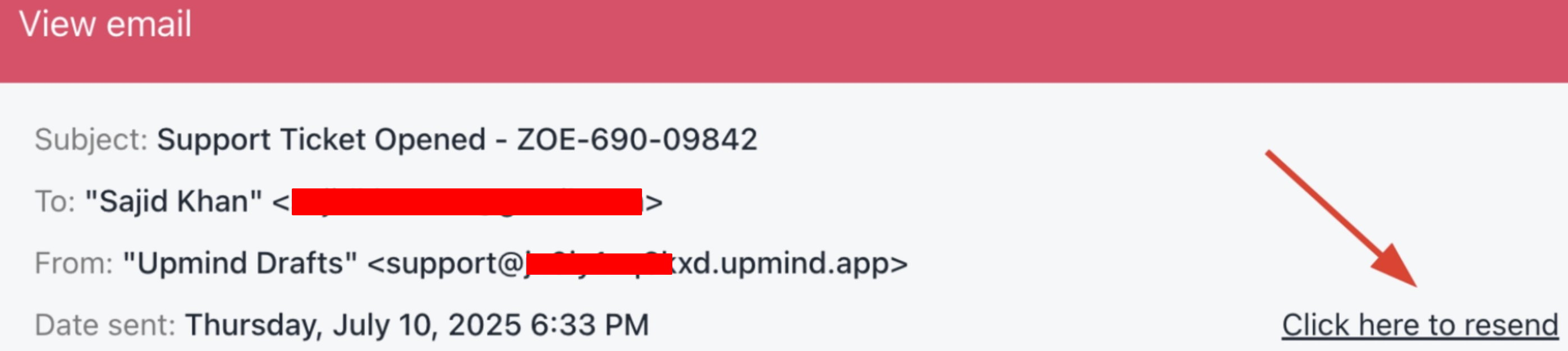
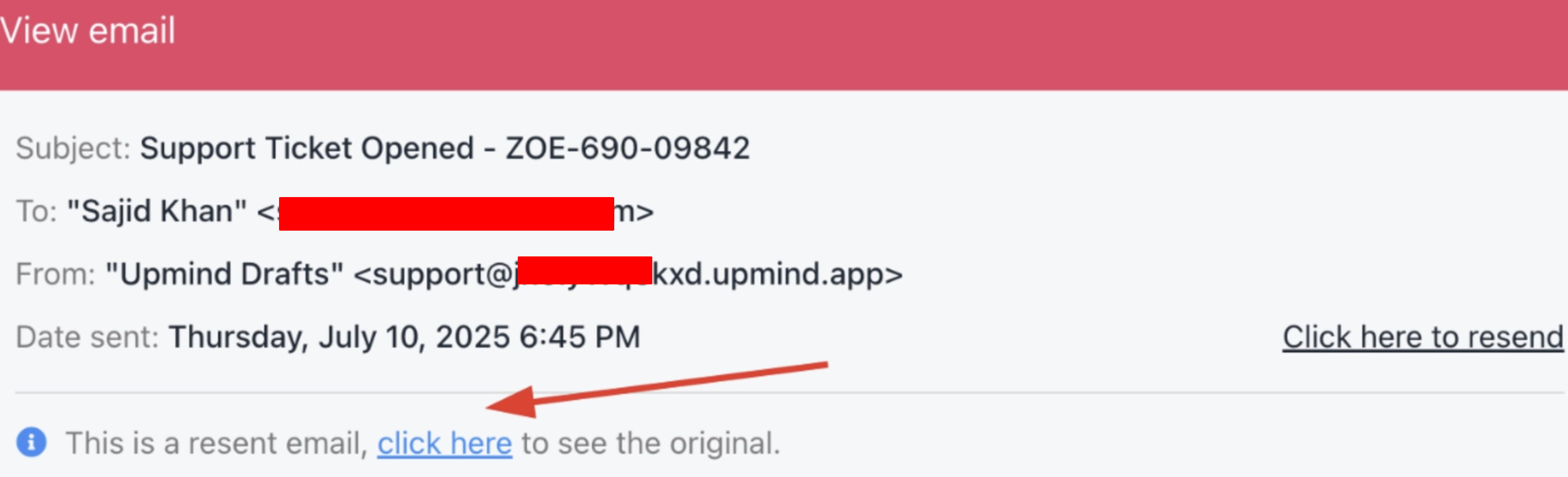 When you resend a message, Upmind adds it to the log with a label indicating it is a re-sent message for tracking purposes.