> ## Documentation Index
> Fetch the complete documentation index at: https://docs.upmind.com/llms.txt
> Use this file to discover all available pages before exploring further.

# How to Test Emails

> Send test emails to confirm configuration and template appearance.

Testing emails ensures your templates display as intended and dynamic fields populate correctly. Upmind provides several ways to send test emails.

## Sending a test email from a product

1. Go to **Products & Services** in the left menu.
2. Select the desired product.
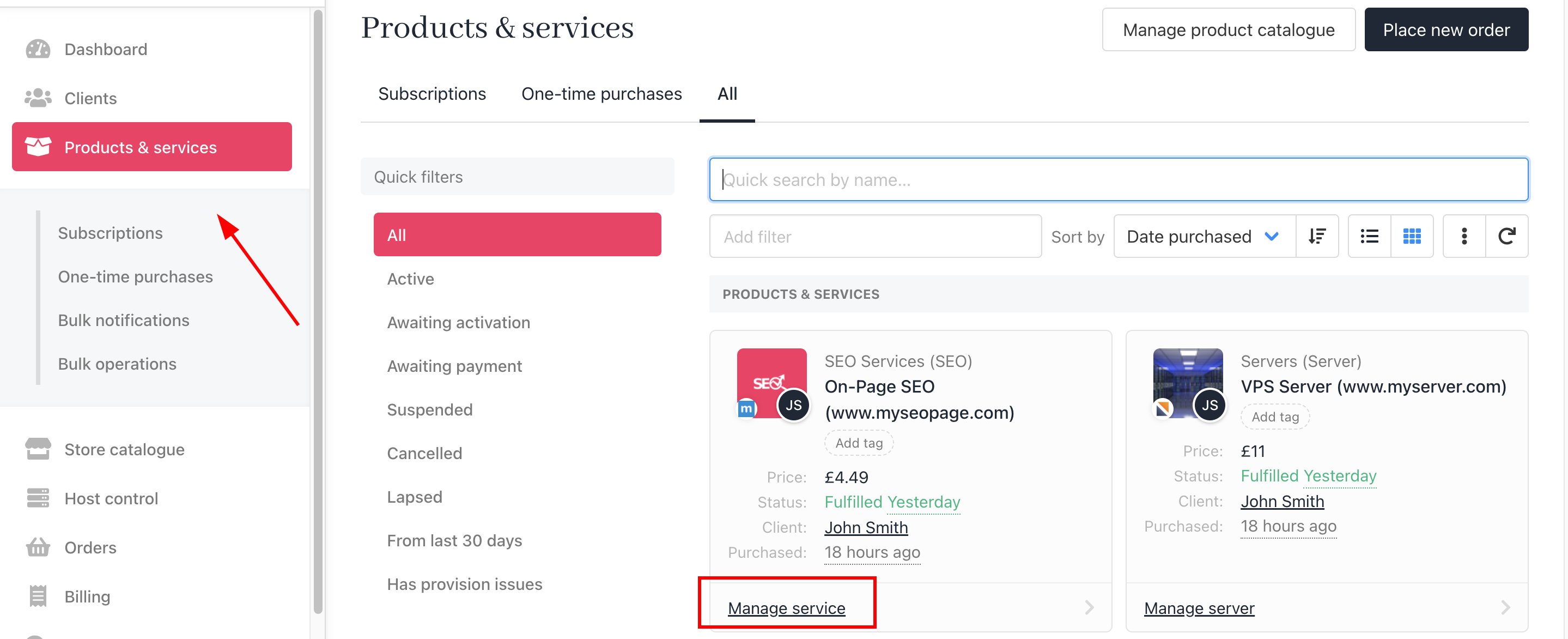
<Frame caption="Select product">
  <img src="https://mintcdn.com/upmind/JUoAg6onJmXk_-rR/images/fb/e5f86ec1e9dc688c.png?fit=max&auto=format&n=JUoAg6onJmXk_-rR&q=85&s=1c4a4d74dded97bfeec200cf800a31ac" alt="Select product" className="mx-auto" style={{ width:"99%" }} width="2878" height="1172" data-path="images/fb/e5f86ec1e9dc688c.png" />
</Frame>

3. From the **Quick Actions**, click **Send Email**.

<Frame caption="Send email">
  <img src="https://mintcdn.com/upmind/Dgjmf3QWYVBR40cE/images/fb/5cbd0f7de1be77c8.png?fit=max&auto=format&n=Dgjmf3QWYVBR40cE&q=85&s=ec711462ec9a1e32b37bd459e361e755" alt="Send email" className="mx-auto" style={{ width:"96%" }} width="1494" height="274" data-path="images/fb/5cbd0f7de1be77c8.png" />
</Frame>

4. Choose the email template to test and send it.
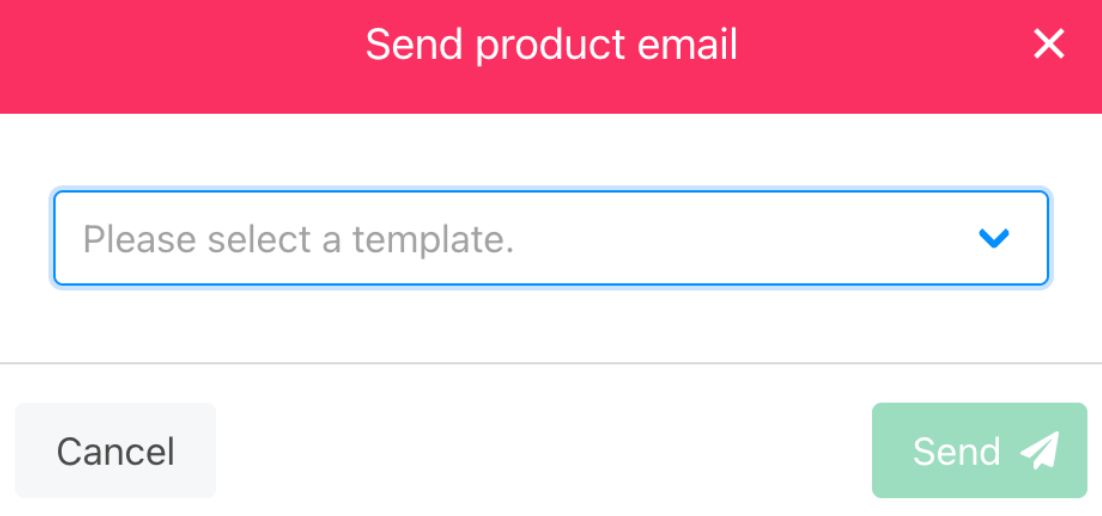
<Frame caption="Test email">
  <img src="https://mintcdn.com/upmind/JUoAg6onJmXk_-rR/images/fb/e11428eee43d0d50.png?fit=max&auto=format&n=JUoAg6onJmXk_-rR&q=85&s=64574c45c33ccba8ea1d922d4ba2dd48" alt="Test email" className="mx-auto" style={{ width:"80%" }} width="1102" height="516" data-path="images/fb/e11428eee43d0d50.png" />
</Frame>
