> ## Documentation Index
> Fetch the complete documentation index at: https://docs.upmind.com/llms.txt
> Use this file to discover all available pages before exploring further.
# How to Create and Send Product & Service Bulk Email Messages
> Notify customers about product or service changes in bulk.
Product & Service Bulk Email Messaging enables you to create templates and send personalised bulk email notifications to clients based on defined product and service parameters (e.g., product, price, status, client parameters).
You can quickly send new messages by duplicating and customising templates. Note that each matching product generates a separate email, so clients with multiple products may receive multiple messages.
For bulk notifications unrelated to products or services, see this separate [guide](https://upmind.featurebase.app/help/articles/4709890-how-to-create-and-send-client-bulk-email-messages).
## Define message recipients
1. Log in to Upmind Admin.
2. Go to `Products & Services` in the left menu.
3. Select **Bulk Notifications**.
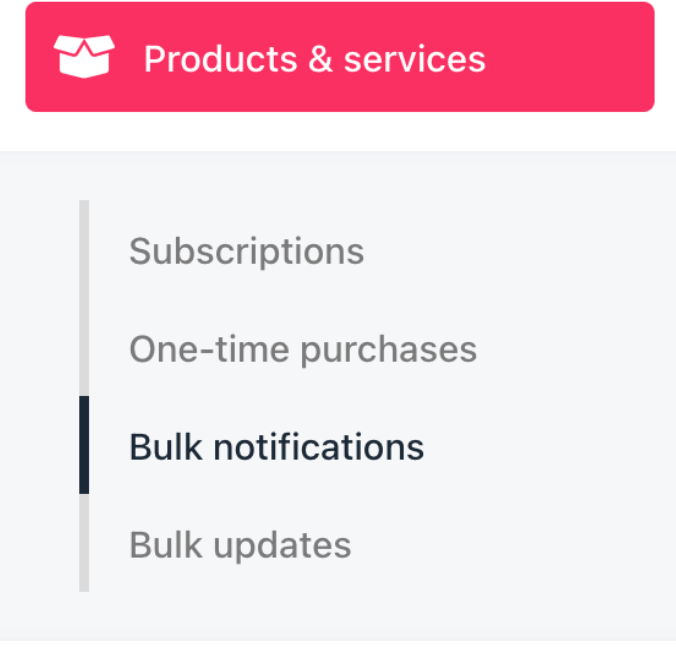 4. Click **Add Bulk Action**.
5. Enter a name for the bulk action.
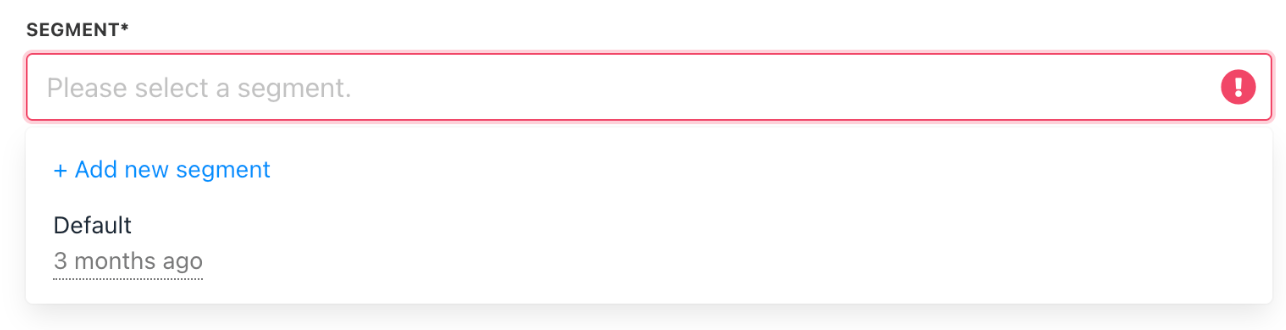
6. Click the **Segment** field to choose:
* All products & services (default)
* An existing segment
* Create a new segment
4. Click **Add Bulk Action**.
5. Enter a name for the bulk action.
6. Click the **Segment** field to choose:
* All products & services (default)
* An existing segment
* Create a new segment
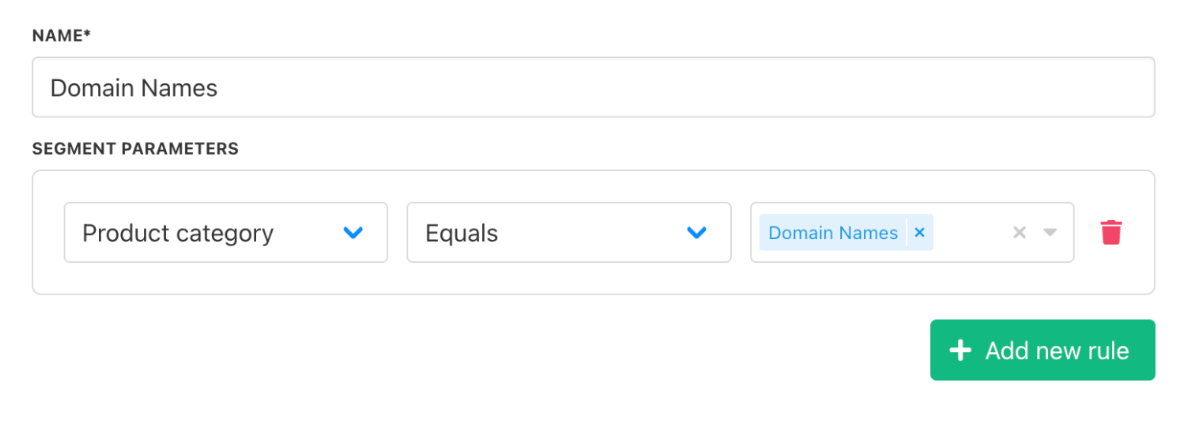
 ## Creating a new segment
1. Select **Add New Segment**.
## Creating a new segment
1. Select **Add New Segment**.
 2. Enter a segment name.
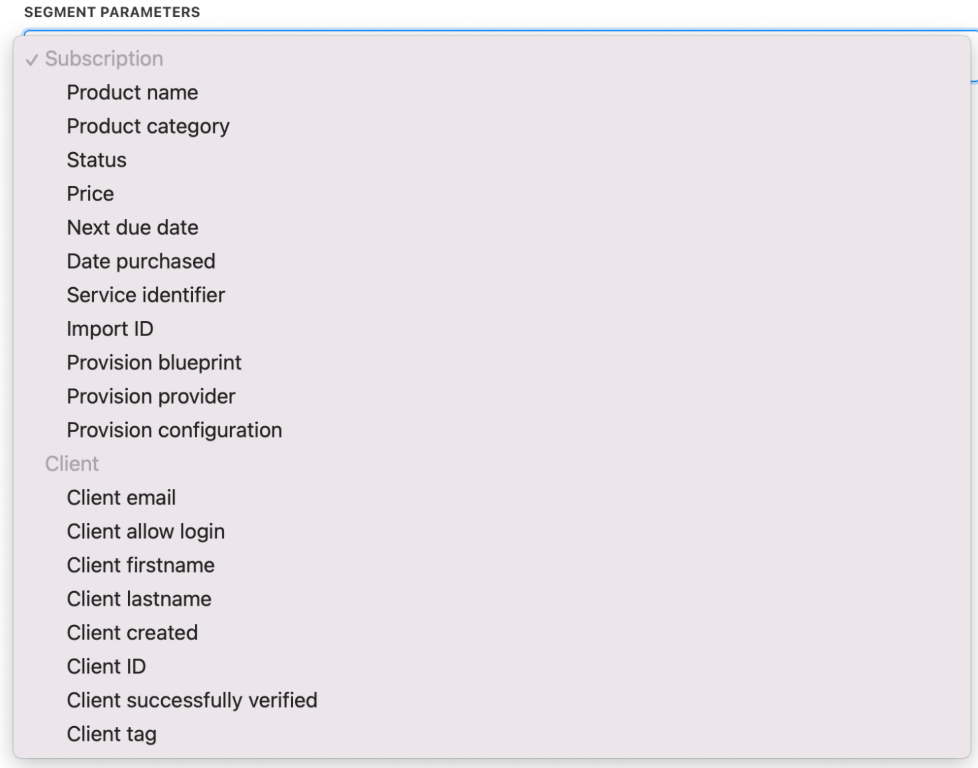
3. Set **Segment Parameters** (e.g., Product, Price, Status, Provision Configuration, Client parameters).
2. Enter a segment name.
3. Set **Segment Parameters** (e.g., Product, Price, Status, Provision Configuration, Client parameters).
 4. Add rules to refine your segment.
5. Click **Create**.
4. Add rules to refine your segment.
5. Click **Create**.
 ## Attach an existing template
1. Click the template field.
2. Select a template.
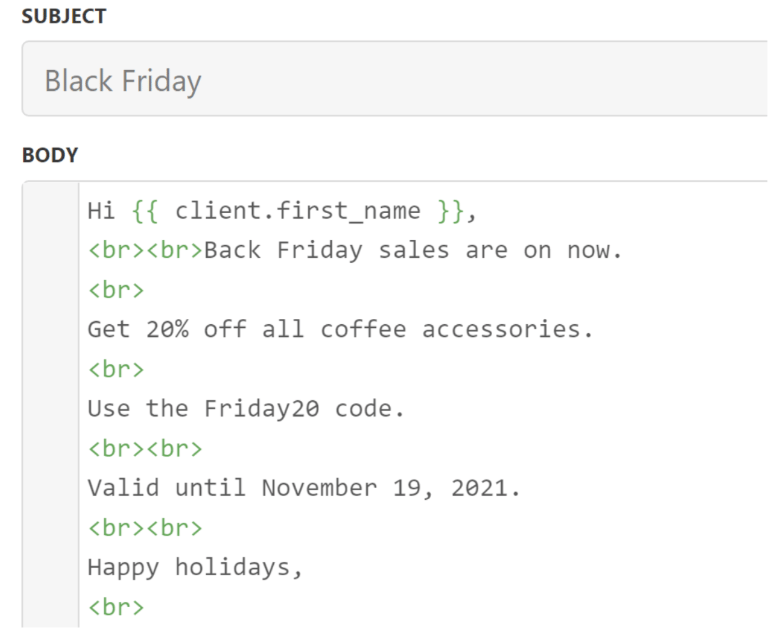
3. Modify text or code snippets if needed.
## Attach an existing template
1. Click the template field.
2. Select a template.
3. Modify text or code snippets if needed.
 4. Click **Save**.
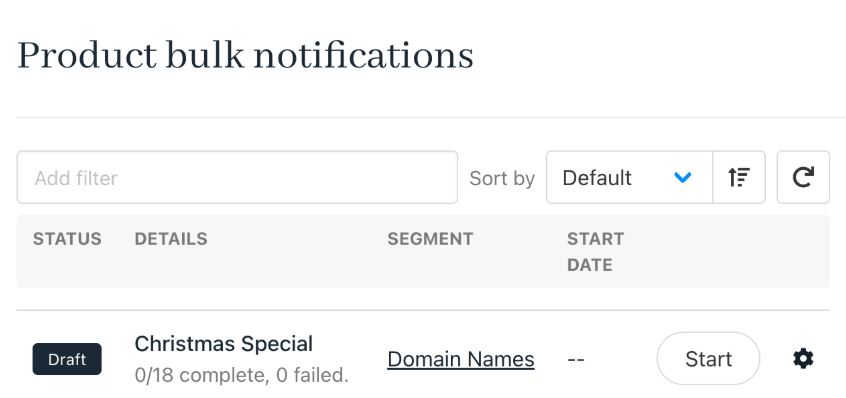
Upmind displays the message on the `Product & Services bulk actions` page.
4. Click **Save**.
Upmind displays the message on the `Product & Services bulk actions` page.
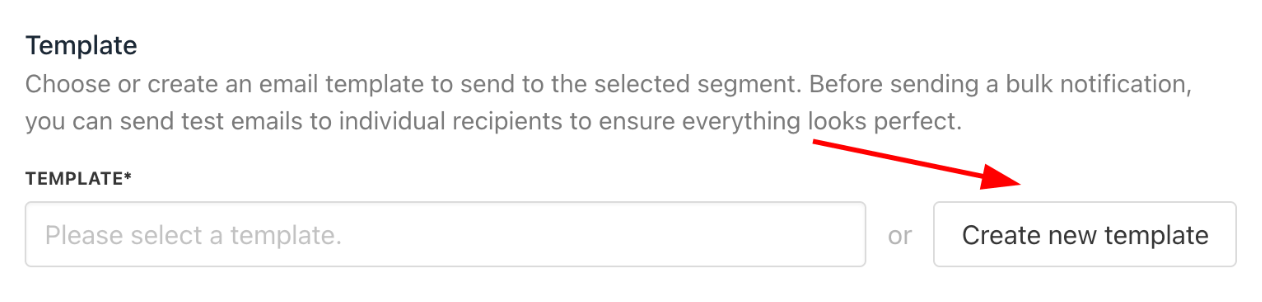
 ## Create a new template
1. Click **Create Template**.
## Create a new template
1. Click **Create Template**.
 2. Enter a template name.
3. Choose the recipient type.
2. Enter a template name.
3. Choose the recipient type.
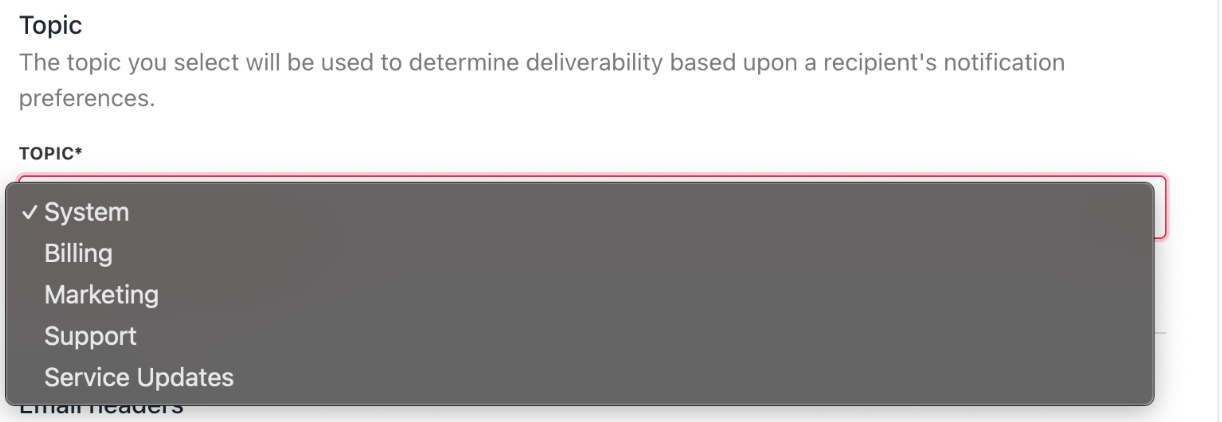 4. Fill in the **Subject** and **Body** fields.
## Adding dynamic fields
Code snippets dynamically insert content into emails when opened by the recipient.
To insert a snippet:
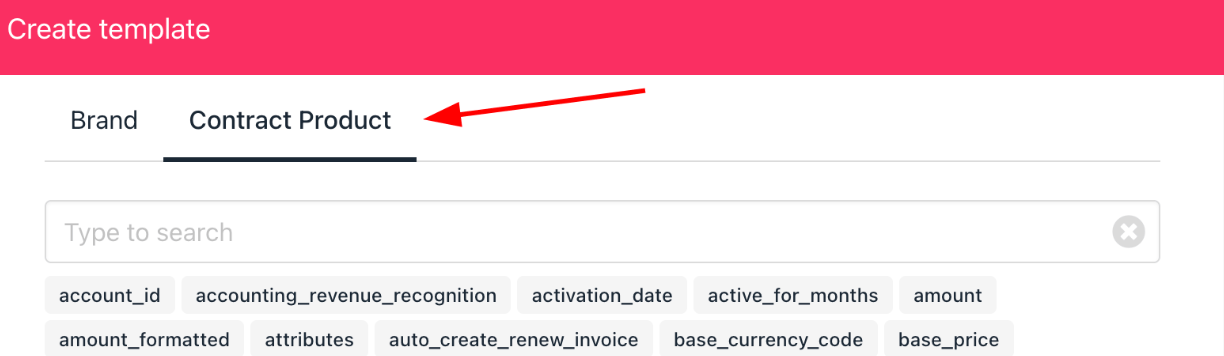
1. Click a menu tab to view available snippets. Each tab contains a distinct collection of related code snippets.
4. Fill in the **Subject** and **Body** fields.
## Adding dynamic fields
Code snippets dynamically insert content into emails when opened by the recipient.
To insert a snippet:
1. Click a menu tab to view available snippets. Each tab contains a distinct collection of related code snippets.
 Learn more about [template syntax](https://upmind.featurebase.app/help/articles/5591991-how-to-format-email-templates).
2. Copy and paste snippets into the template.
3. Use HTML for formatting.
Learn more about [template syntax](https://upmind.featurebase.app/help/articles/5591991-how-to-format-email-templates).
2. Copy and paste snippets into the template.
3. Use HTML for formatting.
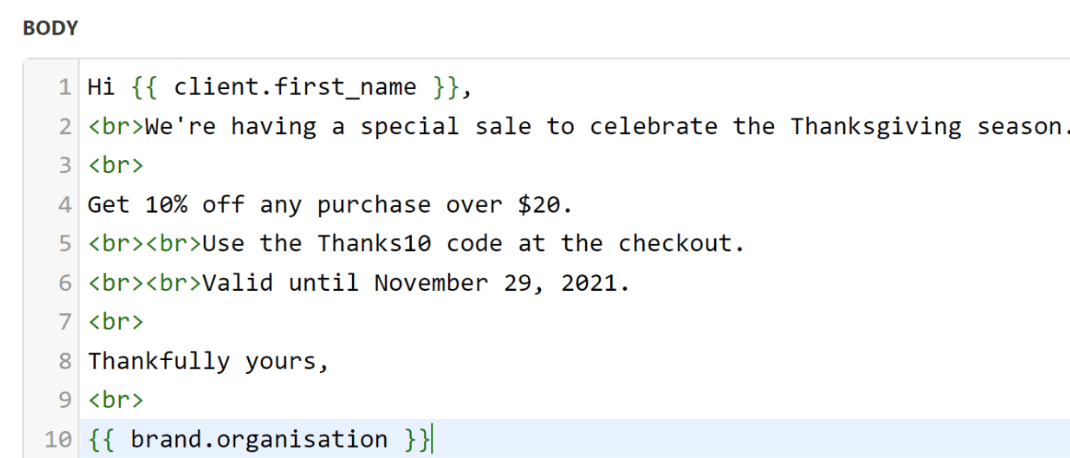 Email templates are built with [Twig code](https://twig.symfony.com/).
4. Click **Save**.
## Edit bulk messages
1. Go to the **Product & Services Bulk Actions** page.
2. Select a message.
3. Update as needed.
4. Click **Save**.
## Delete bulk messages
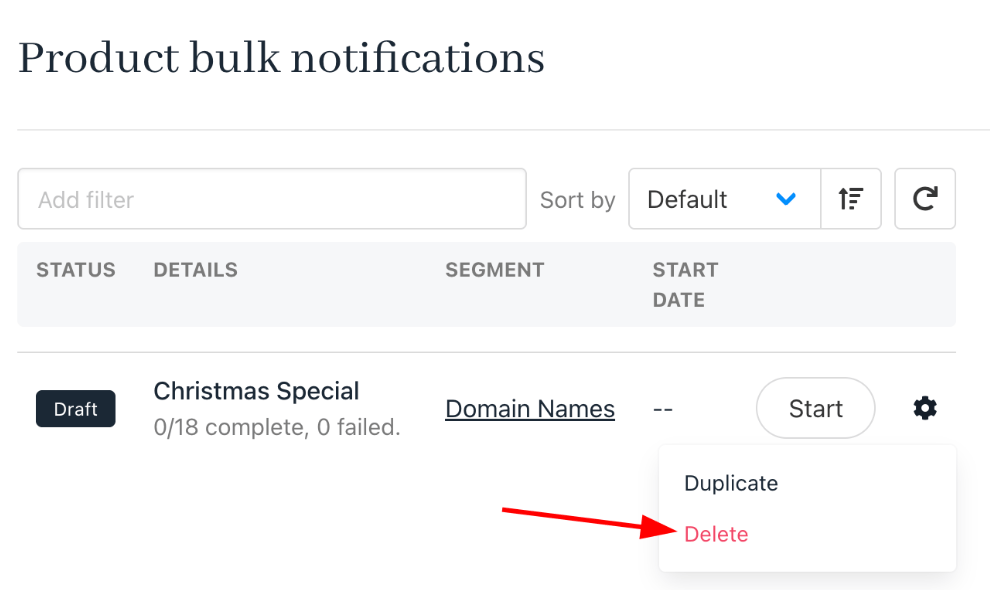
1. Click the gear icon next to the message.
2. Select **Delete**.
Email templates are built with [Twig code](https://twig.symfony.com/).
4. Click **Save**.
## Edit bulk messages
1. Go to the **Product & Services Bulk Actions** page.
2. Select a message.
3. Update as needed.
4. Click **Save**.
## Delete bulk messages
1. Click the gear icon next to the message.
2. Select **Delete**.
 ## Send or schedule bulk messages
1. On the **Product & Services Bulk Actions** page.
2. Find your message.
3. Click **Start**.
## Send or schedule bulk messages
1. On the **Product & Services Bulk Actions** page.
2. Find your message.
3. Click **Start**.
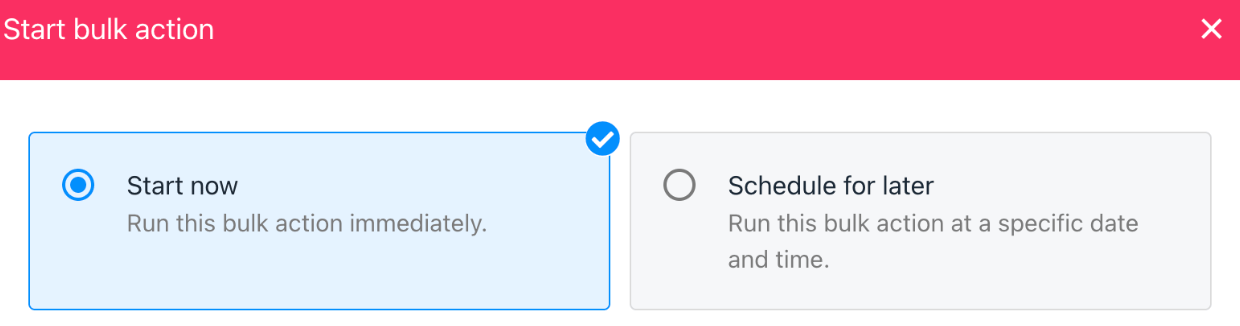
 4. Choose **Start Now** to send immediately, or **Schedule for Later** to pick a date and time.
 ## Review results
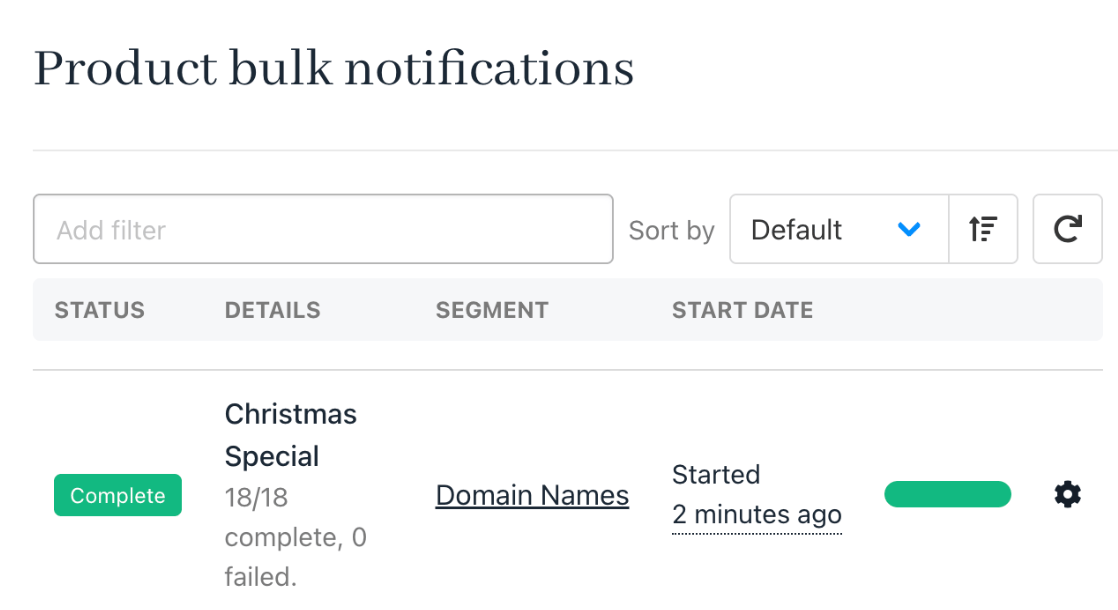
Upmind displays email results on the `Product & Services bulk actions` page. You can view delivery statistics, segment info, and template details when you click on a bulk message.
## Review results
Upmind displays email results on the `Product & Services bulk actions` page. You can view delivery statistics, segment info, and template details when you click on a bulk message.