> ## Documentation Index
> Fetch the complete documentation index at: https://docs.upmind.com/llms.txt
> Use this file to discover all available pages before exploring further.
# How to Set the Landing Page
> The Upmind e-commerce platform gives you three options: login page, restoration page, or store page.
You can choose which page visitors see first when accessing your store. It can include:
* Client area login page
* Registration page
* Store page
## Setting the landing page
1. In the Upmind admin dashboard, go to **Settings** > **User Interface** under **Branding and Customisation**.
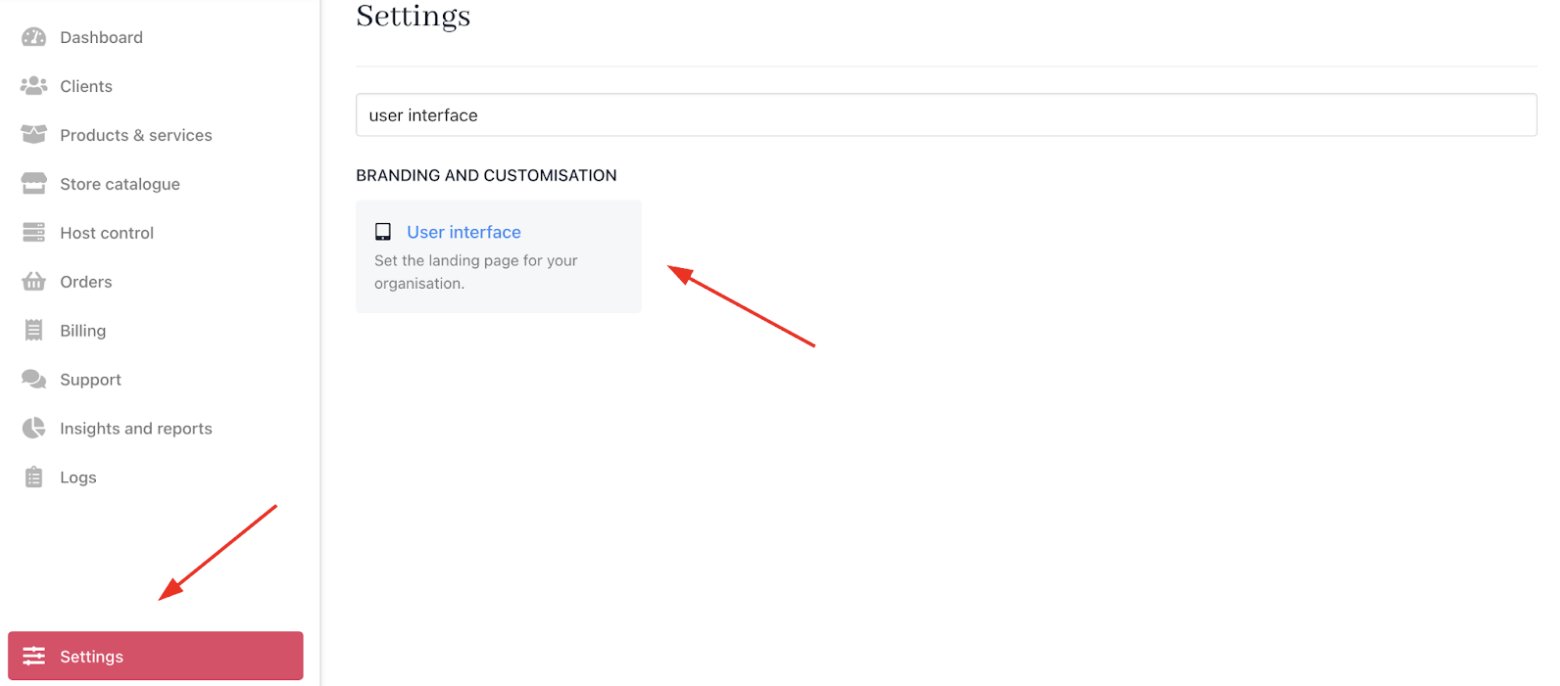 2. Click the **Landing Page** dropdown.
3. Choose your preferred landing page option.
2. Click the **Landing Page** dropdown.
3. Choose your preferred landing page option.
 4. Click **Save**.
## Landing page options
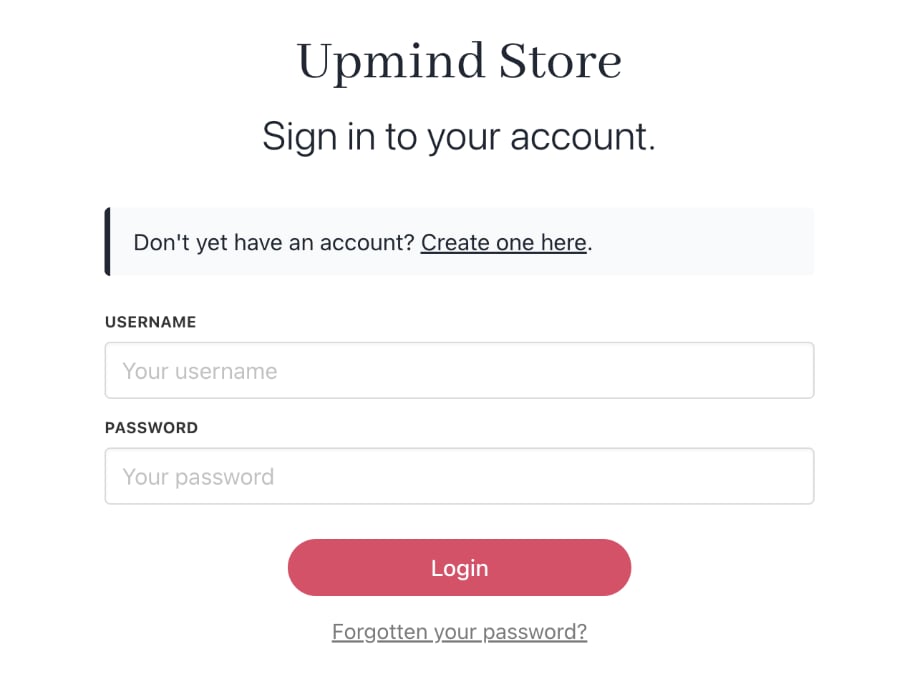
1. **Login page**: This option hides your store behind a login page. Current clients must sign in to access the site, while visitors can view the catalogue and cart if they click the link and create a store account.
4. Click **Save**.
## Landing page options
1. **Login page**: This option hides your store behind a login page. Current clients must sign in to access the site, while visitors can view the catalogue and cart if they click the link and create a store account.
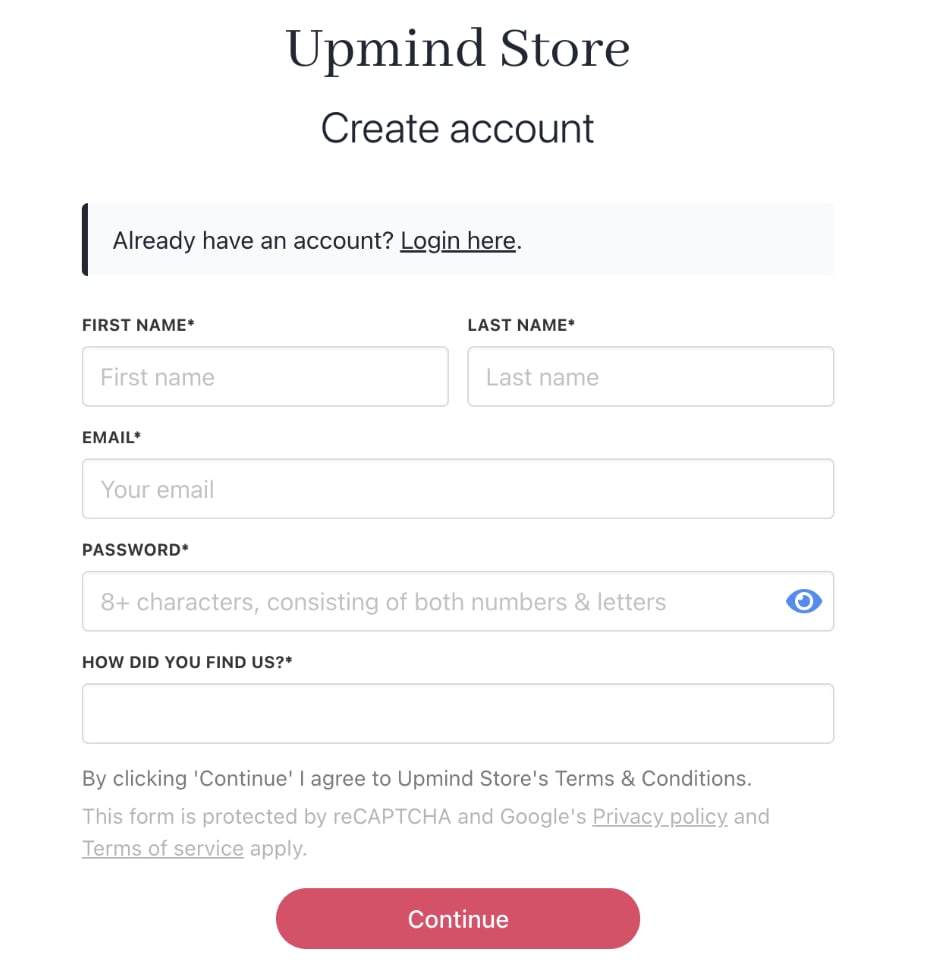
 2. **Registration page**: This option also hides your store behind a login page. This page signs up new clients and requires account creation before accessing the store. Existing clients can log in to their accounts through a link.
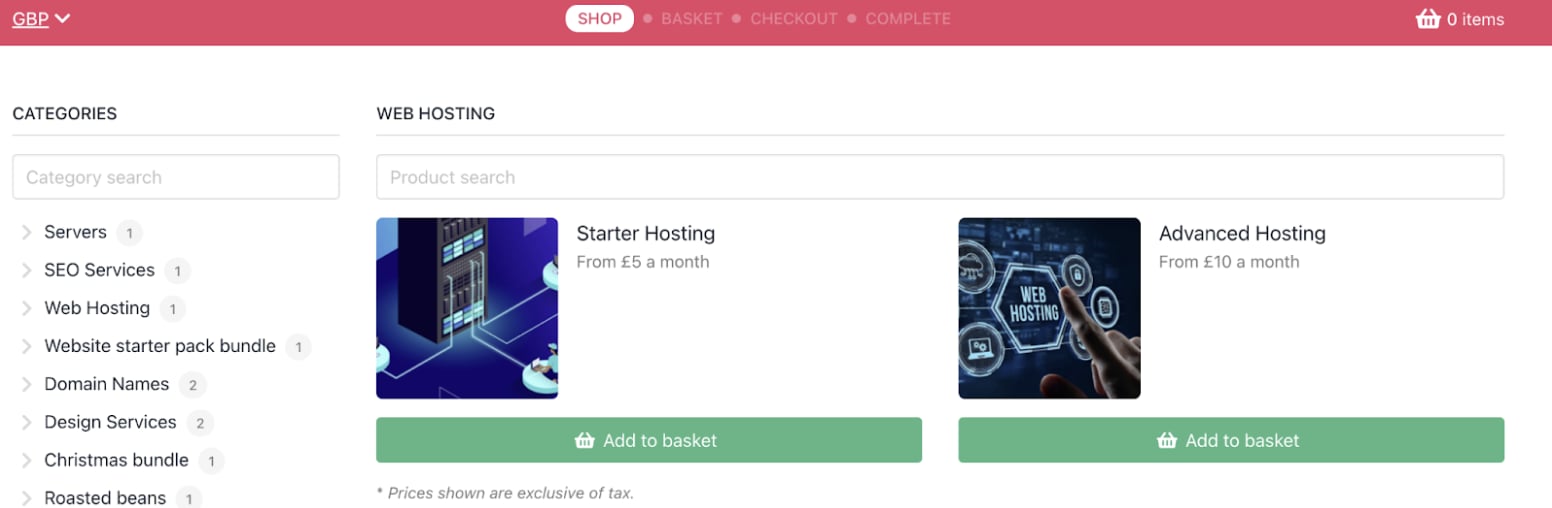
 3. **Store page**: This page shows the store to the public. Visitors can browse the catalogue and add items to a cart without logging in. Sign-up or login is only required for checkout or account access.
 When guest checkout is disabled, an **Authenticate** page prompts before checkout.
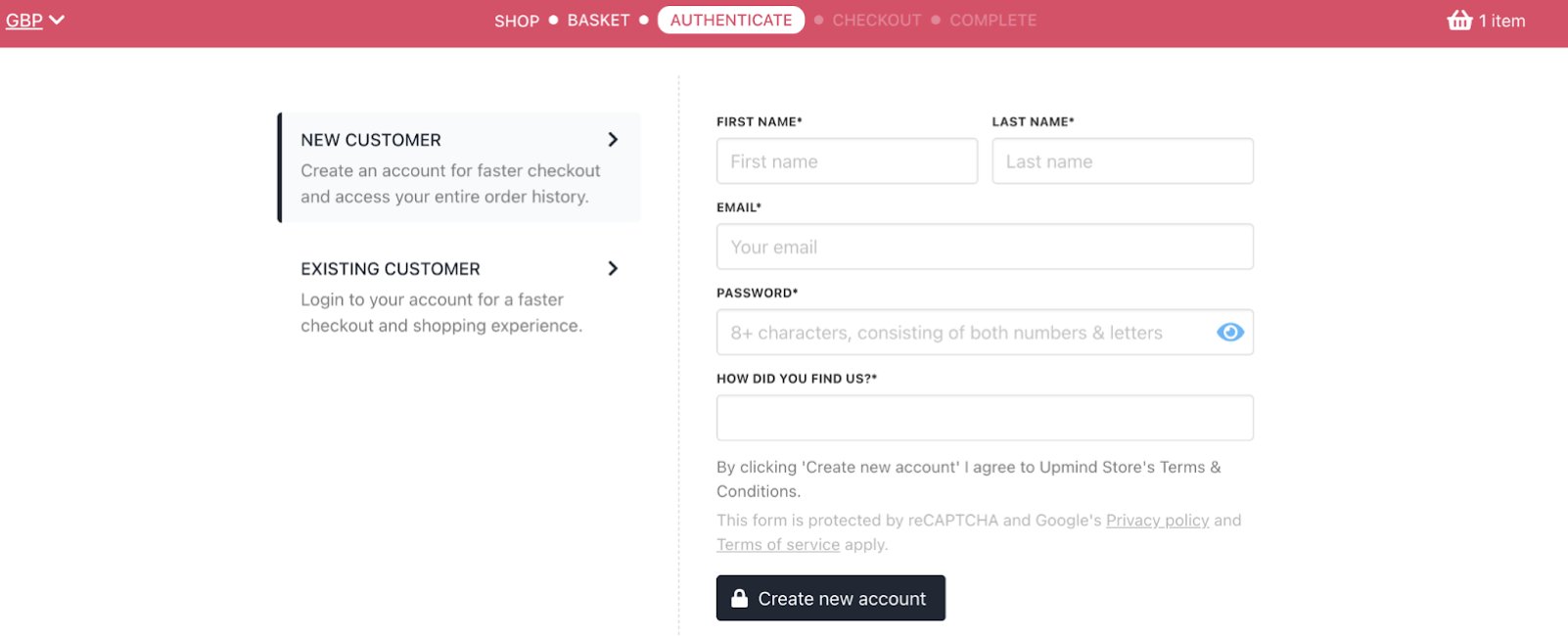 You can enable or disable it in **Settings** > **Order options**.