> ## Documentation Index
> Fetch the complete documentation index at: https://docs.upmind.com/llms.txt
> Use this file to discover all available pages before exploring further.

# How to Reset Brand Data

> With Upmind's branding feature, you can reset brand data after you see what you can do with Upmind. For every client or new one, you can always reset information.

If you are preparing to launch or need to change your brand’s base currency, resetting your brand’s test data might be necessary.

If you only have test clients and orders, you can request that your brand data be reset. Resetting clears all client, order, invoice, log, and transaction data while keeping your products and settings intact.

## Preconditions

* Only proceed if you have no live customer data.
* Make sure you have a backup if needed, since this action is irreversible.

## Enabling data reset

1. Log in to your Upmind Admin.
2. Go to **Settings** > **Brand Settings** under **Branding and Customisation**.
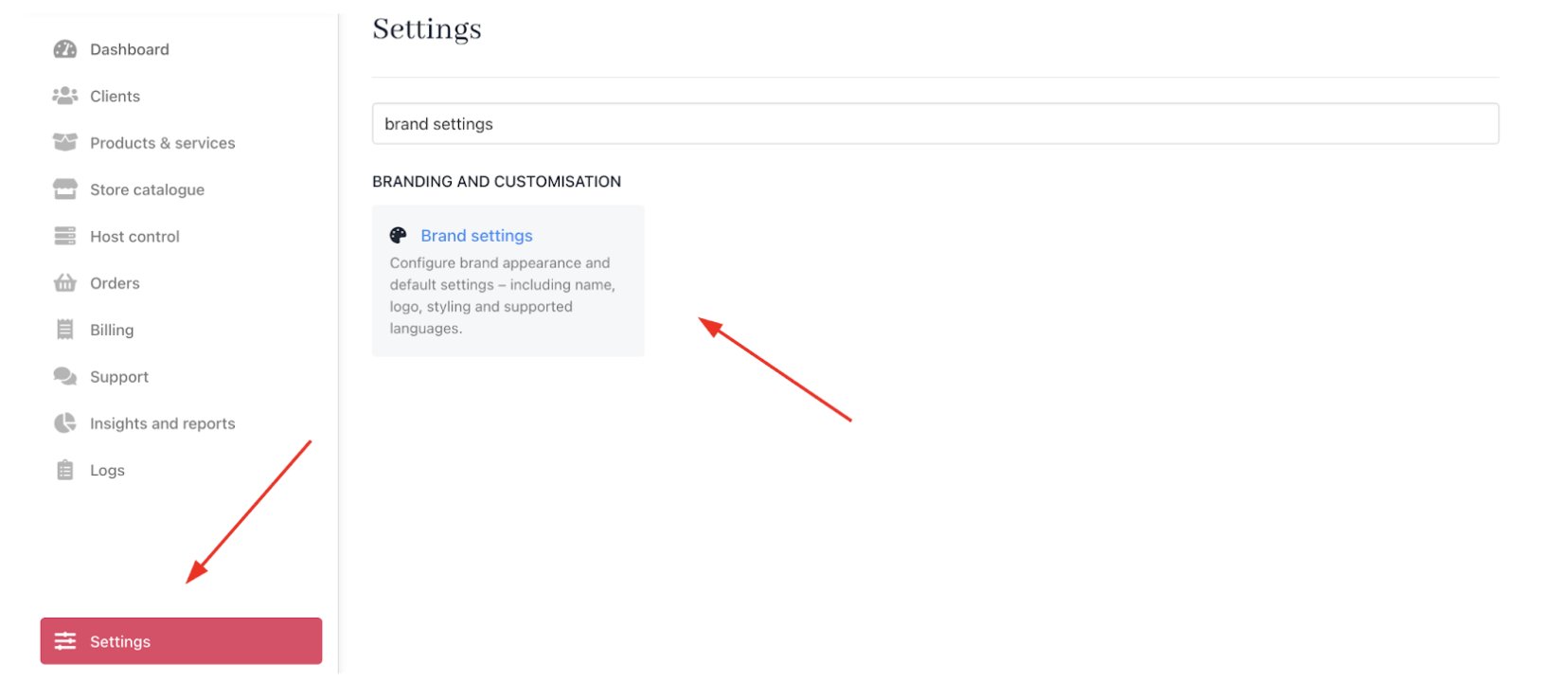
<Frame caption="Settings > Branding and customisation > Brand settings">
  <img src="https://mintcdn.com/upmind/bPO2bBzOxYQR4tYr/images/fb/f65b88fe7bb700f8.png?fit=max&auto=format&n=bPO2bBzOxYQR4tYr&q=85&s=9d5fc68c640a692ccefd474f134d81b3" alt="Settings > Branding and customisation > Brand settings" className="mx-auto" style={{ width:"99%" }} data-og-width="1656" width="1656" data-og-height="720" height="720" data-path="images/fb/f65b88fe7bb700f8.png" data-optimize="true" data-opv="3" srcset="https://mintcdn.com/upmind/bPO2bBzOxYQR4tYr/images/fb/f65b88fe7bb700f8.png?w=280&fit=max&auto=format&n=bPO2bBzOxYQR4tYr&q=85&s=e70cd58965b70fc8736eab76b837aef1 280w, https://mintcdn.com/upmind/bPO2bBzOxYQR4tYr/images/fb/f65b88fe7bb700f8.png?w=560&fit=max&auto=format&n=bPO2bBzOxYQR4tYr&q=85&s=dac2a3da45ae1d75c9d88f81e9a332ff 560w, https://mintcdn.com/upmind/bPO2bBzOxYQR4tYr/images/fb/f65b88fe7bb700f8.png?w=840&fit=max&auto=format&n=bPO2bBzOxYQR4tYr&q=85&s=932003cd509c6dd93c8850bf25700e57 840w, https://mintcdn.com/upmind/bPO2bBzOxYQR4tYr/images/fb/f65b88fe7bb700f8.png?w=1100&fit=max&auto=format&n=bPO2bBzOxYQR4tYr&q=85&s=c43b3cf7533275bf4146c275fa1e656b 1100w, https://mintcdn.com/upmind/bPO2bBzOxYQR4tYr/images/fb/f65b88fe7bb700f8.png?w=1650&fit=max&auto=format&n=bPO2bBzOxYQR4tYr&q=85&s=684c1b95e5e3659e32995bf4bd73ff18 1650w, https://mintcdn.com/upmind/bPO2bBzOxYQR4tYr/images/fb/f65b88fe7bb700f8.png?w=2500&fit=max&auto=format&n=bPO2bBzOxYQR4tYr&q=85&s=c1a6a2bbf2b80902866ce4c1d7d158e4 2500w" />
</Frame>

3. Locate and tick the checkbox for **Reset brand data**.

<Frame caption="Reset brand data">
  <img src="https://mintcdn.com/upmind/pcUdSuxUJ6LgBXnd/images/fb/a701e93f8af9d2a9.png?fit=max&auto=format&n=pcUdSuxUJ6LgBXnd&q=85&s=47f40b1581b75a80a1e8ba7ab769f257" alt="Reset brand data" className="mx-auto" style={{ width:"97%" }} width="1724" height="288" data-path="images/fb/a701e93f8af9d2a9.png" />
</Frame>

## Requesting the reset

With the checkbox enabled, submit a support ticket to Upmind requesting a brand data reset.

1. Go to `Manage my Upmind`.
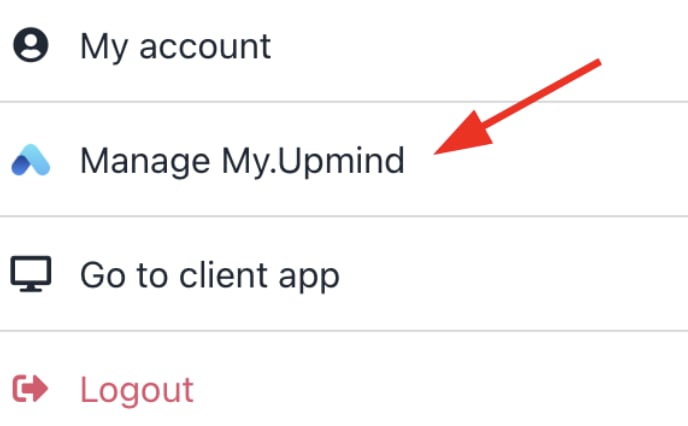
<Frame caption="Manage my Upmind">
  <img src="https://mintcdn.com/upmind/pcUdSuxUJ6LgBXnd/images/fb/9f8c50bd9d9d1dcb.png?fit=max&auto=format&n=pcUdSuxUJ6LgBXnd&q=85&s=d1533c220105c27d2fb2a1a19a2b7f91" alt="Manage my Upmind" className="mx-auto" style={{ width:"71%" }} width="688" height="426" data-path="images/fb/9f8c50bd9d9d1dcb.png" />
</Frame>

2. Click on **Support** and then click **Open new ticket**.
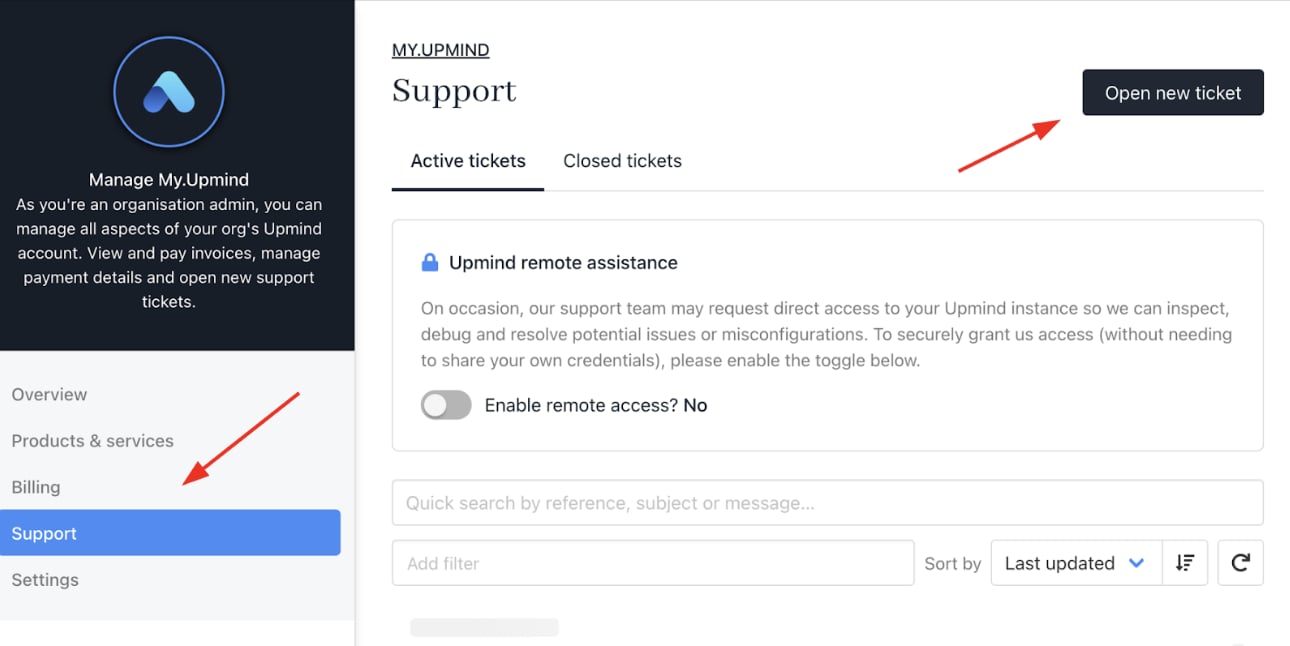
<Frame caption="Open new ticket">
  <img src="https://mintcdn.com/upmind/ObllJJl59DabnmMn/images/fb/cf0dfd654465e2ca.png?fit=max&auto=format&n=ObllJJl59DabnmMn&q=85&s=d4f55367968d16828988fbdb5b7df3cb" alt="Open new ticket" className="mx-auto" style={{ width:"97%" }} width="1290" height="646" data-path="images/fb/cf0dfd654465e2ca.png" />
</Frame>

The **Support** team will process the request and perform the reset on your behalf.
