> ## Documentation Index
> Fetch the complete documentation index at: https://docs.upmind.com/llms.txt
> Use this file to discover all available pages before exploring further.

# How to Add Your Custom URL to the Logo Button

> Your navigation is now a little easier with the addition of the custom URL.

You can set your brand’s logo on client pages to link to a custom URL (e.g., your homepage or order page), improving navigation for customers during ordering.

## Steps to add a custom URL for the logo button

1. In the Upmind admin dashboard, go to **Settings** > **User Interface** under **Branding and Customisation**.
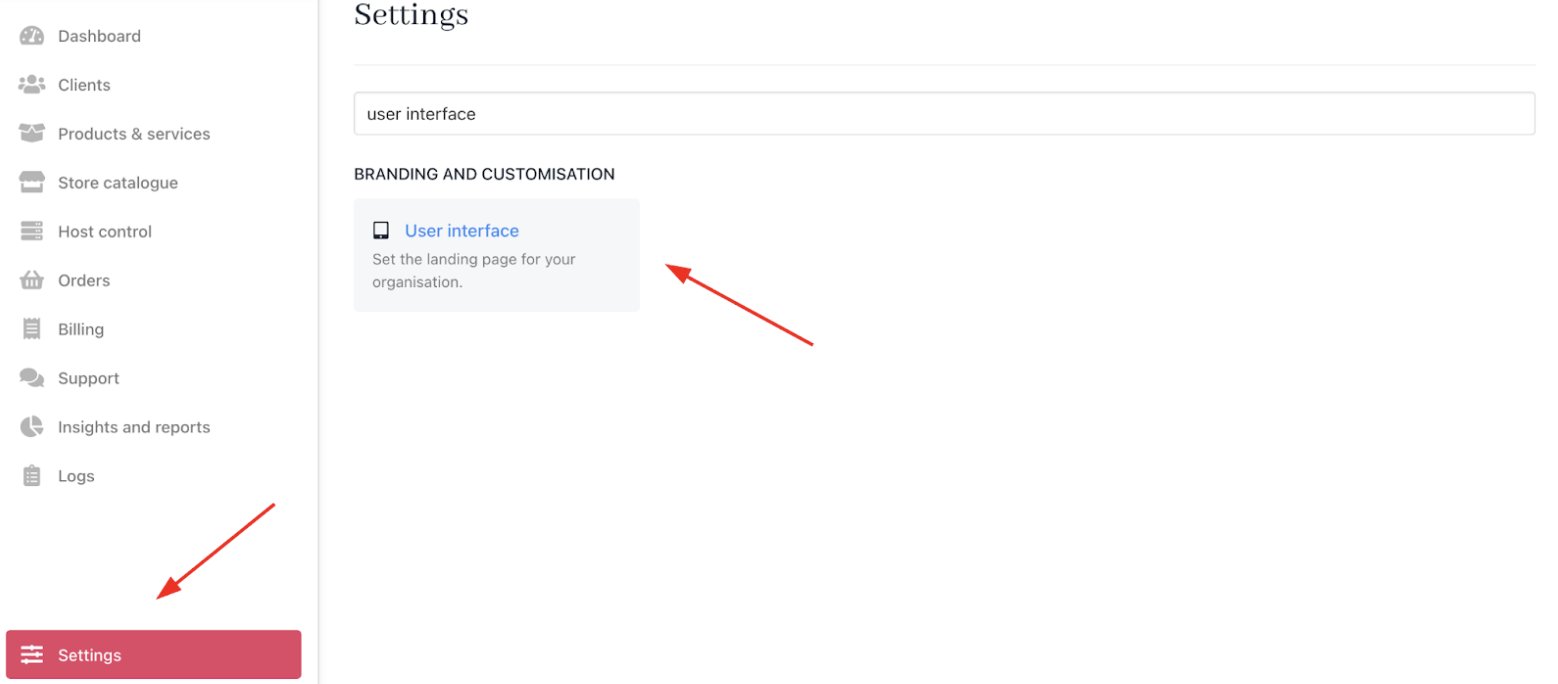
<Frame caption="Settings > Branding and customisation > User interface">
  <img src="https://mintcdn.com/upmind/kAlrCUxI2nwYz4_i/images/fb/18c3060023847a52.png?fit=max&auto=format&n=kAlrCUxI2nwYz4_i&q=85&s=6f3f528eec8e301b95b2defd3cbb3cf1" alt="Settings > Branding and customisation > User interface" className="mx-auto" style={{ width:"99%" }} data-og-width="1558" width="1558" data-og-height="684" height="684" data-path="images/fb/18c3060023847a52.png" data-optimize="true" data-opv="3" srcset="https://mintcdn.com/upmind/kAlrCUxI2nwYz4_i/images/fb/18c3060023847a52.png?w=280&fit=max&auto=format&n=kAlrCUxI2nwYz4_i&q=85&s=849d810d4381333348ecd83553bdb11e 280w, https://mintcdn.com/upmind/kAlrCUxI2nwYz4_i/images/fb/18c3060023847a52.png?w=560&fit=max&auto=format&n=kAlrCUxI2nwYz4_i&q=85&s=923d18b7b92f2e3bd037329d156709ce 560w, https://mintcdn.com/upmind/kAlrCUxI2nwYz4_i/images/fb/18c3060023847a52.png?w=840&fit=max&auto=format&n=kAlrCUxI2nwYz4_i&q=85&s=0b2bb008e50dcc80c92d43d5d5926c3f 840w, https://mintcdn.com/upmind/kAlrCUxI2nwYz4_i/images/fb/18c3060023847a52.png?w=1100&fit=max&auto=format&n=kAlrCUxI2nwYz4_i&q=85&s=b13b9d45126cfaac1302396d1a058c25 1100w, https://mintcdn.com/upmind/kAlrCUxI2nwYz4_i/images/fb/18c3060023847a52.png?w=1650&fit=max&auto=format&n=kAlrCUxI2nwYz4_i&q=85&s=f99af5c0fc1f32f0cc2555d5b2f0bd80 1650w, https://mintcdn.com/upmind/kAlrCUxI2nwYz4_i/images/fb/18c3060023847a52.png?w=2500&fit=max&auto=format&n=kAlrCUxI2nwYz4_i&q=85&s=a944ceea46ae3d807ff9e05824f72f1c 2500w" />
</Frame>

2. Locate the **Custom URL for Logo Button** under `Client Area` settings.
3. Enter your desired URL. This URL can be your homepage, order page, or any other page where you want to direct users.

<Frame caption="Custom URL for logo button">
  <img src="https://mintcdn.com/upmind/5gi4DQpw4X76kT6T/images/fb/b82c73fa77751a0c.png?fit=max&auto=format&n=5gi4DQpw4X76kT6T&q=85&s=f9e3c576980a6ffe18669eda047a5976" alt="Custom URL for logo button" className="mx-auto" style={{ width:"99%" }} width="1886" height="242" data-path="images/fb/b82c73fa77751a0c.png" />
</Frame>

4. Click **Save**.

Your brand logo now directs users to your specified webpage on click.
