> ## Documentation Index
> Fetch the complete documentation index at: https://docs.upmind.com/llms.txt
> Use this file to discover all available pages before exploring further.

# Upgrade Your Plan

> Get more, do more, achieve more with Upmind. Upgrade your plan and move forward faster and better than before. See how to upgrade your current plan with Upmind.

Many customers begin their e-commerce journey with Upmind's **Free Plan**. After discovering Upmind's potential, they want to grow their business by accessing more features, adding more brands, and increasing the number of clients they serve.

To help you get more from Upmind, this article shows you how to upgrade your plan.

<Note>
  Click [<u>here</u>](https://upmind.com/pricing) to review our current plans and pricing.
</Note>

## Verifying your payment method

The first step is to enter (or verify) your payment method. If you started with the **Free Plan**, you likely did not enter this information. Upmind does not require payment information when users set up a free account.

1. Log into your Upmind admin account.
2. Click your account name in the bottom left corner of the page.
3. Click **Manage My.Upmind**.
4. Go to **Products and Services** > **Choose your Subscription** > **Manage Product**.
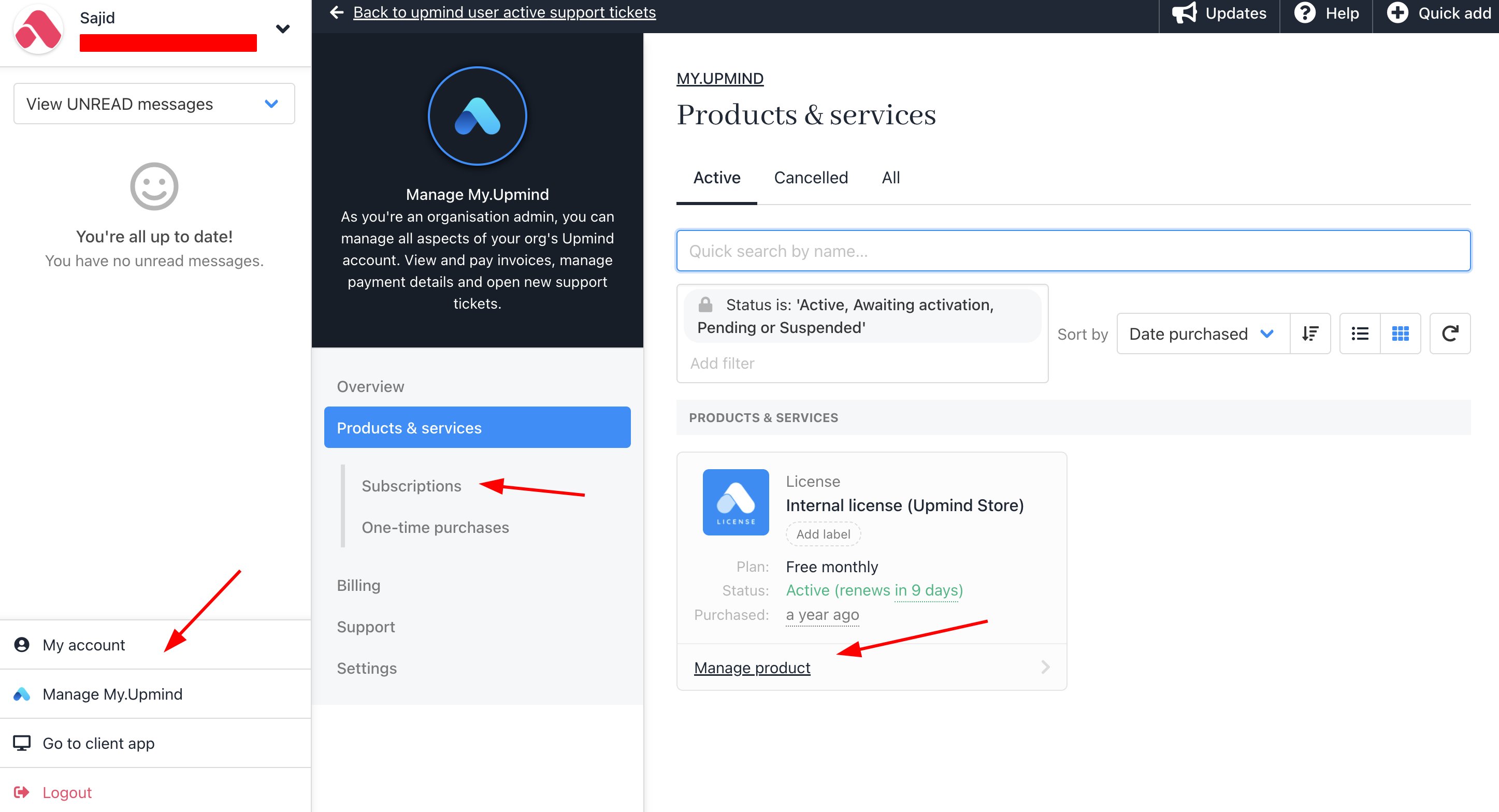
<Frame caption="Manage My.Upmind > Products and Services > Manage Product">
  <img src="https://mintcdn.com/upmind/ObllJJl59DabnmMn/images/fb/d11de308867e2aa8.png?fit=max&auto=format&n=ObllJJl59DabnmMn&q=85&s=8403c21118d2a36e67a05acffe41574b" alt="Manage My.Upmind > Products and Services > Manage Product" className="mx-auto" style={{ width:"98%" }} data-og-width="2894" width="2894" data-og-height="1568" height="1568" data-path="images/fb/d11de308867e2aa8.png" data-optimize="true" data-opv="3" srcset="https://mintcdn.com/upmind/ObllJJl59DabnmMn/images/fb/d11de308867e2aa8.png?w=280&fit=max&auto=format&n=ObllJJl59DabnmMn&q=85&s=19124cb463b3279d15f8d39ebee641ee 280w, https://mintcdn.com/upmind/ObllJJl59DabnmMn/images/fb/d11de308867e2aa8.png?w=560&fit=max&auto=format&n=ObllJJl59DabnmMn&q=85&s=55c1f77117854381f922a80561c48f66 560w, https://mintcdn.com/upmind/ObllJJl59DabnmMn/images/fb/d11de308867e2aa8.png?w=840&fit=max&auto=format&n=ObllJJl59DabnmMn&q=85&s=485a0b82970ca8c7f1111f0c96b06a34 840w, https://mintcdn.com/upmind/ObllJJl59DabnmMn/images/fb/d11de308867e2aa8.png?w=1100&fit=max&auto=format&n=ObllJJl59DabnmMn&q=85&s=d73c070a0652c7700934c91f23c5449e 1100w, https://mintcdn.com/upmind/ObllJJl59DabnmMn/images/fb/d11de308867e2aa8.png?w=1650&fit=max&auto=format&n=ObllJJl59DabnmMn&q=85&s=ffcdb8cf36ec68ff8389d944f30cd451 1650w, https://mintcdn.com/upmind/ObllJJl59DabnmMn/images/fb/d11de308867e2aa8.png?w=2500&fit=max&auto=format&n=ObllJJl59DabnmMn&q=85&s=10cad13355ba7bc0a38028c6a11e6b20 2500w" />
</Frame>

5. Click the Settings menu tab and then click **Select payment method**.
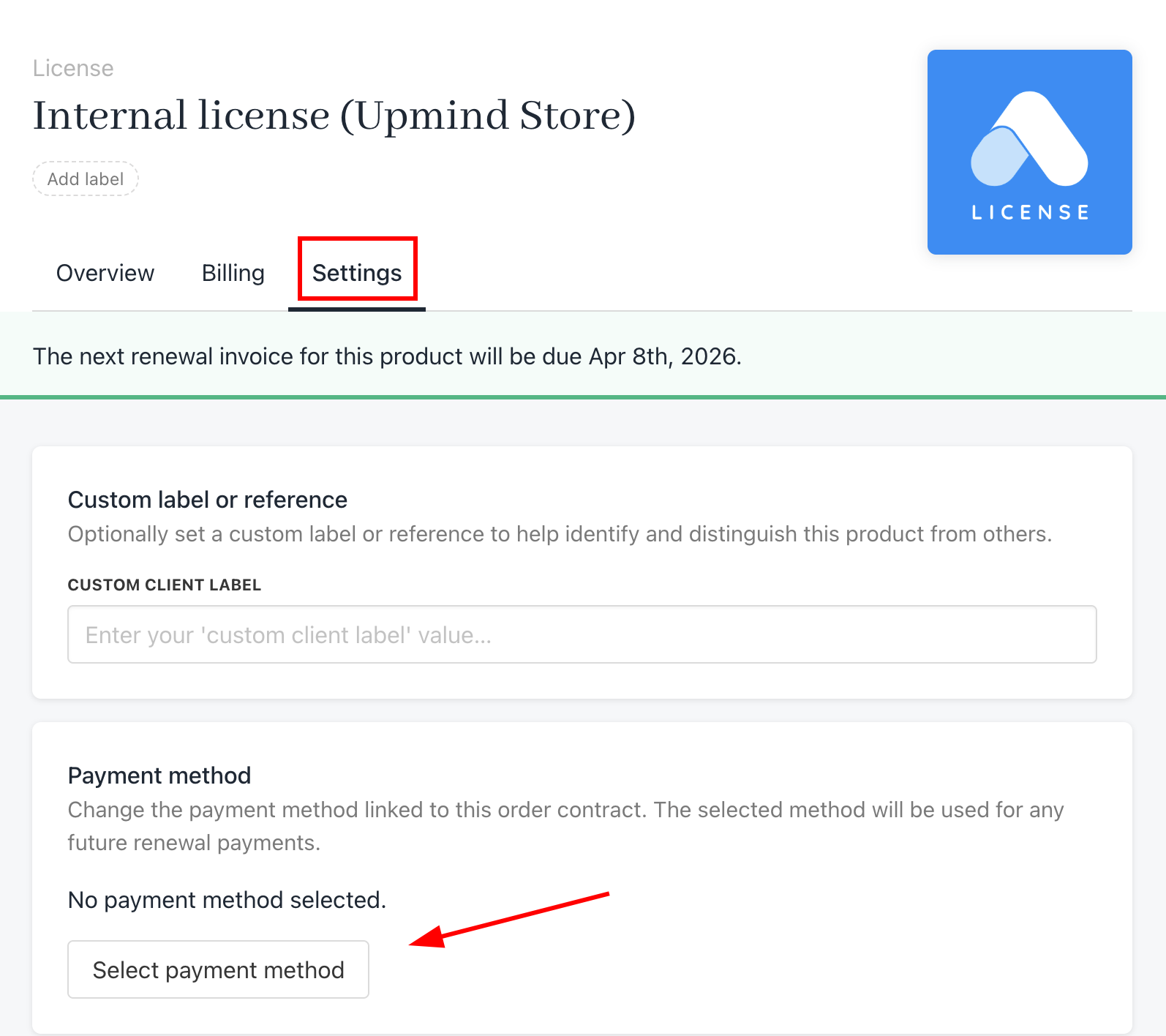
<Frame caption="Settings > Select Payment Method">
  <img src="https://mintcdn.com/upmind/h8h5zREaX7k8Y-3x/images/fb/167c72922e93986f.png?fit=max&auto=format&n=h8h5zREaX7k8Y-3x&q=85&s=93e1dbc6f7effbcd561d914f13d0bbc3" alt="Settings > Select Payment Method" className="mx-auto" style={{ width:"92%" }} data-og-width="1594" width="1594" data-og-height="1416" height="1416" data-path="images/fb/167c72922e93986f.png" data-optimize="true" data-opv="3" srcset="https://mintcdn.com/upmind/h8h5zREaX7k8Y-3x/images/fb/167c72922e93986f.png?w=280&fit=max&auto=format&n=h8h5zREaX7k8Y-3x&q=85&s=94a2102a2b175c6e0b47cde9124c1098 280w, https://mintcdn.com/upmind/h8h5zREaX7k8Y-3x/images/fb/167c72922e93986f.png?w=560&fit=max&auto=format&n=h8h5zREaX7k8Y-3x&q=85&s=91804cbfab2f81830b220b671d783593 560w, https://mintcdn.com/upmind/h8h5zREaX7k8Y-3x/images/fb/167c72922e93986f.png?w=840&fit=max&auto=format&n=h8h5zREaX7k8Y-3x&q=85&s=cae1086ebf96aafafd88be8eb44f1ec8 840w, https://mintcdn.com/upmind/h8h5zREaX7k8Y-3x/images/fb/167c72922e93986f.png?w=1100&fit=max&auto=format&n=h8h5zREaX7k8Y-3x&q=85&s=f6ab6e4e3f89bbbb1998e5461bf4efd5 1100w, https://mintcdn.com/upmind/h8h5zREaX7k8Y-3x/images/fb/167c72922e93986f.png?w=1650&fit=max&auto=format&n=h8h5zREaX7k8Y-3x&q=85&s=d22c2cc9cf28cfb45d268263b8902550 1650w, https://mintcdn.com/upmind/h8h5zREaX7k8Y-3x/images/fb/167c72922e93986f.png?w=2500&fit=max&auto=format&n=h8h5zREaX7k8Y-3x&q=85&s=cc3a1d1ba840cca67b45b628659e2bd0 2500w" />
</Frame>

On the side panel, select a payment method (PayPal, credit card, or debit card) and enter your details.

## Upgrading your plan

Now you're ready to upgrade.

Click the green tab at the top of the page. In the screenshot below, our demo user starts out with a free account. It's also possible to upgrade from a lower-tier paid plan.

<Frame caption="Upgrade your plan">
  <img src="https://mintcdn.com/upmind/pcUdSuxUJ6LgBXnd/images/fb/a2f4d7e75195aa9e.png?fit=max&auto=format&n=pcUdSuxUJ6LgBXnd&q=85&s=3f3e684d5b4a5e4d1289ab510a4ed886" alt="Upgrade your plan" className="mx-auto" style={{ width:"96%" }} width="1799" height="334" data-path="images/fb/a2f4d7e75195aa9e.png" />
</Frame>

On the pop-up window, review the available plan options and pricing. Choose an option and click the **Upgrade now** button. Review the details in the confirmation pop-up, click the button to proceed, and complete the workflow.

Now you're upgraded!
