> ## Documentation Index
> Fetch the complete documentation index at: https://docs.upmind.com/llms.txt
> Use this file to discover all available pages before exploring further.

# How to Manage Two-Factor Authentication (2FA) as an Admin/Staff

> Enable, disable, enforce, and manage two-factor authentication for your admin or staff account.

Two-factor authentication (2FA) adds a second layer of security to your account. On top of your password, you'll need a time-sensitive code to log in or make sensitive changes. By default, 2FA is disabled in Upmind.

## How to enable 2FA as an Admin/Staff

1. Go to **My Account > Security**.
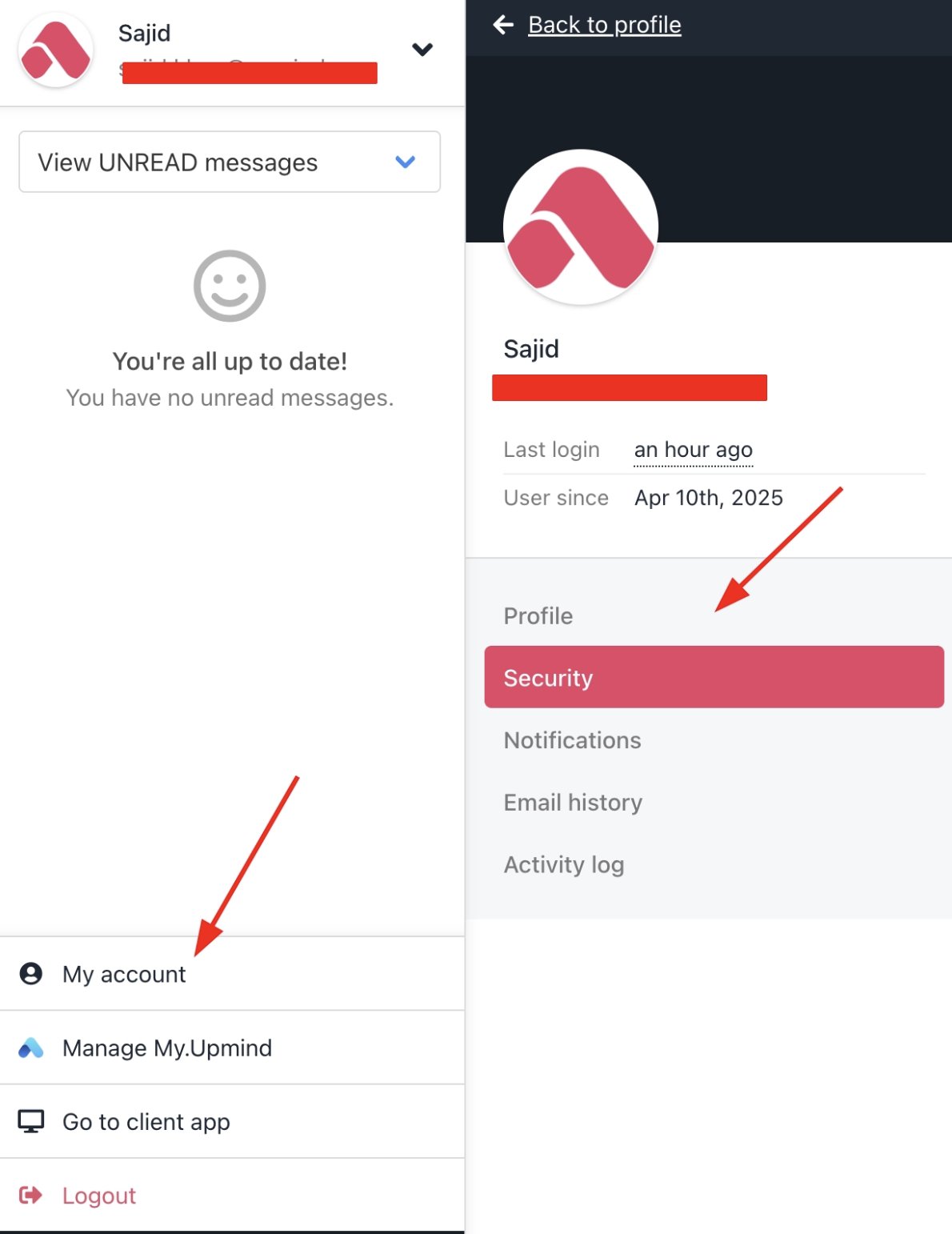
<Frame caption="My Account > Security">
  <img src="https://mintcdn.com/upmind/2ooSxDpt6PiIGMr-/images/fb/04958121d69090cd.png?fit=max&auto=format&n=2ooSxDpt6PiIGMr-&q=85&s=7edd2374bf344c75845d89ebf6e6c3ea" alt="My Account > Security" className="mx-auto" style={{ width:"88%" }} data-og-width="1190" width="1190" data-og-height="1542" height="1542" data-path="images/fb/04958121d69090cd.png" data-optimize="true" data-opv="3" srcset="https://mintcdn.com/upmind/2ooSxDpt6PiIGMr-/images/fb/04958121d69090cd.png?w=280&fit=max&auto=format&n=2ooSxDpt6PiIGMr-&q=85&s=20ff560dabb3220de08d8bbd410adca9 280w, https://mintcdn.com/upmind/2ooSxDpt6PiIGMr-/images/fb/04958121d69090cd.png?w=560&fit=max&auto=format&n=2ooSxDpt6PiIGMr-&q=85&s=f7d955334198df556576f02dda3f1594 560w, https://mintcdn.com/upmind/2ooSxDpt6PiIGMr-/images/fb/04958121d69090cd.png?w=840&fit=max&auto=format&n=2ooSxDpt6PiIGMr-&q=85&s=23d0184add4d0897d4c952ae4c563b73 840w, https://mintcdn.com/upmind/2ooSxDpt6PiIGMr-/images/fb/04958121d69090cd.png?w=1100&fit=max&auto=format&n=2ooSxDpt6PiIGMr-&q=85&s=c9b3c1efbde230134d5effc6cb750c58 1100w, https://mintcdn.com/upmind/2ooSxDpt6PiIGMr-/images/fb/04958121d69090cd.png?w=1650&fit=max&auto=format&n=2ooSxDpt6PiIGMr-&q=85&s=1ea5471bce4ac9bb3d2899f1cc4370c1 1650w, https://mintcdn.com/upmind/2ooSxDpt6PiIGMr-/images/fb/04958121d69090cd.png?w=2500&fit=max&auto=format&n=2ooSxDpt6PiIGMr-&q=85&s=d3265dda09f8ee708d2542964171b17a 2500w" />

  <img src="https://mintcdn.com/upmind/2ooSxDpt6PiIGMr-/images/fb/04958121d69090cd.png?fit=max&auto=format&n=2ooSxDpt6PiIGMr-&q=85&s=7edd2374bf344c75845d89ebf6e6c3ea" alt="My Account > Security" className="mx-auto" style={{ width:"88%" }} data-og-width="1190" width="1190" data-og-height="1542" height="1542" data-path="images/fb/04958121d69090cd.png" data-optimize="true" data-opv="3" srcset="https://mintcdn.com/upmind/2ooSxDpt6PiIGMr-/images/fb/04958121d69090cd.png?w=280&fit=max&auto=format&n=2ooSxDpt6PiIGMr-&q=85&s=20ff560dabb3220de08d8bbd410adca9 280w, https://mintcdn.com/upmind/2ooSxDpt6PiIGMr-/images/fb/04958121d69090cd.png?w=560&fit=max&auto=format&n=2ooSxDpt6PiIGMr-&q=85&s=f7d955334198df556576f02dda3f1594 560w, https://mintcdn.com/upmind/2ooSxDpt6PiIGMr-/images/fb/04958121d69090cd.png?w=840&fit=max&auto=format&n=2ooSxDpt6PiIGMr-&q=85&s=23d0184add4d0897d4c952ae4c563b73 840w, https://mintcdn.com/upmind/2ooSxDpt6PiIGMr-/images/fb/04958121d69090cd.png?w=1100&fit=max&auto=format&n=2ooSxDpt6PiIGMr-&q=85&s=c9b3c1efbde230134d5effc6cb750c58 1100w, https://mintcdn.com/upmind/2ooSxDpt6PiIGMr-/images/fb/04958121d69090cd.png?w=1650&fit=max&auto=format&n=2ooSxDpt6PiIGMr-&q=85&s=1ea5471bce4ac9bb3d2899f1cc4370c1 1650w, https://mintcdn.com/upmind/2ooSxDpt6PiIGMr-/images/fb/04958121d69090cd.png?w=2500&fit=max&auto=format&n=2ooSxDpt6PiIGMr-&q=85&s=d3265dda09f8ee708d2542964171b17a 2500w" />
</Frame>

2. Scroll down to **Two-Factor Authentication** and click **Enable**.
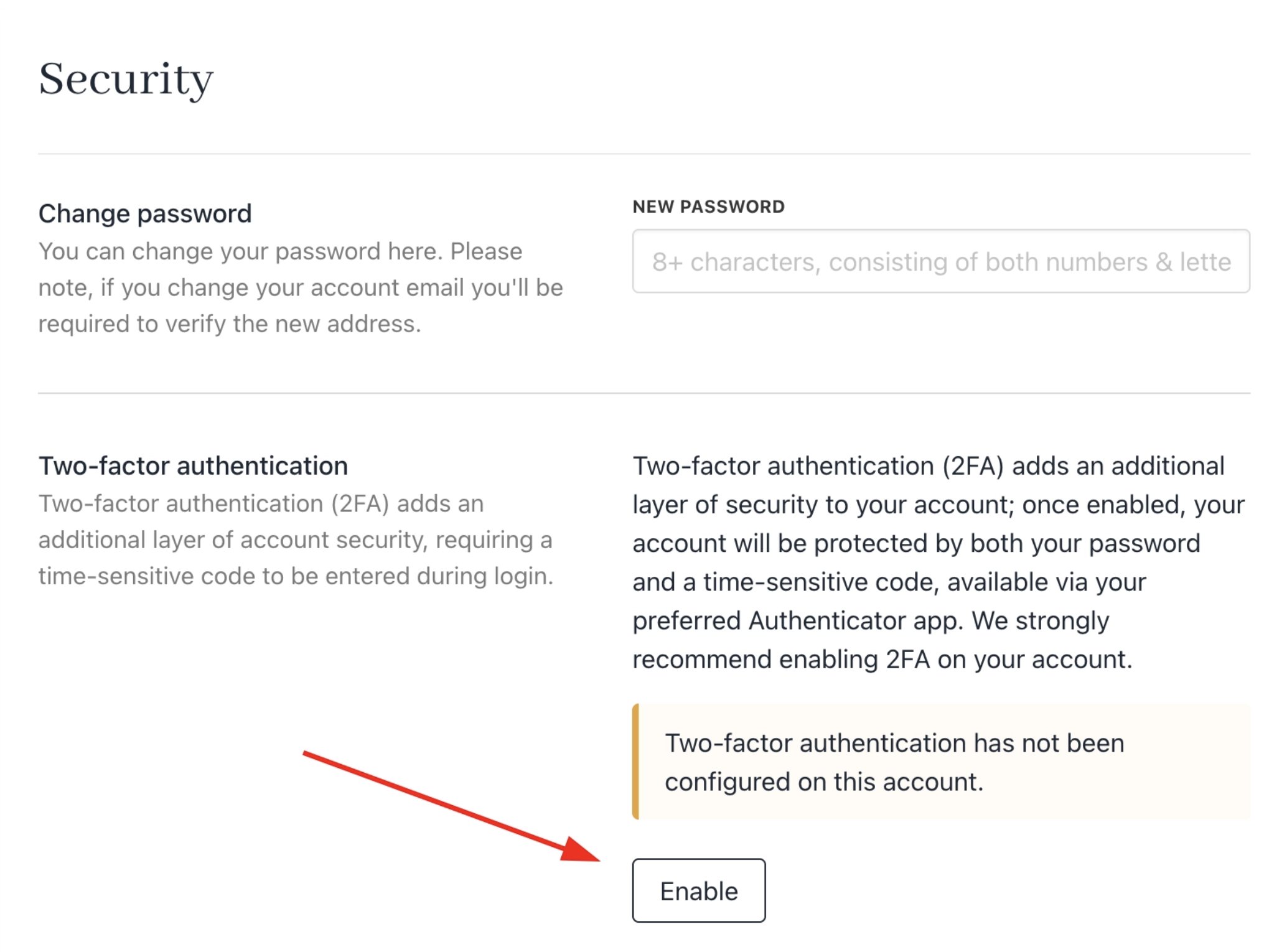
<Frame caption="Enable 2FA">
  <img src="https://mintcdn.com/upmind/bPO2bBzOxYQR4tYr/images/fb/fa9ef43e6838ea9a.png?fit=max&auto=format&n=bPO2bBzOxYQR4tYr&q=85&s=1a75435f23d72c74ddadbb6bf9ee5973" alt="Enable 2FA" className="mx-auto" style={{ width:"99%" }} width="2068" height="1530" data-path="images/fb/fa9ef43e6838ea9a.png" />

  <img src="https://mintcdn.com/upmind/bPO2bBzOxYQR4tYr/images/fb/fa9ef43e6838ea9a.png?fit=max&auto=format&n=bPO2bBzOxYQR4tYr&q=85&s=1a75435f23d72c74ddadbb6bf9ee5973" alt="Enable 2FA" className="mx-auto" style={{ width:"99%" }} width="2068" height="1530" data-path="images/fb/fa9ef43e6838ea9a.png" />
</Frame>

3. Open your authenticator app (e.g., Google Authenticator) on your mobile device and scan the QR code, or use the provided link.
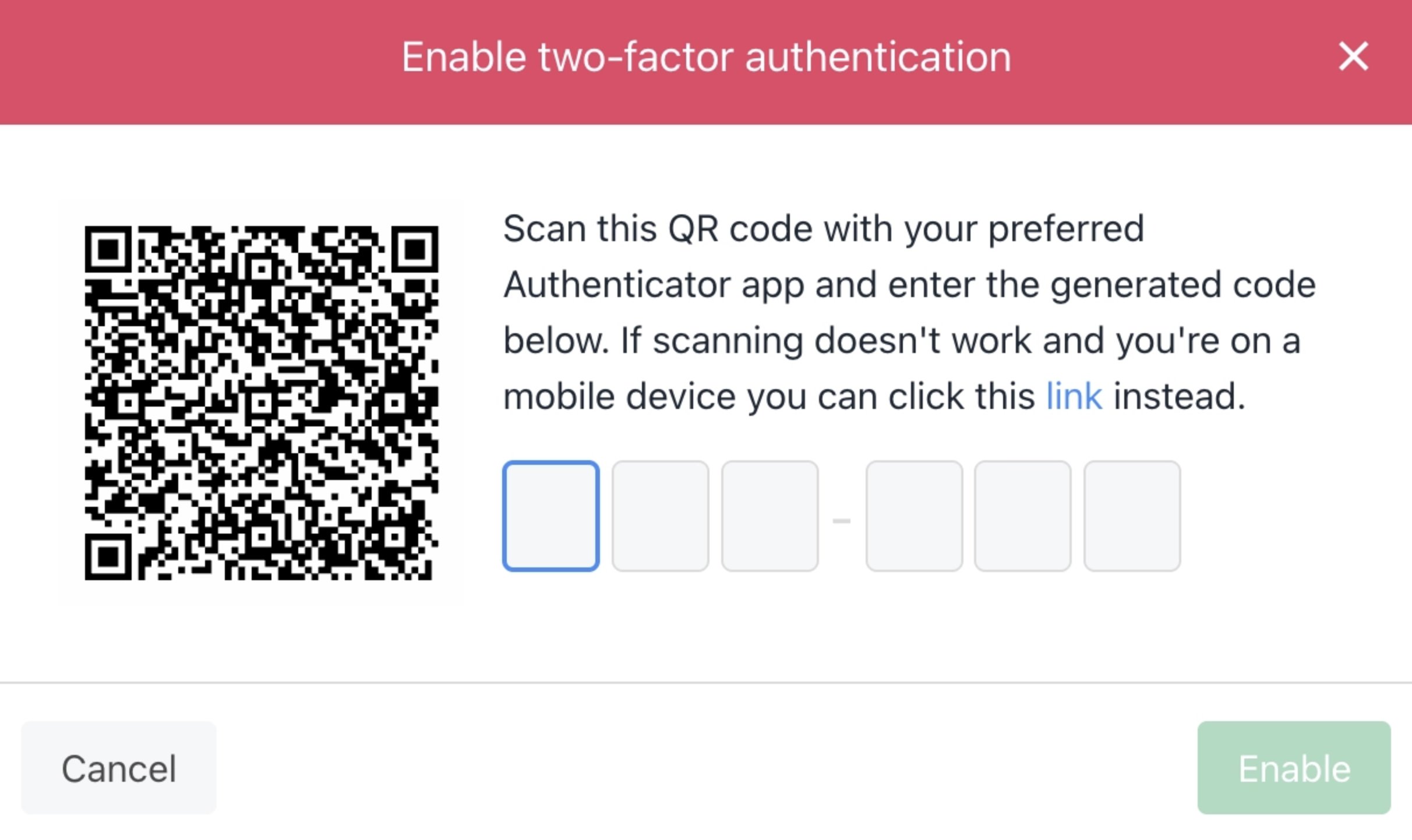
<Frame caption="Enter code">
  <img src="https://mintcdn.com/upmind/5gi4DQpw4X76kT6T/images/fb/ba8efe83d5e5f2e2.png?fit=max&auto=format&n=5gi4DQpw4X76kT6T&q=85&s=76c47666b1ba61cc3066ea8a148a7cf3" alt="Enter code" className="mx-auto" style={{ width:"91%" }} width="2424" height="1442" data-path="images/fb/ba8efe83d5e5f2e2.png" />

  <img src="https://mintcdn.com/upmind/5gi4DQpw4X76kT6T/images/fb/ba8efe83d5e5f2e2.png?fit=max&auto=format&n=5gi4DQpw4X76kT6T&q=85&s=76c47666b1ba61cc3066ea8a148a7cf3" alt="Enter code" className="mx-auto" style={{ width:"91%" }} width="2424" height="1442" data-path="images/fb/ba8efe83d5e5f2e2.png" />
</Frame>

4. Enter the generated code in the field and click **Enable**.

<Note>
  Authenticator apps generate a new code every 30 seconds. Enter it before it expires.
</Note>

You will receive an email when it is enabled.
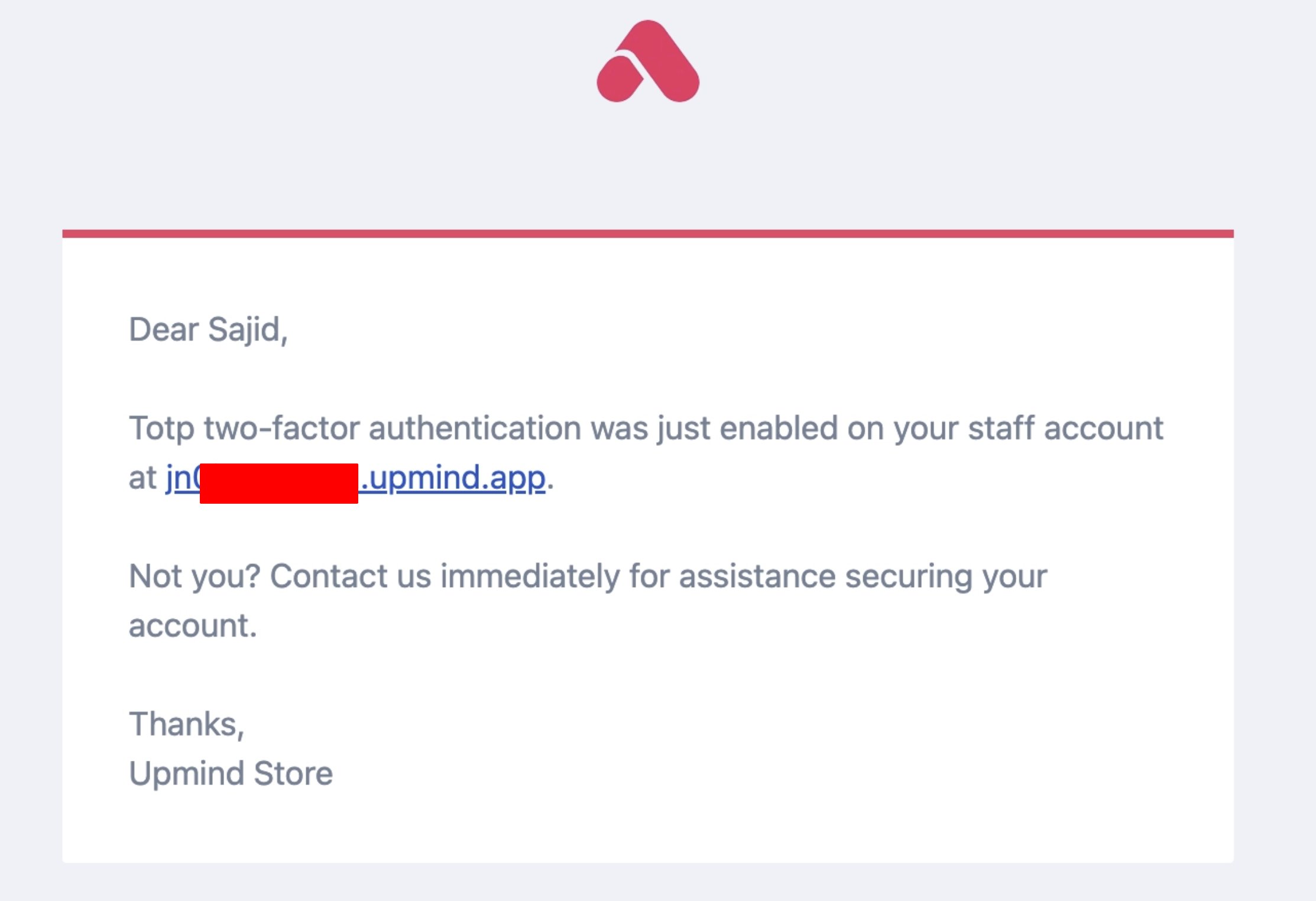
<Frame caption="2FA enabled email">
  <img src="https://mintcdn.com/upmind/kXD0Ya8PpcxxNm6Q/images/fb/40ce352a68988827.png?fit=max&auto=format&n=kXD0Ya8PpcxxNm6Q&q=85&s=a8e0c68941d7f1b4e750b29aa1e5b3ee" alt="2FA enabled email" className="mx-auto" style={{ width:"94%" }} width="2226" height="1524" data-path="images/fb/40ce352a68988827.png" />

  <img src="https://mintcdn.com/upmind/kXD0Ya8PpcxxNm6Q/images/fb/40ce352a68988827.png?fit=max&auto=format&n=kXD0Ya8PpcxxNm6Q&q=85&s=a8e0c68941d7f1b4e750b29aa1e5b3ee" alt="2FA enabled email" className="mx-auto" style={{ width:"94%" }} width="2226" height="1524" data-path="images/fb/40ce352a68988827.png" />
</Frame>

Now, whenever you try to log in, 2FA will be required.
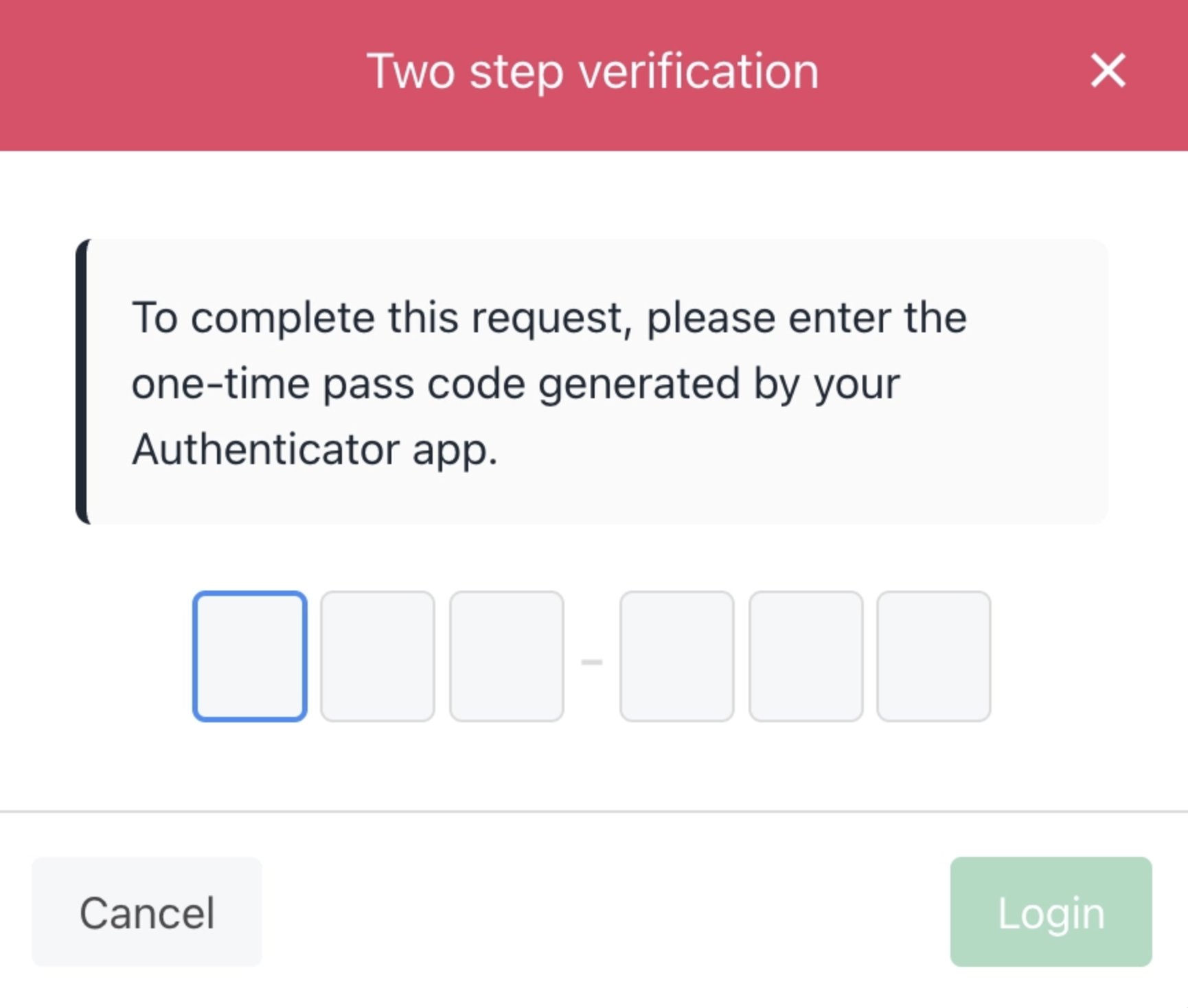
<Frame caption="Required 2FA on login">
  <img src="https://mintcdn.com/upmind/6knUVC8F1nK4E5CY/images/fb/bf7d6e82cfb71060.png?fit=max&auto=format&n=6knUVC8F1nK4E5CY&q=85&s=60b860e292b7e0c0ca2a3ec740fb2f3b" alt="Required 2FA on login" className="mx-auto" style={{ width:"76%" }} width="1730" height="1468" data-path="images/fb/bf7d6e82cfb71060.png" />

  <img src="https://mintcdn.com/upmind/6knUVC8F1nK4E5CY/images/fb/bf7d6e82cfb71060.png?fit=max&auto=format&n=6knUVC8F1nK4E5CY&q=85&s=60b860e292b7e0c0ca2a3ec740fb2f3b" alt="Required 2FA on login" className="mx-auto" style={{ width:"76%" }} width="1730" height="1468" data-path="images/fb/bf7d6e82cfb71060.png" />
</Frame>

## How to disable 2FA as an Admin/Staff

1. Go to **My Account > Security** and click **Disable**.
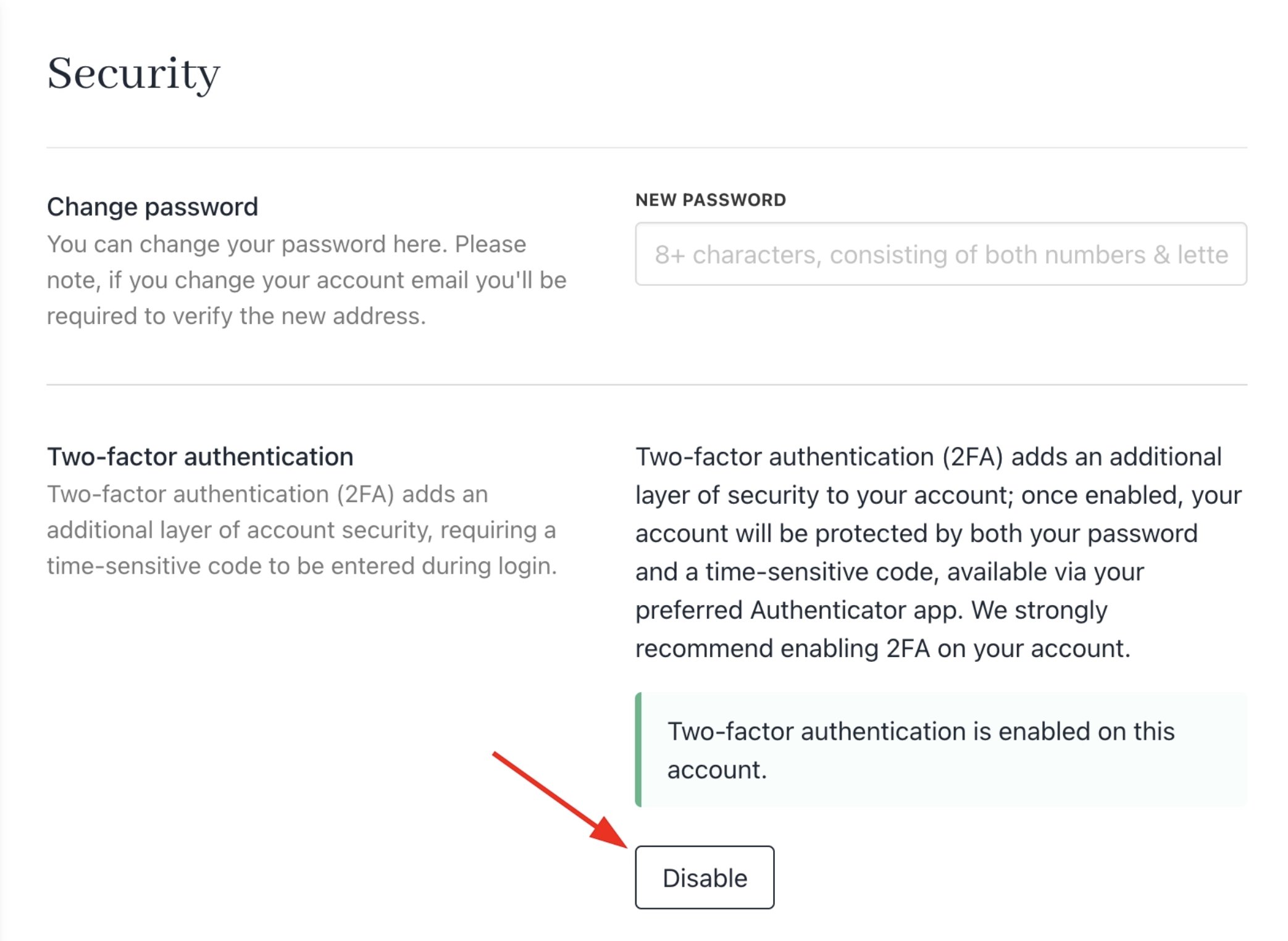
<Frame caption="Disable 2FA">
  <img src="https://mintcdn.com/upmind/c5sDUwEs8YpzGbjA/images/fb/976061f5f8f05517.png?fit=max&auto=format&n=c5sDUwEs8YpzGbjA&q=85&s=1acabd8397823b499edf9db2c65ba18a" alt="Disable 2FA" className="mx-auto" style={{ width:"96%" }} width="2086" height="1524" data-path="images/fb/976061f5f8f05517.png" />

  <img src="https://mintcdn.com/upmind/c5sDUwEs8YpzGbjA/images/fb/976061f5f8f05517.png?fit=max&auto=format&n=c5sDUwEs8YpzGbjA&q=85&s=1acabd8397823b499edf9db2c65ba18a" alt="Disable 2FA" className="mx-auto" style={{ width:"96%" }} width="2086" height="1524" data-path="images/fb/976061f5f8f05517.png" />
</Frame>

2. Open your authenticator app and find the current code for your Upmind account.
3. Enter the code in the provided field on the Security page.
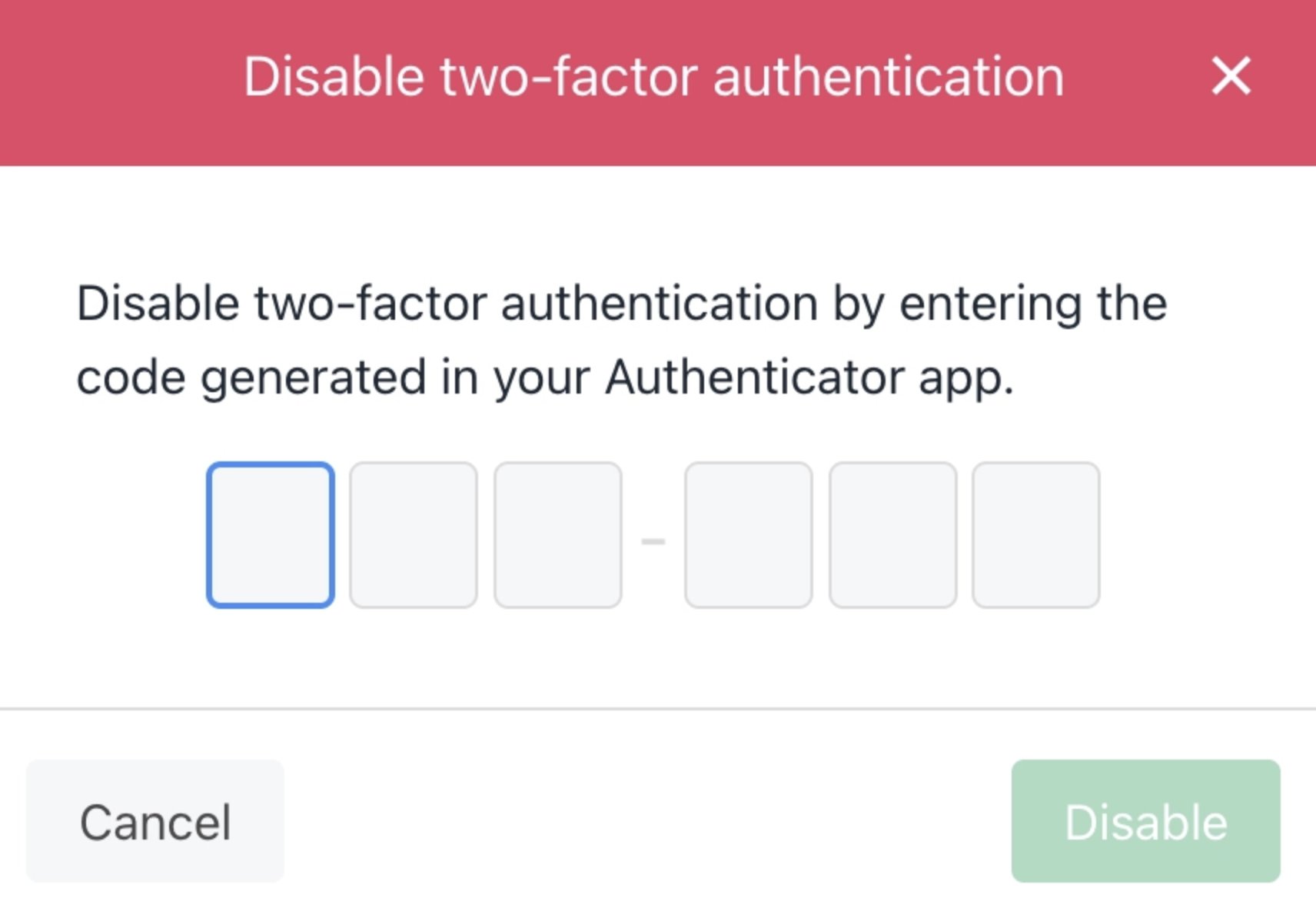
<Frame caption="Enter code">
  <img src="https://mintcdn.com/upmind/1xguIfYUrfespmVI/images/fb/851780b1c4d356df.png?fit=max&auto=format&n=1xguIfYUrfespmVI&q=85&s=92bbdfd77deec3d40d0542786d56067a" alt="Enter code" className="mx-auto" style={{ width:"74%" }} width="1712" height="1194" data-path="images/fb/851780b1c4d356df.png" />

  <img src="https://mintcdn.com/upmind/1xguIfYUrfespmVI/images/fb/851780b1c4d356df.png?fit=max&auto=format&n=1xguIfYUrfespmVI&q=85&s=92bbdfd77deec3d40d0542786d56067a" alt="Enter code" className="mx-auto" style={{ width:"74%" }} width="1712" height="1194" data-path="images/fb/851780b1c4d356df.png" />
</Frame>

4. Click **Disable** on the confirmation pop-up to confirm.

You will receive an email when it is disabled.
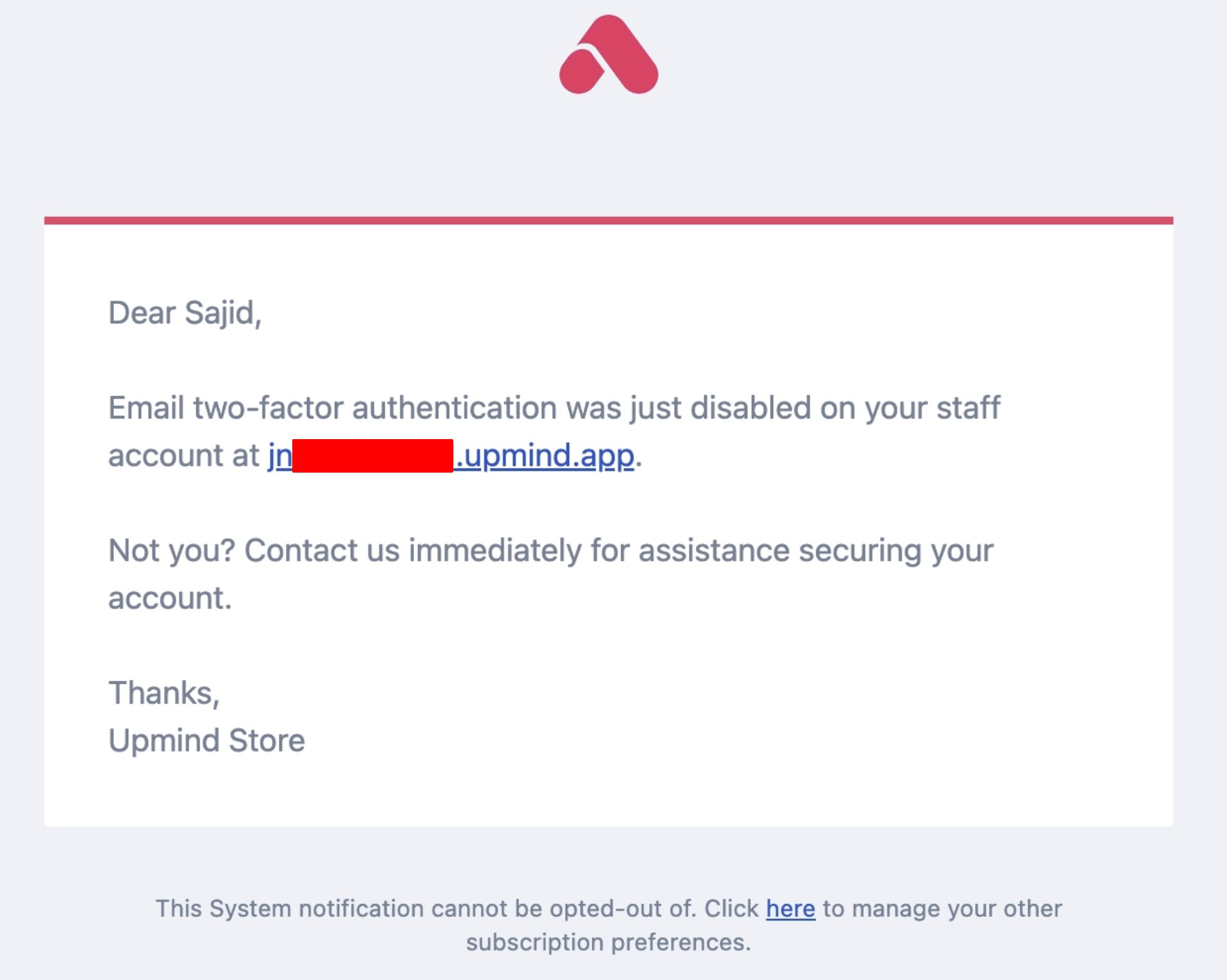
<Frame caption="2FA disabled email">
  <img src="https://mintcdn.com/upmind/6knUVC8F1nK4E5CY/images/fb/c5173f9089cc6a47.png?fit=max&auto=format&n=6knUVC8F1nK4E5CY&q=85&s=d0f01e7e69ac06a0140a3b21892a633d" alt="2FA disabled email" className="mx-auto" style={{ width:"93%" }} width="1906" height="1522" data-path="images/fb/c5173f9089cc6a47.png" />

  <img src="https://mintcdn.com/upmind/6knUVC8F1nK4E5CY/images/fb/c5173f9089cc6a47.png?fit=max&auto=format&n=6knUVC8F1nK4E5CY&q=85&s=d0f01e7e69ac06a0140a3b21892a633d" alt="2FA disabled email" className="mx-auto" style={{ width:"93%" }} width="1906" height="1522" data-path="images/fb/c5173f9089cc6a47.png" />
</Frame>

## Enforcing 2FA for Clients

Admin/Staff can require all clients to set up 2FA when they log in.

1. Go to **Settings > Client Auth Providers** under **Users and Permissions**.
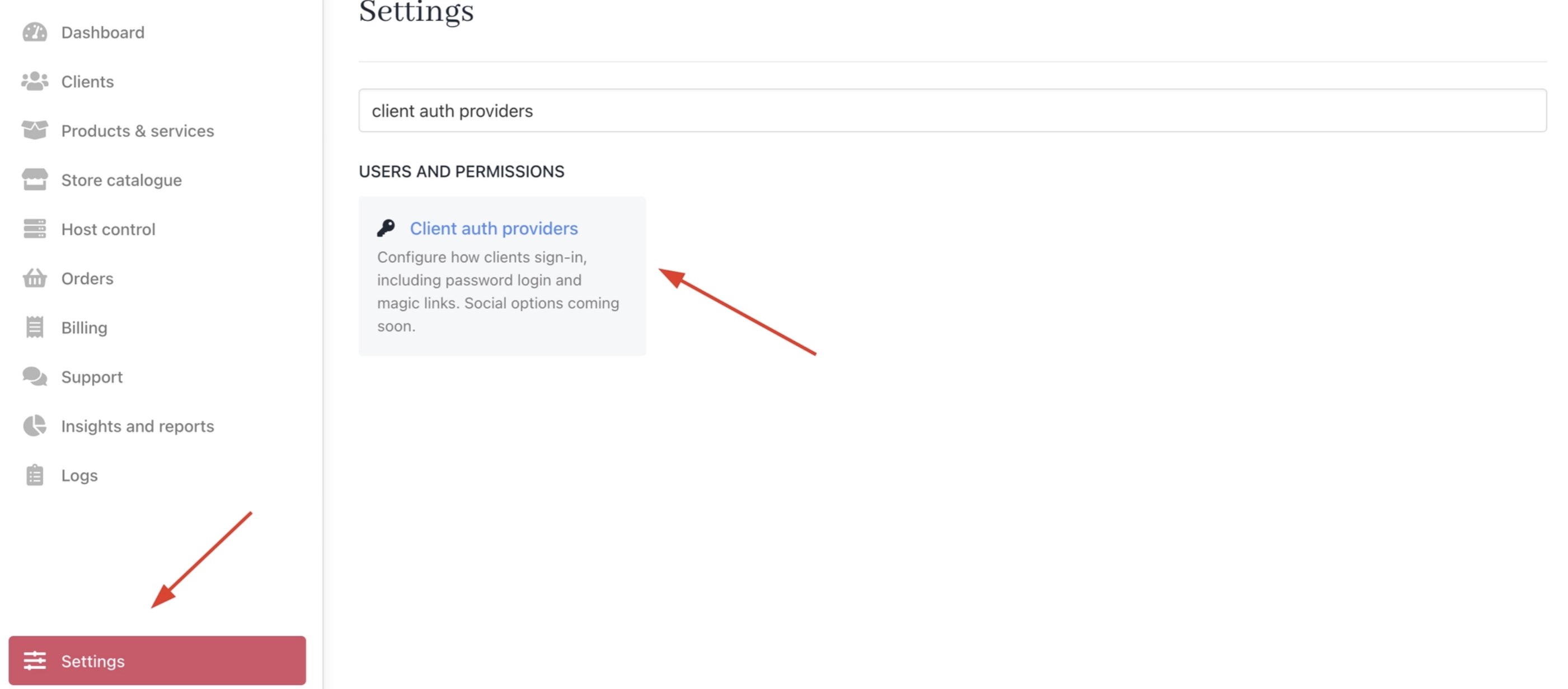
<Frame caption="Settings > Client auth providers">
  <img src="https://mintcdn.com/upmind/6knUVC8F1nK4E5CY/images/fb/c096c5cc0fa8dbd2.png?fit=max&auto=format&n=6knUVC8F1nK4E5CY&q=85&s=770384a8b8c402163f4a4d8c9dc6a6bb" alt="Settings > Client auth providers" className="mx-auto" style={{ width:"98%" }} data-og-width="2802" width="2802" data-og-height="1232" height="1232" data-path="images/fb/c096c5cc0fa8dbd2.png" data-optimize="true" data-opv="3" srcset="https://mintcdn.com/upmind/6knUVC8F1nK4E5CY/images/fb/c096c5cc0fa8dbd2.png?w=280&fit=max&auto=format&n=6knUVC8F1nK4E5CY&q=85&s=ca09f9bbb7822596f4daad3c304f1091 280w, https://mintcdn.com/upmind/6knUVC8F1nK4E5CY/images/fb/c096c5cc0fa8dbd2.png?w=560&fit=max&auto=format&n=6knUVC8F1nK4E5CY&q=85&s=be4e43503a06cd3811a1bab80e55dc36 560w, https://mintcdn.com/upmind/6knUVC8F1nK4E5CY/images/fb/c096c5cc0fa8dbd2.png?w=840&fit=max&auto=format&n=6knUVC8F1nK4E5CY&q=85&s=24c54bc57051a8b080a90e1c1ee5ae20 840w, https://mintcdn.com/upmind/6knUVC8F1nK4E5CY/images/fb/c096c5cc0fa8dbd2.png?w=1100&fit=max&auto=format&n=6knUVC8F1nK4E5CY&q=85&s=95d3ad2572cb37a1747f92907974b39e 1100w, https://mintcdn.com/upmind/6knUVC8F1nK4E5CY/images/fb/c096c5cc0fa8dbd2.png?w=1650&fit=max&auto=format&n=6knUVC8F1nK4E5CY&q=85&s=88165c3bb3473a0ba4401738e4fcd008 1650w, https://mintcdn.com/upmind/6knUVC8F1nK4E5CY/images/fb/c096c5cc0fa8dbd2.png?w=2500&fit=max&auto=format&n=6knUVC8F1nK4E5CY&q=85&s=6eeeb0ac77af640a735552c39dff90e9 2500w" />

  <img src="https://mintcdn.com/upmind/6knUVC8F1nK4E5CY/images/fb/c096c5cc0fa8dbd2.png?fit=max&auto=format&n=6knUVC8F1nK4E5CY&q=85&s=770384a8b8c402163f4a4d8c9dc6a6bb" alt="Settings > Client auth providers" className="mx-auto" style={{ width:"98%" }} data-og-width="2802" width="2802" data-og-height="1232" height="1232" data-path="images/fb/c096c5cc0fa8dbd2.png" data-optimize="true" data-opv="3" srcset="https://mintcdn.com/upmind/6knUVC8F1nK4E5CY/images/fb/c096c5cc0fa8dbd2.png?w=280&fit=max&auto=format&n=6knUVC8F1nK4E5CY&q=85&s=ca09f9bbb7822596f4daad3c304f1091 280w, https://mintcdn.com/upmind/6knUVC8F1nK4E5CY/images/fb/c096c5cc0fa8dbd2.png?w=560&fit=max&auto=format&n=6knUVC8F1nK4E5CY&q=85&s=be4e43503a06cd3811a1bab80e55dc36 560w, https://mintcdn.com/upmind/6knUVC8F1nK4E5CY/images/fb/c096c5cc0fa8dbd2.png?w=840&fit=max&auto=format&n=6knUVC8F1nK4E5CY&q=85&s=24c54bc57051a8b080a90e1c1ee5ae20 840w, https://mintcdn.com/upmind/6knUVC8F1nK4E5CY/images/fb/c096c5cc0fa8dbd2.png?w=1100&fit=max&auto=format&n=6knUVC8F1nK4E5CY&q=85&s=95d3ad2572cb37a1747f92907974b39e 1100w, https://mintcdn.com/upmind/6knUVC8F1nK4E5CY/images/fb/c096c5cc0fa8dbd2.png?w=1650&fit=max&auto=format&n=6knUVC8F1nK4E5CY&q=85&s=88165c3bb3473a0ba4401738e4fcd008 1650w, https://mintcdn.com/upmind/6knUVC8F1nK4E5CY/images/fb/c096c5cc0fa8dbd2.png?w=2500&fit=max&auto=format&n=6knUVC8F1nK4E5CY&q=85&s=6eeeb0ac77af640a735552c39dff90e9 2500w" />
</Frame>

2. Click the **three dots (⋮)** next to the relevant auth provider and select **Edit**.
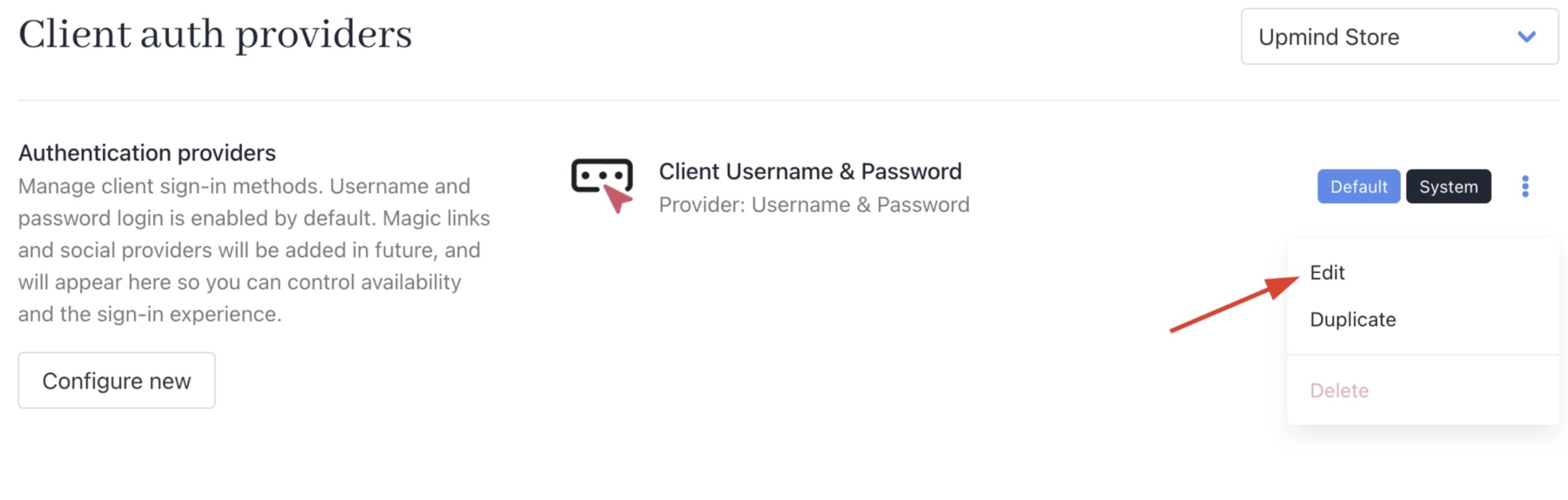
<Frame caption="Click edit">
  <img src="https://mintcdn.com/upmind/z5ofg3t7by4uN44v/images/fb/eea320425792d5d1.png?fit=max&auto=format&n=z5ofg3t7by4uN44v&q=85&s=d6dc65e3de8d75e85faf8062ca7679d6" alt="Click edit" className="mx-auto" style={{ width:"97%" }} width="2800" height="892" data-path="images/fb/eea320425792d5d1.png" />

  <img src="https://mintcdn.com/upmind/z5ofg3t7by4uN44v/images/fb/eea320425792d5d1.png?fit=max&auto=format&n=z5ofg3t7by4uN44v&q=85&s=d6dc65e3de8d75e85faf8062ca7679d6" alt="Click edit" className="mx-auto" style={{ width:"97%" }} width="2800" height="892" data-path="images/fb/eea320425792d5d1.png" />
</Frame>

3. Toggle on **Enforce 2FA on Login**.
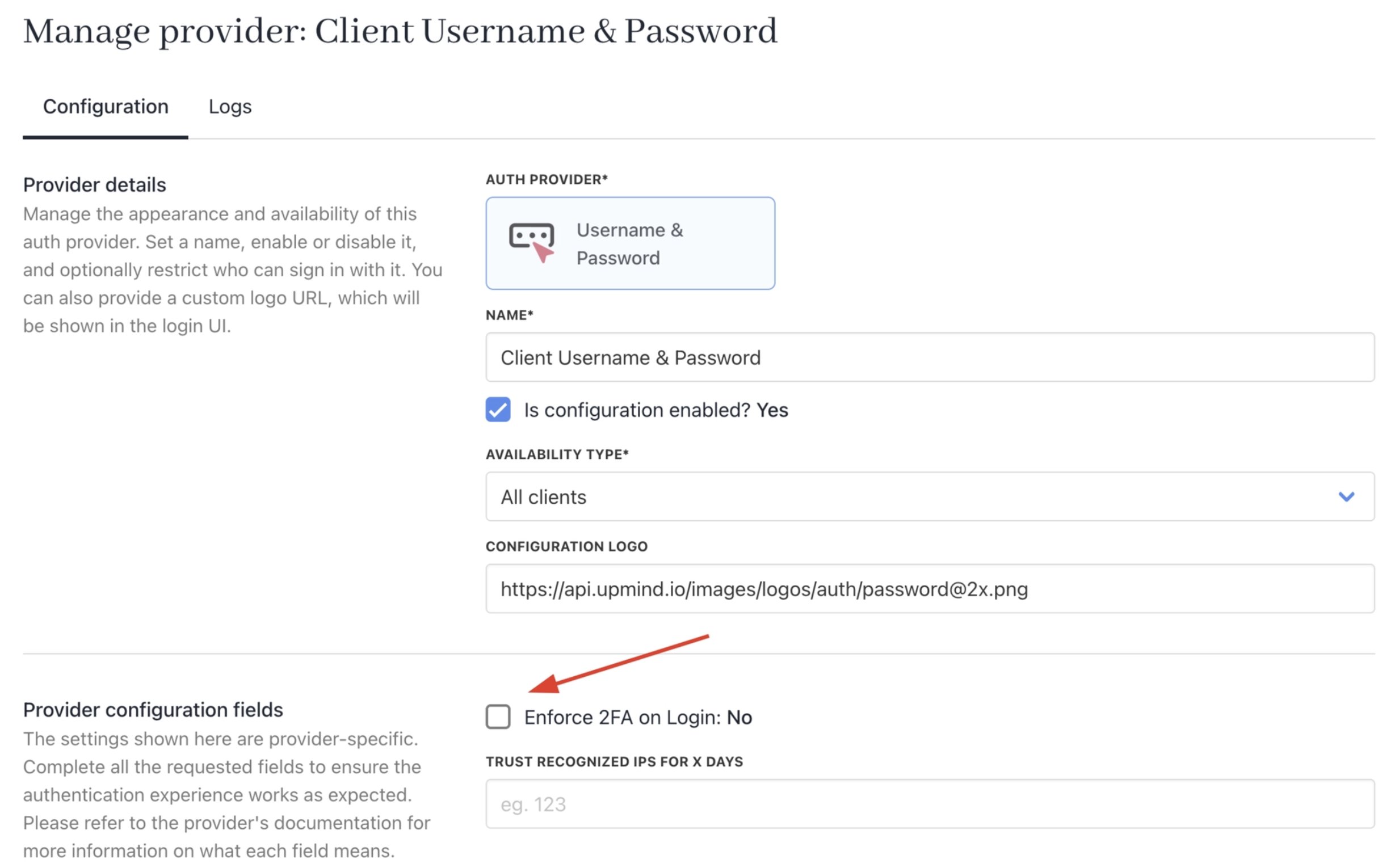
<Frame caption="Enforce 2FA on login">
  <img src="https://mintcdn.com/upmind/Dgjmf3QWYVBR40cE/images/fb/5dafe79e0944d1ec.png?fit=max&auto=format&n=Dgjmf3QWYVBR40cE&q=85&s=fee430a836b2dcbf56149675c85e579d" alt="Enforce 2FA on login" className="mx-auto" style={{ width:"98%" }} width="2458" height="1530" data-path="images/fb/5dafe79e0944d1ec.png" />

  <img src="https://mintcdn.com/upmind/Dgjmf3QWYVBR40cE/images/fb/5dafe79e0944d1ec.png?fit=max&auto=format&n=Dgjmf3QWYVBR40cE&q=85&s=fee430a836b2dcbf56149675c85e579d" alt="Enforce 2FA on login" className="mx-auto" style={{ width:"98%" }} width="2458" height="1530" data-path="images/fb/5dafe79e0944d1ec.png" />
</Frame>

Once enabled, clients will receive an email prompting them to enter a verification code on their next login.
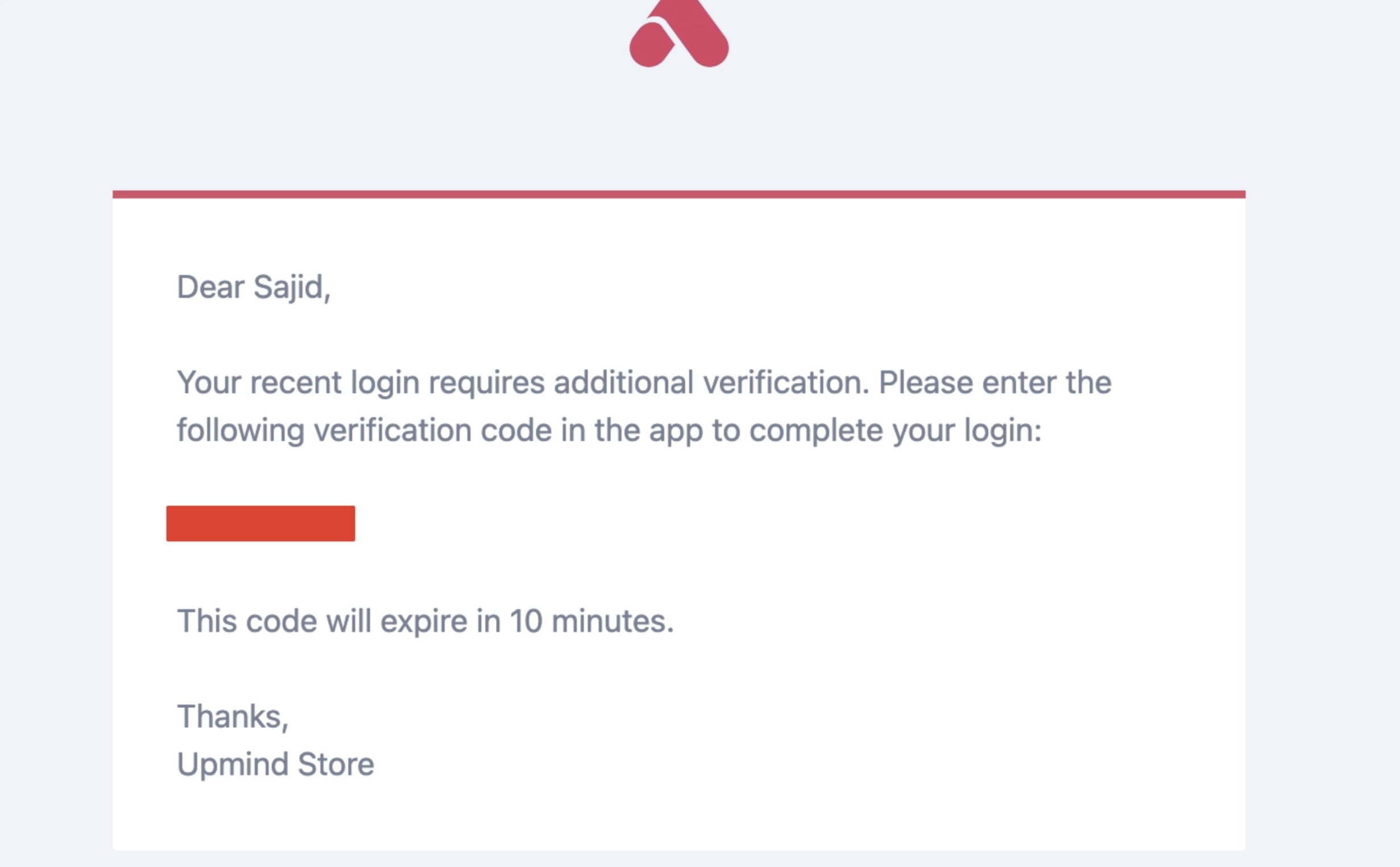
<Frame caption="Verification code email">
  <img src="https://mintcdn.com/upmind/5gi4DQpw4X76kT6T/images/fb/b9015a61ea0cc02b.png?fit=max&auto=format&n=5gi4DQpw4X76kT6T&q=85&s=8f03e7fd7ca1d8bd1d61d6748dfe2551" alt="Verification code email" className="mx-auto" style={{ width:"98%" }} width="2462" height="1524" data-path="images/fb/b9015a61ea0cc02b.png" />

  <img src="https://mintcdn.com/upmind/5gi4DQpw4X76kT6T/images/fb/b9015a61ea0cc02b.png?fit=max&auto=format&n=5gi4DQpw4X76kT6T&q=85&s=8f03e7fd7ca1d8bd1d61d6748dfe2551" alt="Verification code email" className="mx-auto" style={{ width:"98%" }} width="2462" height="1524" data-path="images/fb/b9015a61ea0cc02b.png" />
</Frame>

## Impersonating a Client to activate 2FA

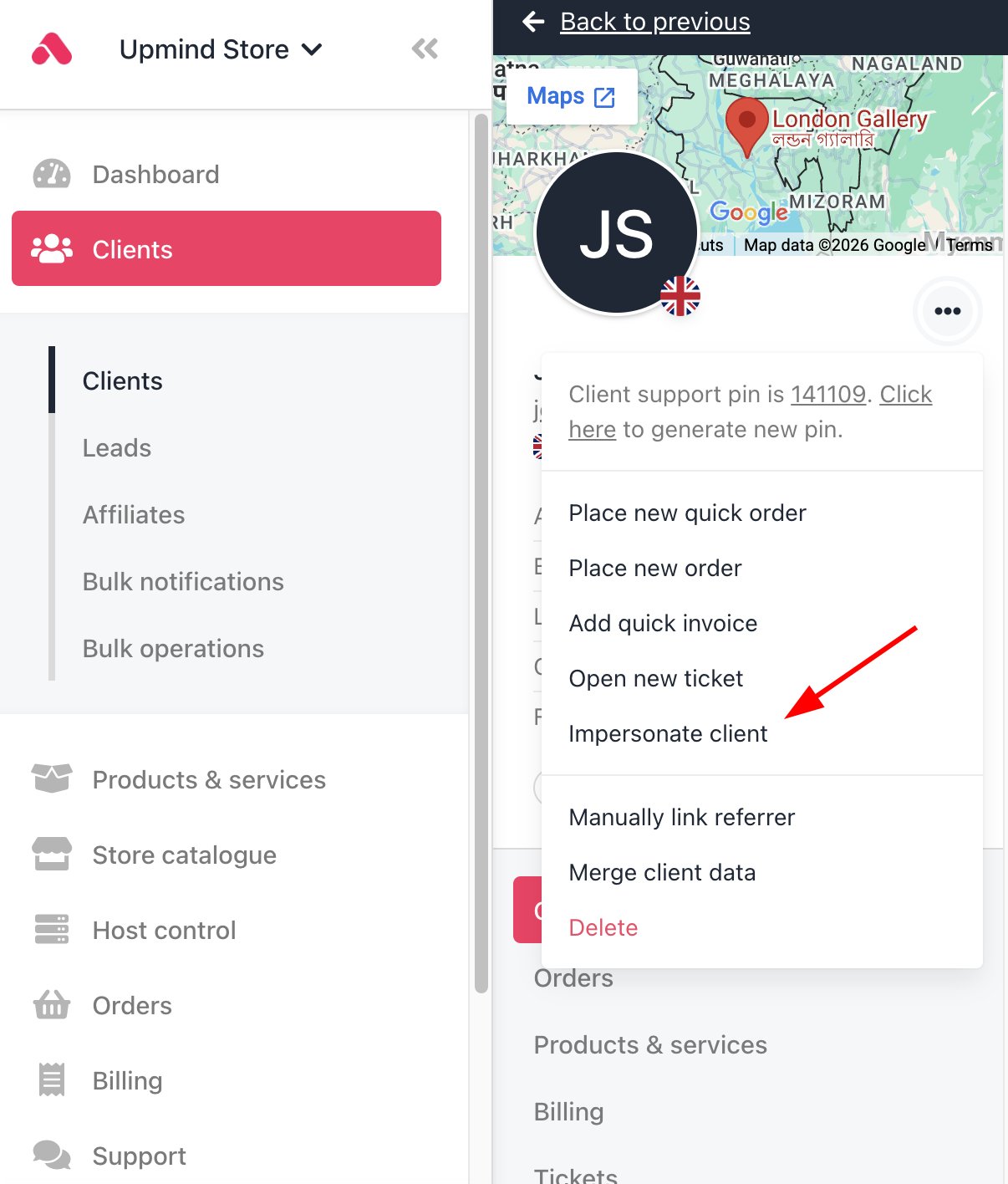
Admins/Staff can impersonate a client account to activate 2FA on their behalf.

1. Select the client and impersonate them.
<Frame caption="Impersonate client">
  <img src="https://mintcdn.com/upmind/FQ1NhxALxjSHvvWW/images/fb/ac549fe390f28873.png?fit=max&auto=format&n=FQ1NhxALxjSHvvWW&q=85&s=84a71e8cef49ecd58f1ba6591285bca2" alt="Impersonate client" className="mx-auto" style={{ width:"90%" }} width="1206" height="1416" data-path="images/fb/ac549fe390f28873.png" />

  <img src="https://mintcdn.com/upmind/FQ1NhxALxjSHvvWW/images/fb/ac549fe390f28873.png?fit=max&auto=format&n=FQ1NhxALxjSHvvWW&q=85&s=84a71e8cef49ecd58f1ba6591285bca2" alt="Impersonate client" className="mx-auto" style={{ width:"90%" }} width="1206" height="1416" data-path="images/fb/ac549fe390f28873.png" />
</Frame>

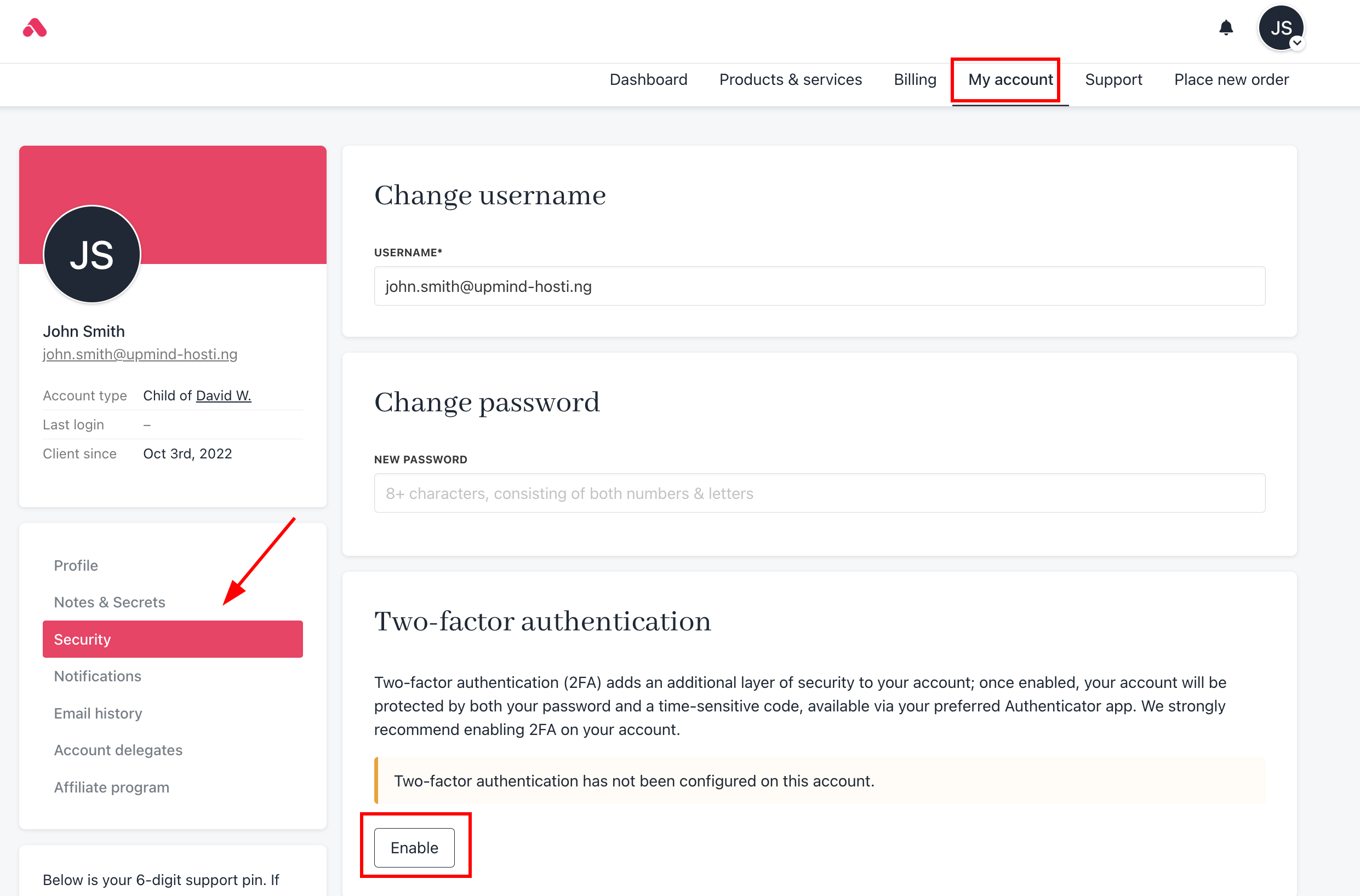
2. Go to **My Account > Security**.
3. Follow the same steps under **Enabling 2FA** above.
<Frame caption="Enable 2FA for clients">
  <img src="https://mintcdn.com/upmind/z5ofg3t7by4uN44v/images/fb/f30f2ee0f8c3d873.png?fit=max&auto=format&n=z5ofg3t7by4uN44v&q=85&s=85ed8f198aa224a58162b00b24103278" alt="Enable 2FA for clients" className="mx-auto" style={{ width:"99%" }} width="2482" height="1636" data-path="images/fb/f30f2ee0f8c3d873.png" />

  <img src="https://mintcdn.com/upmind/z5ofg3t7by4uN44v/images/fb/f30f2ee0f8c3d873.png?fit=max&auto=format&n=z5ofg3t7by4uN44v&q=85&s=85ed8f198aa224a58162b00b24103278" alt="Enable 2FA for clients" className="mx-auto" style={{ width:"99%" }} width="2482" height="1636" data-path="images/fb/f30f2ee0f8c3d873.png" />
</Frame>

Similarly, you can disable the 2FA for them as well.

<Note>
  When staff impersonates a client to make changes, 2FA verification is not required from the staff side. So, only the client triggers the 2FA check when changing their own credentials.
</Note>

## 2FA when changing your password or email

Upmind requires a verification code any time an admin or staff member changes their own password or email address. This is enabled by default across all brands.

### Updating password from account security

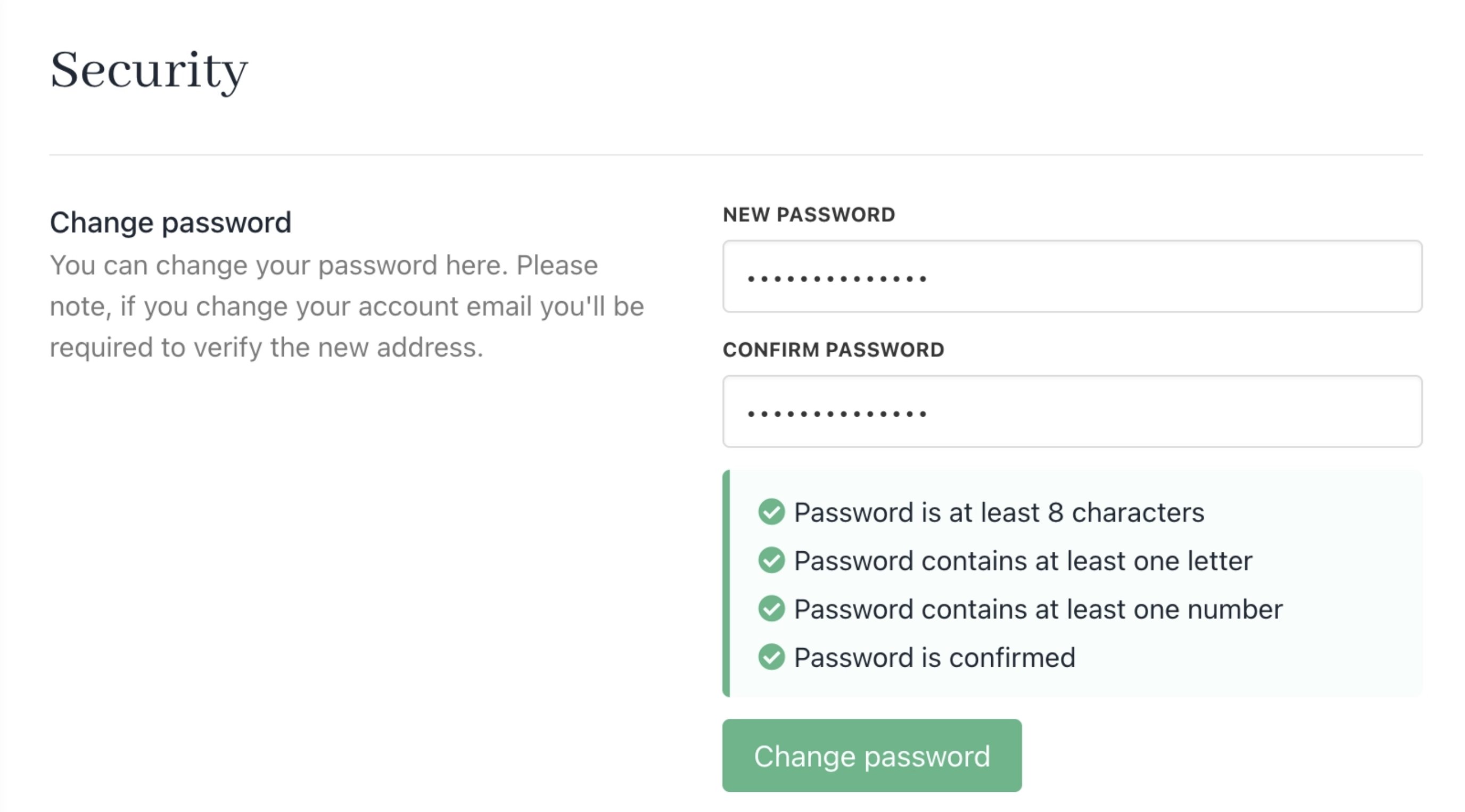
When you submit a password or email change, Upmind will send a 6-digit verification code to your current email address. The request won't go through until you enter that code.

1. Submit the password or email change as normal from **My Account** > **Security**.
<Frame caption="Change password">
  <img src="https://mintcdn.com/upmind/ObllJJl59DabnmMn/images/fb/cb0b4272290b0ad2.png?fit=max&auto=format&n=ObllJJl59DabnmMn&q=85&s=82b39420e2d0f4a1e03bd8a8b1ce08eb" alt="Change password" className="mx-auto" style={{ width:"99%" }} width="2752" height="1526" data-path="images/fb/cb0b4272290b0ad2.png" />

  <img src="https://mintcdn.com/upmind/ObllJJl59DabnmMn/images/fb/cb0b4272290b0ad2.png?fit=max&auto=format&n=ObllJJl59DabnmMn&q=85&s=82b39420e2d0f4a1e03bd8a8b1ce08eb" alt="Change password" className="mx-auto" style={{ width:"99%" }} width="2752" height="1526" data-path="images/fb/cb0b4272290b0ad2.png" />
</Frame>

2. Enter the 6-digit code you received in the verification field.
3. Submit again to complete the change.

If the code expires before you use it, restart the process to receive a new one.

<Note>
  This verification step does **not** apply when an administrator changes another staff member's credentials. It only applies when you are changing your own.
</Note>

### Resetting password from login

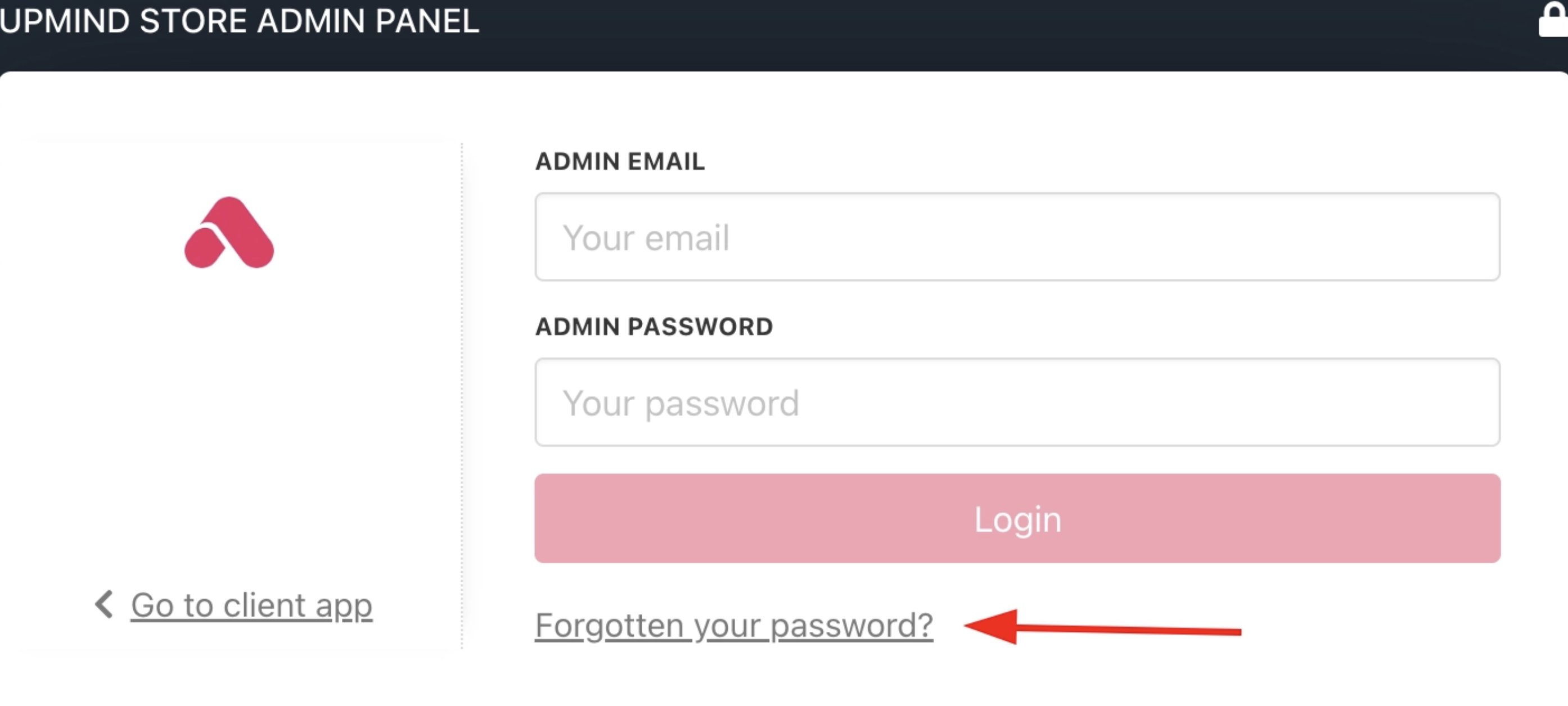
1. Click **Forgotten your password**.
<Frame caption="Forgotten your password">
  <img src="https://mintcdn.com/upmind/bPO2bBzOxYQR4tYr/images/fb/f9b37498f056d719.png?fit=max&auto=format&n=bPO2bBzOxYQR4tYr&q=85&s=9ac7979187d30a05a595b207286fec5d" alt="Forgotten your password" className="mx-auto" style={{ width:"98%" }} width="2788" height="1256" data-path="images/fb/f9b37498f056d719.png" />

  <img src="https://mintcdn.com/upmind/bPO2bBzOxYQR4tYr/images/fb/f9b37498f056d719.png?fit=max&auto=format&n=bPO2bBzOxYQR4tYr&q=85&s=9ac7979187d30a05a595b207286fec5d" alt="Forgotten your password" className="mx-auto" style={{ width:"98%" }} width="2788" height="1256" data-path="images/fb/f9b37498f056d719.png" />
</Frame>

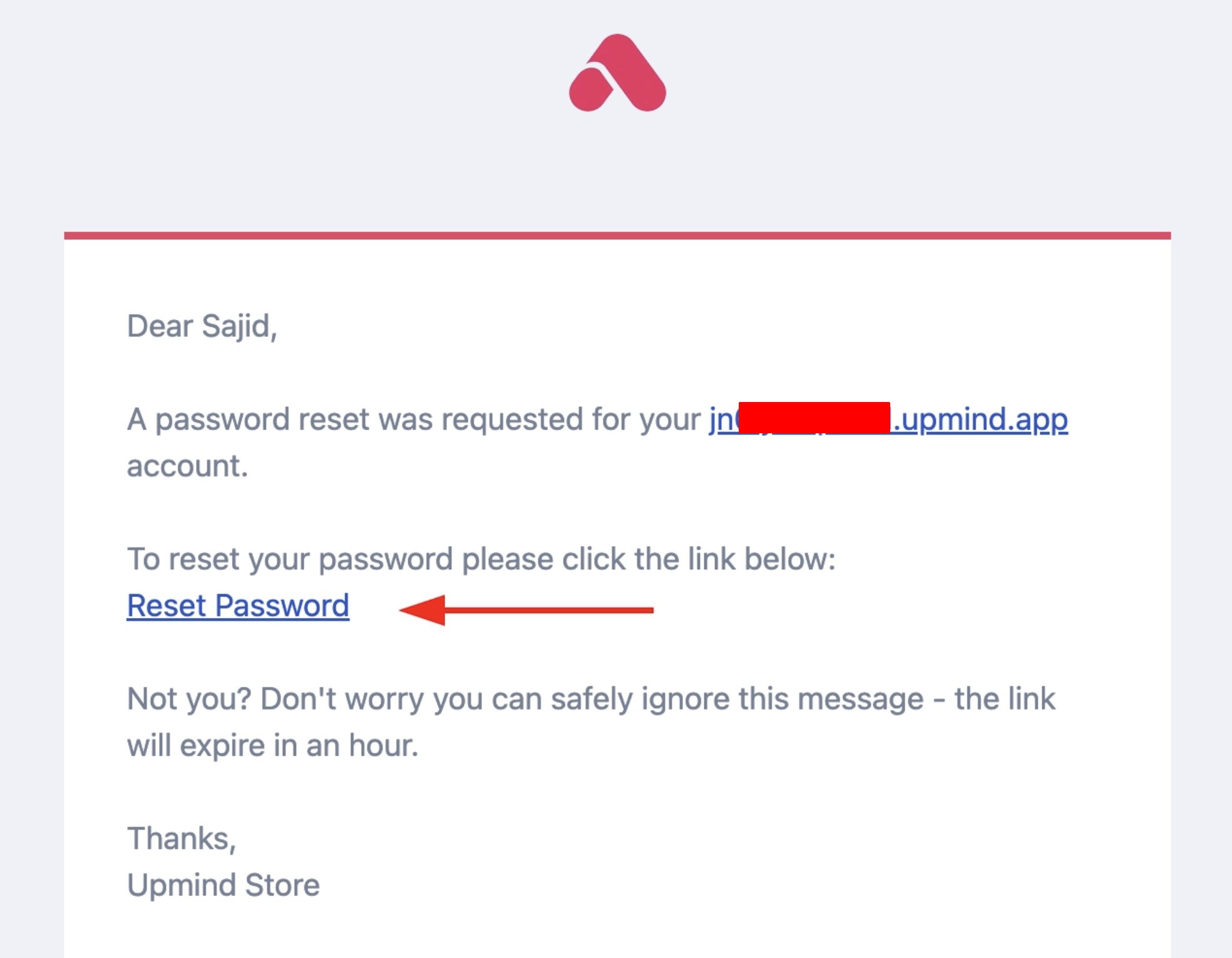
2. You will receive an email to reset your password. Click the **link**.
<Frame caption="Reset password email">
  <img src="https://mintcdn.com/upmind/6knUVC8F1nK4E5CY/images/fb/c34edb7e574ff8bf.png?fit=max&auto=format&n=6knUVC8F1nK4E5CY&q=85&s=d39f36a801e2ddd3cc371bfb3ab36fa9" alt="Reset password email" className="mx-auto" style={{ width:"97%" }} width="1968" height="1530" data-path="images/fb/c34edb7e574ff8bf.png" />

  <img src="https://mintcdn.com/upmind/6knUVC8F1nK4E5CY/images/fb/c34edb7e574ff8bf.png?fit=max&auto=format&n=6knUVC8F1nK4E5CY&q=85&s=d39f36a801e2ddd3cc371bfb3ab36fa9" alt="Reset password email" className="mx-auto" style={{ width:"97%" }} width="1968" height="1530" data-path="images/fb/c34edb7e574ff8bf.png" />
</Frame>

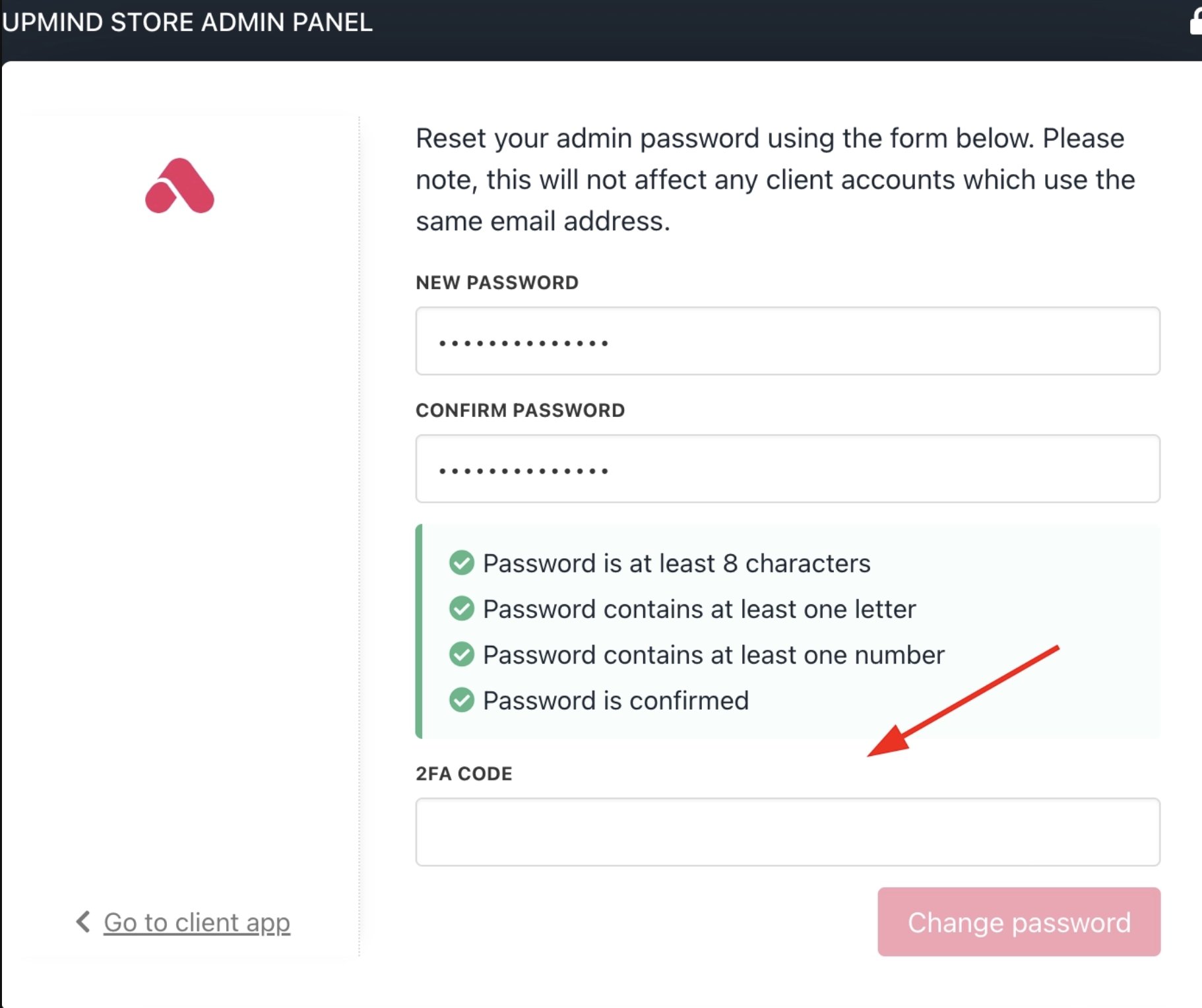
3. Now, when you try to reset your password, you will be prompted to enter your 2FA code.
<Frame caption="2FA code prompt">
  <img src="https://mintcdn.com/upmind/FQ1NhxALxjSHvvWW/images/fb/b2616d57879ce9a1.png?fit=max&auto=format&n=FQ1NhxALxjSHvvWW&q=85&s=8ae93b1036c58b83ea44e1cdb35488da" alt="2FA code prompt" className="mx-auto" style={{ width:"95%" }} width="1822" height="1528" data-path="images/fb/b2616d57879ce9a1.png" />

  <img src="https://mintcdn.com/upmind/FQ1NhxALxjSHvvWW/images/fb/b2616d57879ce9a1.png?fit=max&auto=format&n=FQ1NhxALxjSHvvWW&q=85&s=8ae93b1036c58b83ea44e1cdb35488da" alt="2FA code prompt" className="mx-auto" style={{ width:"95%" }} width="1822" height="1528" data-path="images/fb/b2616d57879ce9a1.png" />
</Frame>

## Resetting 2FA after losing your authenticator

If you lose access to your authenticator app, another account administrator can reset your 2FA from the admin panel.

If no other administrator is available, send an email to [<u>support@upmind.com</u>](mailto:support@upmind.com) from the address registered on your Upmind account and the support team will help restore your access.

## Enforcing email verification before checkout

You can require clients to verify their email address before they can place an order. This helps confirm contact information and reduces the risk of fraudulent orders.

### **How it works**

The verification check applies at the start of the checkout process, and it does not block registration. Clients can register, return to their basket, and browse without verifying, but they must complete email verification before they can proceed to checkout.

**To enable this setting**

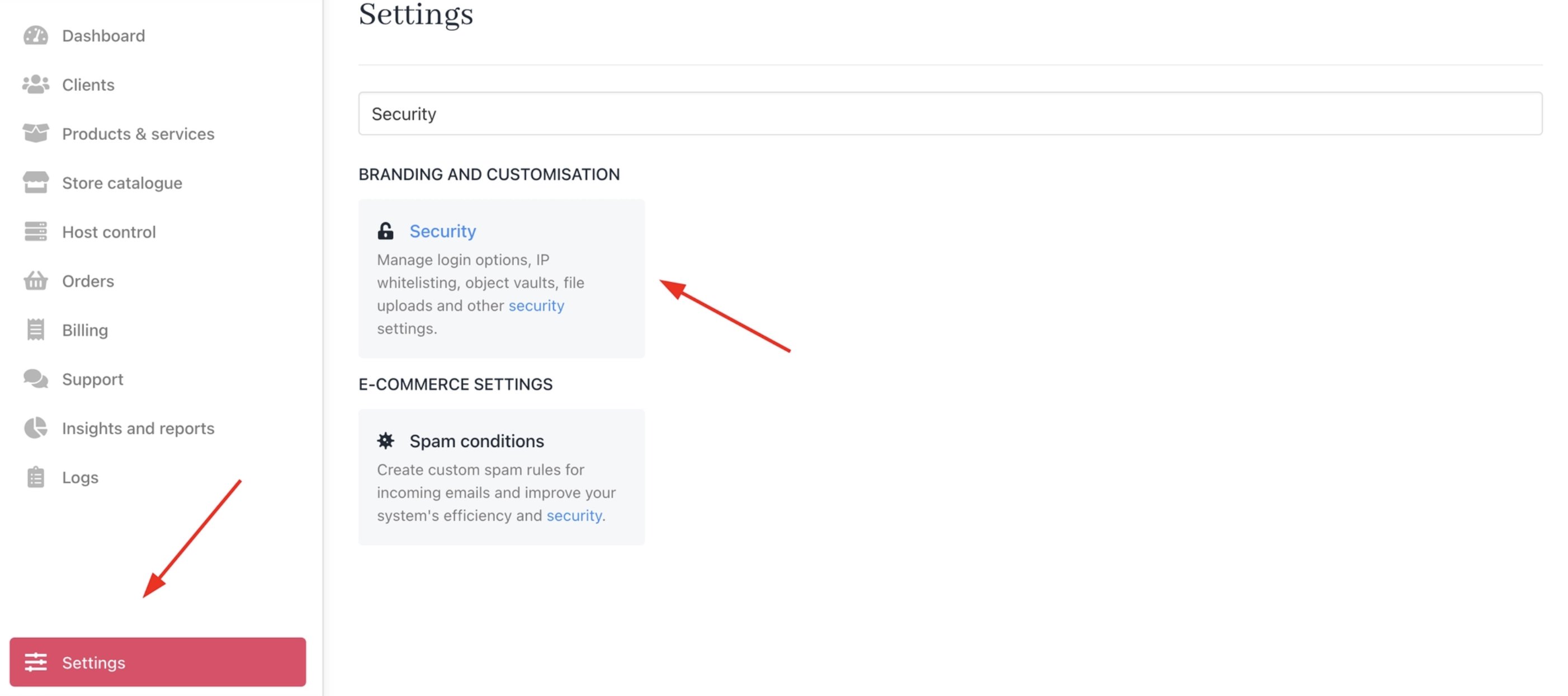
1. Go to **Settings > Security** under **Branding and Customisation**.
<Frame caption="Settings > Security">
  <img src="https://mintcdn.com/upmind/pcUdSuxUJ6LgBXnd/images/fb/a08ec6b6c671d5a1.png?fit=max&auto=format&n=pcUdSuxUJ6LgBXnd&q=85&s=fcb9fa14298cd34a846299e340d5dc84" alt="Settings > Security" className="mx-auto" style={{ width:"99%" }} data-og-width="2804" width="2804" data-og-height="1244" height="1244" data-path="images/fb/a08ec6b6c671d5a1.png" data-optimize="true" data-opv="3" srcset="https://mintcdn.com/upmind/pcUdSuxUJ6LgBXnd/images/fb/a08ec6b6c671d5a1.png?w=280&fit=max&auto=format&n=pcUdSuxUJ6LgBXnd&q=85&s=fff3d43bce58d5a10bc3227bb900a0fb 280w, https://mintcdn.com/upmind/pcUdSuxUJ6LgBXnd/images/fb/a08ec6b6c671d5a1.png?w=560&fit=max&auto=format&n=pcUdSuxUJ6LgBXnd&q=85&s=1ccff21d8d6fce1f1ab70acabe111245 560w, https://mintcdn.com/upmind/pcUdSuxUJ6LgBXnd/images/fb/a08ec6b6c671d5a1.png?w=840&fit=max&auto=format&n=pcUdSuxUJ6LgBXnd&q=85&s=7de310f3f5409f644c50fec74c148f0b 840w, https://mintcdn.com/upmind/pcUdSuxUJ6LgBXnd/images/fb/a08ec6b6c671d5a1.png?w=1100&fit=max&auto=format&n=pcUdSuxUJ6LgBXnd&q=85&s=40b52354391b8cb9d7b1b839f0c40cae 1100w, https://mintcdn.com/upmind/pcUdSuxUJ6LgBXnd/images/fb/a08ec6b6c671d5a1.png?w=1650&fit=max&auto=format&n=pcUdSuxUJ6LgBXnd&q=85&s=1ec05265fc12eb74eb7a6100a6d58b2c 1650w, https://mintcdn.com/upmind/pcUdSuxUJ6LgBXnd/images/fb/a08ec6b6c671d5a1.png?w=2500&fit=max&auto=format&n=pcUdSuxUJ6LgBXnd&q=85&s=dbfe52508bbc93d578eadd2fbb89bf5e 2500w" />

  <img src="https://mintcdn.com/upmind/pcUdSuxUJ6LgBXnd/images/fb/a08ec6b6c671d5a1.png?fit=max&auto=format&n=pcUdSuxUJ6LgBXnd&q=85&s=fcb9fa14298cd34a846299e340d5dc84" alt="Settings > Security" className="mx-auto" style={{ width:"99%" }} data-og-width="2804" width="2804" data-og-height="1244" height="1244" data-path="images/fb/a08ec6b6c671d5a1.png" data-optimize="true" data-opv="3" srcset="https://mintcdn.com/upmind/pcUdSuxUJ6LgBXnd/images/fb/a08ec6b6c671d5a1.png?w=280&fit=max&auto=format&n=pcUdSuxUJ6LgBXnd&q=85&s=fff3d43bce58d5a10bc3227bb900a0fb 280w, https://mintcdn.com/upmind/pcUdSuxUJ6LgBXnd/images/fb/a08ec6b6c671d5a1.png?w=560&fit=max&auto=format&n=pcUdSuxUJ6LgBXnd&q=85&s=1ccff21d8d6fce1f1ab70acabe111245 560w, https://mintcdn.com/upmind/pcUdSuxUJ6LgBXnd/images/fb/a08ec6b6c671d5a1.png?w=840&fit=max&auto=format&n=pcUdSuxUJ6LgBXnd&q=85&s=7de310f3f5409f644c50fec74c148f0b 840w, https://mintcdn.com/upmind/pcUdSuxUJ6LgBXnd/images/fb/a08ec6b6c671d5a1.png?w=1100&fit=max&auto=format&n=pcUdSuxUJ6LgBXnd&q=85&s=40b52354391b8cb9d7b1b839f0c40cae 1100w, https://mintcdn.com/upmind/pcUdSuxUJ6LgBXnd/images/fb/a08ec6b6c671d5a1.png?w=1650&fit=max&auto=format&n=pcUdSuxUJ6LgBXnd&q=85&s=1ec05265fc12eb74eb7a6100a6d58b2c 1650w, https://mintcdn.com/upmind/pcUdSuxUJ6LgBXnd/images/fb/a08ec6b6c671d5a1.png?w=2500&fit=max&auto=format&n=pcUdSuxUJ6LgBXnd&q=85&s=dbfe52508bbc93d578eadd2fbb89bf5e 2500w" />
</Frame>

2. Enable **Require a verified email to place an order**.

<Frame caption="Require a verified email to place an order">
  <img src="https://mintcdn.com/upmind/ObllJJl59DabnmMn/images/fb/c9a4c40dfd35e589.png?fit=max&auto=format&n=ObllJJl59DabnmMn&q=85&s=e16dda9de95135f5e820716258ffe9d7" alt="Require a verified email to place an order" className="mx-auto" style={{ width:"99%" }} width="2802" height="302" data-path="images/fb/c9a4c40dfd35e589.png" />

  <img src="https://mintcdn.com/upmind/ObllJJl59DabnmMn/images/fb/c9a4c40dfd35e589.png?fit=max&auto=format&n=ObllJJl59DabnmMn&q=85&s=e16dda9de95135f5e820716258ffe9d7" alt="Require a verified email to place an order" className="mx-auto" style={{ width:"99%" }} width="2802" height="302" data-path="images/fb/c9a4c40dfd35e589.png" />
</Frame>

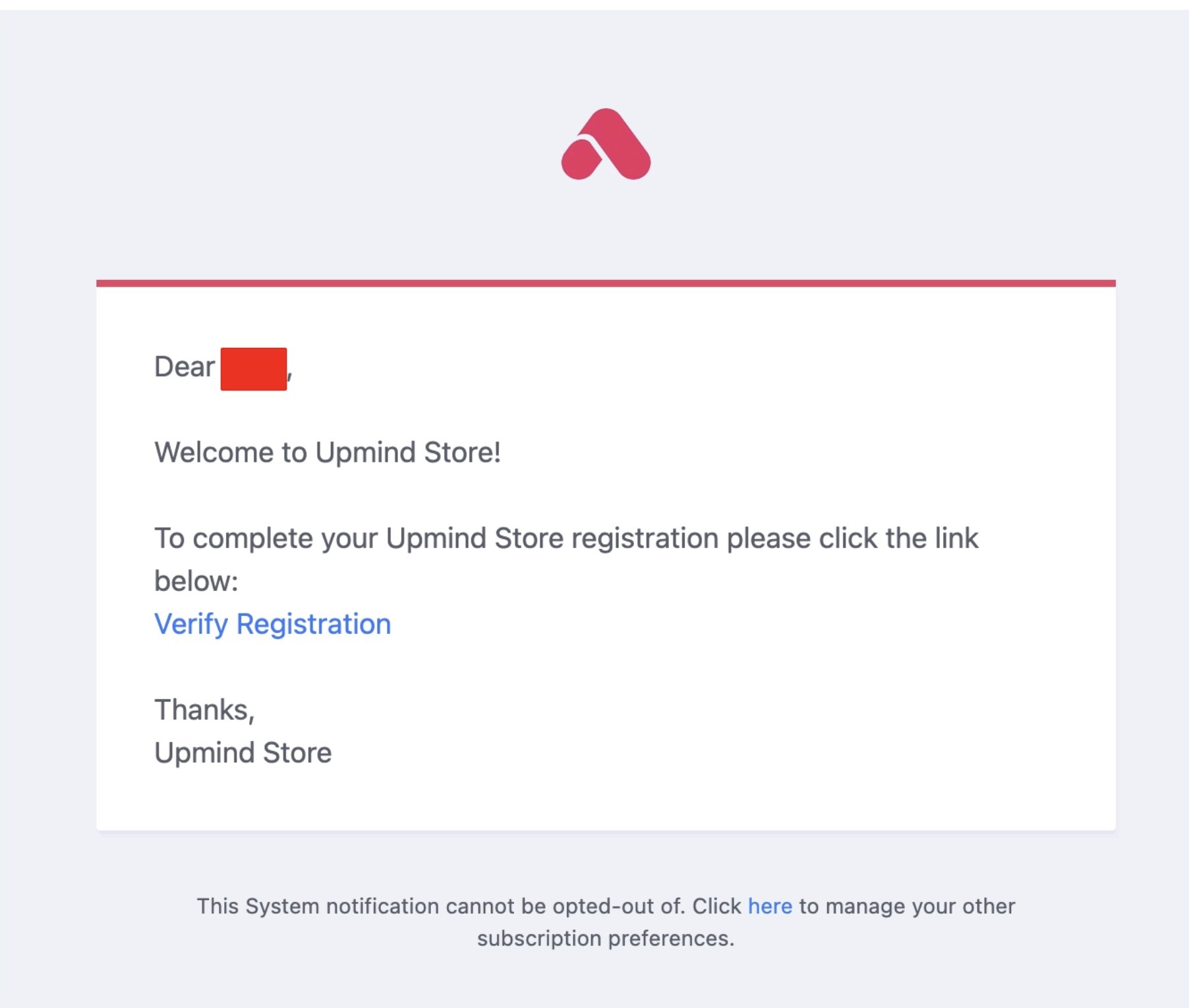
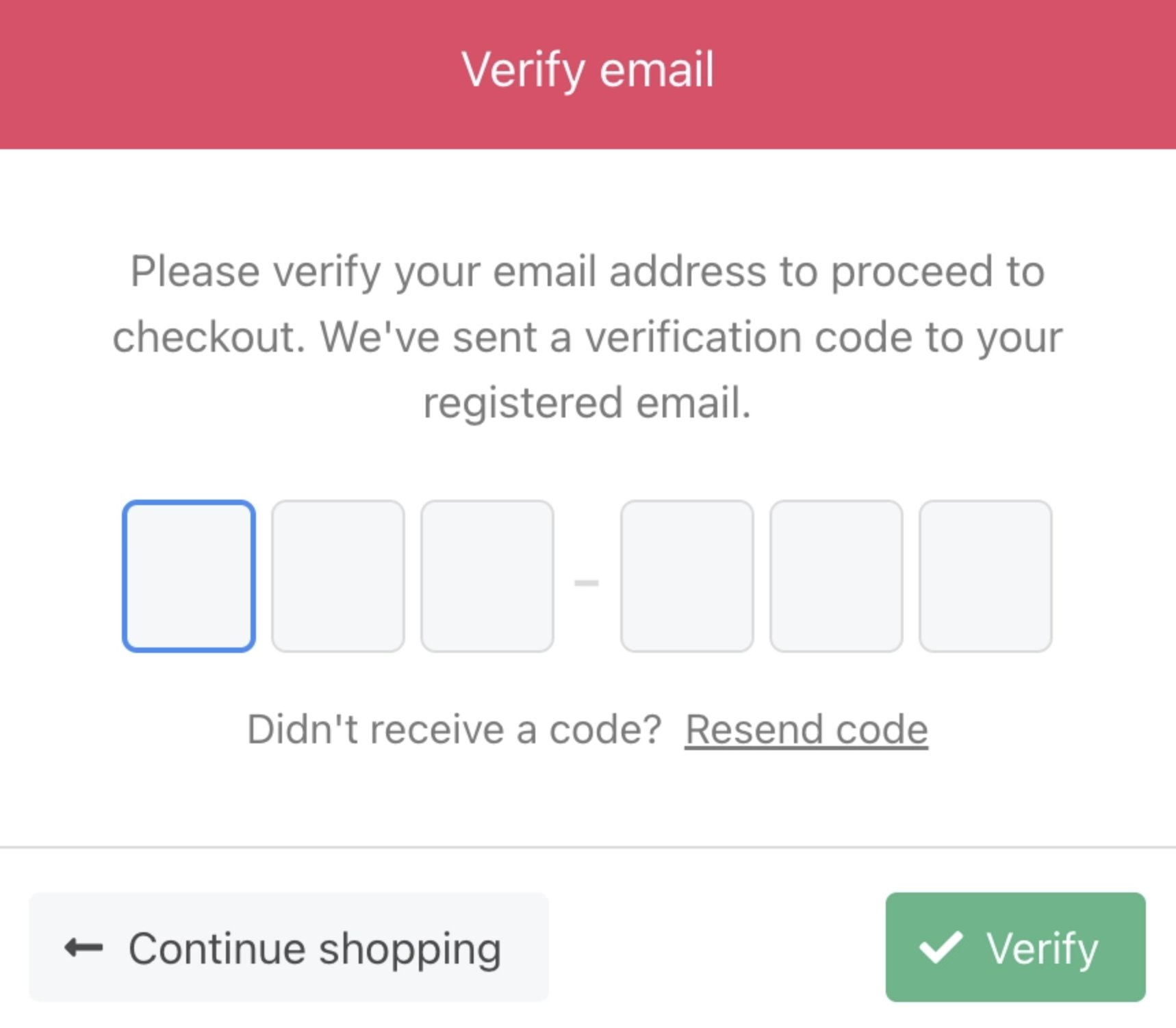
During registration, clients will see a **Verify** step, though this is optional at that point, as they can click **Back** and continue browsing.

The moment they attempt to check out, verification becomes mandatory, and the only available action is to enter the code and continue.
<Frame caption="Clients can verify their email beforehand during registration">
  <img src="https://mintcdn.com/upmind/JUoAg6onJmXk_-rR/images/fb/dfd564f922cfed5f.png?fit=max&auto=format&n=JUoAg6onJmXk_-rR&q=85&s=3bf58ea44208ecc4a5aef7ee4c12be8e" alt="Clients can verify their email beforehand during registration" className="mx-auto" style={{ width:"91%" }} width="1804" height="1530" data-path="images/fb/dfd564f922cfed5f.png" />

  <img src="https://mintcdn.com/upmind/JUoAg6onJmXk_-rR/images/fb/dfd564f922cfed5f.png?fit=max&auto=format&n=JUoAg6onJmXk_-rR&q=85&s=3bf58ea44208ecc4a5aef7ee4c12be8e" alt="Clients can verify their email beforehand during registration" className="mx-auto" style={{ width:"91%" }} width="1804" height="1530" data-path="images/fb/dfd564f922cfed5f.png" />
</Frame>

<Frame caption="Clients will need to verify their email during checkout">
  <img src="https://mintcdn.com/upmind/FQ1NhxALxjSHvvWW/images/fb/ab8a3787c79785d5.png?fit=max&auto=format&n=FQ1NhxALxjSHvvWW&q=85&s=863c3ca35735153ca111dc59733037cc" alt="Clients will need to verify their email during checkout" className="mx-auto" style={{ width:"75%" }} width="1718" height="1502" data-path="images/fb/ab8a3787c79785d5.png" />

  <img src="https://mintcdn.com/upmind/FQ1NhxALxjSHvvWW/images/fb/ab8a3787c79785d5.png?fit=max&auto=format&n=FQ1NhxALxjSHvvWW&q=85&s=863c3ca35735153ca111dc59733037cc" alt="Clients will need to verify their email during checkout" className="mx-auto" style={{ width:"75%" }} width="1718" height="1502" data-path="images/fb/ab8a3787c79785d5.png" />
</Frame>
