> ## Documentation Index
> Fetch the complete documentation index at: https://docs.upmind.com/llms.txt
> Use this file to discover all available pages before exploring further.
# How to Manage Two-Factor Authentication (2FA) as a Client
> Enable, disable, and manage two-factor authentication on your Upmind client account.
Two-factor authentication (2FA) protects your account by requiring both your password and a time-sensitive code when you log in or make sensitive changes. By default, it is disabled. So, you can turn it on from your account's Security page.
**Before you start,** make sure you have two apps on your mobile device - a QR code scanner and an authenticator app such as Google Authenticator or Authy.
## How to enable 2FA as a client
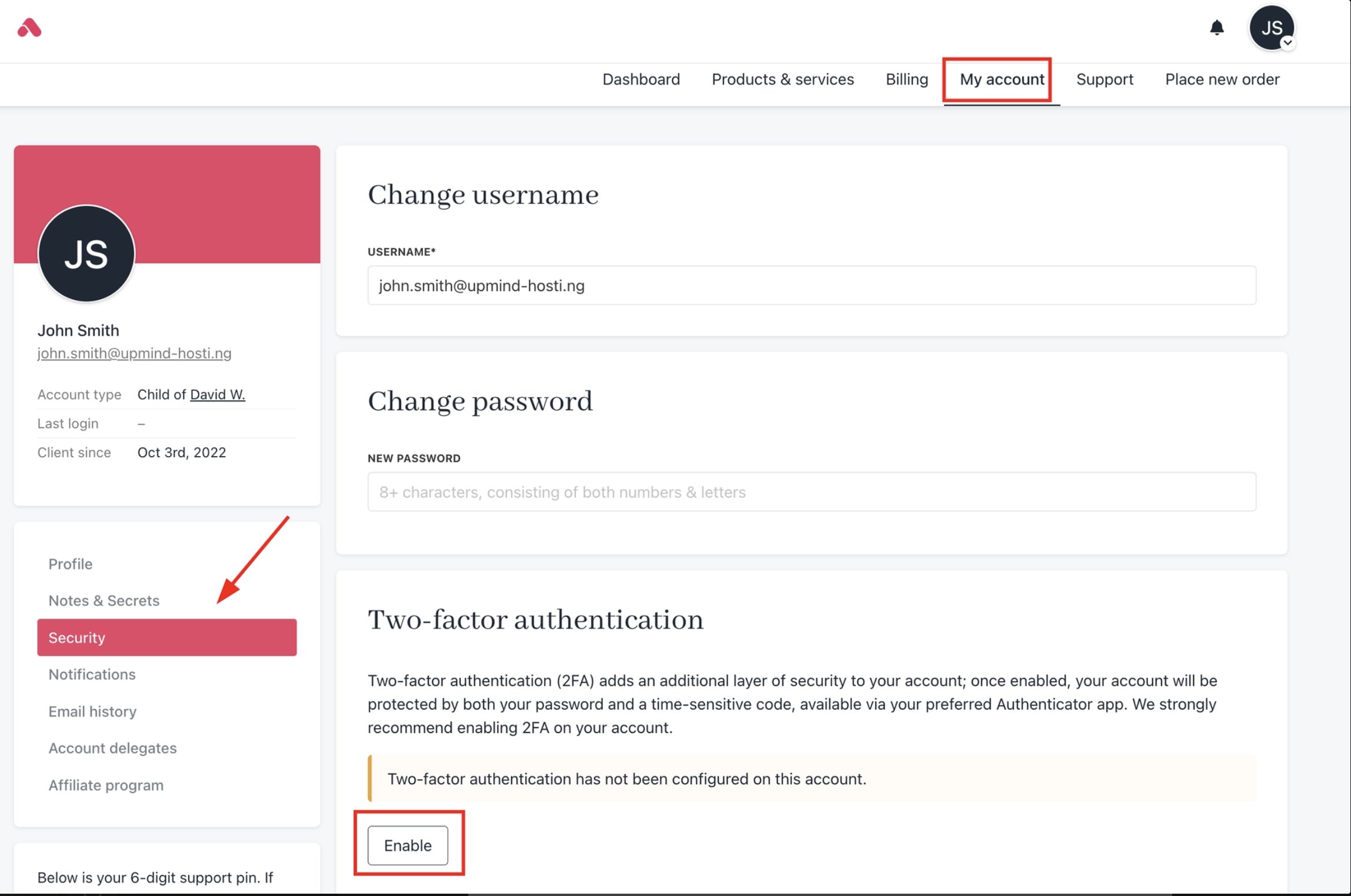
1. Go to the **Security** section of your account and scroll down to **Two-Factor Authentication**.
2. Click **Enable**.
 3. Scan the QR code using your authenticator app.
4. Copy the generated code from your app.
5. Enter the code in the provided field.
3. Scan the QR code using your authenticator app.
4. Copy the generated code from your app.
5. Enter the code in the provided field.
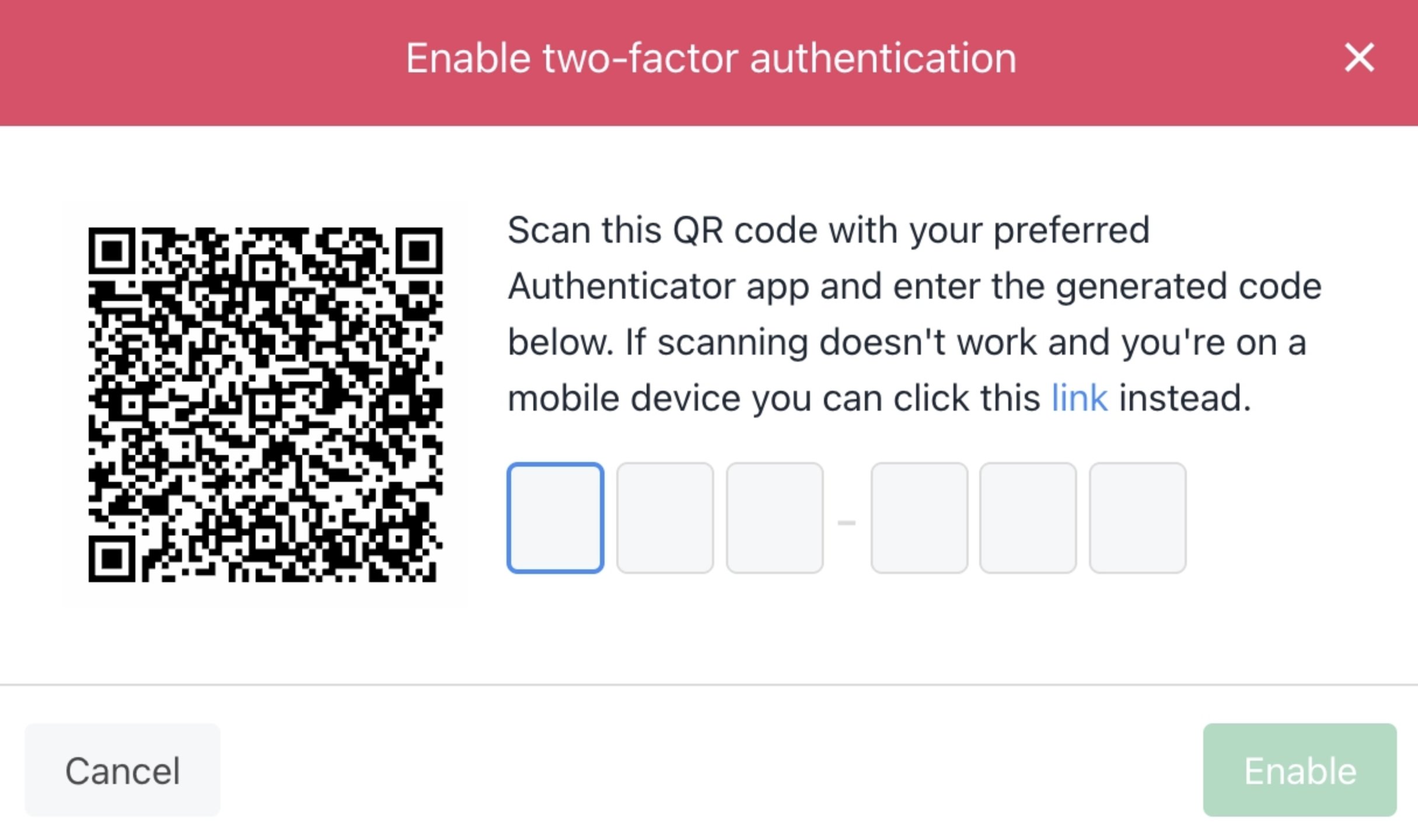 6. Click **Enable** to activate two-factor authentication.
Authenticator apps generate a new code every 30 seconds. Enter it before it expires.
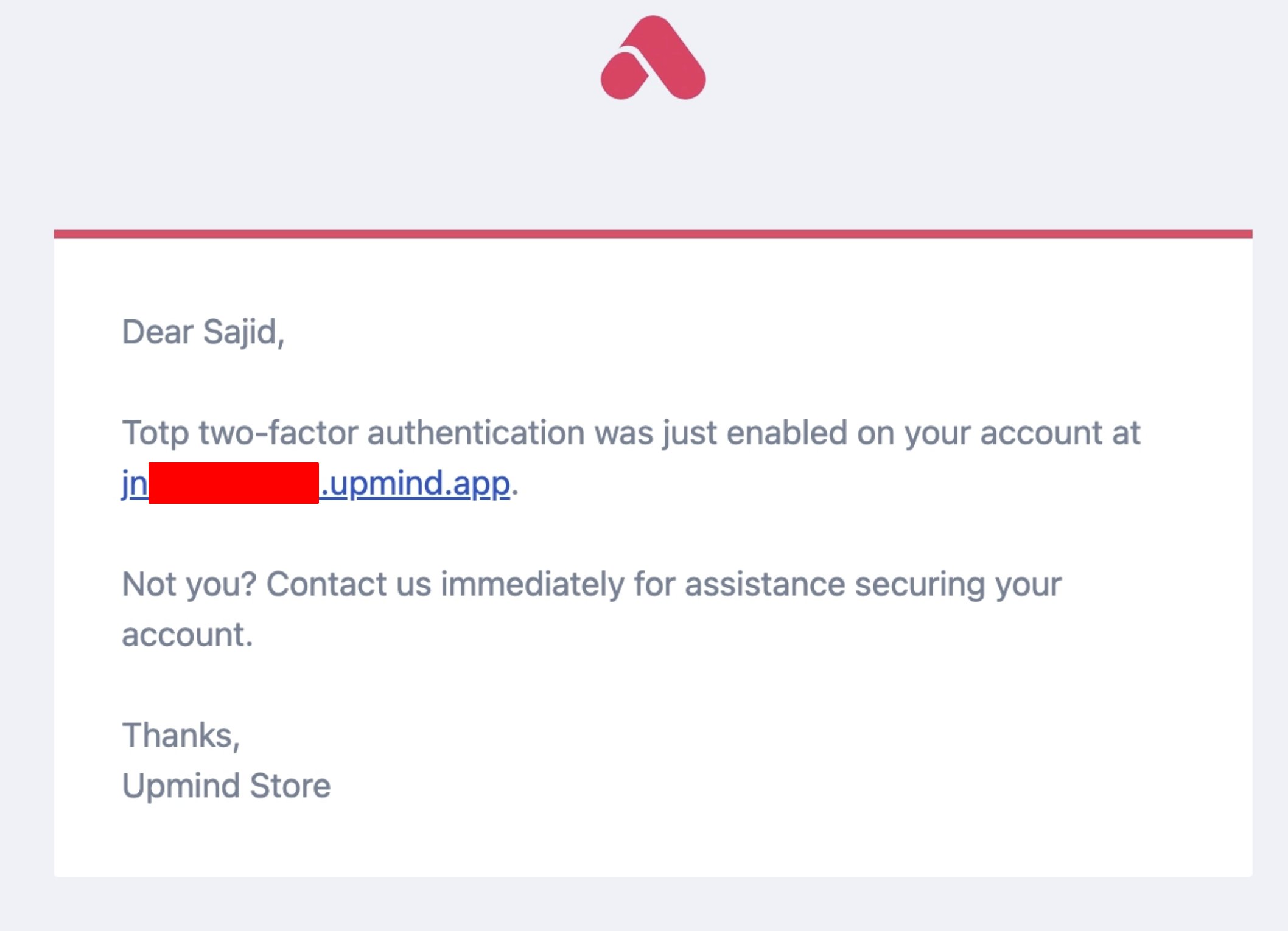
You will receive an email when it is enabled.
6. Click **Enable** to activate two-factor authentication.
Authenticator apps generate a new code every 30 seconds. Enter it before it expires.
You will receive an email when it is enabled.
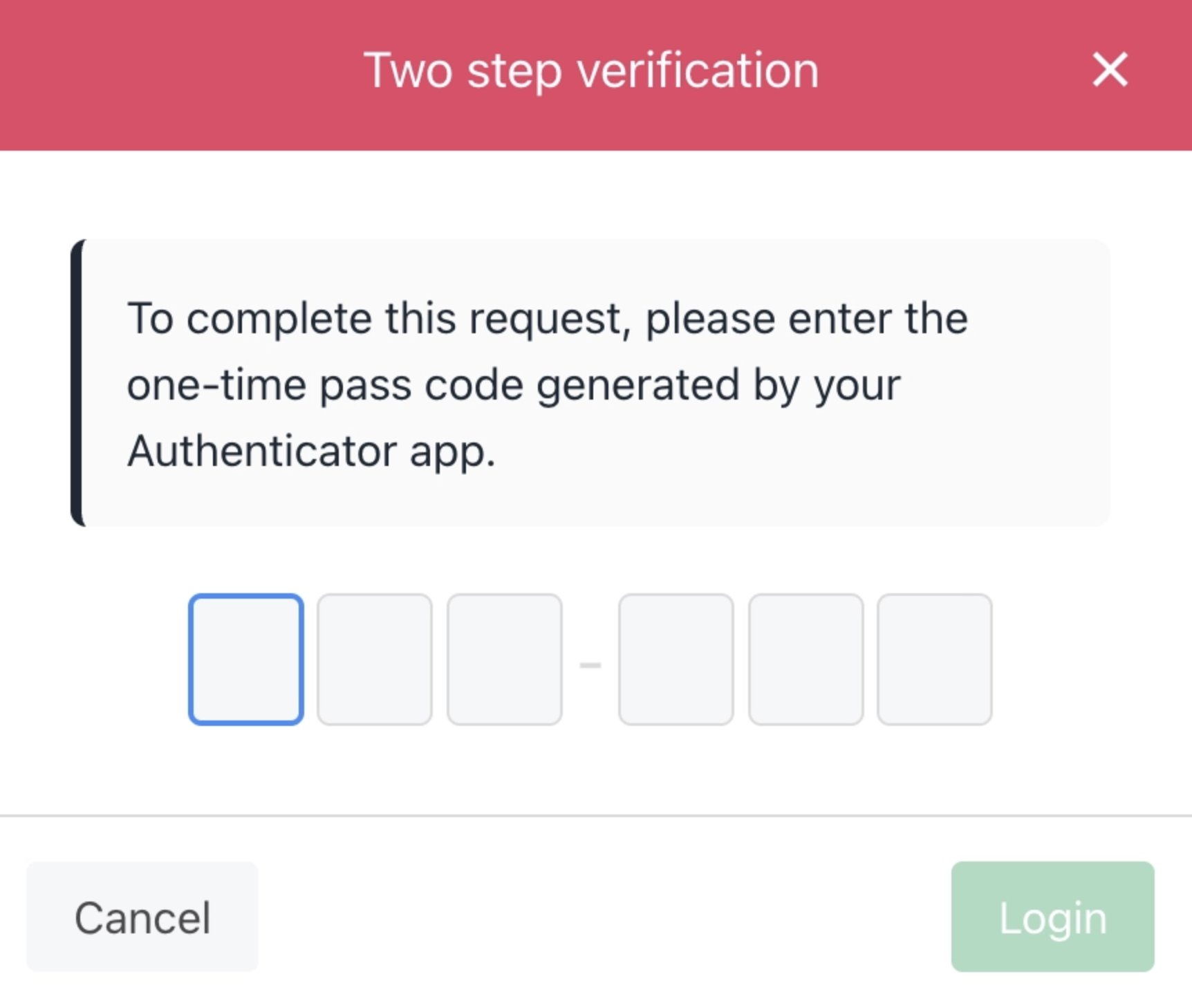
 Now, whenever you try to log in, 2FA will be required.
 ## How to disable 2FA as a client
1. Go to the **Security** page and click **Disable**.
## How to disable 2FA as a client
1. Go to the **Security** page and click **Disable**.
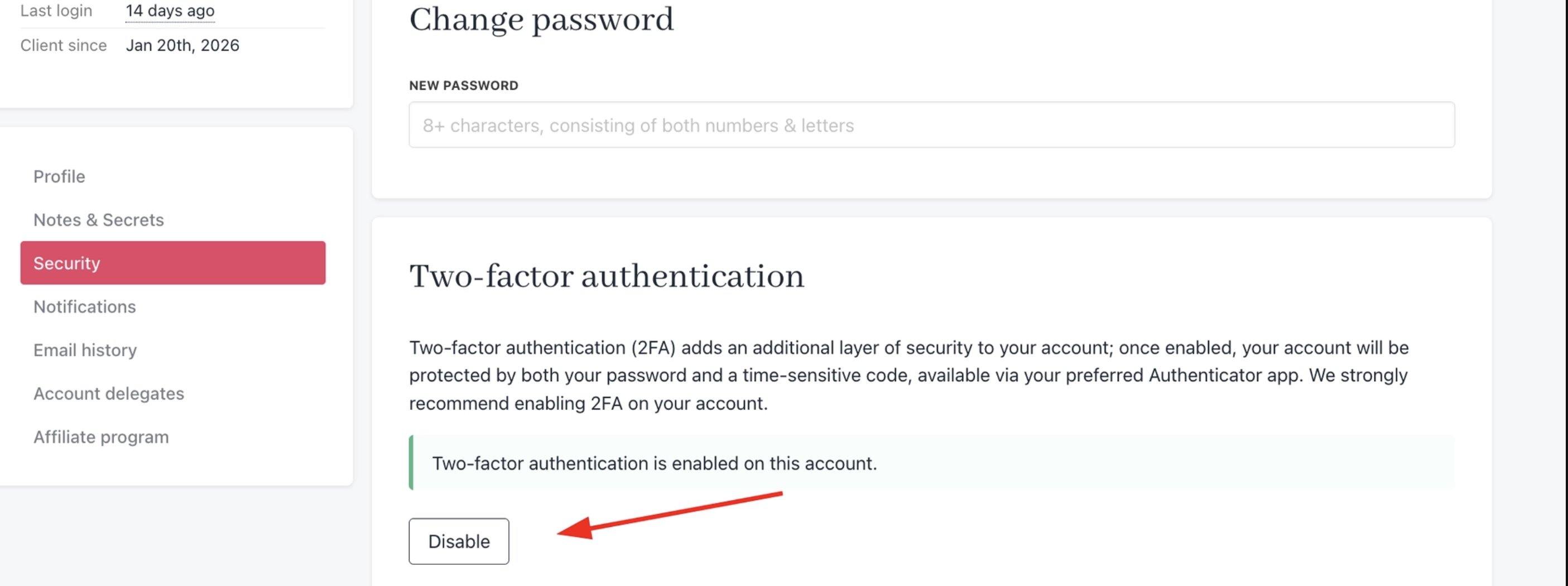 2. Open your authenticator app and find the current code for your Upmind account.
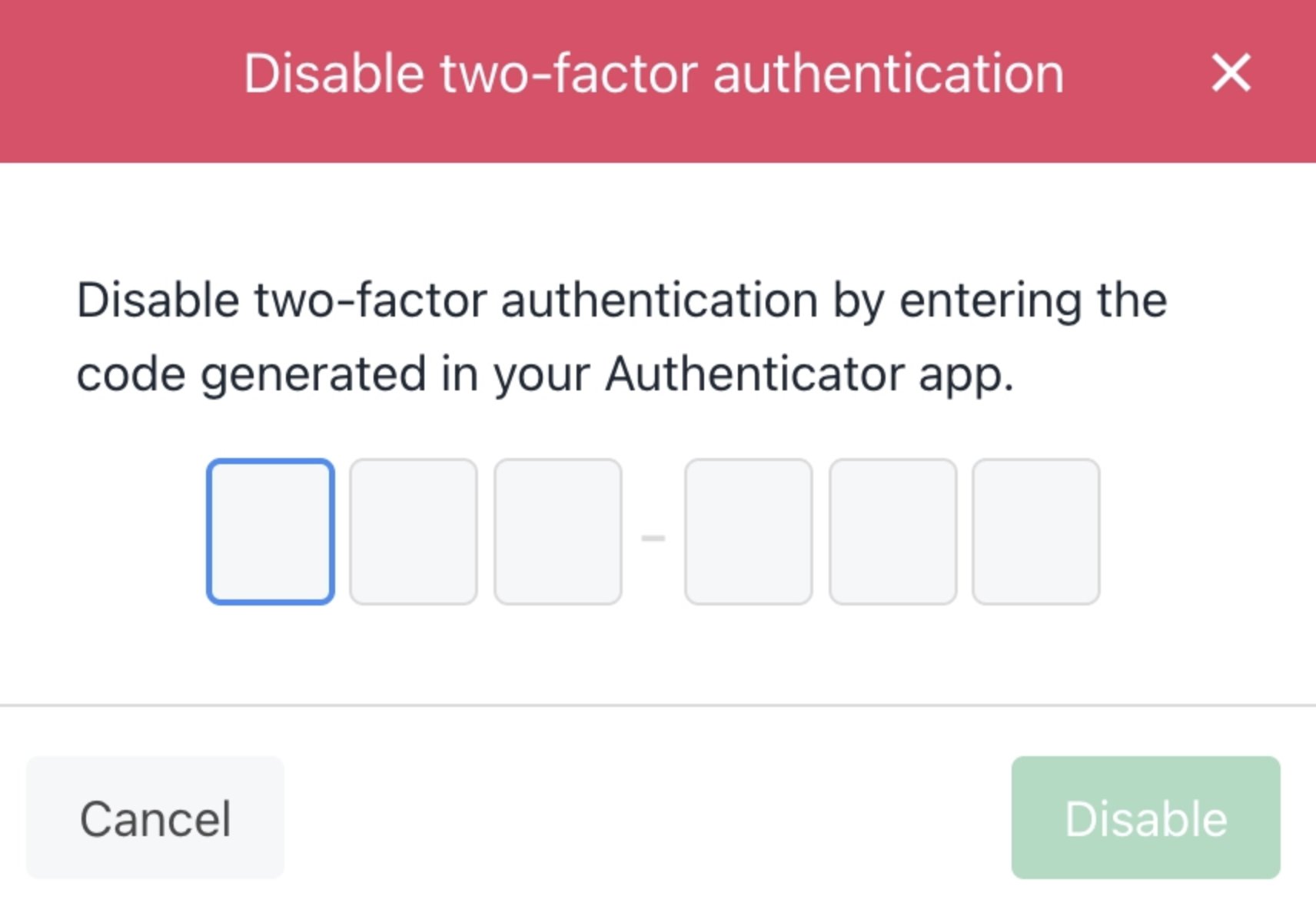
3. Enter the code in the provided field on the Security page.
4. Click **Disable** on the confirmation pop-up to confirm.
2. Open your authenticator app and find the current code for your Upmind account.
3. Enter the code in the provided field on the Security page.
4. Click **Disable** on the confirmation pop-up to confirm.
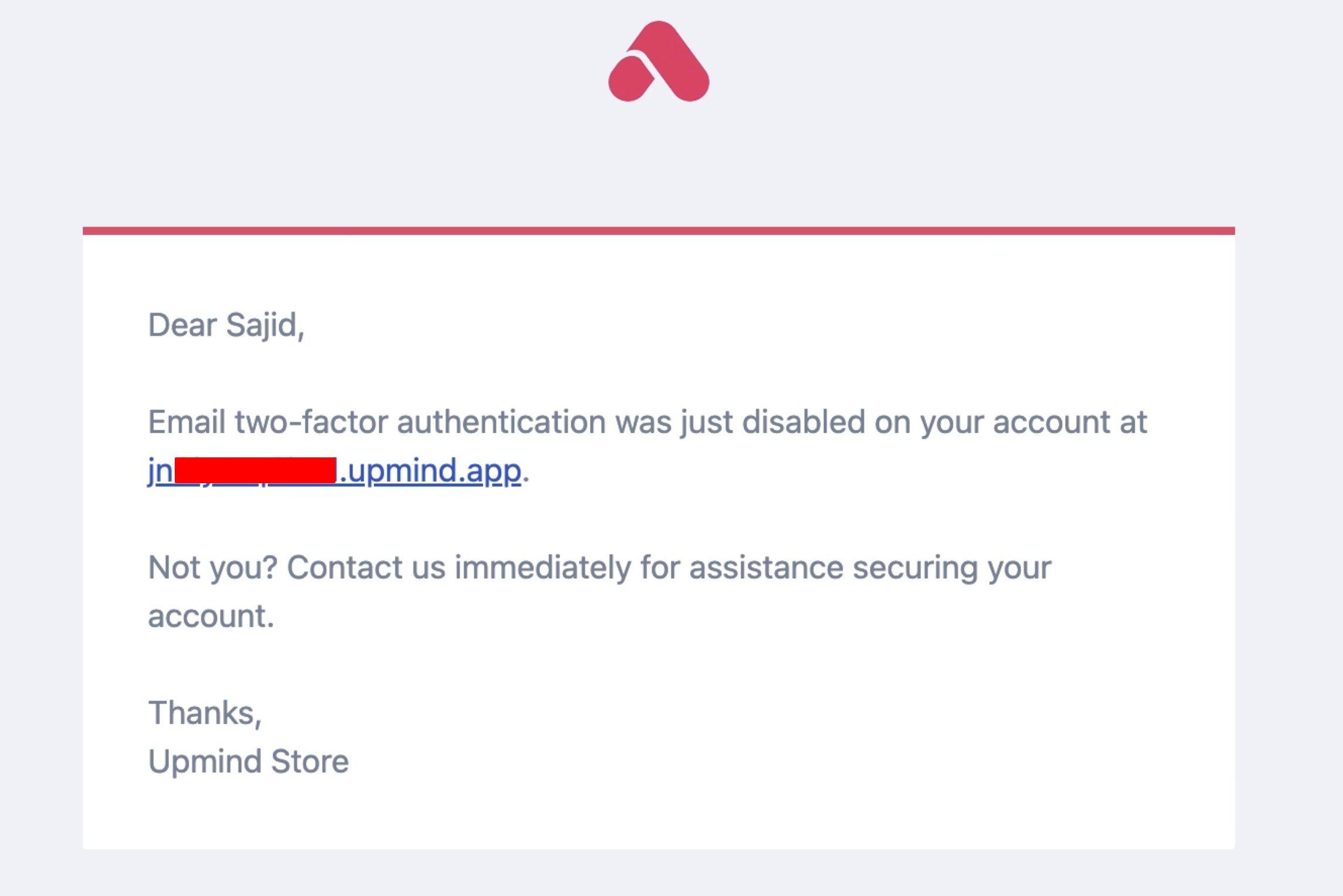
 You will receive an email when it is disabled.
 ## 2FA when changing your password or email
Upmind requires a verification code any time you change your own password or email address. This is a built-in security measure that applies even if you already have an authenticator app set up.
### Updating password from account security
When you submit a password or email change, Upmind will send a 6-digit verification code to your current email address. The request won't go through until you enter that code.
1. Submit the password or email change as normal from **My Account** > **Security**.
## 2FA when changing your password or email
Upmind requires a verification code any time you change your own password or email address. This is a built-in security measure that applies even if you already have an authenticator app set up.
### Updating password from account security
When you submit a password or email change, Upmind will send a 6-digit verification code to your current email address. The request won't go through until you enter that code.
1. Submit the password or email change as normal from **My Account** > **Security**.
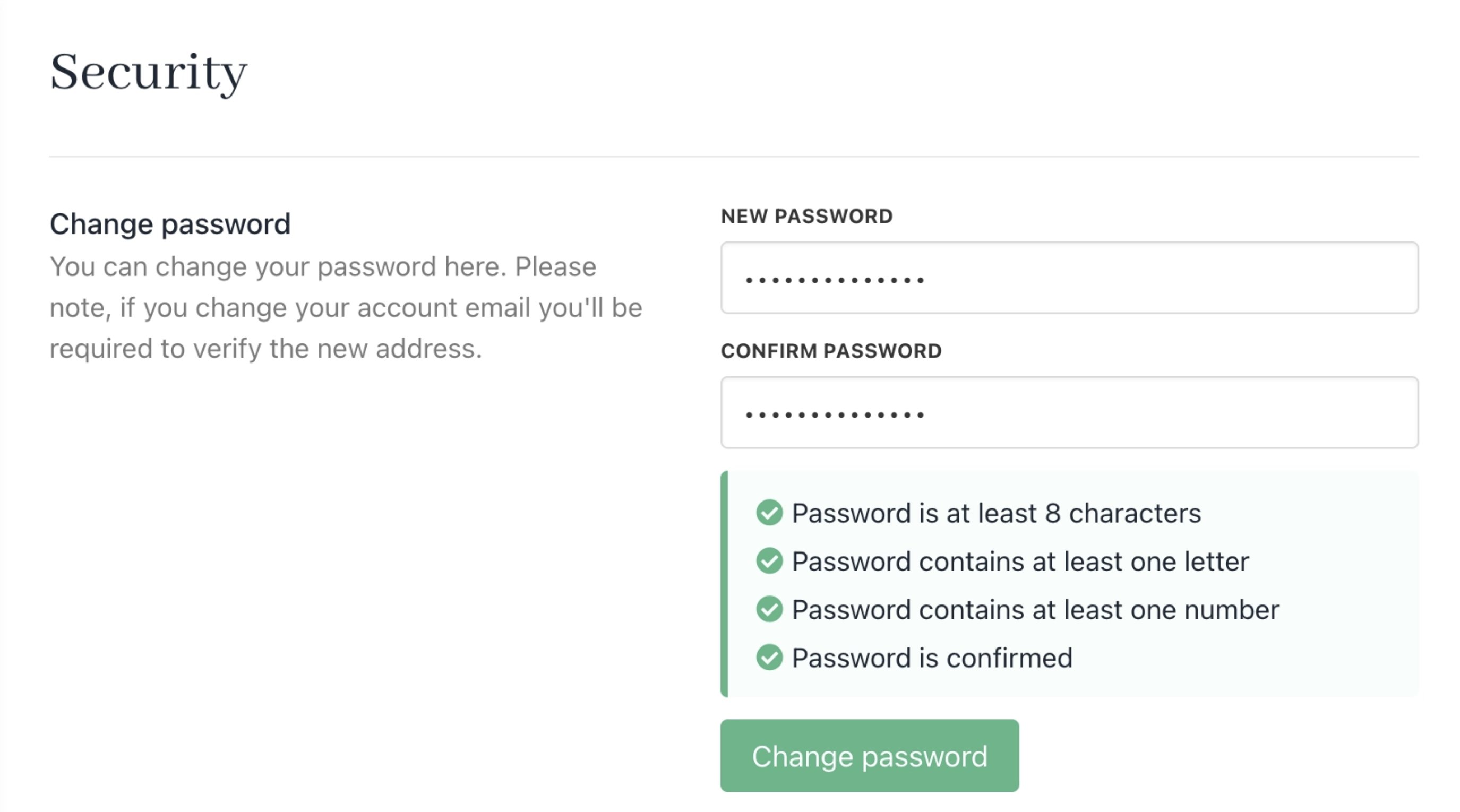 2. Enter the 6-digit code you received in the verification field.
3. Submit again to complete the change.
If the code expires before you use it, restart the process to receive a new one.
If your account is managed by an admin or staff member, they can make changes to your credentials without needing to complete this step on your behalf.
### Resetting password from login
1. Click **Forgotten your password**.
2. Enter the 6-digit code you received in the verification field.
3. Submit again to complete the change.
If the code expires before you use it, restart the process to receive a new one.
If your account is managed by an admin or staff member, they can make changes to your credentials without needing to complete this step on your behalf.
### Resetting password from login
1. Click **Forgotten your password**.
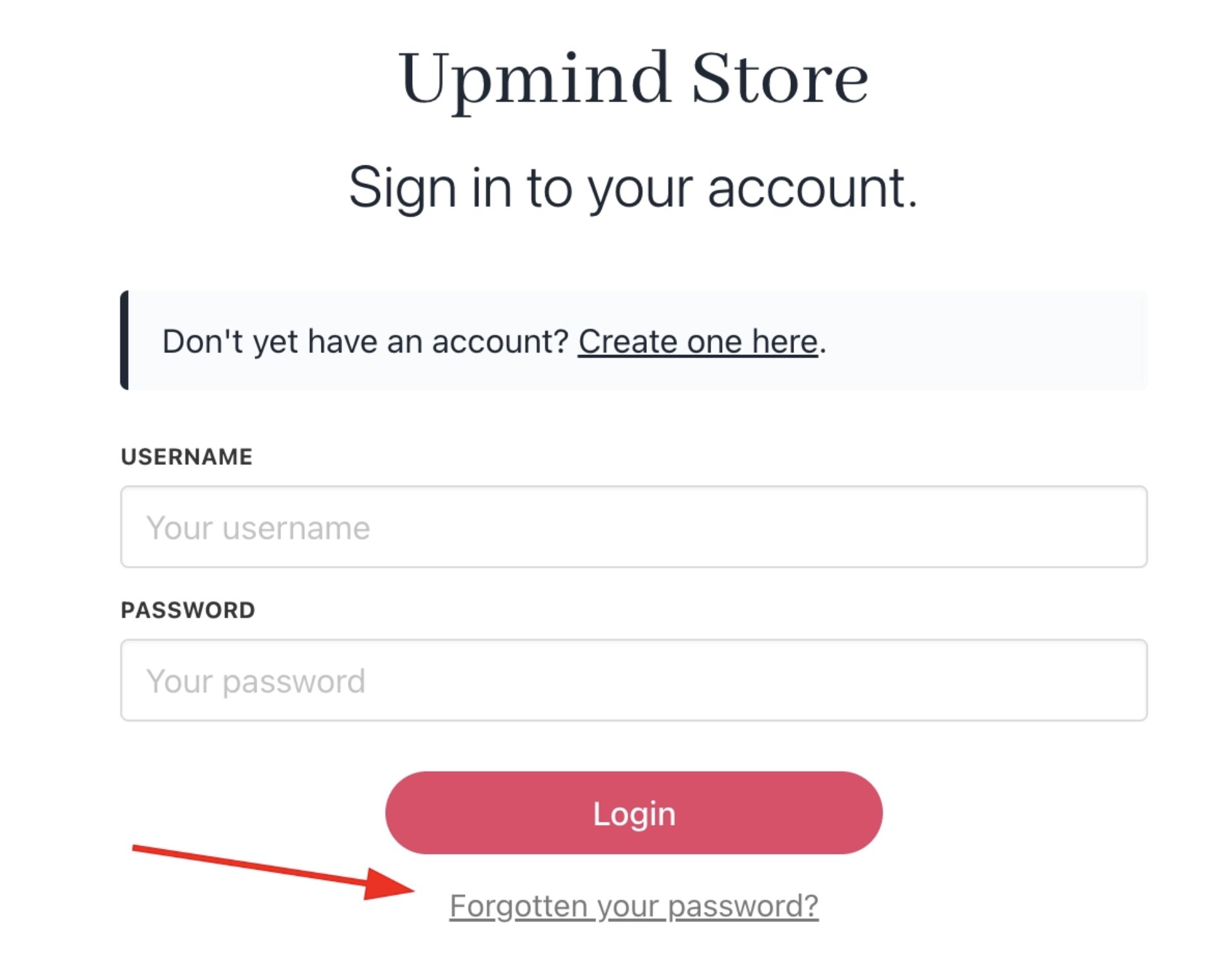 2. You will receive an email to reset your password. Click the **link**.
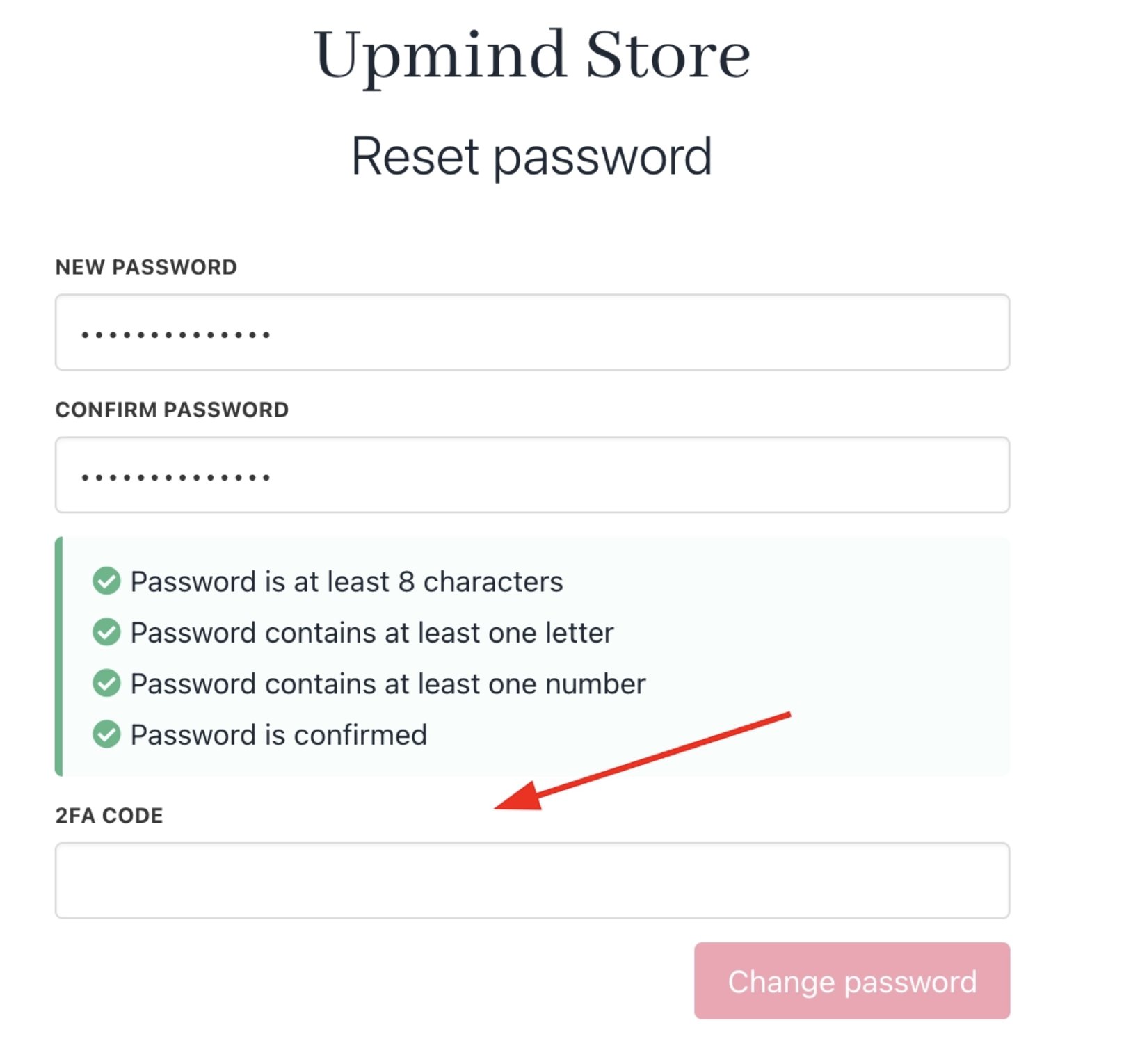
3. Now, when you try to reset your password, you will be prompted to enter your 2FA code.
2. You will receive an email to reset your password. Click the **link**.
3. Now, when you try to reset your password, you will be prompted to enter your 2FA code.
 ## Resetting 2FA after losing your authenticator
If you lose access to your authenticator app, another account administrator can reset your 2FA from the admin panel.
If no other administrator is available, [raise a support ticket](/managing-your-account/getting-help-from-upmind) and the Upmind support team will assist you with restoring access.
## Resetting 2FA after losing your authenticator
If you lose access to your authenticator app, another account administrator can reset your 2FA from the admin panel.
If no other administrator is available, [raise a support ticket](/managing-your-account/getting-help-from-upmind) and the Upmind support team will assist you with restoring access.