> ## Documentation Index
> Fetch the complete documentation index at: https://docs.upmind.com/llms.txt
> Use this file to discover all available pages before exploring further.

# How to Change Your Admin Password

> Follow these steps to change your Upmind account password. You can also enable two-factor authentication to add a layer of security to your Upmind e-commerce account.

This article shows you how to change the password for your Upmind e-commerce account. You also learn how to enable two-factor authentication, an optional Upmind feature.

## **Changing a password**

1. Log in to your Upmind admin dashboard.
2. Click the logo at the bottom of the left pane.
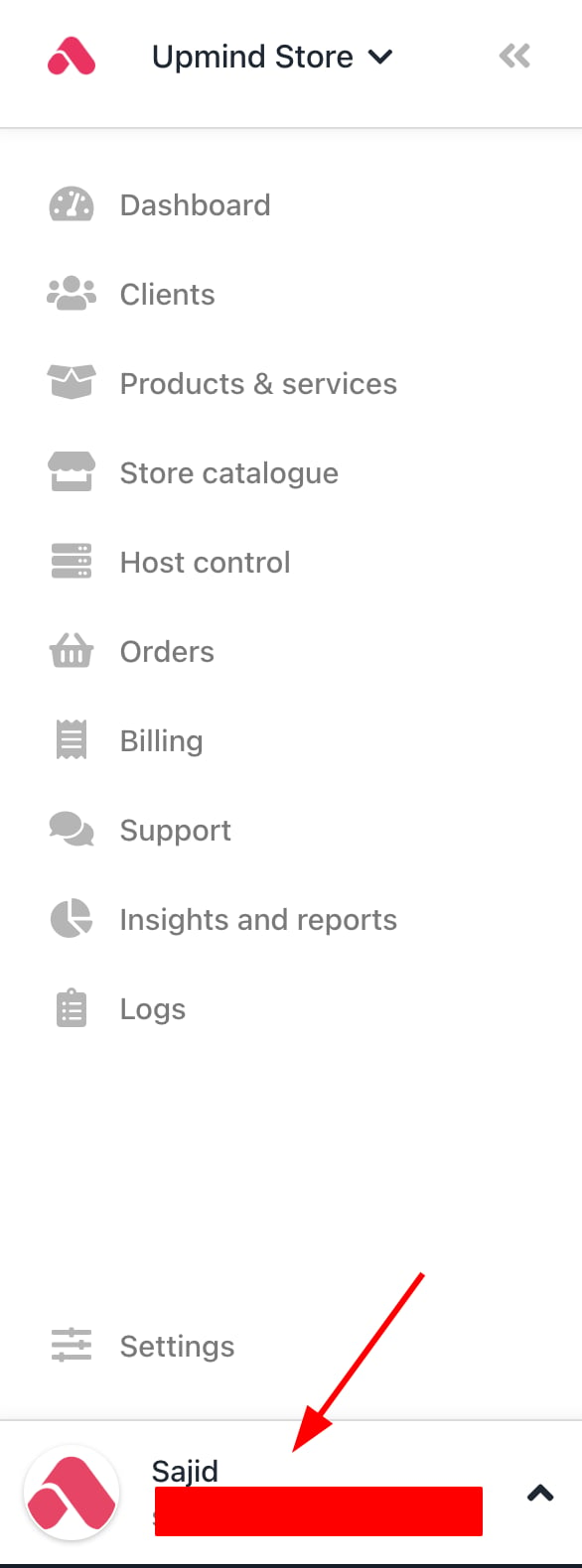
<Frame caption="Click logo">
  <img src="https://mintcdn.com/upmind/FQ1NhxALxjSHvvWW/images/fb/b1a8c3a1b39b7822.png?fit=max&auto=format&n=FQ1NhxALxjSHvvWW&q=85&s=2caa76db6e305b5c7ca7a2580ec89df7" alt="Click logo" className="mx-auto" style={{ width:"67%" }} width="586" height="1580" data-path="images/fb/b1a8c3a1b39b7822.png" />
</Frame>

3. Click **My Account**.
4. Click the **Security** tab under the avatar.
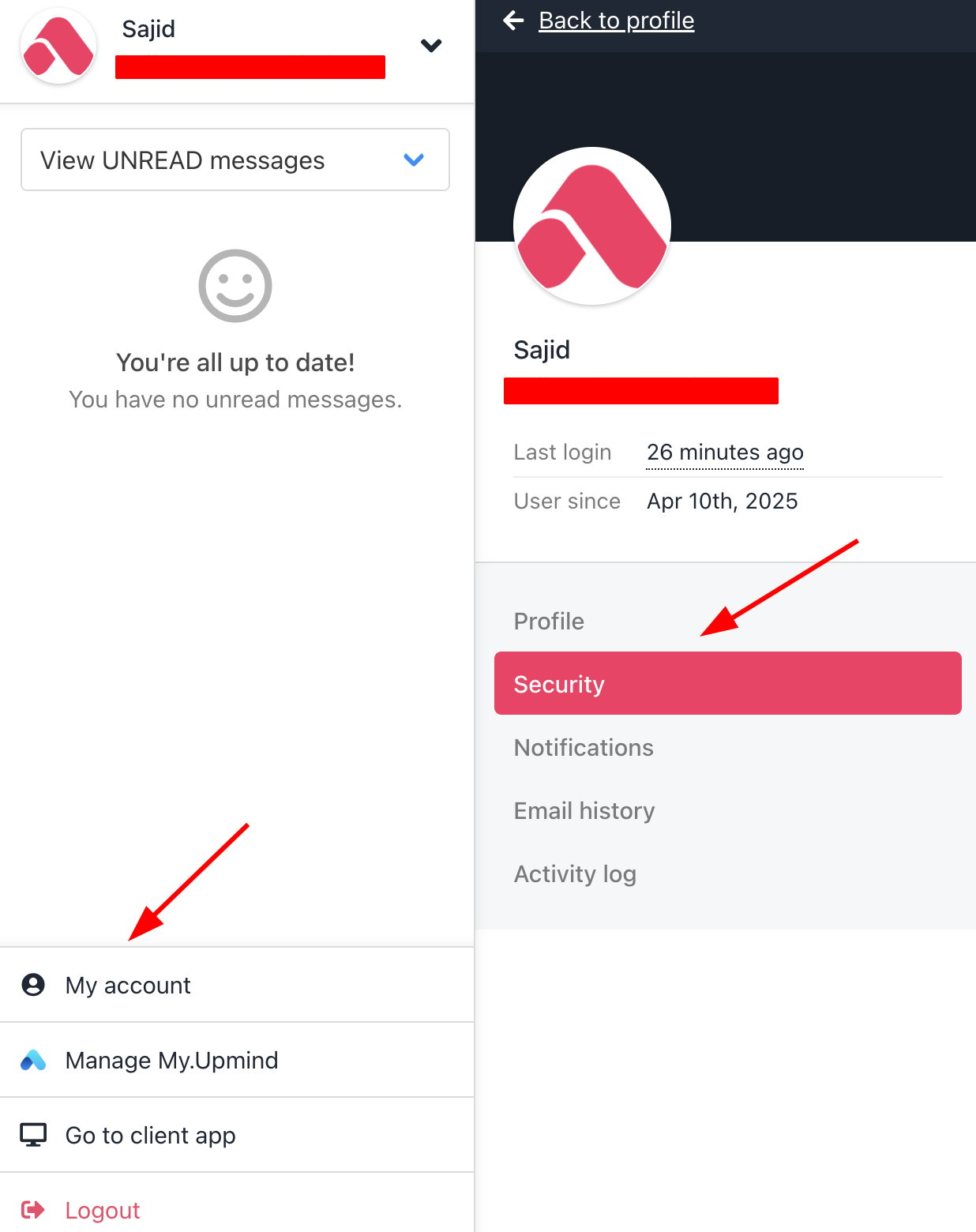
<Frame caption="My Account > Security">
  <img src="https://mintcdn.com/upmind/ZsIo0APxdVb_gFS-/images/fb/2a8f81984b3c4dd1.png?fit=max&auto=format&n=ZsIo0APxdVb_gFS-&q=85&s=83f9522e6479dc876ce92ab1336cc4a1" alt="My Account > Security" className="mx-auto" style={{ width:"92%" }} data-og-width="1236" width="1236" data-og-height="1560" height="1560" data-path="images/fb/2a8f81984b3c4dd1.png" data-optimize="true" data-opv="3" srcset="https://mintcdn.com/upmind/ZsIo0APxdVb_gFS-/images/fb/2a8f81984b3c4dd1.png?w=280&fit=max&auto=format&n=ZsIo0APxdVb_gFS-&q=85&s=79d039f785ea5dee8f9c2536d46a656e 280w, https://mintcdn.com/upmind/ZsIo0APxdVb_gFS-/images/fb/2a8f81984b3c4dd1.png?w=560&fit=max&auto=format&n=ZsIo0APxdVb_gFS-&q=85&s=b7495390092f17ef998d40a0f723ef59 560w, https://mintcdn.com/upmind/ZsIo0APxdVb_gFS-/images/fb/2a8f81984b3c4dd1.png?w=840&fit=max&auto=format&n=ZsIo0APxdVb_gFS-&q=85&s=cf8b276572f584c0220ab6ea30bdc278 840w, https://mintcdn.com/upmind/ZsIo0APxdVb_gFS-/images/fb/2a8f81984b3c4dd1.png?w=1100&fit=max&auto=format&n=ZsIo0APxdVb_gFS-&q=85&s=7b56bcfcbd0c63a766268dc7e556e11c 1100w, https://mintcdn.com/upmind/ZsIo0APxdVb_gFS-/images/fb/2a8f81984b3c4dd1.png?w=1650&fit=max&auto=format&n=ZsIo0APxdVb_gFS-&q=85&s=92c533486201fde78dfcf93d85814b14 1650w, https://mintcdn.com/upmind/ZsIo0APxdVb_gFS-/images/fb/2a8f81984b3c4dd1.png?w=2500&fit=max&auto=format&n=ZsIo0APxdVb_gFS-&q=85&s=906cf4454dddfdc524477956b0703f6c 2500w" />
</Frame>

5. Enter the old and new passwords. Make sure the new password format generates a green check for each security line.
6. Click **Change password**.
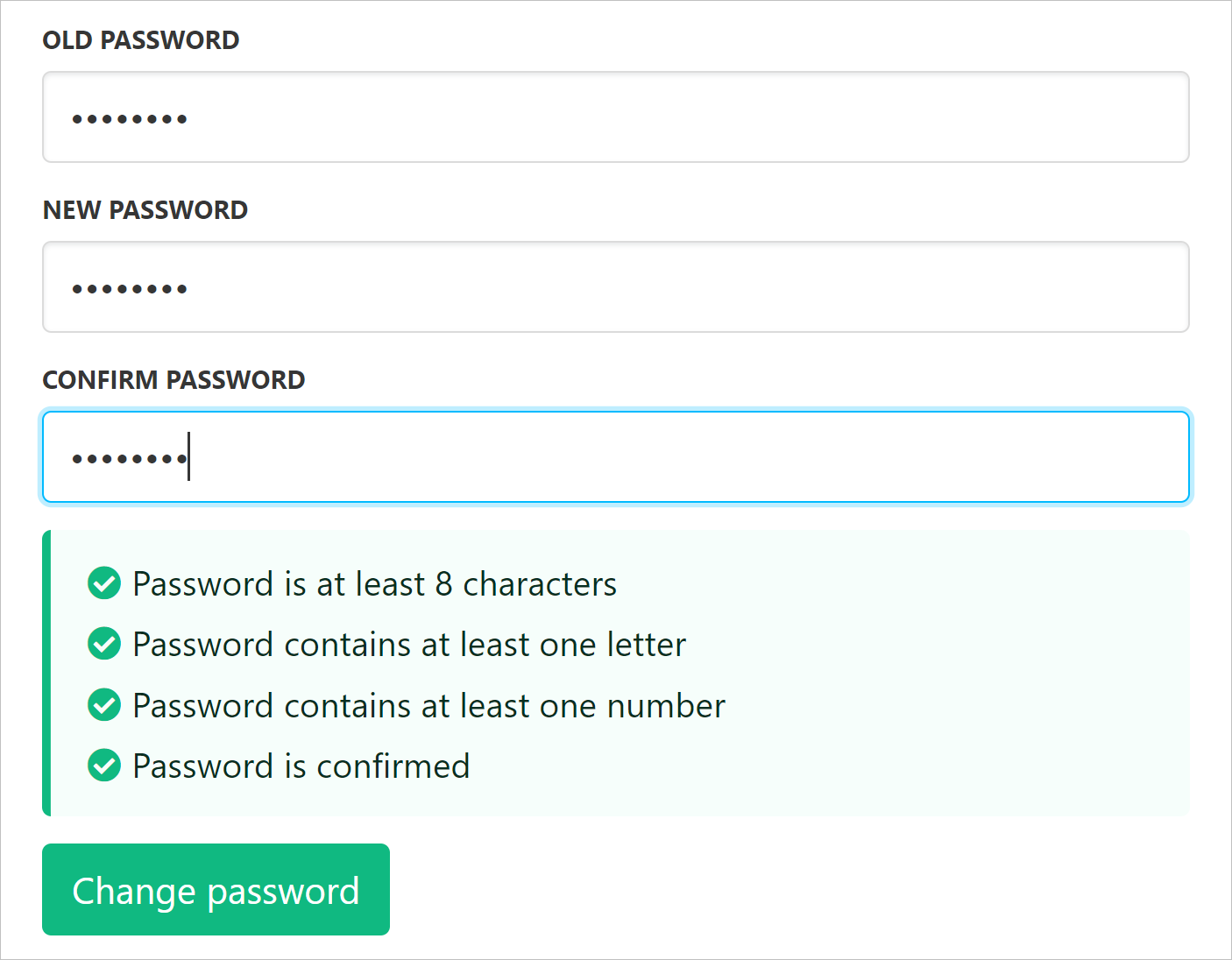
<Frame caption="Green check for each security line">
  <img src="https://mintcdn.com/upmind/uxzVUXAKtJ2bRWCI/images/fb/6517d1751567cbb9.png?fit=max&auto=format&n=uxzVUXAKtJ2bRWCI&q=85&s=4368b41050246d1b745b8e56020209e0" alt="1406" className="mx-auto" style={{ width:"87%" }} width="1406" height="1096" data-path="images/fb/6517d1751567cbb9.png" />
</Frame>

<Warning>
  For information on two-factor authentication (2FA) when changing passwords, follow this [guide](/managing-your-account/managing-2fa-two-factor-authentication-in-upmind/how-to-manage-two-factor-authentication-2fa-as-an-adminstaff).
</Warning>
