> ## Documentation Index
> Fetch the complete documentation index at: https://docs.upmind.com/llms.txt
> Use this file to discover all available pages before exploring further.

# How to Manage Client Notification Preferences

Control which notifications are sent to each of a client's email addresses.

## Managing notifications per email address

You can assign specific notification preferences to each email address on a client's account, so the right updates go to the right contact.

**To set this up:**

1. Go to **Clients** and open the client's record.
2. Navigate to **Settings** > **Emails**.
3. Add a new email address. The address must be **verified** before notification preferences can be configured.
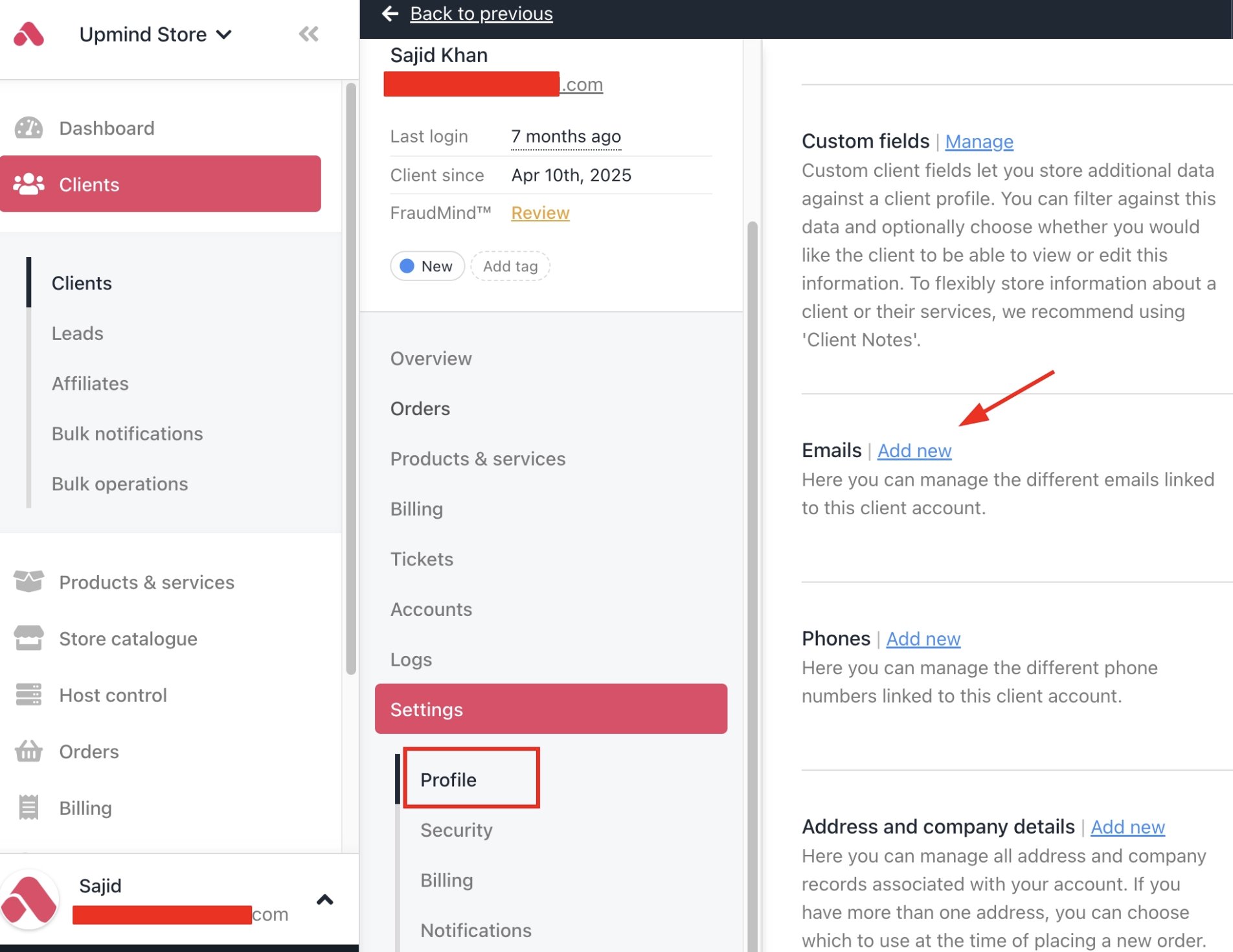
<Frame caption="Settings > Emails > Add new">
  <img src="https://mintcdn.com/upmind/hjccMOqGRmaQOpWQ/images/image-56.png?fit=max&auto=format&n=hjccMOqGRmaQOpWQ&q=85&s=57fb6e6b92e718896bcb3cf999c5a368" alt="Settings > Emails > Add new" title="Image" className="mx-auto" style={{ width:"99%" }} data-og-width="1904" width="1904" data-og-height="1470" height="1470" data-path="images/image-56.png" data-optimize="true" data-opv="3" srcset="https://mintcdn.com/upmind/hjccMOqGRmaQOpWQ/images/image-56.png?w=280&fit=max&auto=format&n=hjccMOqGRmaQOpWQ&q=85&s=981a1b0aaa3b0fb0ff955f913a0c891b 280w, https://mintcdn.com/upmind/hjccMOqGRmaQOpWQ/images/image-56.png?w=560&fit=max&auto=format&n=hjccMOqGRmaQOpWQ&q=85&s=e371af58cc1c1660bf965672dfcd40df 560w, https://mintcdn.com/upmind/hjccMOqGRmaQOpWQ/images/image-56.png?w=840&fit=max&auto=format&n=hjccMOqGRmaQOpWQ&q=85&s=484940ed719e157c7e5d652b372b96ad 840w, https://mintcdn.com/upmind/hjccMOqGRmaQOpWQ/images/image-56.png?w=1100&fit=max&auto=format&n=hjccMOqGRmaQOpWQ&q=85&s=addfbafadc05d623691c15cb60e383f7 1100w, https://mintcdn.com/upmind/hjccMOqGRmaQOpWQ/images/image-56.png?w=1650&fit=max&auto=format&n=hjccMOqGRmaQOpWQ&q=85&s=caf789a7057b1ec592ae09c1d598f0e7 1650w, https://mintcdn.com/upmind/hjccMOqGRmaQOpWQ/images/image-56.png?w=2500&fit=max&auto=format&n=hjccMOqGRmaQOpWQ&q=85&s=6d9aaccd094050d06ac8e0fbcfcefe38 2500w" />
</Frame>

4. Once verified, click the **three dots** next to the email address and select **Manage Notifications**.
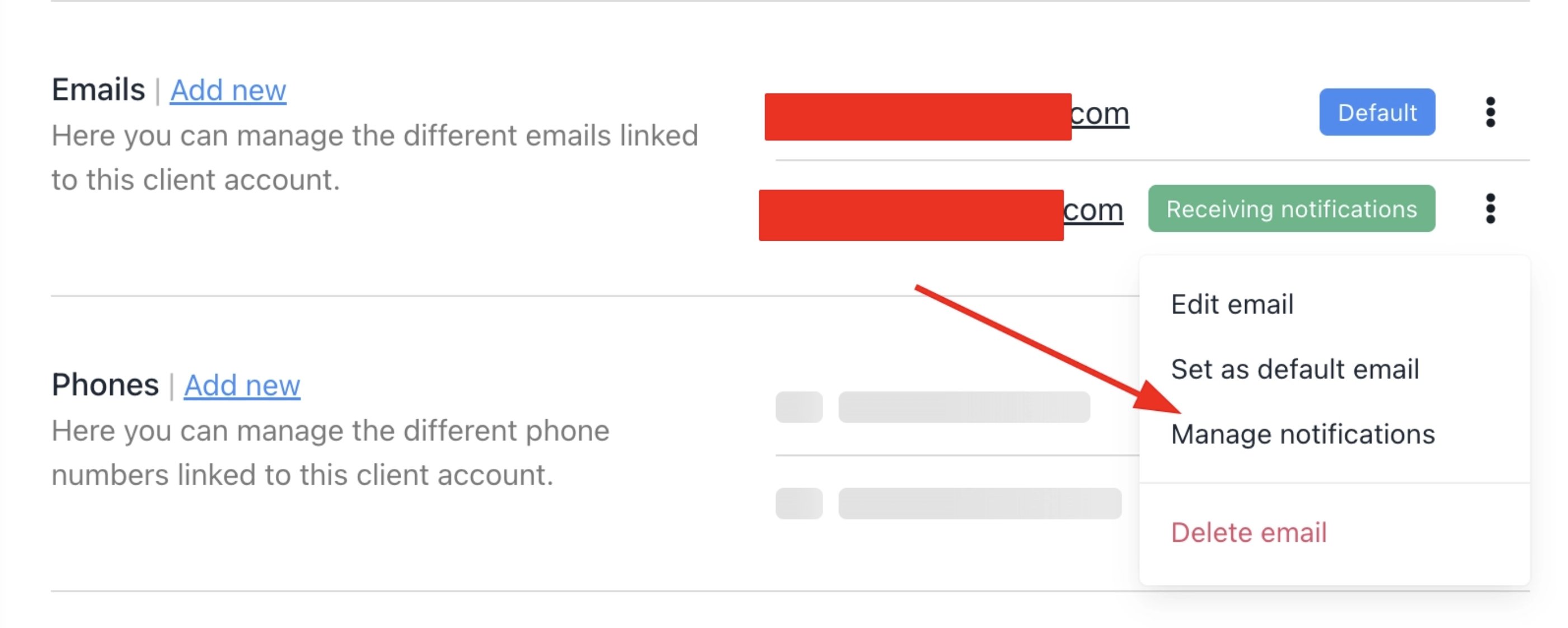
<Frame caption="Click manage notifications">
  <img src="https://mintcdn.com/upmind/hjccMOqGRmaQOpWQ/images/image-57.png?fit=max&auto=format&n=hjccMOqGRmaQOpWQ&q=85&s=29565cf459395c2e6e938a916d0331dc" alt="Click manage notifications" title="Image" className="mx-auto" style={{ width:"96%" }} width="2802" height="1122" data-path="images/image-57.png" />
</Frame>

5. Choose which notifications that address should receive across the following categories:

* **Billing** — Invoices, payment confirmations, and reminders.
* **Marketing** — Promotional and product updates.
* **Support** — Ticket activity and responses.
* **Service Updates** — Subscription and provisioning notifications.
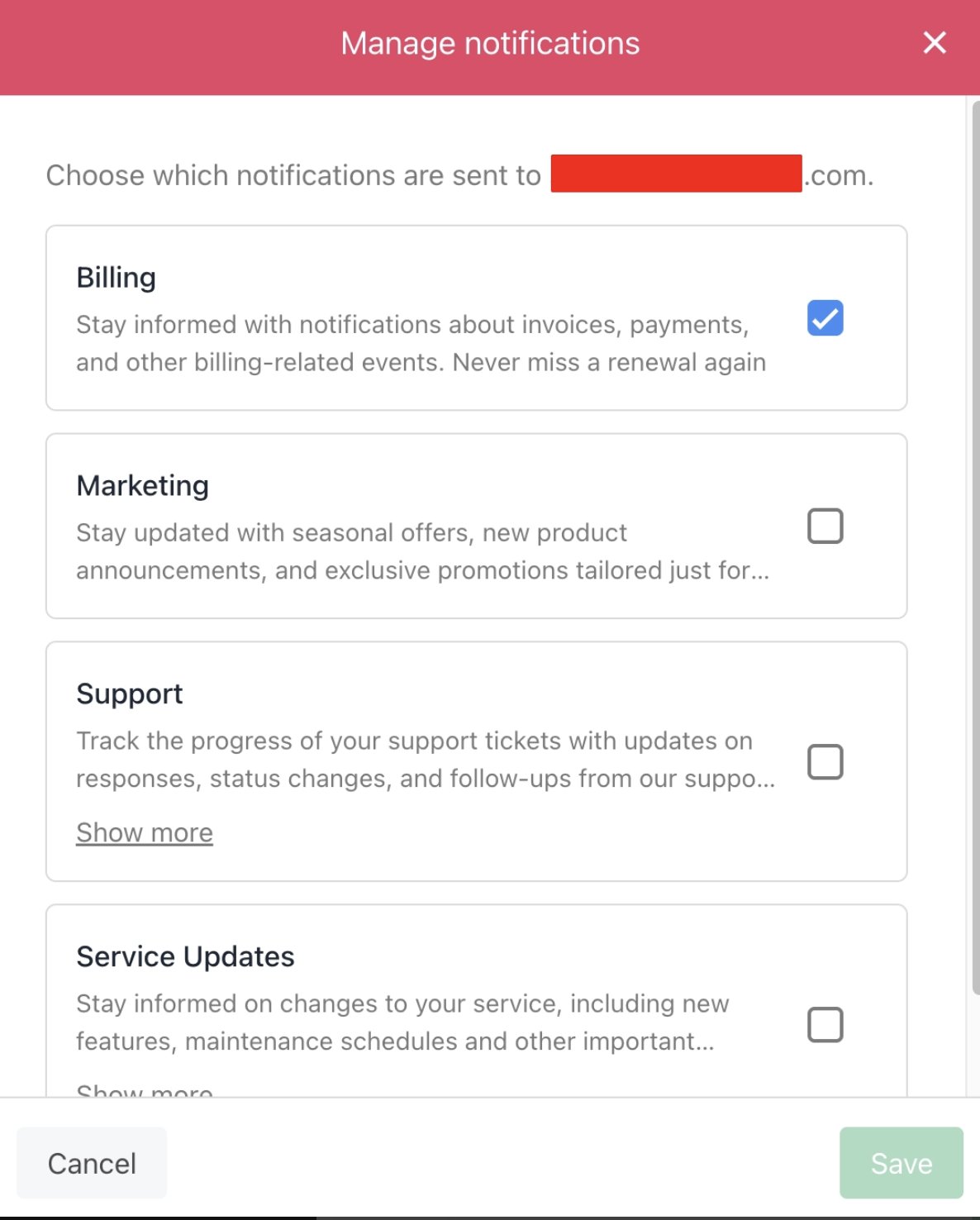
<Frame caption="Manage notifications">
  <img src="https://mintcdn.com/upmind/hjccMOqGRmaQOpWQ/images/image-58.png?fit=max&auto=format&n=hjccMOqGRmaQOpWQ&q=85&s=3a7b83e9c122e2d49f9af05ea93e6627" alt="Manage notifications" title="Image" className="mx-auto" style={{ width:"75%" }} width="1186" height="1476" data-path="images/image-58.png" />
</Frame>

## Client area

From the client panel, go to **My Account** > **Profile** > **Add new** to add a new email.
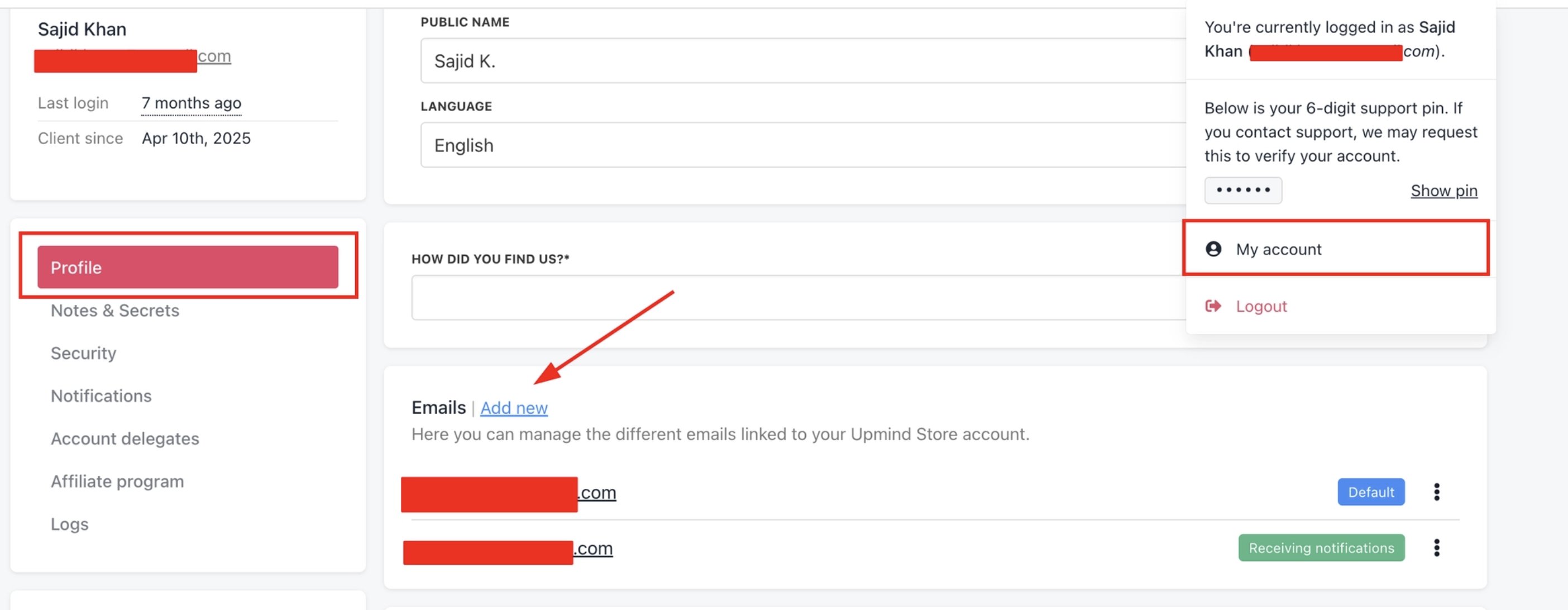
<Frame caption="My Account > Profile > Add new">
  <img src="https://mintcdn.com/upmind/hjccMOqGRmaQOpWQ/images/image-59.png?fit=max&auto=format&n=hjccMOqGRmaQOpWQ&q=85&s=6b2f0c45073aa7ec0ebd2fbc700e68ae" alt="My Account > Profile > Add new" title="Image" className="mx-auto" style={{ width:"97%" }} data-og-width="2808" width="2808" data-og-height="1092" height="1092" data-path="images/image-59.png" data-optimize="true" data-opv="3" srcset="https://mintcdn.com/upmind/hjccMOqGRmaQOpWQ/images/image-59.png?w=280&fit=max&auto=format&n=hjccMOqGRmaQOpWQ&q=85&s=895f7aca71e7e7249dac57135ca8069e 280w, https://mintcdn.com/upmind/hjccMOqGRmaQOpWQ/images/image-59.png?w=560&fit=max&auto=format&n=hjccMOqGRmaQOpWQ&q=85&s=c196a83f5f11349fb07c7962205b80de 560w, https://mintcdn.com/upmind/hjccMOqGRmaQOpWQ/images/image-59.png?w=840&fit=max&auto=format&n=hjccMOqGRmaQOpWQ&q=85&s=f0970bdce292d4834df14797d6fb8421 840w, https://mintcdn.com/upmind/hjccMOqGRmaQOpWQ/images/image-59.png?w=1100&fit=max&auto=format&n=hjccMOqGRmaQOpWQ&q=85&s=8830f1ca986f5f3a9df3af5da8a3999f 1100w, https://mintcdn.com/upmind/hjccMOqGRmaQOpWQ/images/image-59.png?w=1650&fit=max&auto=format&n=hjccMOqGRmaQOpWQ&q=85&s=2e827dcc978240d167f528e5eb65b2bc 1650w, https://mintcdn.com/upmind/hjccMOqGRmaQOpWQ/images/image-59.png?w=2500&fit=max&auto=format&n=hjccMOqGRmaQOpWQ&q=85&s=dc5b0b88c263040fb379dbd7048e7b9c 2500w" />
</Frame>

Click the **three dots** next to the email address and select **Manage Notifications**.
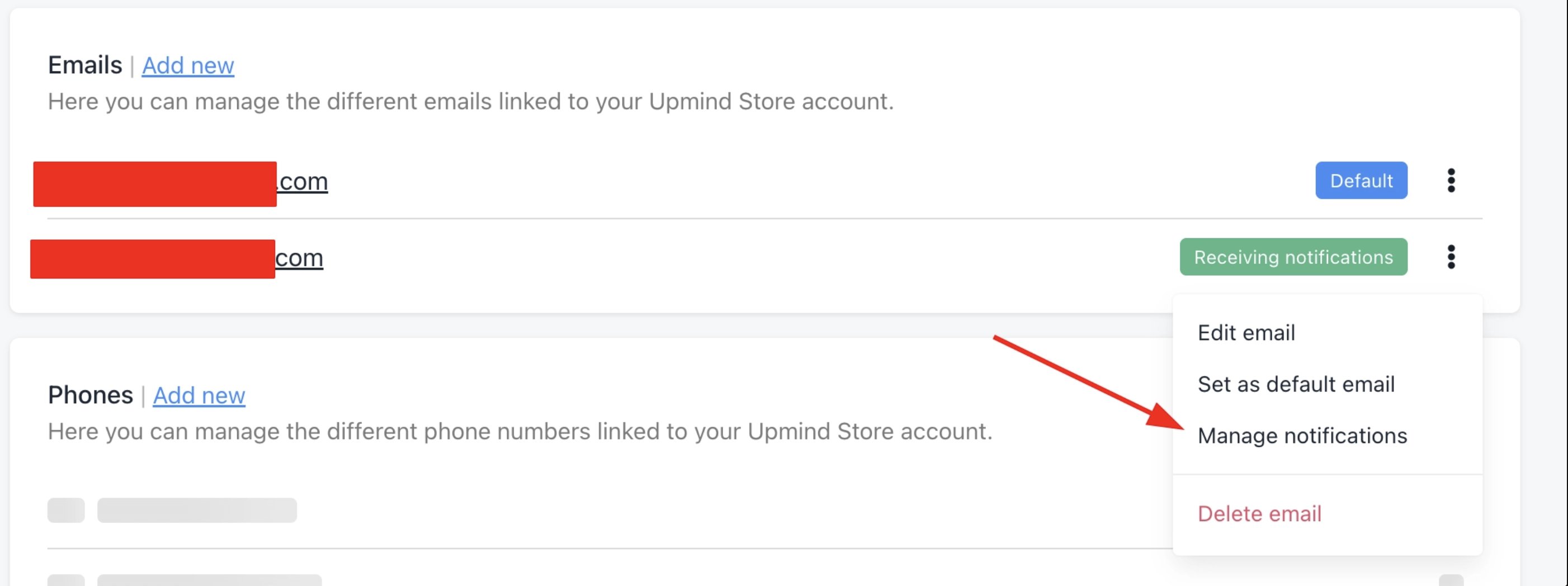
<Frame caption="Manage notifications">
  <img src="https://mintcdn.com/upmind/hjccMOqGRmaQOpWQ/images/image-60.png?fit=max&auto=format&n=hjccMOqGRmaQOpWQ&q=85&s=22109ac4e99a9b5a7e7f1b2b08361c7c" alt="Manage notifications" title="Image" className="mx-auto" width="2804" height="1048" data-path="images/image-60.png" />
</Frame>

## Managing notifications from an email link

Notification recipients can manage their preferences or unsubscribe directly from a link included in any notification email, without needing to log in.
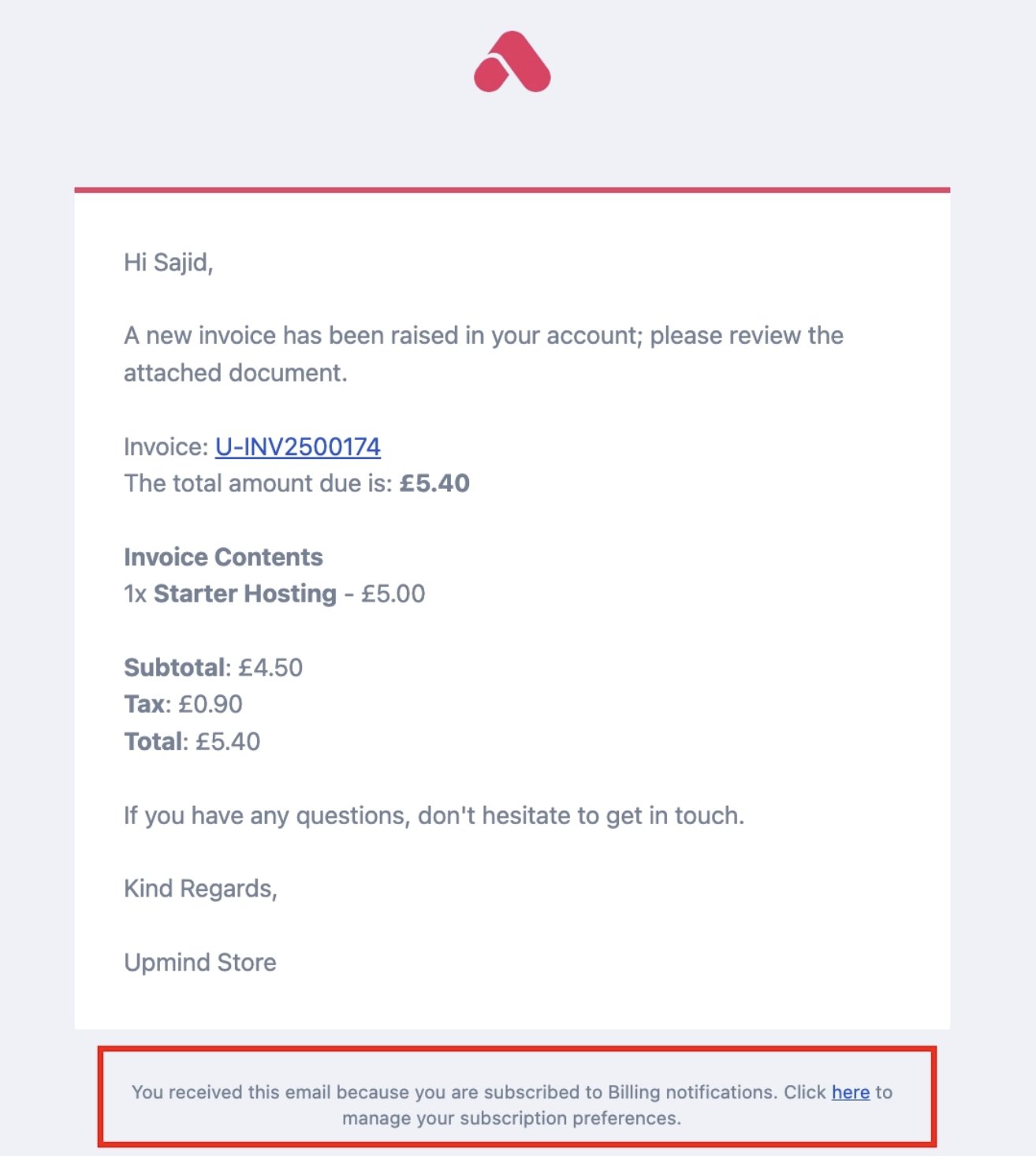
<Frame caption="Manage subscription notifications">
  <img src="https://mintcdn.com/upmind/hjccMOqGRmaQOpWQ/images/image-61.png?fit=max&auto=format&n=hjccMOqGRmaQOpWQ&q=85&s=6155e1735a2d5940735405520479ffff" alt="Manage subscription notifications" title="Image" className="mx-auto" style={{ width:"79%" }} width="1314" height="1466" data-path="images/image-61.png" />
</Frame>

Preferences available from the email link cover updates across billing, support, and service activity. Essential system notifications remain on by default and cannot be disabled.
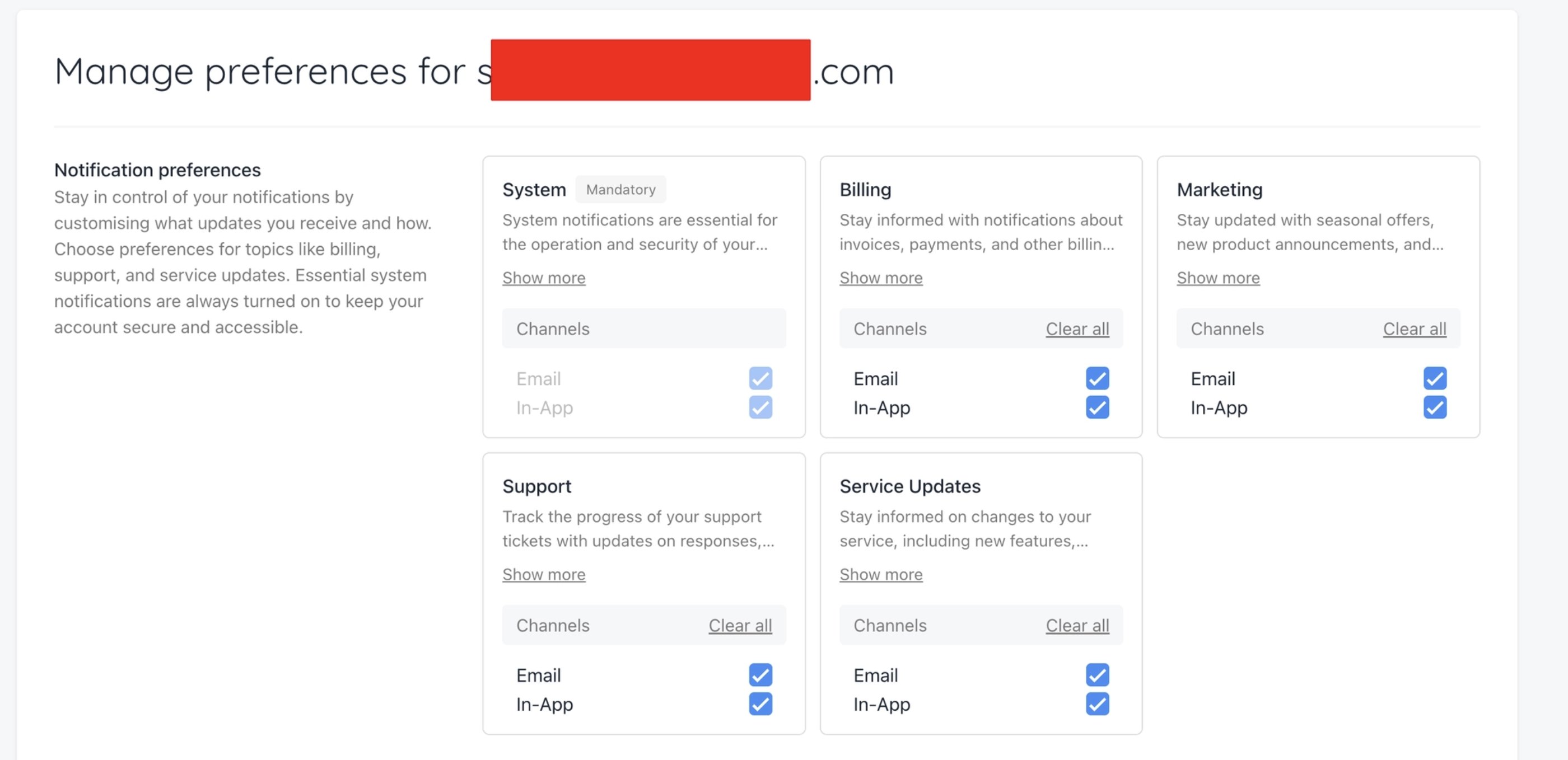
<Frame caption="Notification preferences">
  <img src="https://mintcdn.com/upmind/hjccMOqGRmaQOpWQ/images/image-62.png?fit=max&auto=format&n=hjccMOqGRmaQOpWQ&q=85&s=0618af8c58bde67ba1be8ea9a863b8f8" alt="Notification preferences" title="Image" className="mx-auto" style={{ width:"98%" }} width="2800" height="1358" data-path="images/image-62.png" />
</Frame>
