> ## Documentation Index
> Fetch the complete documentation index at: https://docs.upmind.com/llms.txt
> Use this file to discover all available pages before exploring further.
# Understanding an Order
> Now you have your account ready, and you can go through the purchase and see what your customer wants.
In a [previous guide](/guides-for-web-hosting-accounts/create-a-hosting-package), you created a hosting product on Upmind and mapped it to a WHM package. Now you have a live product.
This article moves you through a sample product purchase so that you can understand what the customer sees and track orders on the backend of your Upmind store.
## Customer purchase
A customer can:
1. Visit the Upmind store.
2. Select a hosting package.
3. Enter their domain name.
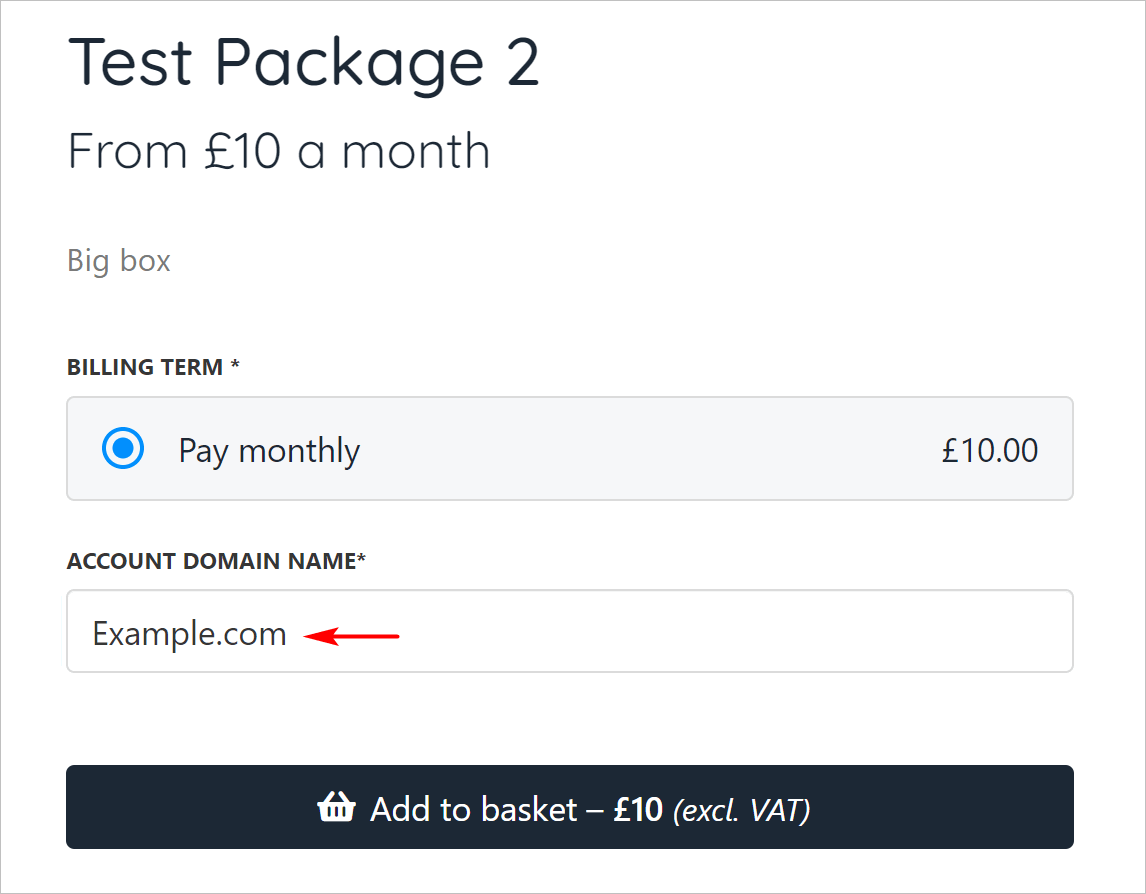 4. Go to the checkout and complete the transaction.
## Upmind backend
1. Log in to your Upmind account.
2. Click **Products & Services** on the left menu.
3. Click the **Subscriptions** menu tab.
The **Products & Services** page shows new sales. In this example, the page shows one hosting subscription that requires activation.
4. Go to the checkout and complete the transaction.
## Upmind backend
1. Log in to your Upmind account.
2. Click **Products & Services** on the left menu.
3. Click the **Subscriptions** menu tab.
The **Products & Services** page shows new sales. In this example, the page shows one hosting subscription that requires activation.
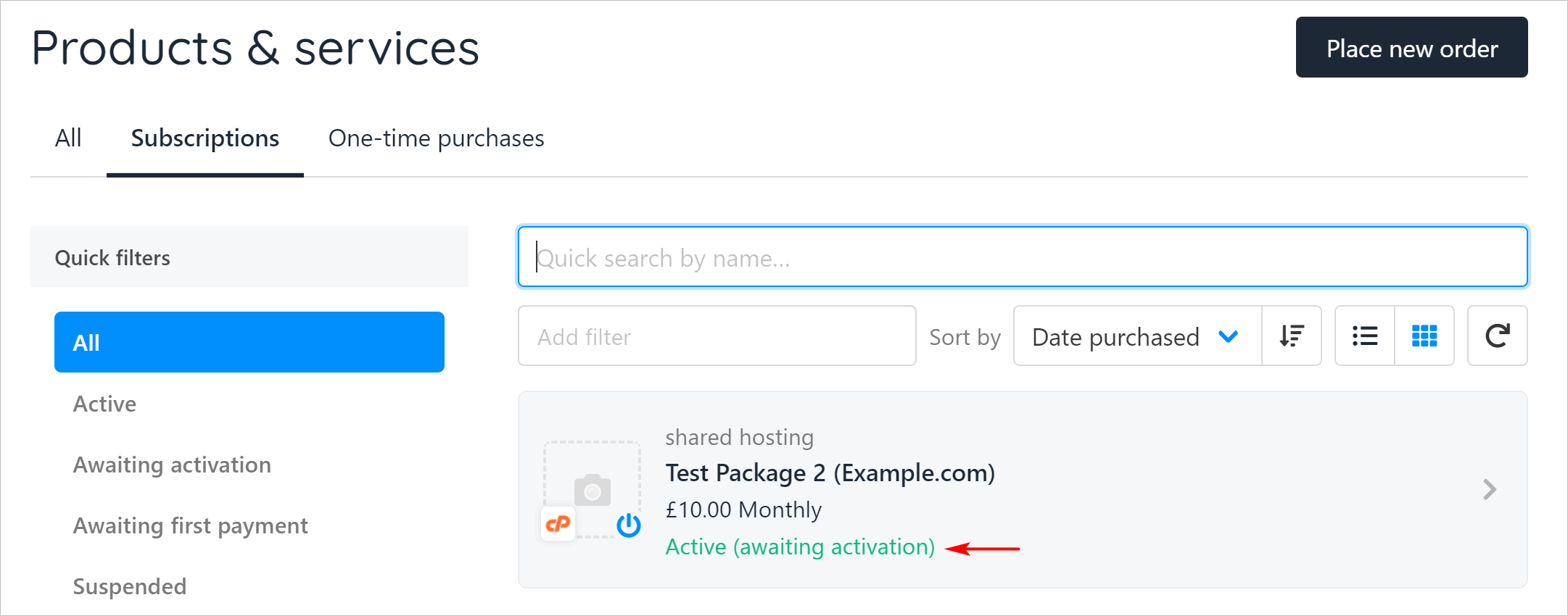 4. Click the awaiting activation link.