> ## Documentation Index
> Fetch the complete documentation index at: https://docs.upmind.com/llms.txt
> Use this file to discover all available pages before exploring further.
# How to Create an Upmind Account
> Get started with Upmind in 30 seconds.
This page will help you get started with Upmind. You'll be up and running very quickly!
Upmind requires no technical experience or payment details. It's free to try. There's no need to enter payment details unless you want to continue using Upmind past the trial.
## Create an account
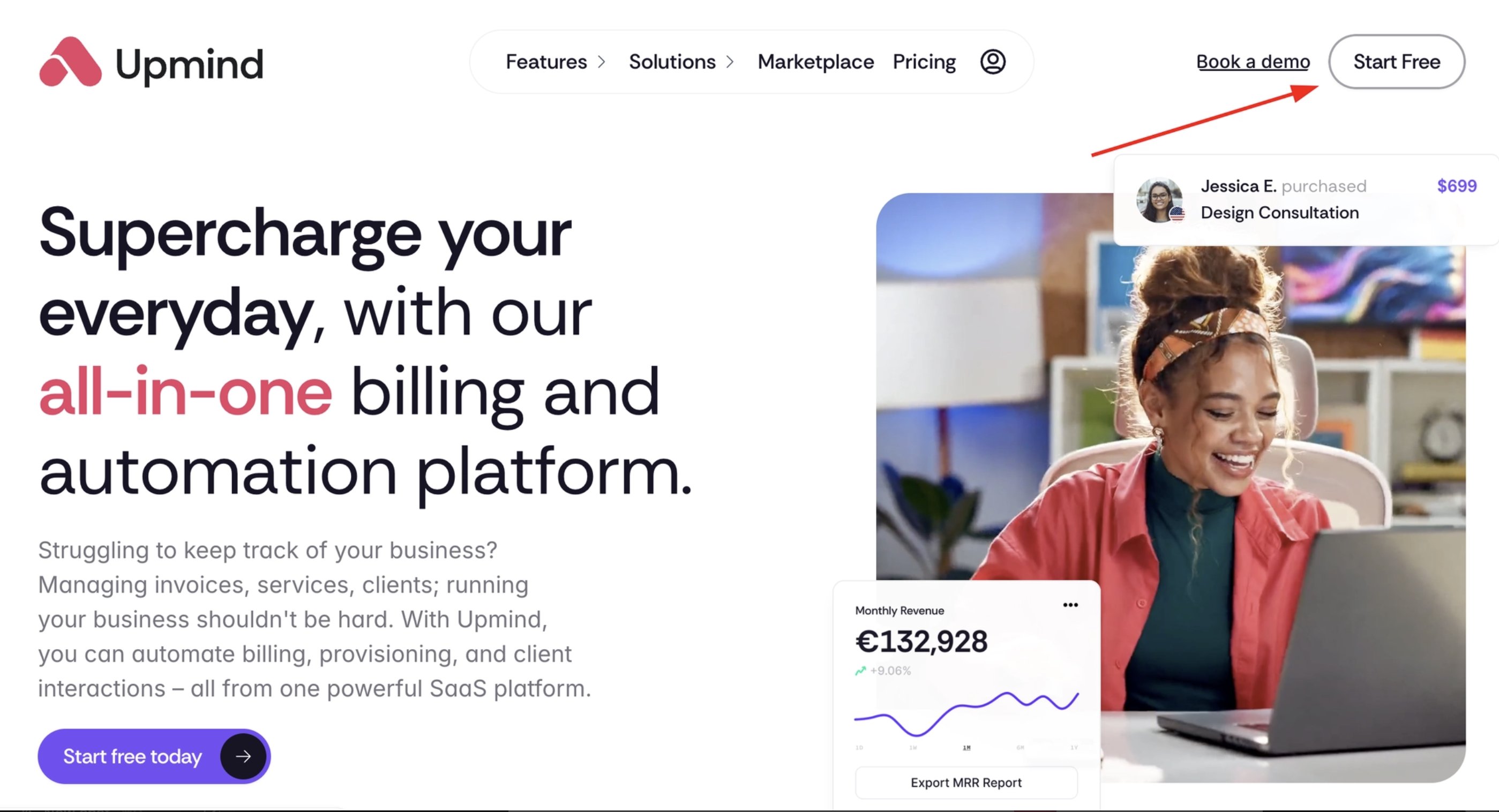
1. From the [Upmind landing page](https://upmind.com/), click on **Start Free**.
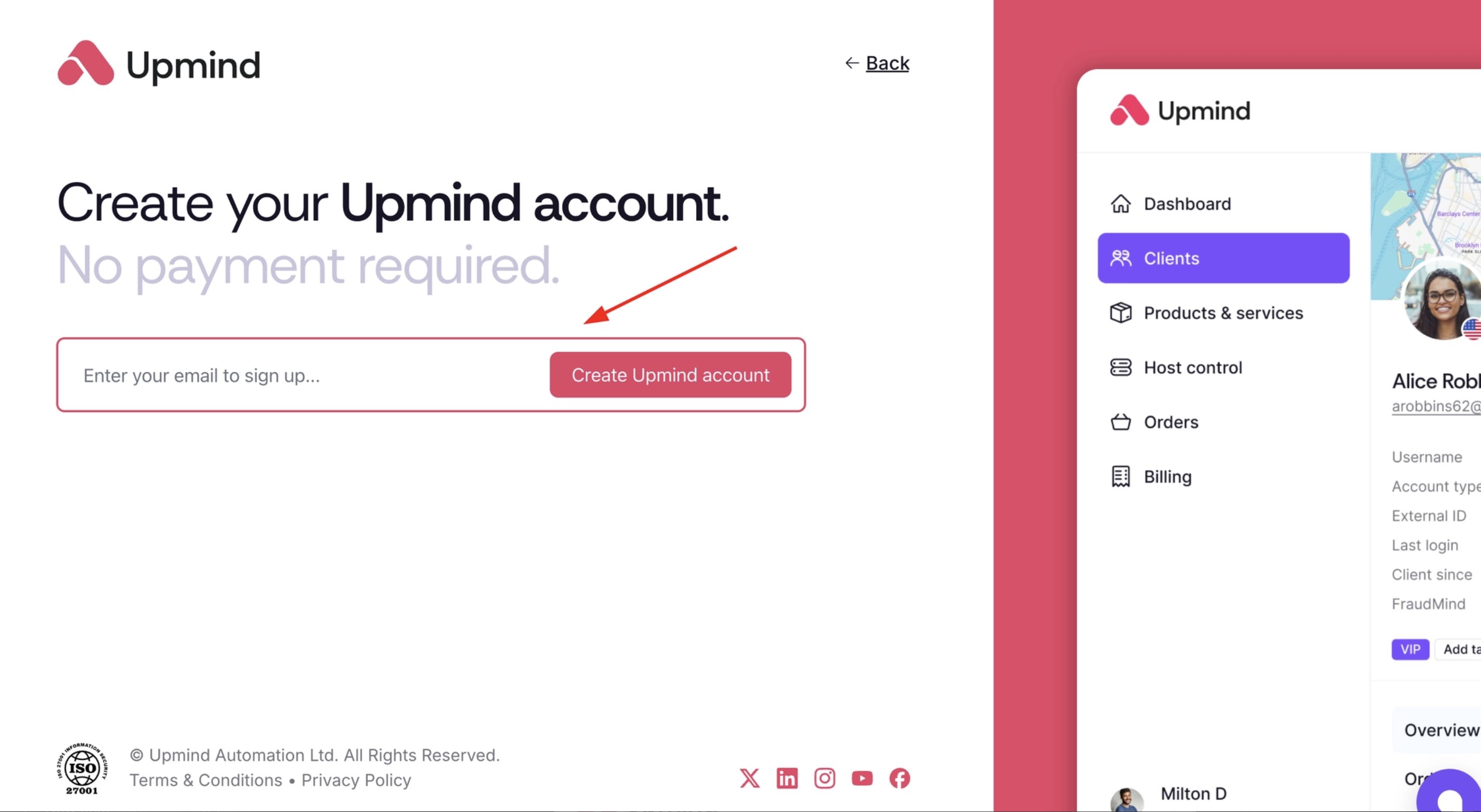
 2. Enter your email and create your account.
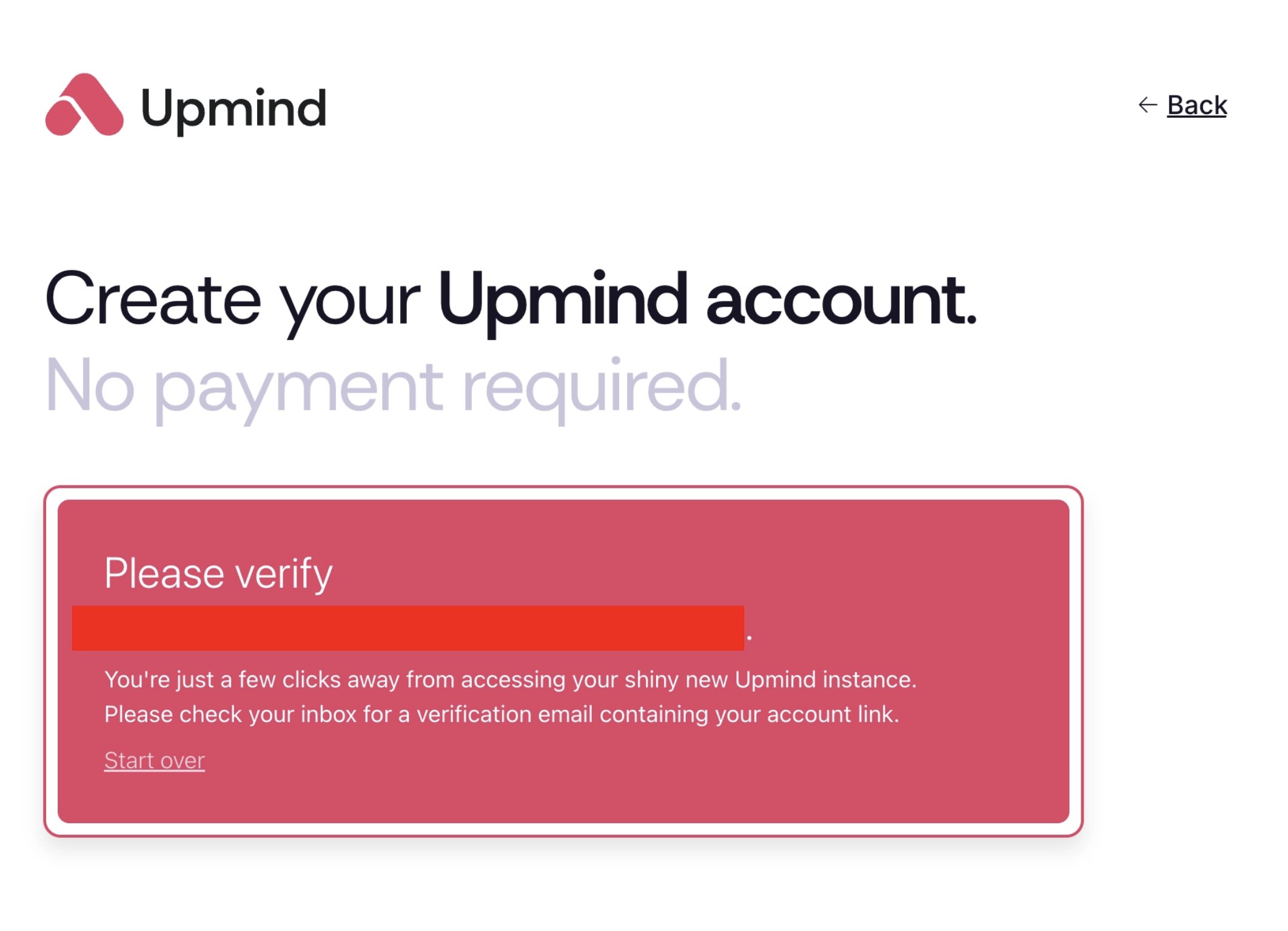
 3. You will need to verify your email address.
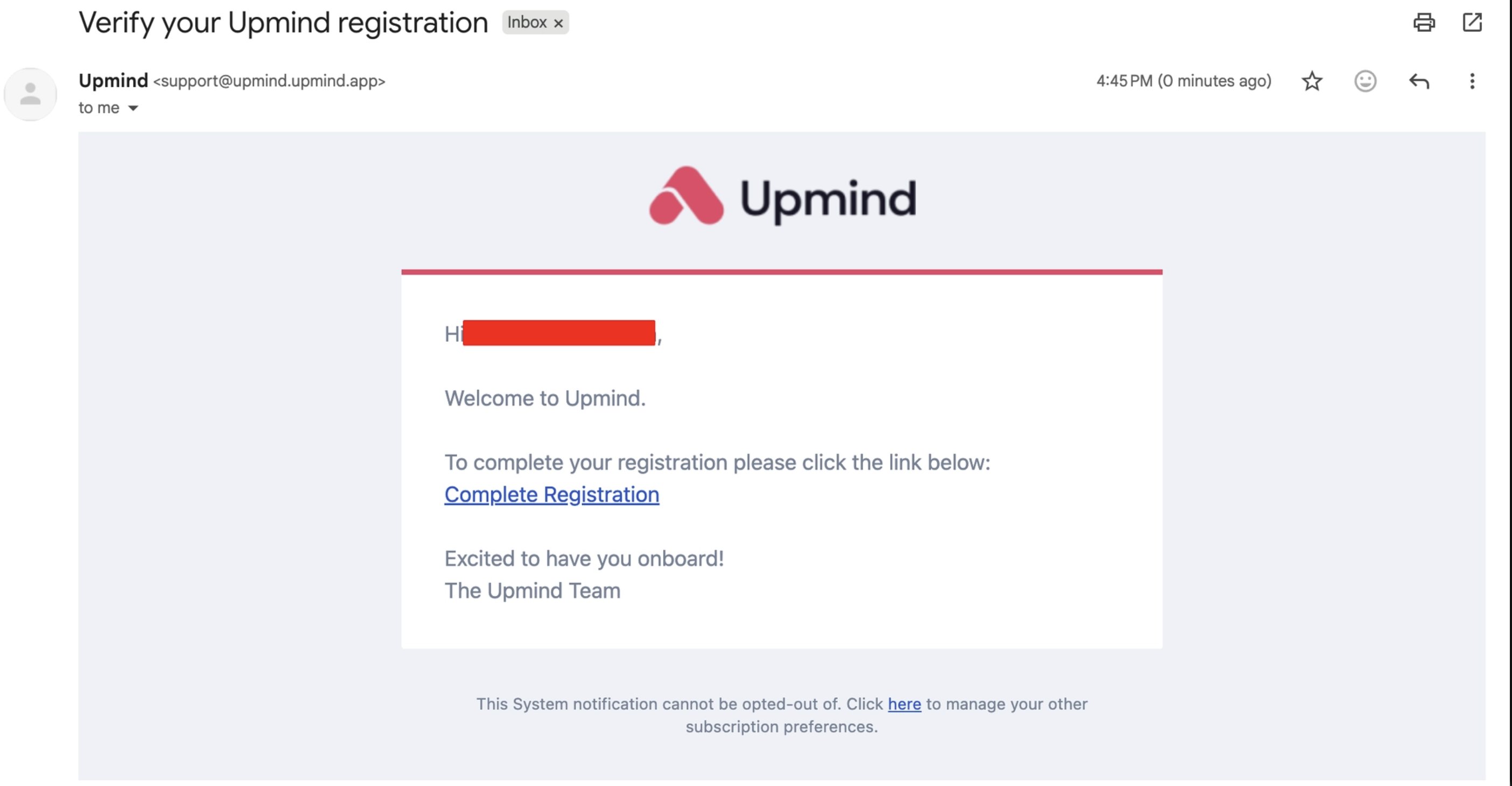
 4. Click on **Complete Registration**.
 ## Signing up
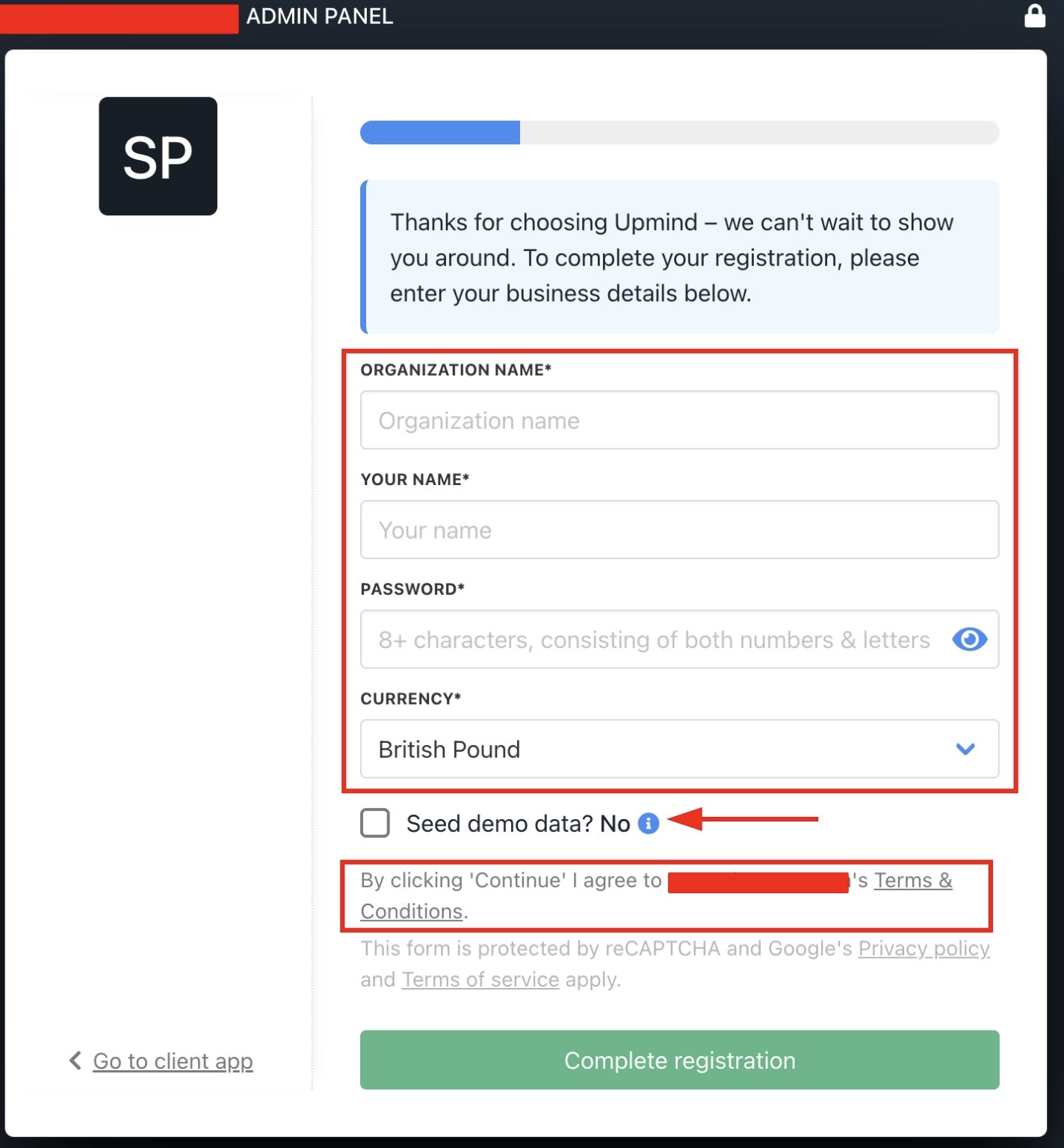
1. Enter your **organisation name, your name**, the desired account **password**, and choose the brand **currency**.
2. You can also choose to seed the demo data, which will help you give Upmind a test drive. You can delete this data anytime.
3. You can also check out our [Terms & Conditions](https://docs.upmind.com/legal-and-information/terms-and-conditions) before you proceed.
## Signing up
1. Enter your **organisation name, your name**, the desired account **password**, and choose the brand **currency**.
2. You can also choose to seed the demo data, which will help you give Upmind a test drive. You can delete this data anytime.
3. You can also check out our [Terms & Conditions](https://docs.upmind.com/legal-and-information/terms-and-conditions) before you proceed.
 4. Click **Continue**.
## Your domain
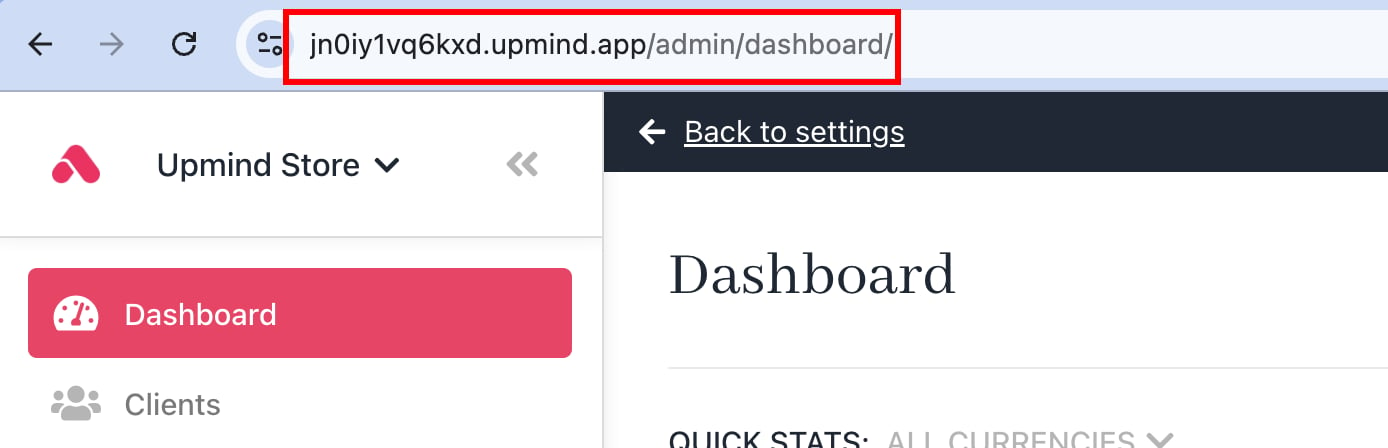
Upmind creates a subdomain for your online store. It has a randomly generated unique ID plus the extension **.upmind.app**.
We encourage you to [configure your own domain name](/setup-and-configuration/branding/how-to-add-a-custom-domain-name) (e.g., yourdomain.com or clientarea.yourdomain.com) after setup.
## Verifying an account
Upmind emails a message with a verification link. If the message does not arrive within five minutes, check your spam folder.
Click the link. Your organisation’s admin dashboard opens in a new browser tab. Your account is live!
4. Click **Continue**.
## Your domain
Upmind creates a subdomain for your online store. It has a randomly generated unique ID plus the extension **.upmind.app**.
We encourage you to [configure your own domain name](/setup-and-configuration/branding/how-to-add-a-custom-domain-name) (e.g., yourdomain.com or clientarea.yourdomain.com) after setup.
## Verifying an account
Upmind emails a message with a verification link. If the message does not arrive within five minutes, check your spam folder.
Click the link. Your organisation’s admin dashboard opens in a new browser tab. Your account is live!
 ## Changing the **organisation** name display
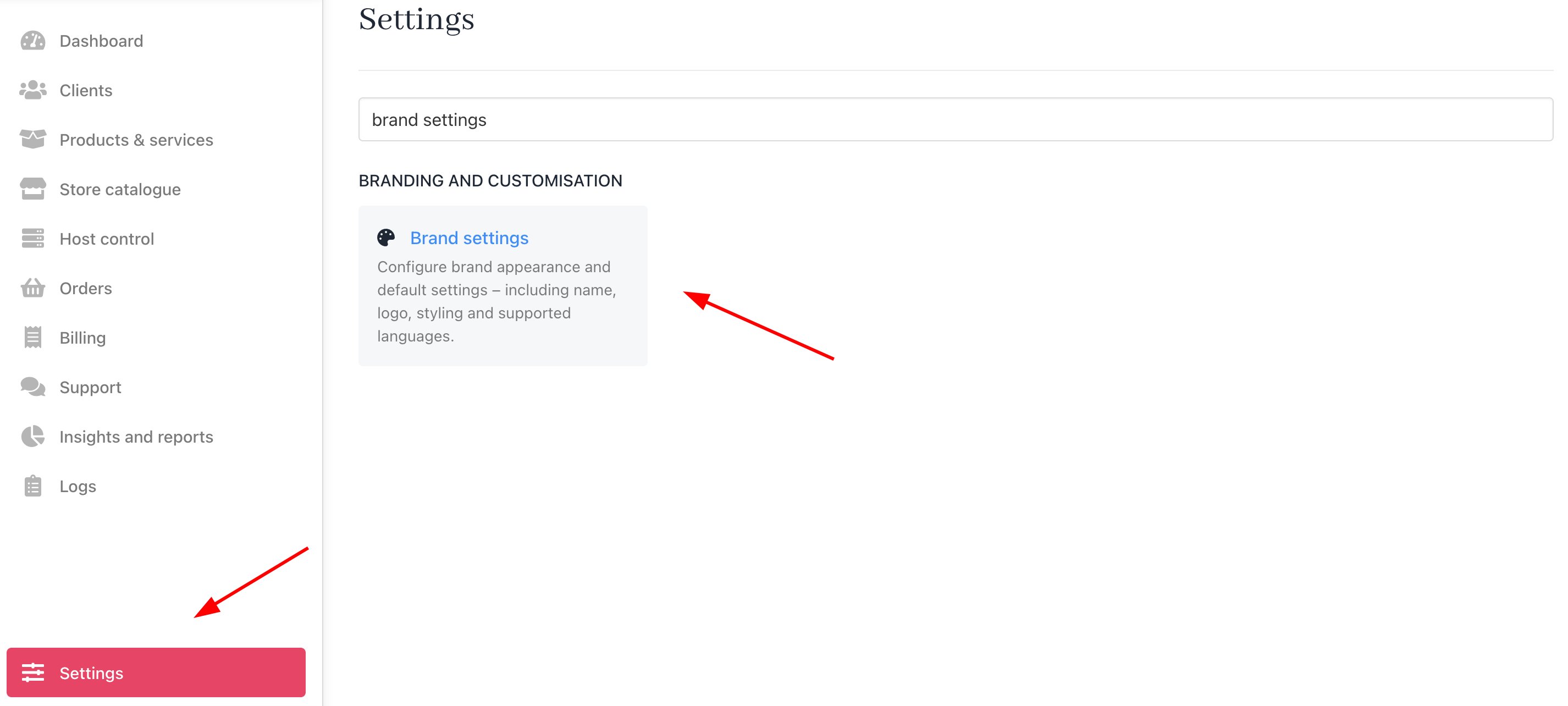
You can change the way your **organisation's** name appears on the screen.
1. Click the **Settings** button in the bottom left corner of the screen.
2. Click the **Brand** settings tile under **Branding and Customisation**.
## Changing the **organisation** name display
You can change the way your **organisation's** name appears on the screen.
1. Click the **Settings** button in the bottom left corner of the screen.
2. Click the **Brand** settings tile under **Branding and Customisation**.
 3. Enter a new name.
4. Click **Save**.
3. Enter a new name.
4. Click **Save**.
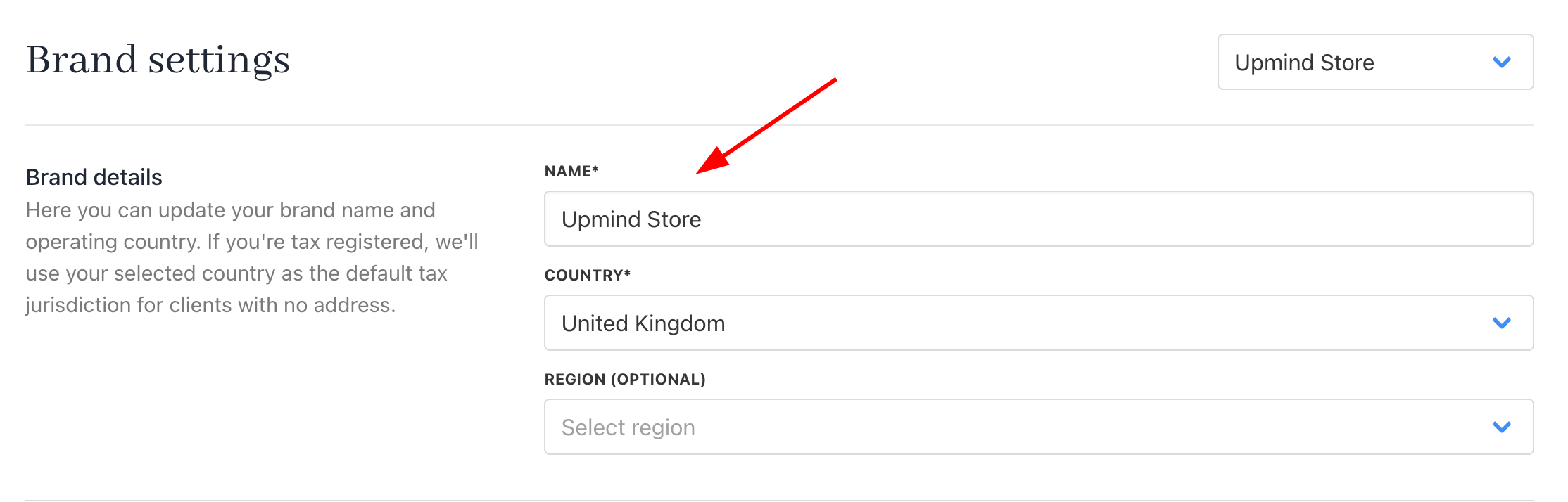 Upmind automatically changes the organisation name (but not the domain name).
 ## Logging into the admin panel
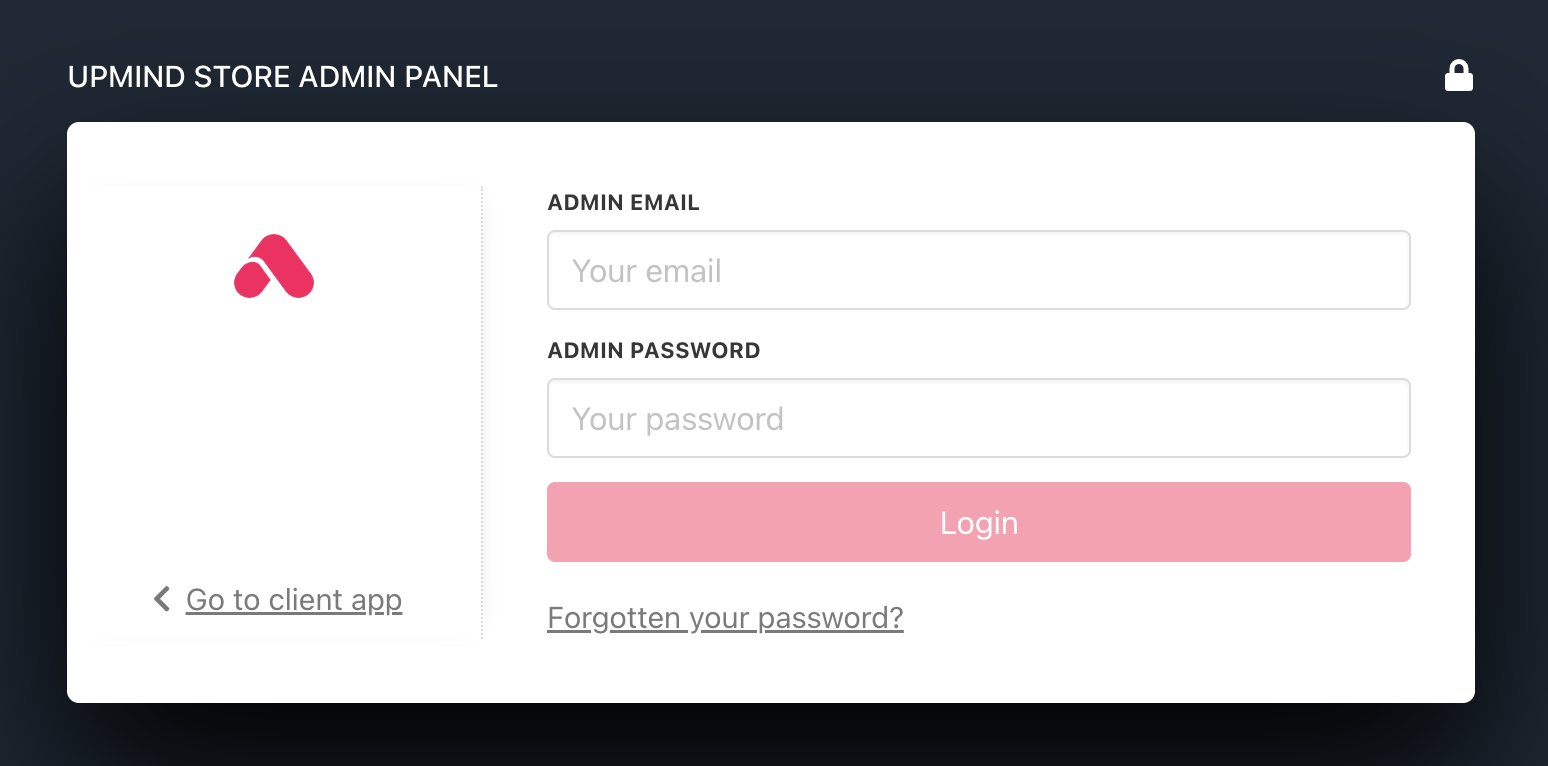
Go to the Admin Panel login page and enter your credentials. That login page URL looks like this:
* randomID.upmind.app/admin/auth/login
## Logging into the admin panel
Go to the Admin Panel login page and enter your credentials. That login page URL looks like this:
* randomID.upmind.app/admin/auth/login
 ## Single vs. Multi Brand
Each Upmind account is called an organisation. An organisation can have multiple brands, which can be set up on the brand's page.
If you have multiple businesses on Upmind, we recommend using multi-brand mode under one organisation (assuming the businesses are under the same legal entity). However, if the businesses are separate entities, you should register a standalone Upmind organisation.
## Watch the tutorial on YouTube
Please take a look at this [link](https://www.youtube.com/watch?v=b-ZpJJ5P4K4) for a comprehensive guide to this tutorial.
## Single vs. Multi Brand
Each Upmind account is called an organisation. An organisation can have multiple brands, which can be set up on the brand's page.
If you have multiple businesses on Upmind, we recommend using multi-brand mode under one organisation (assuming the businesses are under the same legal entity). However, if the businesses are separate entities, you should register a standalone Upmind organisation.
## Watch the tutorial on YouTube
Please take a look at this [link](https://www.youtube.com/watch?v=b-ZpJJ5P4K4) for a comprehensive guide to this tutorial.