> ## Documentation Index
> Fetch the complete documentation index at: https://docs.upmind.com/llms.txt
> Use this file to discover all available pages before exploring further.
# How to Integrate and Sell Weebly
[Weebly](https://www.weebly.com/) is a website builder that offers drag-and-drop features, making it easy for users to create websites without needing to code. Weebly is often used by small businesses, bloggers, and online stores, and it’s known for its simplicity, integrated e-commerce tools, and customisable templates.
You can easily sell Weebly and connect it to Upmind.
## Credentials you need
To integrate with Upmind, you'll need an API Key and API Secret. Here's how to obtain them:
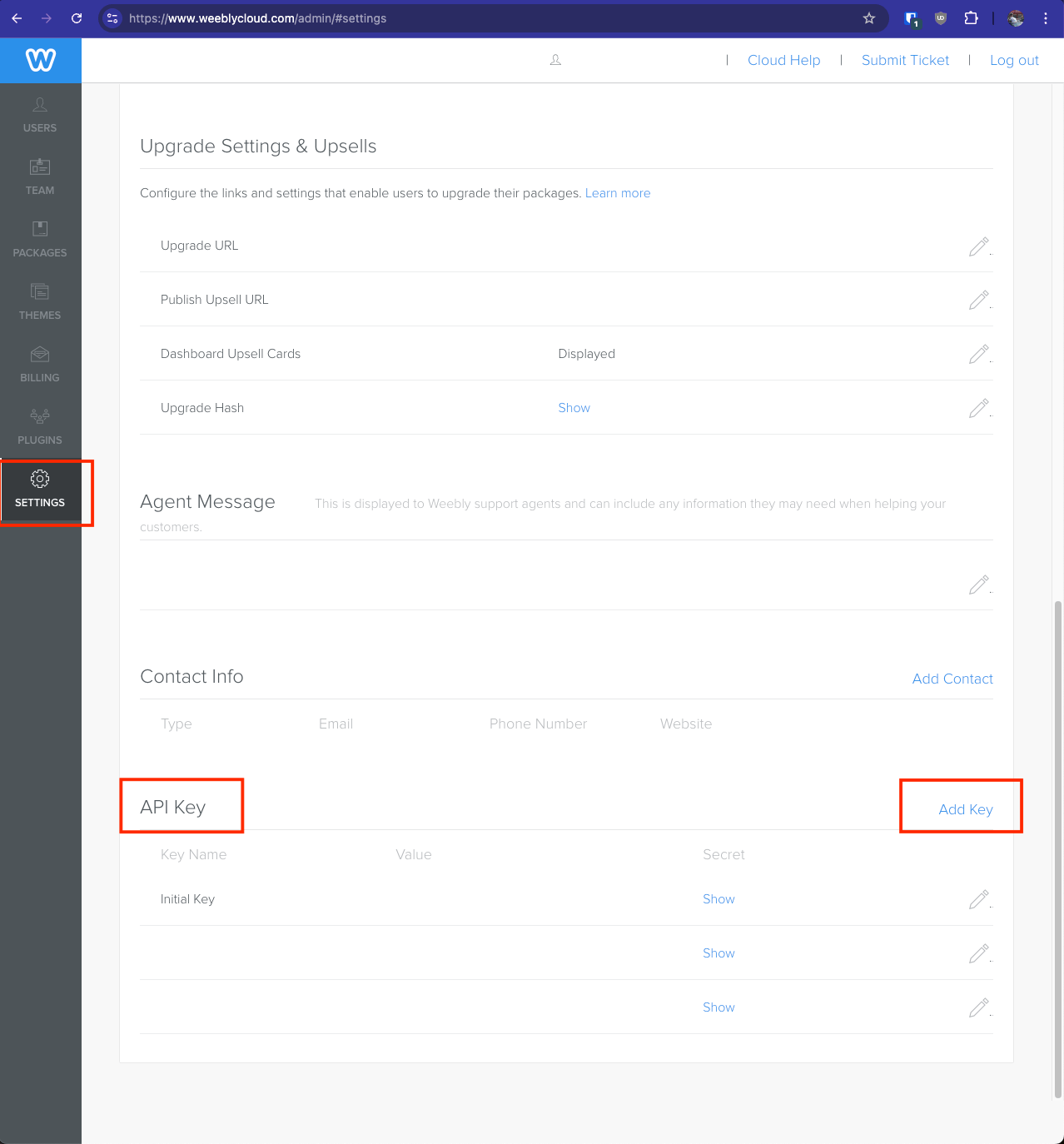
1. Log in to your admin member account at [Weebly](https://www.weeblycloud.com/admin/login.php#login)
2. Go to Settings and scroll down to the API Key section
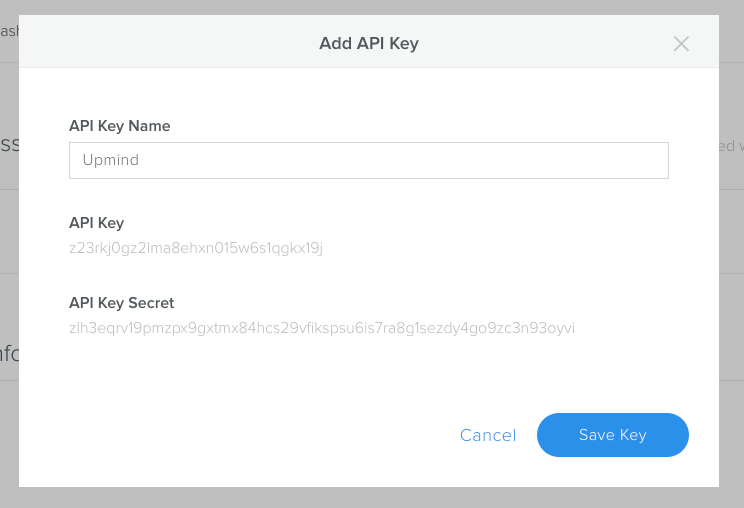
3. Click Add Key. In the popup modal, enter a name, then copy the API Key and API Key Secret.
 4. Finally, click Save Key
 ## Configuring Weebly in Upmind
### Add Weebly Credentials
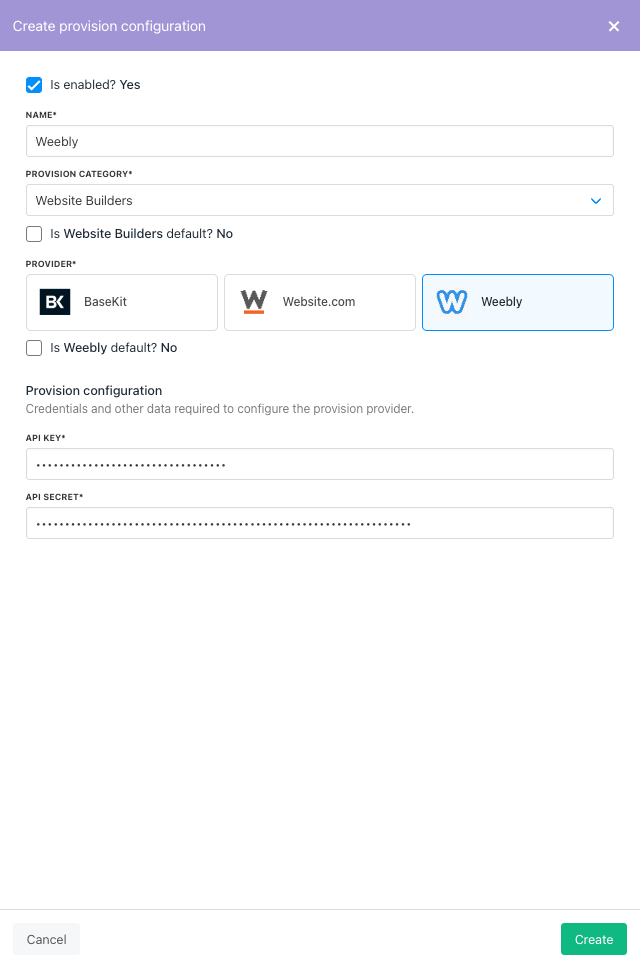
First, add Weebly as a provision configuration.
1. Go to `Settings > Provision Configurations`
2. Click `Add New Configuration`
3. Fill the fields with the information you gathered earlier. You can choose any name you like, but we recommend using "Weebly". If you don't have multiple standalone Weebly setups, you'll only need to add this configuration once.
4. Click `Create`
## Configuring Weebly in Upmind
### Add Weebly Credentials
First, add Weebly as a provision configuration.
1. Go to `Settings > Provision Configurations`
2. Click `Add New Configuration`
3. Fill the fields with the information you gathered earlier. You can choose any name you like, but we recommend using "Weebly". If you don't have multiple standalone Weebly setups, you'll only need to add this configuration once.
4. Click `Create`
 ### Creating Packages
To get started, you'll need to create at least one website builder plan, usually one for each Weebly package you have. Here's how to do it:
1. Go to Settings > Product Catalogue
2. Click on Add New. If you don't have a product category yet, you'll need to create one.
3. Give your product a name and hit Create.
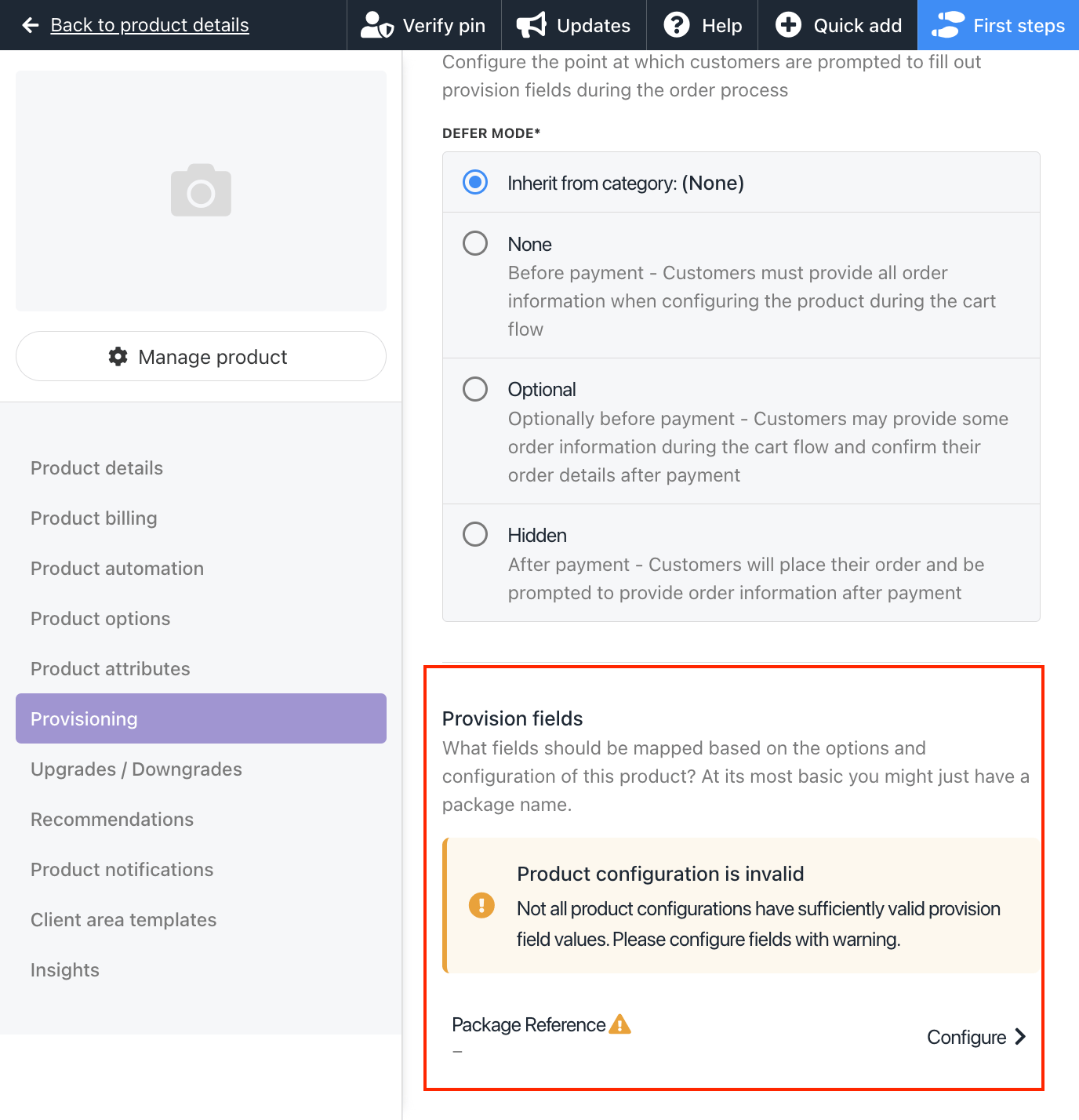
4. In the Provisioning section, select Website Builders. Choose Weebly.
5. Save your changes, then configure the Package Reference. You can use either the Weebly plan name or the ID as the package reference.
### Creating Packages
To get started, you'll need to create at least one website builder plan, usually one for each Weebly package you have. Here's how to do it:
1. Go to Settings > Product Catalogue
2. Click on Add New. If you don't have a product category yet, you'll need to create one.
3. Give your product a name and hit Create.
4. In the Provisioning section, select Website Builders. Choose Weebly.
5. Save your changes, then configure the Package Reference. You can use either the Weebly plan name or the ID as the package reference.
 6. Don't forget to set up product billing and enable the product for sale.
That's it! Your Weebly product is ready for sale.
6. Don't forget to set up product billing and enable the product for sale.
That's it! Your Weebly product is ready for sale.