> ## Documentation Index
> Fetch the complete documentation index at: https://docs.upmind.com/llms.txt
> Use this file to discover all available pages before exploring further.
# How to add VirtFusion products
> Configure VirtFusion products and automate provisioning and basic management of virtual servers
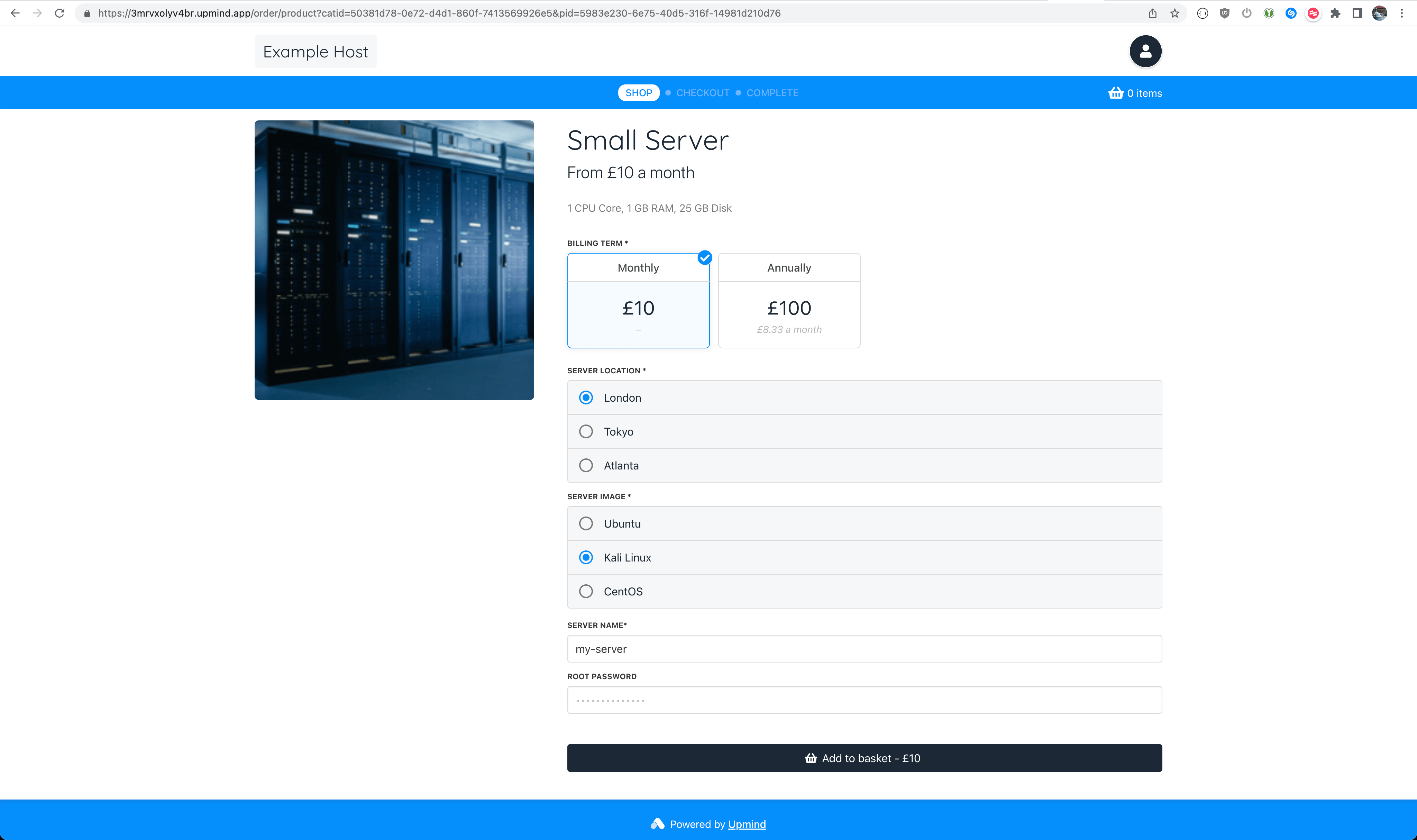
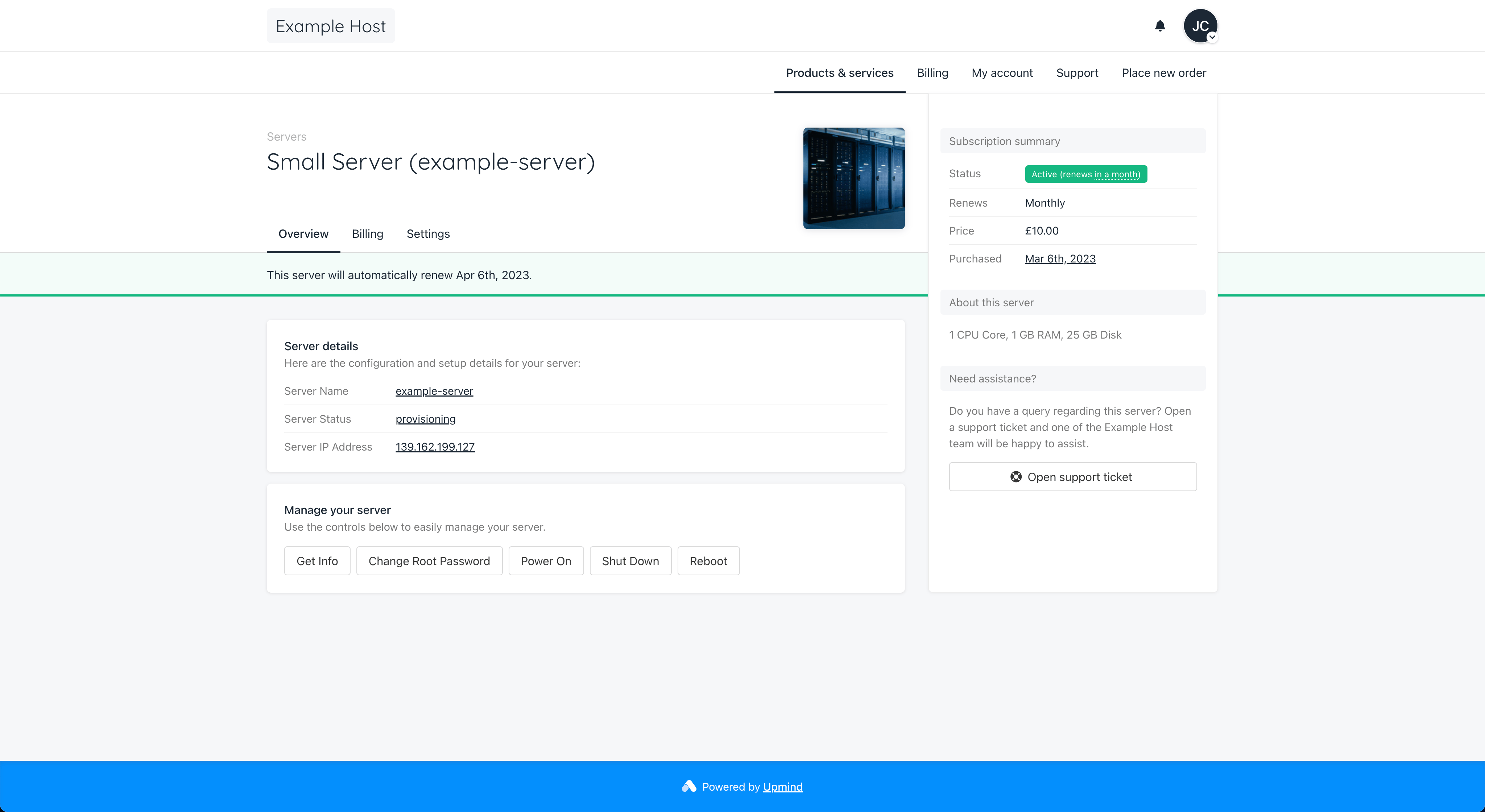 This guide explains how to configure VirtFusion server products on Upmind.
## Create a Provision Configuration
First, you should create a Provision Configuration in your Upmind settings. You will need to create an API/access token in your VirtFusion dashboard to do this.
### Create an API Token in VirtFusion
1. Log in to VirtFusion.
2. Navigate to **System → API**.
3. Click **Create Token**.
4. Fill in the **Name** and click **Create**.
This guide explains how to configure VirtFusion server products on Upmind.
## Create a Provision Configuration
First, you should create a Provision Configuration in your Upmind settings. You will need to create an API/access token in your VirtFusion dashboard to do this.
### Create an API Token in VirtFusion
1. Log in to VirtFusion.
2. Navigate to **System → API**.
3. Click **Create Token**.
4. Fill in the **Name** and click **Create**.
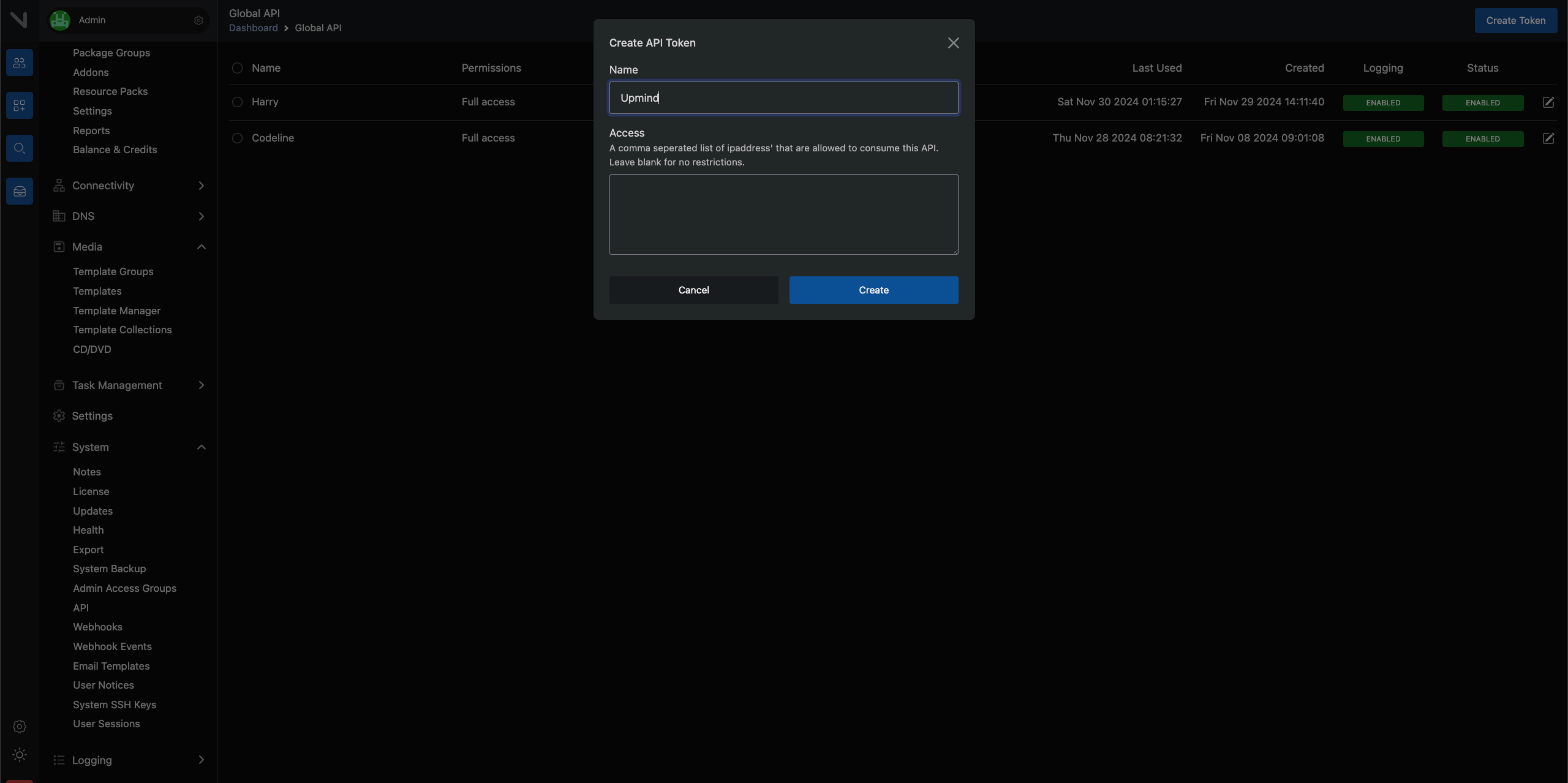 5. Return to the **API List** and make note of your `API Token`
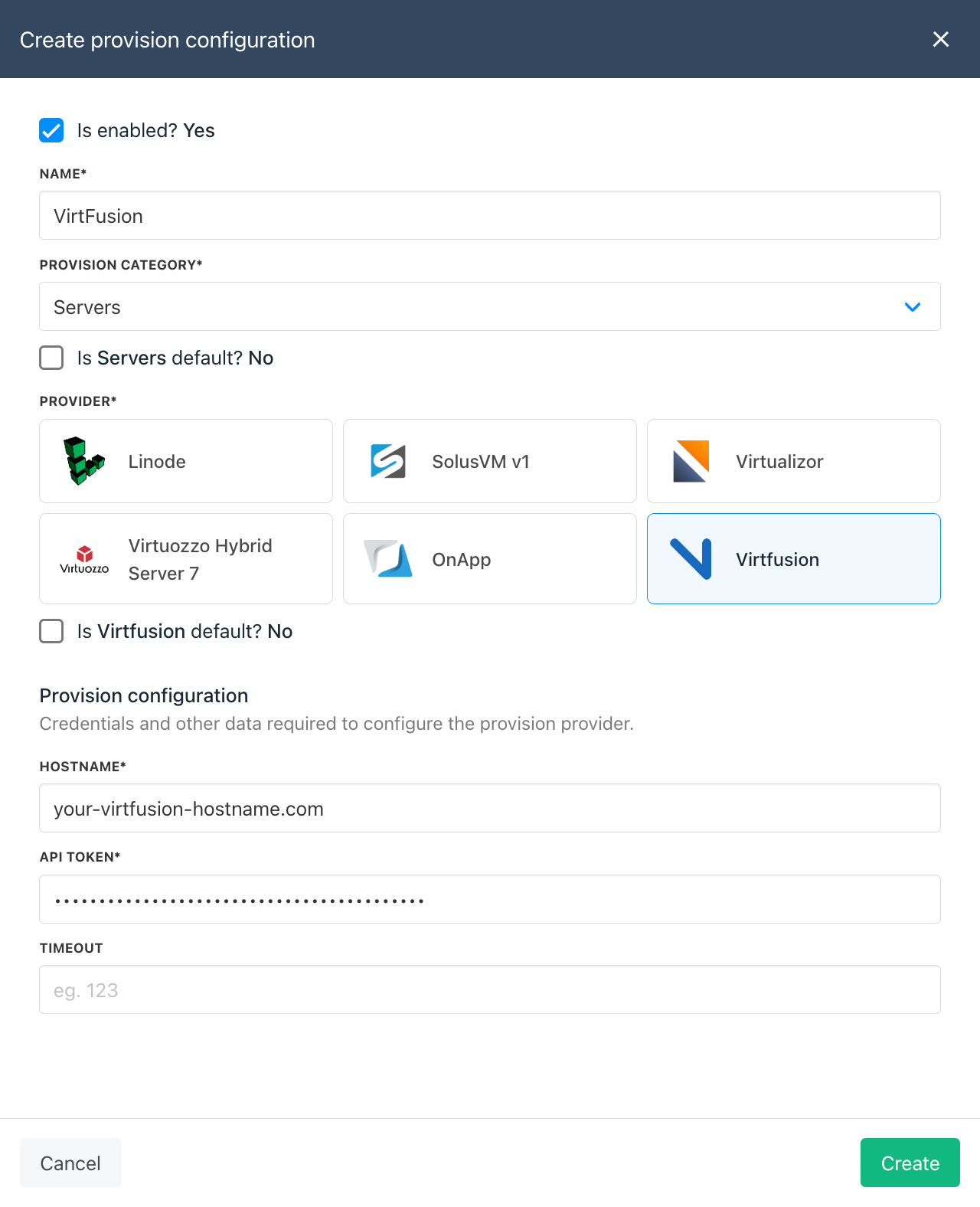
### Create a Provision Configuration in Upmind
1. Go to **Settings → Provision configurations**
2. Click to **Add new configuration** with the following options:
1. Name of your choice
2. Provision Category: **Servers**
3. Provider: **VirtFusion**
4. Hostname: **Your VirtFusion hostname**
5. API Token: **(Paste your API Token)**
3. Click **Create** and now you're ready to create VirtFusion products in Upmind
5. Return to the **API List** and make note of your `API Token`
### Create a Provision Configuration in Upmind
1. Go to **Settings → Provision configurations**
2. Click to **Add new configuration** with the following options:
1. Name of your choice
2. Provision Category: **Servers**
3. Provider: **VirtFusion**
4. Hostname: **Your VirtFusion hostname**
5. API Token: **(Paste your API Token)**
3. Click **Create** and now you're ready to create VirtFusion products in Upmind
 ## Create a Product
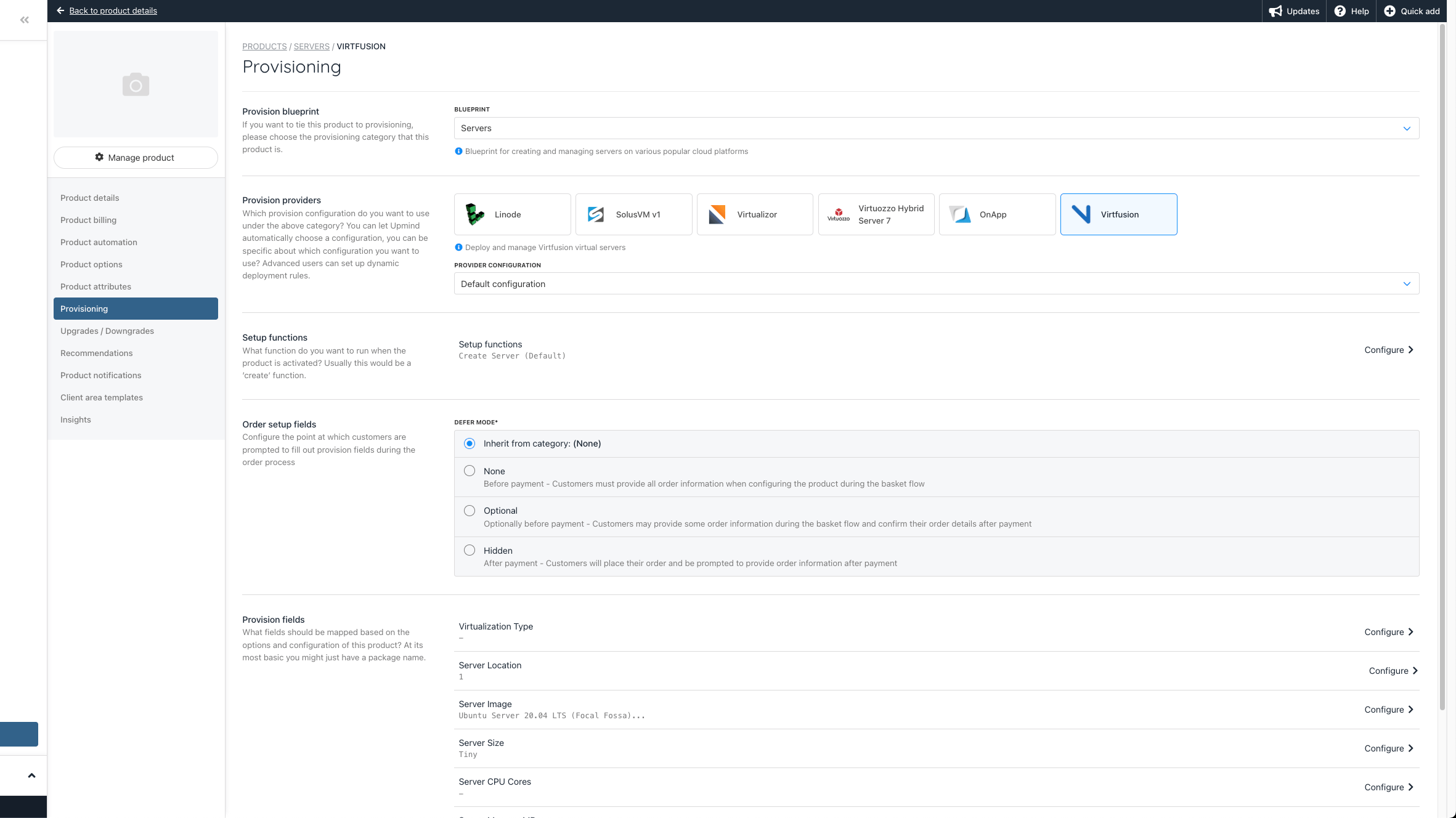
This guide will cover how to configure the Provisioning section on your Upmind Products to automate the provisioning of VirtFusion servers. For more information on configuring Products in general, please refer to [How to Create Products](/using-upmind/product-management/how-to-create-products).
1. Go to **Settings → Product catalogue**
2. **Add new or edit an existing Product**
3. Go to the Provisioning section and select the following options:
1. Provision Blueprint: **Servers**
2. Provision Provider:
1. Any Provider: No
2. Select **VirtFusion**
3. Provider Configuration: (Select the provision configuration you created earlier)
4. Click **Save**
5. Scroll down to **Provision fields and configure the Server Location, Server Image & Server Size** (explained below)
### Provision Fields
You may wish to create [Product Options](/using-upmind/product-management/how-to-add-product-options) or [Product Attributes](/using-upmind/product-management/how-to-add-product-attributes) to allow customers to select the Location and Image of their server so you only need one main product for each Size (VirtFusion type) you want to sell. Refer to the sections below for what to type for [Server Location](#server-location), [Server Image](#server-image) and [Server Size](#server-size).
## Create a Product
This guide will cover how to configure the Provisioning section on your Upmind Products to automate the provisioning of VirtFusion servers. For more information on configuring Products in general, please refer to [How to Create Products](/using-upmind/product-management/how-to-create-products).
1. Go to **Settings → Product catalogue**
2. **Add new or edit an existing Product**
3. Go to the Provisioning section and select the following options:
1. Provision Blueprint: **Servers**
2. Provision Provider:
1. Any Provider: No
2. Select **VirtFusion**
3. Provider Configuration: (Select the provision configuration you created earlier)
4. Click **Save**
5. Scroll down to **Provision fields and configure the Server Location, Server Image & Server Size** (explained below)
### Provision Fields
You may wish to create [Product Options](/using-upmind/product-management/how-to-add-product-options) or [Product Attributes](/using-upmind/product-management/how-to-add-product-attributes) to allow customers to select the Location and Image of their server so you only need one main product for each Size (VirtFusion type) you want to sell. Refer to the sections below for what to type for [Server Location](#server-location), [Server Image](#server-image) and [Server Size](#server-size).
 #### Server Location
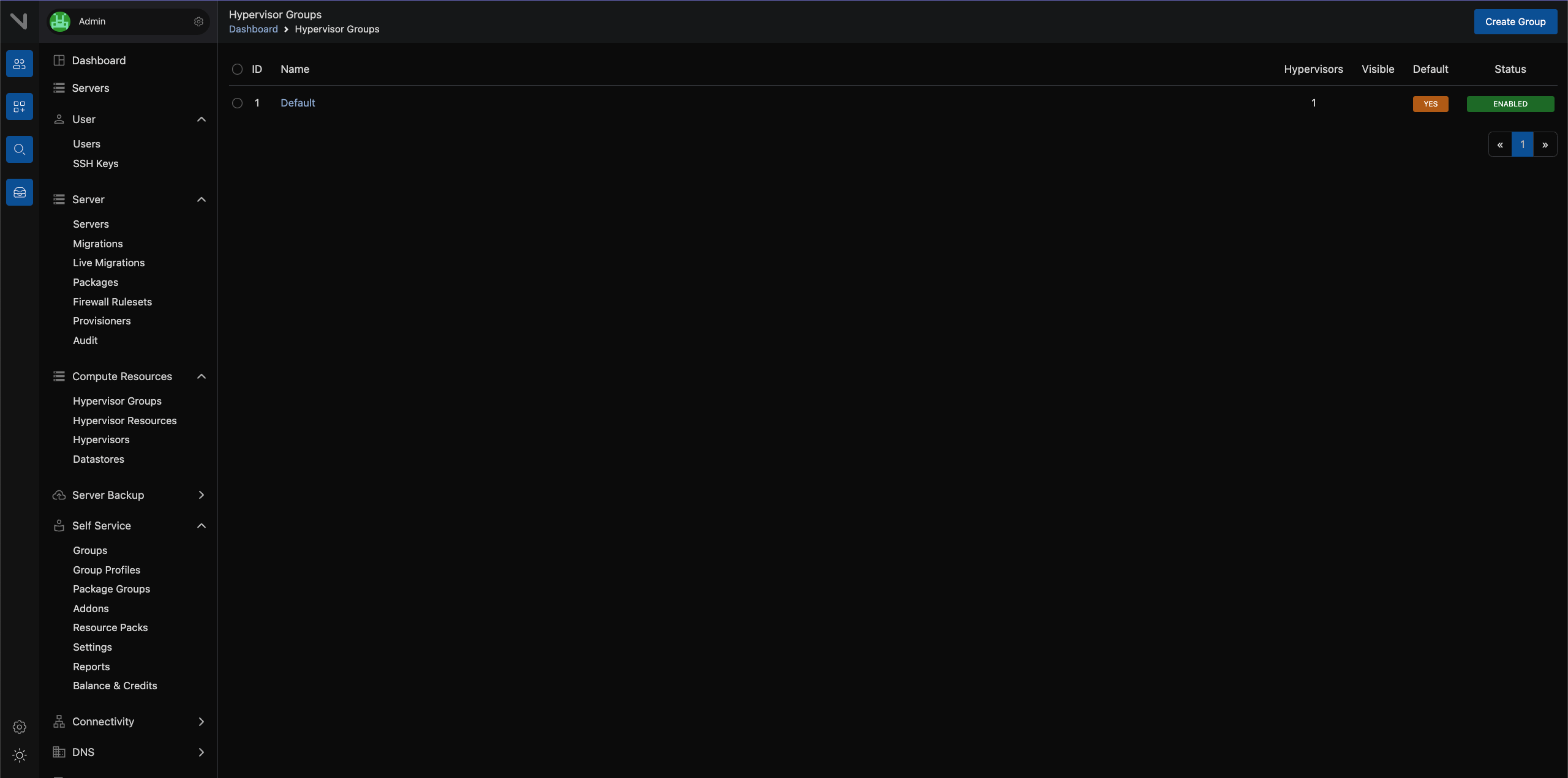
This is the ID of the desired hypervisor group for new servers to be allocated to in VirtFusion - go to **Compute Resources → Hypervisor Groups**.
#### Server Location
This is the ID of the desired hypervisor group for new servers to be allocated to in VirtFusion - go to **Compute Resources → Hypervisor Groups**.
 #### Server Image
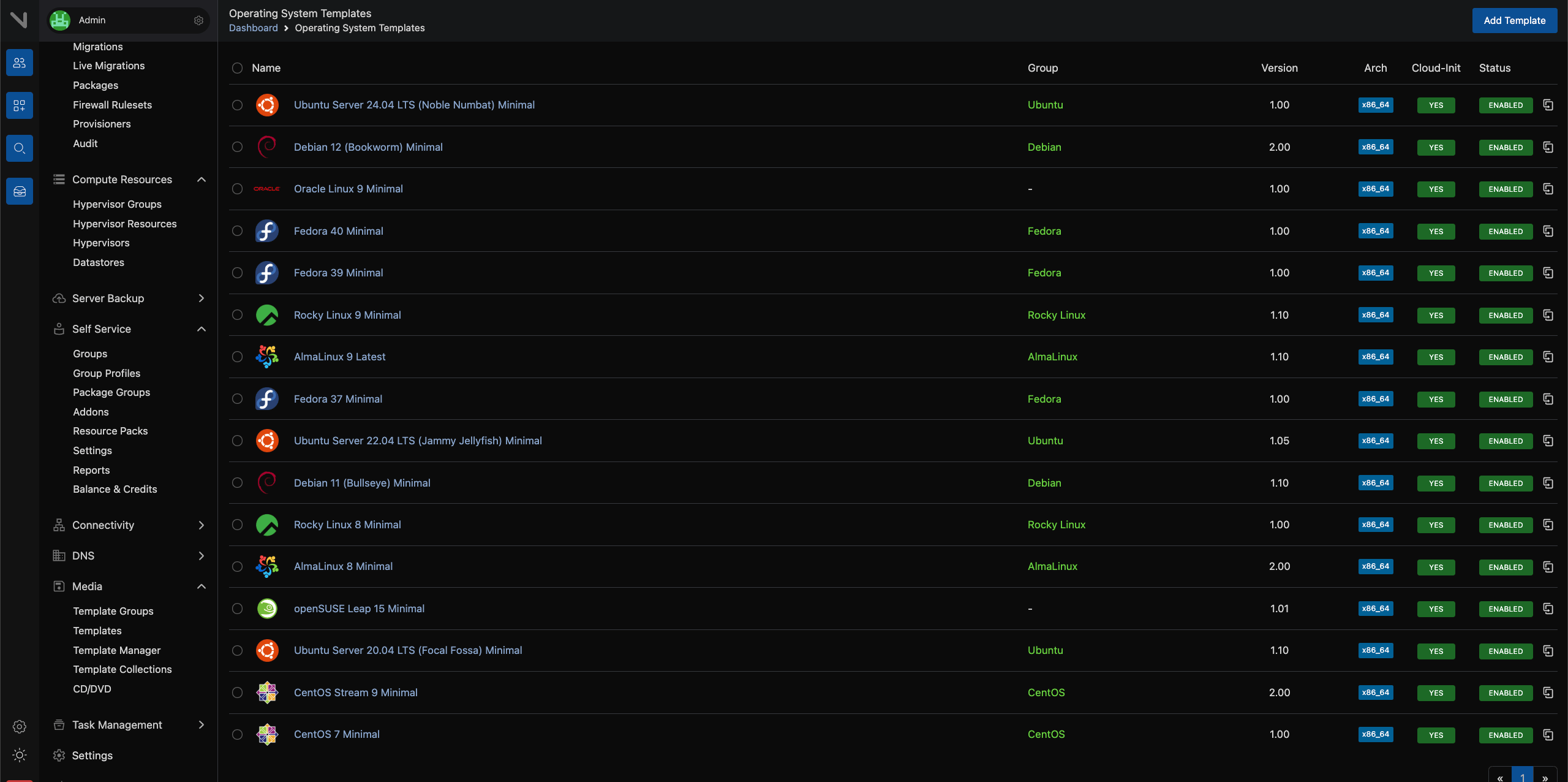
This can be the Name or ID of the OS image template from VirtFusion - go to **Media → Templates**.
#### Server Image
This can be the Name or ID of the OS image template from VirtFusion - go to **Media → Templates**.
 #### Server Size
This can be the Name or ID of a server package in VirtFusion - go to **Server → Packages**.
#### Server Size
This can be the Name or ID of a server package in VirtFusion - go to **Server → Packages**.